
Linux & Edge AI
AI Pyramid
ハードウェア制御
アプリケーションと工場出荷時の機能
LLM-8850 Card
LLM630 Compute Kit
Module LLM
CoreMP135
AI Pyramid - Frigate NVR
Frigate は、リアルタイム AI 物体検出技術を用いて構築されたオープンソースのネットワークビデオレコーダー(NVR)システムです。すべてのビデオ処理は自身のハードウェア上でローカルに実行され、カメラのビデオストリームがネットワーク外に出ることはないため、データのプライバシーとセキュリティが確保されます。
1. リソースファイルの取得
以下のいずれかの方法で Frigate のデプロイリソースを取得してください。
方法 1:手動ダウンロード
Frigate リソースリポジトリ にアクセスしてダウンロードし、AI Pyramid デバイスにアップロードします。
方法 2:コマンドラインによるクローン
git clone -b v0.17-ax650 https://huggingface.co/AXERA-TECH/frigate-resource1.1 リソースファイルの説明
クローン完了後のディレクトリ構造は以下の通りです。
root@m5stack-AI-Pyramid:~/rsp/frigate-resource# ls -lh
total 4.2G
-rw-rw-r-- 1 axera axera  736 Jan 28 14:27 docker-compose.yml
-rw-rw-r-- 1 axera axera 4.2G Jan 28 14:33 frigate-ax650-990aee8.tar
-rw-rw-r-- 1 axera axera 3.6K Jan 28 14:27 README.md2. Docker イメージのデプロイ
ステップ 1:イメージのインポート
docker load -i frigate-resource/frigate-ax650-990aee8.tarステップ 2:作業ディレクトリの準備
mkdir -p ~/frigate-runtime/{config,storage}
cp frigate-resource/docker-compose.yml ~/frigate-runtime/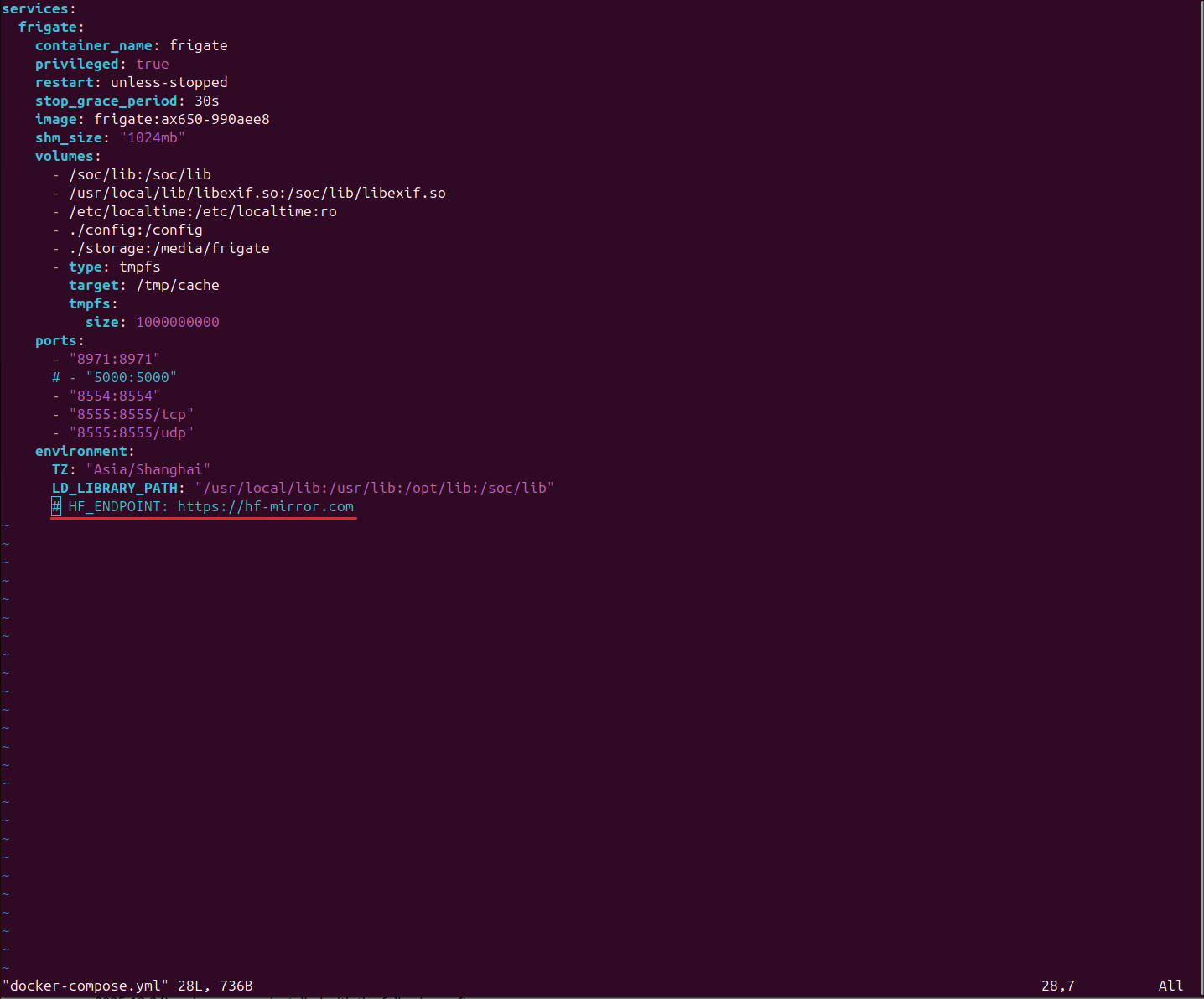
ステップ 3:コンテナの起動
cd ~/frigate-runtime/
docker compose up -dステップ 4:初期ログイン情報の取得
起動完了後、ログを確認して自動生成された初期ユーザー名とパスワードを取得します。
docker logs frigate出力例:
root@m5stack-AI-Pyramid:~/frigate-runtime# docker logs frigate
2026-01-28 14:55:53.546981309  [2026-01-28 14:55:53] frigate.app                    INFO    : ********************************************************
2026-01-28 14:55:53.548374976  [2026-01-28 14:55:53] frigate.app                    INFO    : ********************************************************
2026-01-28 14:55:53.549670976  [2026-01-28 14:55:53] frigate.app                    INFO    : ***    Auth is enabled, but no users exist.          ***
2026-01-28 14:55:53.550969226  [2026-01-28 14:55:53] frigate.app                    INFO    : ***    Created a default user:                       ***
2026-01-28 14:55:53.574785726  [2026-01-28 14:55:53] frigate.app                    INFO    : ***    User: admin                                   ***
2026-01-28 14:55:53.664755976  [2026-01-28 14:55:53] frigate.app                    INFO    : ***    Password: 3a846bd9fd871ace399e32d7126ad5eb   ***
2026-01-28 14:55:53.734733393  [2026-01-28 14:55:53] frigate.app                    INFO    : ********************************************************
2026-01-28 14:55:53.814732809  [2026-01-28 14:55:53] frigate.app                    INFO    : ********************************************************
2026-01-28 14:55:53.904771809 [2026-01-28 14:55:53] frigate.app INFO : Starting FastAPI app3. 初期設定
3. 初期設定
3.1 Web 管理画面へのアクセス
ブラウザを使用して Frigate 管理画面にアクセスします。
https://server_ip:8971admin ユーザー名とランダムに生成されたパスワードを使用してログインしてください。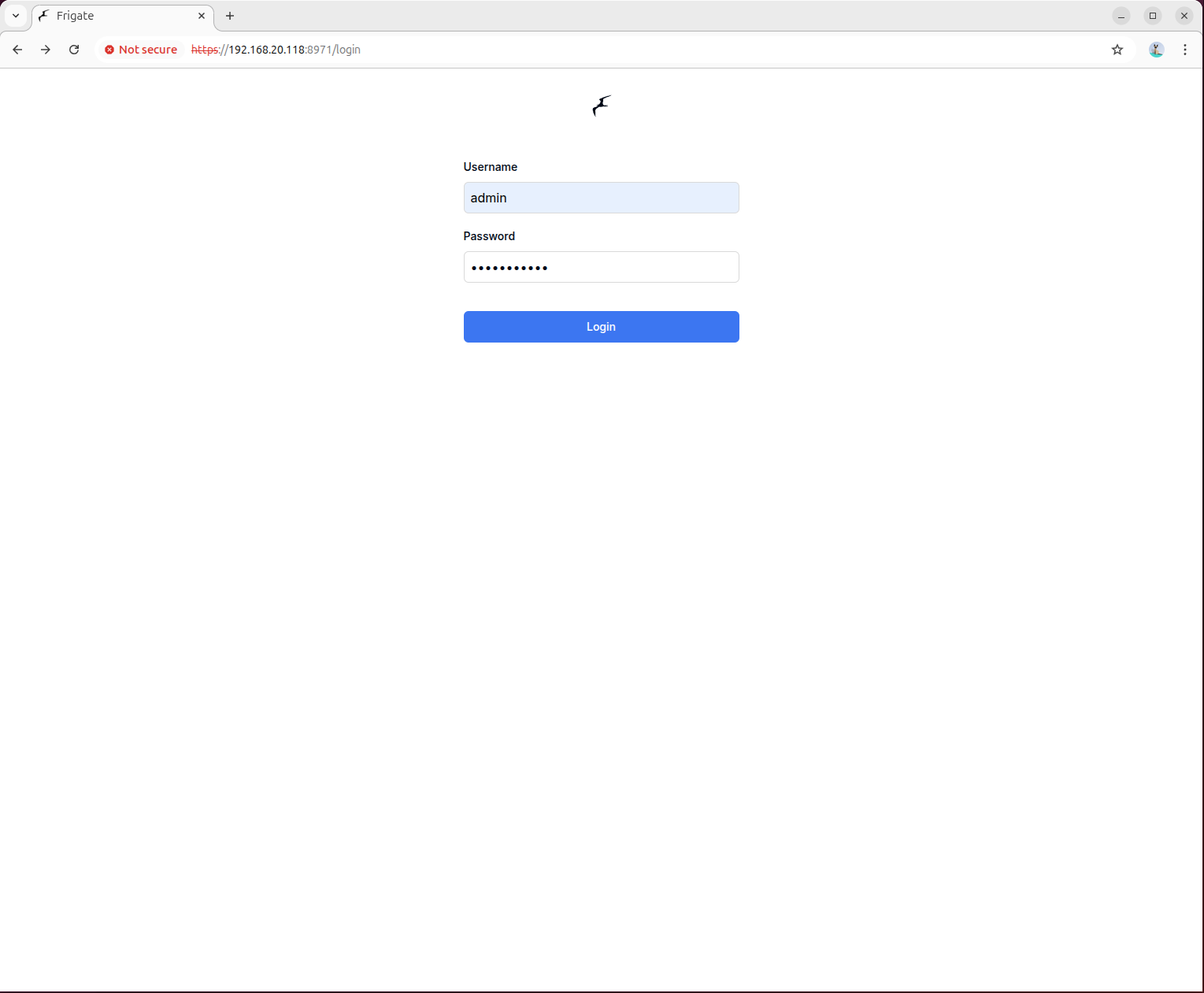
3.2 カメラパラメータの設定
画面左側の「設定」をクリックして設定画面に入り、設定ファイルを編集します。go2rtc セクションを変更し、ご自身の IP カメラのアドレスに置き換えて、以下の設定例を入力して保存してください。
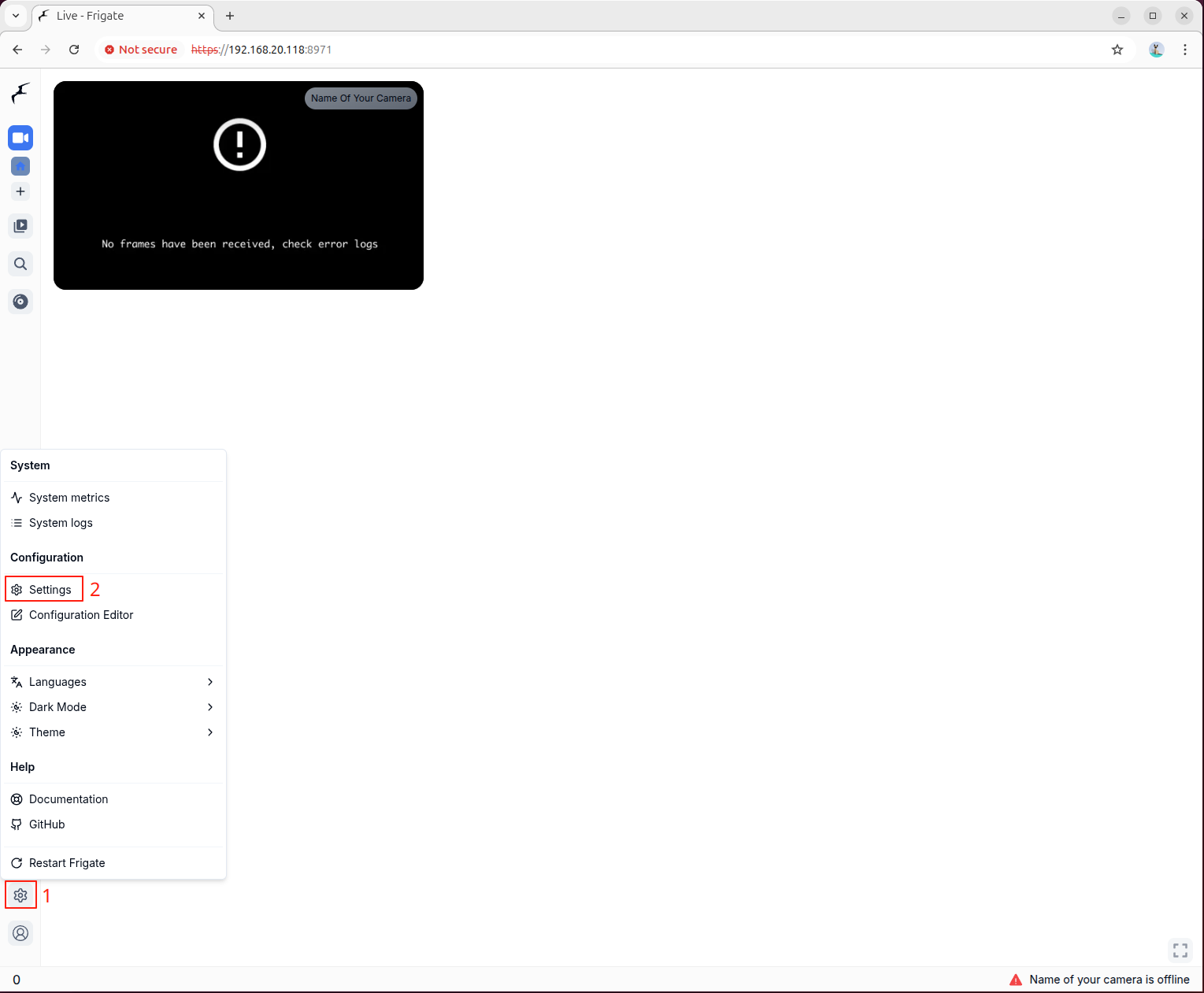
設定例
mqtt:
  enabled: false
go2rtc:
  streams:
    # Main stream
    road1:
      - rtsp://192.168.20.57:8554/road1.264
    # Sub stream
    road1_sub:
      - rtsp://192.168.20.57:8554/road1_sub.264
cameras:
  road1:
    enabled: true
    ffmpeg:
      inputs:
        # Path of the recording stream, using the main stream configured in go2rtc
        # During debugging, a local media file can be used here
        - path: rtsp://127.0.0.1:8554/road1
          roles:
            - record
        # Path of the detection stream, using the sub stream configured in go2rtc
        # During debugging, a local media file can be used here
        - path: rtsp://127.0.0.1:8554/road1_sub
          roles:
            - detect
      # preset-axera-h264 is used to decode H.264 streams
      # preset-axera-h265 is used to decode H.265 streams
      # These two decoder presets are preferred
      hwaccel_args: preset-axera-h264
      # If the resolution of the detection sub stream is lower than the detection resolution,
      # you can reduce the detection resolution to match the stream
      # or use preset-axera-h264-compat / preset-axera-h265-compat as decoder presets

record:
  enabled: true

# Enable detection
# If detection width and height are not set, the native resolution of the detection stream is used
detect:
  enabled: true
  width: 576
  height: 320
  fps: 5

# Configure the detection engine to use axengine
detectors:
  axengine:
    type: axengine

# Configure the object detection model for axengine
model:
  path: frigate-yolov9-tiny
  model_type: yolo-generic
  width: 320
  height: 320
  input_pixel_format: bgr
  labelmap_path: /labelmap/coco-80.txt

# Object types to track
objects:
  track:
    - person
    - car
    - bicycle
    - motorcycle

# Semantic search configuration
# When used for the first time, the model needs to be downloaded online, please be patient
semantic_search:
  enabled: true
  model: ax_jinav2
  model_size: large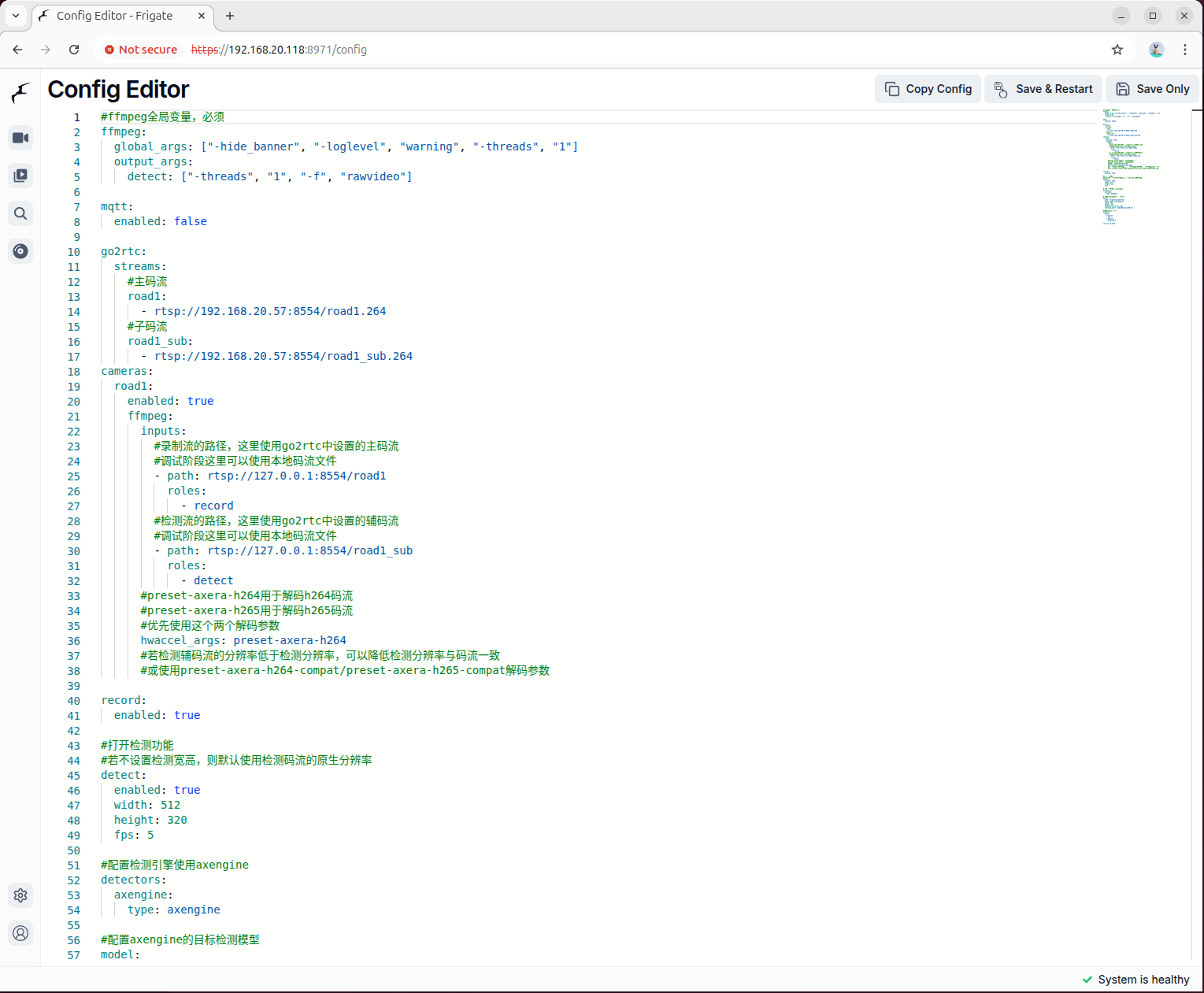
3.3 サービスの再起動と確認
設定を保存した後、Frigate コンテナを再起動して新しい設定を適用します。
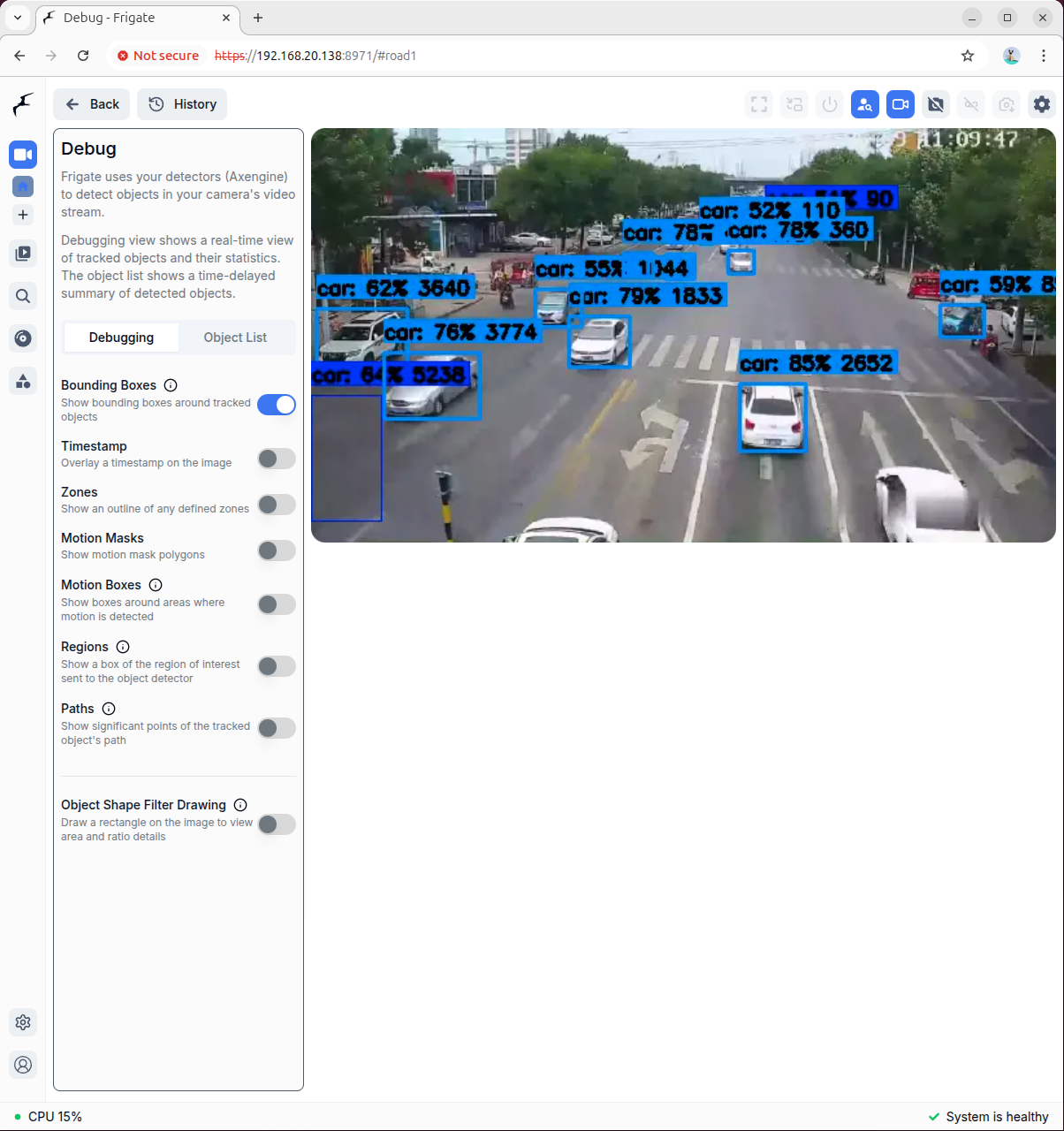
docker restart frigateデバッグプレビュー画面に入り、ビデオストリームを右クリックしてコンテキストメニューからデバッグプレビューモードを選択します。
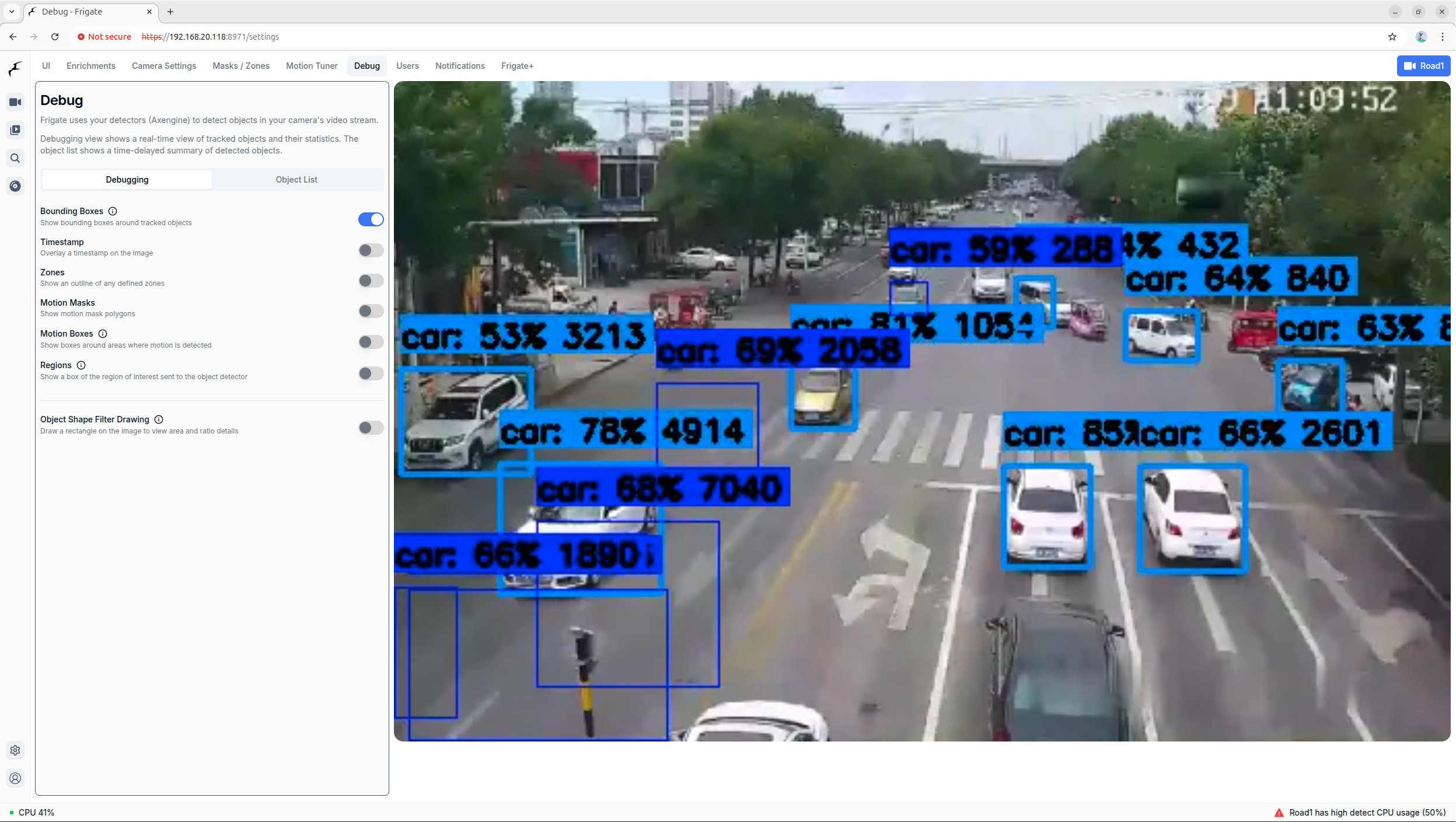
設定画面で検出枠やその他の情報をプレビューできます。
4. セマンティック検索とブラウジング
「ブラウズ」ボタンをクリックしてメディアブラウズ画面に入ります。初回アクセス時はセマンティック検索モデルのダウンロードが必要であり、ファイルサイズが大きいため、しばらくお待ちください。
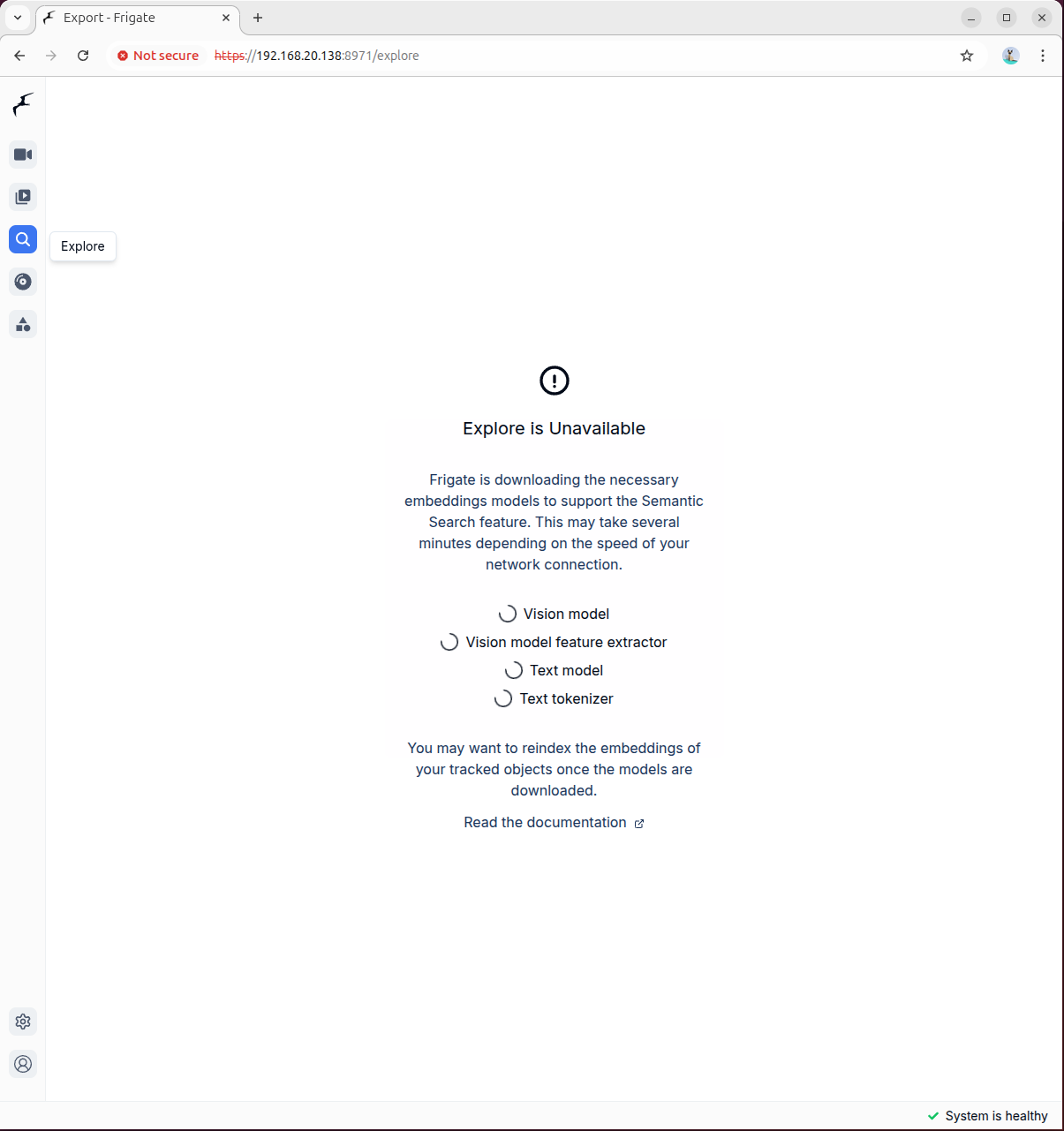
モデルの読み込みが完了した後、検索ボックスに検索したいキーワードを入力すると、システムが自動的に検索し、関連するビデオのスクリーンショットを返します。
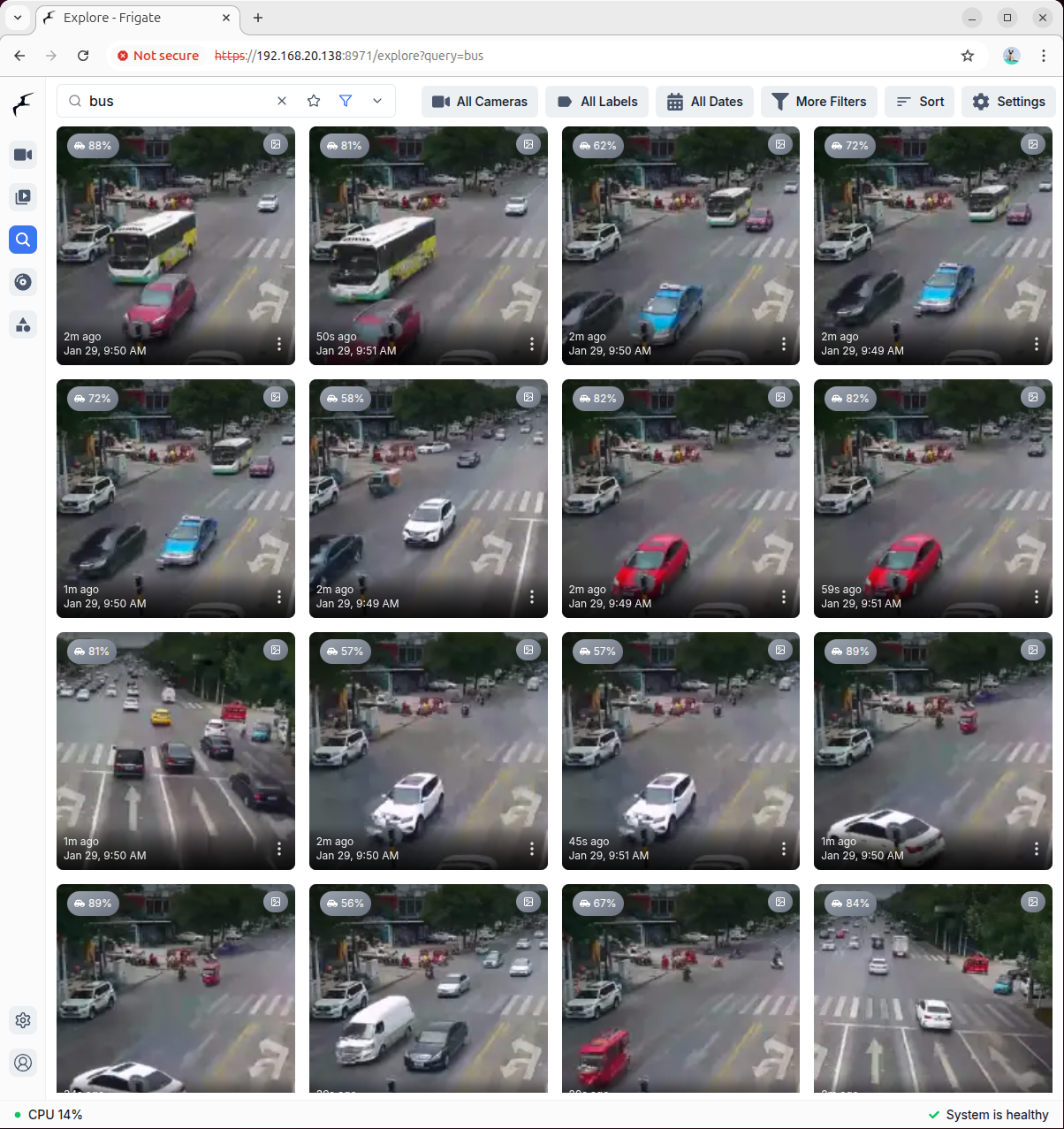
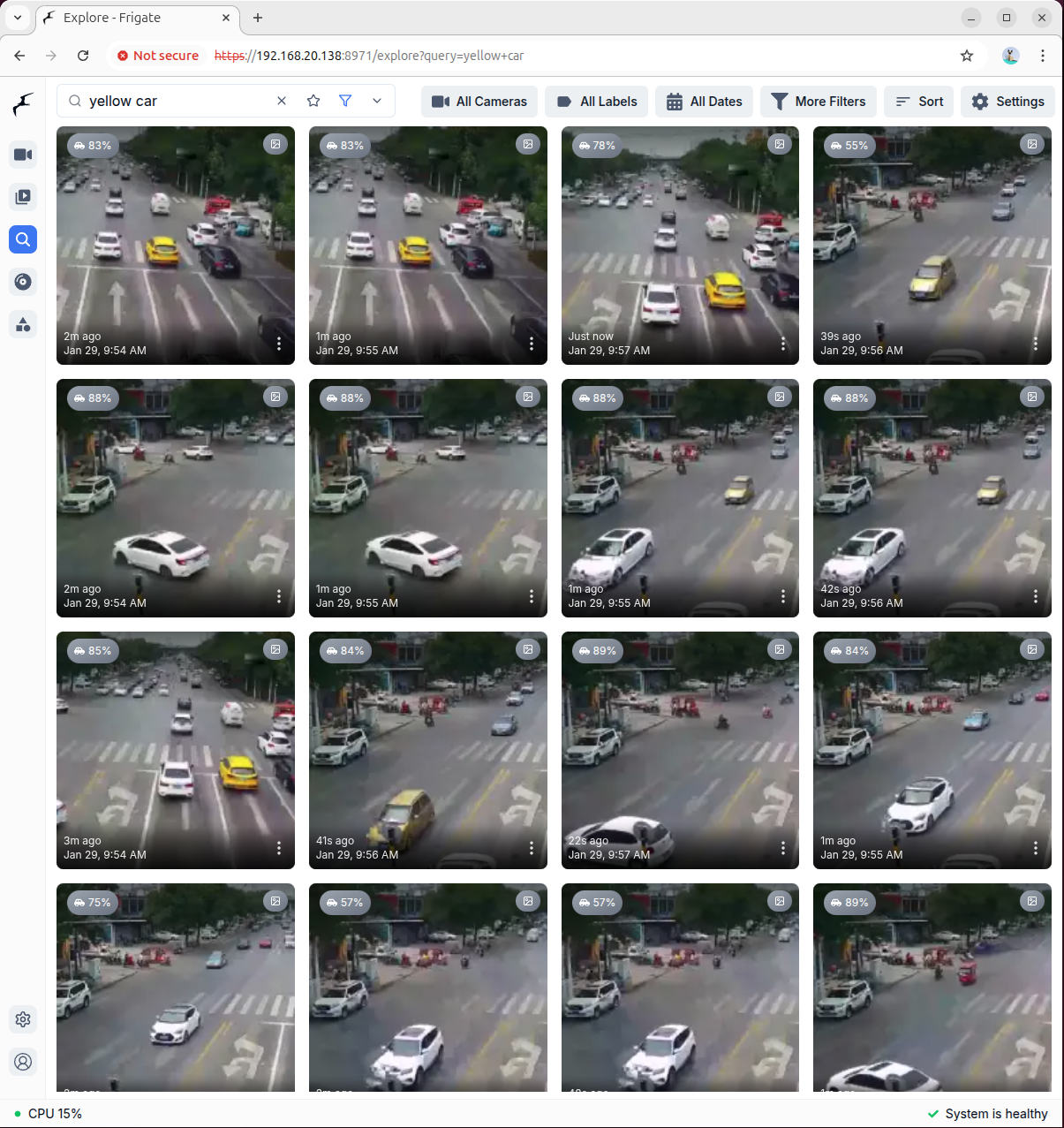
詳細情報
より詳細な高度な設定オプションや機能の説明については、Frigate 公式ドキュメント を参照してください。