
AIFlow User Guide
AiFlow User Guide
AiFlow is a Vibe Coding tool designed specifically for M5Stack hardware and software. Without complex environment configuration, you can use natural language to quickly generate MicroPython code for M5Stack devices, deploy programs, and complete debugging.
AiFlow provides two usage options: the AiFlow Web browser version and the desktop client (including the mobile app). You can choose the platform that best fits your use case and skill level.
Platform Comparison
| Comparison Item | AiFlow Web | AiFlow Desktop & APP |
|---|---|---|
| Usage | Browser-based online use, no installation required | Download and install the PC client or mobile app |
| Cost | Includes a limited free trial quota | Free download; requires configuring your own model API |
| Learning Curve | Beginner-friendly, ready to use out of the box | For advanced users, with richer features |
| Device Support | Supports all M5Stack devices compatible with the UiFlow2 platform | Supports all M5Stack devices compatible with the UiFlow2 platform |
| Model Configuration | No configuration required | Supports custom configuration of model APIs such as Anthropic Claude, DeepSeek, Zhipu GLM, and Alibaba Qwen |
| Extensibility | Basic online programming | Supports advanced features such as Skills & MCP, file management, remote terminal, and Token usage statistics |
AiFlow Web
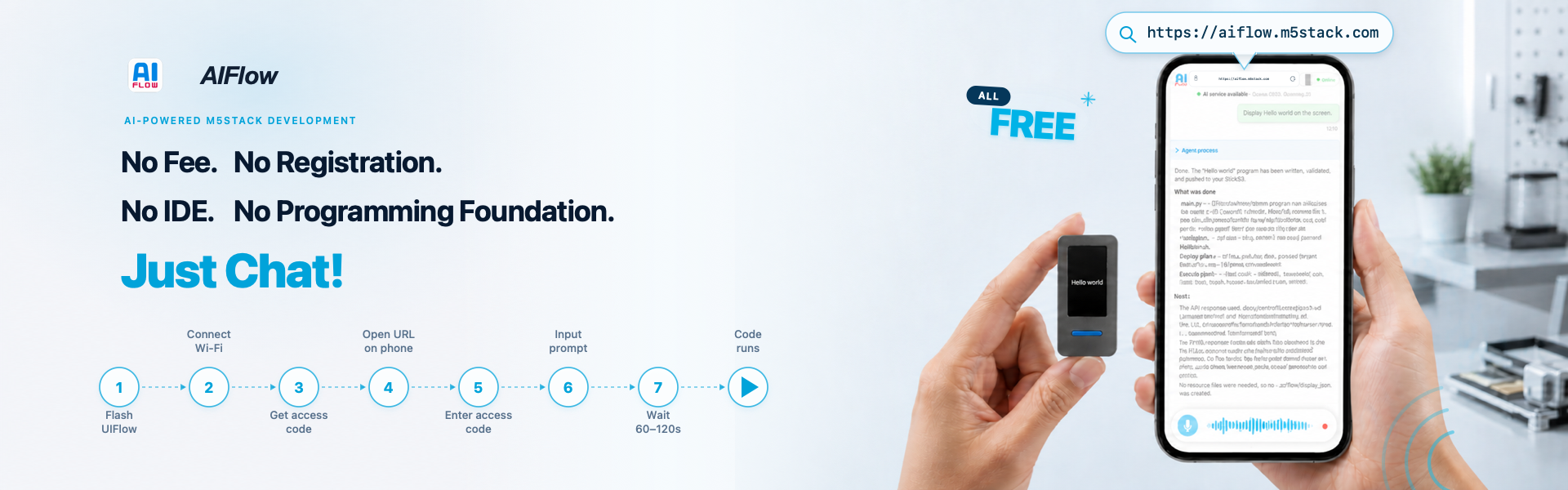
AiFlow Web is an online Vibe Coding tool. No software installation is required; just open your browser and start using it.
Target Users
- First-time users who are new to AiFlow
- Users who want a zero-installation way to experience online programming
- Users who need to quickly generate and deploy programs for M5Stack devices using natural language
Features
- No installation or configuration required; open AIFlow Web and start using it
- Supports all M5Stack devices compatible with the UiFlow2 platform
- Built-in complete workflow including firmware flashing, device pairing, chat-based code generation, and code preview
AiFlow Desktop & APP
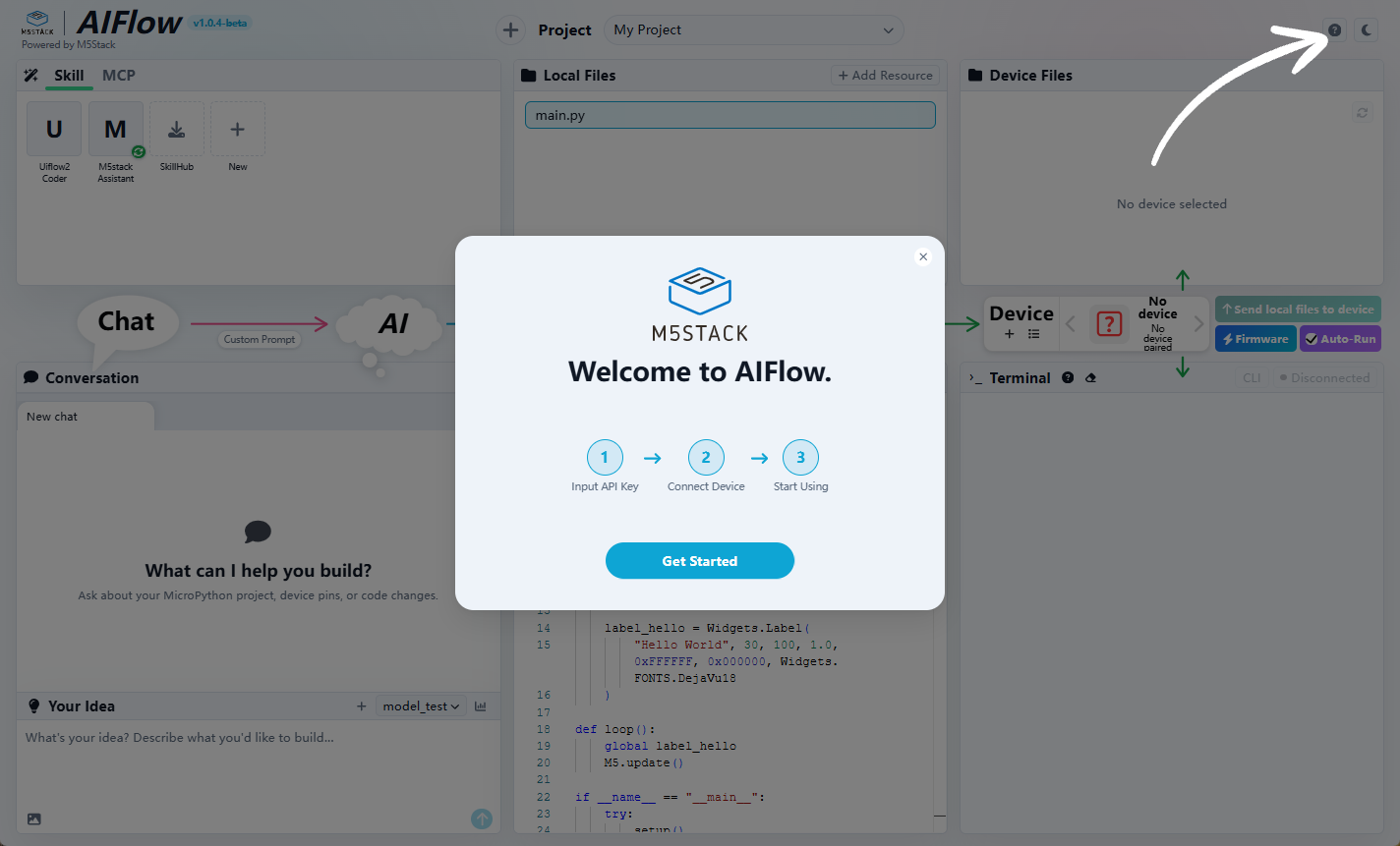
The AiFlow desktop client and mobile app are designed for advanced users, providing richer features and more flexible customization.
Target Users
- Users who need to customize model API configuration (Anthropic Claude, DeepSeek, Zhipu GLM, Alibaba Qwen, etc.)
- Developers who need advanced extension capabilities such as Skills & MCP, file management, and remote terminal
- Users who want to develop and debug projects using the PC client or mobile app
Features
- Supports both the PC client and mobile app for cross-platform use
- Custom model API configuration to freely choose your model provider
- Supports advanced features such as Skills & MCP extensions, project file management, device remote terminal, and Token usage statistics
- Supports all M5Stack devices compatible with the UiFlow2 platform