

Linux & Edge AI
AI Pyramid
Hardware Control
Applications & Factory Features
LLM-8850 Card
Large Language Models
LLM630 Compute Kit
Module LLM
CoreMP135
AI Pyramid Quick Start
1. Power On / Off
- The device will automatically power on after being connected to a power supply.
- The device can be shut down via software commands. After shutdown, it can be powered on again using the top button.
- Press and hold the top button for 15 seconds to force shutdown.
After connecting the device to Ethernet and powering it on, the current IP address will be displayed on the OLED screen.
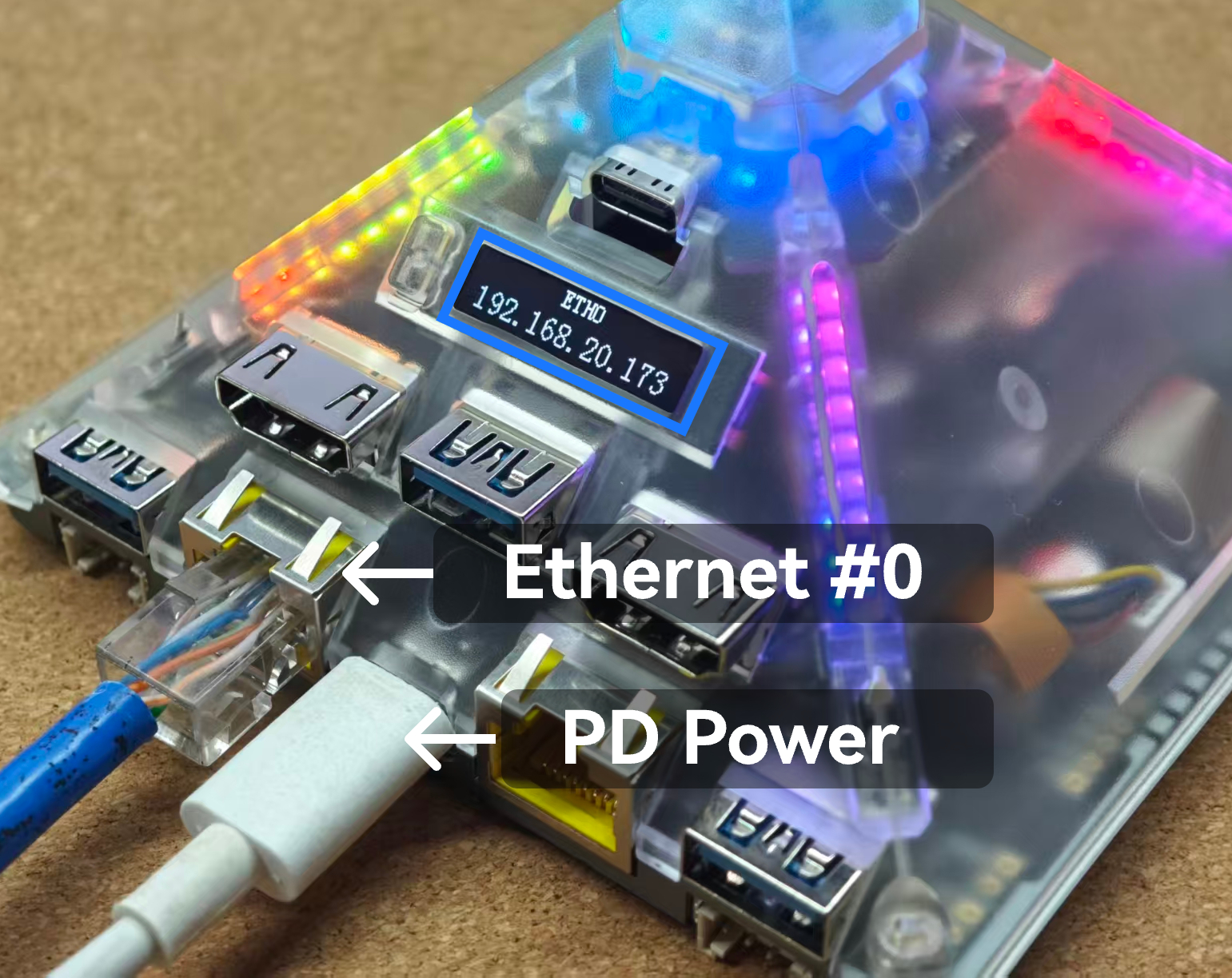
2. SSH
The default login user is root and the password is 123456. Within the same local network, you can access the device using the following SSH command (replace the IP address with the actual device IP):
ssh root@192.168.20.1733. Desktop GUI
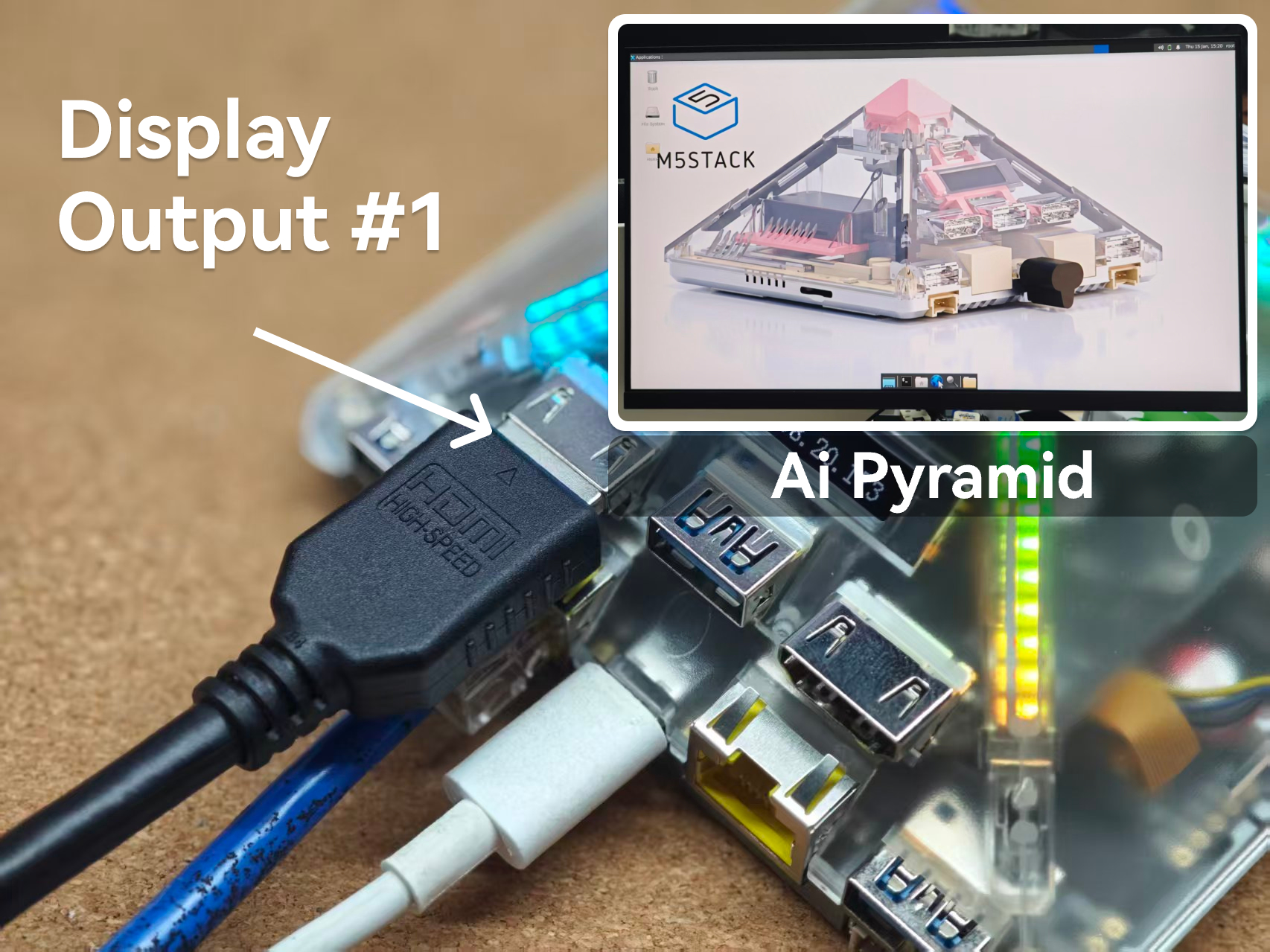
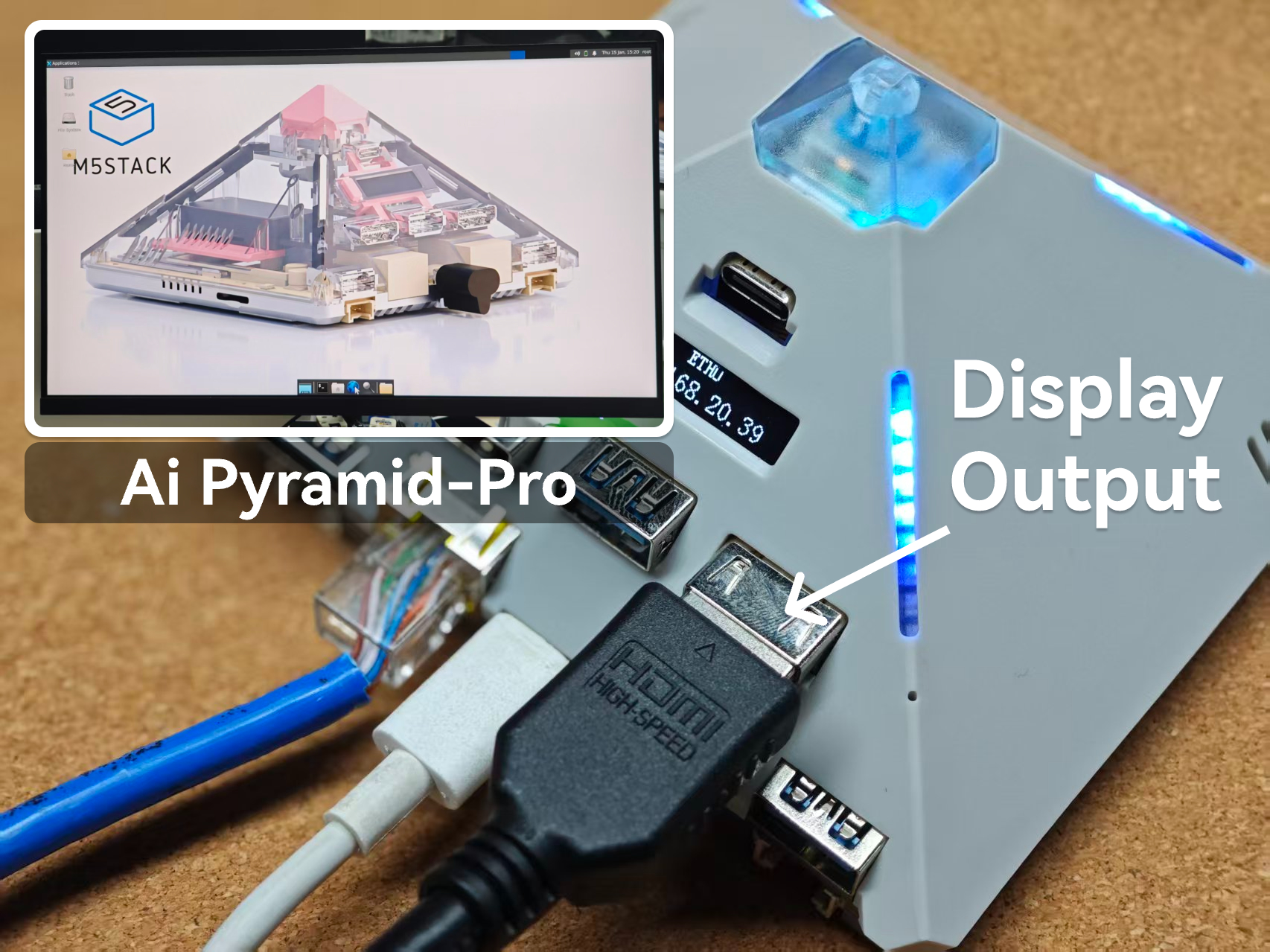
The preinstalled Ubuntu image includes a desktop GUI. You can connect a monitor via the Display Output to use the graphical interface.
- AI Pyramid uses the left-side Display Output #1 to connect to a monitor.
- AI Pyramid-Pro uses the right-side Display Output to connect to a monitor.
4. OLED Display
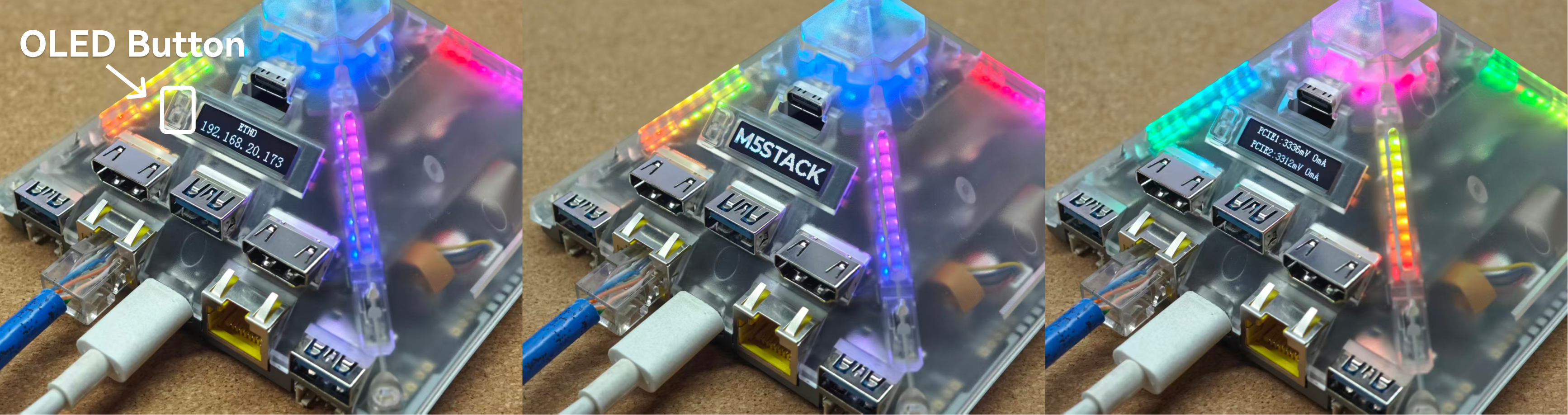
The OLED screen on the device is used for displaying the Ethernet IP address, custom text output, and interface power status monitoring. Press and hold the button on the left side of the OLED screen to switch between display pages.
5. Voice Assistant
After the device starts up, the built-in voice assistant is enabled by default. You can wake it up by single-clicking the top button or using the wake word “Hi M Five” to start a conversation. In the current version, only single-turn conversations are supported after wake-up, and continuous dialogue is not yet available. The fixed language is English.
- Conversation Demo