

Product Guides
AI & Voice
AI Voice Assistants
Volcengine
Offline Speech Recognition
Unit ASR
Module ASR
Audio & Voice Input
Voice Pyramid
Cameras & Vision
Camera Features
M5Camera
PoECAM
Unit CamS3 / CamS3-5MP
Connectivity & IoT
Industrial Control & Measurement
Air Quality
PowerHub
StamPLC
VAMeter
T-Lite
Module13.2 PPS
Unit RollerCAN
Display & Interaction
Paper
PaperColor
StopWatch
Tab5 Keyboard
Chain DualKey
Robotics & Maker Projects
Atom Printer
Bala
Bala2
BalaC Plus
Faces Kit Gameboy
RoverC & JoyC
StampFly & Atom Joystick
Firmware & Device Maintenance
Firmware Upgrade
Hardware Configuration
Design & Selection References
StopWatch Factory Firmware Tutorial
Introduction
StopWatch is an AMOLED round touch development board designed for portable and interactive scenarios. The factory firmware integrates features such as a digital badge, stopwatch, and alarm clock, making it suitable for portable smart control, wearable HMI interaction, lightweight IoT terminals, and other development applications. This tutorial introduces how to use the factory firmware on the StopWatch device.
Button Operations
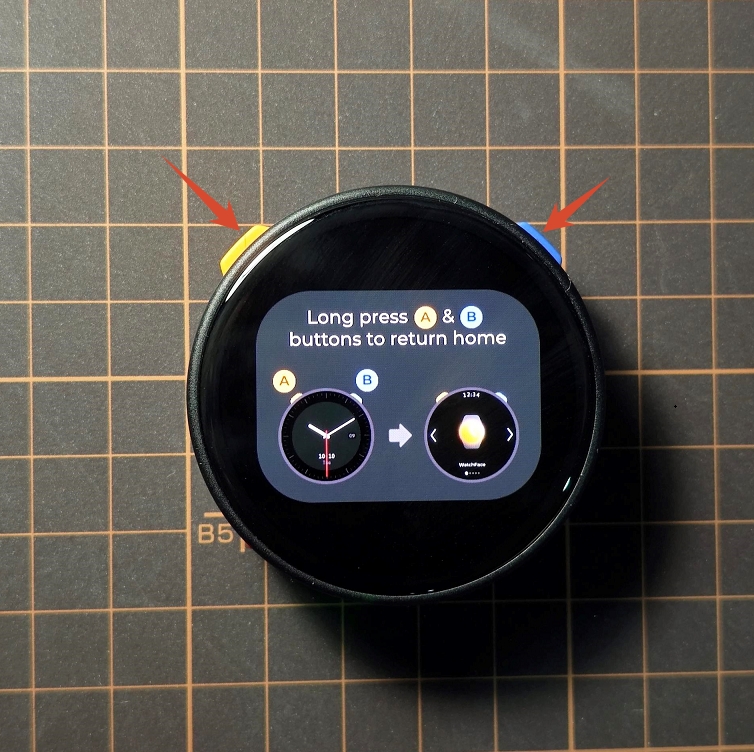
- After powering on, press and hold Button A and Button B at the same time to enter the main menu.
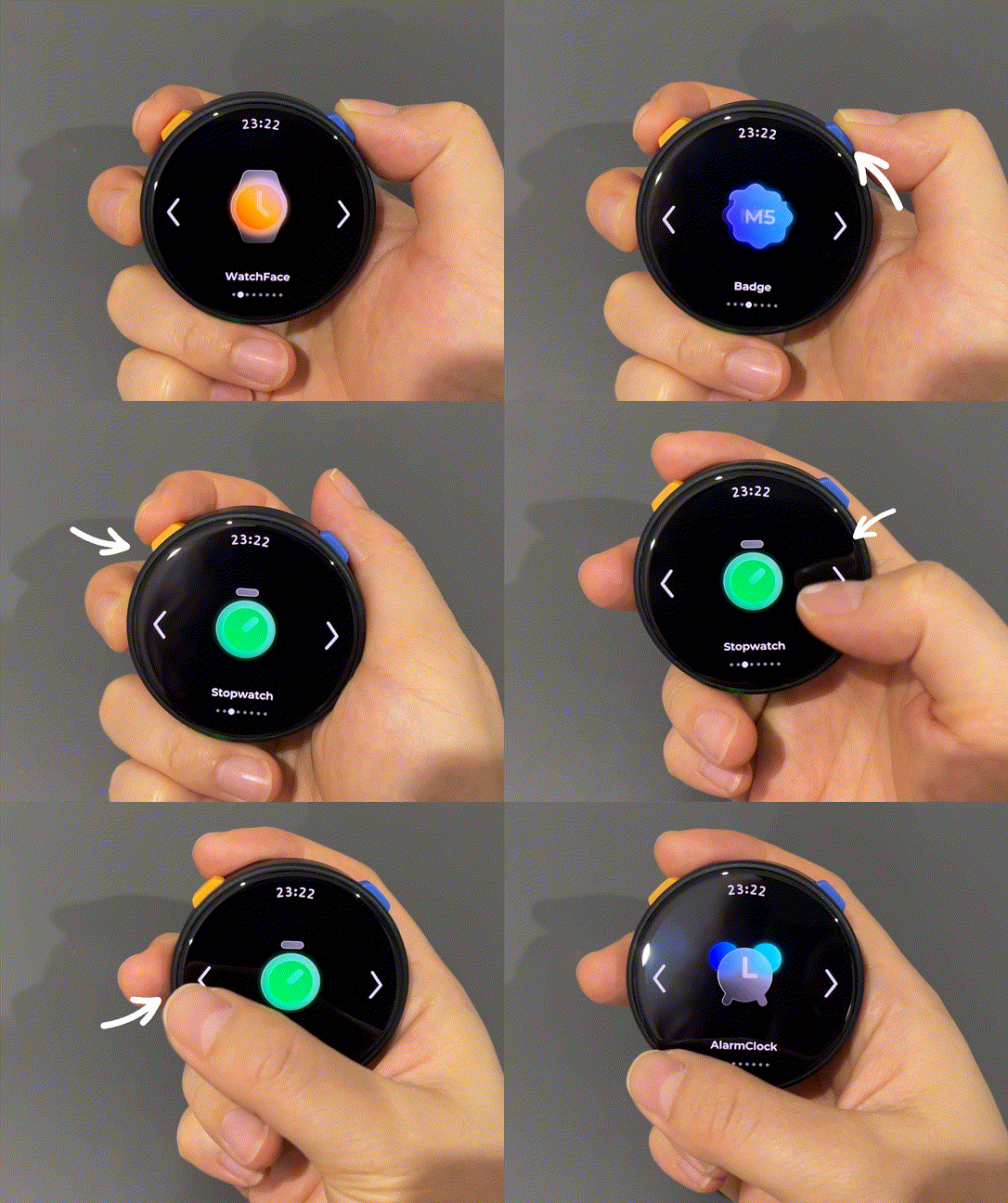
- Press Button A / Button B, or tap the left and right on-screen buttons, to switch between function menus by sliding left or right.
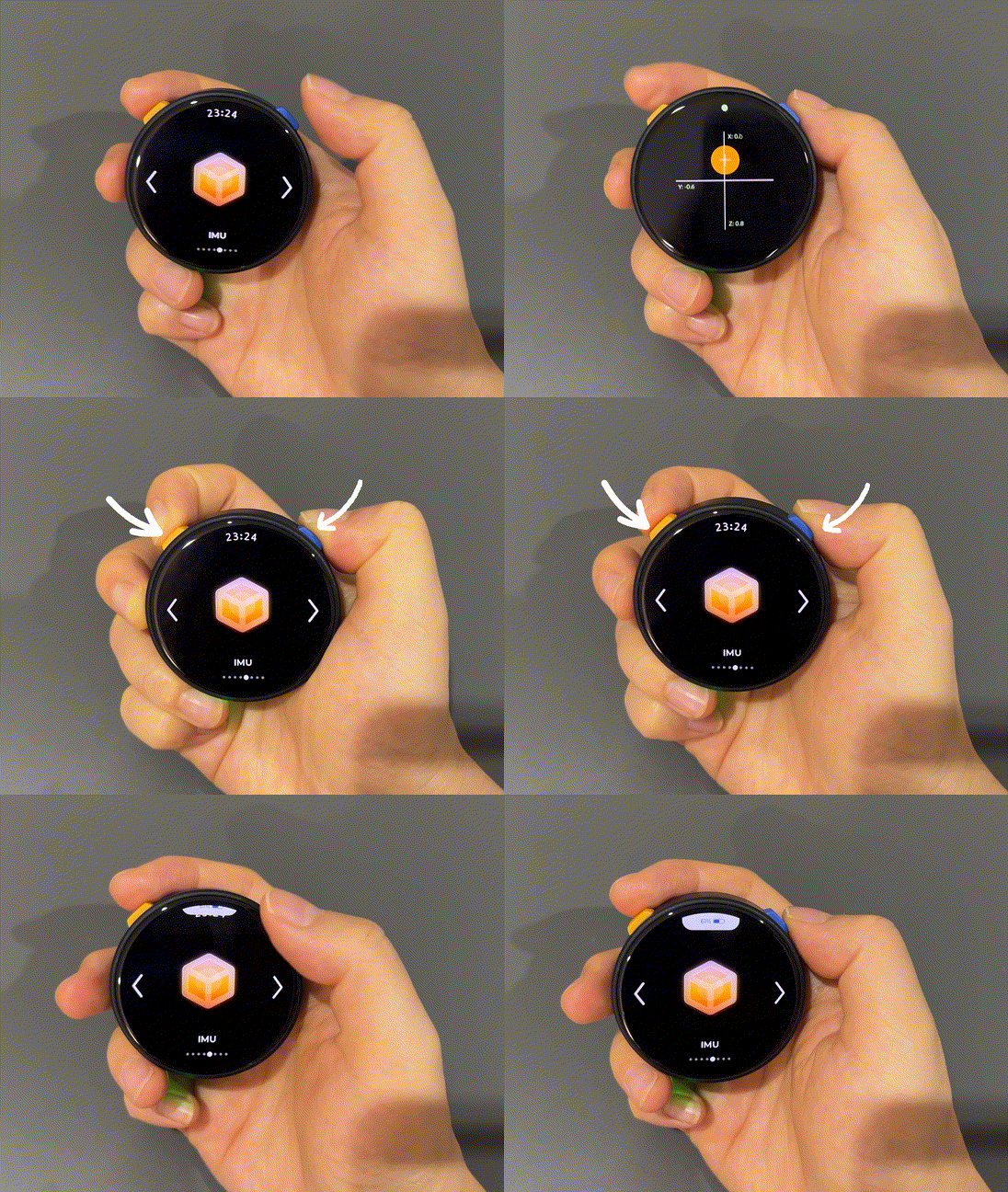
- Tap a function icon on the screen to enter the function detail page. Press and hold Button A and Button B at the same time to return to the main menu. Swipe from the top edge of the device toward the center to display the battery level.
Using the Badge Function
The StopWatch badge function allows you to connect to the device AP, upload local images, and display them.
- Tap the
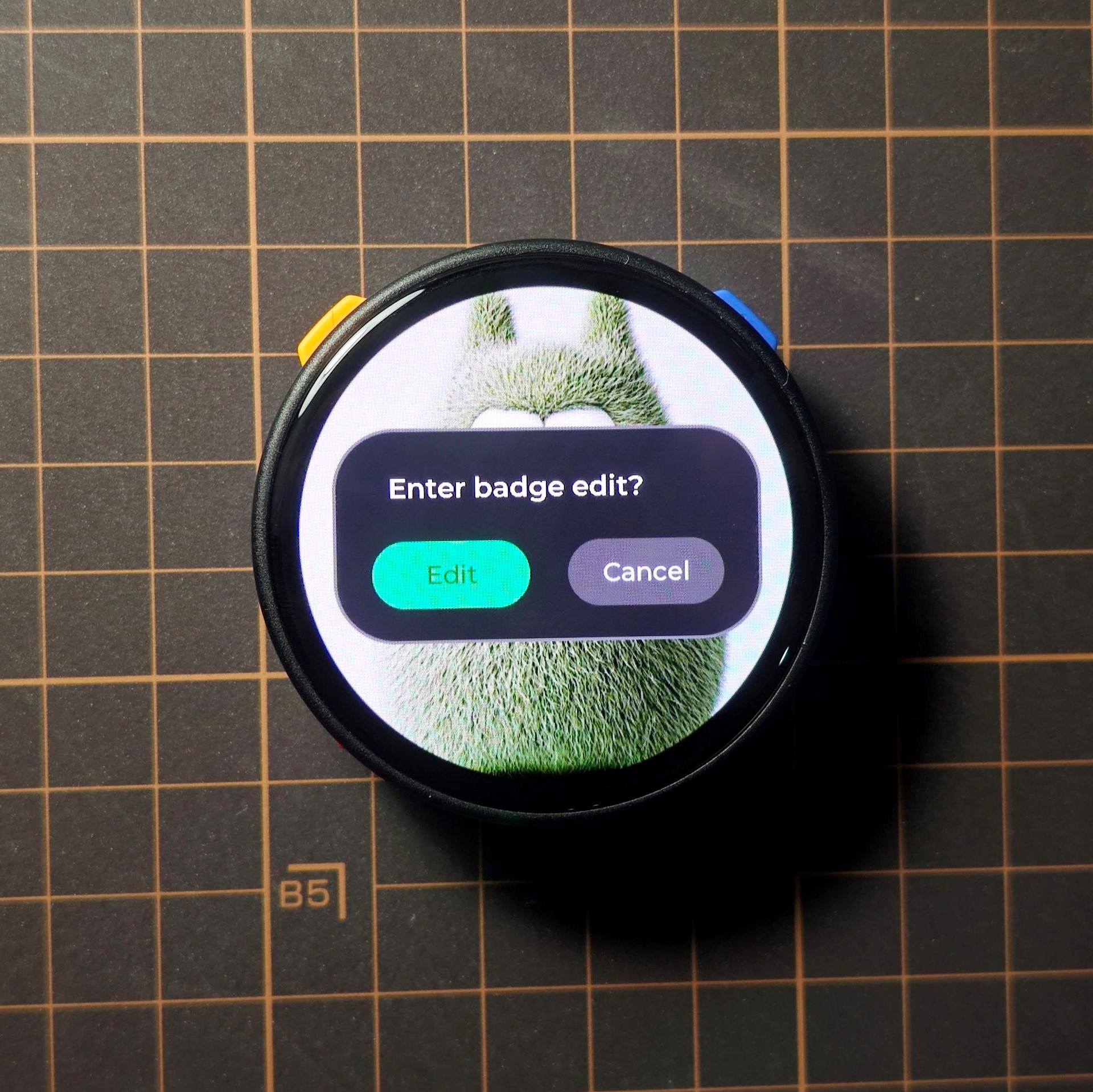
Badgemenu to enter the badge function. - Press and hold the screen. A dialog will appear asking whether to enter the badge editing interface. Tap
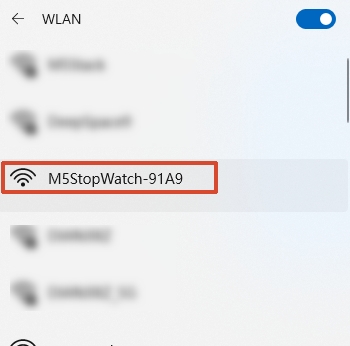
Edit. The device will automatically start the AP hotspotM5StopWatch-xxxx. Connect to the hotspot with a phone or computer, then visit192.168.4.1in a browser to open the badge management interface.
- Click the
Slotwhere you want to upload an image, then clickChoose Fileand select the image to upload. Use theZoomfunction to adjust the displayed image size, and use theBackgroundfunction to adjust the image background color. - After configuration is complete, click
Upload To Selected Slotto upload the image. Repeat the steps above to upload images to multiple slots. - After the image upload is complete, click
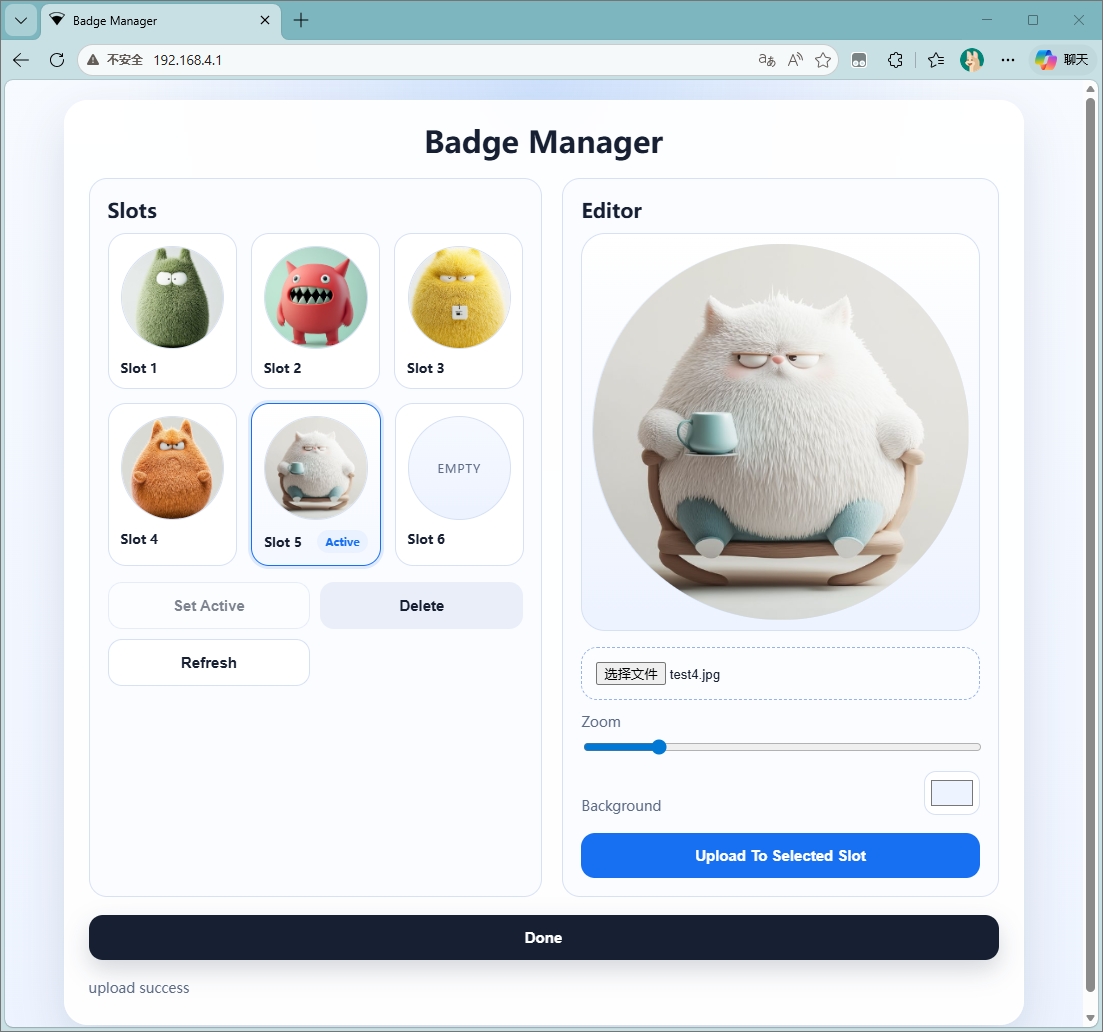
Doneat the bottom of the interface. The image upload is successful.
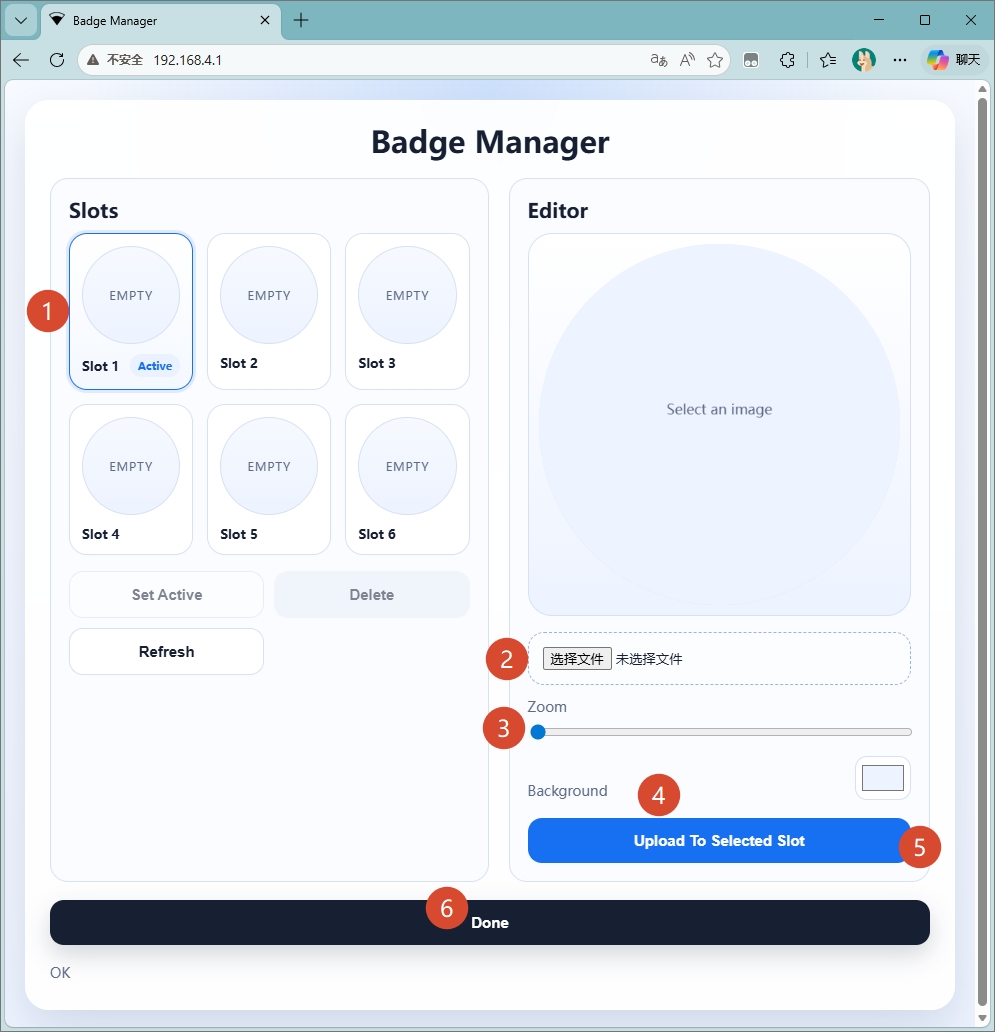
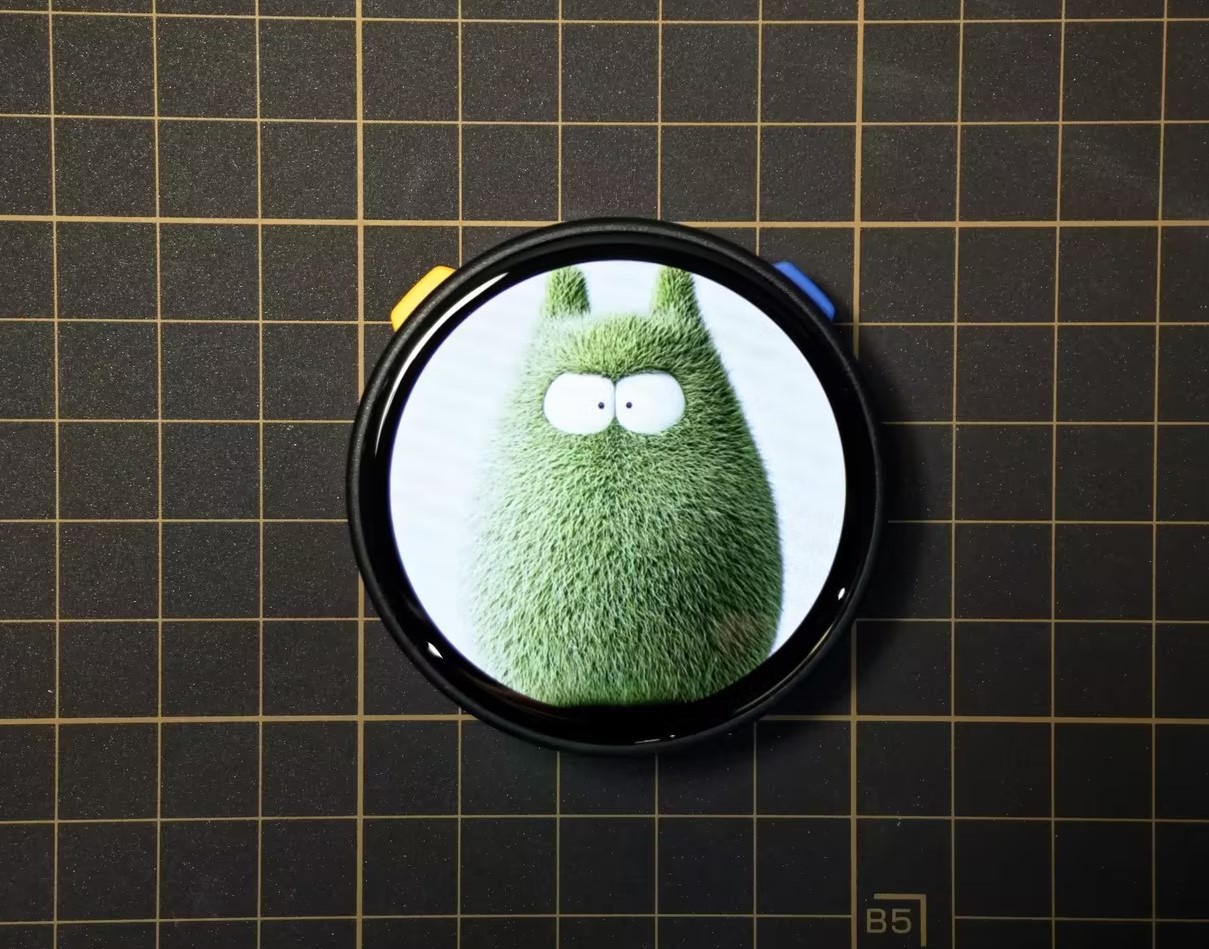
Image upload complete:
Effect demonstration:
Function Menu Introduction
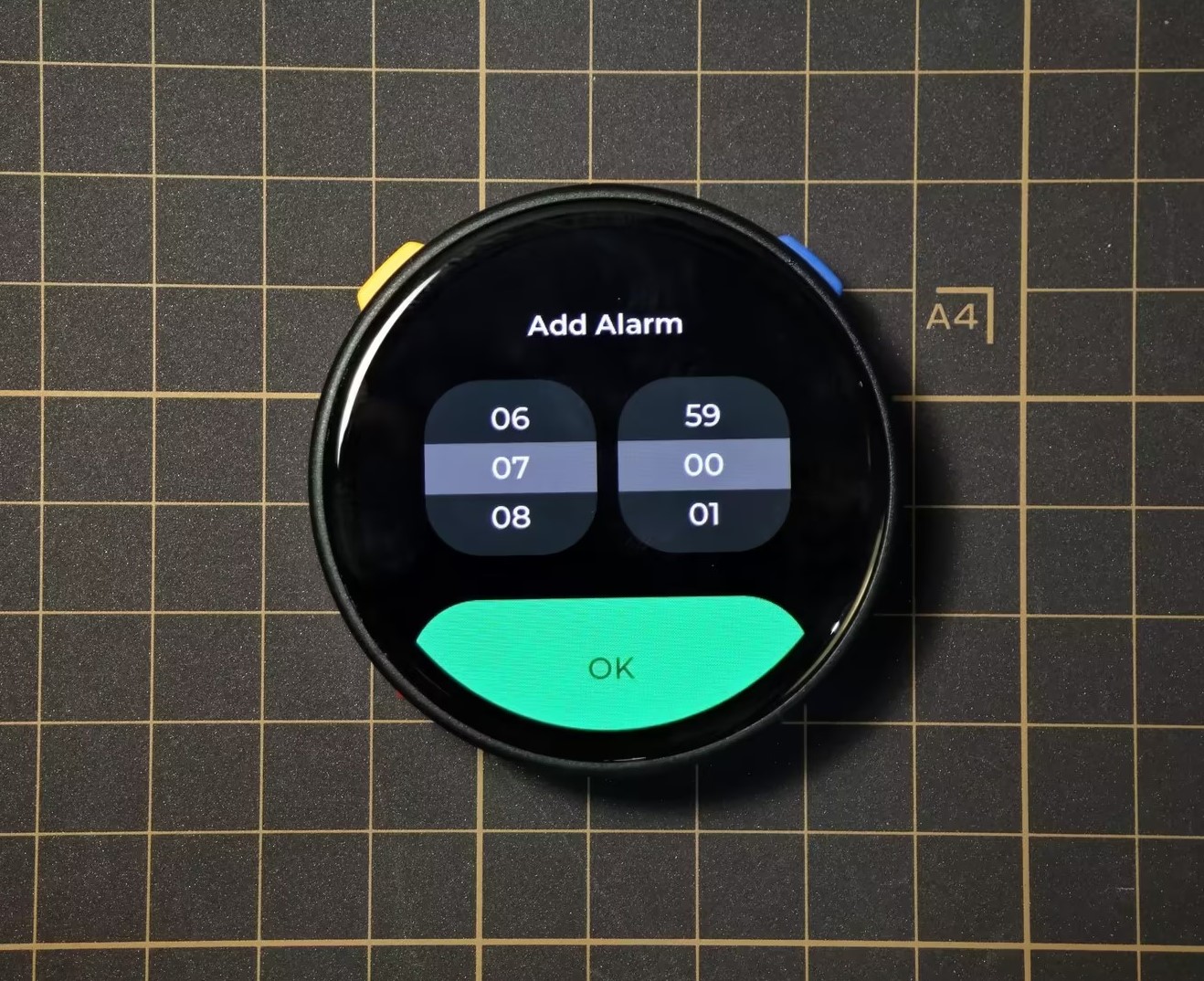
- AlarmClock: Alarm clock function. Click the Add button to add multiple alarms.
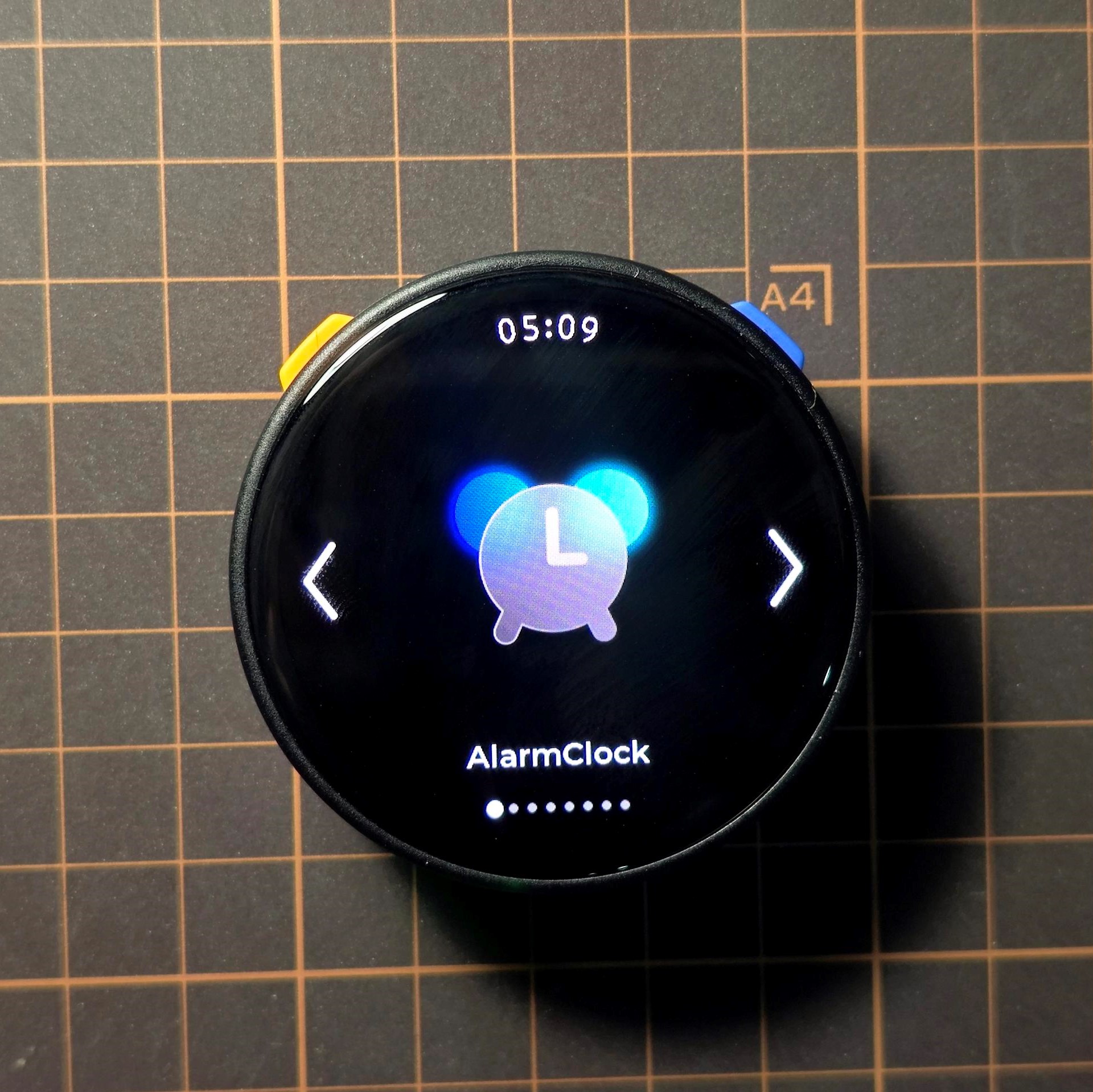
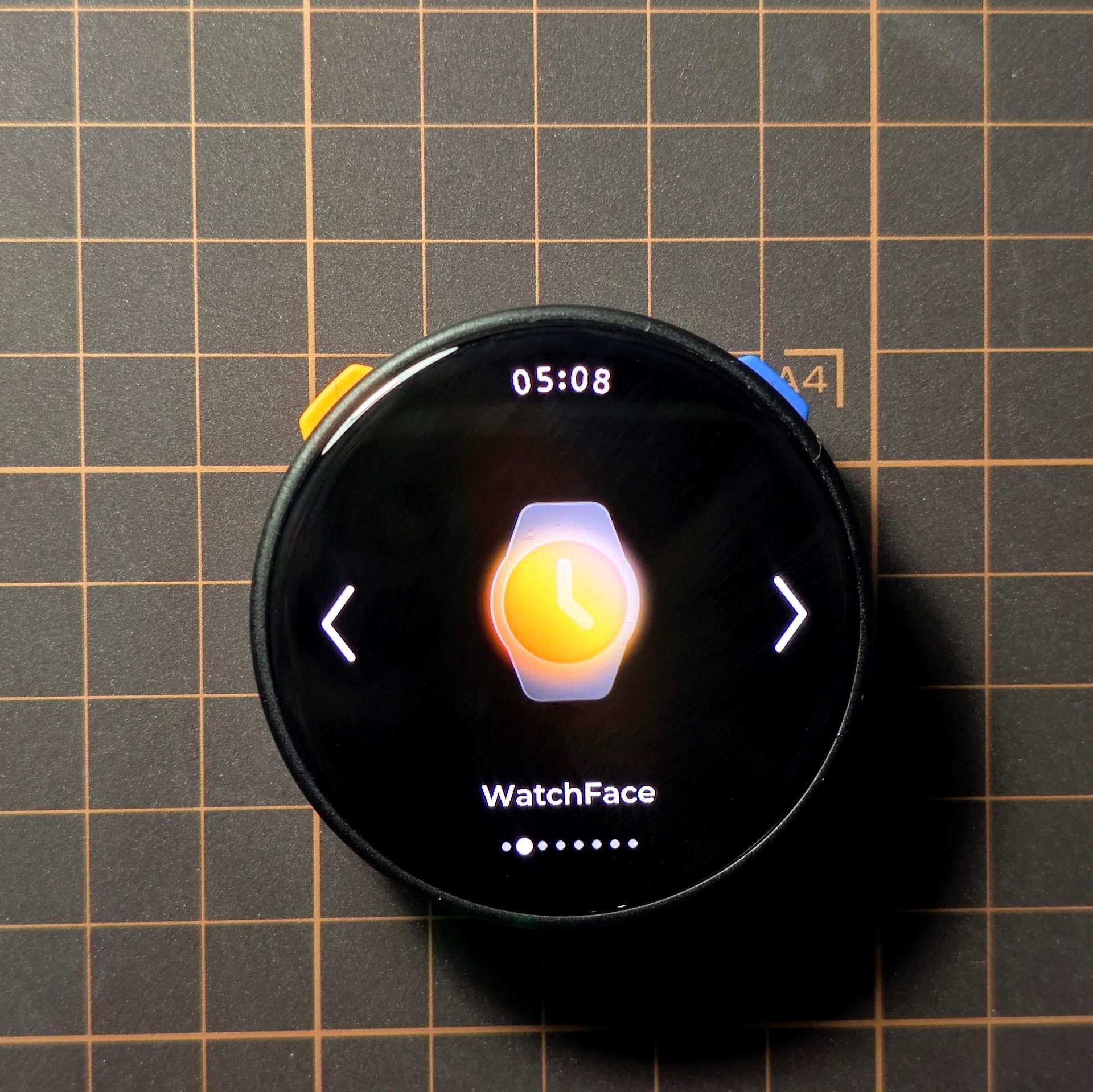
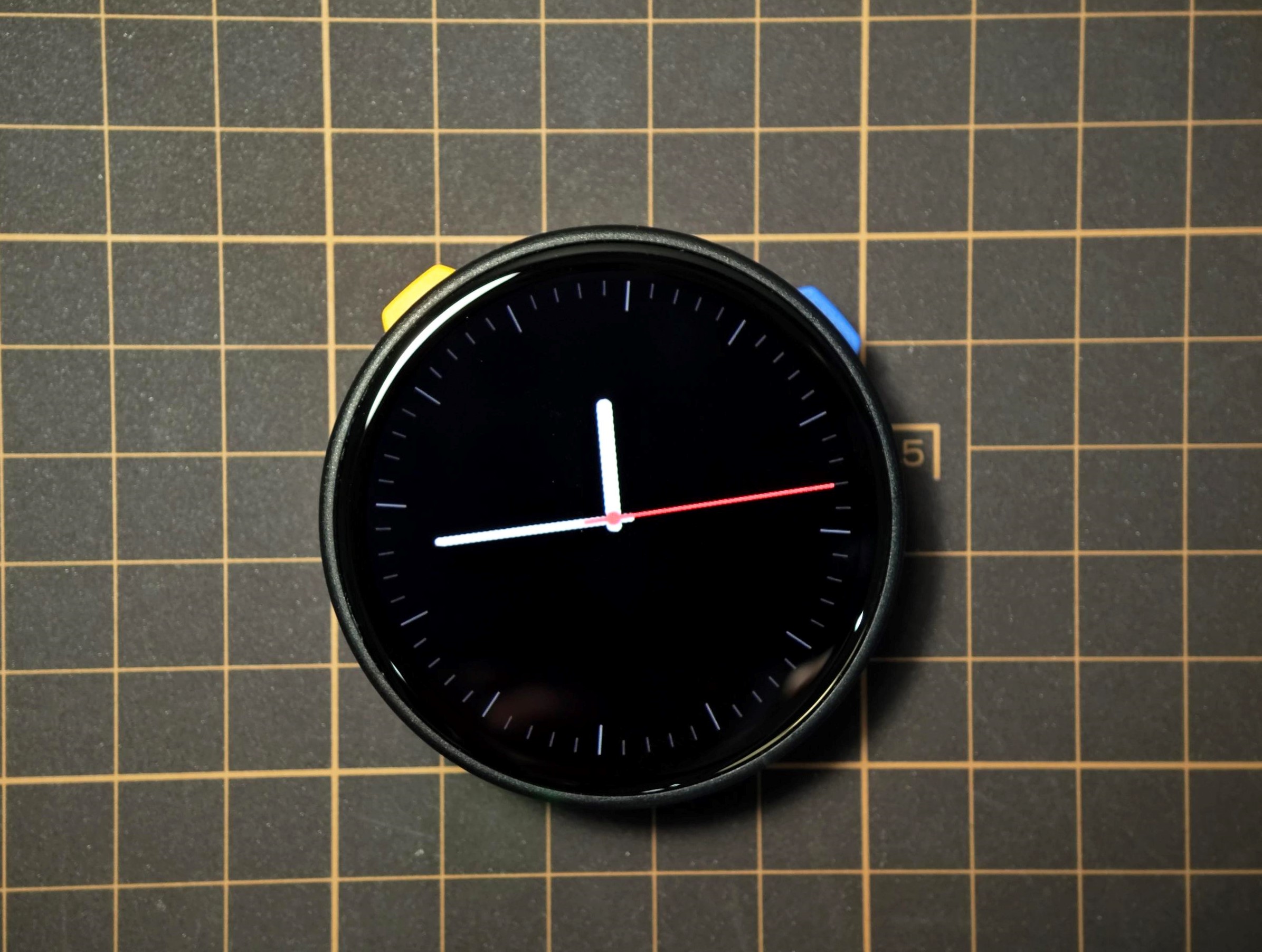
- WatchFace: Clock function. Press Button A/Button B to switch the time display style. Tap the screen to switch the clock background color/style.
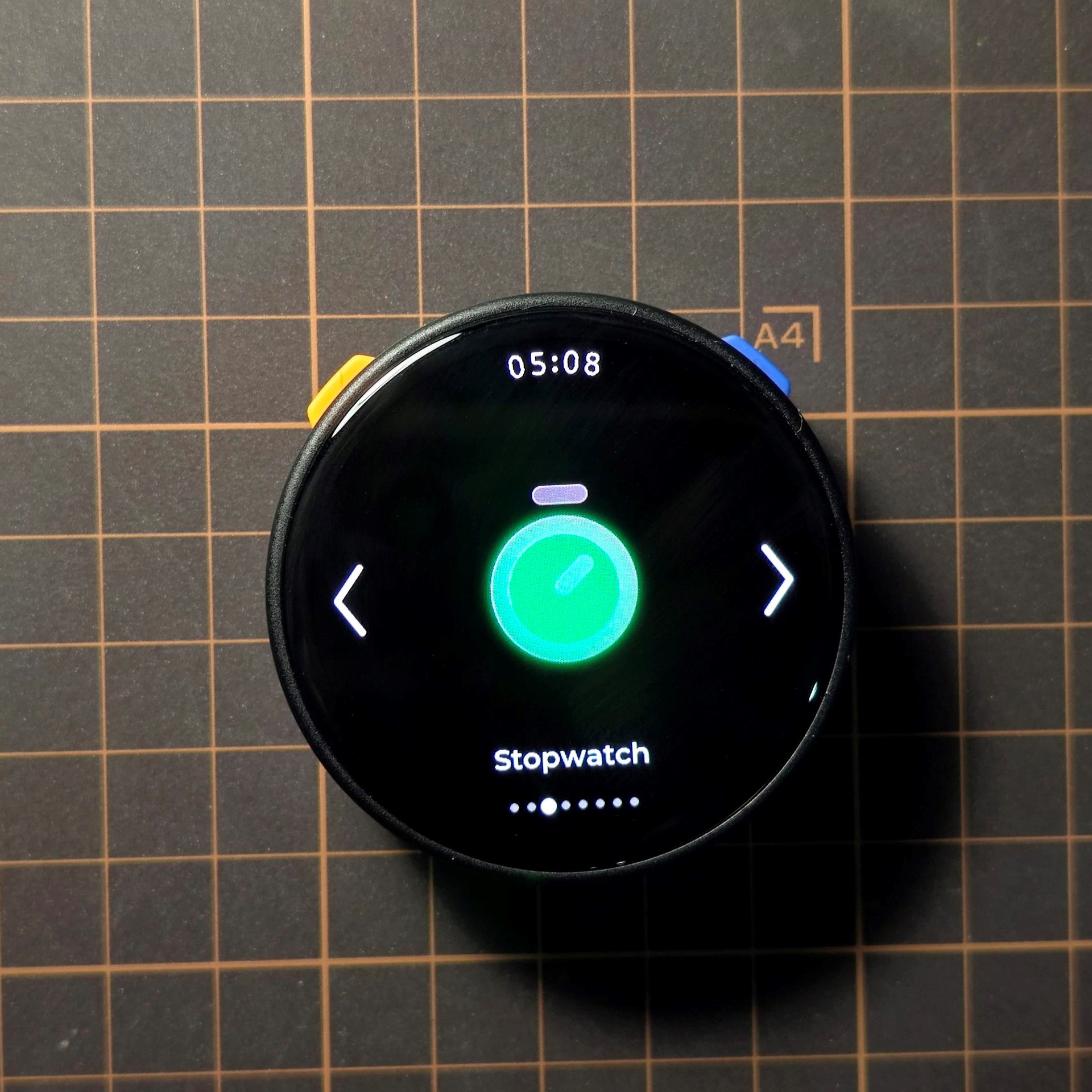
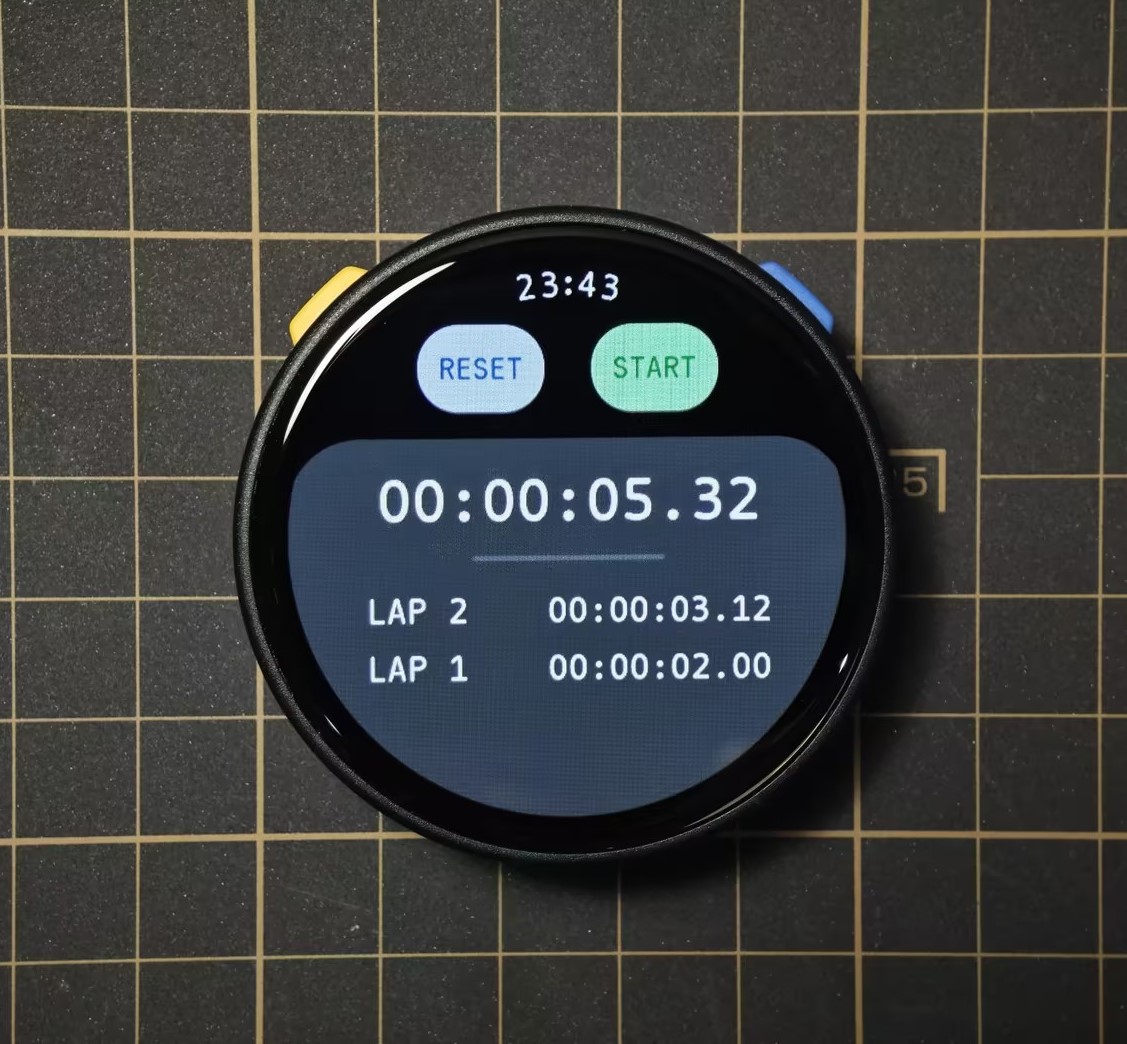
- Stopwatch: Digital stopwatch.
- START: Start timing
- RESET: Reset data
- LAP: Lap button
- STOP: Stop timing
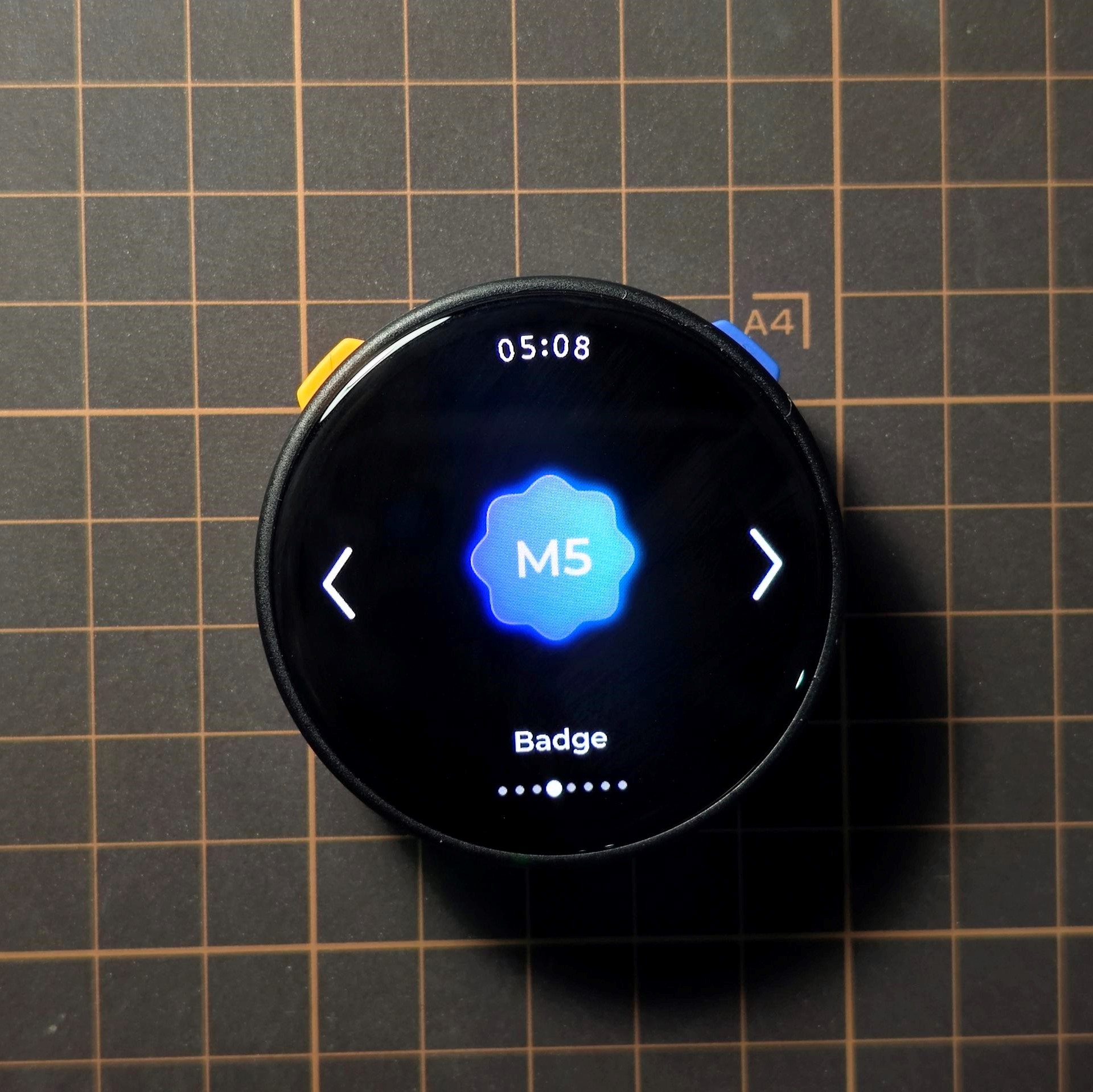
- Badge: Digital badge. Images can be uploaded and displayed. When uploading from a mobile device, the image size must be less than 3MB.
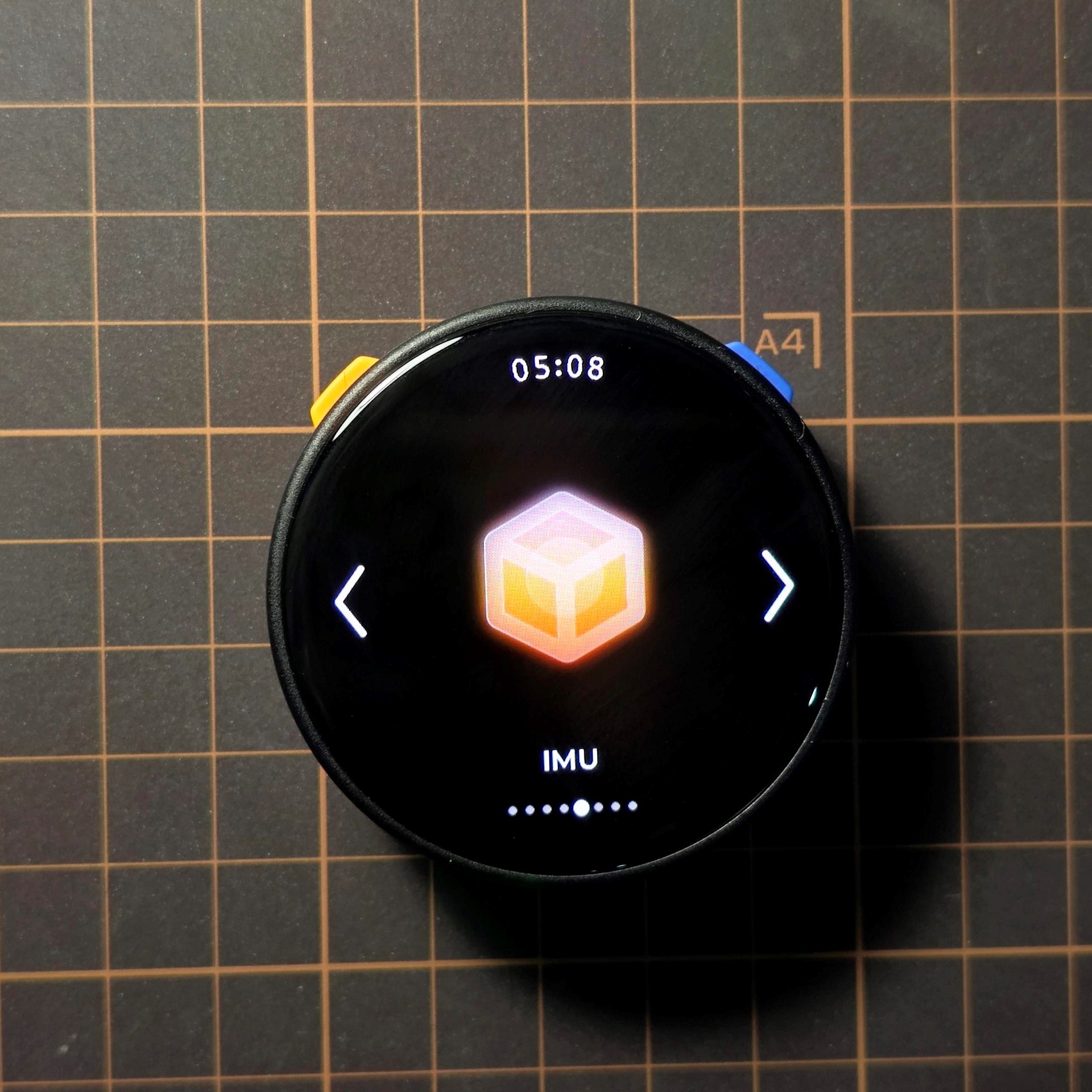
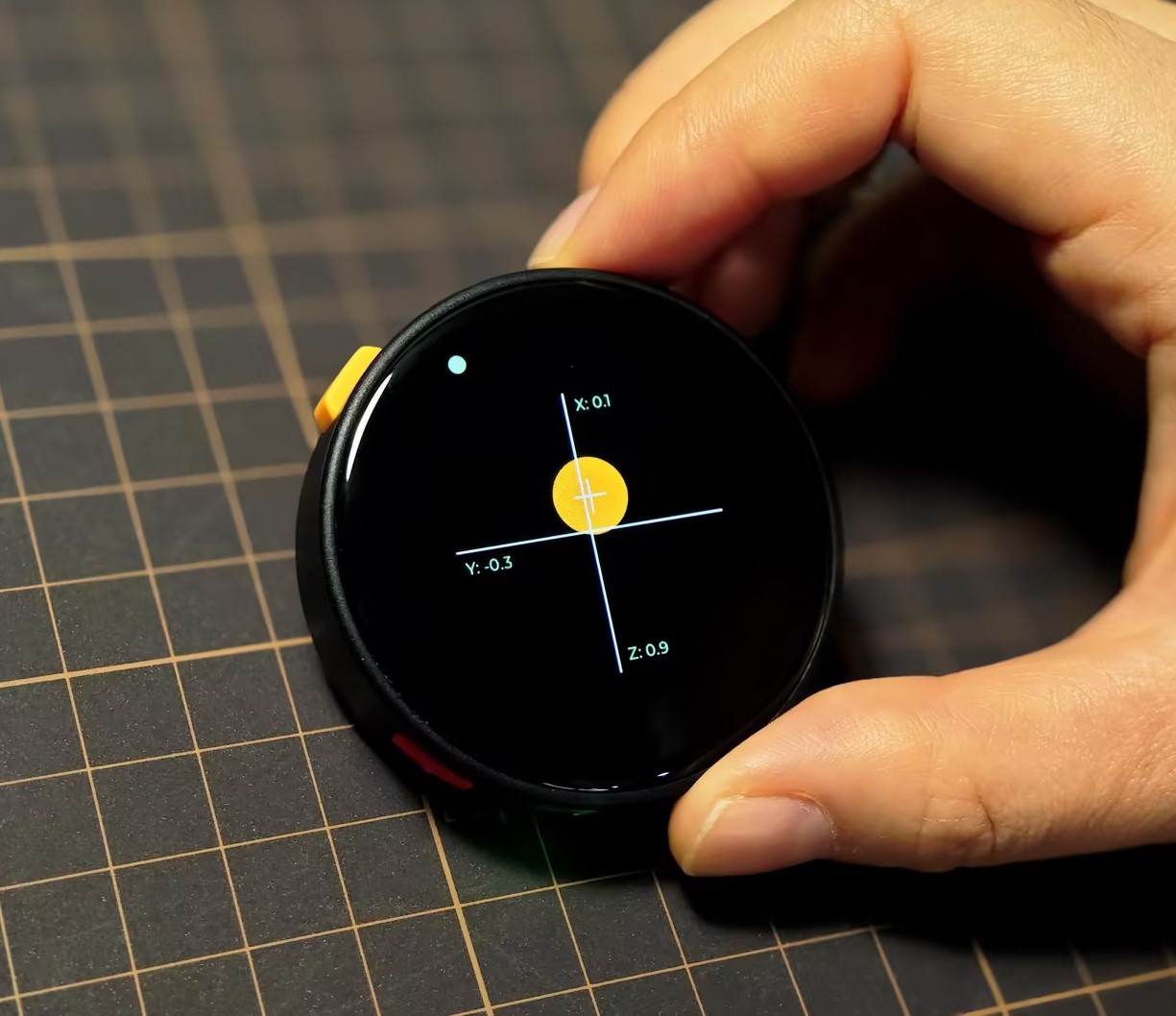
- IMU: IMU attitude display interface. It displays real-time three-axis acceleration data and visually reflects the current tilt and spatial attitude of the device.
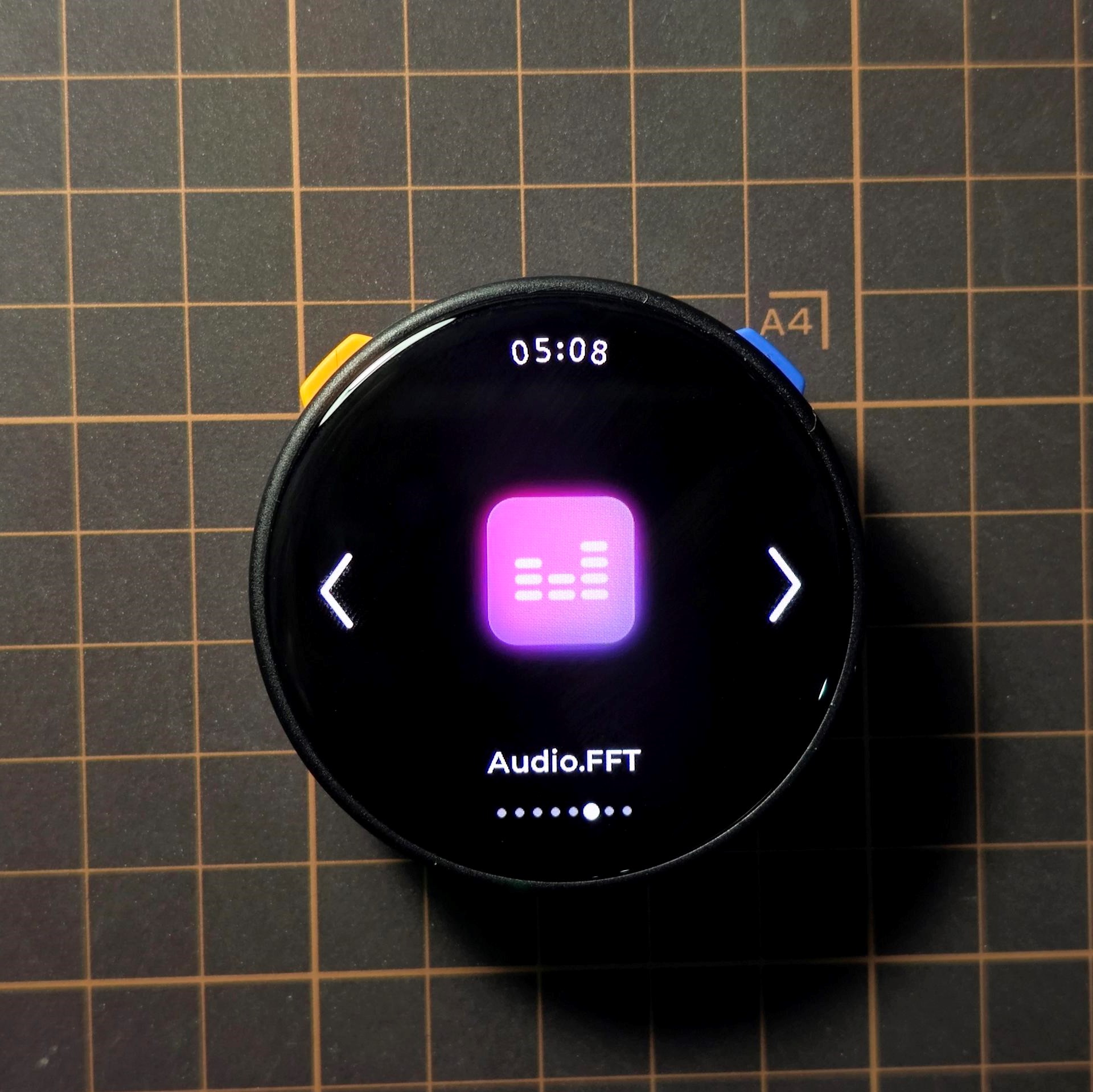
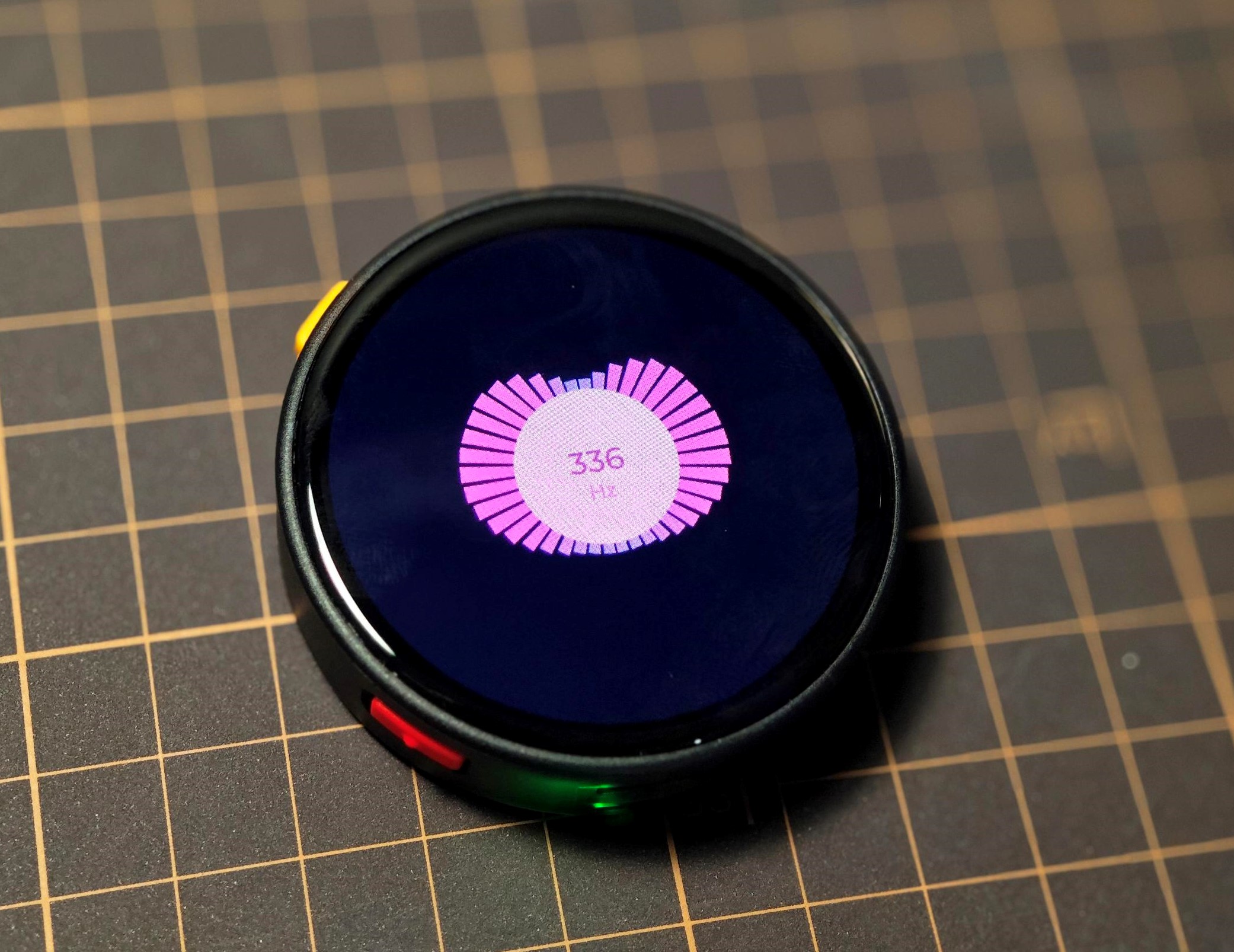
- Audio.FFT: Measures audio tone frequency. Tap the center area of the interface to show or hide the frequency value.
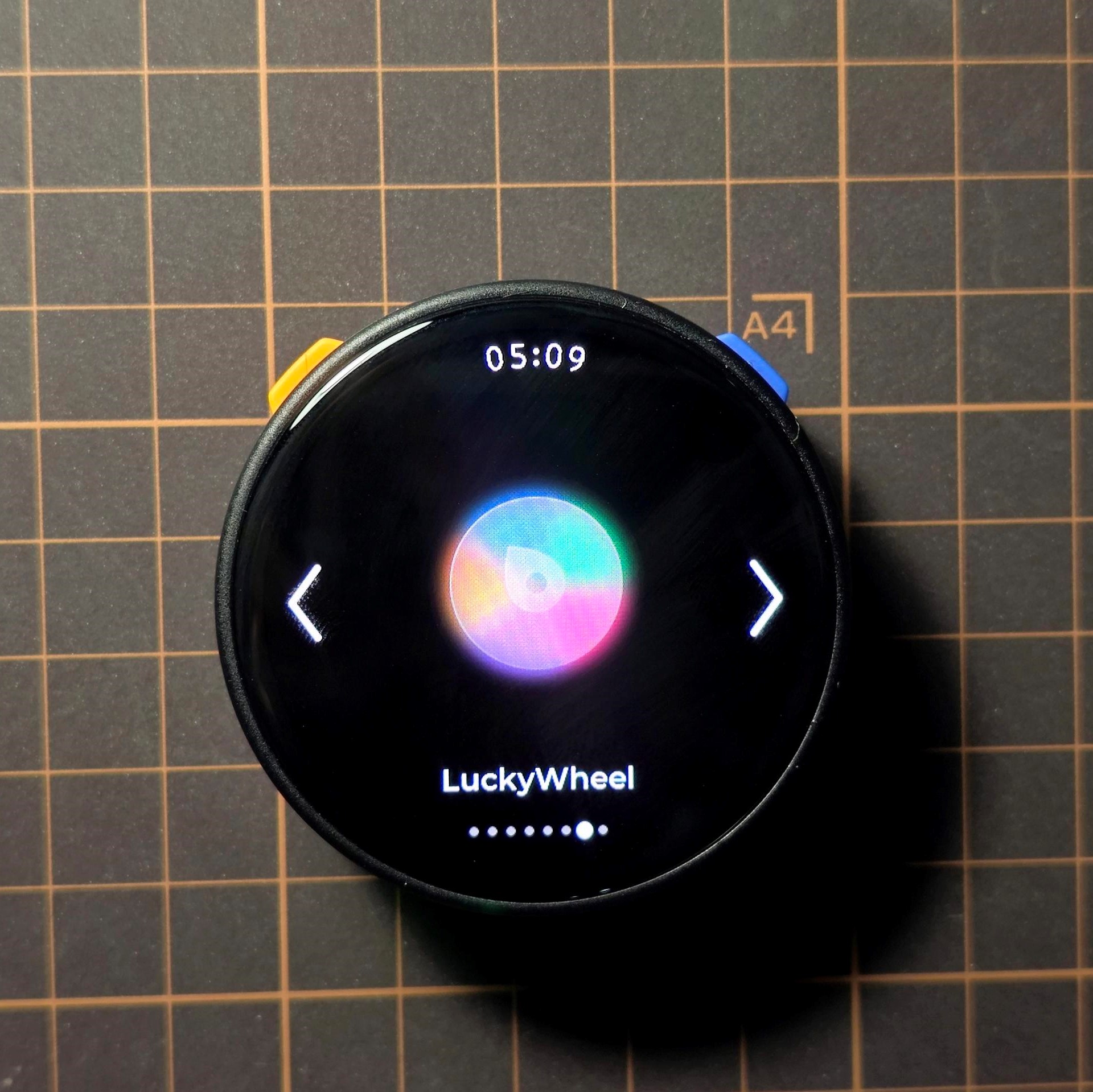
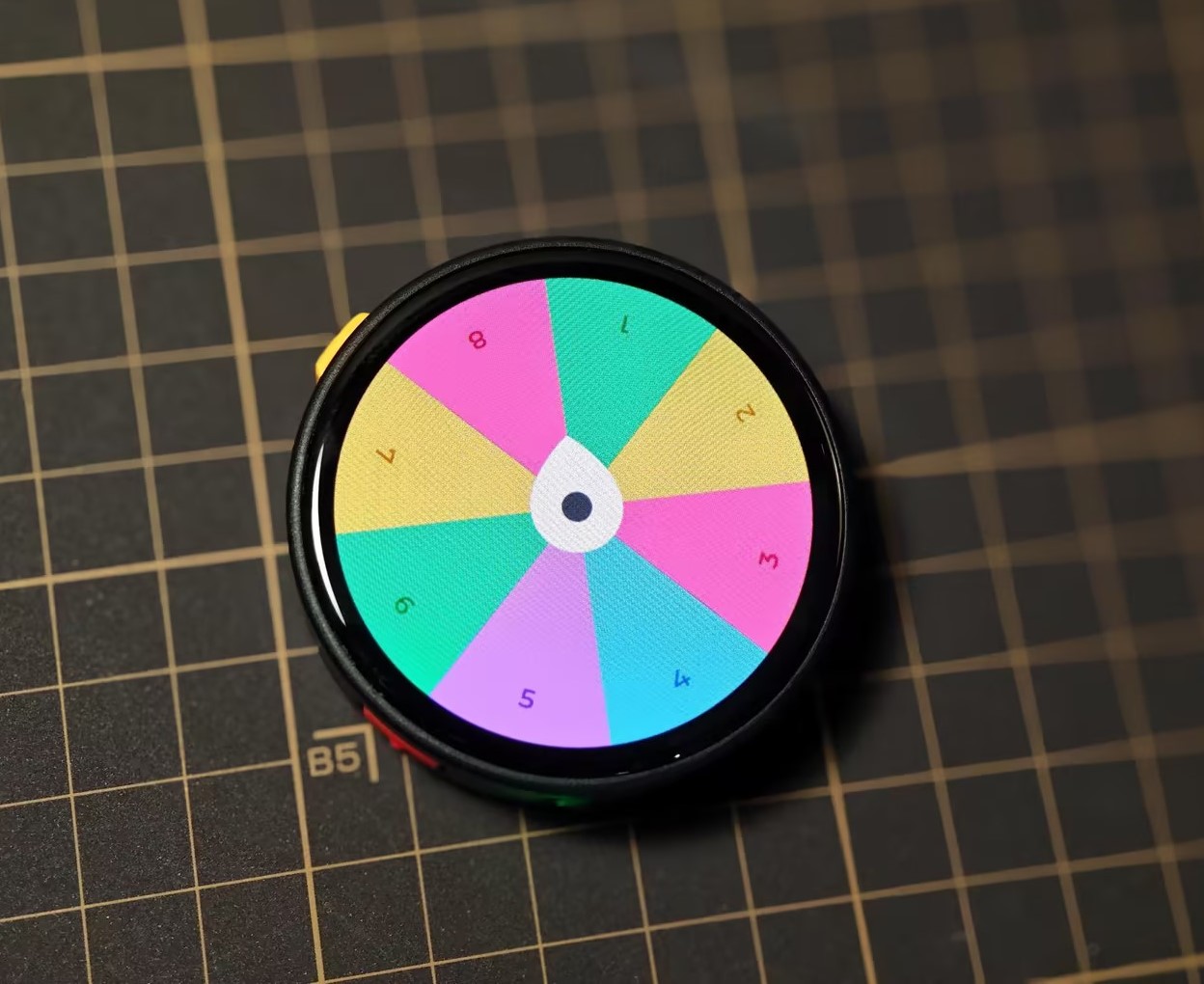
- LuckyWheel: Lucky wheel. After customizing the number of wheel sections, tap the center wheel icon to start spinning.
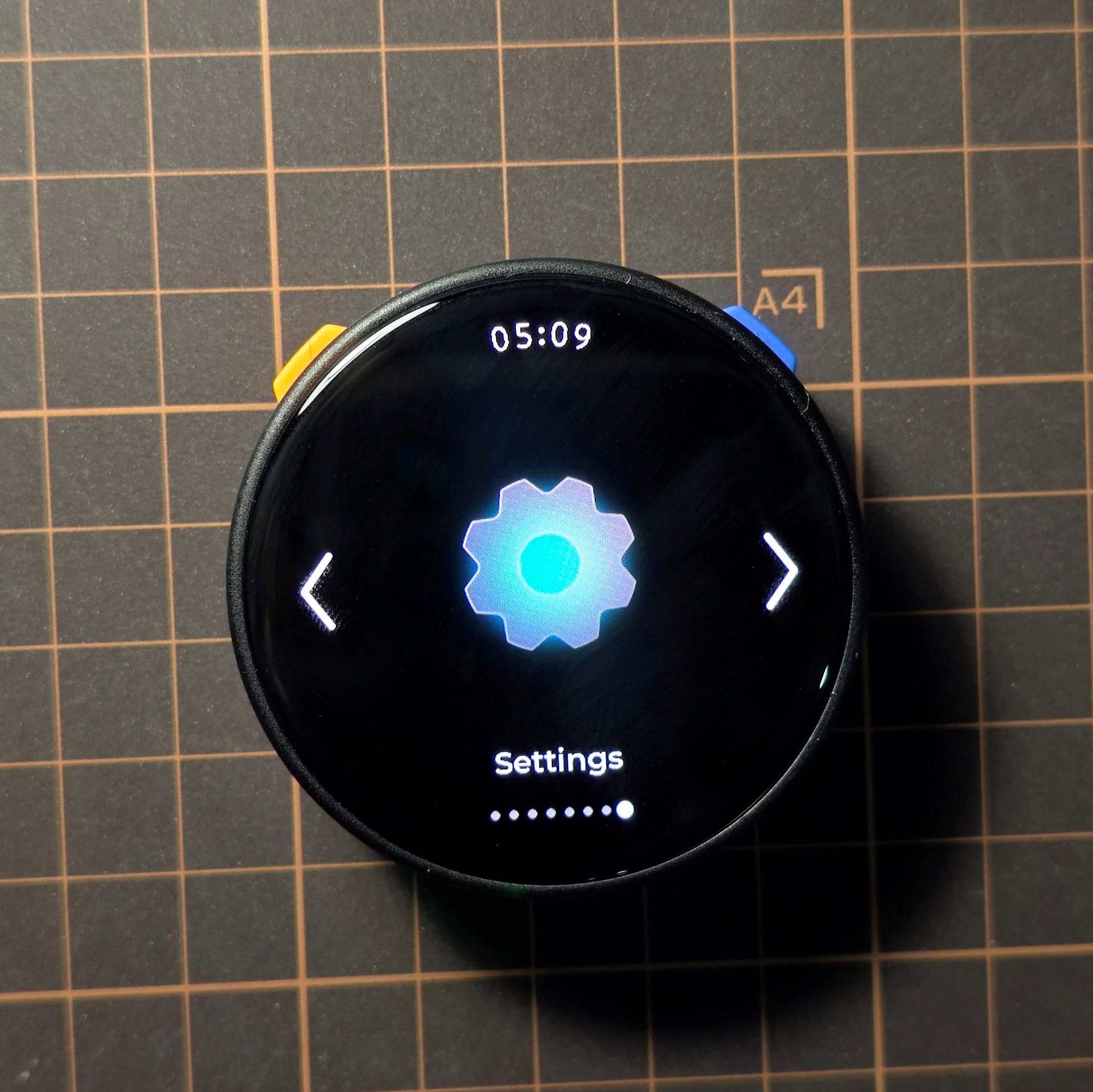
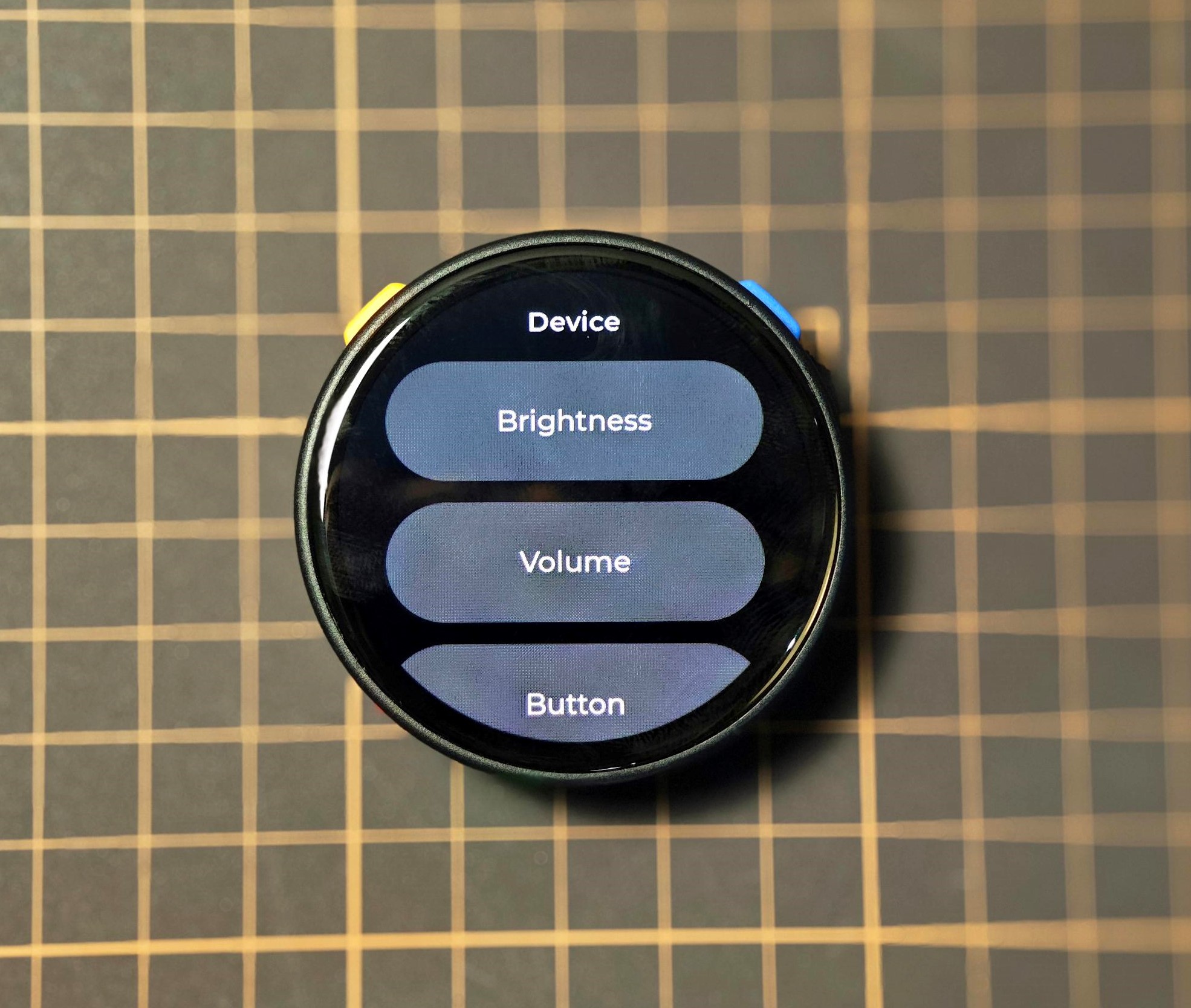
- Settings: Device-related settings, including screen brightness, device volume, time/date, firmware version query, and more.
Page Tools