

Product Guides
AI & Voice
AI Voice Assistants
Volcengine
Offline Speech Recognition
Unit ASR
Module ASR
Audio & Voice Input
Voice Pyramid
Cameras & Vision
Camera Features
M5Camera
PoECAM
Unit CamS3 / CamS3-5MP
Connectivity & IoT
Industrial Control & Measurement
Air Quality
PowerHub
StamPLC
VAMeter
T-Lite
Module13.2 PPS
Unit RollerCAN
Display & Interaction
Paper
PaperColor
StopWatch
Tab5 Keyboard
Chain DualKey
Robotics & Maker Projects
Atom Printer
Bala
Bala2
BalaC Plus
Faces Kit Gameboy
RoverC & JoyC
StampFly & Atom Joystick
Firmware & Device Maintenance
Firmware Upgrade
Hardware Configuration
Design & Selection References
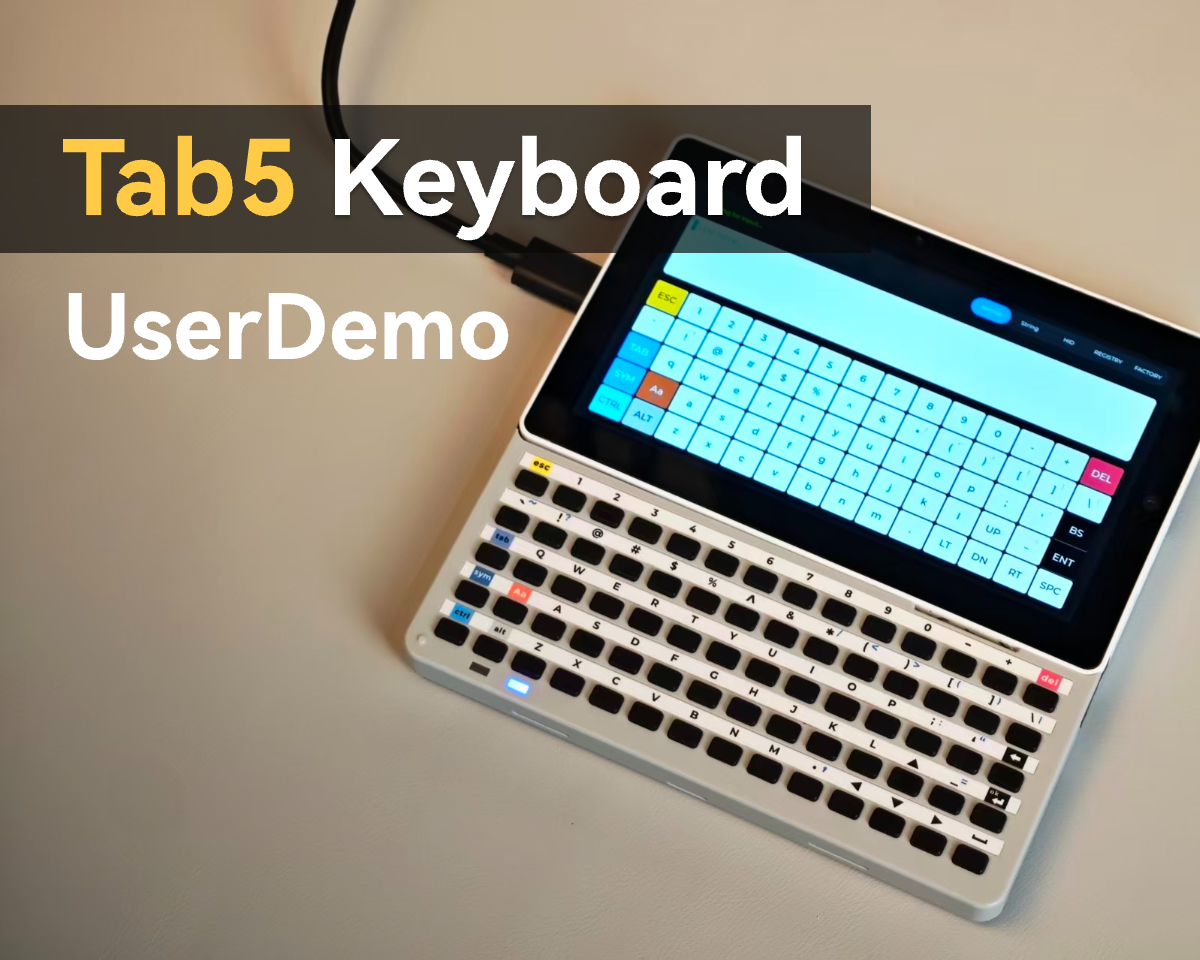
Tab5 Keyboard User Demo Introduction
This tutorial introduces user demos for Tab5 Keyboard paired with Tab5, covering firmware flashing procedures as well as functions including USB HID output and register display.
Firmware Flashing
- Download the corresponding M5Burner flashing tool based on your operating system, extract the file and launch the application.
| Software Version | Download Link |
|---|---|
| M5Burner_Windows | Download |
| M5Burner_MacOS | Download |
| M5Burner_Linux | Download |
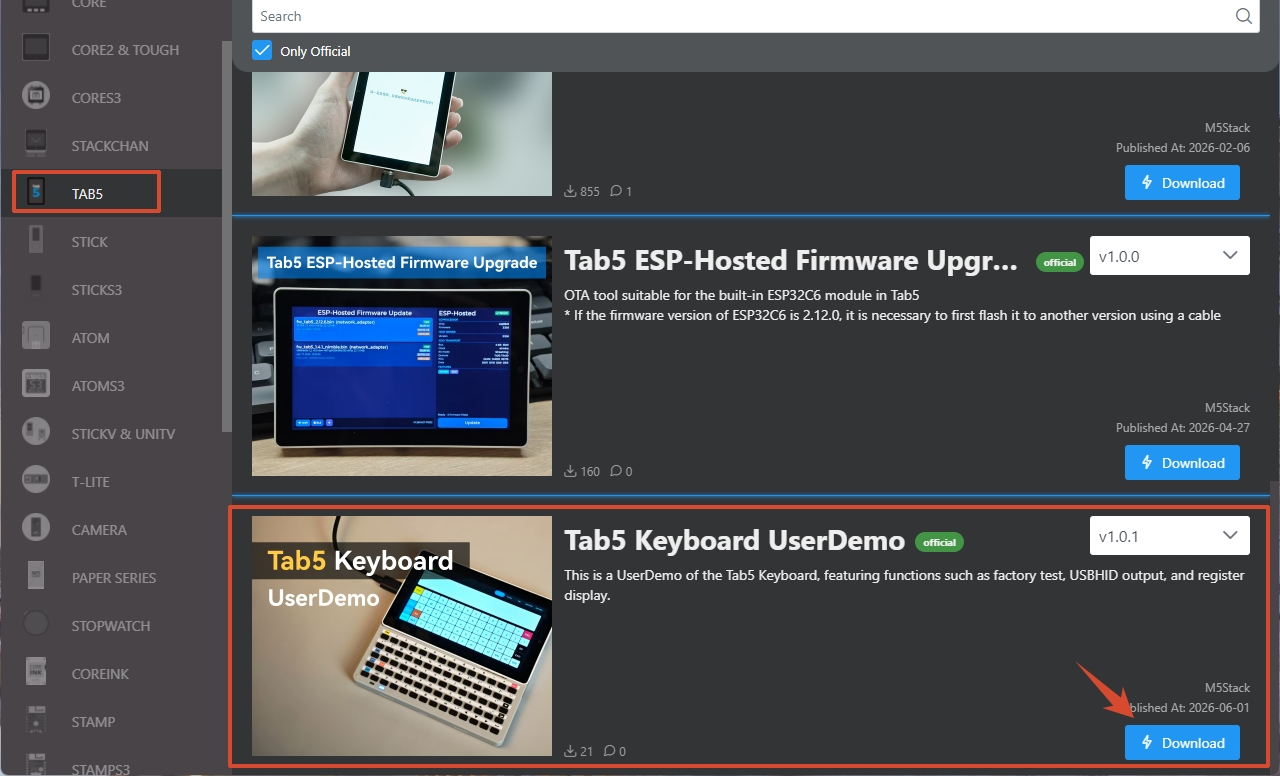
- Open M5Burner, select device type
TAB5from the left sidebar, then clickDownloadto obtain the factory firmware for Tab5 Keyboard.
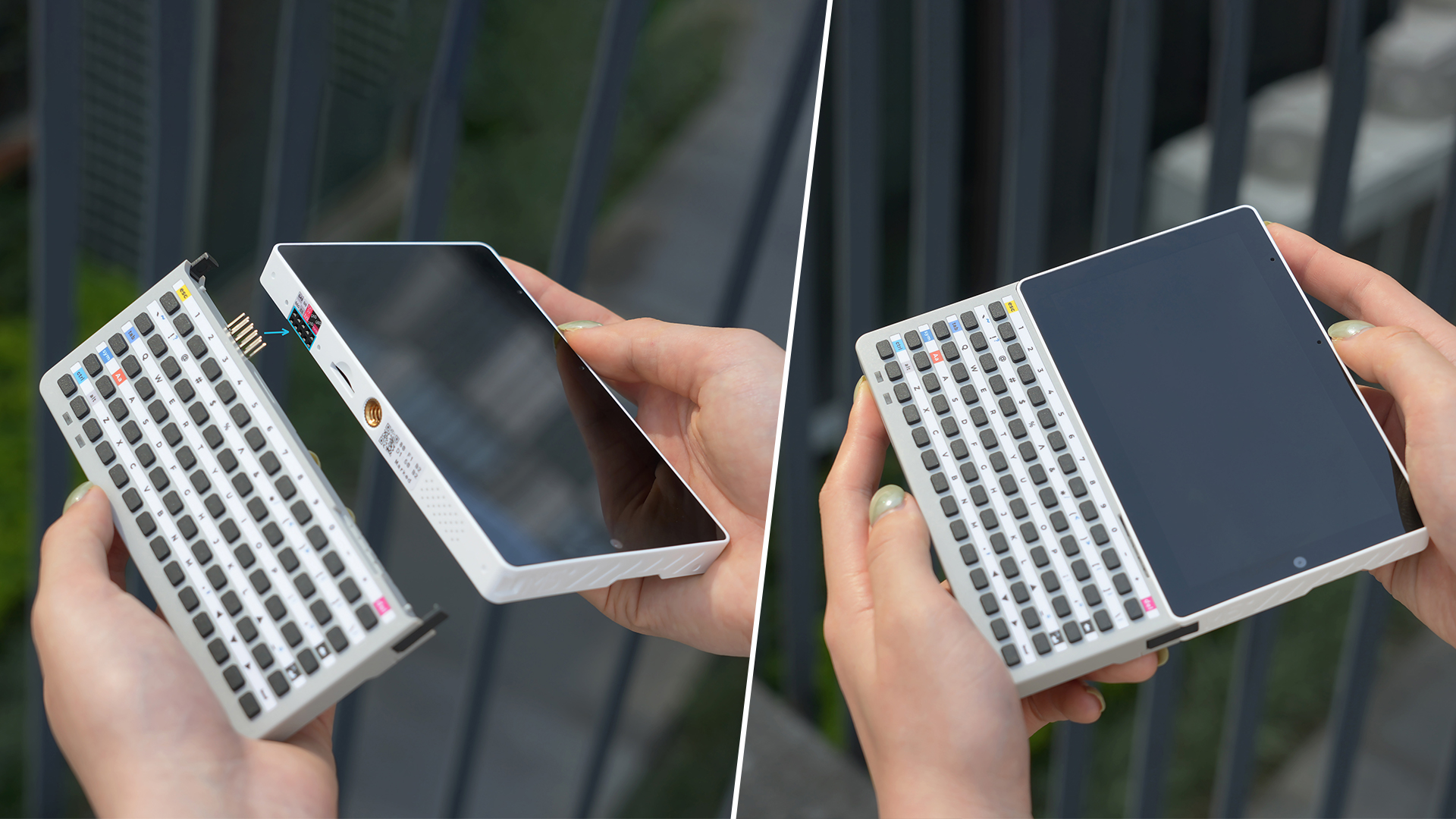
- Connect Tab5 Keyboard to Tab5 properly.
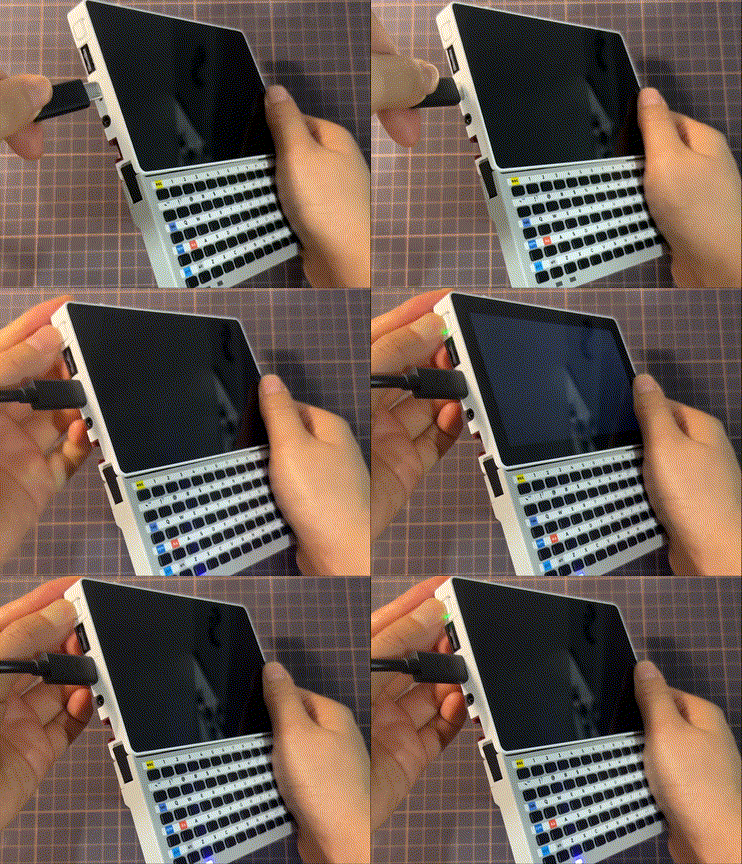
- Enter Tab5 download mode: With USB Type-C cable plugged in or battery powered, hold down the reset button for approximately 2 seconds until the onboard green LED blinks rapidly, then release the button to enter download mode and prepare for firmware flashing.
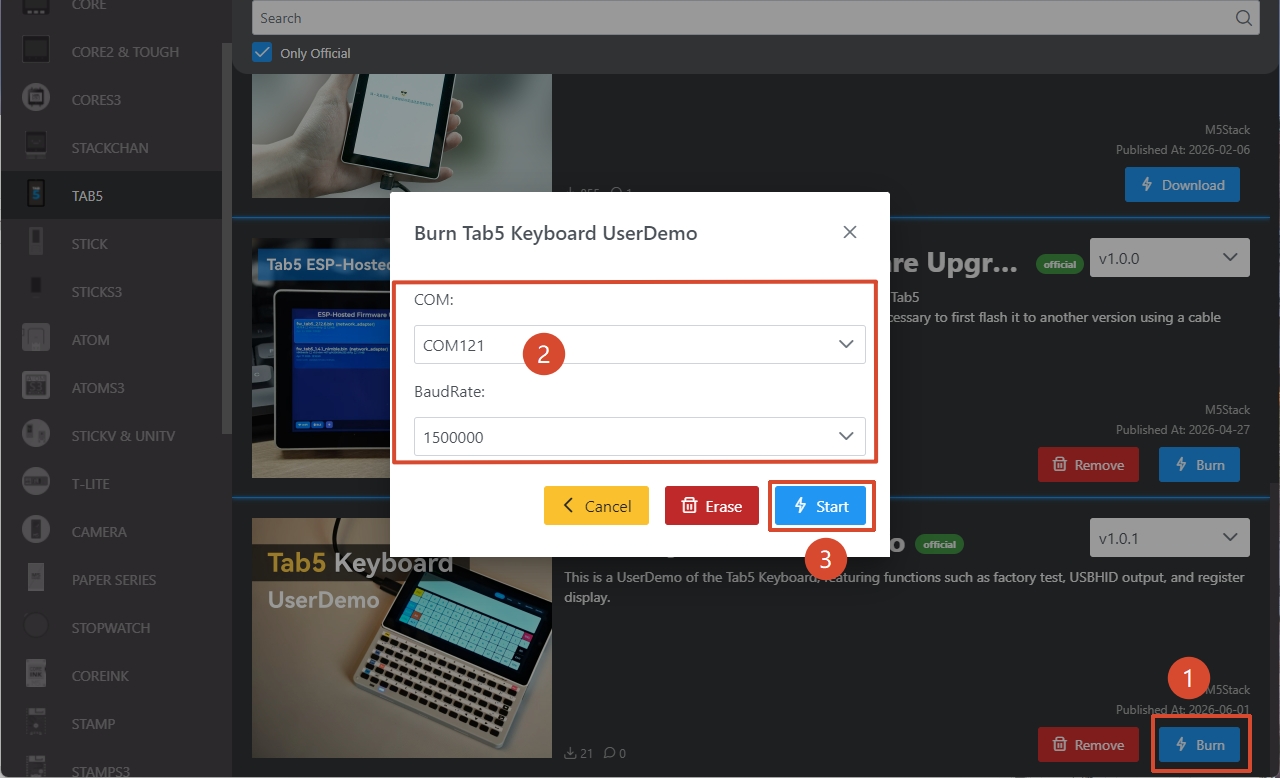
- Connect Tab5 to PC via USB cable. In M5Burner, click the
Burnbutton of target firmware, select the corresponding COM port and hitStartto begin flashing.
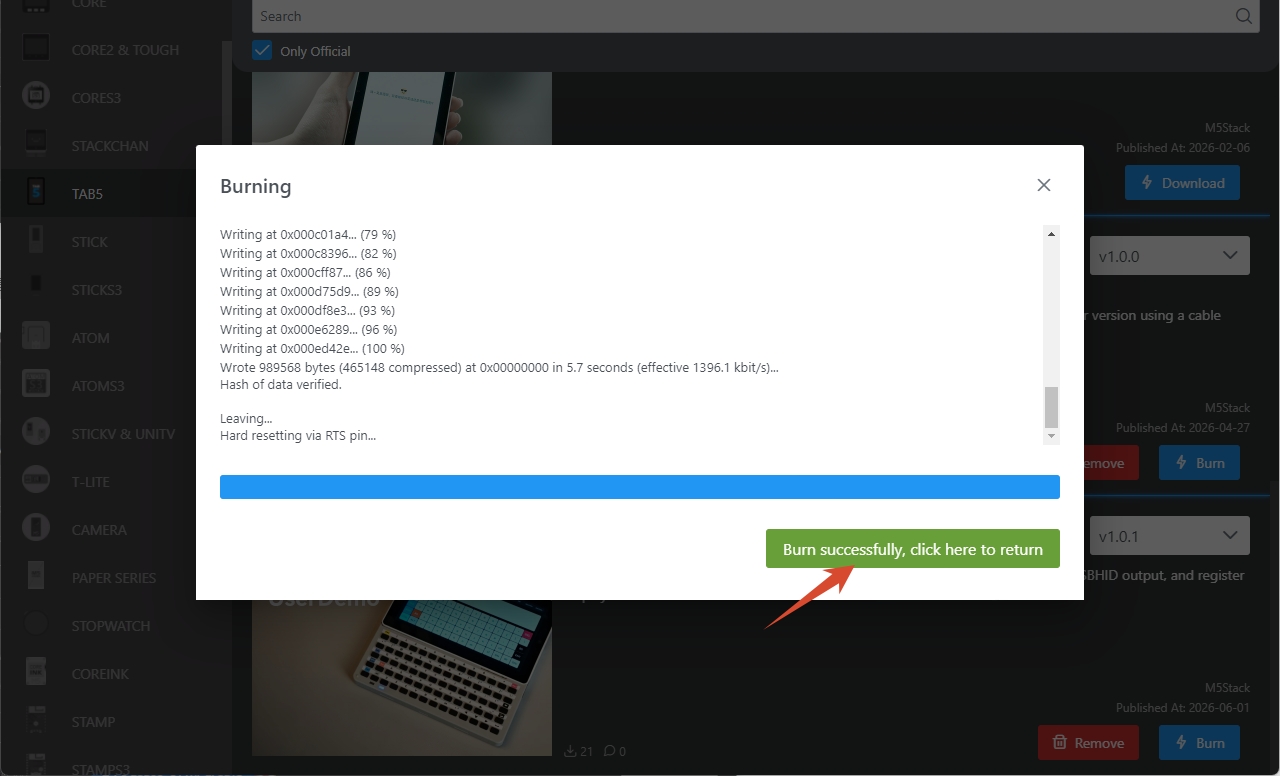
- Flashing completes when prompted with
Burn successfully, click here to return. Reboot the device to apply the new firmware.
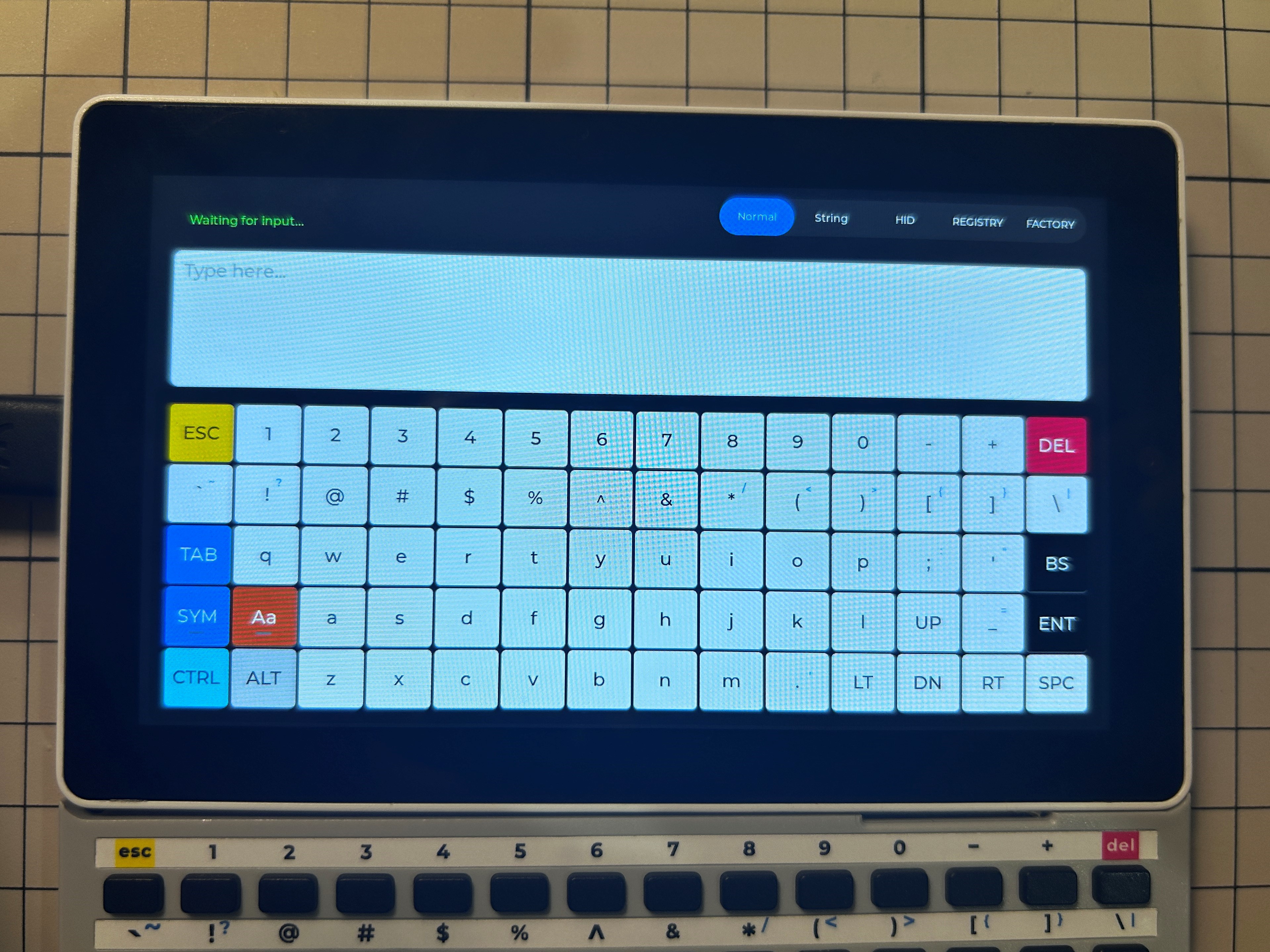
Factory firmware UI:
Demo Introduction
Five functional menus are available on the initial demo screen:
- Normal: Normal mode; pressing keys displays their row-column coordinate values.
- String: String mode; returns key name strings of regular keys plus status of Ctrl/Alt modifier keys. Sym/Aa keys trigger corresponding dedicated functions directly.
- HID: In HID mode, Tab5 Keyboard works as a USB keyboard to send keystroke signals to PCs, smartphones and other devices.
- REGISTRY: Register data display page
- FACTORY: Keyboard hardware function test page
HID Mode
On the HID page, Tab5 Keyboard acts as a standard USB HID input device to feed input to smartphones, PCs and tablets. Two sub-modes are supported:
- USBC OTG (FS): Connect Tab5 to PC/phone directly via USB-C cable for keyboard input.
- USB2.0 PHY (HS): Connect Tab5 to PC via USB-A cable to function as a desktop external keyboard.
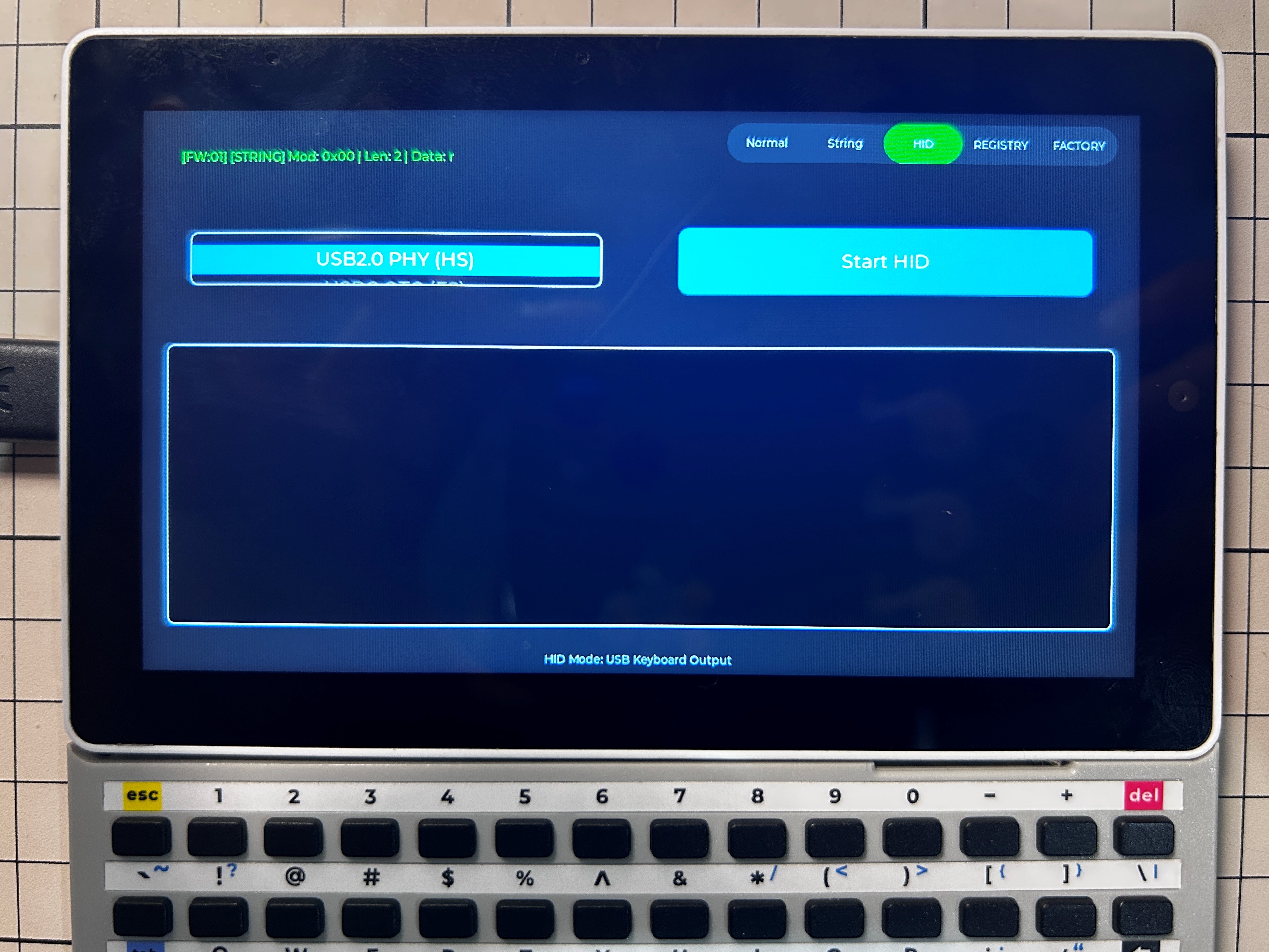
HID Mode Operation Guide
- USBC OTG (FS): Set working mode to
USBC OTG (FS)on HID page, link Tab5 with attached keyboard to PC/phone/tablet using Type-C cable, tapStart HIDon screen; keystrokes will be input to connected devices directly. - USB2.0 PHY (HS): Switch mode to
USB2.0 PHY (HS), connect Tab5 to PC with male-to-male USB-A cable and tapStart HID. The keyboard can then input characters just like a regular desktop keyboard.
Page Tools