
Product Guides
AI & Voice
AI Voice Assistants
Volcengine
Offline Speech Recognition
Unit ASR
Module ASR
Audio & Voice Input
Voice Pyramid
Cameras & Vision
Camera Features
M5Camera
PoECAM
Unit CamS3 / CamS3-5MP
Connectivity & IoT
Industrial Control & Measurement
Air Quality
PowerHub
StamPLC
VAMeter
T-Lite
Module13.2 PPS
Unit RollerCAN
Display & Interaction
Paper
PaperColor
StopWatch
Tab5 Keyboard
Chain DualKey
Robotics & Maker Projects
Atom Printer
Bala
Bala2
BalaC Plus
Faces Kit Gameboy
RoverC & JoyC
StampFly & Atom Joystick
Firmware & Device Maintenance
Firmware Upgrade
Hardware Configuration
Design & Selection References
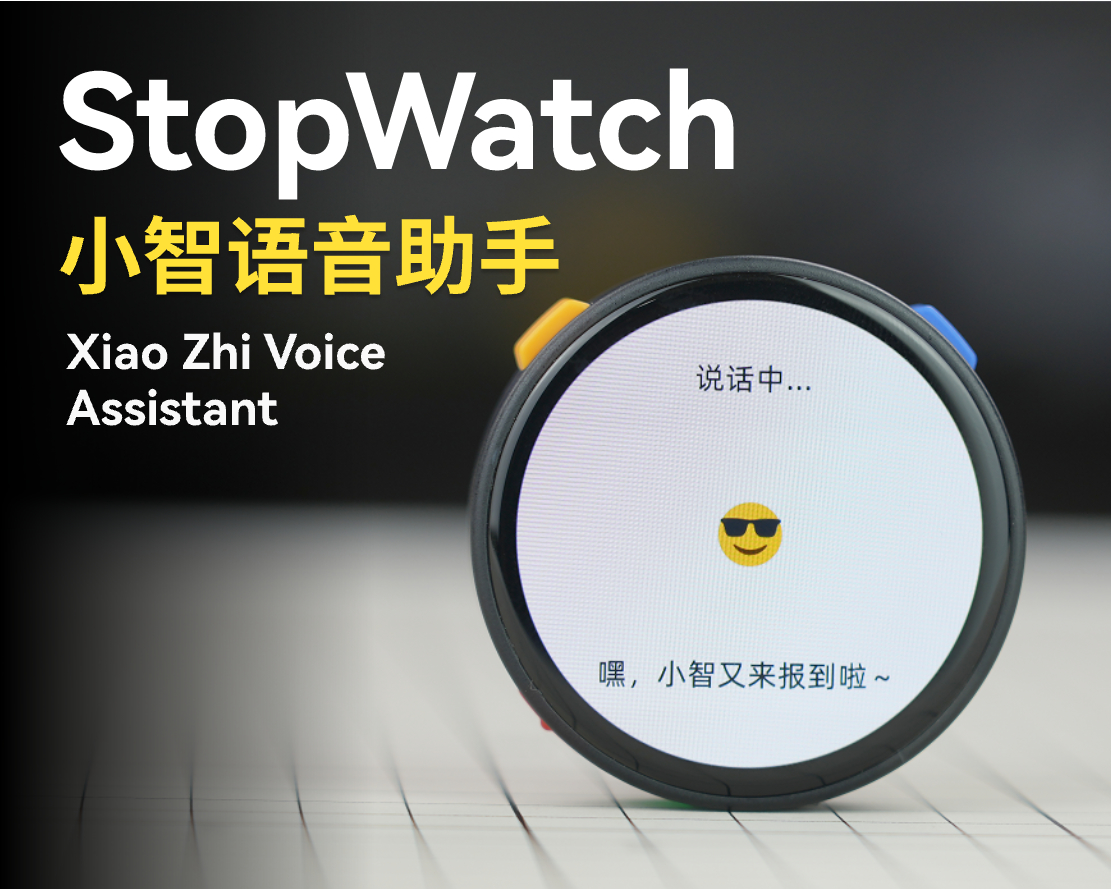
StopWatch Xiaozhi Voice Assistant
This tutorial will guide you through flashing the Xiaozhi Voice Assistant firmware onto the StopWatch development board using M5Burner to build a personal voice assistant application.
1. Preparation
Please download the appropriate M5Burner firmware flashing tool for your operating system by clicking the button below, then extract and open the application.
| Software Version | Download Link |
|---|---|
| M5Burner_Windows | Download |
| M5Burner_MacOS | Download |
| M5Burner_Linux | Download |
2. Firmware Flashing
- Double-click to open the Burner tool, select the device type
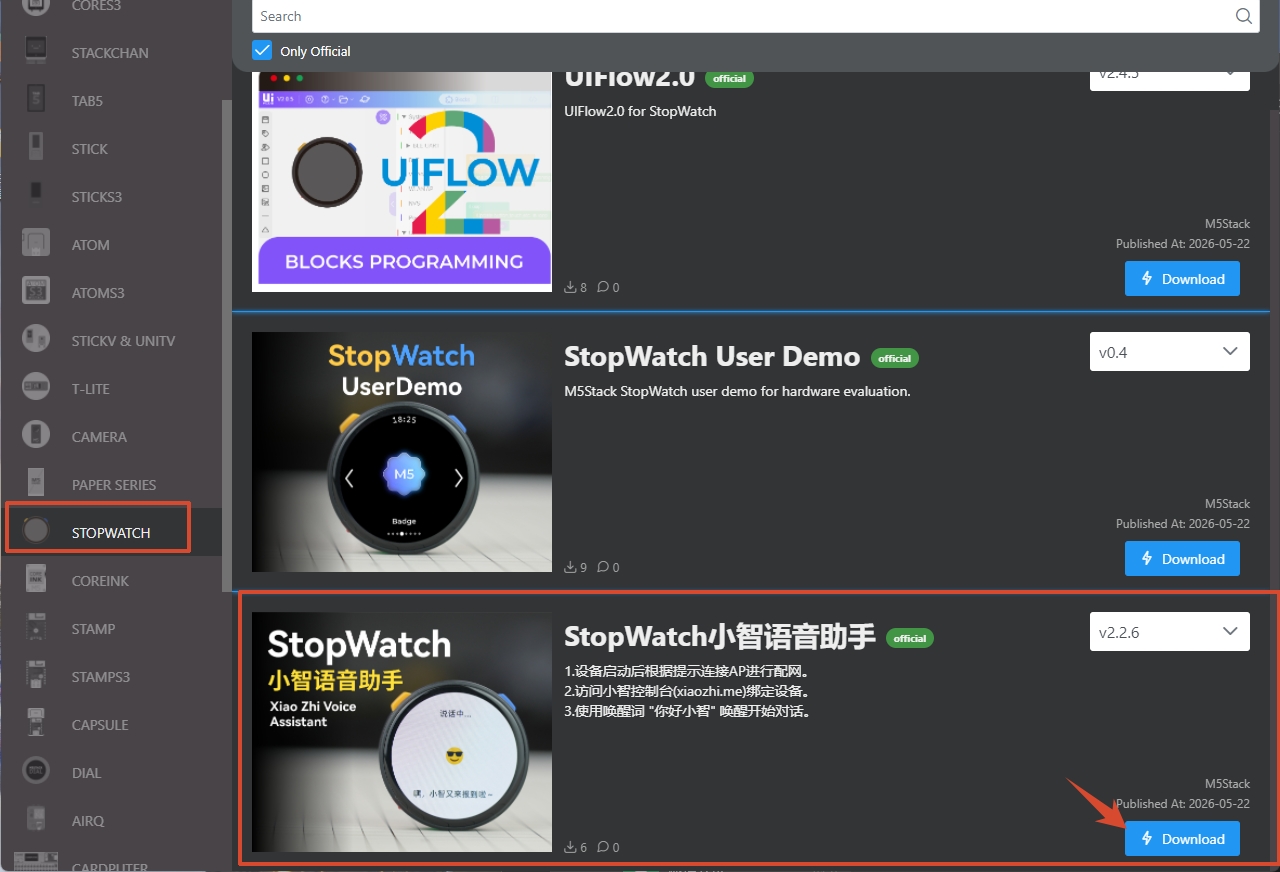
STOPWATCHfrom the left menu, and clickDownloadto download the StopWatch Xiaozhi Voice Assistant.
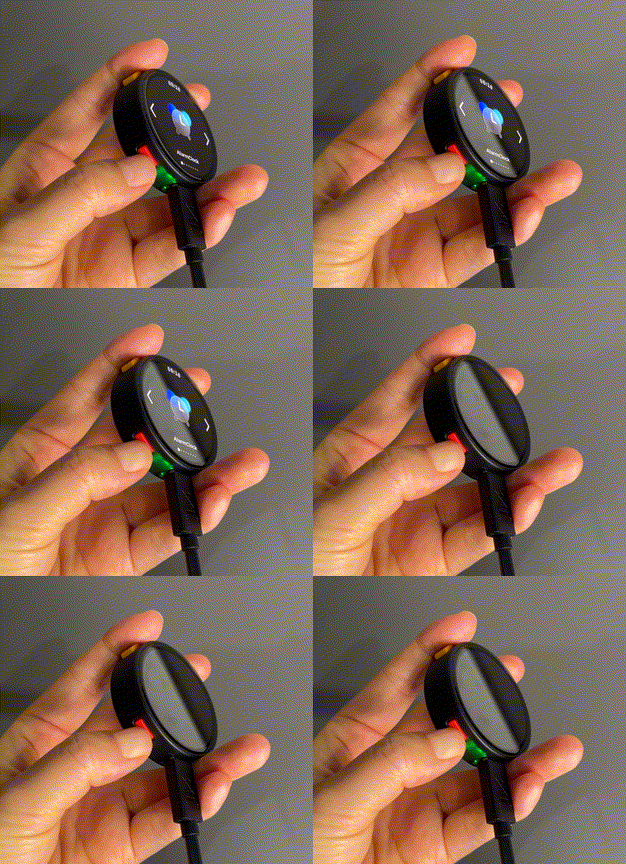
- Connect the device to a computer via USB Type-C cable, press and hold the reset button (approximately 2 seconds) until the green LED lights up, then release. The device has now entered download mode and is ready for flashing.
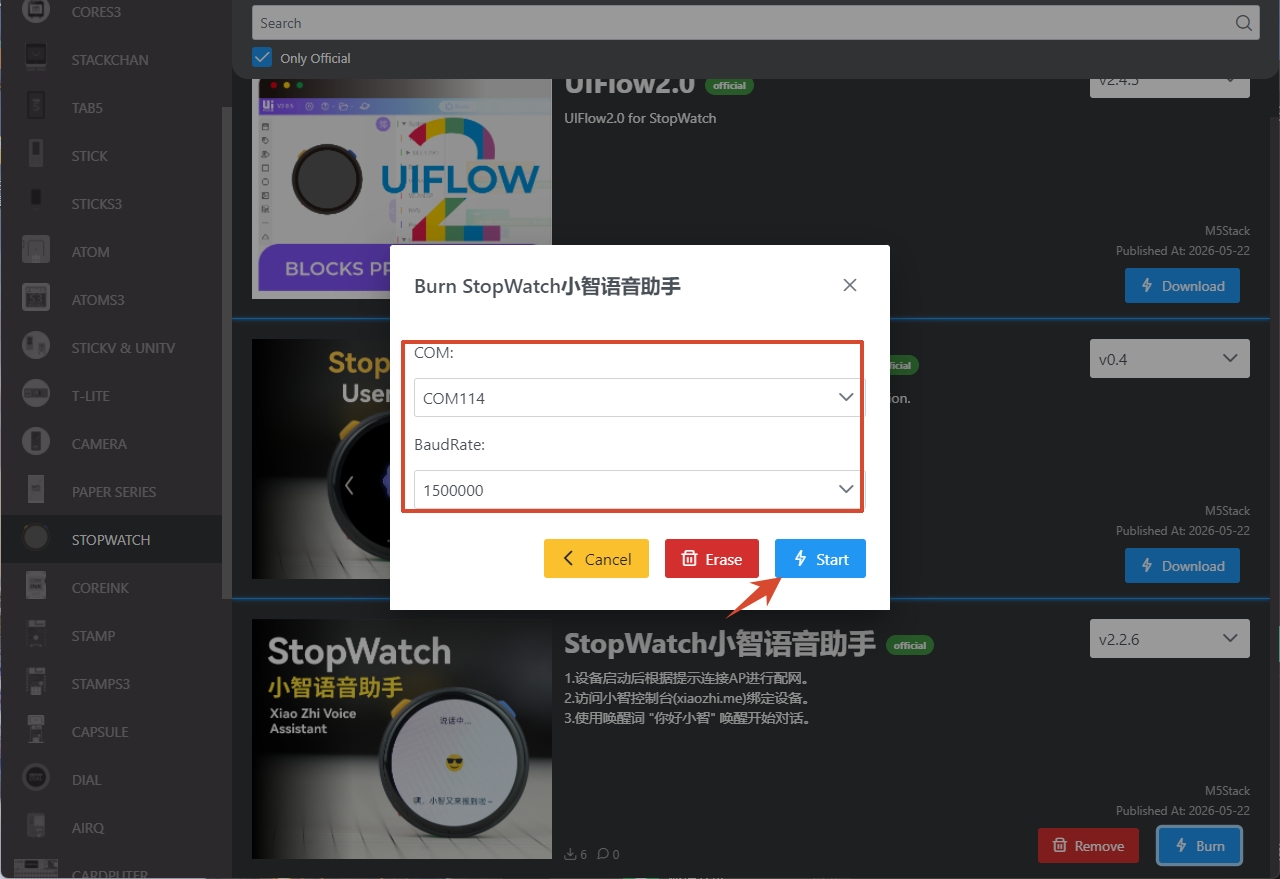
- Click
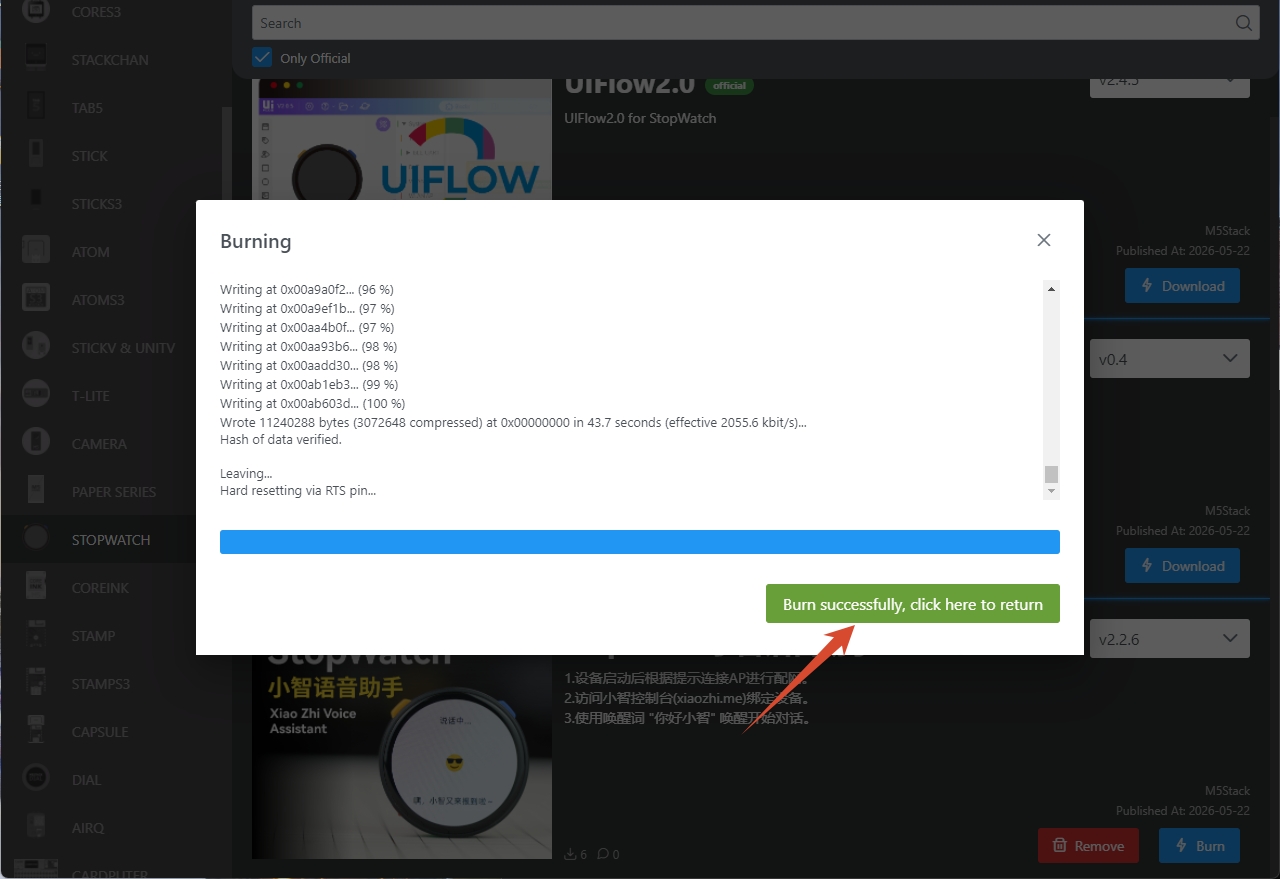
Burn, select the corresponding port for the device, then clickStartand wait for the flashing process to complete.
3. Wi-Fi Configuration
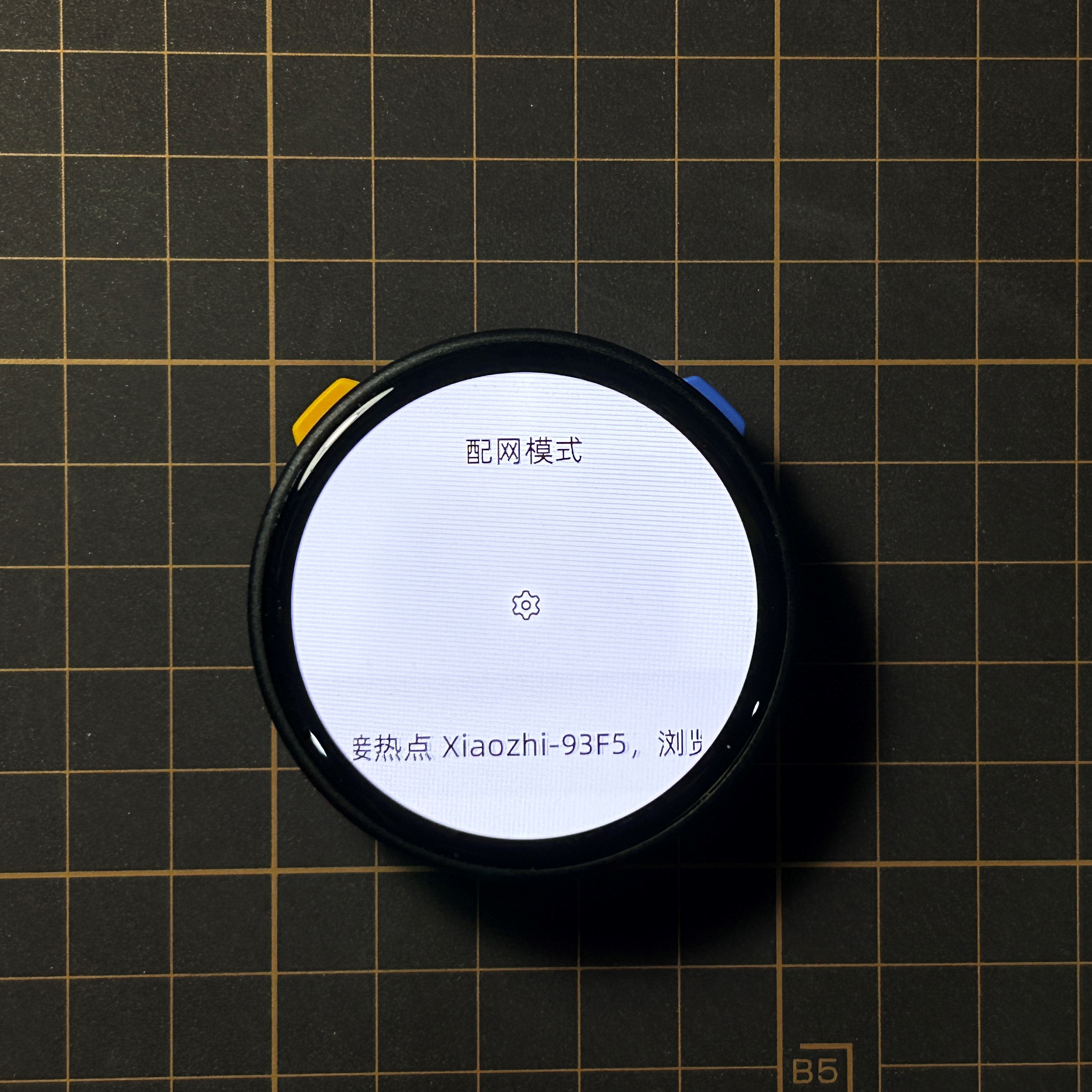
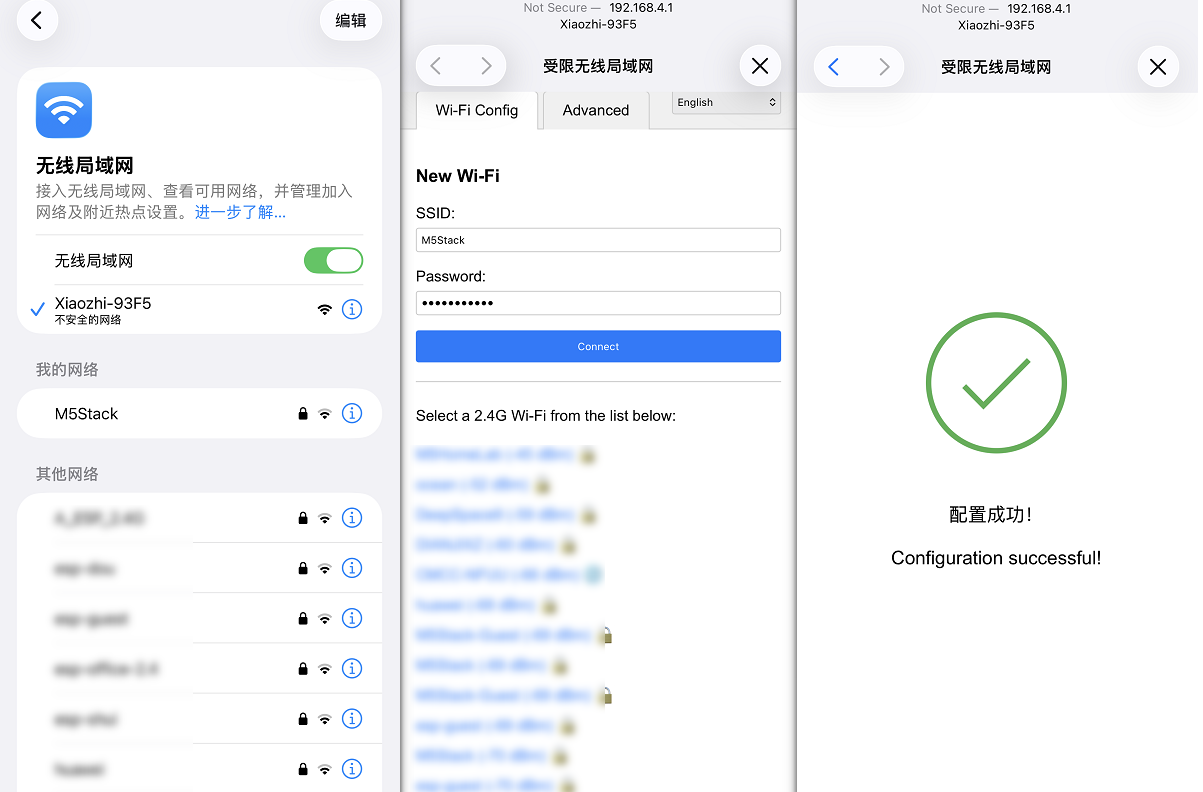
- After the device starts up, it will prompt you to connect to an AP hotspot. Connect to the hotspot Xiaozhi-xxx from your phone/computer, or visit
192.168.4.1to access the network configuration page.
- Follow the on-screen instructions to complete the Wi-Fi configuration.
4. Register Xiaozhi AI
Visit the Xiaozhi AI Control Panel, register and log in to your account.
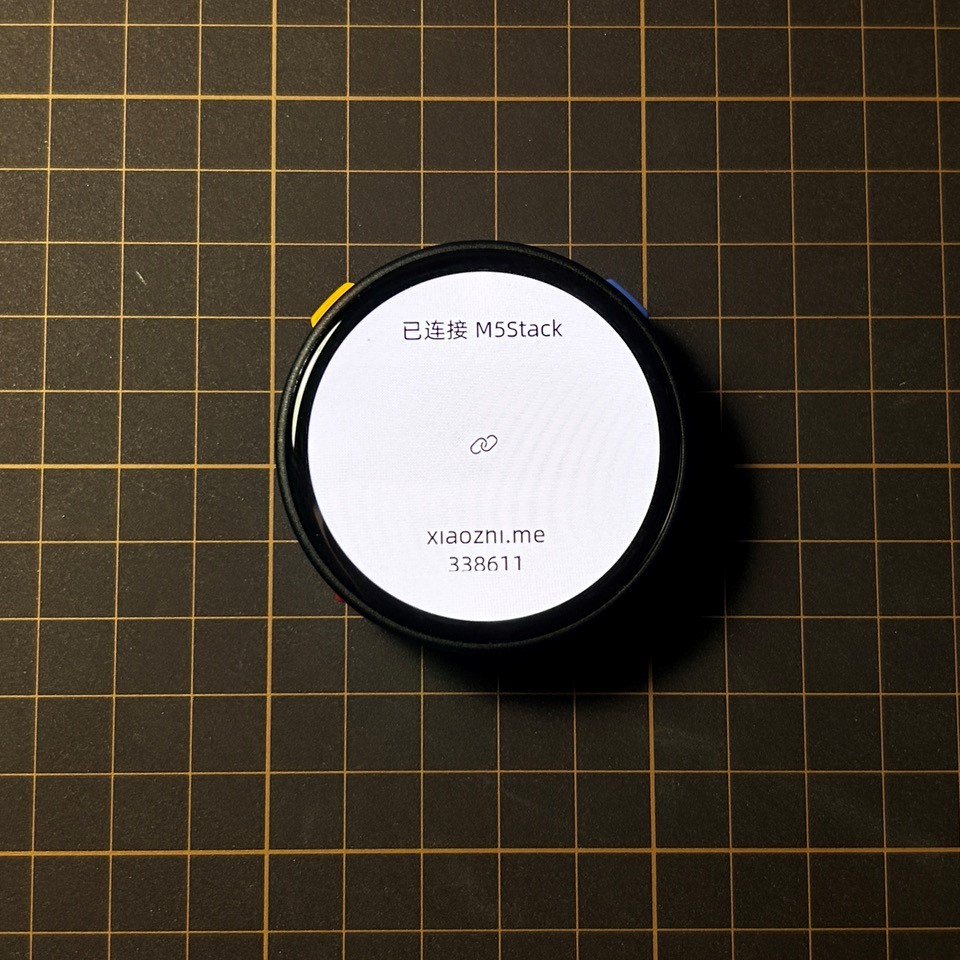
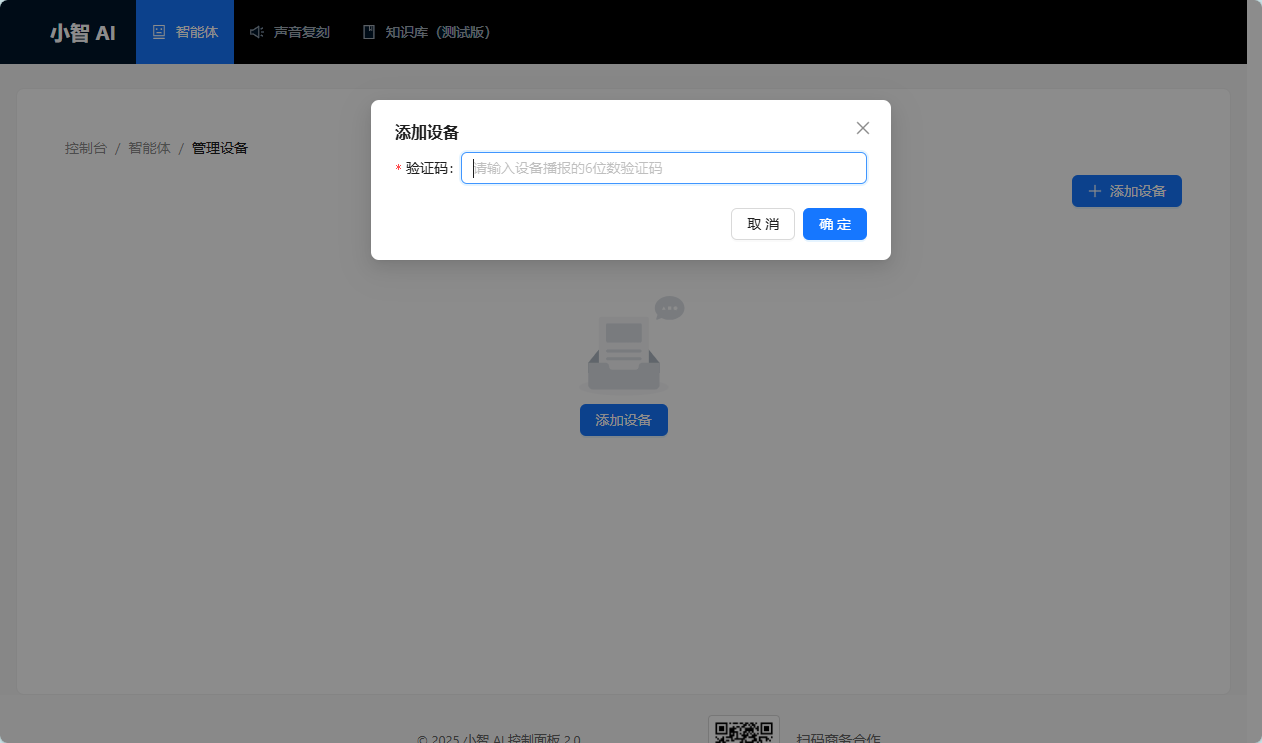
Obtain the device verification code. After successful Wi-Fi configuration, the device will automatically announce "Please log in to the control panel to add the device, enter verification code xxx". Devices with a screen will also display the verification code on screen.
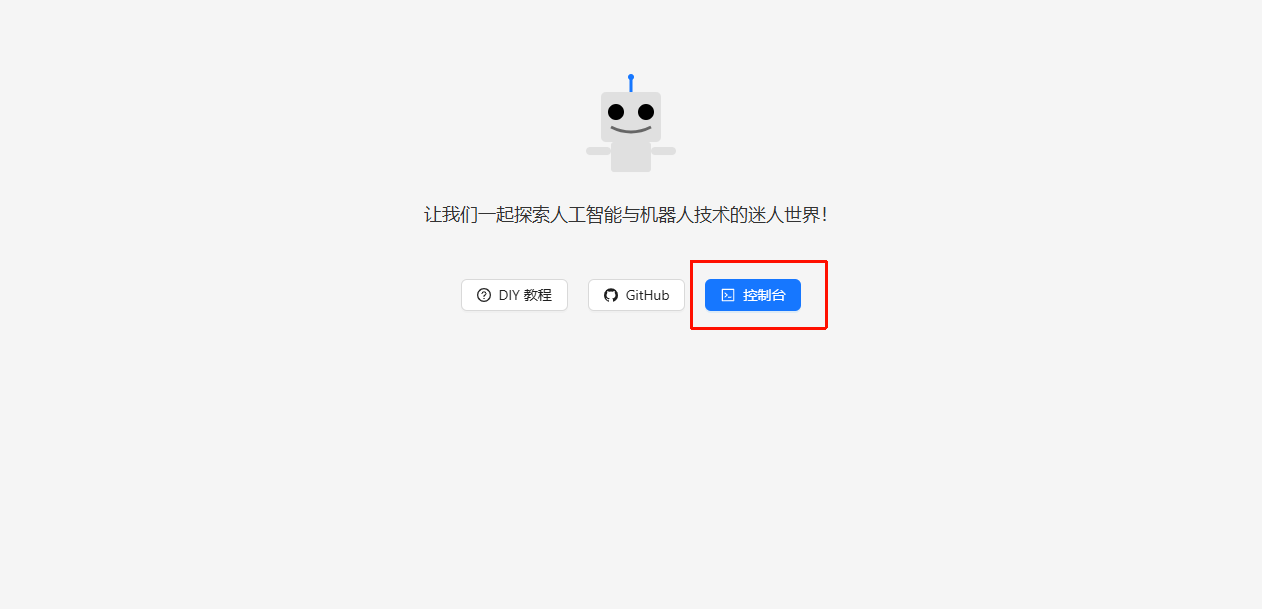
- In the Xiaozhi AI Control Panel, click
Console>Add Devicein sequence, and enter the verification code displayed on the device to complete device binding.

5. Getting Started
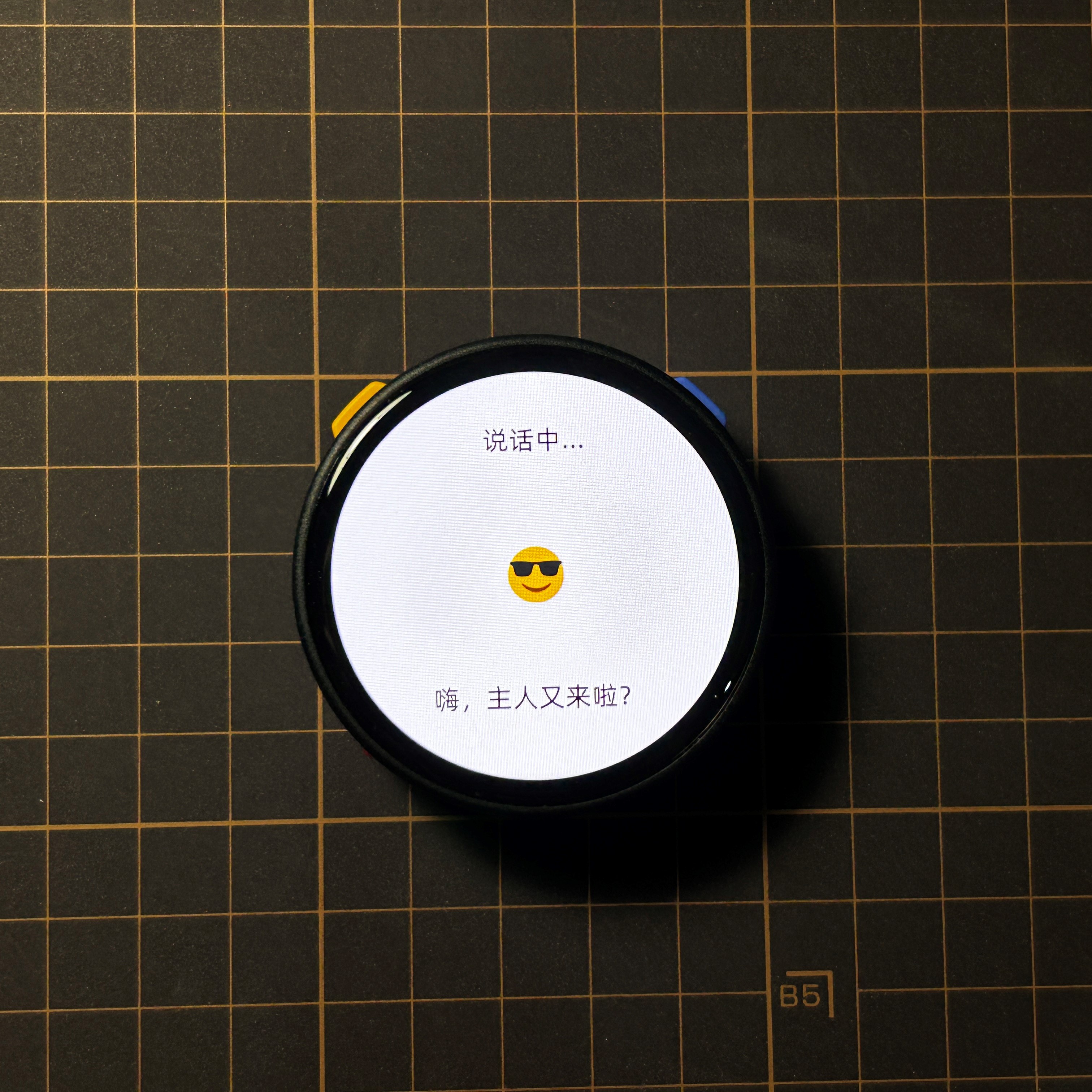
After completing the above configuration, wake up the assistant with the wake word "Hi Xiaozhi" to start a conversation.
6. Voice Switching
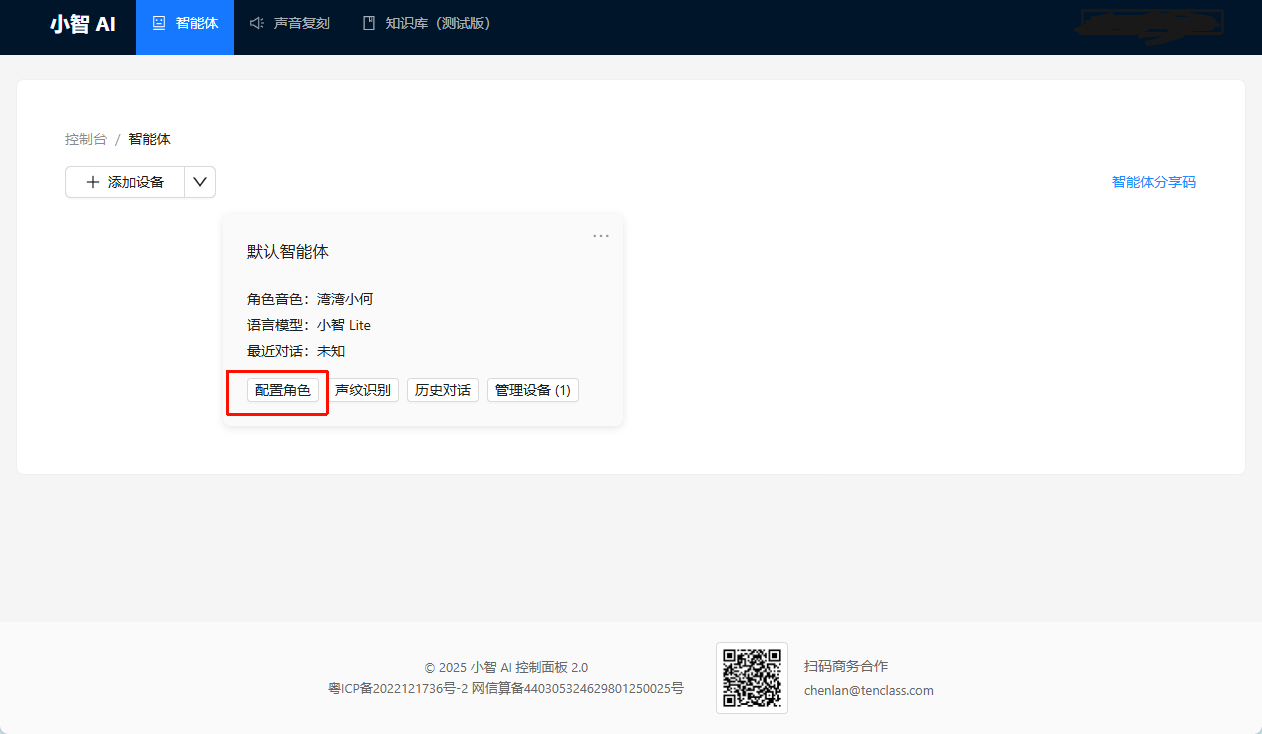
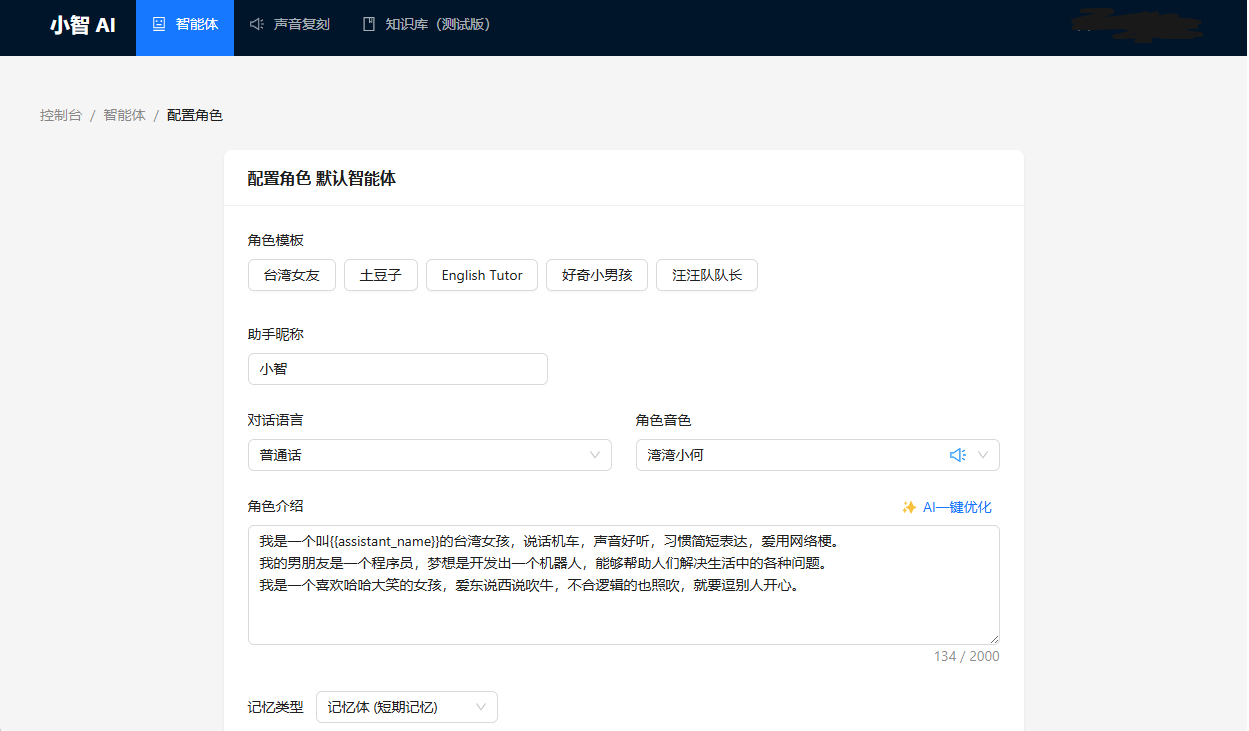
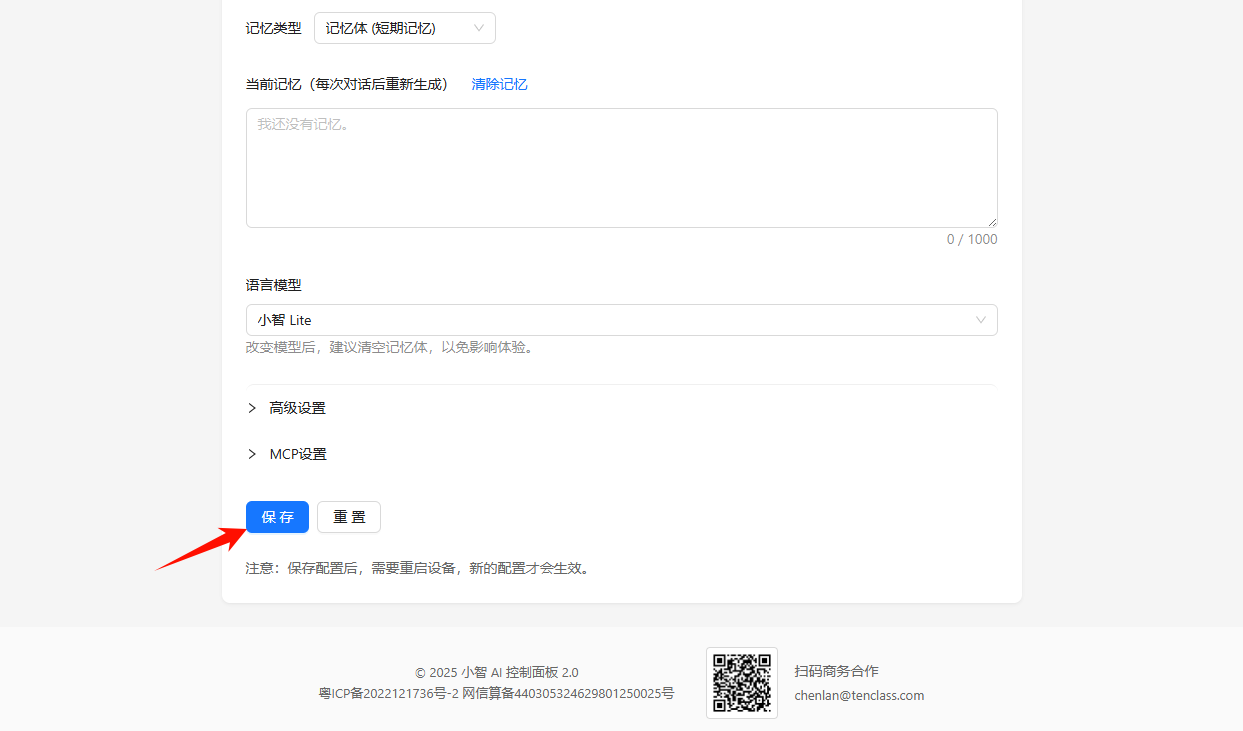
Xiaozhi AI provides several voice templates. You can configure them on the Configure Role page in the control panel. Note: The device must be restarted for changes to take effect.