Product Guides
AI & Voice
AI Voice Assistants
Volcengine
Offline Speech Recognition
Unit ASR
Module ASR
Audio & Voice Input
Voice Pyramid
Cameras & Vision
Camera Features
M5Camera
PoECAM
Unit CamS3 / CamS3-5MP
Connectivity & IoT
Industrial Control & Measurement
Air Quality
PowerHub
StamPLC
VAMeter
T-Lite
Module13.2 PPS
Unit RollerCAN
Display & Interaction
Paper
PaperColor
StopWatch
Tab5 Keyboard
Chain DualKey
Robotics & Maker Projects
Atom Printer
Bala
Bala2
BalaC Plus
Faces Kit Gameboy
RoverC & JoyC
StampFly & Atom Joystick
Firmware & Device Maintenance
Firmware Upgrade
Hardware Configuration
Design & Selection References
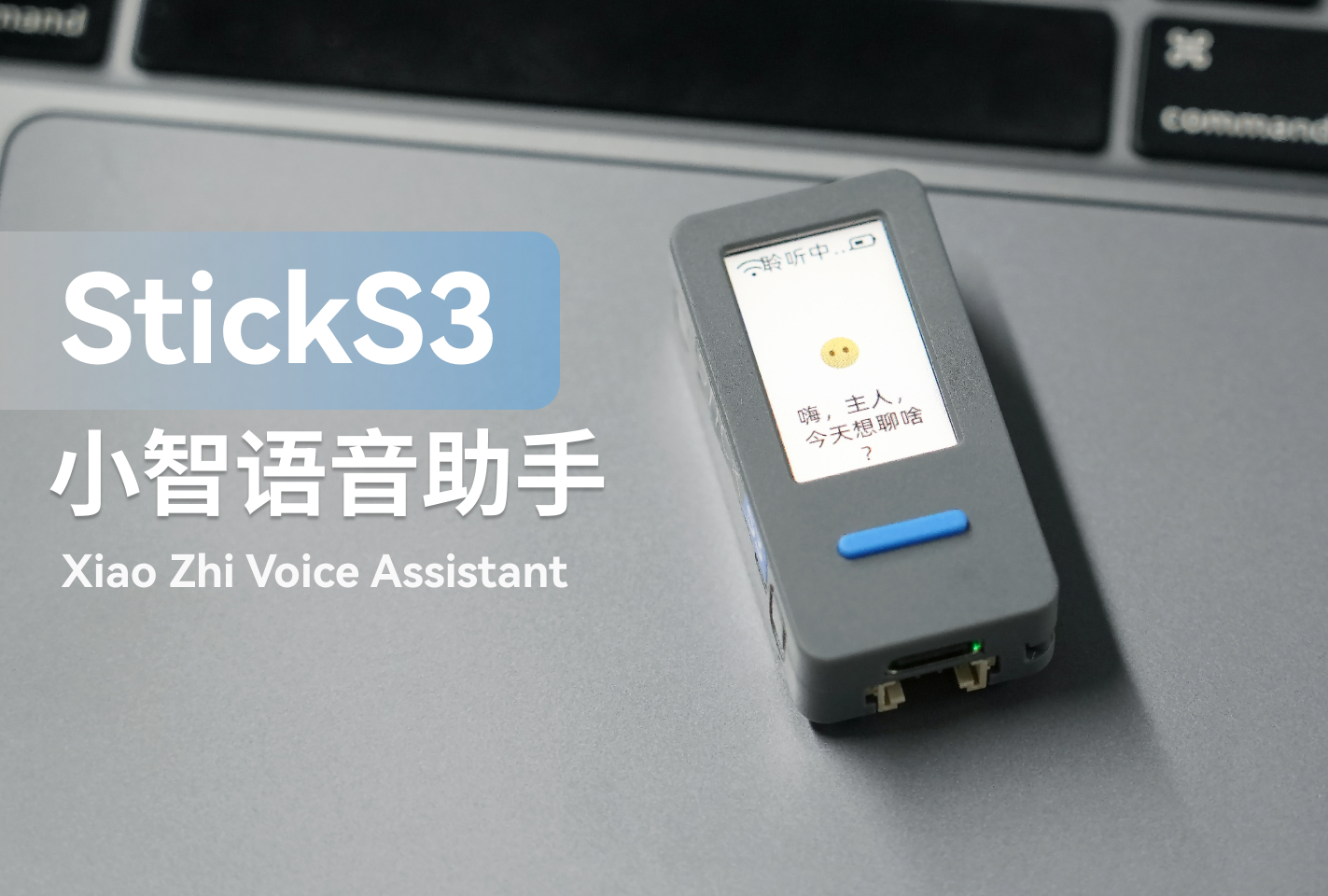
StickS3 Xiaozhi Voice Assistant
This tutorial uses the StickS3 main controller to flash the Xiaozhi Voice Assistant firmware via M5Burner and build a personal voice assistant application.
1. Preparation
Please download the corresponding M5Burner firmware flashing tool according to your operating system by clicking the buttons below. After downloading, extract and open the application.
| Software Version | Download Link |
|---|---|
| M5Burner_Windows | Download |
| M5Burner_MacOS | Download |
| M5Burner_Linux | Download |
2. Firmware Flashing
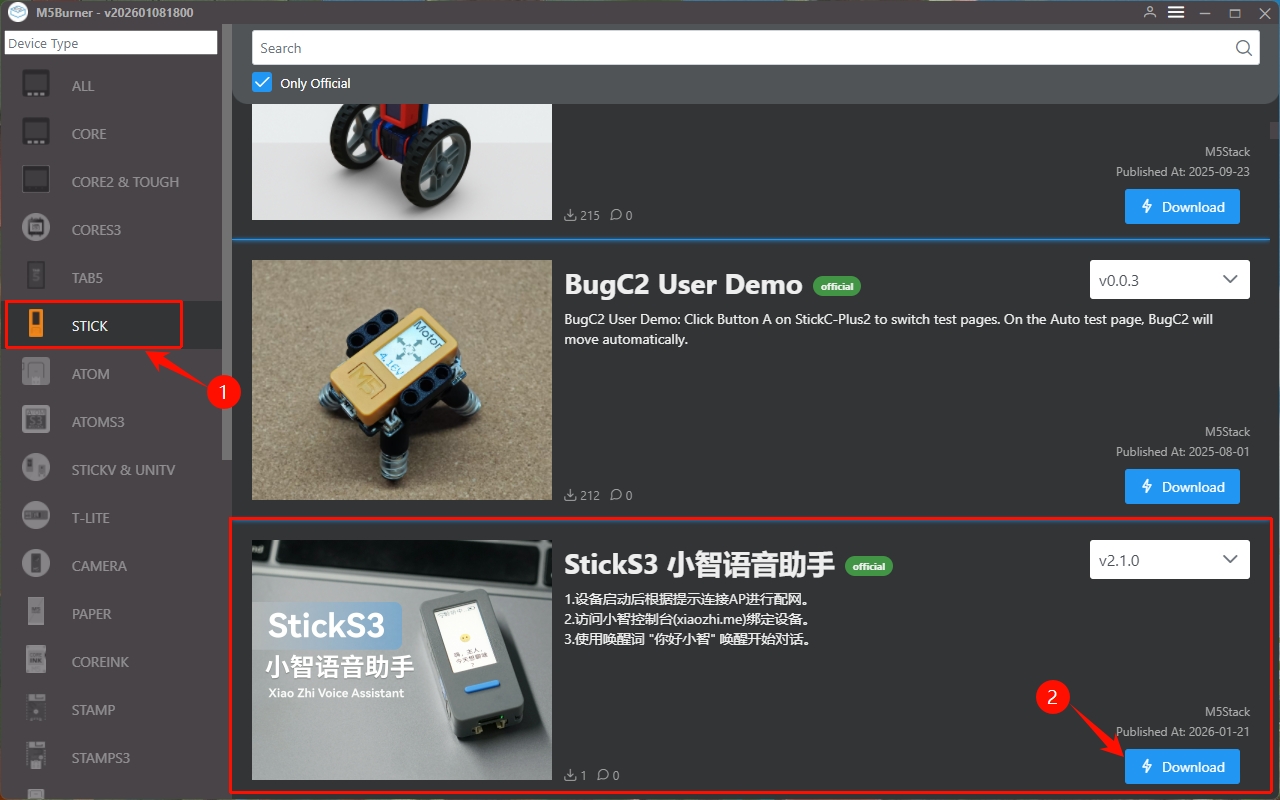
- Double-click to open the Burner flashing tool. In the left menu, select the corresponding device type
STICK, then clickDownloadto download theStickS3 Xiaozhi Voice Assistantfirmware.
- Connect the device with a USB cable and press and hold the reset button on the side of the device. When the internal green LED starts flashing, it indicates that the device has successfully entered download mode.

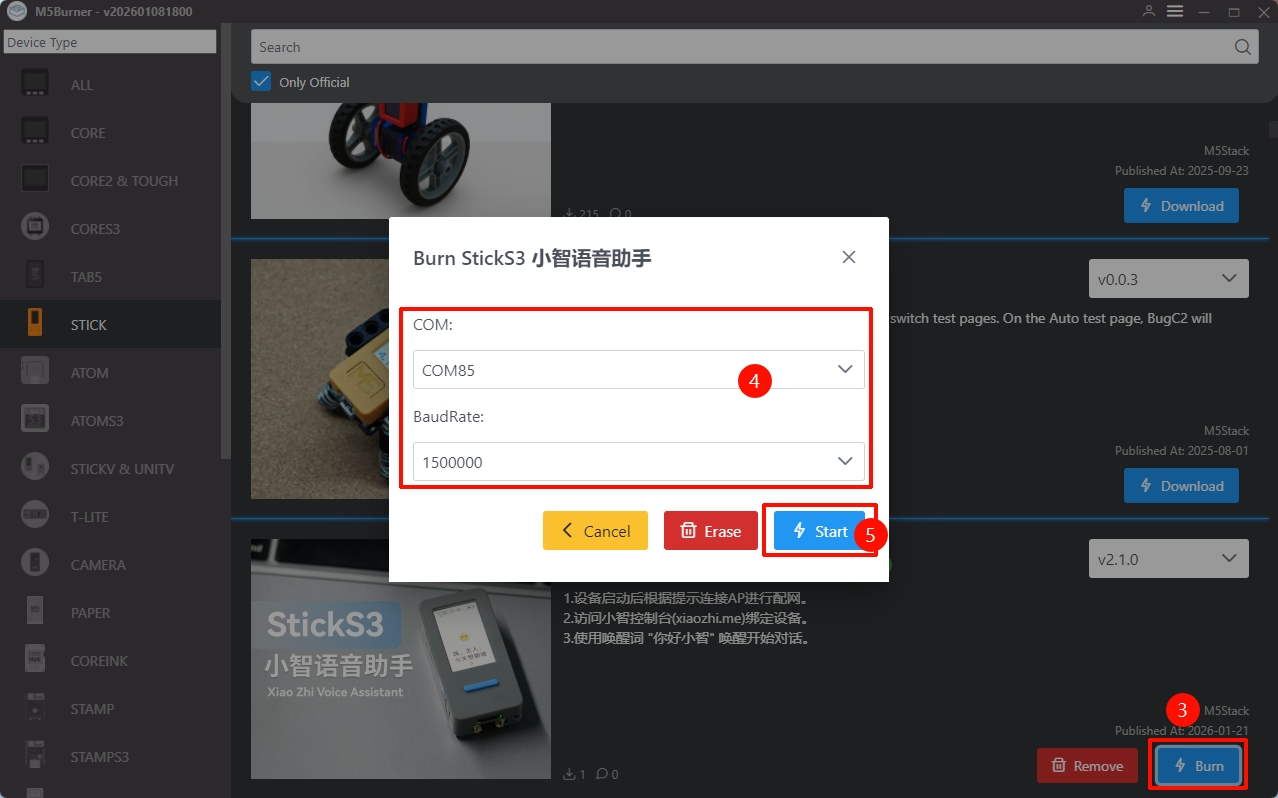
- Click
Burn, select the corresponding device port, then clickStartand wait for the flashing process to complete.
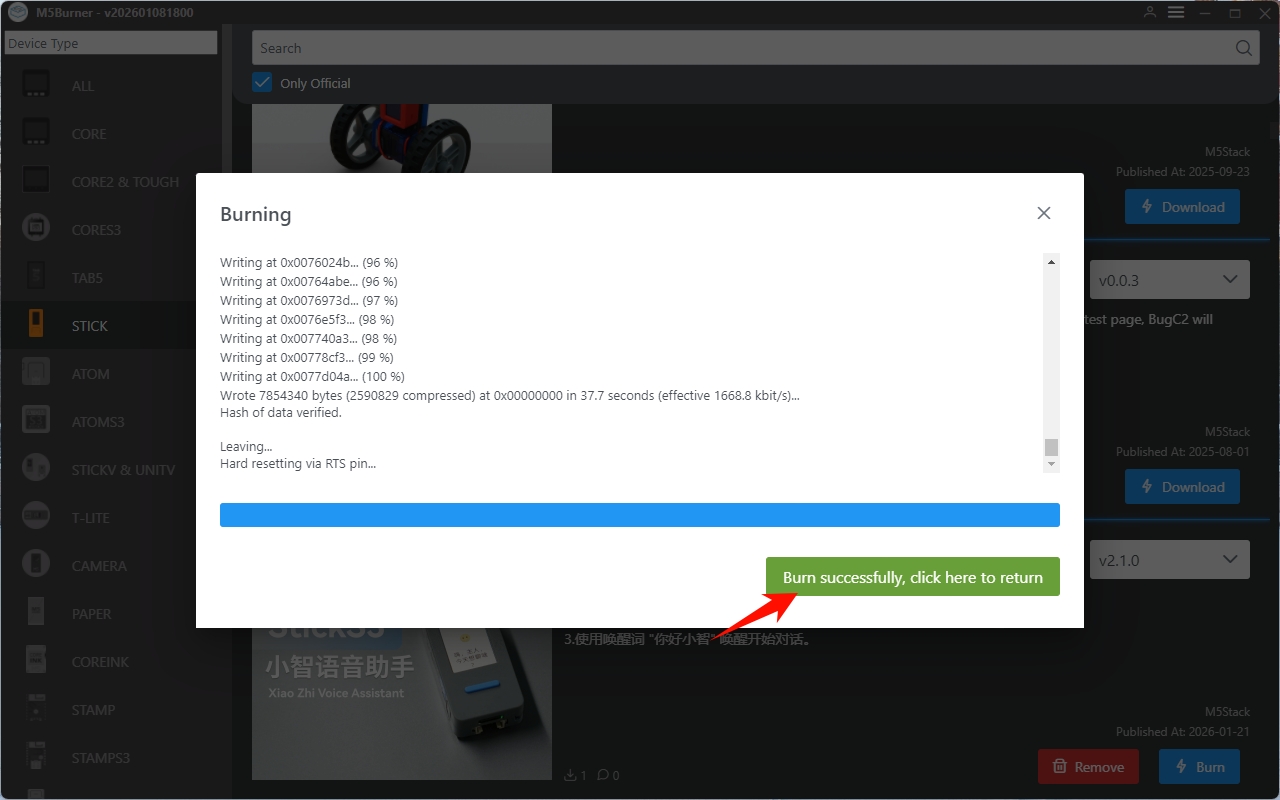
- After flashing is complete, press the reset button. The device will reboot and enter network configuration mode.
3. Wi-Fi Configuration
Connect your mobile phone to the hotspot
Xiaozhi-xxxx, or visit192.168.4.1to enter the network configuration page.Follow the on-screen instructions to complete the Wi-Fi configuration.
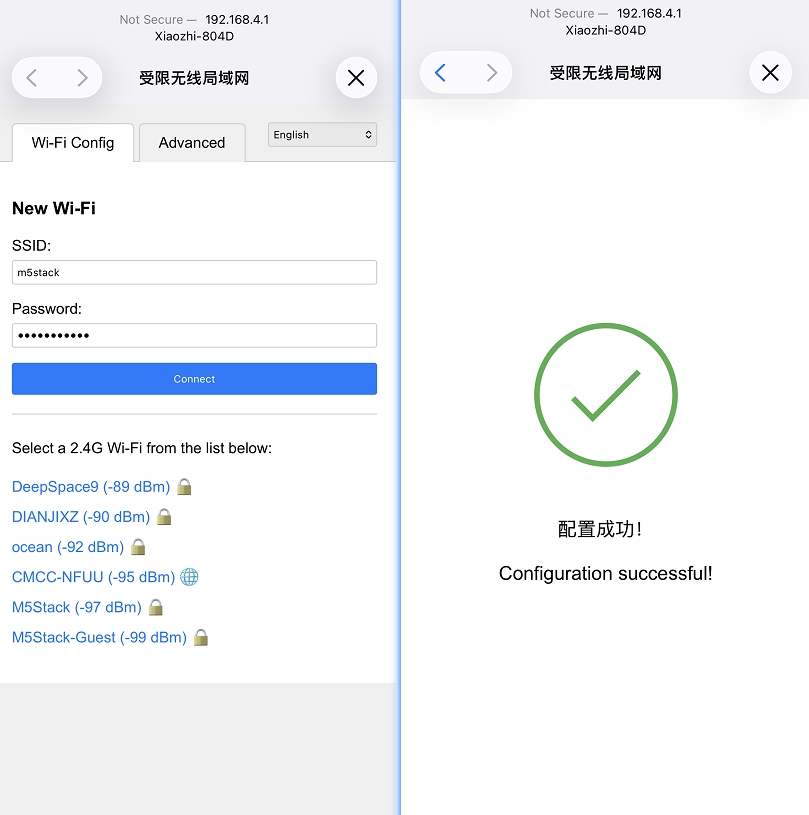
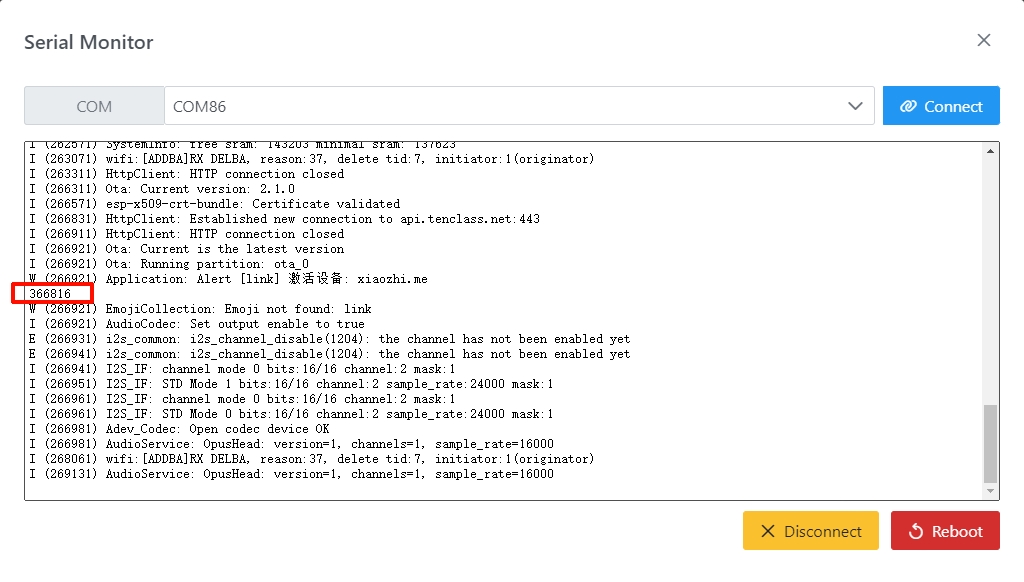
After the Wi-Fi configuration is successful, the device will reboot and automatically announce: Please log in to the control panel to add the device and enter the verification code xxxxxx. You can also view the device verification code through the serial log.
4. Register Xiaozhi AI
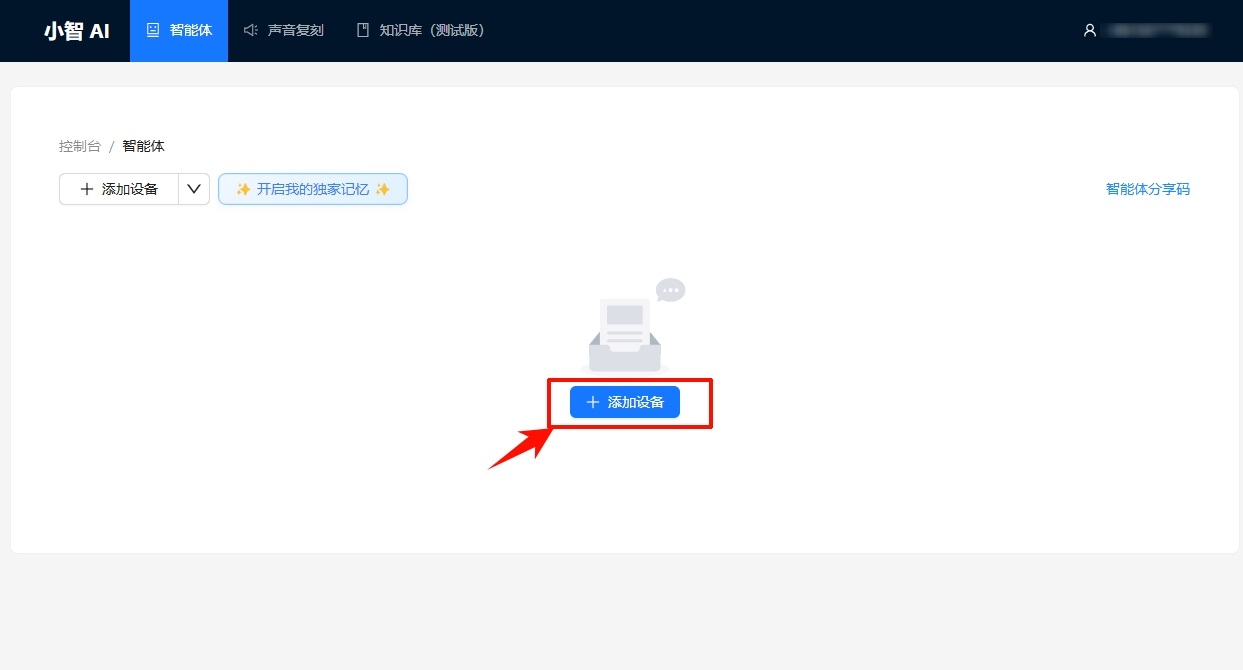
Visit the Xiaozhi AI Control Panel to register and log in to your account.
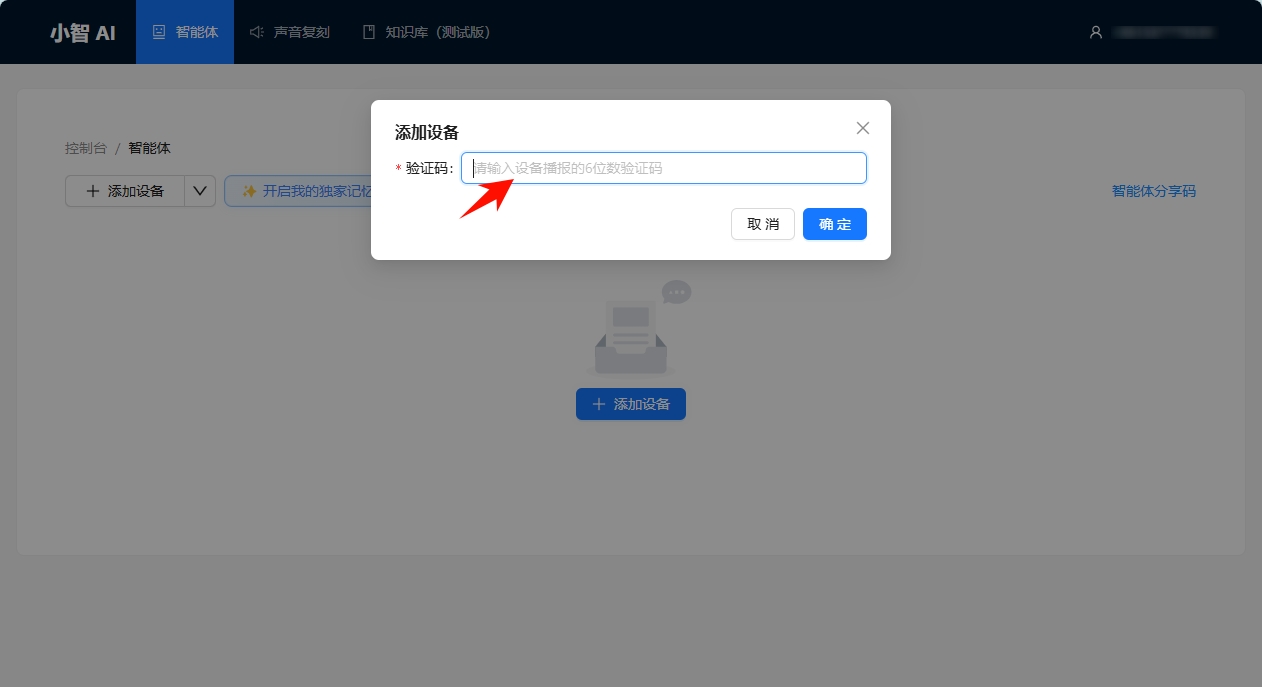
In the Xiaozhi AI control panel, click
Add Deviceand enter the device verification code to complete device binding.
5. Start Using
After completing the above configuration, wake up the assistant with the wake word “Hello Xiaozhi” to start a conversation.
6. Voice Switching
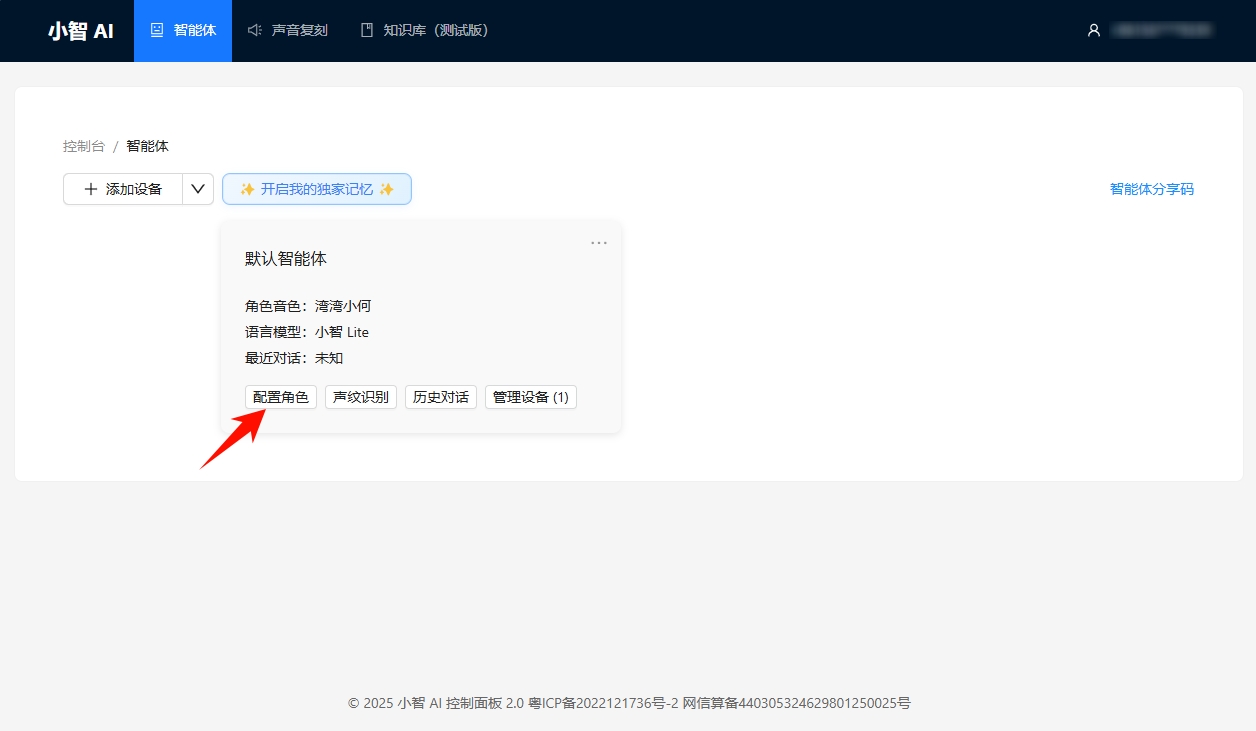
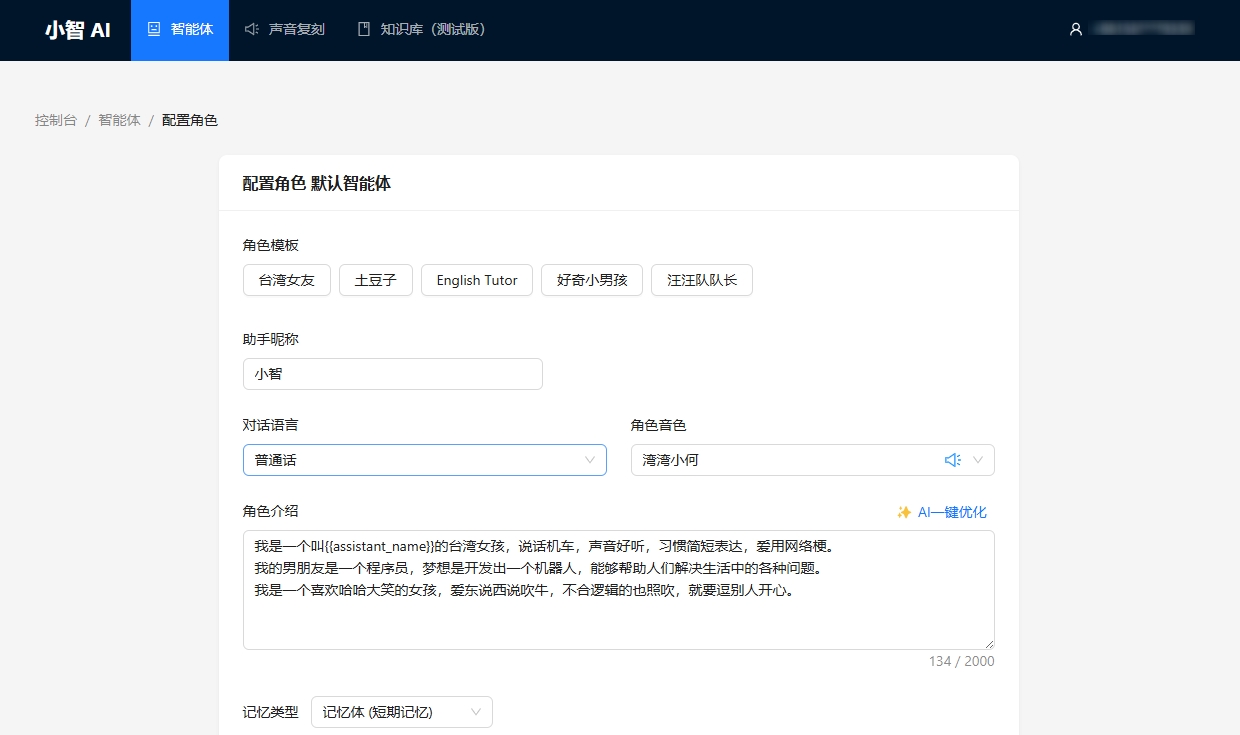
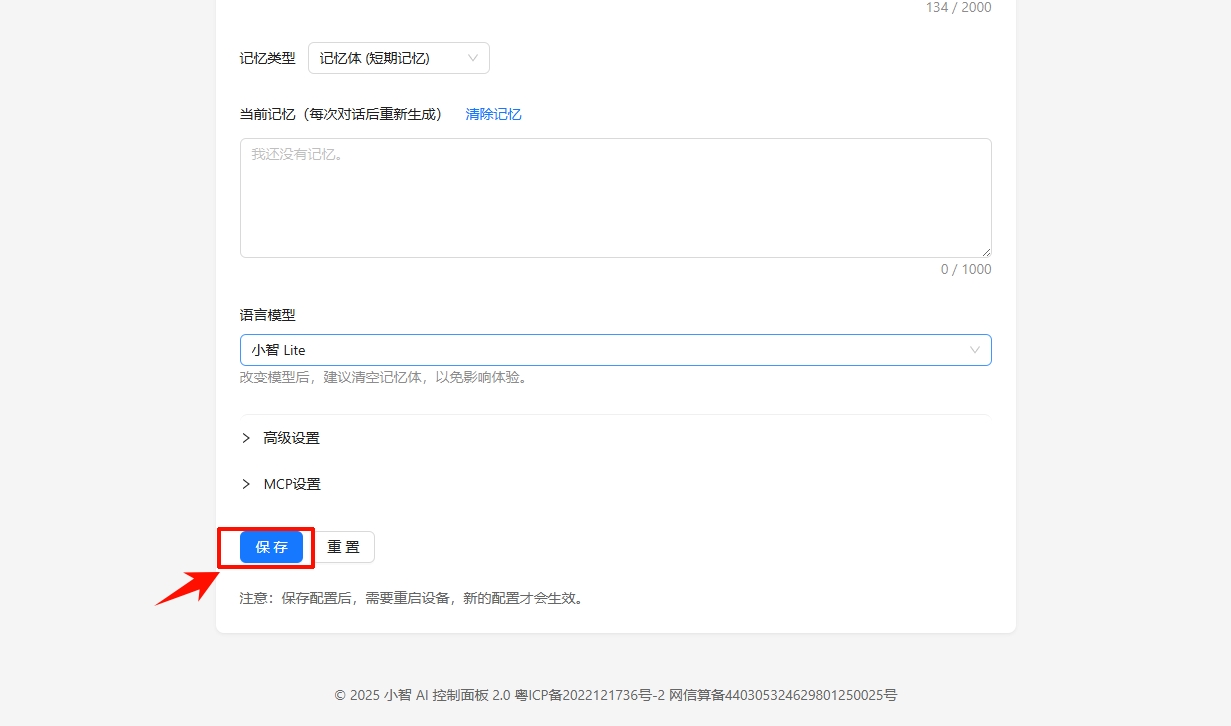
Xiaozhi AI provides several voice templates. You can configure them by entering the Configure Role page in the control panel. After configuration, restart the device for the changes to take effect.