























Home Assistant
Voice Assistant
Kit
Sensor
Unit Tube Pressure Home Assistant Integration
Introduction
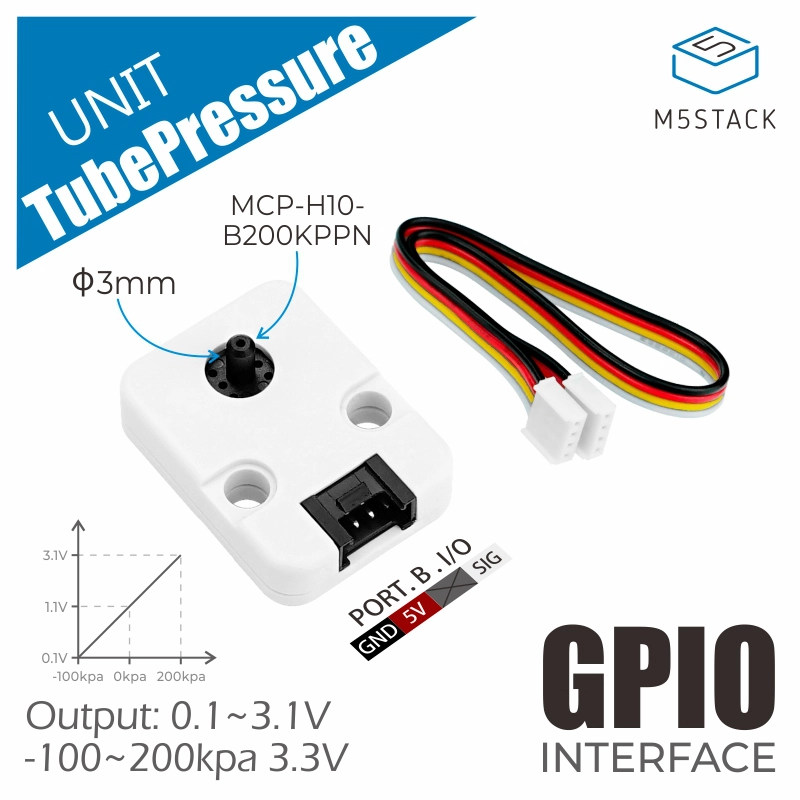
Unit Tube Pressure is a positive and negative pressure gauge that supports a wide measurement range from -100 ~ 200Kpa. During use, the device connects via a tube, with the other side linked to the gas measurement environment. The sensor proportionally maps -100 ~ 200Kpa to an output voltage of 0.1 ~ 3.1V. It comes with a full-coverage protective housing to ensure stable operation of the sensor, making it ideal for applications such as gas pressure detection in industrial equipment.
Preparation
- Home Assistant host
- Install and enable ESPHome Builder in Home Assistant
Tip
In this tutorial, the firmware is compiled and uploaded with ESPHome 2025.12.5. If you encounter compile/upload issues, consider switching ESPHome to this version.
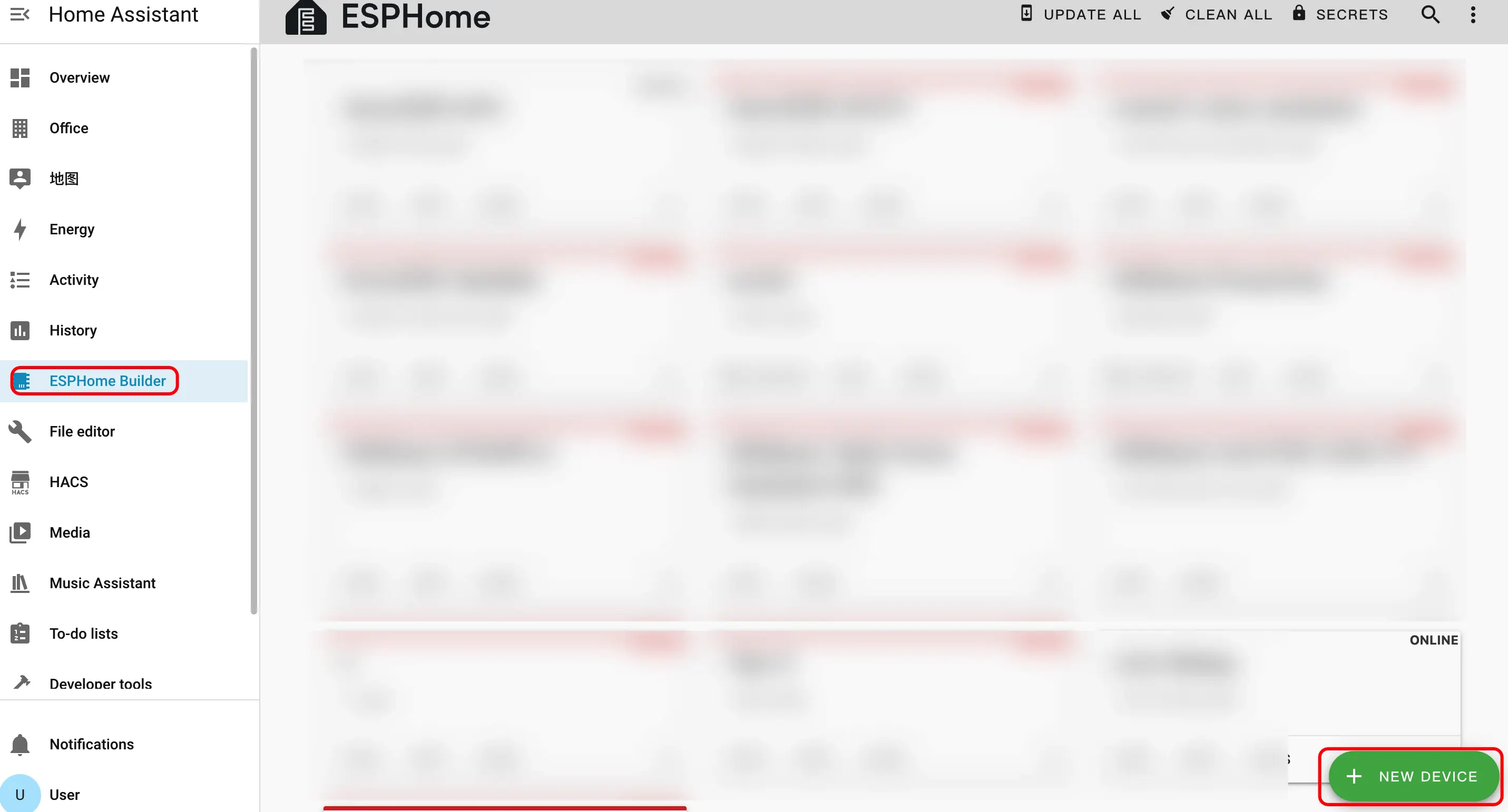
Step 1. Create New Device
- Click the green button in the lower right corner to create a device.
Step 2. Create Device Name
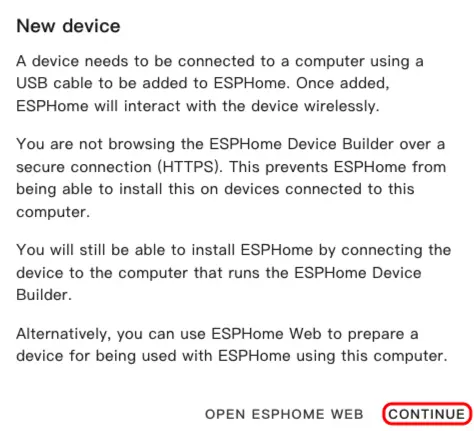
- Click
CONTINUE.
- Click
New Device Setup.
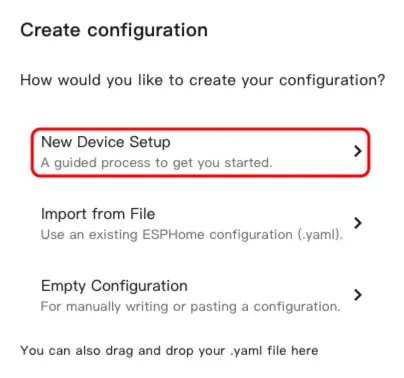
- Enter the name of the device and Click
NEXT.
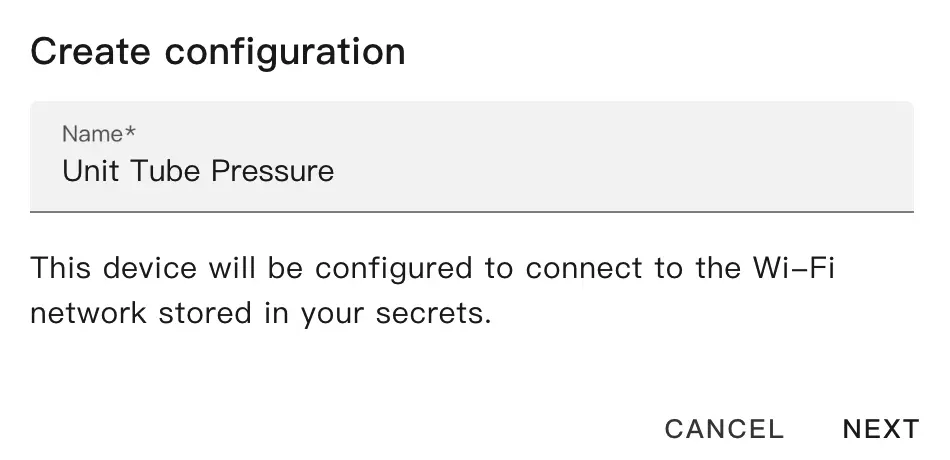
Step 3. Choose Device Type
- Click
ESP32-S3.
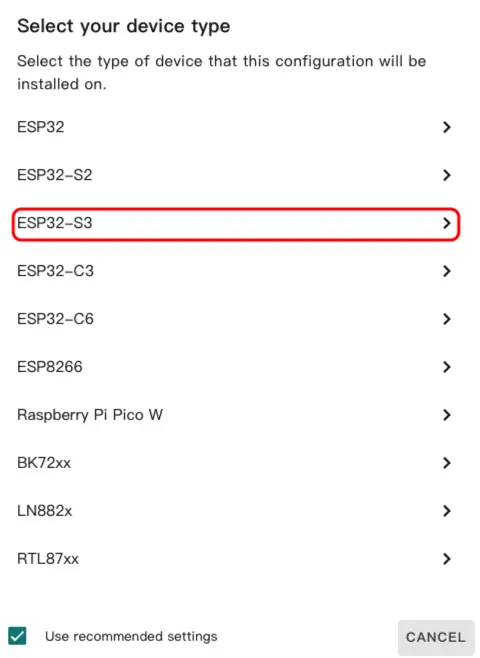
- Click
SKIP.
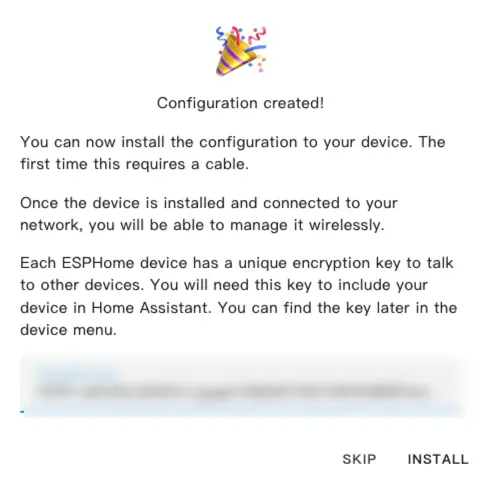
Step 4. Start Edit YAML File
- Click
EDIT. We can customize device functionality through YAML files.
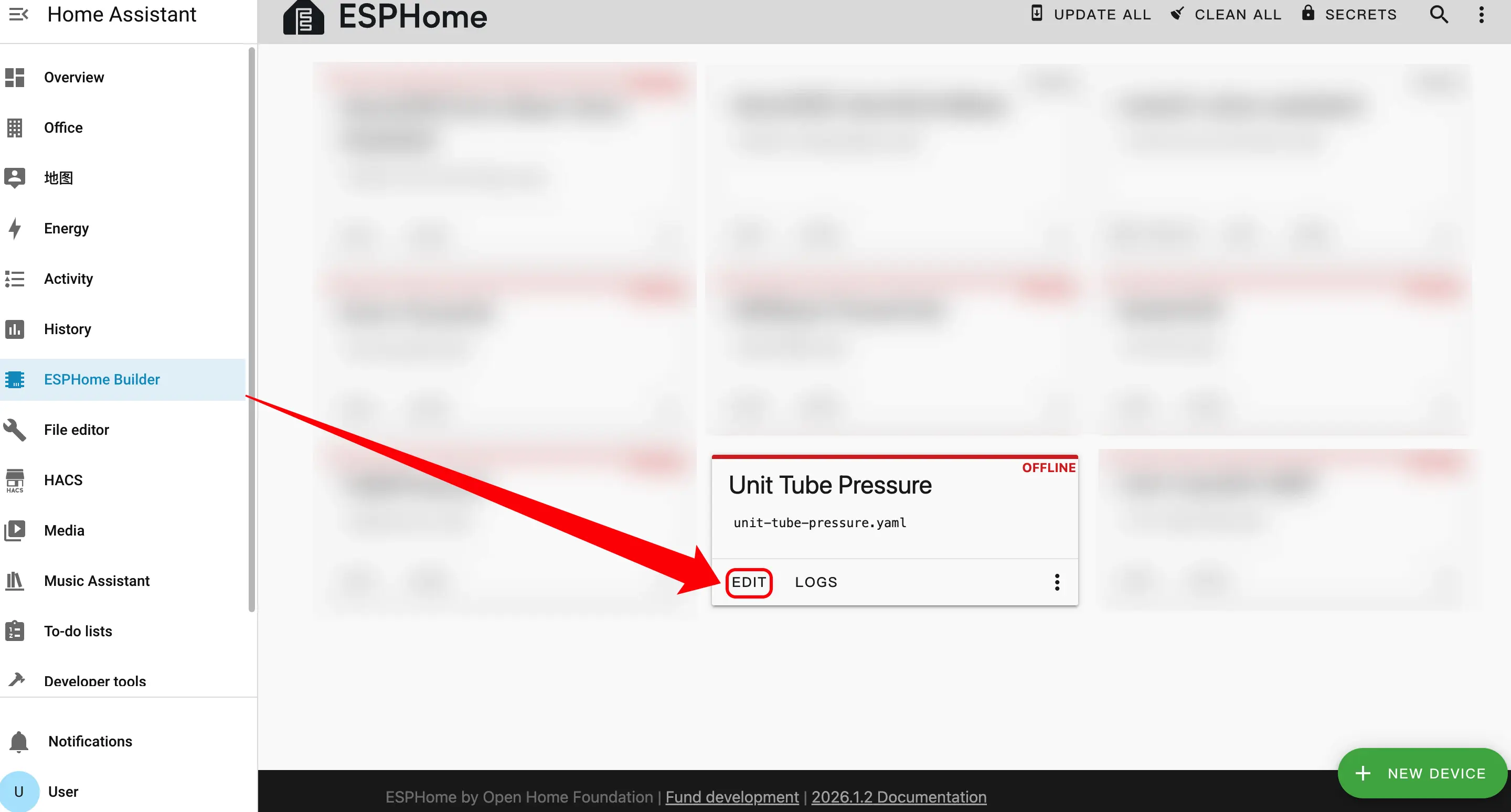
Device Setup
Sensor Configuration
The GPIO pin assignments here may vary depending on the main controller used. For example, when using AtomS3R as the main controller:
- Add the Sensor components
sensor:
  - platform: adc
    pin: GPIO1
    id: adc_voltage
    attenuation: 11db
    update_interval: 100ms
    unit_of_measurement: "V"
    accuracy_decimals: 3

  - platform: template
    name: "Pressure"
    unit_of_measurement: "kPa"
    accuracy_decimals: 2
    update_interval: 100ms
    lambda: |-
      float K = 100.0;
      float B = 110.0;
      float voltage = id(adc_voltage).state;
      float P = voltage * K - B;
return P;Firmware Build
- Click
INSTALLagain to flash and wait for it to complete.
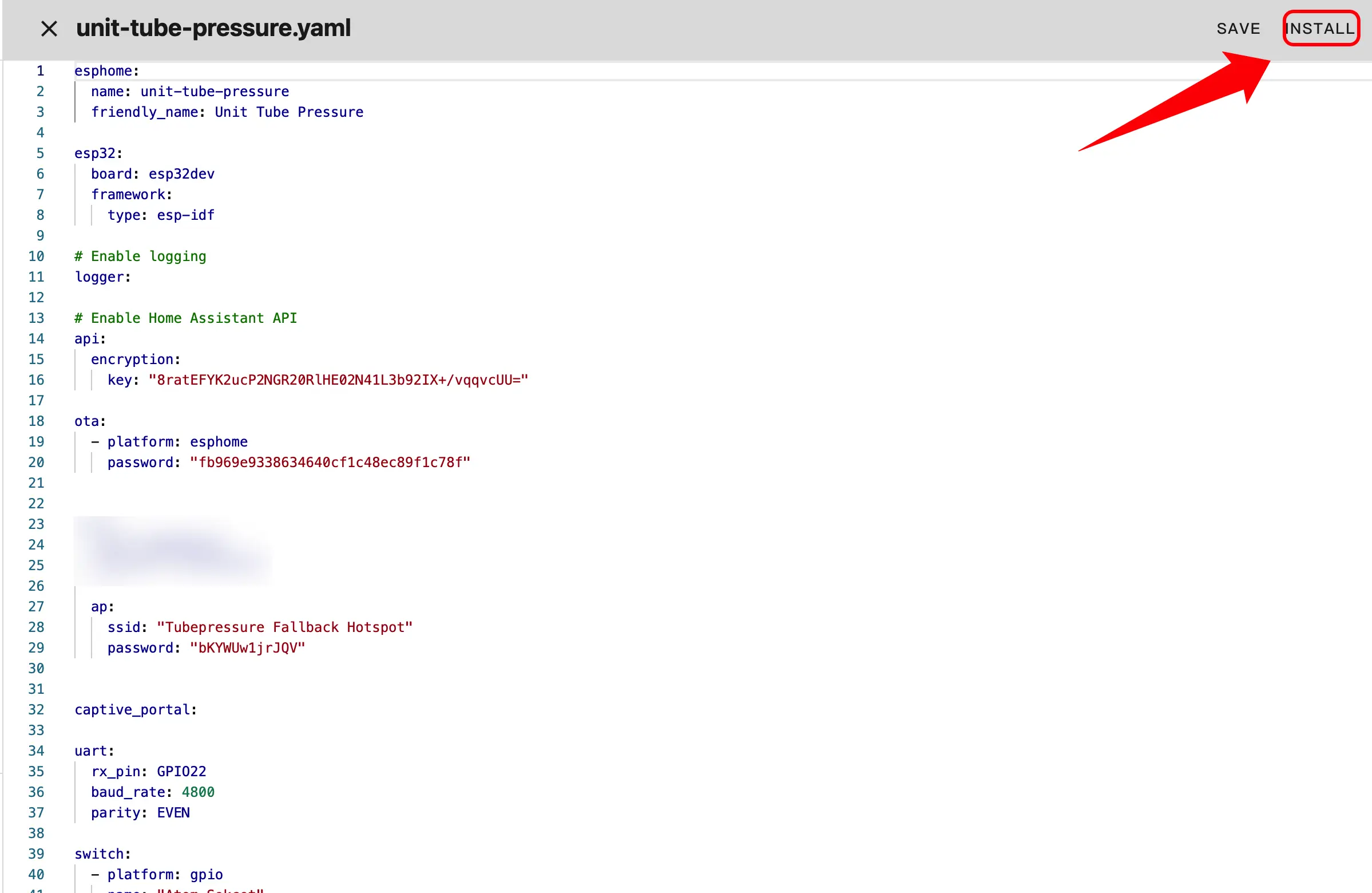
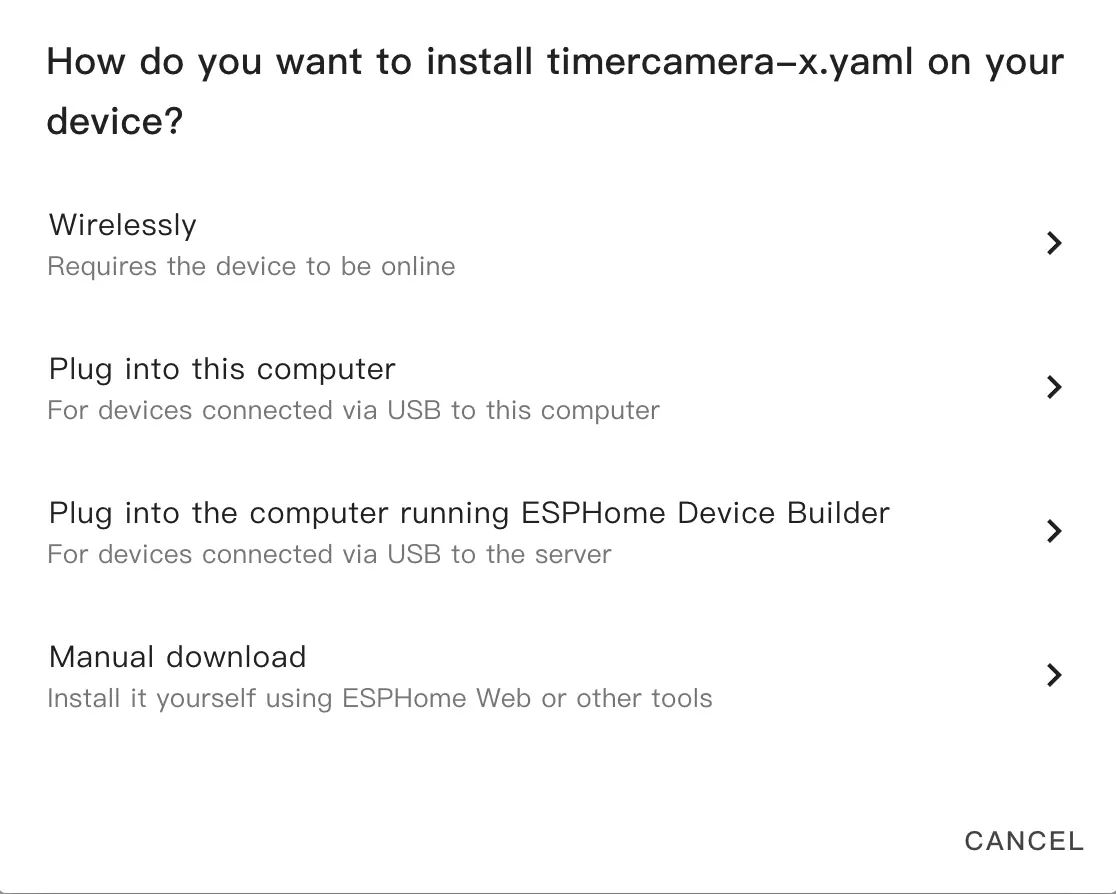
- After making changes, click
SAVEandINSTALLin the top-right corner, then chooseManual Downloadin the popup.
- After the firmware compilation is complete, click Download and select
Factory format(Previously Modern)
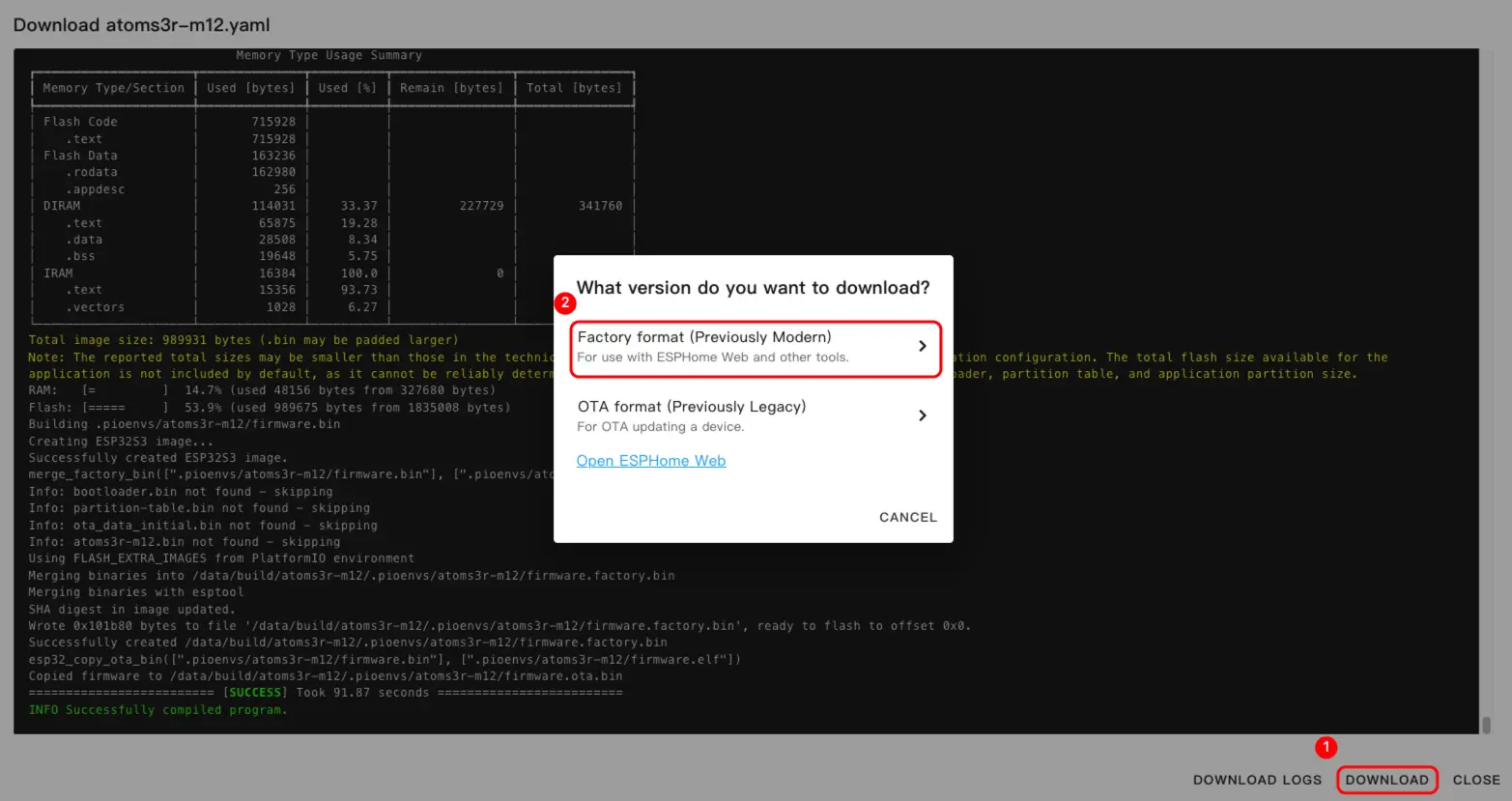
Tip
Click Unit Tube Pressure to view the complete example configuration. The first build may take a while, depending on the performance of the Home Assistant host and network quality.
Firmware Upload
- Connect the device to your host via a USB Type‑C cable. Open ESPHome Web and click
CONNECTto connect to the device.
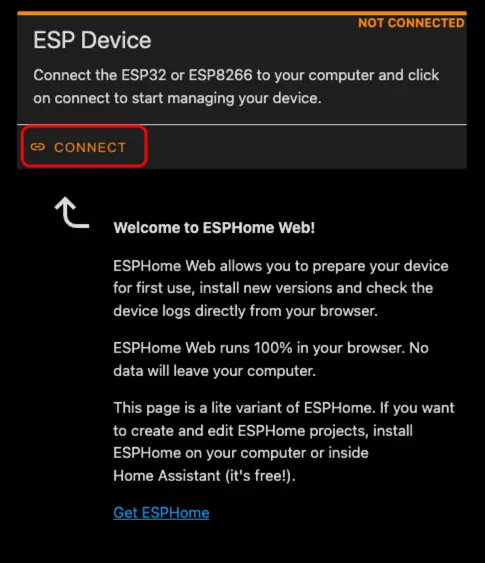
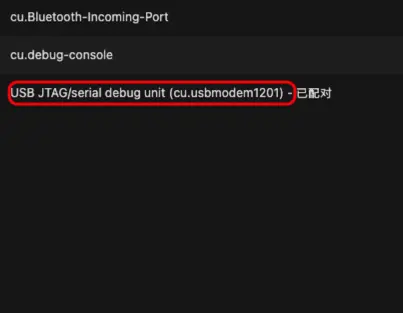
- Locate the corresponding serial port number
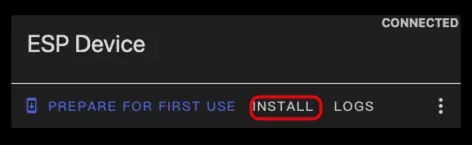
- Click
INSTALL
- Select the previously compiled firmware to upload.
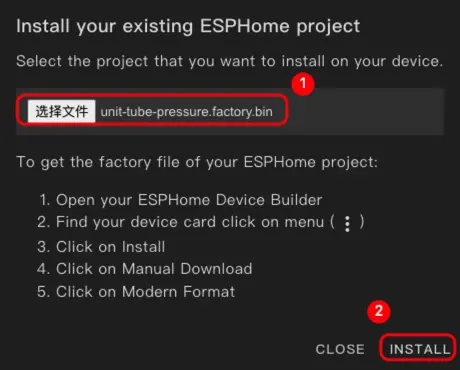
Tip
Please note that after the download is completed, the device must be reset.
Home Assistant Integration
- Click
Settings->Device & servicesto check the device.
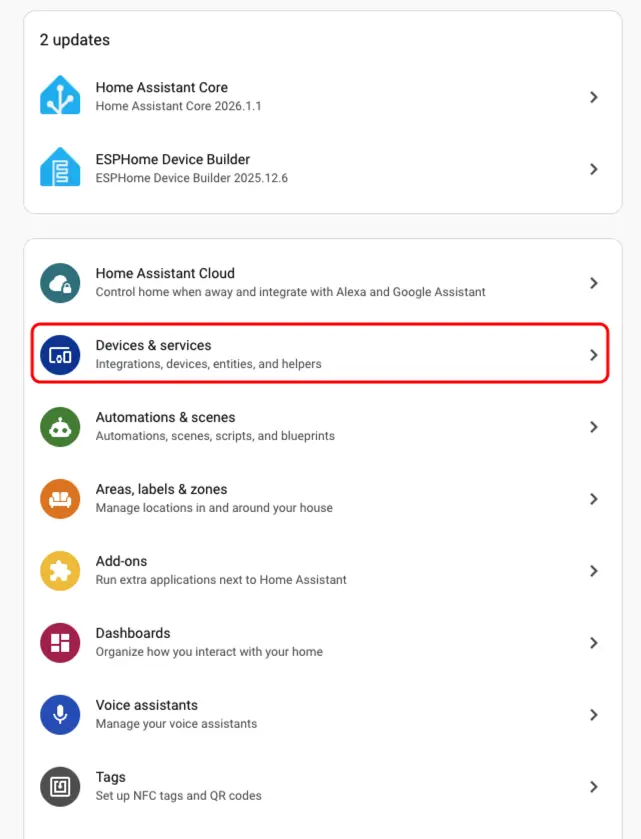
- We can find the corresponding device in the
Discoversection.
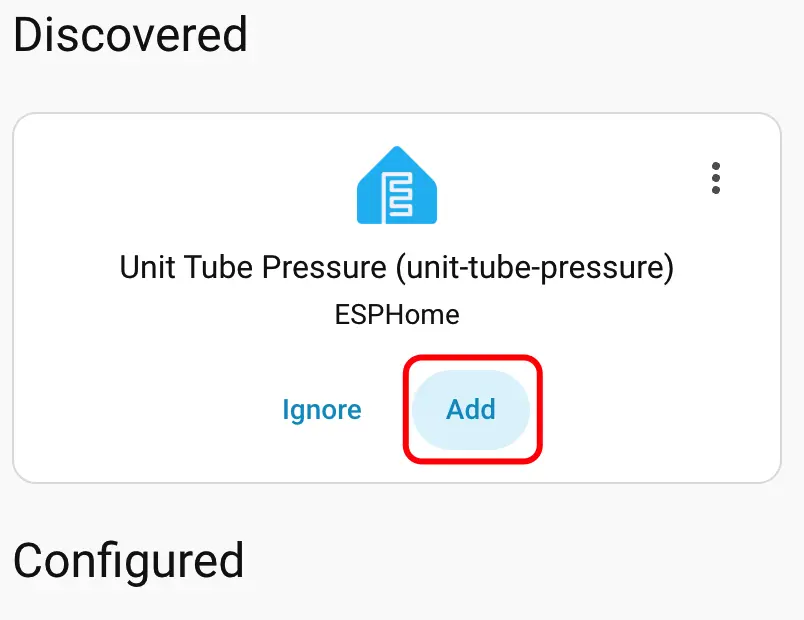
- After adding the device, the data will be displayed correctly.

- Finally, we add these entities to the Dashboard, and the following shows their display results.
