

StackFlow AI Platform
设备开发 & 快速上手
模型介绍
Qwen3
DeepSeek-R1
AI Pyramid 应用案例
Module LLM 应用案例
CV 视觉应用
VLM 多模态
LLM 大语言模型
语音助手
AI Pyramid - Frigate NVR
Frigate 是一个开源的网络视频录制系统(NVR),采用实时 AI 物体检测技术构建。所有视频处理均在您自己的硬件上本地执行,摄像头视频流永远不会离开您的网络,确保了数据隐私和安全性。
1. 获取资源文件
选择以下任一方式获取 Frigate 部署资源:
方式一:手动下载
访问 Frigate 资源仓库 进行下载,随后上传到 AI Pyramid 设备。
方式二:命令行克隆
依赖检查
若系统未安装 git lfs,请参考 git lfs 安装指南 进行安装。
git clone -b v0.17-ax650 https://huggingface.co/AXERA-TECH/frigate-resource1.1 资源文件说明
克隆完成后,目录结构如下:
root@m5stack-AI-Pyramid:~/rsp/frigate-resource# ls -lh
total 4.2G
-rw-rw-r-- 1 axera axera  736 Jan 28 14:27 docker-compose.yml
-rw-rw-r-- 1 axera axera 4.2G Jan 28 14:33 frigate-ax650-990aee8.tar
-rw-rw-r-- 1 axera axera 3.6K Jan 28 14:27 README.md2. 部署 Docker 镜像
步骤 1:导入镜像
docker load -i frigate-resource/frigate-ax650-990aee8.tar注意
镜像文件可能随版本更新而变化,请根据实际目录中的文件名进行导入。
步骤 2:准备工作目录
mkdir -p ~/frigate-runtime/{config,storage}
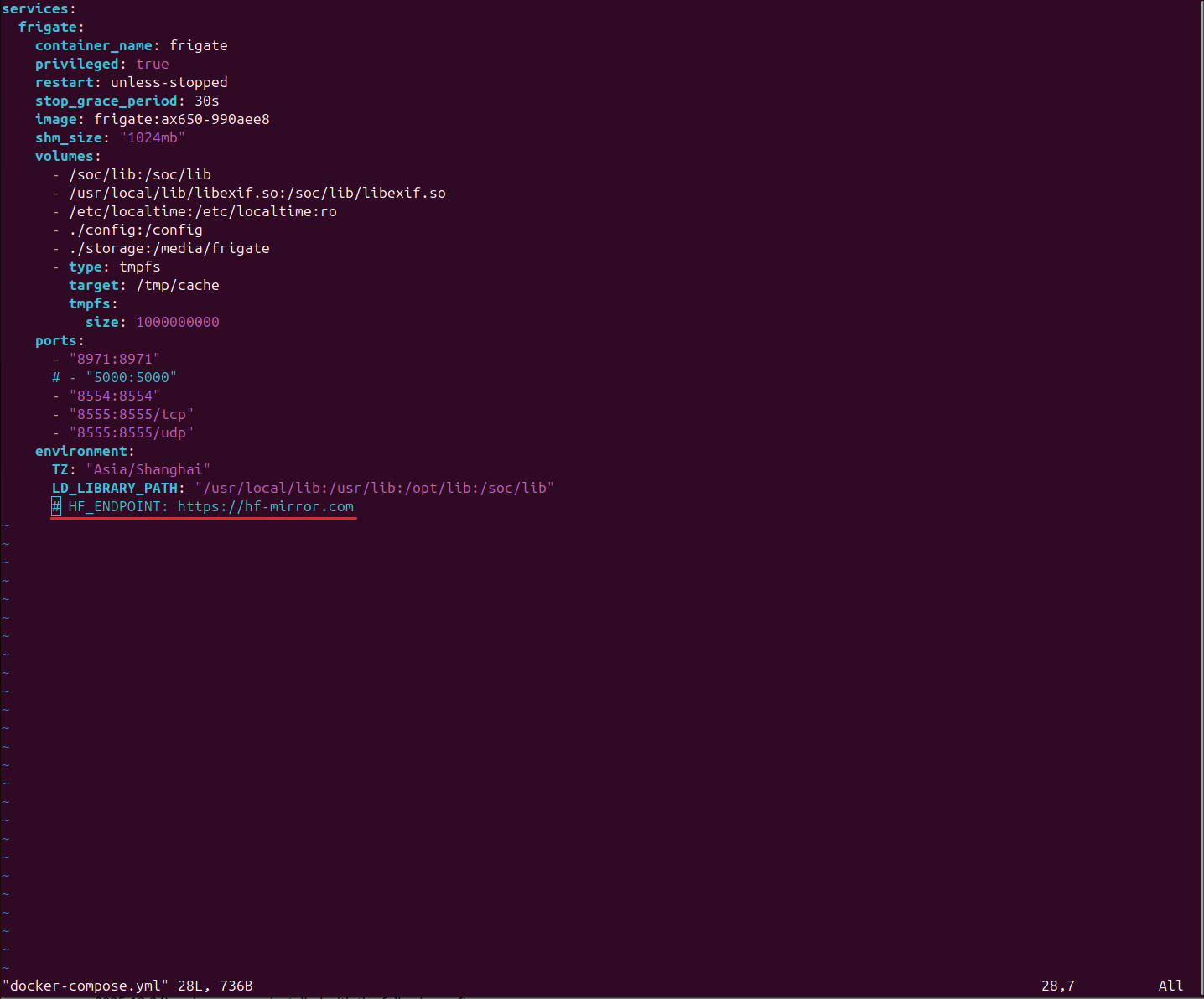
cp frigate-resource/docker-compose.yml ~/frigate-runtime/中国大陆用户
需要在 docker-compose.yml 中取消注释 HuggingFace 环境变量设置,以便正常自动下载模型文件。
步骤 3:启动容器
内存配置
对于 4GB 内存版本的 AI Pyramid,启动前请参考 增加虚拟内存教程 以确保程序能够正常运行。
cd ~/frigate-runtime/
docker compose up -d步骤 4:获取初始登录凭证
启动完成后,查看日志以获取自动生成的初始用户名和密码:
docker logs frigate示例输出:
root@m5stack-AI-Pyramid:~/frigate-runtime# docker logs frigate
2026-01-28 14:55:53.546981309  [2026-01-28 14:55:53] frigate.app                    INFO    : ********************************************************
2026-01-28 14:55:53.548374976  [2026-01-28 14:55:53] frigate.app                    INFO    : ********************************************************
2026-01-28 14:55:53.549670976  [2026-01-28 14:55:53] frigate.app                    INFO    : ***    Auth is enabled, but no users exist.          ***
2026-01-28 14:55:53.550969226  [2026-01-28 14:55:53] frigate.app                    INFO    : ***    Created a default user:                       ***
2026-01-28 14:55:53.574785726  [2026-01-28 14:55:53] frigate.app                    INFO    : ***    User: admin                                   ***
2026-01-28 14:55:53.664755976  [2026-01-28 14:55:53] frigate.app                    INFO    : ***    Password: 3a846bd9fd871ace399e32d7126ad5eb   ***
2026-01-28 14:55:53.734733393  [2026-01-28 14:55:53] frigate.app                    INFO    : ********************************************************
2026-01-28 14:55:53.814732809  [2026-01-28 14:55:53] frigate.app                    INFO    : ********************************************************
2026-01-28 14:55:53.904771809 [2026-01-28 14:55:53] frigate.app INFO : Starting FastAPI app3. 初始化配置
3.1 访问 Web 管理界面
使用浏览器访问 Frigate 管理界面:
https://server_ip:8971首次访问
请使用上一步获取的
admin 用户名和随机生成的密码进行登录。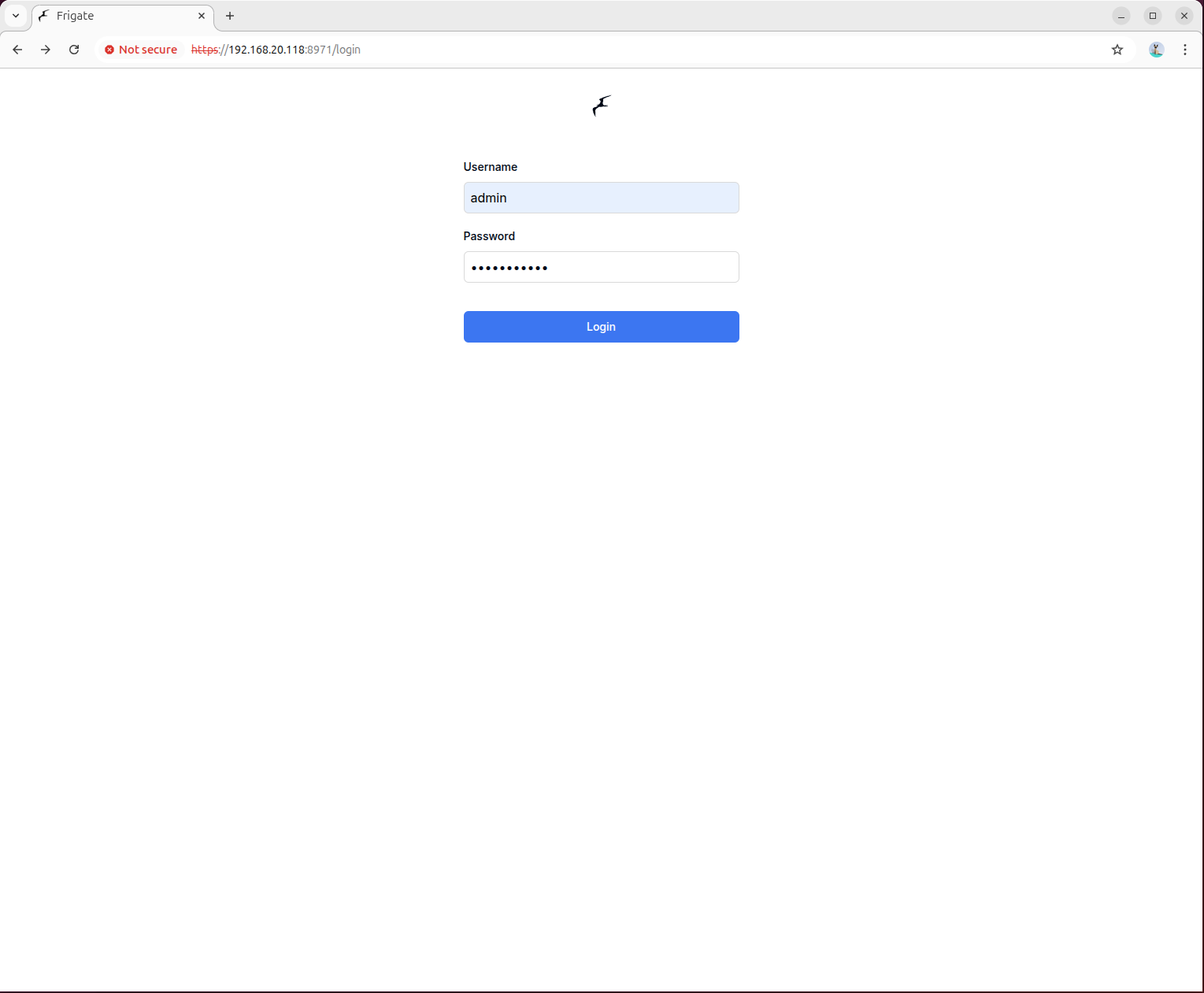
3.2 配置摄像头参数
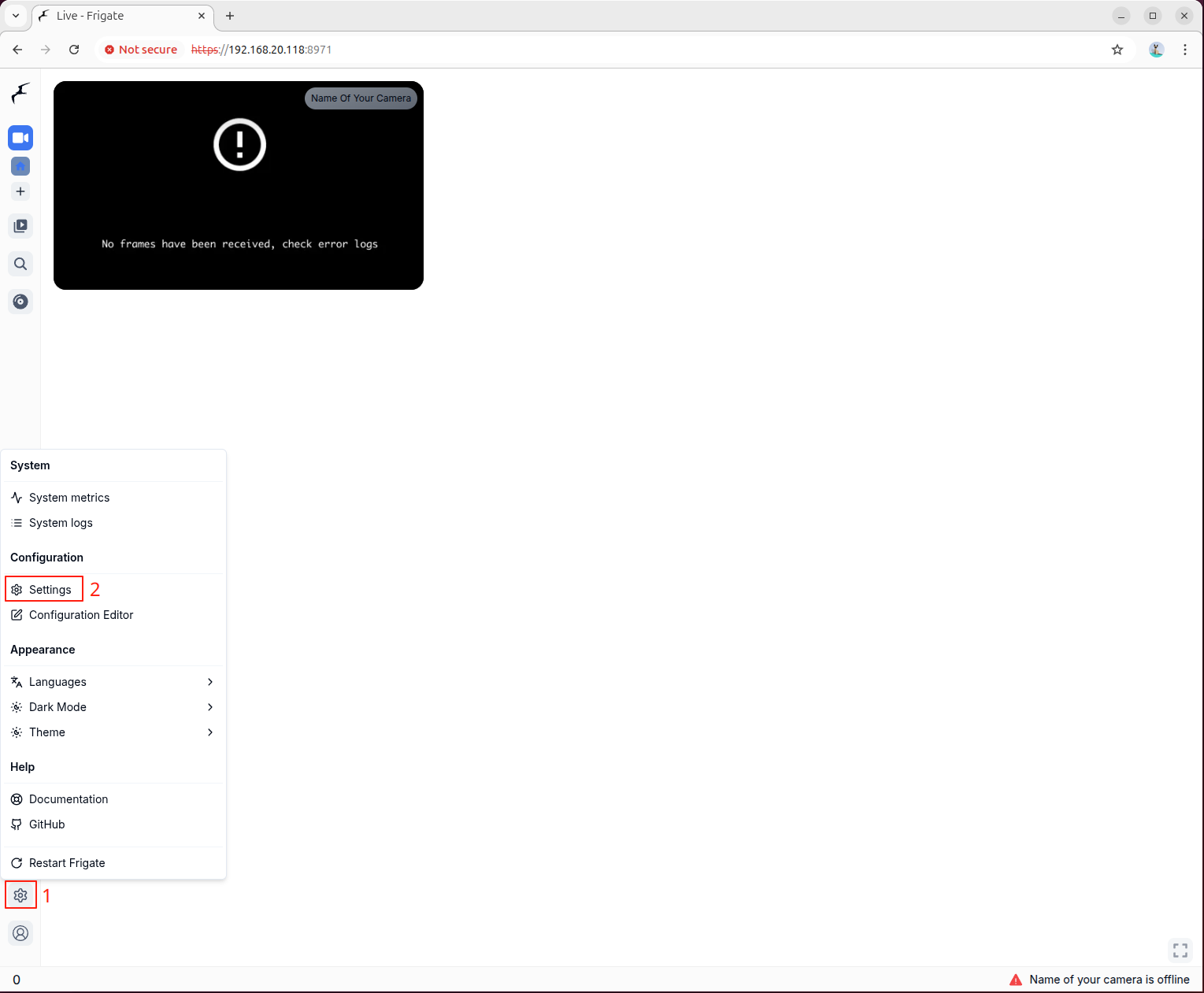
点击界面左侧的"设置",进入配置界面,编辑配置文件。修改 go2rtc 部分,将其替换为您自己的 IP 摄像头地址,填入以下配置示例并保存:
配置示例
mqtt:
  enabled: false
go2rtc:
  streams:
    # Main stream
    road1:
      - rtsp://192.168.20.57:8554/road1.264
    # Sub stream
    road1_sub:
      - rtsp://192.168.20.57:8554/road1_sub.264
cameras:
  road1:
    enabled: true
    ffmpeg:
      inputs:
        # Path of the recording stream, using the main stream configured in go2rtc
        # During debugging, a local media file can be used here
        - path: rtsp://127.0.0.1:8554/road1
          roles:
            - record
        # Path of the detection stream, using the sub stream configured in go2rtc
        # During debugging, a local media file can be used here
        - path: rtsp://127.0.0.1:8554/road1_sub
          roles:
            - detect
      # preset-axera-h264 is used to decode H.264 streams
      # preset-axera-h265 is used to decode H.265 streams
      # These two decoder presets are preferred
      hwaccel_args: preset-axera-h264
      # If the resolution of the detection sub stream is lower than the detection resolution,
      # you can reduce the detection resolution to match the stream
      # or use preset-axera-h264-compat / preset-axera-h265-compat as decoder presets

record:
  enabled: true

# Enable detection
# If detection width and height are not set, the native resolution of the detection stream is used
detect:
  enabled: true
  width: 576
  height: 320
  fps: 5

# Configure the detection engine to use axengine
detectors:
  axengine:
    type: axengine

# Configure the object detection model for axengine
model:
  path: frigate-yolov9-tiny
  model_type: yolo-generic
  width: 320
  height: 320
  input_pixel_format: bgr
  labelmap_path: /labelmap/coco-80.txt

# Object types to track
objects:
  track:
    - person
    - car
    - bicycle
    - motorcycle

# Semantic search configuration
# When used for the first time, the model needs to be downloaded online, please be patient
semantic_search:
  enabled: true
  model: ax_jinav2
  model_size: large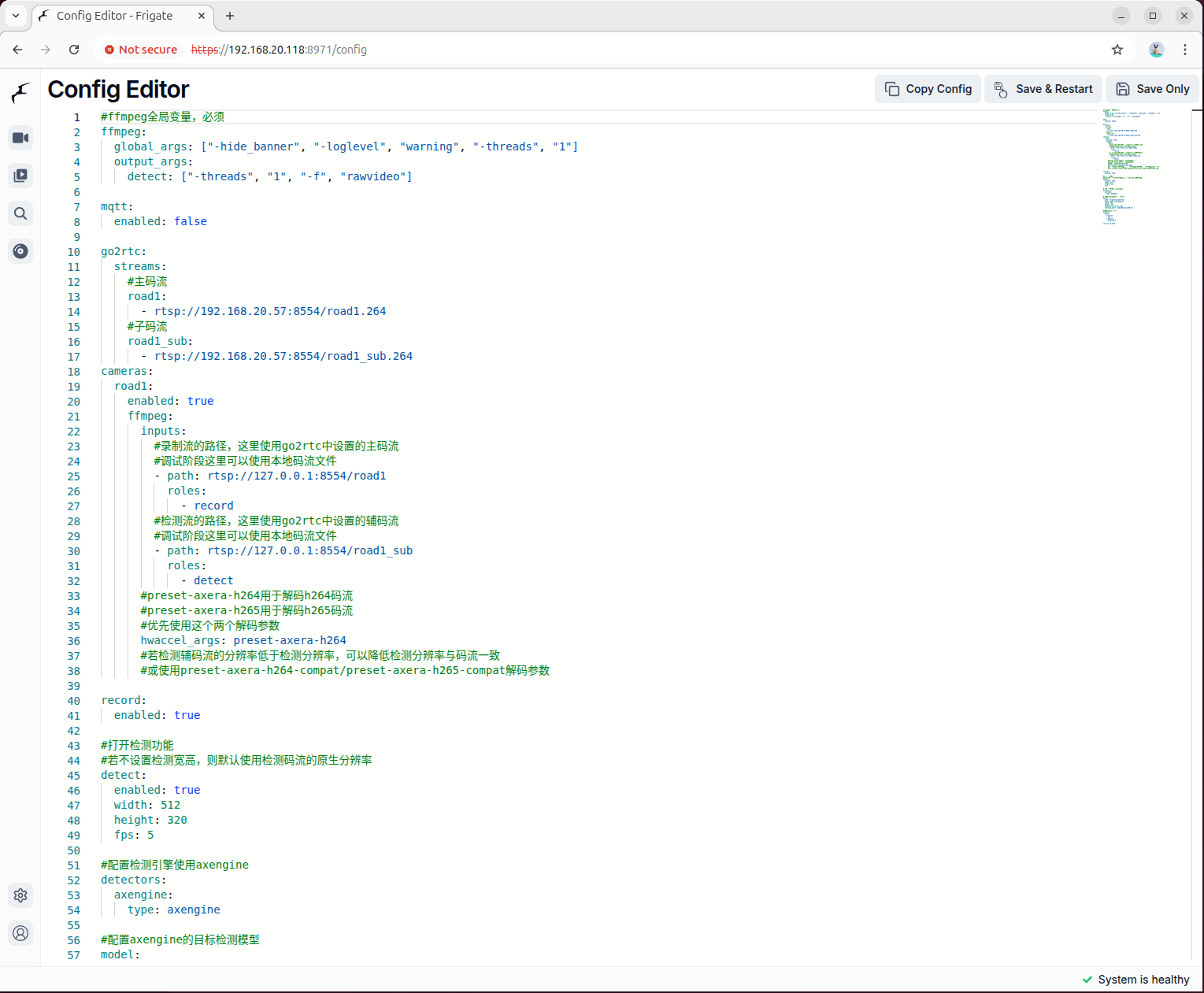
3.3 重启服务并验证
保存配置后,重启 Frigate 容器以应用新的配置:
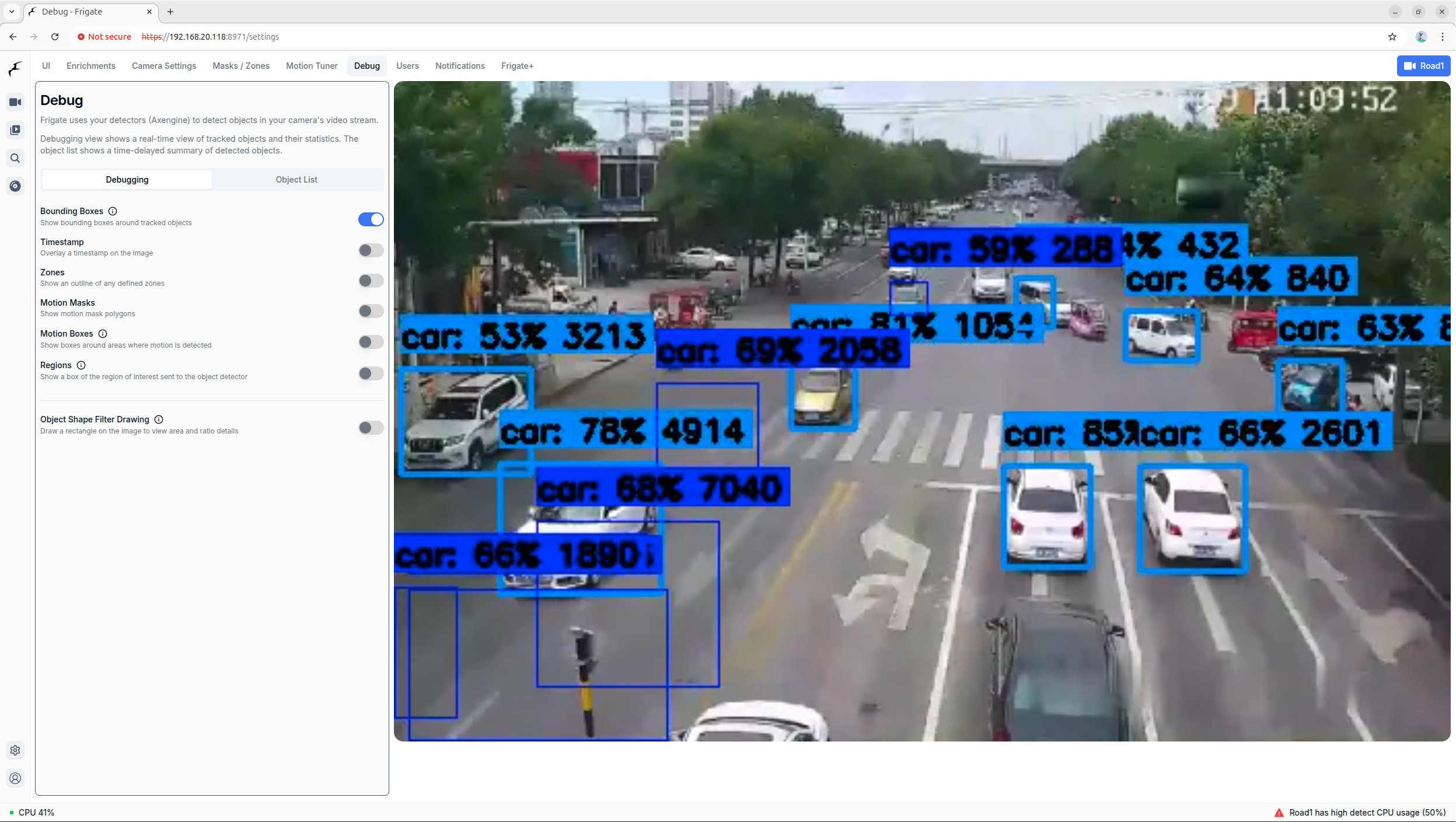
docker restart frigate进入调试预览界面,在视频流上右键菜单选择进入调试预览模式:
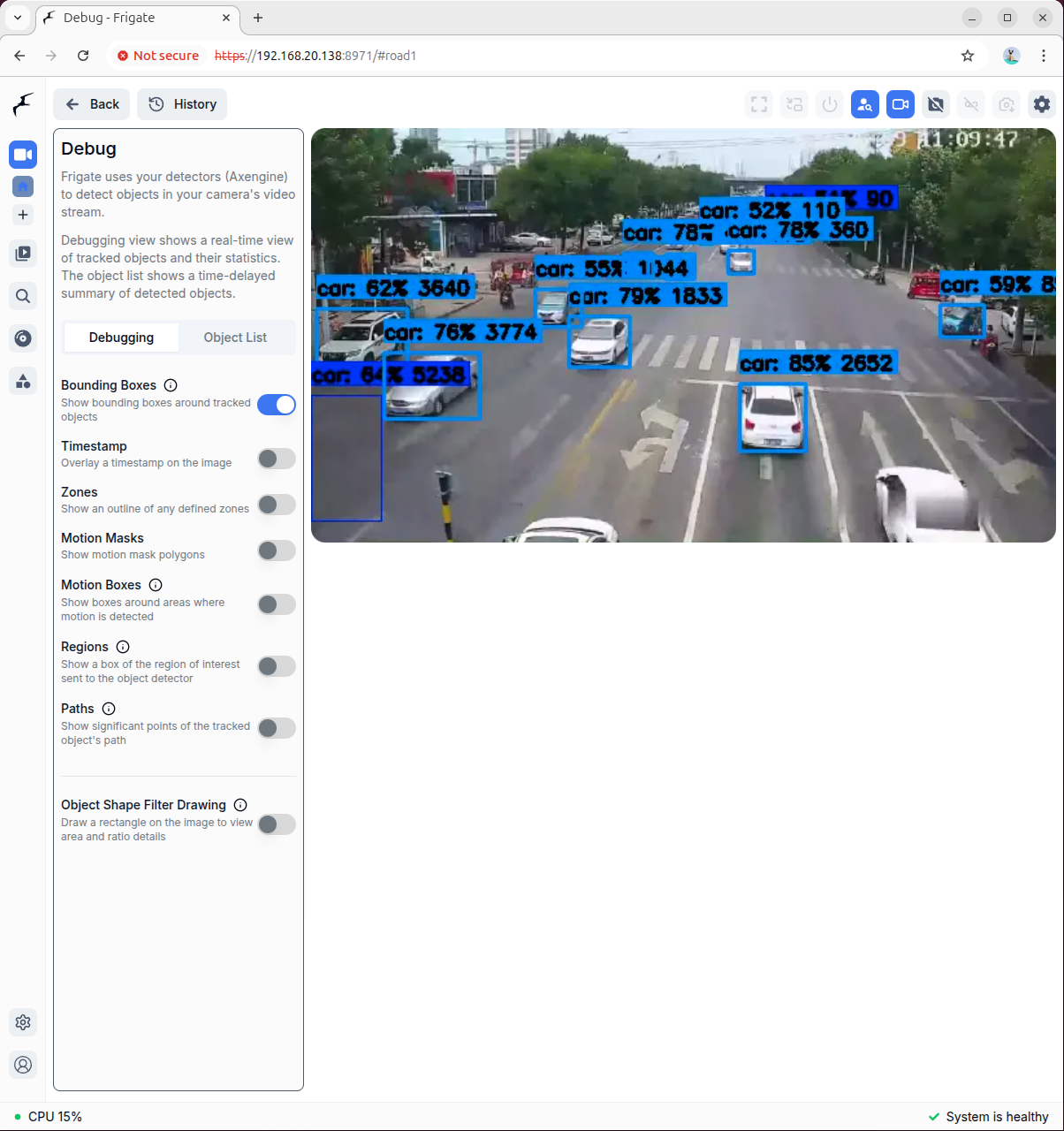
您可以在设置界面中预览检测框和其他信息:
4. 语义搜索和浏览
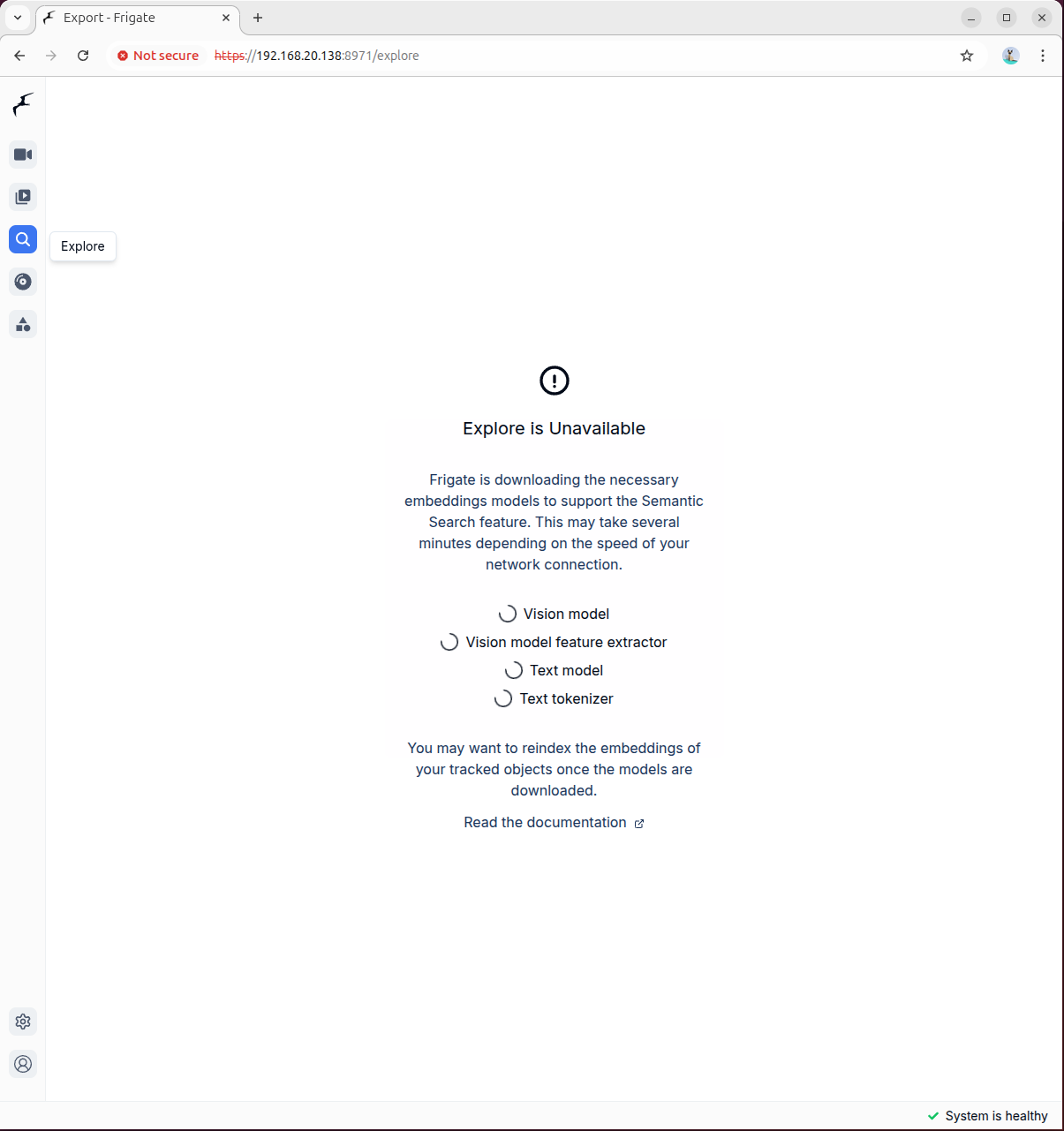
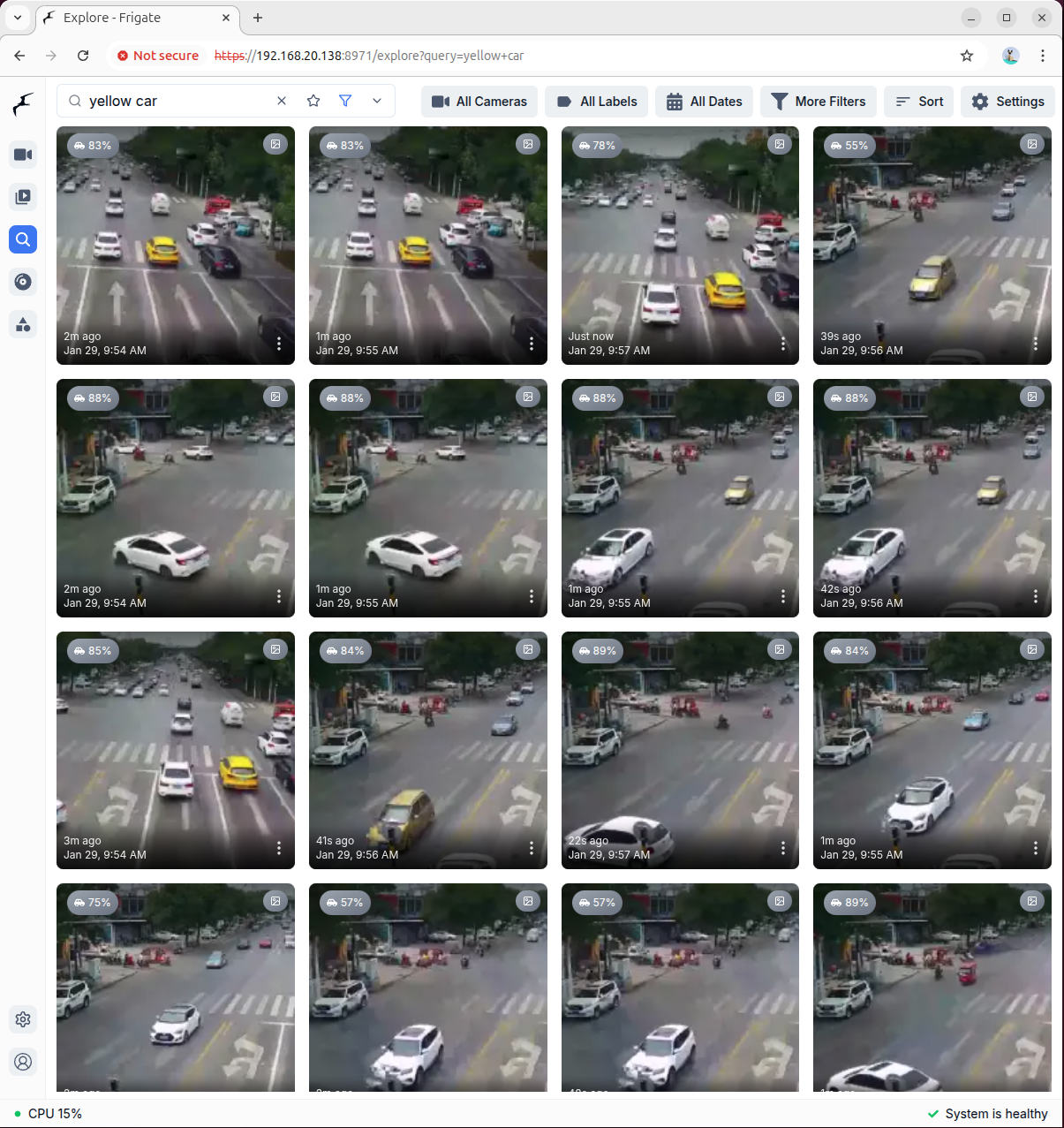
点击"浏览"按钮进入媒体浏览界面。首次进入时需要下载语义搜索模型,模型文件较大,请耐心等待:
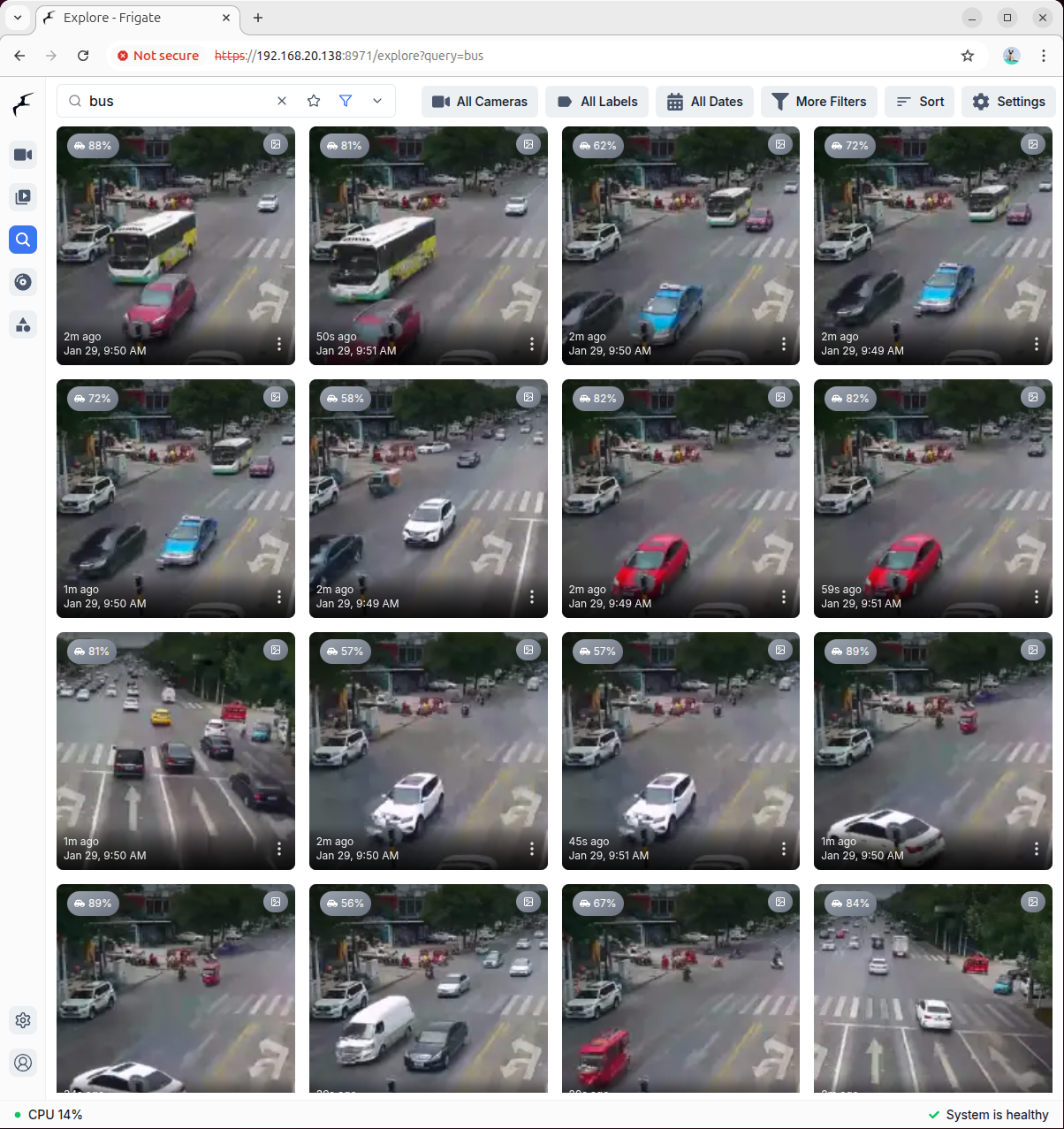
模型加载完成后,在搜索框输入您要检索的内容关键词,系统将自动检索并返回相关的视频截图:
更多信息
如需了解更多高级配置选项和功能说明,请参考 Frigate 官方文档
Page Tools