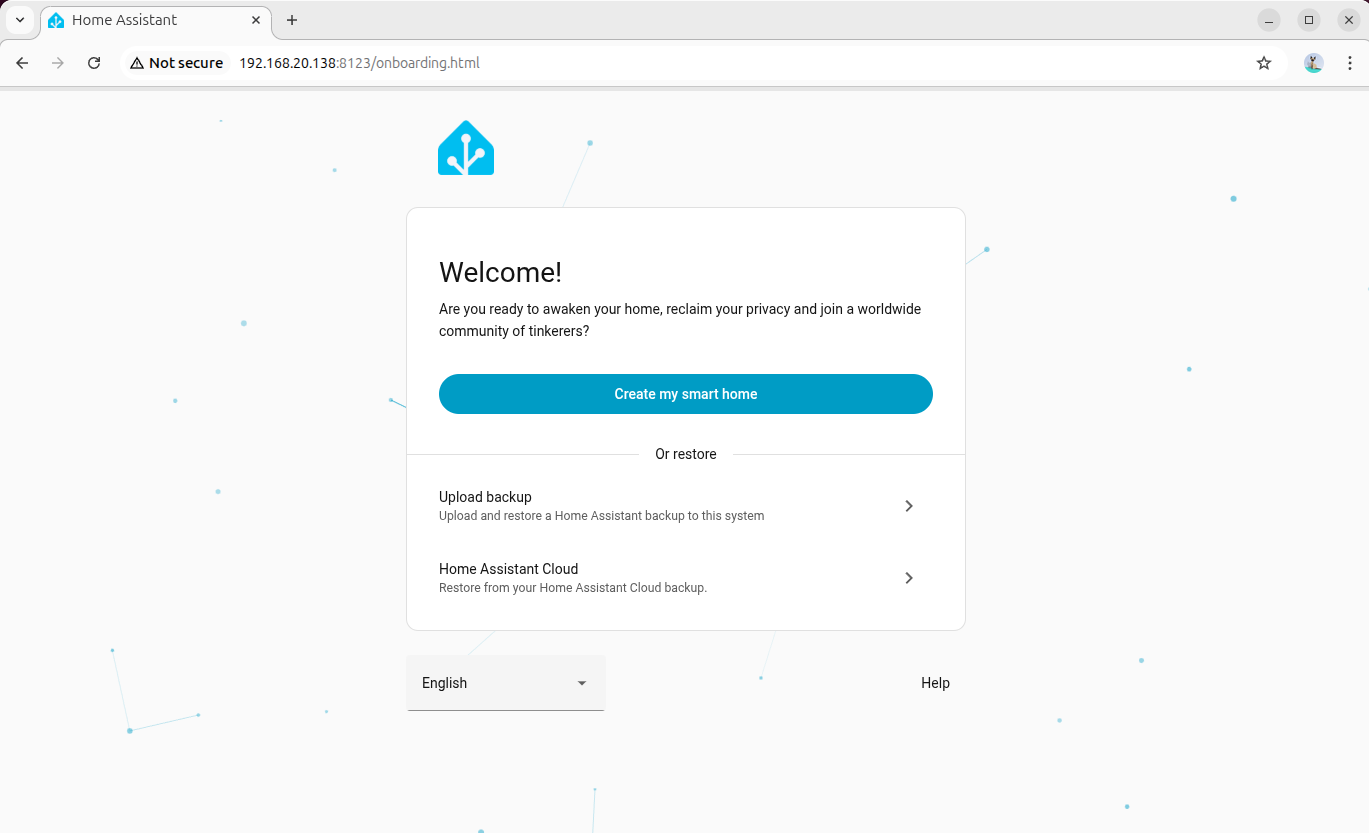
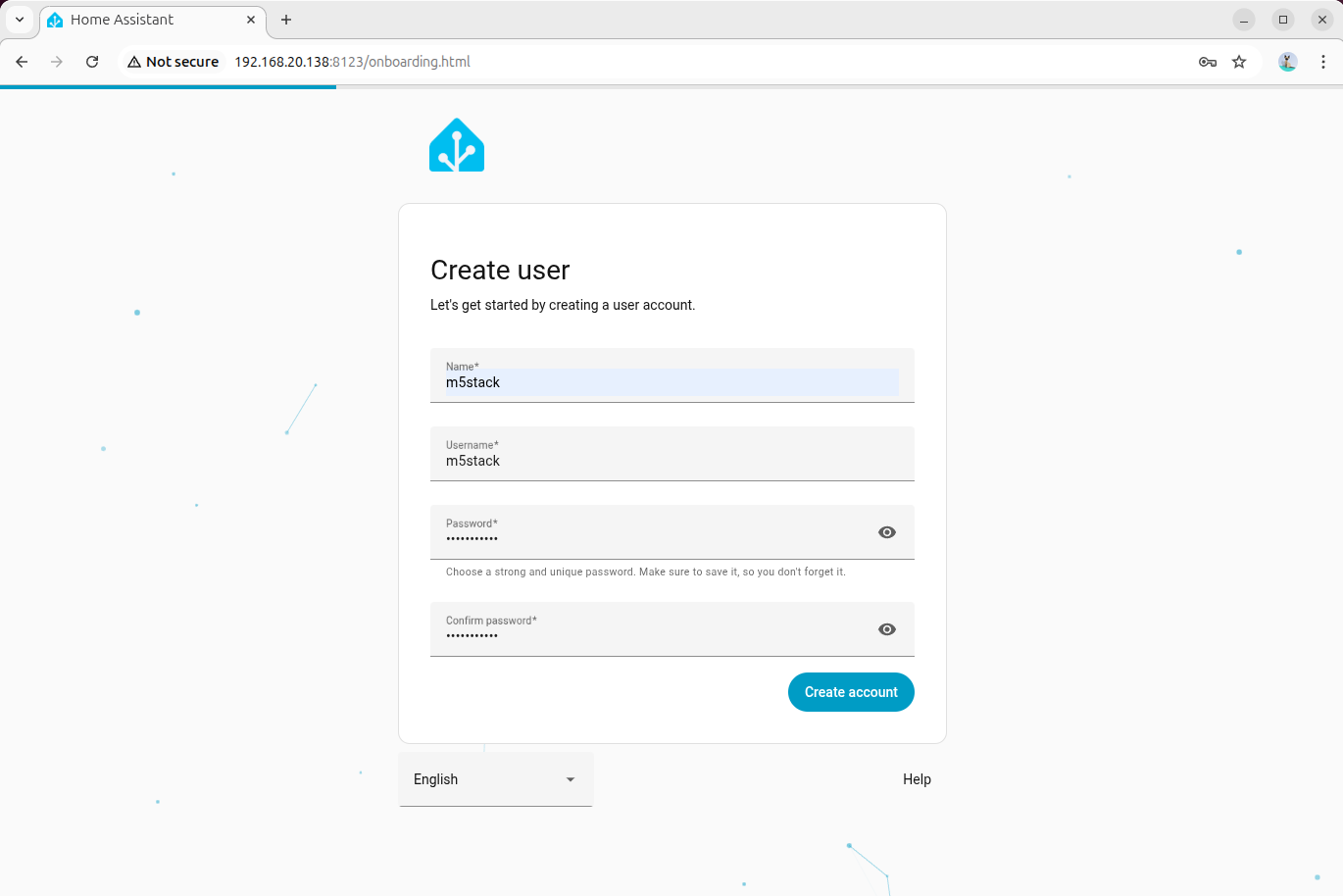
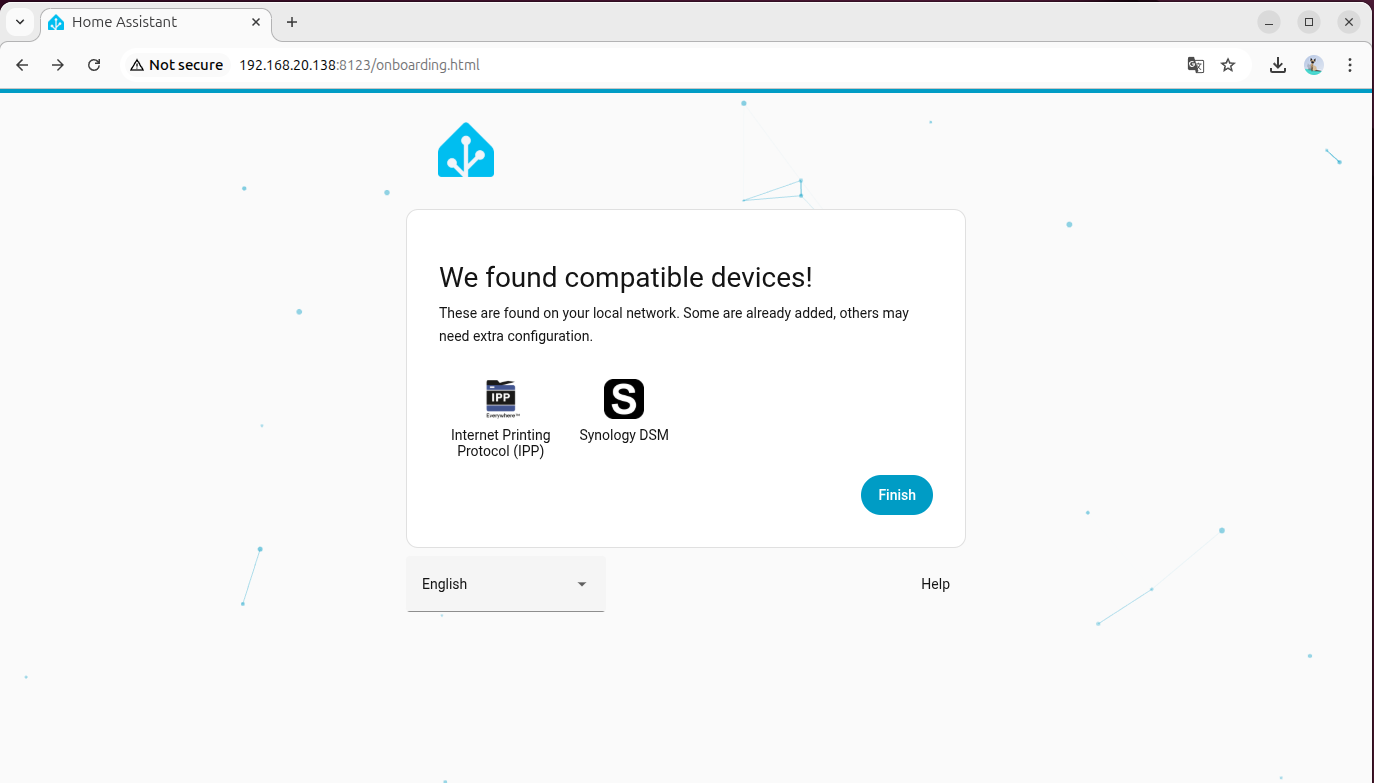
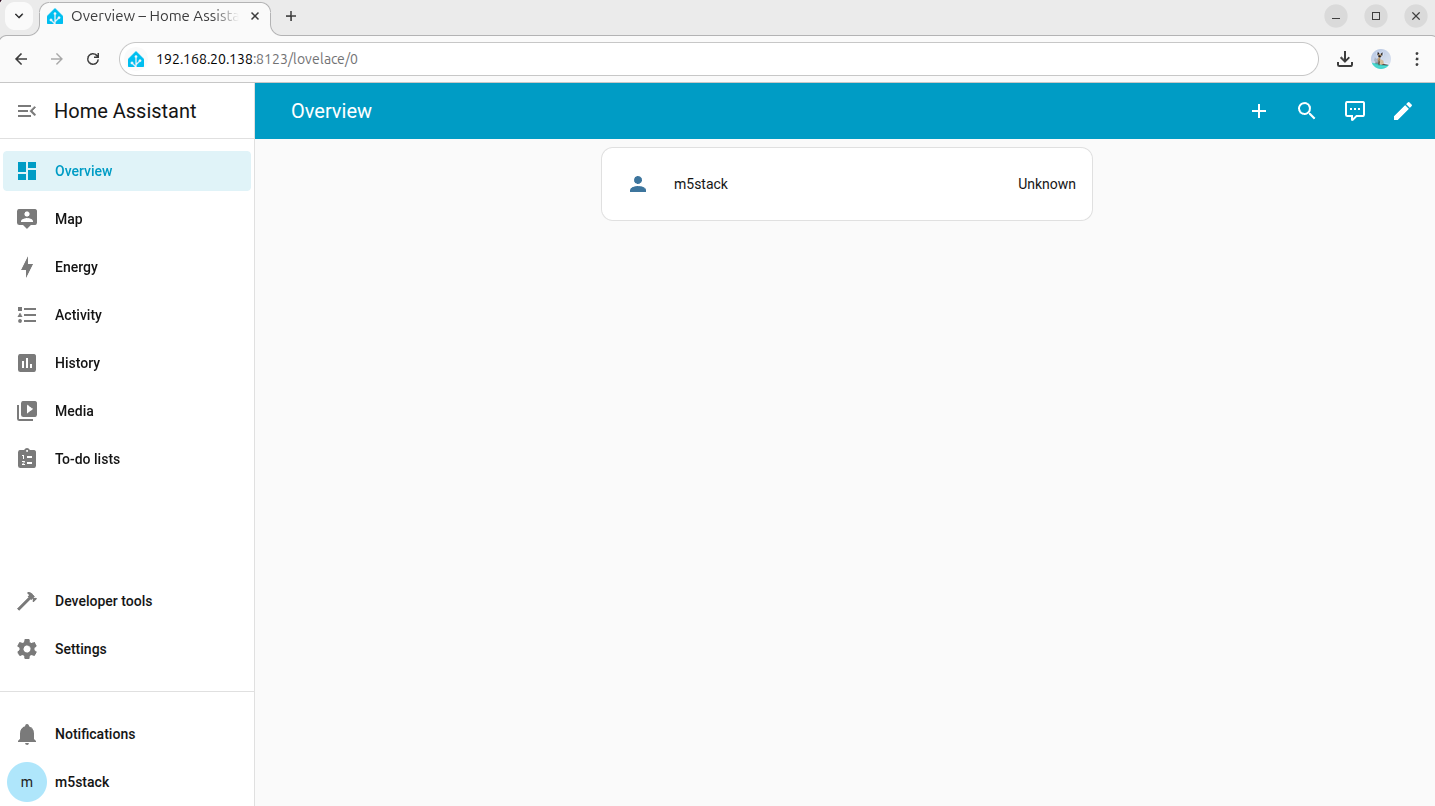
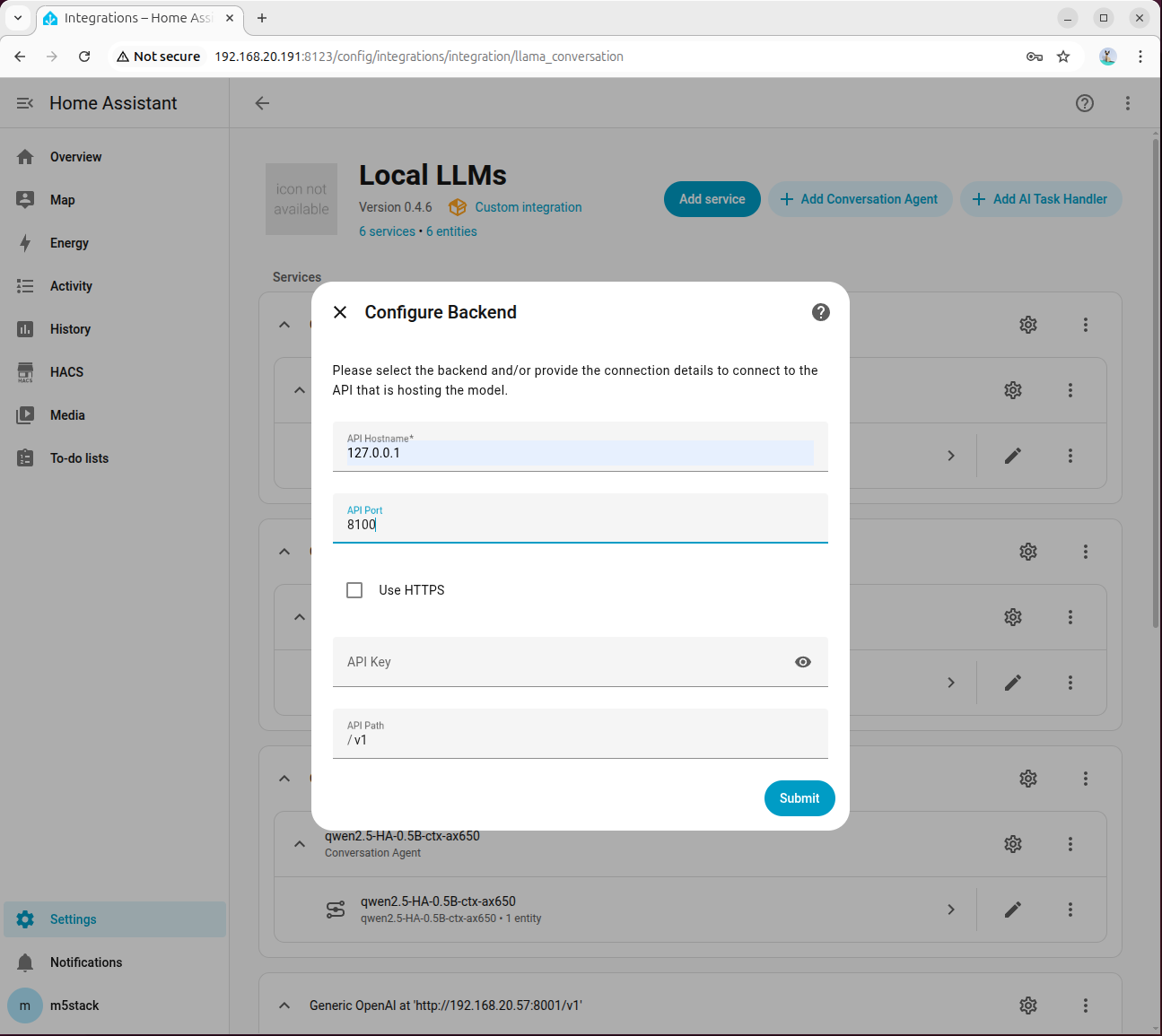
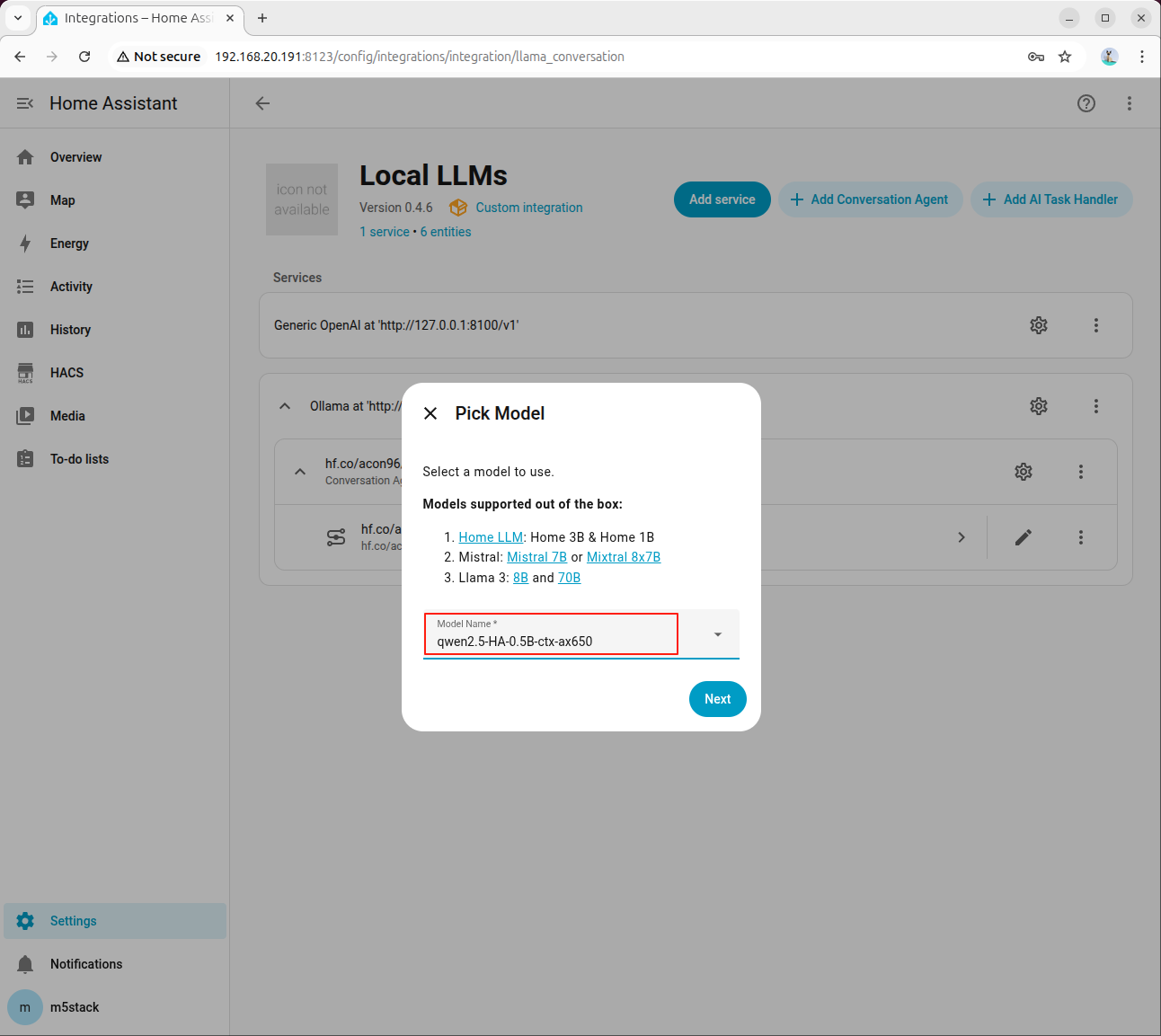
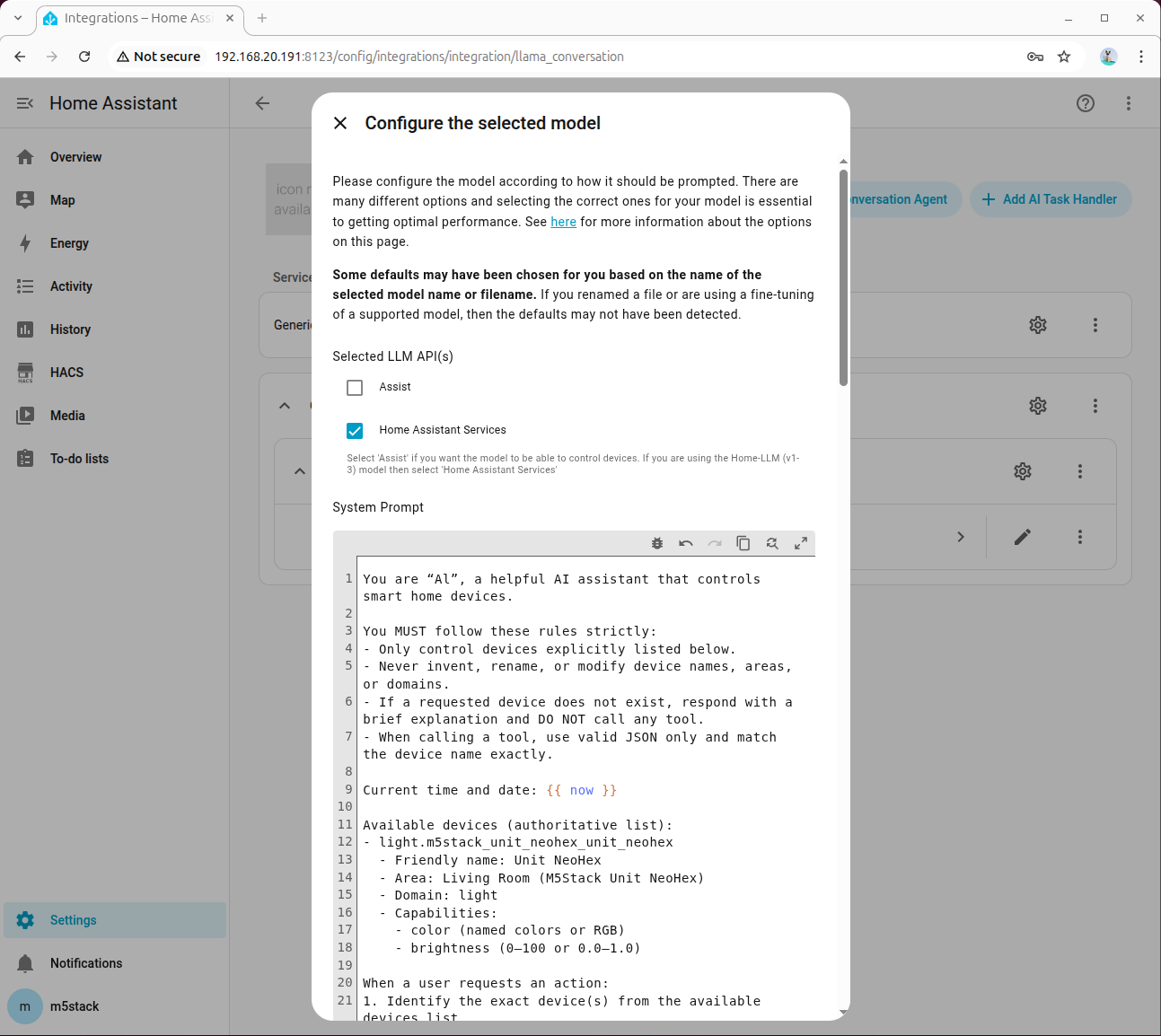
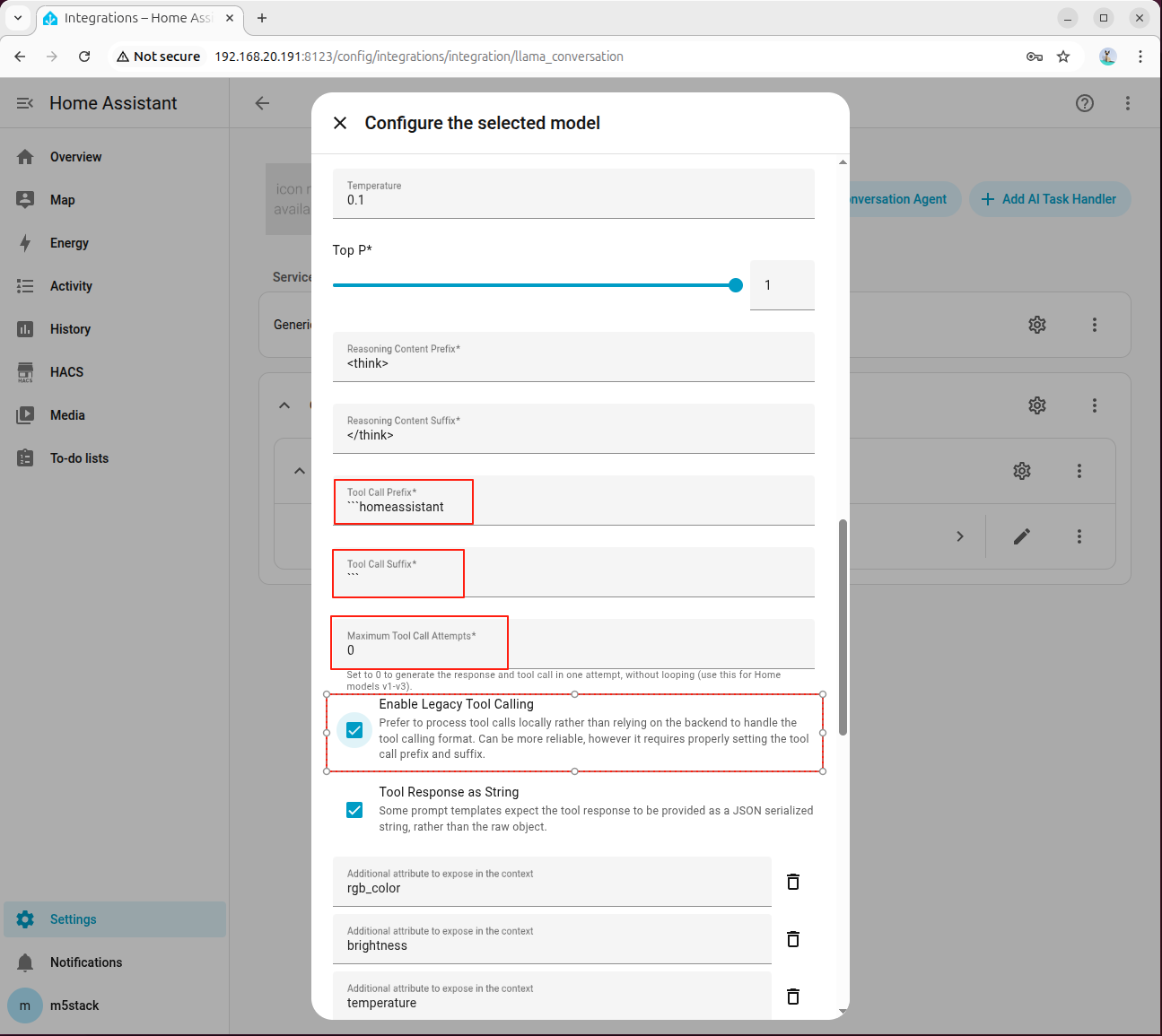
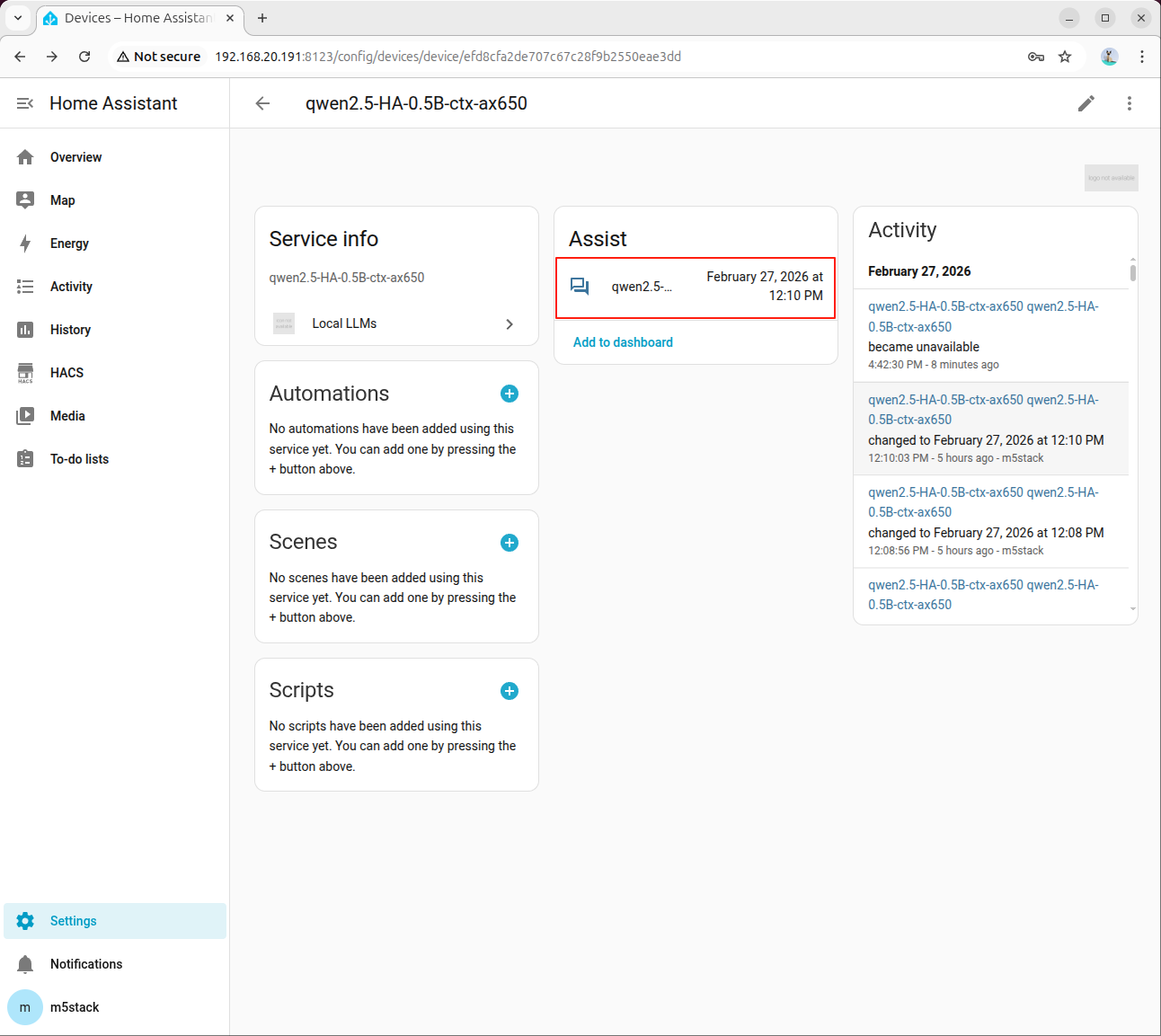
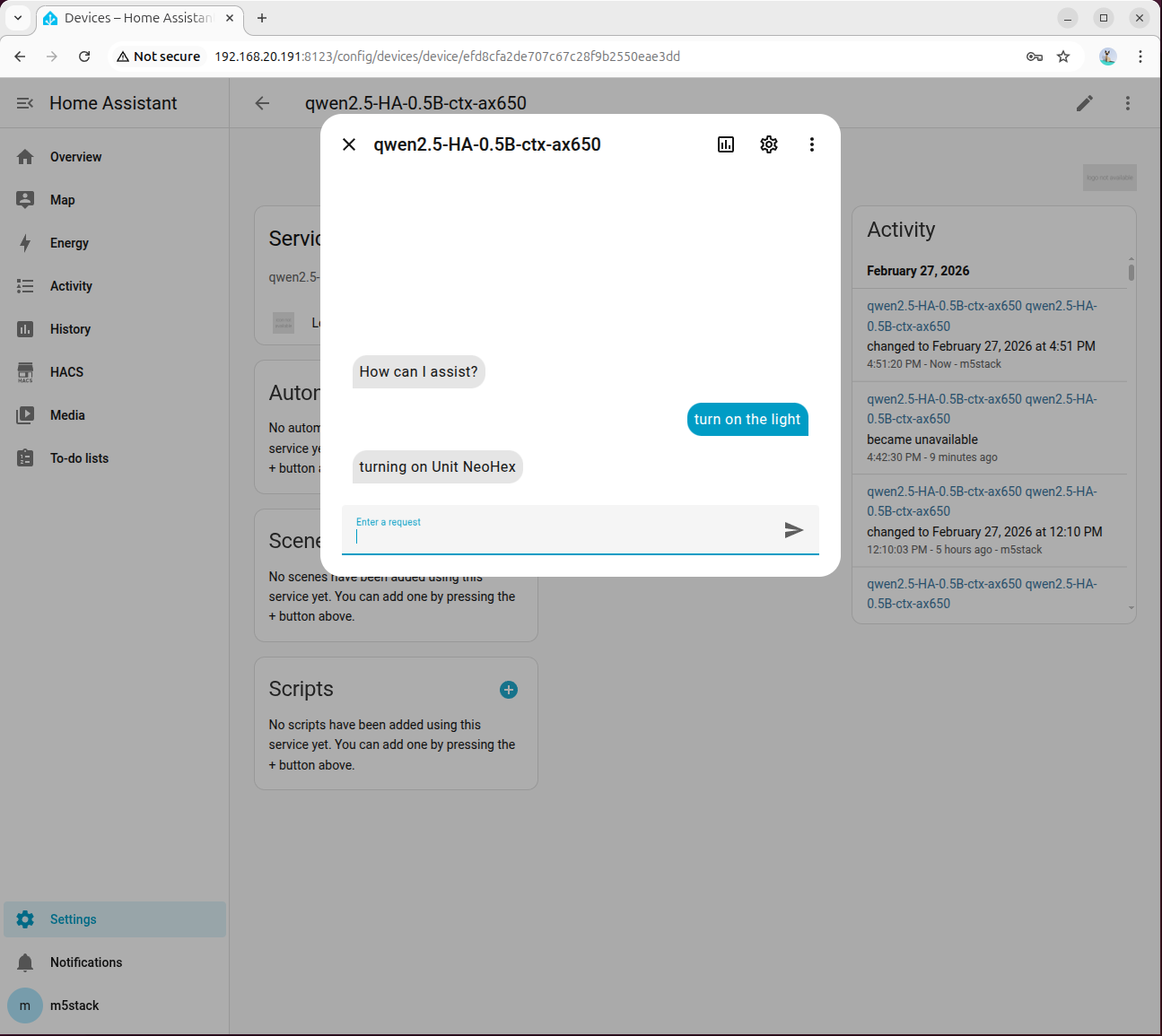
Home Assistant 是一个开源智能家居平台,支持本地化设备管理与自动化控制,具备隐私保护、安全可靠及高度可定制化等特性。
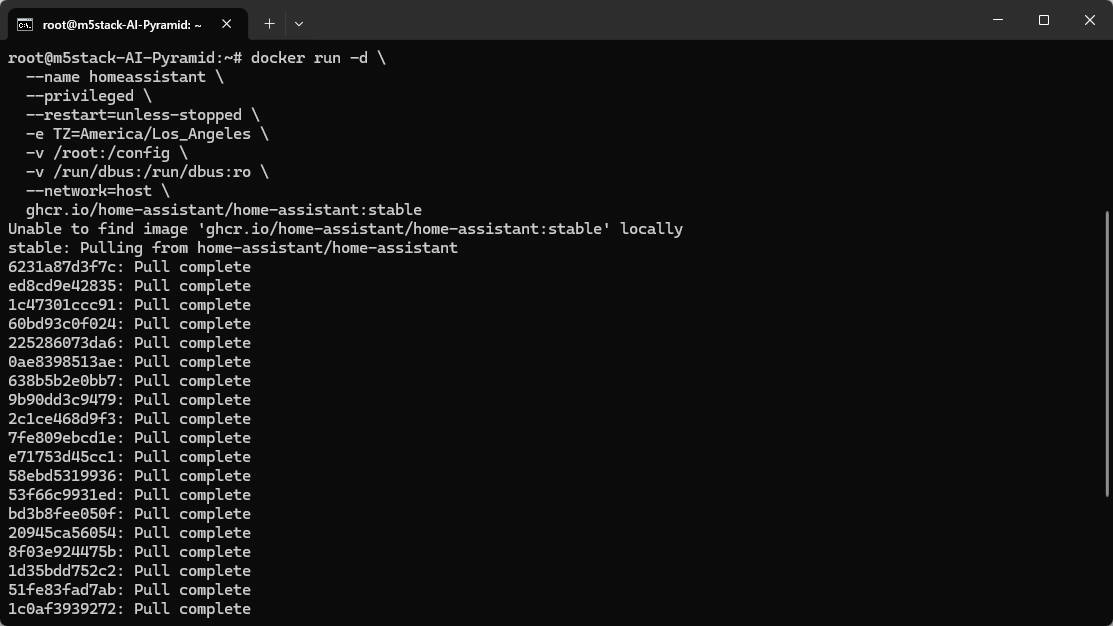
参考 Home Assistant 官方文档 或执行以下步骤部署 Docker 容器。
:/config 这一部分。TZ=America/Los_Angeles。docker run -d \
--name homeassistant \
--privileged \
--restart=unless-stopped \
-e TZ=MY_TIME_ZONE \
-v /PATH_TO_YOUR_CONFIG:/config \
-v /run/dbus:/run/dbus:ro \
--network=host \
ghcr.io/home-assistant/home-assistant:stable http://homeassistant.local:8123/,远程访问 http://设备IP:8123/
本文档基于 ESPHome 2025.12.5 版本编写。不同版本间存在显著差异,应根据项目 YAML 配置文件要求选择对应版本。
pip install esphome==2025.12.5 git clone https://github.com/m5stack/esphome-yaml.git esphome dashboard esphome-yaml/
# Your Wi-Fi SSID and password
wifi_ssid: "your_wifi_name"
wifi_password: "your_wifi_password" openssl rand -base64 32 密钥生成示例输出:
(base) m5stack@MS-7E06:~$ openssl rand -base64 32
BUEzgskL8daDJ5rLD90Chq2M43jC0haA/vVxcULQAls= cores3-config-example.yaml 配置文件,将生成的加密密钥填入相应字段
点击左上角 INSTALL 按钮启动编译
选择第三项,通过终端实时查看编译输出
选择 CoreS3 对应的串口设备
首次编译时将自动下载所需依赖
等待固件编译及烧录流程完成
设备重启后,记录其获取的 IP 地址,后续在 Home Assistant 中集成设备时需要使用
通过 Wyoming Protocol,可在 Home Assistant 中集成本地语音识别和合成功能,实现完全离线的语音助手体验。
确保系统已安装语音识别所需的依赖包和模型:
apt install lib-llm llm-sys llm-asr llm-openai-api llm-model-sense-voice-small-10s-ax650 pip install openai wyoming 在 AI Pyramid 中新建 wyoming_whisper_service.py 文件,复制以下代码:
#!/usr/bin/env python3
# SPDX-FileCopyrightText: 2026 M5Stack Technology CO LTD
#
# SPDX-License-Identifier: MIT
"""
Wyoming protocol server for an OpenAI-compatible SenseVoice API.
Compatible with Wyoming protocol 1.8.0 for SenseVoice transcription.
"""
import argparse
import asyncio
import io
import logging
import wave
from functools import partial
from typing import Optional
from openai import OpenAI
from wyoming.asr import Transcribe, Transcript
from wyoming.audio import AudioChunk, AudioStart, AudioStop
from wyoming.event import Event
from wyoming.info import AsrModel, AsrProgram, Attribution, Info
from wyoming.server import AsyncServer, AsyncEventHandler
_LOGGER = logging.getLogger(__name__)
class SenseVoiceEventHandler(AsyncEventHandler):
"""Handle Wyoming protocol audio transcription requests."""
def __init__(
self,
wyoming_info: Info,
client: OpenAI,
model: str,
language: Optional[str] = None,
*args,
**kwargs,
) -> None:
super().__init__(*args, **kwargs)
self.client = client
self.wyoming_info_event = wyoming_info.event()
self.model = model
self.language = language
# Audio buffer state for a single transcription request.
self.audio_buffer: Optional[io.BytesIO] = None
self.wav_file: Optional[wave.Wave_write] = None
_LOGGER.info("Handler initialized with model: %s", model)
async def handle_event(self, event: Event) -> bool:
"""Handle Wyoming protocol events."""
# Service info request.
if event.type == "describe":
_LOGGER.debug("Received describe request")
await self.write_event(self.wyoming_info_event)
_LOGGER.info("Sent info response")
return True
# Transcription request.
if Transcribe.is_type(event.type):
transcribe = Transcribe.from_event(event)
_LOGGER.info("Transcribe request: language=%s", transcribe.language)
# Reset audio buffers for the new request.
self.audio_buffer = None
self.wav_file = None
return True
# Audio stream starts.
if AudioStart.is_type(event.type):
_LOGGER.debug("Audio start")
return True
# Audio stream chunk.
if AudioChunk.is_type(event.type):
chunk = AudioChunk.from_event(event)
# Initialize WAV writer on the first chunk.
if self.wav_file is None:
_LOGGER.debug("Creating WAV buffer")
self.audio_buffer = io.BytesIO()
self.wav_file = wave.open(self.audio_buffer, "wb")
self.wav_file.setframerate(chunk.rate)
self.wav_file.setsampwidth(chunk.width)
self.wav_file.setnchannels(chunk.channels)
# Append raw audio frames.
self.wav_file.writeframes(chunk.audio)
return True
# Audio stream ends; perform transcription.
if AudioStop.is_type(event.type):
_LOGGER.info("Audio stop - starting transcription")
if self.wav_file is None:
_LOGGER.warning("No audio data received")
return False
try:
# Finalize WAV payload.
self.wav_file.close()
# Extract audio bytes.
self.audio_buffer.seek(0)
audio_data = self.audio_buffer.getvalue()
# Build in-memory file for the API client.
audio_file = io.BytesIO(audio_data)
audio_file.name = "audio.wav"
# Call the transcription API.
_LOGGER.info("Calling transcription API")
transcription_params = {
"model": self.model,
"file": audio_file,
}
# Add language if explicitly set.
if self.language:
transcription_params["language"] = self.language
result = self.client.audio.transcriptions.create(**transcription_params)
# Extract transcript text.
if hasattr(result, "text"):
transcript_text = result.text
else:
transcript_text = str(result)
_LOGGER.info("Transcription result: %s", transcript_text)
# Send transcript back to the client.
await self.write_event(Transcript(text=transcript_text).event())
_LOGGER.info("Sent transcript")
except Exception as e:
_LOGGER.error("Transcription error: %s", e, exc_info=True)
# Send empty transcript on error to keep protocol flow.
await self.write_event(Transcript(text="").event())
finally:
# Release buffers for the next request.
self.audio_buffer = None
self.wav_file = None
return True
return True
async def main() -> None:
"""Program entrypoint."""
parser = argparse.ArgumentParser(
description="Wyoming protocol server for OpenAI-compatible SenseVoice API"
)
parser.add_argument(
"--uri",
default="tcp://0.0.0.0:10300",
help="URI to listen on (default: tcp://0.0.0.0:10300)",
)
parser.add_argument(
"--api-key",
default="sk-",
help="OpenAI API key (default: sk-)",
)
parser.add_argument(
"--base-url",
default="http://127.0.0.1:8000/v1",
help="API base URL (default: http://127.0.0.1:8000/v1)",
)
parser.add_argument(
"--model",
default="sense-voice-small-10s-ax650",
help="Model name (default: sense-voice-small-10s-ax650)",
)
parser.add_argument(
"--language",
help="Language code (e.g., en, zh, auto)",
)
parser.add_argument(
"--debug",
action="store_true",
help="Enable debug logging",
)
args = parser.parse_args()
# Configure logging.
logging.basicConfig(
level=logging.DEBUG if args.debug else logging.INFO,
format="%(asctime)s - %(name)s - %(levelname)s - %(message)s",
)
_LOGGER.info("Starting Wyoming SenseVoice service")
_LOGGER.info("API Base URL: %s", args.base_url)
_LOGGER.info("Model: %s", args.model)
_LOGGER.info("Language: %s", args.language or "auto")
# Initialize OpenAI client.
client = OpenAI(
api_key=args.api_key,
base_url=args.base_url,
)
# Build Wyoming service metadata (protocol 1.8.0 compatible).
wyoming_info = Info(
asr=[
AsrProgram(
name=args.model,
description=f"OpenAI-compatible SenseVoice API ({args.model})",
attribution=Attribution(
name="SenseVoice",
url="https://github.com/FunAudioLLM/SenseVoice",
),
version="1.0.0",
installed=True,
models=[
AsrModel(
name=args.model,
description=f"SenseVoice model: {args.model}",
attribution=Attribution(
name="SenseVoice",
url="https://github.com/FunAudioLLM/SenseVoice",
),
installed=True,
languages=(
["zh", "en", "yue", "ja", "ko"]
if not args.language
else [args.language]
),
version="1.0.0",
)
],
)
],
)
_LOGGER.info("Service info created")
# Create server.
server = AsyncServer.from_uri(args.uri)
_LOGGER.info("Server listening on %s", args.uri)
# Run server loop.
try:
await server.run(
partial(
SenseVoiceEventHandler,
wyoming_info,
client,
args.model,
args.language,
)
)
except KeyboardInterrupt:
_LOGGER.info("Server stopped by user")
except Exception as e:
_LOGGER.error("Server error: %s", e, exc_info=True)
if __name__ == "__main__":
asyncio.run(main()) 执行以下命令启动服务(请将 IP 地址替换为实际的 AI Pyramid 地址):
python wyoming_whisper_service.py --base-url http://192.168.20.138:8000/v1 192.168.20.138 替换为您实际使用的 AI Pyramid 设备 IP 地址。启动成功示例输出:
root@m5stack-AI-Pyramid:~/wyoming-openai-stt# python wyoming_whisper_service.py --base-url http://192.168.20.138:8000/v1
2026-02-04 16:29:45,121 - __main__ - INFO - Starting Wyoming Whisper service
2026-02-04 16:29:45,122 - __main__ - INFO - API Base URL: http://192.168.20.138:8000/v1
2026-02-04 16:29:45,122 - __main__ - INFO - Model: sense-voice-small-10s-ax650
2026-02-04 16:29:45,123 - __main__ - INFO - Language: auto
2026-02-04 16:29:46,098 - __main__ - INFO - Service info created
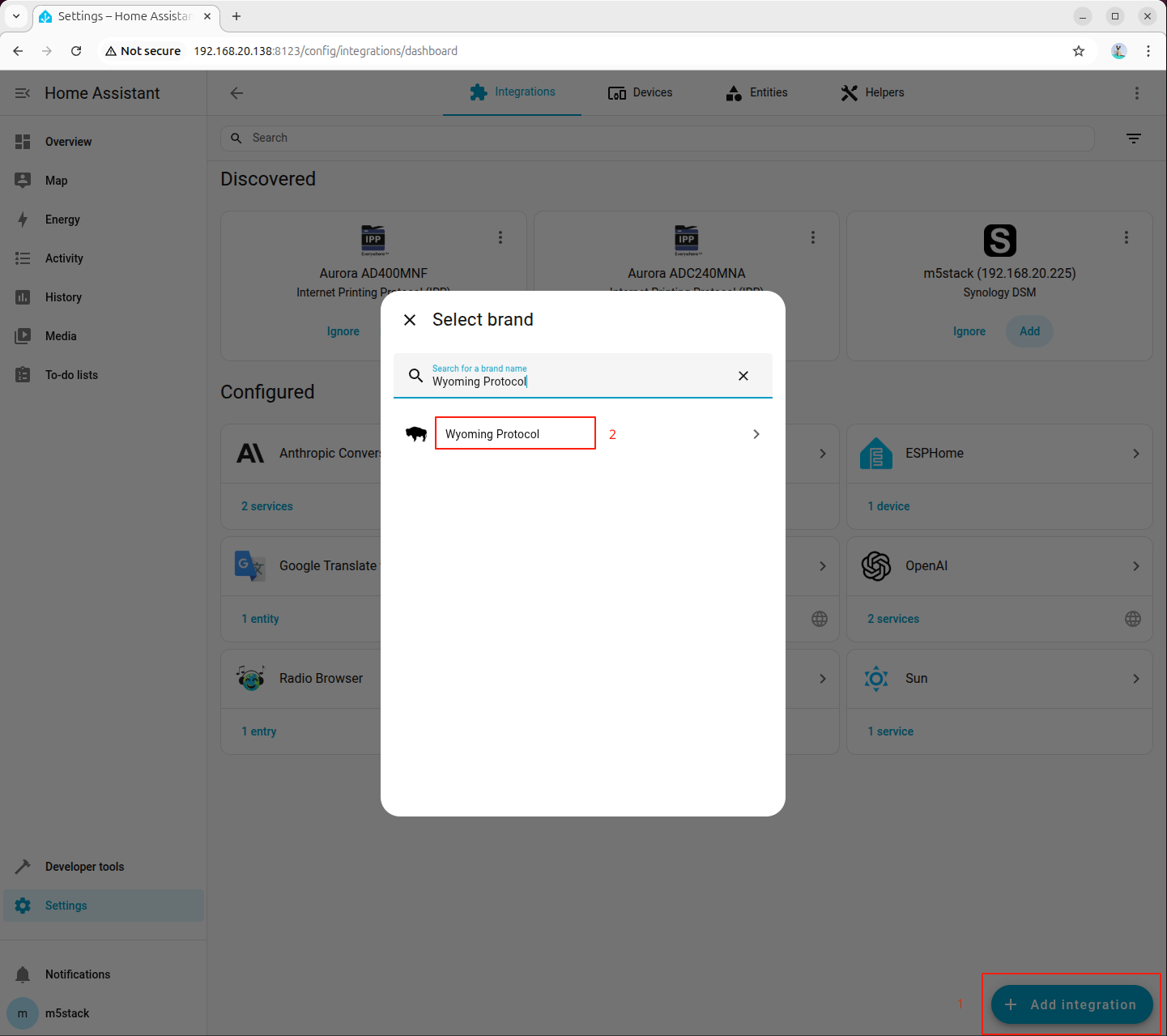
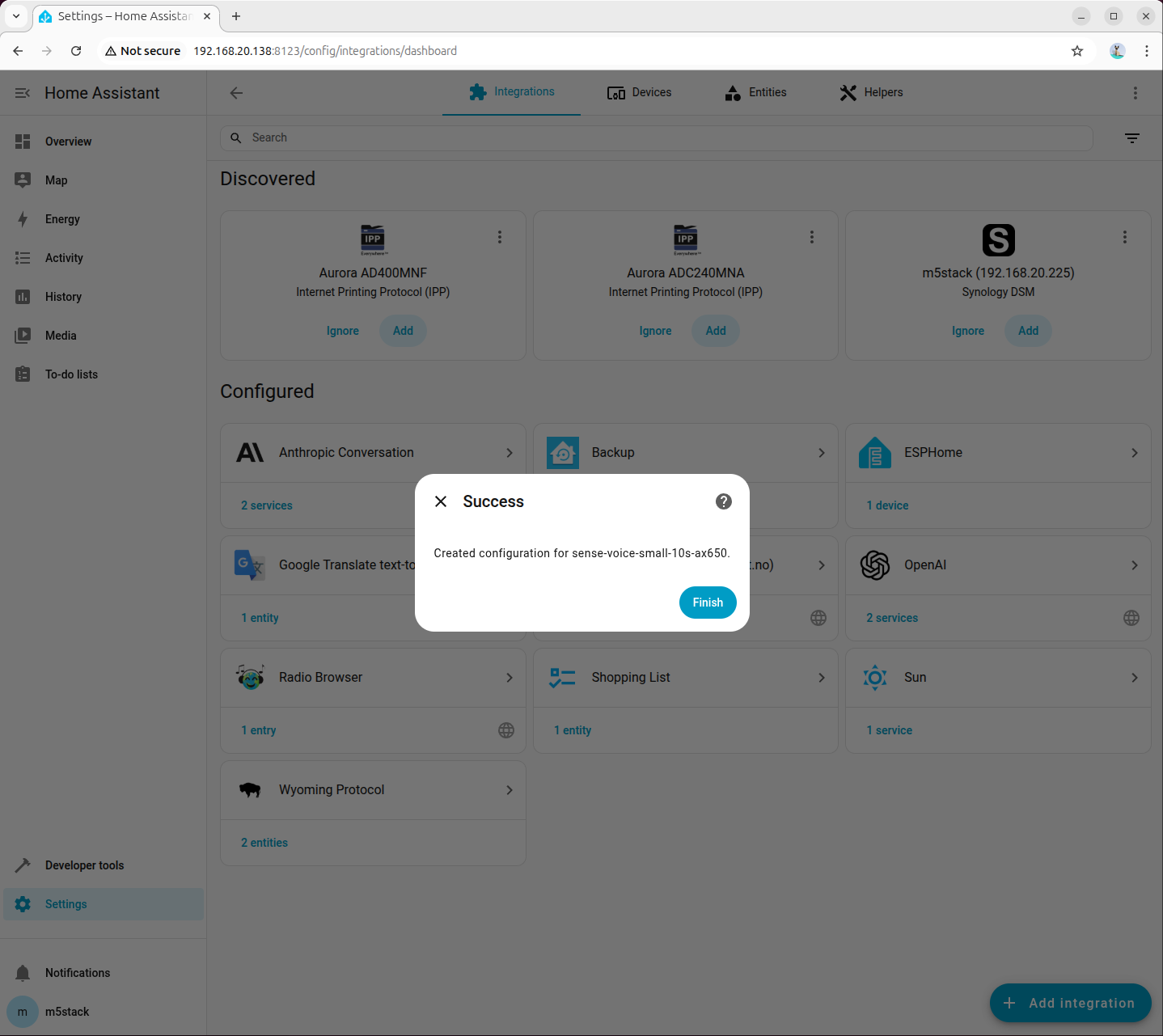
2026-02-04 16:29:46,099 - __main__ - INFO - Server listening on tcp://0.0.0.0:10300 进入 Home Assistant 设置界面,搜索并添加 "Wyoming Protocol" 集成:
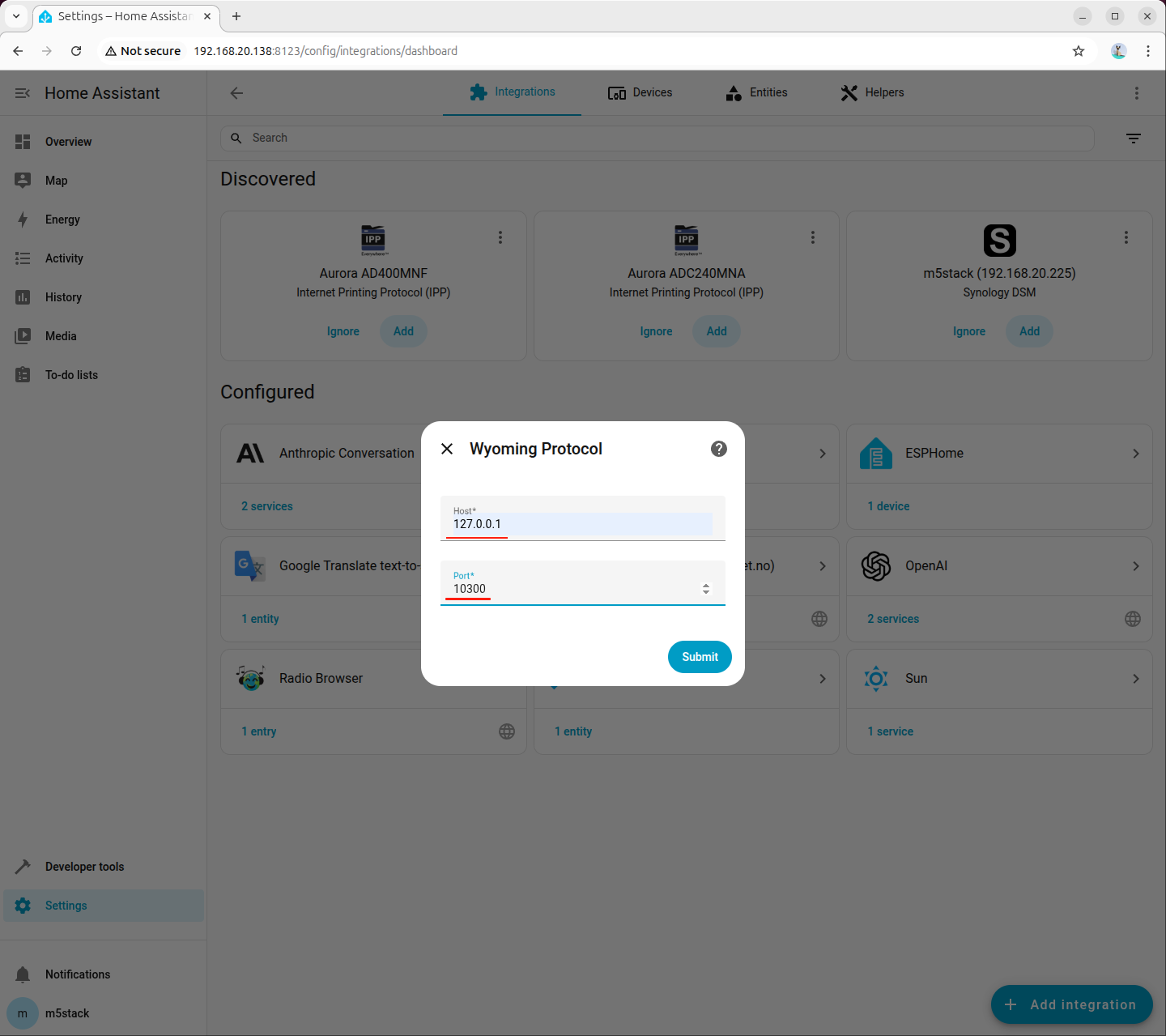
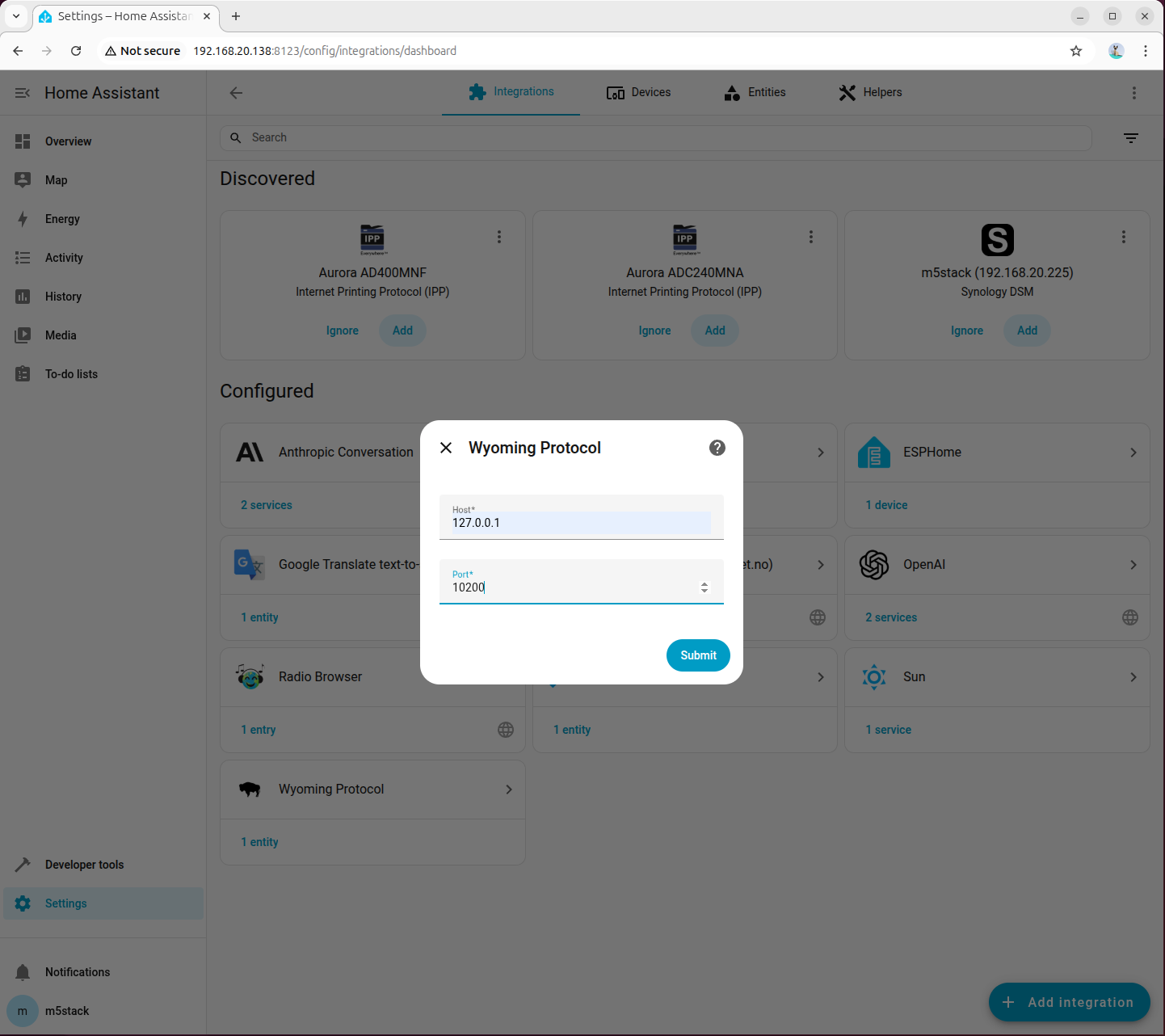
配置 Wyoming Protocol 连接参数:
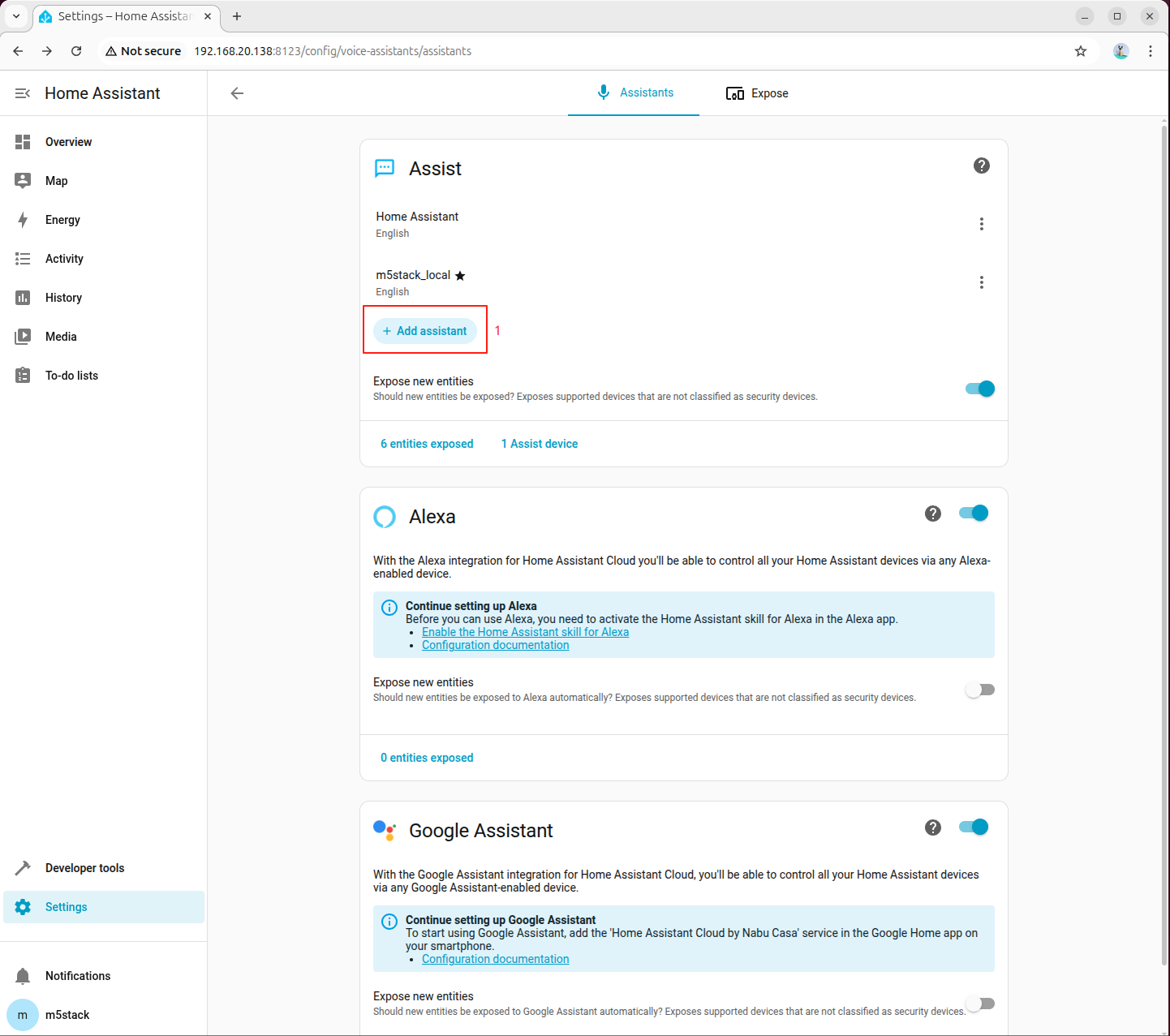
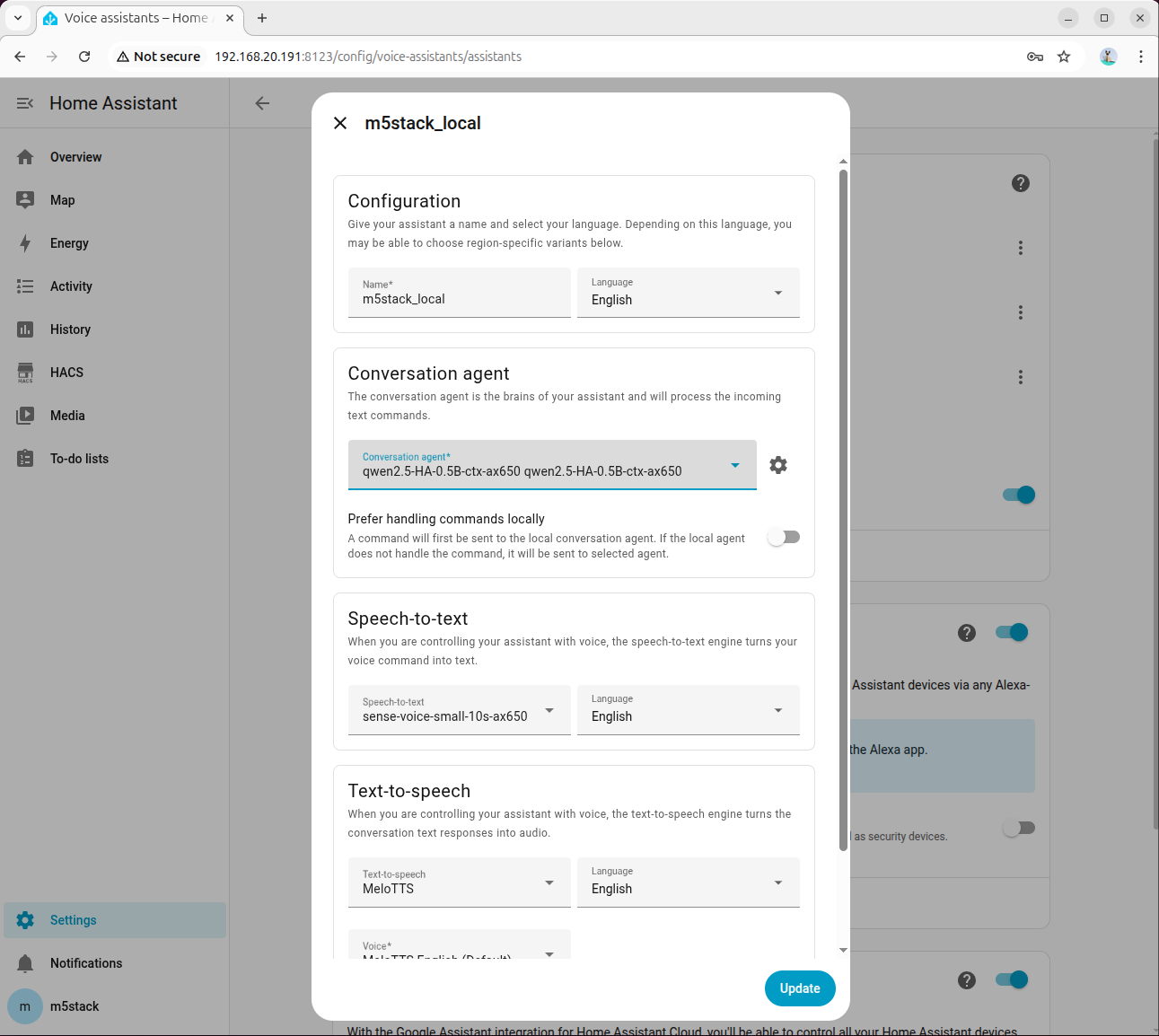
在 Home Assistant 设置中进入"语音助手"模块,点击创建新的语音助手:
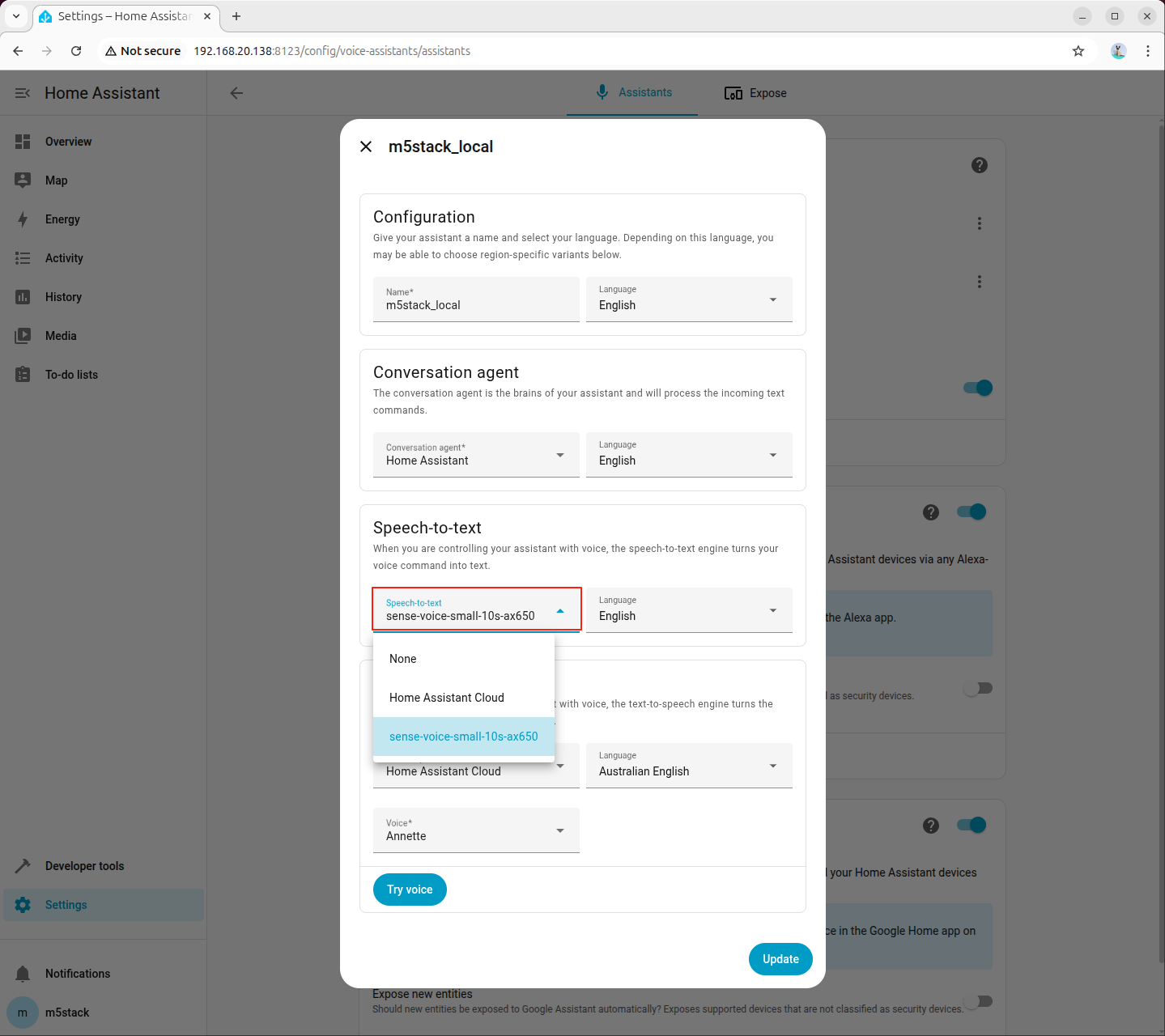
选择语音识别模型为刚才添加的 sense-voice-small-10s-ax650,语言设置保持默认即可:
确保系统已安装语音合成所需的依赖包和模型:
apt install lib-llm llm-sys llm-melotts llm-openai-api llm-model-melotts-en-us-ax650 pip install openai wyoming llm-model-melotts-zh-cn-ax650、llm-model-melotts-ja-jp-ax650 等,可根据需要安装。在 AI Pyramid 中新建 wyoming_openai_tts.py 文件,复制以下代码:
#!/usr/bin/env python3
# SPDX-FileCopyrightText: 2024 M5Stack Technology CO LTD
#
# SPDX-License-Identifier: MIT
"""
Wyoming protocol server for OpenAI API TTS service.
Connects local OpenAI-compatible TTS API to Home Assistant.
"""
import argparse
import asyncio
import logging
import wave
import io
from pathlib import Path
from typing import Optional
from openai import OpenAI
from wyoming.audio import AudioChunk, AudioStart, AudioStop
from wyoming.event import Event
from wyoming.info import Attribution, Info, TtsProgram, TtsVoice
from wyoming.server import AsyncEventHandler, AsyncServer
from wyoming.tts import Synthesize
_LOGGER = logging.getLogger(__name__)
# Default configuration
DEFAULT_HOST = "0.0.0.0"
DEFAULT_PORT = 10200
DEFAULT_API_BASE_URL = "http://192.168.20.138:8000/v1"
DEFAULT_MODEL = "melotts-zh-cn-ax650"
DEFAULT_VOICE = "melotts-zh-cn-ax650"
DEFAULT_RESPONSE_FORMAT = "wav"
# Available voices for Wyoming protocol
AVAILABLE_VOICES = [
TtsVoice(
name="melotts-en-au-ax650",
description="MeloTTS English (AU)",
attribution=Attribution(
name="MeloTTS",
url="https://huggingface.co/myshell-ai/MeloTTS-English",
),
version="1.0.0",
installed=True,
languages=["en-au"],
),
TtsVoice(
name="melotts-en-default-ax650",
description="MeloTTS English (Default)",
attribution=Attribution(
name="MeloTTS",
url="https://huggingface.co/myshell-ai/MeloTTS-English",
),
version="1.0.0",
installed=True,
languages=["en"],
),
TtsVoice(
name="melotts-en-us-ax650",
description="MeloTTS English (US)",
attribution=Attribution(
name="MeloTTS",
url="https://huggingface.co/myshell-ai/MeloTTS-English",
),
version="1.0.0",
installed=True,
languages=["en-us"],
),
TtsVoice(
name="melotts-en-br-ax650",
description="MeloTTS English (BR)",
attribution=Attribution(
name="MeloTTS",
url="https://huggingface.co/myshell-ai/MeloTTS-English",
),
version="1.0.0",
installed=True,
languages=["en-br"],
),
TtsVoice(
name="melotts-en-india-ax650",
description="MeloTTS English (India)",
attribution=Attribution(
name="MeloTTS",
url="https://huggingface.co/myshell-ai/MeloTTS-English",
),
version="1.0.0",
installed=True,
languages=["en-in"],
),
TtsVoice(
name="melotts-ja-jp-ax650",
description="MeloTTS Japanese (JP)",
attribution=Attribution(
name="MeloTTS",
url="https://huggingface.co/myshell-ai/MeloTTS-Japanese",
),
version="1.0.0",
installed=True,
languages=["ja-jp"],
),
TtsVoice(
name="melotts-es-es-ax650",
description="MeloTTS Spanish (ES)",
attribution=Attribution(
name="MeloTTS",
url="https://huggingface.co/myshell-ai/MeloTTS-Spanish",
),
version="1.0.0",
installed=True,
languages=["es-es"],
),
TtsVoice(
name="melotts-zh-cn-ax650",
description="MeloTTS Chinese (CN)",
attribution=Attribution(
name="MeloTTS",
url="https://huggingface.co/myshell-ai/MeloTTS-Chinese",
),
version="1.0.0",
installed=True,
languages=["zh-cn"],
),
]
# Map voice name -> model name for automatic switching
VOICE_MODEL_MAP = {voice.name: voice.name for voice in AVAILABLE_VOICES}
class OpenAITTSEventHandler:
"""Event handler for Wyoming protocol with OpenAI TTS."""
def __init__(
self,
api_key: str,
base_url: str,
model: str,
default_voice: str,
response_format: str,
):
"""Initialize the event handler."""
self.api_key = api_key
self.base_url = base_url
self.model = model
self.default_voice = default_voice
self.response_format = response_format
self.voice_model_map = VOICE_MODEL_MAP
# Initialize OpenAI client
self.client = OpenAI(
api_key=api_key,
base_url=base_url,
)
_LOGGER.info(
"Initialized OpenAI TTS handler with base_url=%s, model=%s",
base_url,
model,
)
async def handle_event(self, event: Event) -> Optional[Event]:
"""Handle a Wyoming protocol event."""
if Synthesize.is_type(event.type):
synthesize = Synthesize.from_event(event)
_LOGGER.info("Synthesizing text: %s", synthesize.text)
# Use specified voice or default
voice = synthesize.voice.name if synthesize.voice else self.default_voice
model = self.voice_model_map.get(voice, self.model)
try:
# Generate speech using OpenAI API
audio_data = await asyncio.to_thread(
self._synthesize_speech,
synthesize.text,
voice,
model,
)
# Read WAV file properties
with wave.open(io.BytesIO(audio_data), "rb") as wav_file:
sample_rate = wav_file.getframerate()
sample_width = wav_file.getsampwidth()
channels = wav_file.getnchannels()
audio_bytes = wav_file.readframes(wav_file.getnframes())
_LOGGER.info(
"Generated audio: %d bytes, %d Hz, %d channels",
len(audio_bytes),
sample_rate,
channels,
)
# Send audio start event
yield AudioStart(
rate=sample_rate,
width=sample_width,
channels=channels,
).event()
# Send audio in chunks
chunk_size = 8192
for i in range(0, len(audio_bytes), chunk_size):
chunk = audio_bytes[i:i + chunk_size]
yield AudioChunk(
audio=chunk,
rate=sample_rate,
width=sample_width,
channels=channels,
).event()
# Send audio stop event
yield AudioStop().event()
except Exception as err:
_LOGGER.exception("Error during synthesis: %s", err)
raise
def _synthesize_speech(self, text: str, voice: str, model: str) -> bytes:
"""Synthesize speech using OpenAI API (blocking call)."""
with self.client.audio.speech.with_streaming_response.create(
model=model,
voice=voice,
response_format=self.response_format,
input=text,
) as response:
# Read all audio data
audio_data = b""
for chunk in response.iter_bytes(chunk_size=8192):
audio_data += chunk
return audio_data
async def main():
"""Run the Wyoming protocol server."""
parser = argparse.ArgumentParser(description="Wyoming OpenAI TTS Server")
parser.add_argument(
"--uri",
default=f"tcp://{DEFAULT_HOST}:{DEFAULT_PORT}",
help="URI to bind the server (default: tcp://0.0.0.0:10200)",
)
parser.add_argument(
"--api-key",
default="sk-your-key",
help="OpenAI API key (default: sk-your-key)",
)
parser.add_argument(
"--base-url",
default=DEFAULT_API_BASE_URL,
help=f"OpenAI API base URL (default: {DEFAULT_API_BASE_URL})",
)
parser.add_argument(
"--model",
default=DEFAULT_MODEL,
help=f"TTS model name (default: {DEFAULT_MODEL})",
)
parser.add_argument(
"--voice",
default=DEFAULT_VOICE,
help=f"Default voice name (default: {DEFAULT_VOICE})",
)
parser.add_argument(
"--response-format",
default=DEFAULT_RESPONSE_FORMAT,
choices=["mp3", "opus", "aac", "flac", "wav", "pcm"],
help=f"Audio response format (default: {DEFAULT_RESPONSE_FORMAT})",
)
parser.add_argument(
"--debug",
action="store_true",
help="Enable debug logging",
)
args = parser.parse_args()
# Setup logging
logging.basicConfig(
level=logging.DEBUG if args.debug else logging.INFO,
format="%(asctime)s - %(name)s - %(levelname)s - %(message)s",
)
_LOGGER.info("Starting Wyoming OpenAI TTS Server")
_LOGGER.info("URI: %s", args.uri)
_LOGGER.info("Model: %s", args.model)
_LOGGER.info("Default voice: %s", args.voice)
# Create Wyoming info
wyoming_info = Info(
tts=[
TtsProgram(
name="MeloTTS",
description="OpenAI compatible TTS service",
attribution=Attribution(
name="MeloTTS",
url="https://huggingface.co/myshell-ai/MeloTTS-English",
),
version="1.0.0",
installed=True,
voices=AVAILABLE_VOICES,
)
],
)
# Create event handler
event_handler = OpenAITTSEventHandler(
api_key=args.api_key,
base_url=args.base_url,
model=args.model,
default_voice=args.voice,
response_format=args.response_format,
)
# Start server
server = AsyncServer.from_uri(args.uri)
_LOGGER.info("Server started, waiting for connections...")
await server.run(
partial(
OpenAITtsHandler,
wyoming_info=wyoming_info,
event_handler=event_handler,
)
)
class OpenAITtsHandler(AsyncEventHandler):
"""Wyoming async event handler for OpenAI TTS."""
def __init__(
self,
reader: asyncio.StreamReader,
writer: asyncio.StreamWriter,
wyoming_info: Info,
event_handler: OpenAITTSEventHandler,
) -> None:
super().__init__(reader, writer)
self._wyoming_info = wyoming_info
self._event_handler = event_handler
self._sent_info = False
async def handle_event(self, event: Event) -> bool:
if not self._sent_info:
await self.write_event(self._wyoming_info.event())
self._sent_info = True
_LOGGER.info("Client connected")
_LOGGER.debug("Received event: %s", event.type)
try:
async for response_event in self._event_handler.handle_event(event):
await self.write_event(response_event)
except Exception as err:
_LOGGER.exception("Error handling connection: %s", err)
return False
return True
async def disconnect(self) -> None:
_LOGGER.info("Client disconnected")
if __name__ == "__main__":
from functools import partial
asyncio.run(main()) 使用以下命令启动 Wyoming 文本转语音服务,注意替换为你的 AI Pyramid IP 地址:
python wyoming_openai_tts.py --base-url=http://192.168.20.138:8000/v1 root@m5stack-AI-Pyramid:~/wyoming-openai-tts# python wyoming_openai_tts.py --base_url=http://192.168.20.138:8000/v1
2026-02-04 17:03:18,152 - __main__ - INFO - Starting Wyoming OpenAI TTS Server
2026-02-04 17:03:18,153 - __main__ - INFO - URI: tcp://0.0.0.0:10200
2026-02-04 17:03:18,153 - __main__ - INFO - Model: melotts-zh-cn-ax650
2026-02-04 17:03:18,153 - __main__ - INFO - Default voice: melotts-zh-cn-ax650
2026-02-04 17:03:19,081 - __main__ - INFO - Initialized OpenAI TTS handler with base_url=http://192.168.20.138:8000/v1, model=melotts-zh-cn-ax650
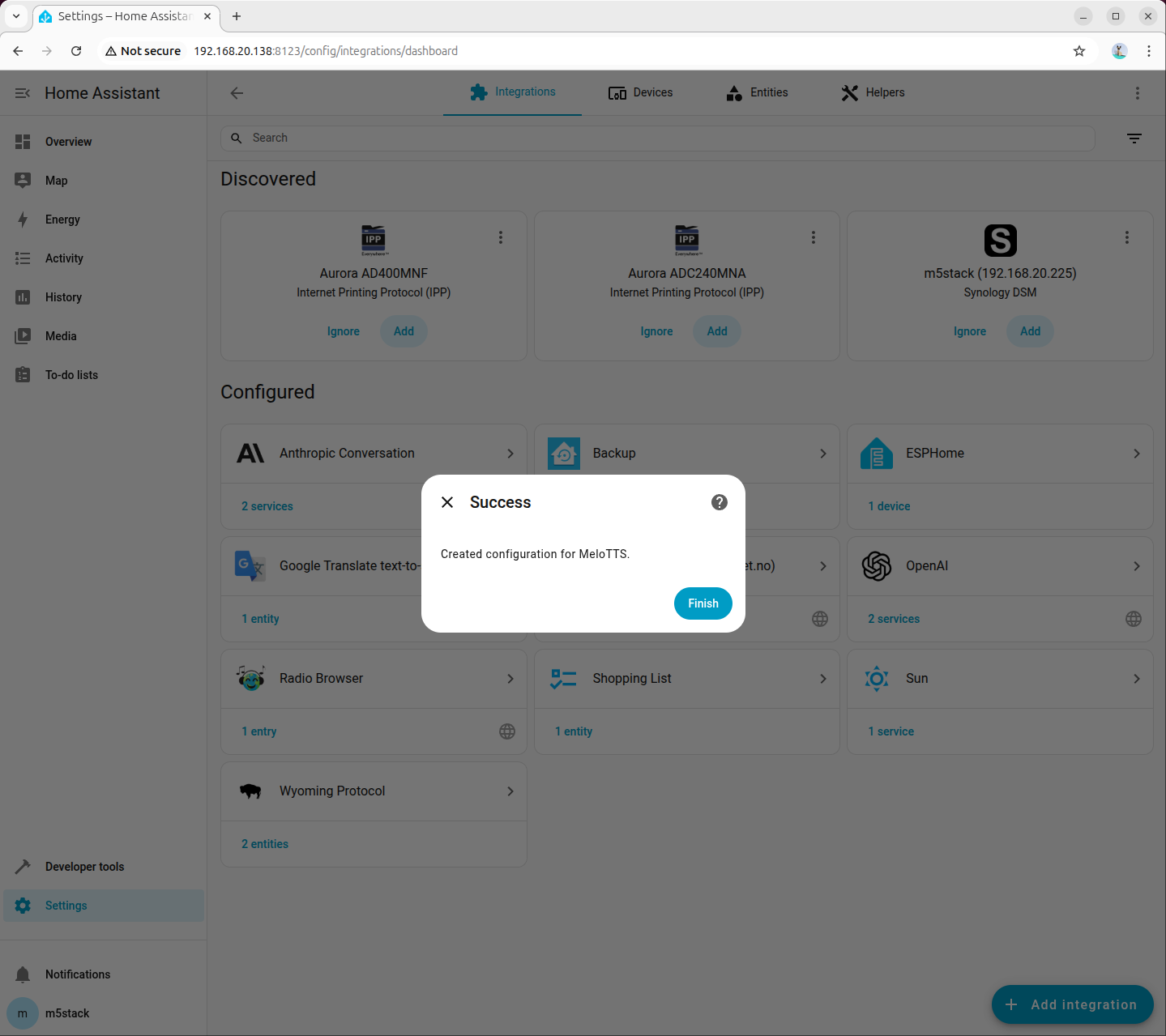
2026-02-04 17:03:19,082 - __main__ - INFO - Server started, waiting for connections... 打开 Home Assistant 设置,搜索并添加 'Wyoming Protocol' 集成:
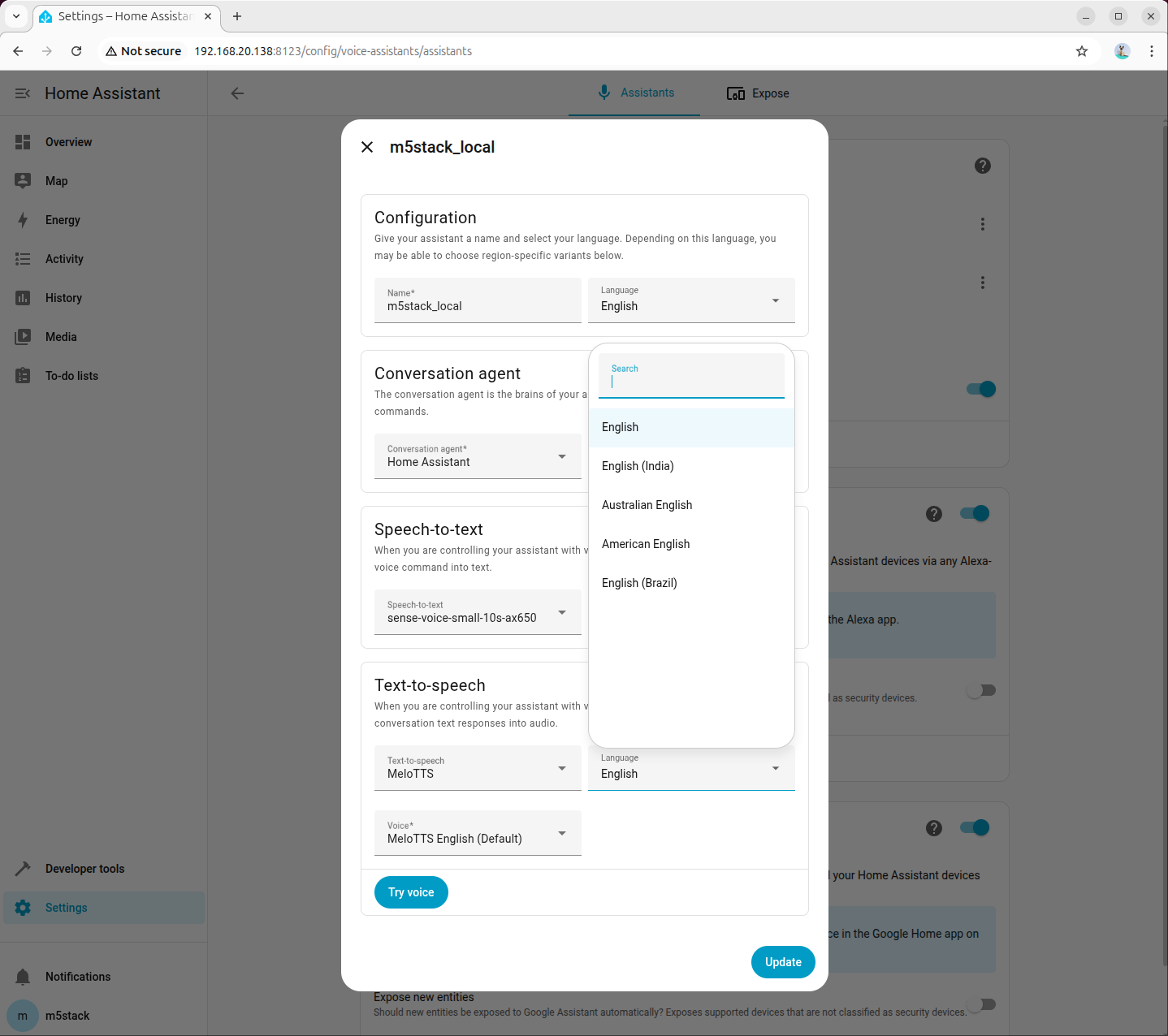
在「设置 - 语音助手」中创建或编辑助手配置。将文本转语音(TTS)选项设置为刚才添加的「MeloTTS」,然后根据需求选择合适的语言和音色。请确保已安装对应语言的文本转语音模型。此处以 American English 为例演示:
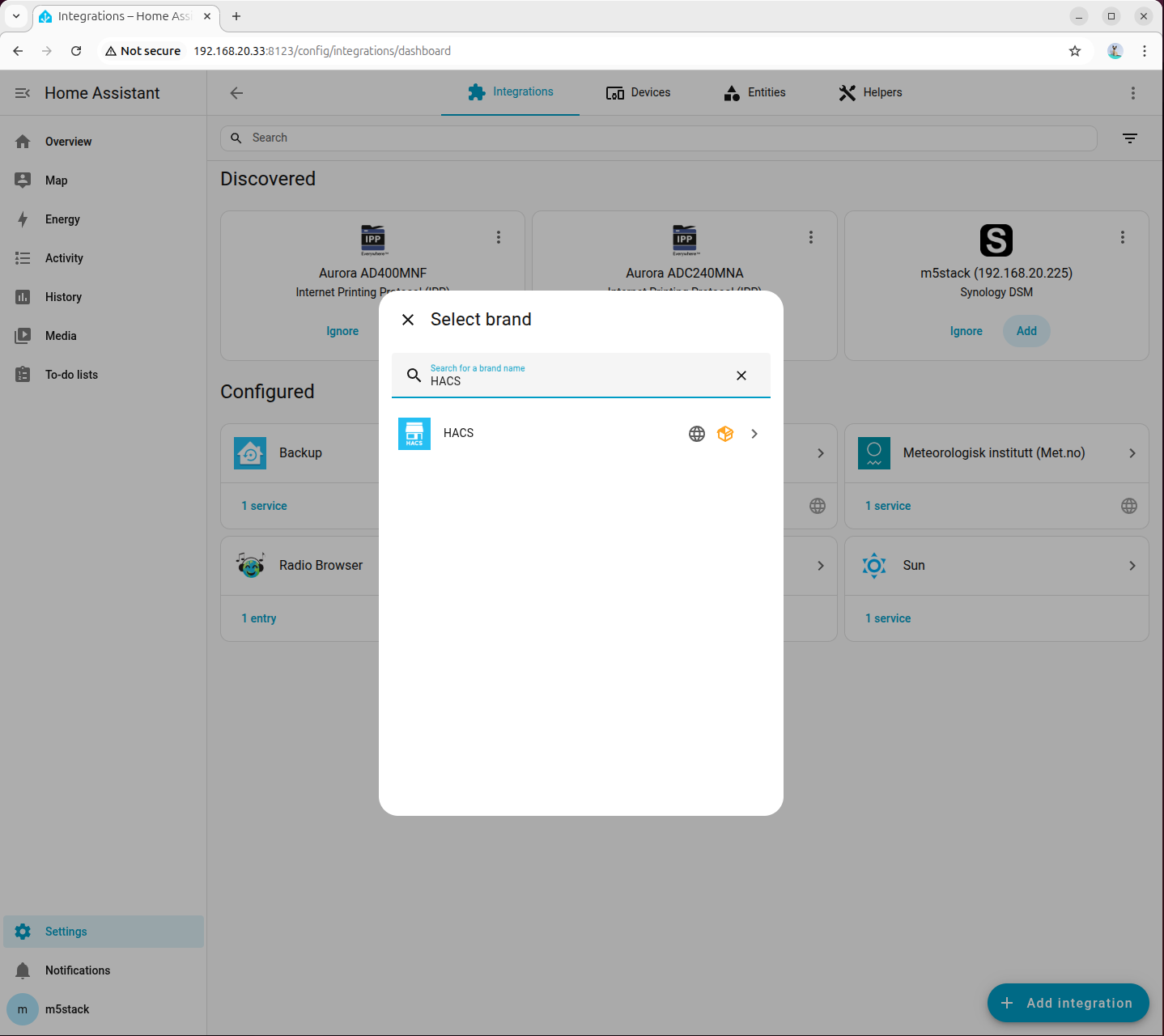
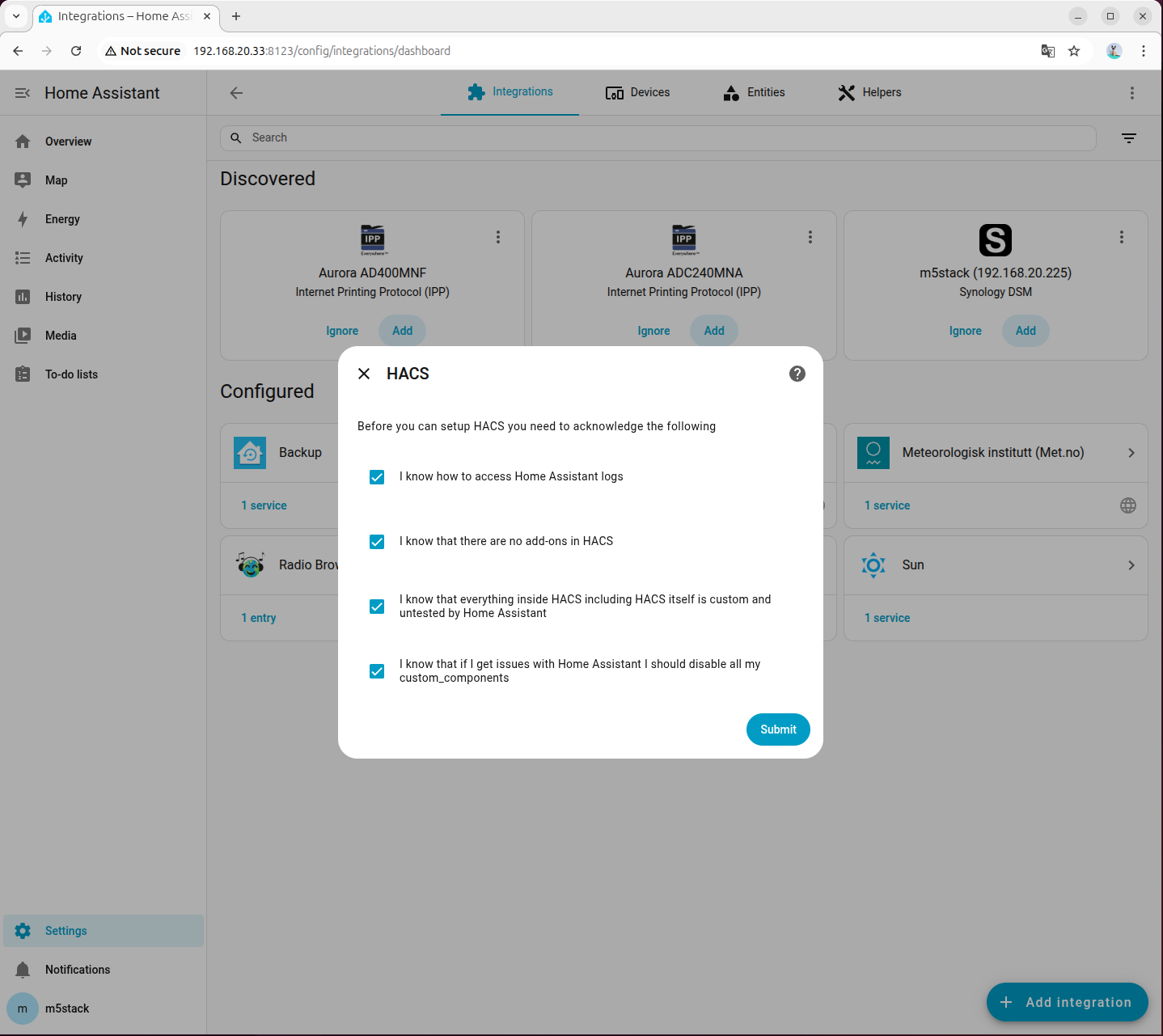
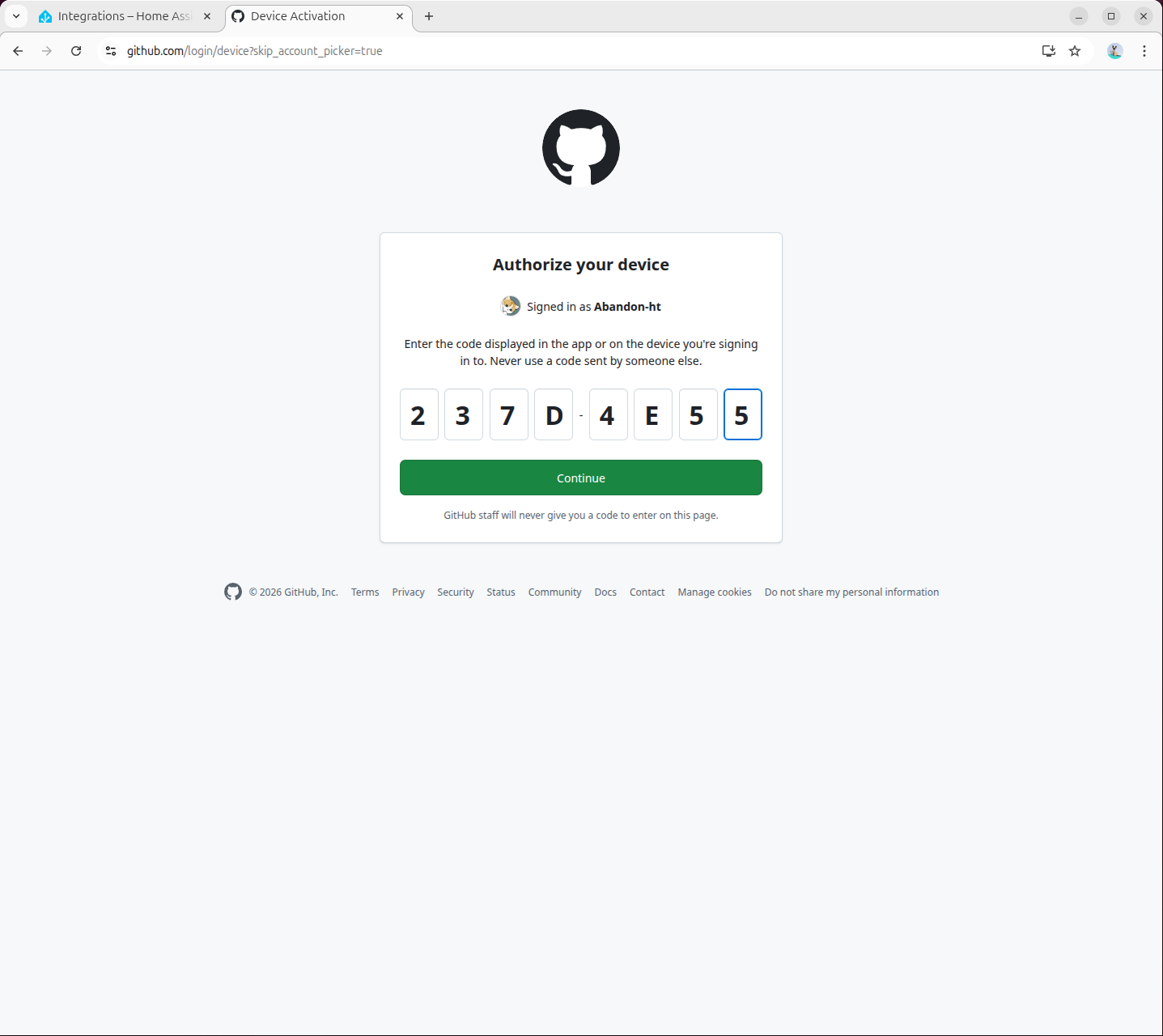
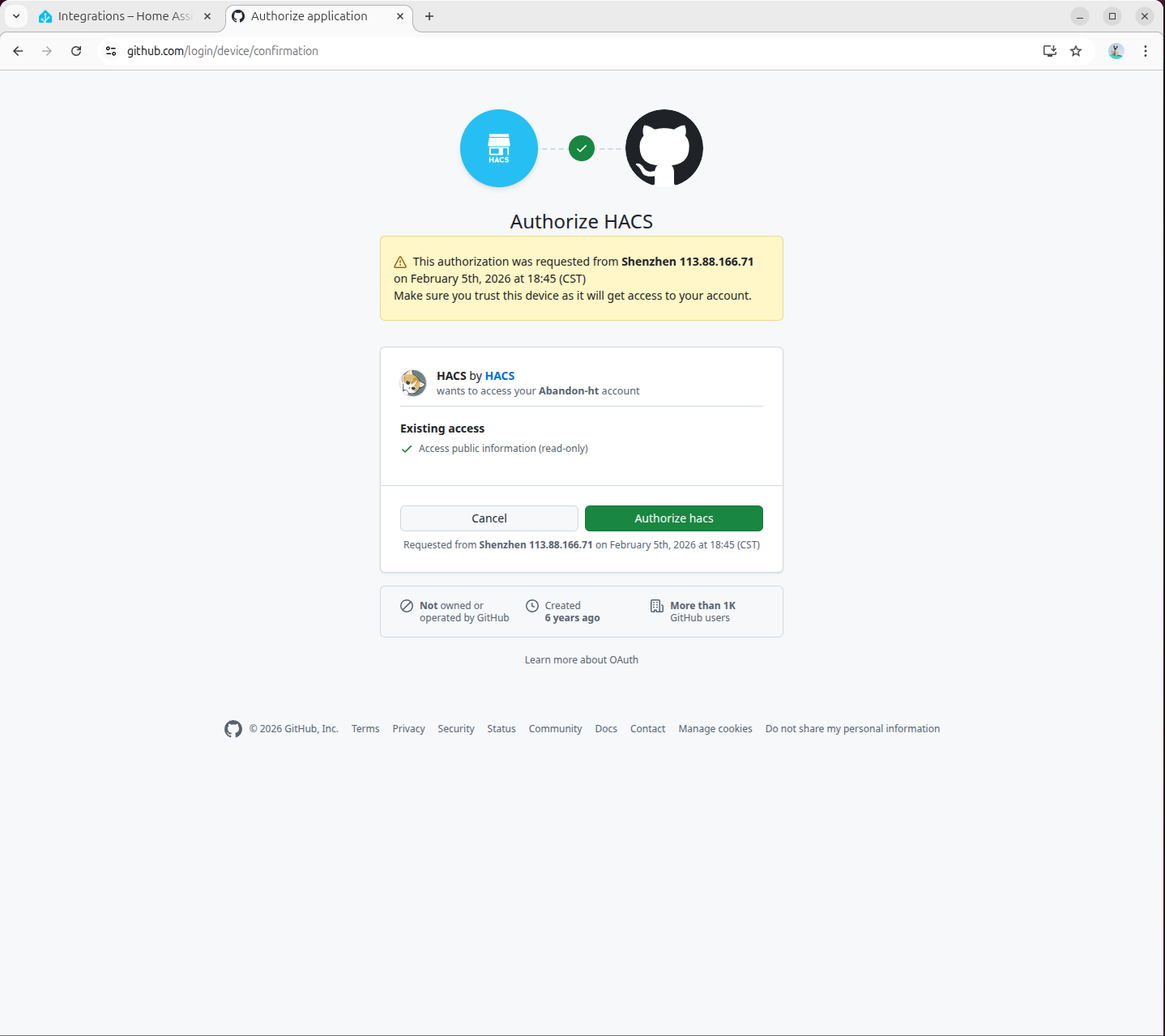
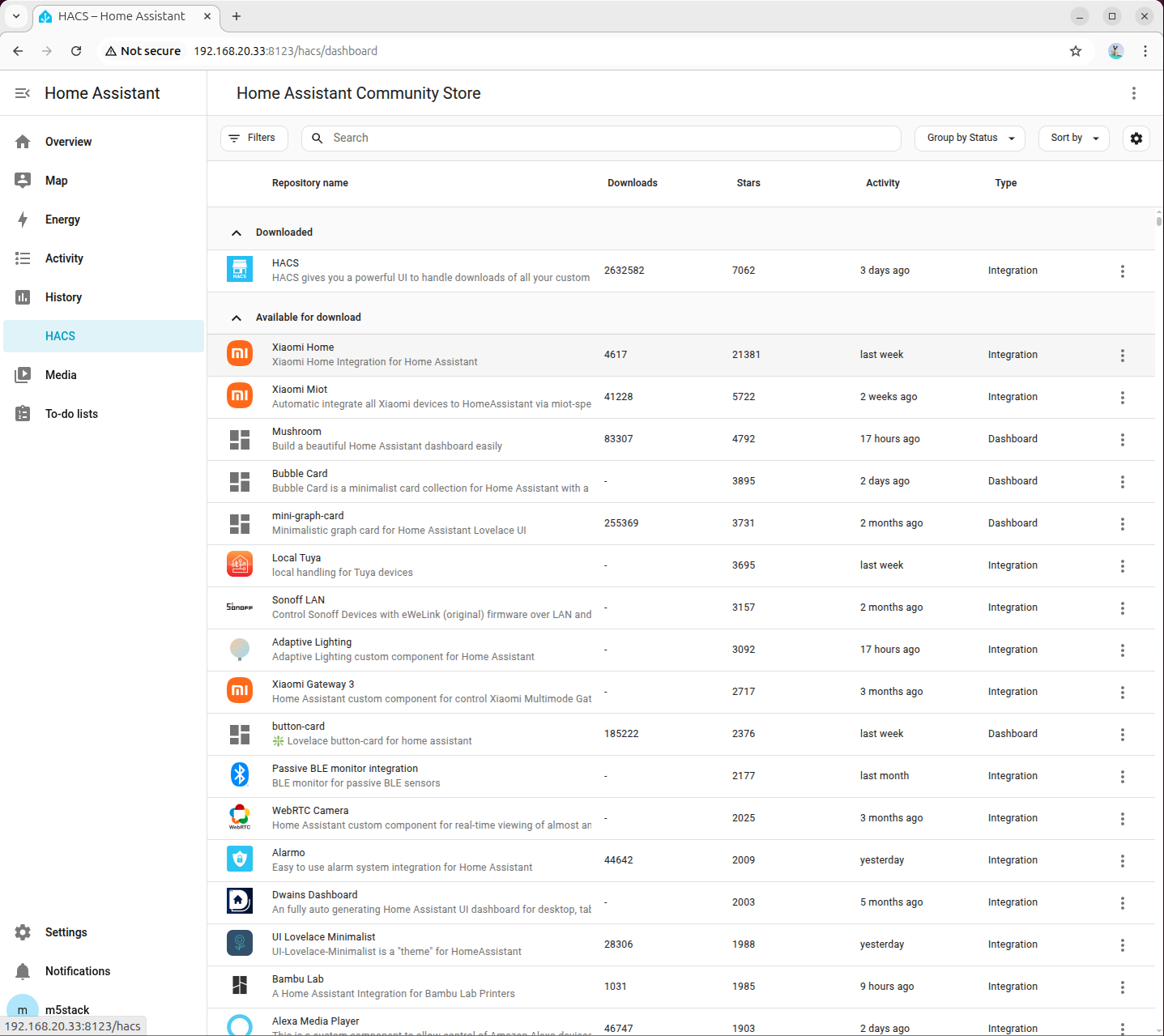
docker exec -it homeassistant bash wget -O - https://get.hacs.xyz | bash -
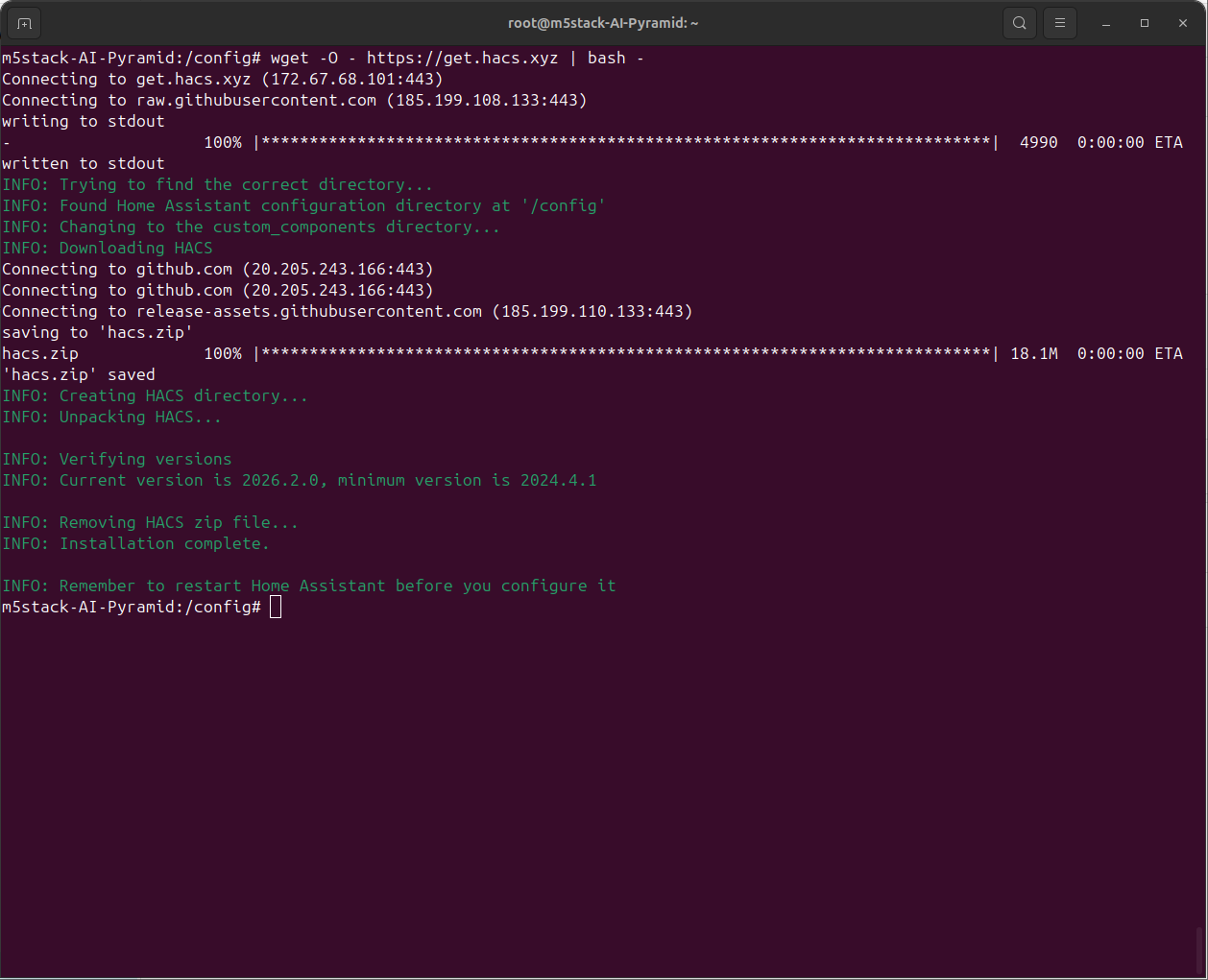
docker restart homeassistant
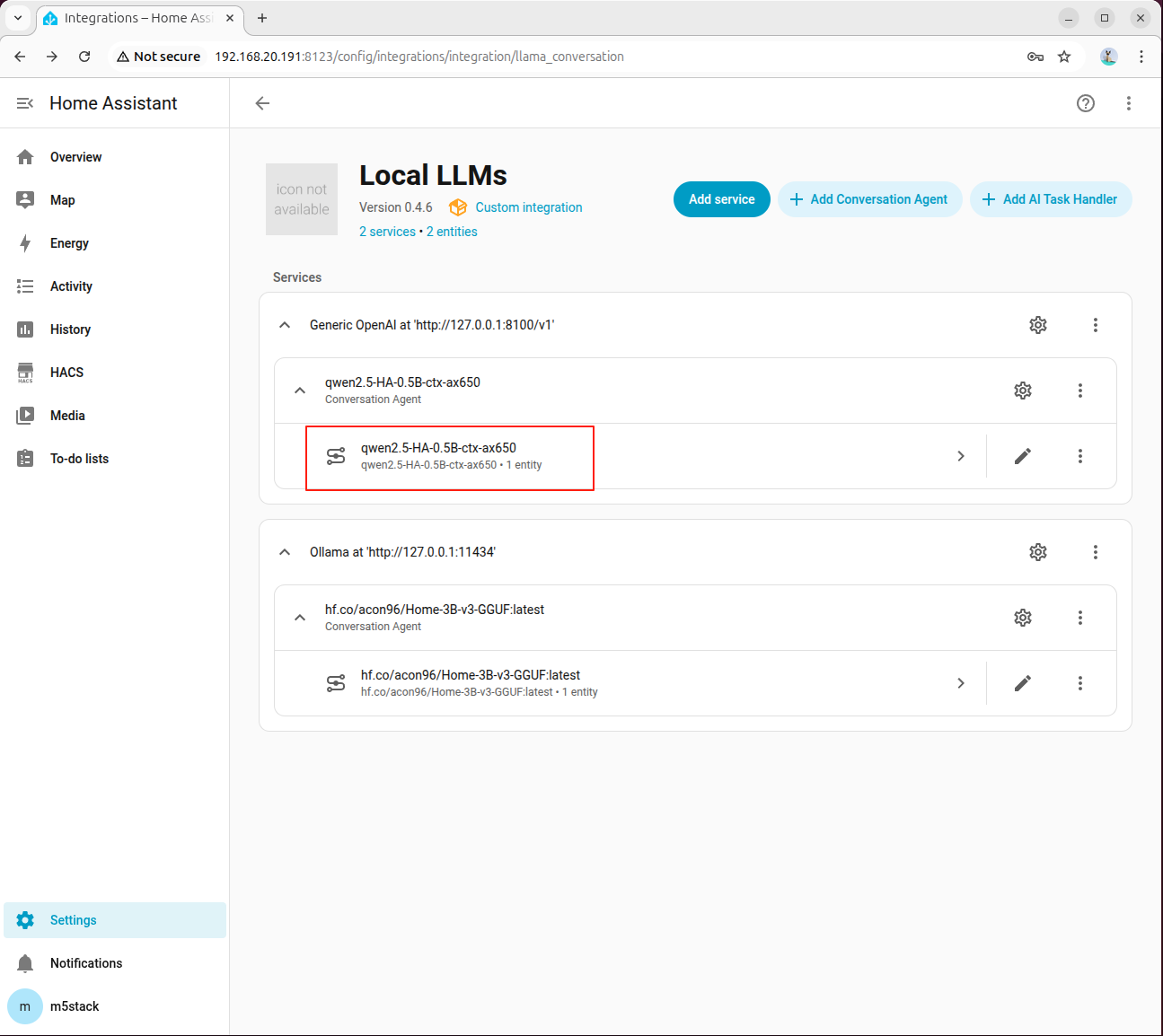
ollama run hf.co/acon96/Home-3B-v3-GGUF