

Home Assistant
Media Player
Expansion
Sensor
AtomS3R + Atomic Voice Base Voice Assistant
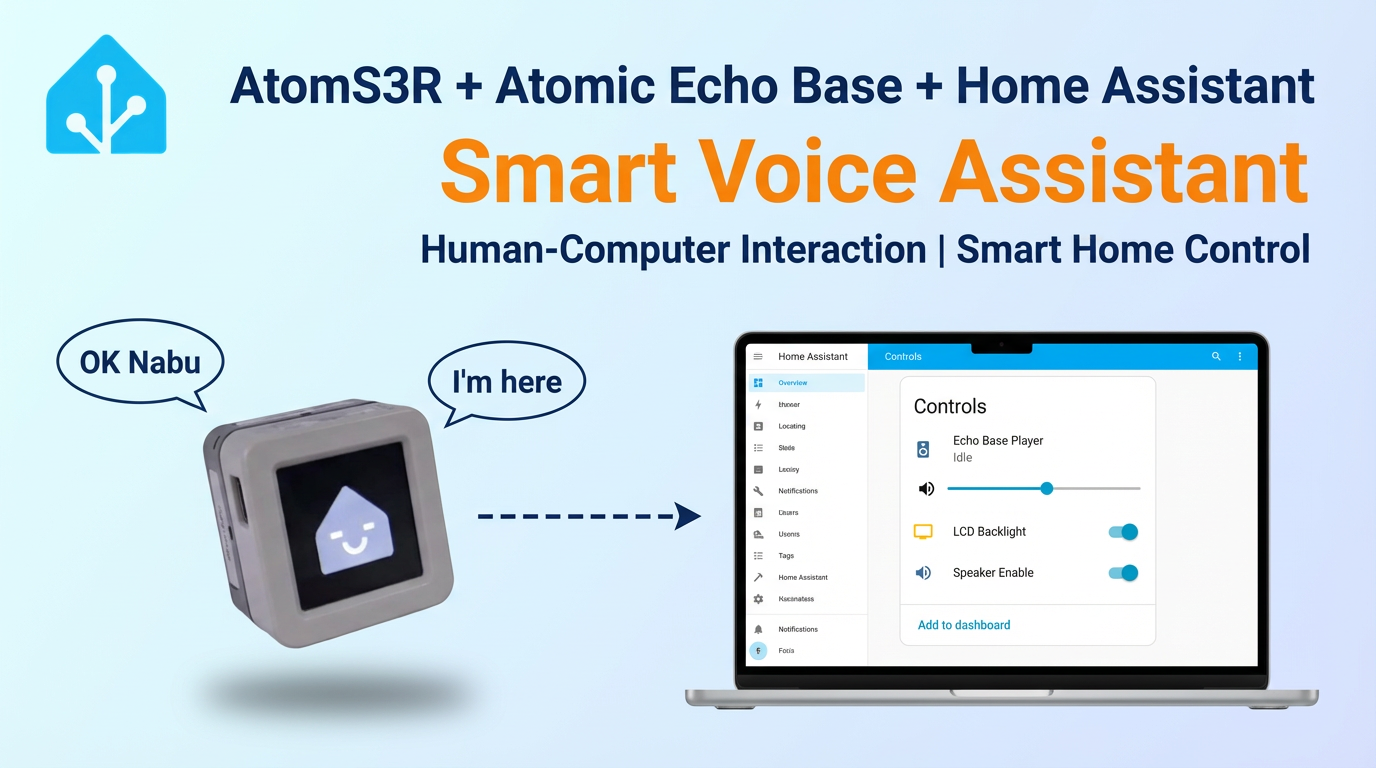
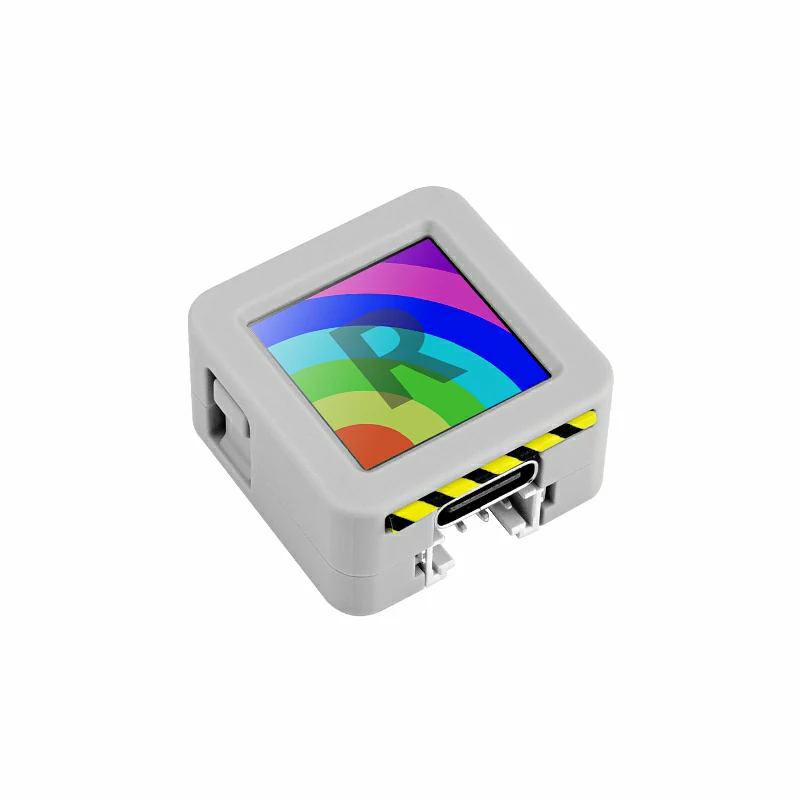
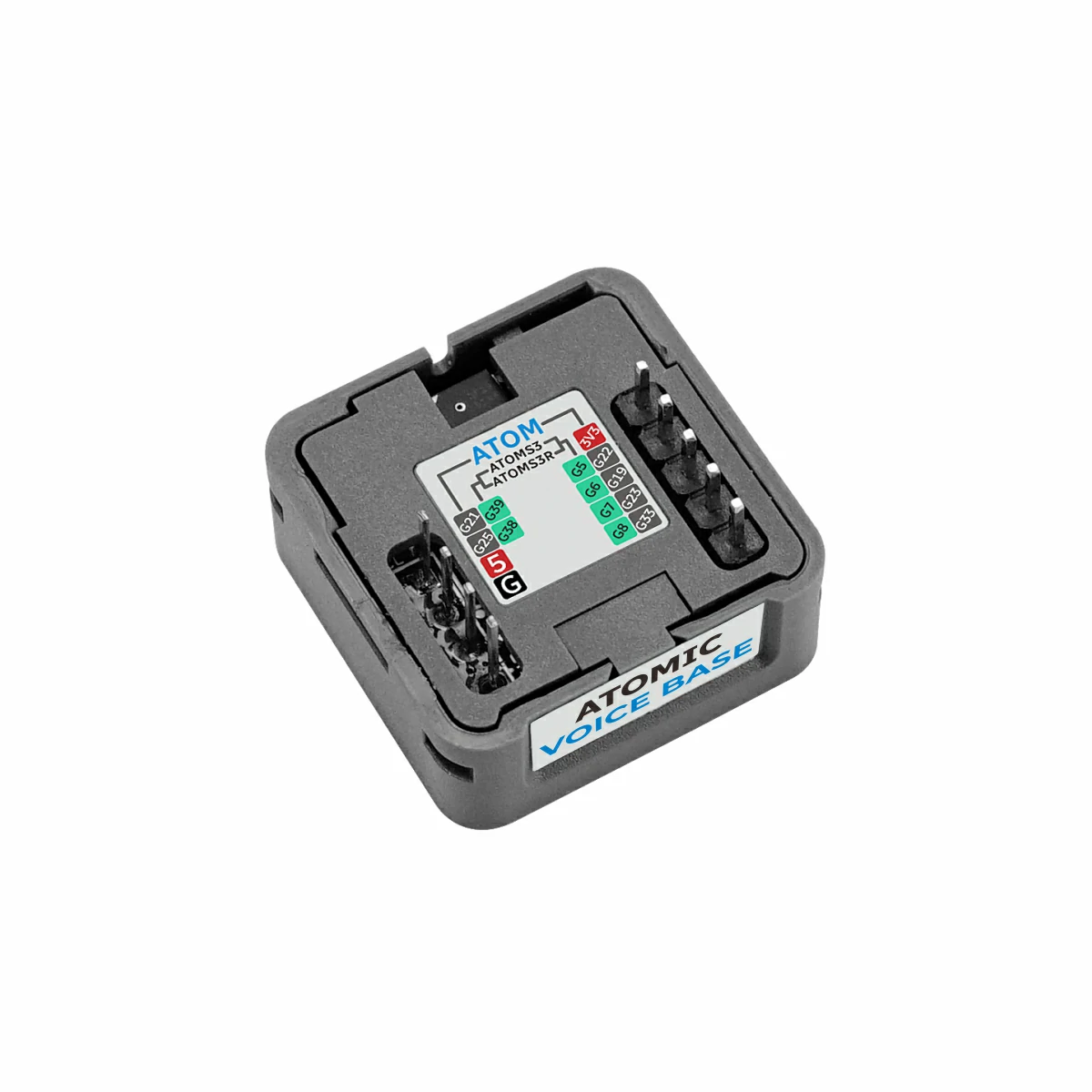
This tutorial describes how to combine AtomS3R with Atomic Voice Base to integrate voice assistant functionality into Home Assistant.
1. Preparation
Environment Setup
- Refer to the official Home Assistant documentation to install Home Assistant.
- Refer to the official ESPHome documentation to install the ESPHome Device Builder add-on. (Note: This tutorial is based on
ESPHome 2025.1.2. If compilation errors occur, switch to this version for verification.) - Install and configure the voice recognition add-ons:
Hardware Products
2. Online Flashing
Click the Online Flashing button below and follow the prompts to flash the firmware and configure Wi-Fi, allowing you to quickly connect AtomS3R + Atomic Voice Base to Home Assistant.
For detailed flashing and configuration instructions, refer to Online ESPHome Firmware Flashing and Configuration.
After using online flashing, you do not need to perform the "Firmware Compilation & Flashing" steps. Proceed directly to 4. Getting Started.
3. Firmware Compilation & Flashing
This section explains how to recompile the project from the yaml configuration file for secondary development, feature modifications, or new functionality.
Create Device
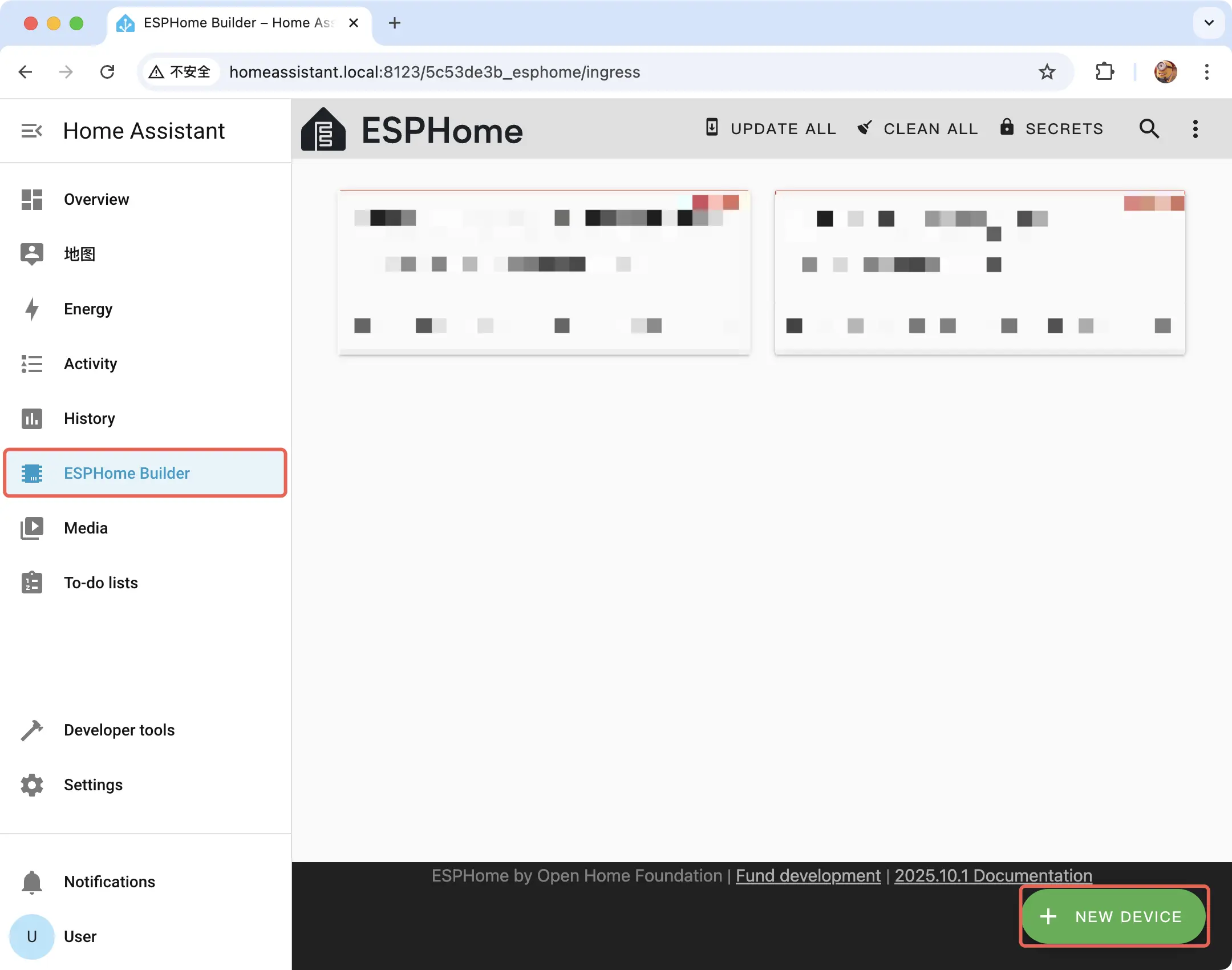
- Open the ESPHome add-on page and click
NEW DEVICEin the bottom right corner to create a new device.
- Click
CONTINUEin the pop-up window.
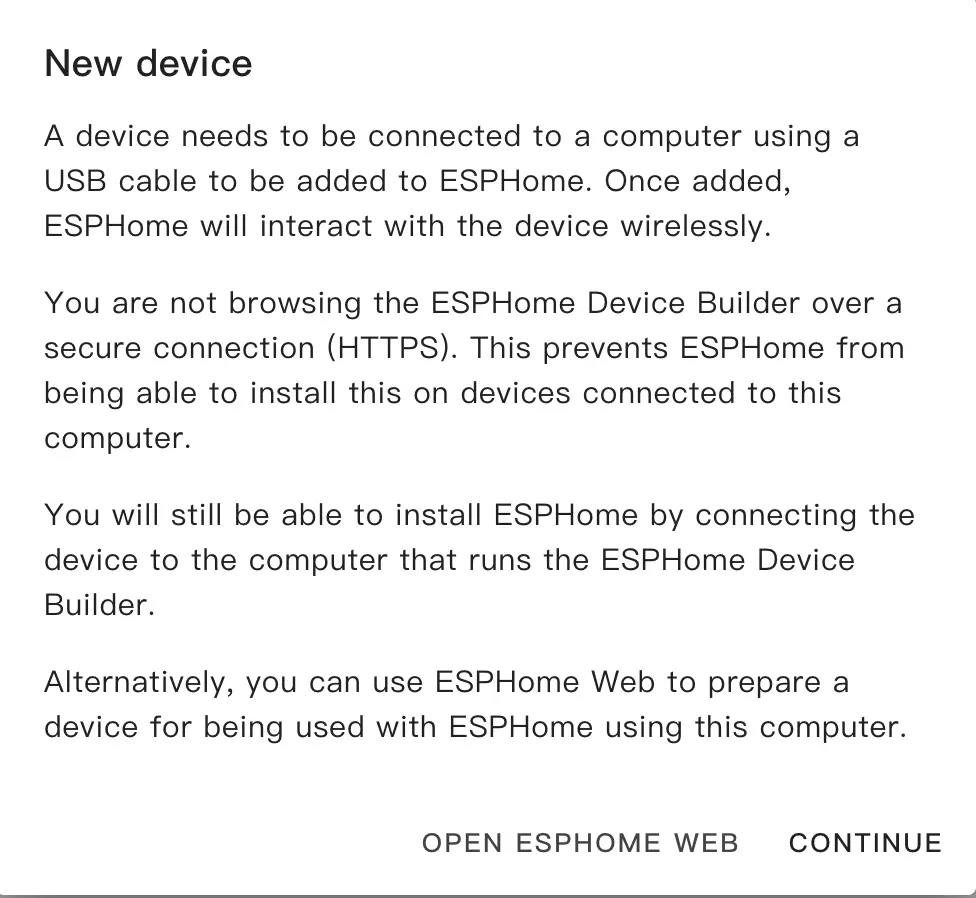
- Select
New Device Setupto create a new configuration file.
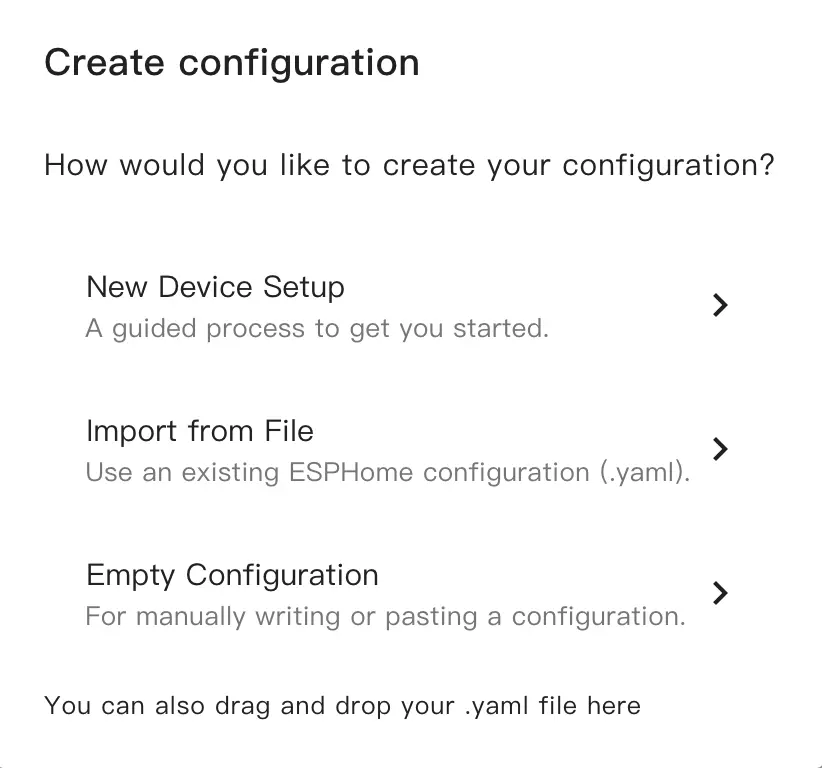
- Fill in the configuration file name.
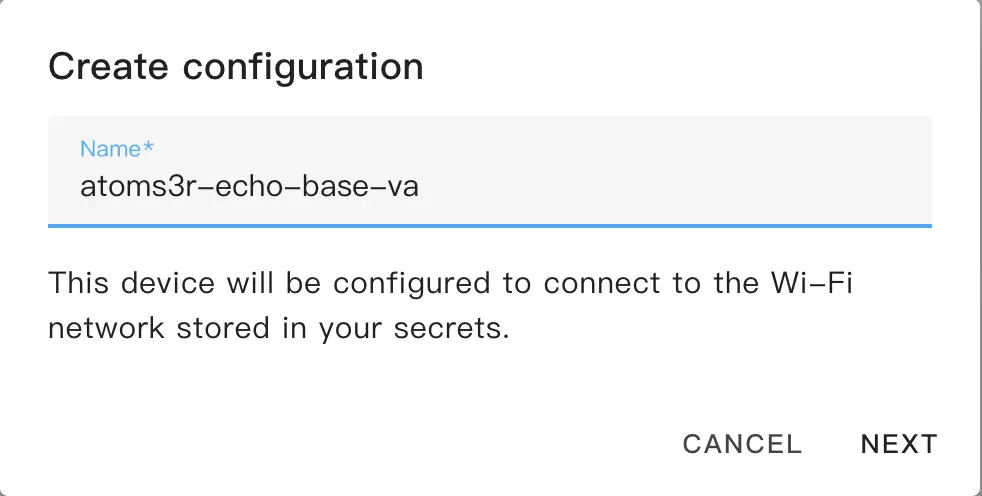
- Select the device type; simply click
ESP32-S3.
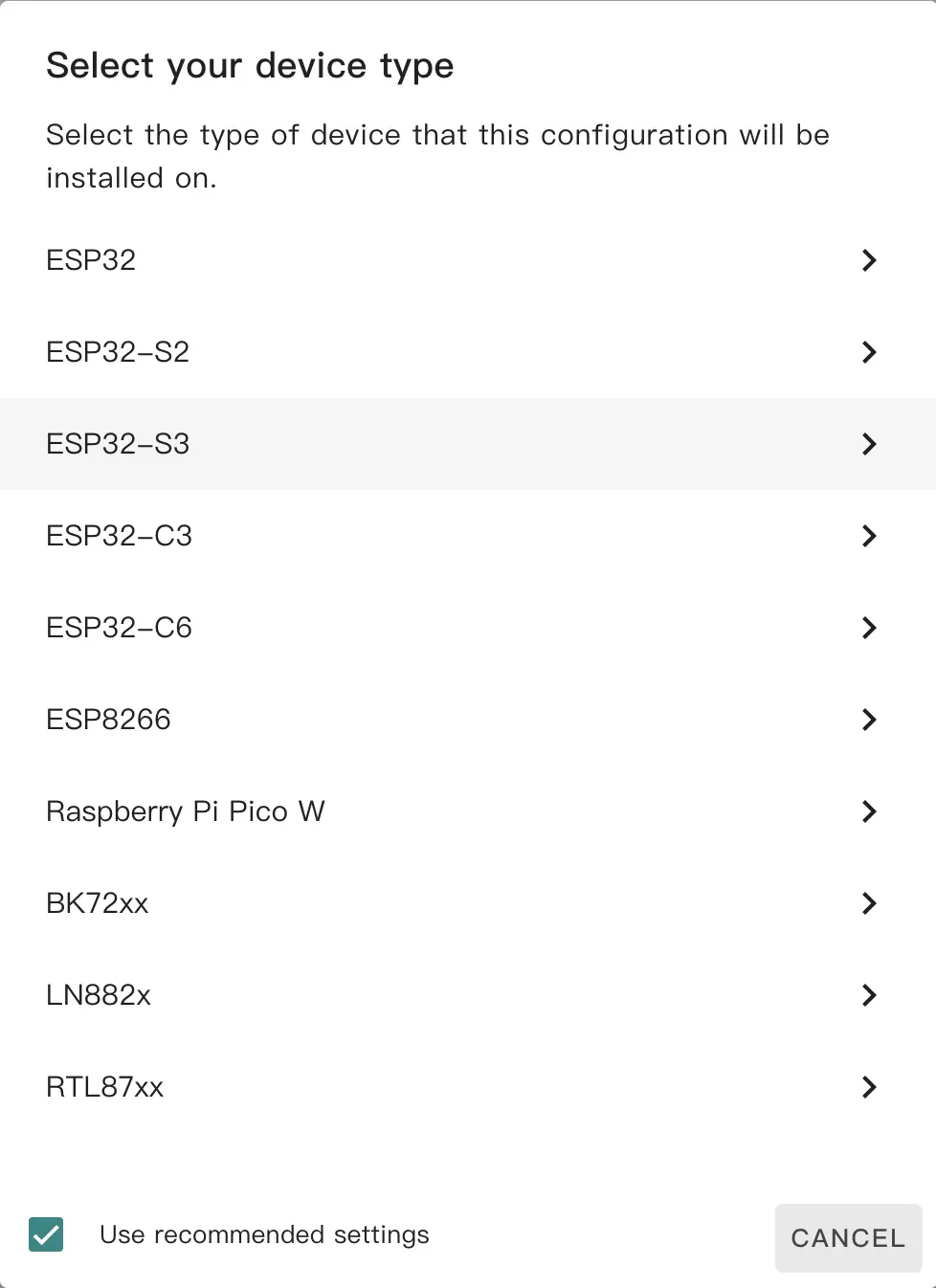
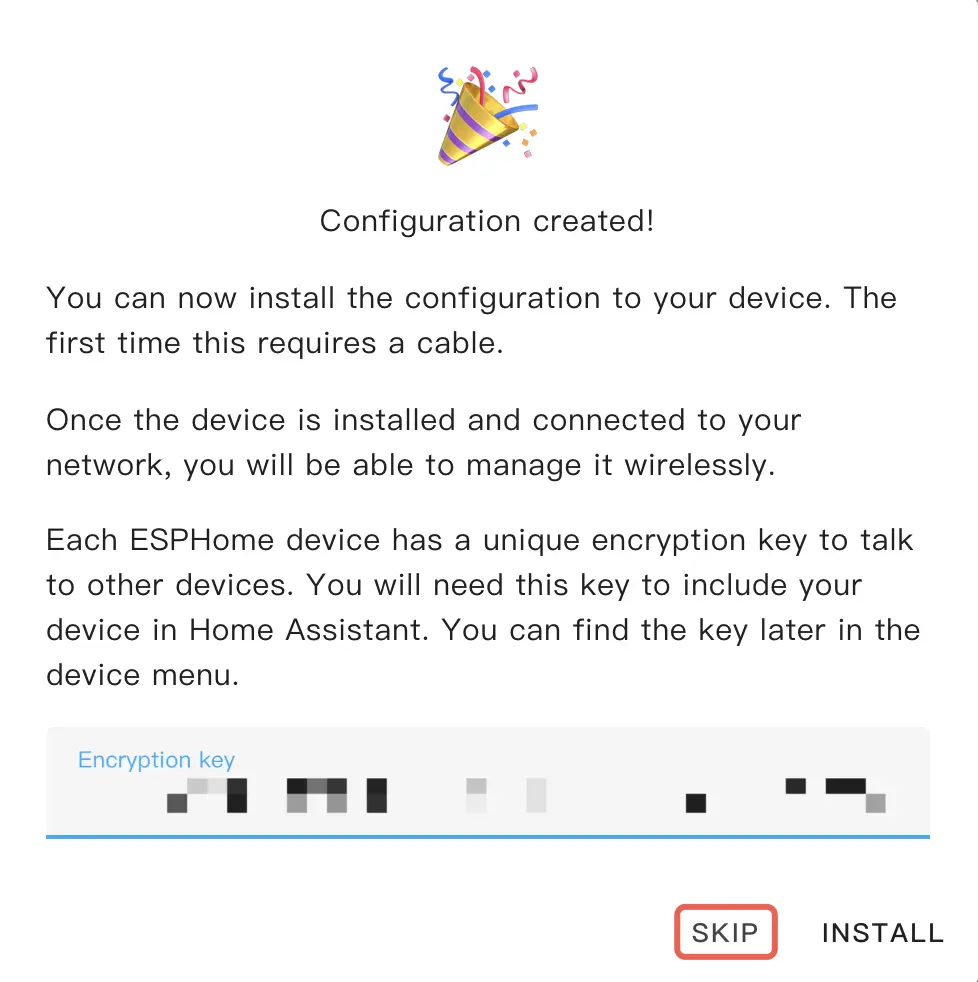
- Copy the Home Assistant API Encryption Key for later use and click
Skip.
Modify Configuration
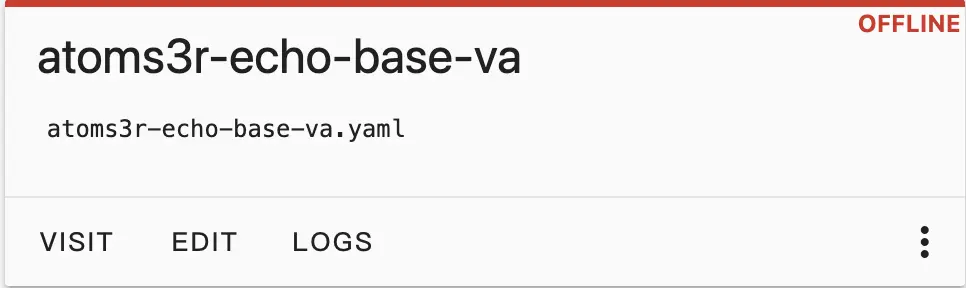
- Click
EDITon the newly generated configuration to modify it. (The Wi-Fi configuration defaults to the current HA server's Wi-Fi configuration, but you can also configure options likessidandpasswordaccording to your actual situation).
- Add the following resource package configuration link to add the voice assistant functional components to the device.
packages:
  m5stack.atoms3r-with-echo-base: github://m5stack/esphome-yaml/common/atoms3r-with-echo-base.yaml@main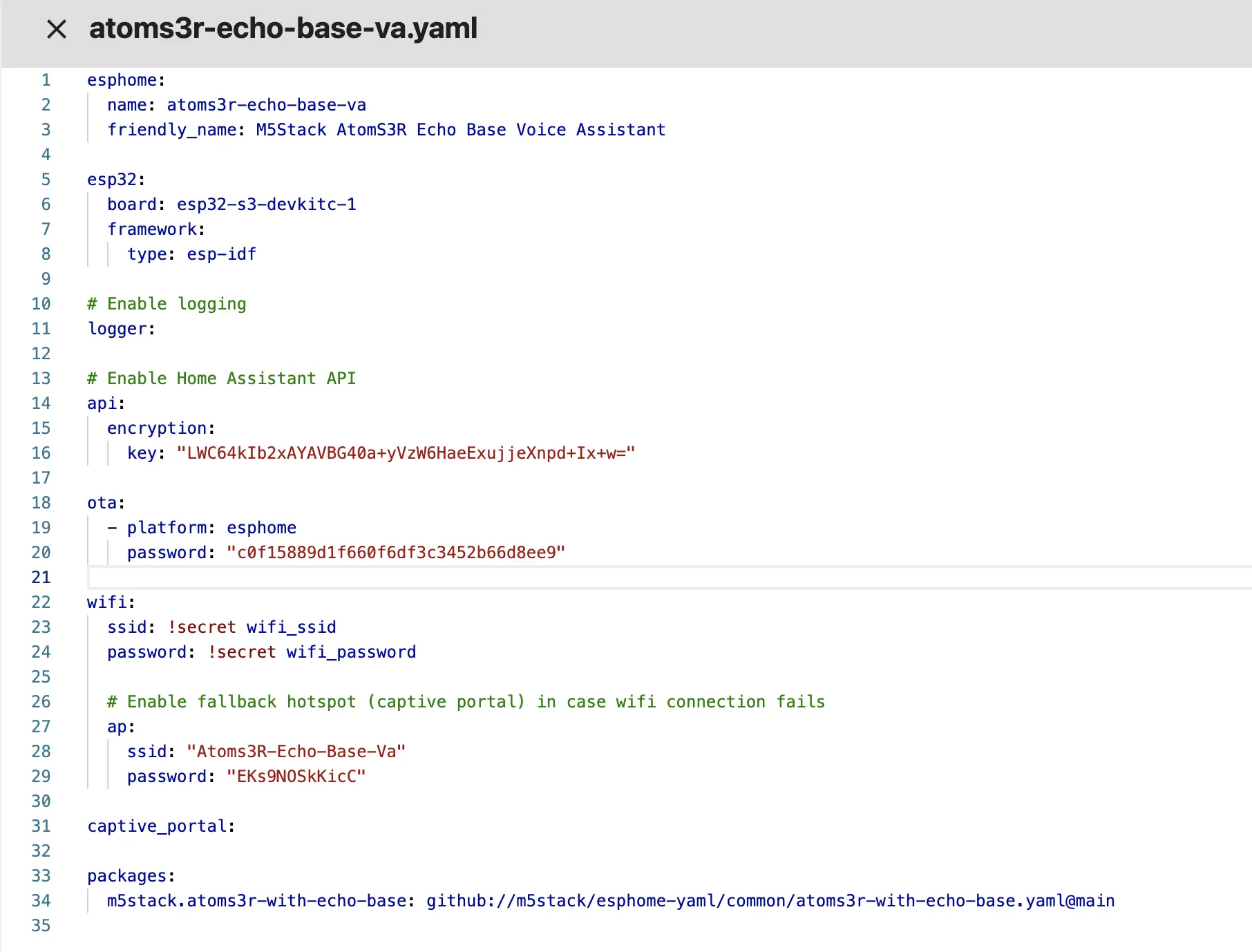
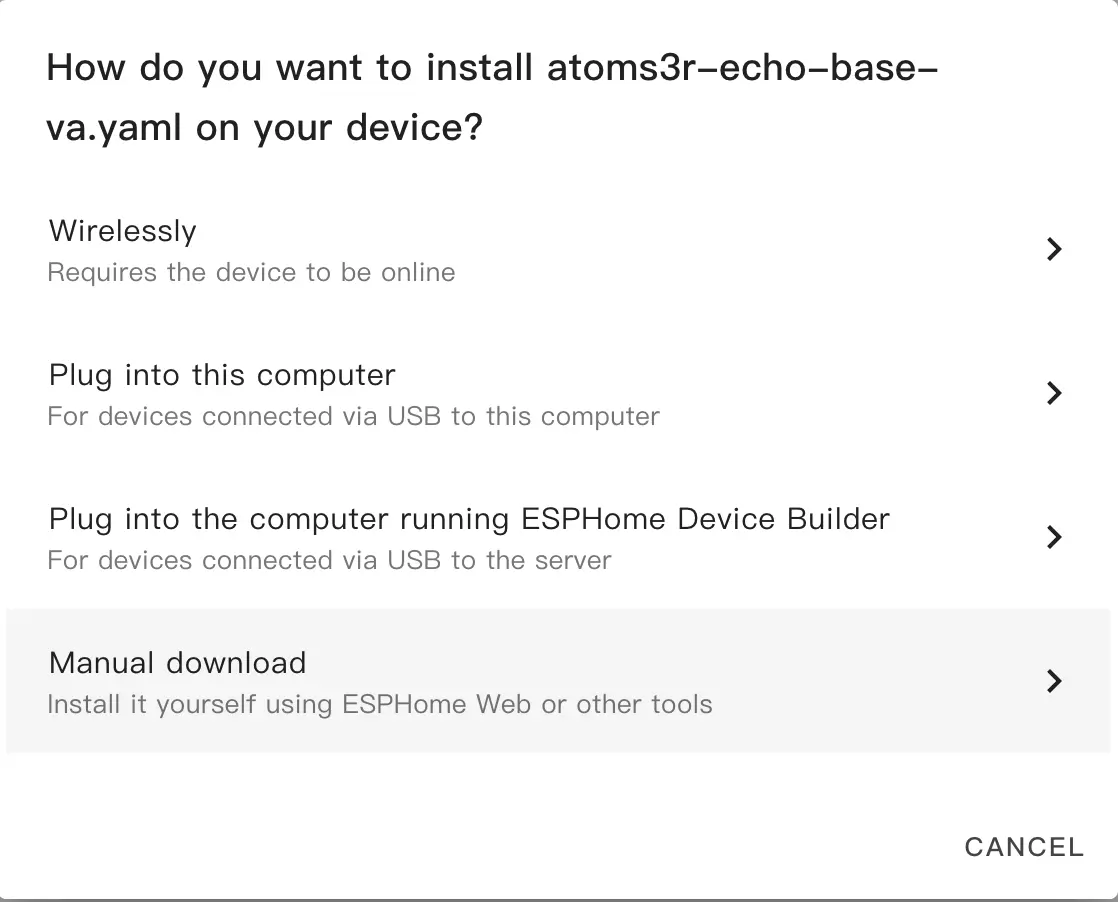
- Click
SAVEandINSTALLin the upper right corner. In the installation method pop-up, selectManual download.
Download and Flash Firmware
- After the firmware compilation is complete, click the
Downloadbutton and select theFactory Format (Previously Modern)format firmware to download locally.
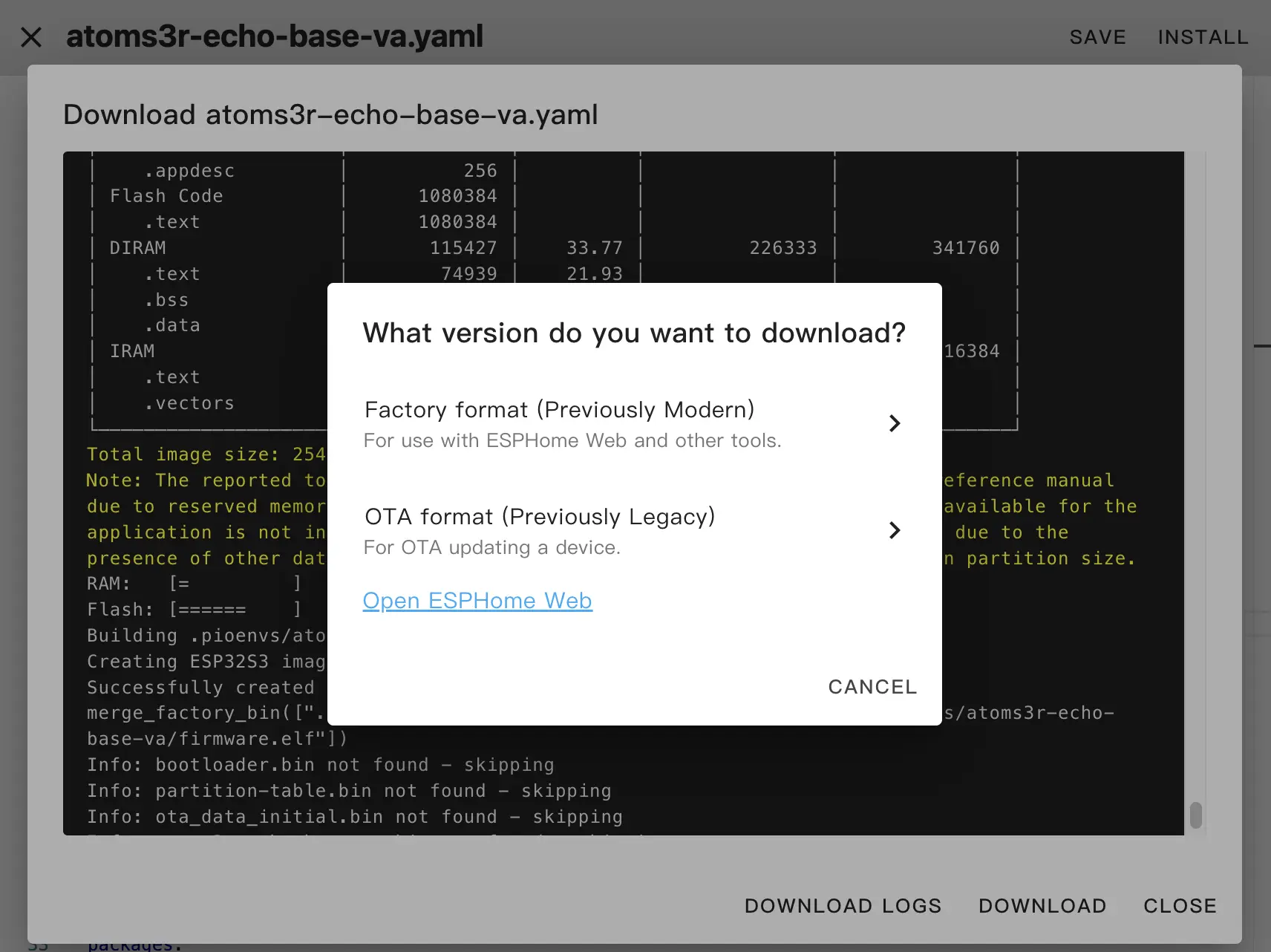
- Click
Open ESPHome Webto use the web flashing tool for flashing.
Open ESPHome Web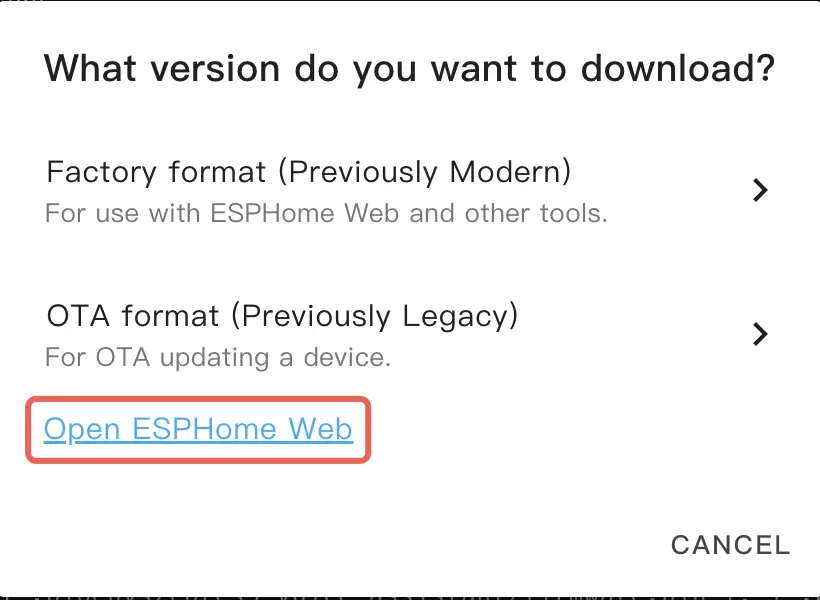
- Assemble the AtomS3R and Atomic Voice Base. Connect the AtomS3R device to your computer via a USB-C cable. Long-press the reset button until the green light turns on, then release the button. The green light turns off after the button is released, confirming that the device is in download mode.
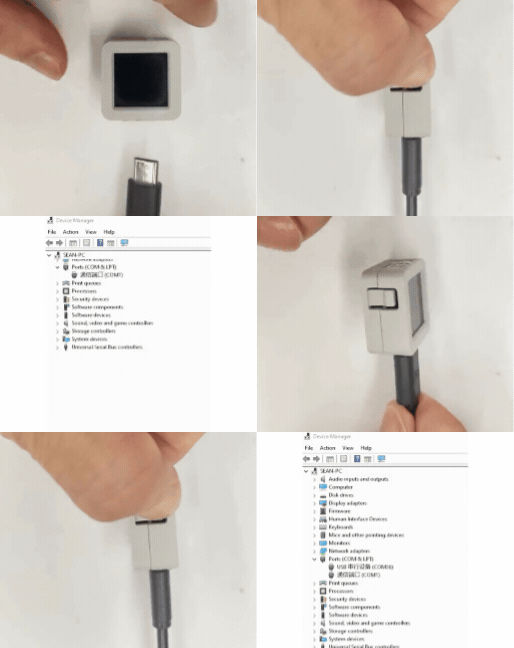
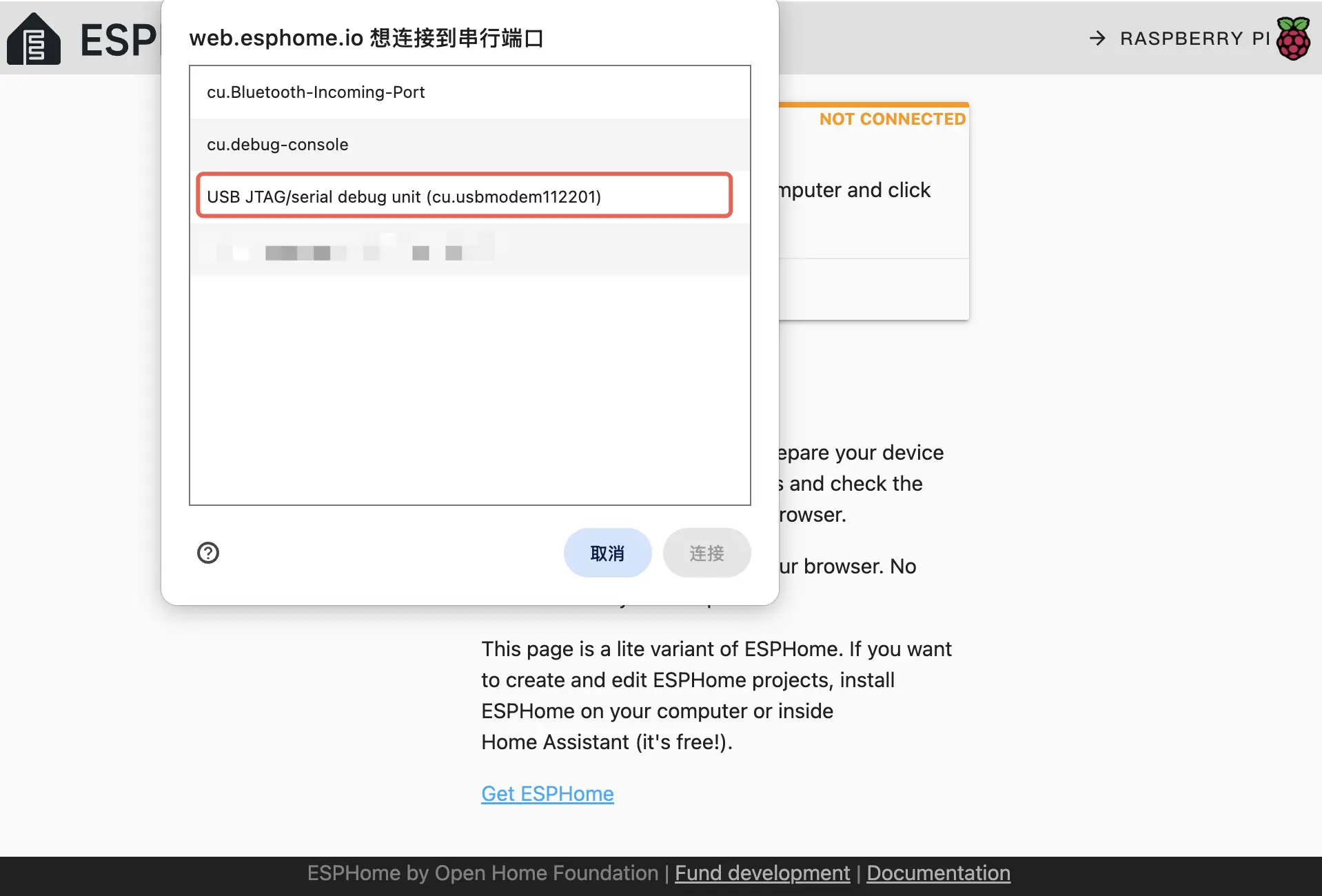
- In Open ESPHome Web, click
CONNECTto connect the device and select the corresponding device port.
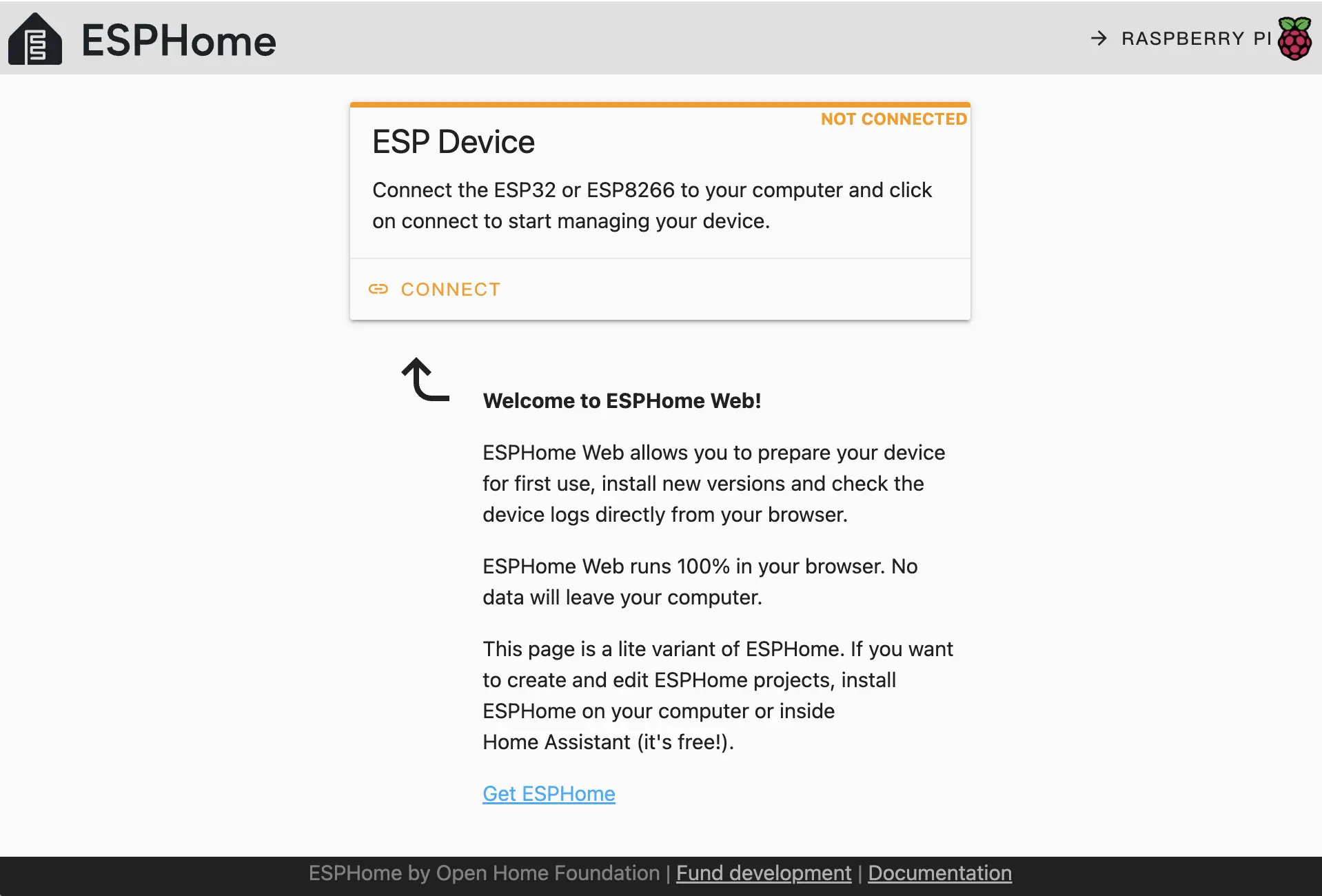
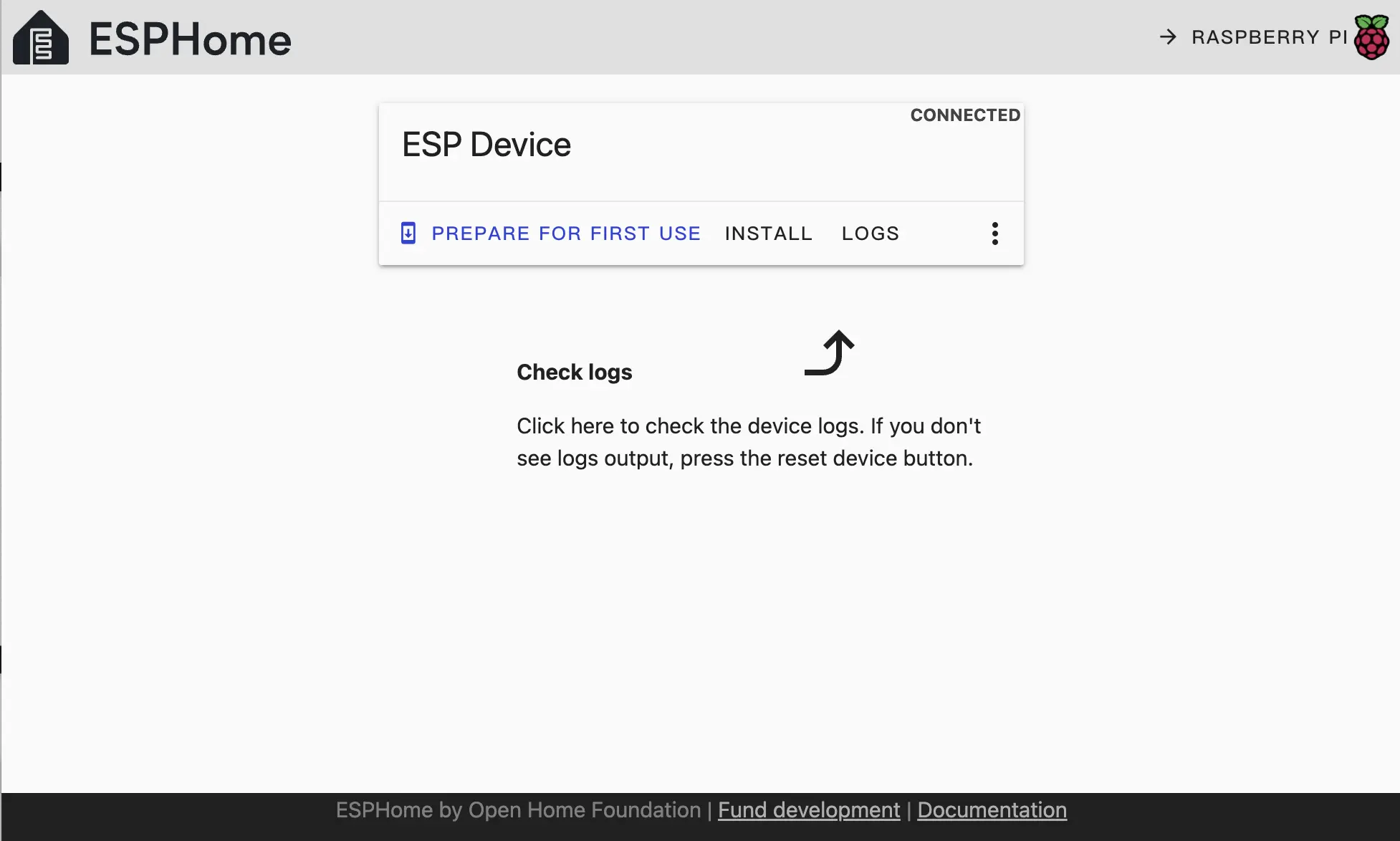
- Click
INSTALL.
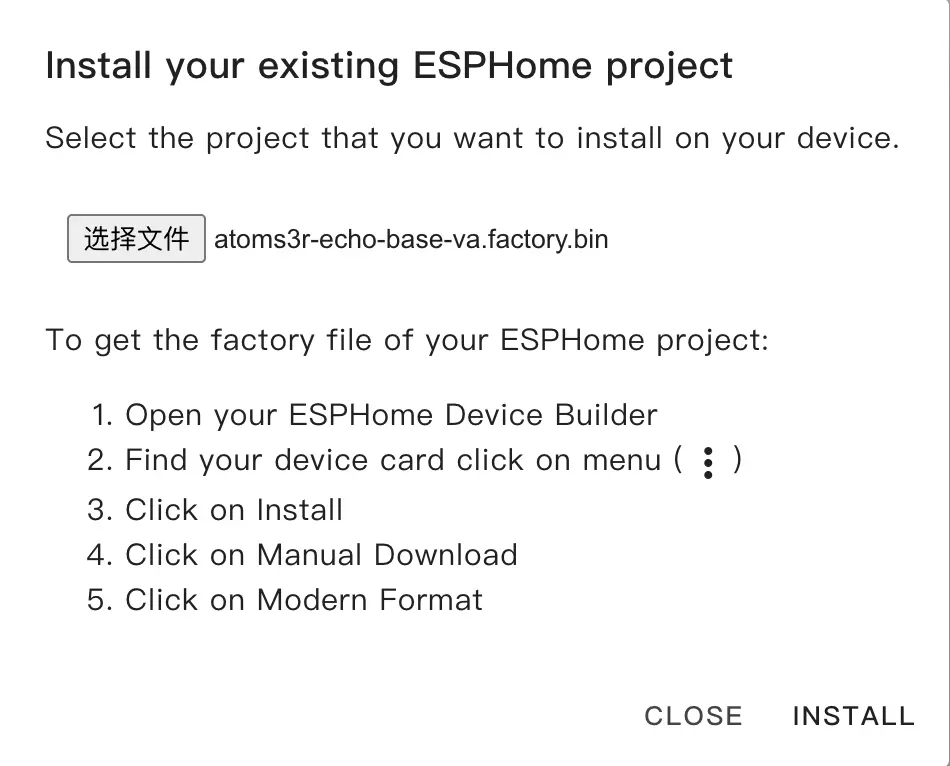
- Select the
*.binfile compiled in the previous step and click theINSTALLbutton again to begin flashing.
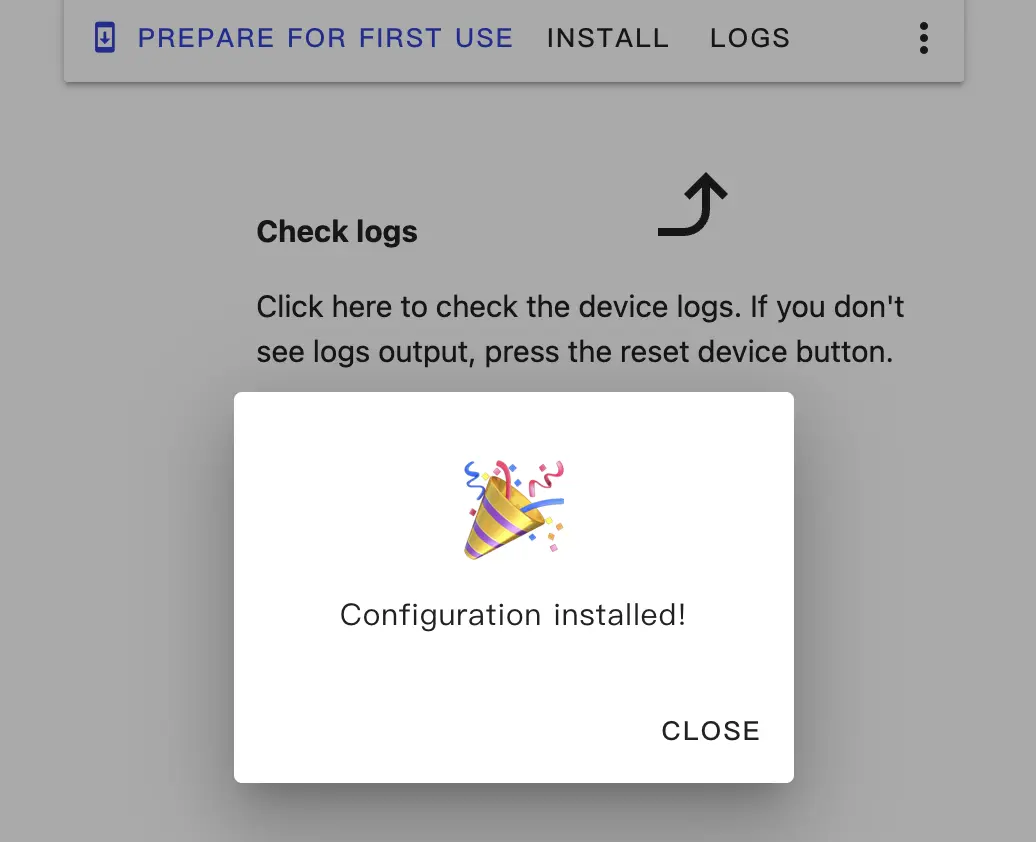
Wait for the flashing process to complete.
4. Getting Started
- After flashing the firmware, the device will automatically connect to Wi-Fi upon startup. The Home Assistant service on the same local area network will notify you that a new device has been discovered. In
Notifications, select the new device and clickCheck it out->CONFIGURE. Follow the pop-up steps to add the device to the specified area to complete the configuration. If you do not receive a new device notification, clickSettings>Devices & Servicesto view the device status.
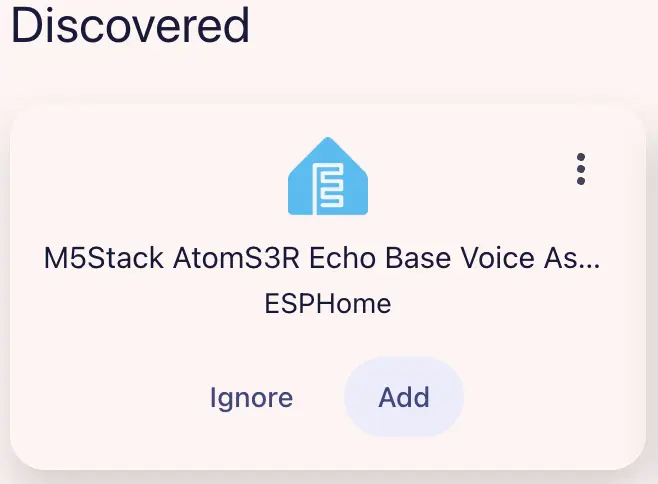
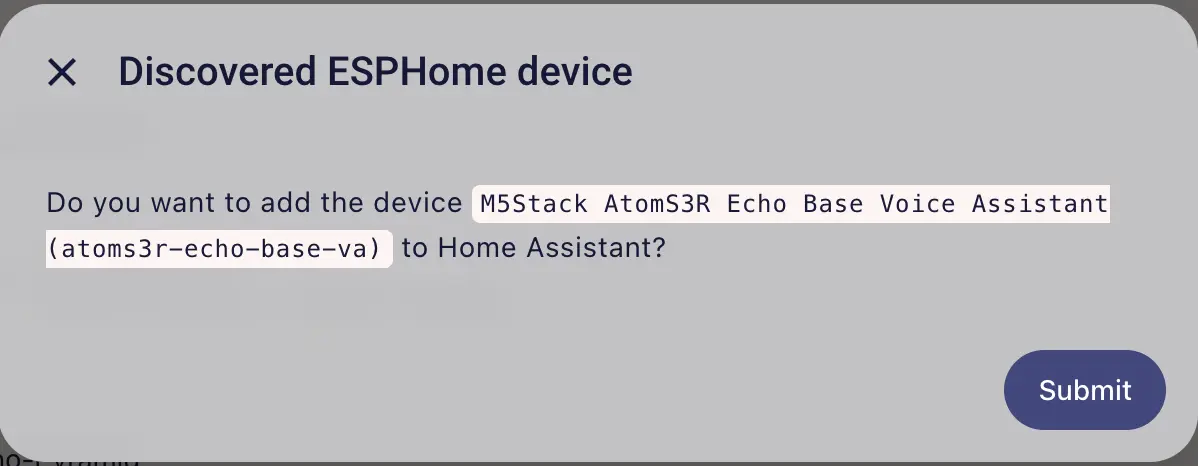
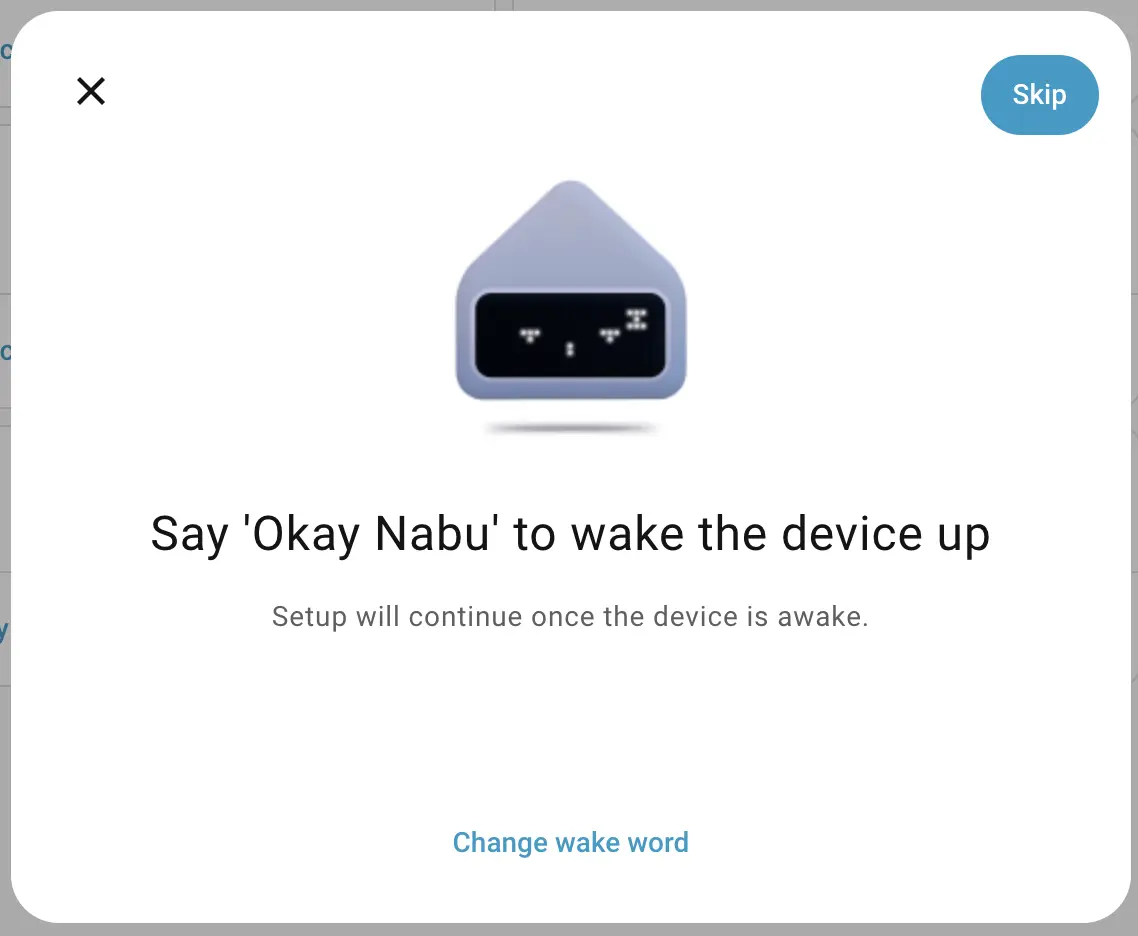
Next, you can continue to set up the Voice Assistant, or skip this step and set it up later.
Test the wake word.
Select the area.
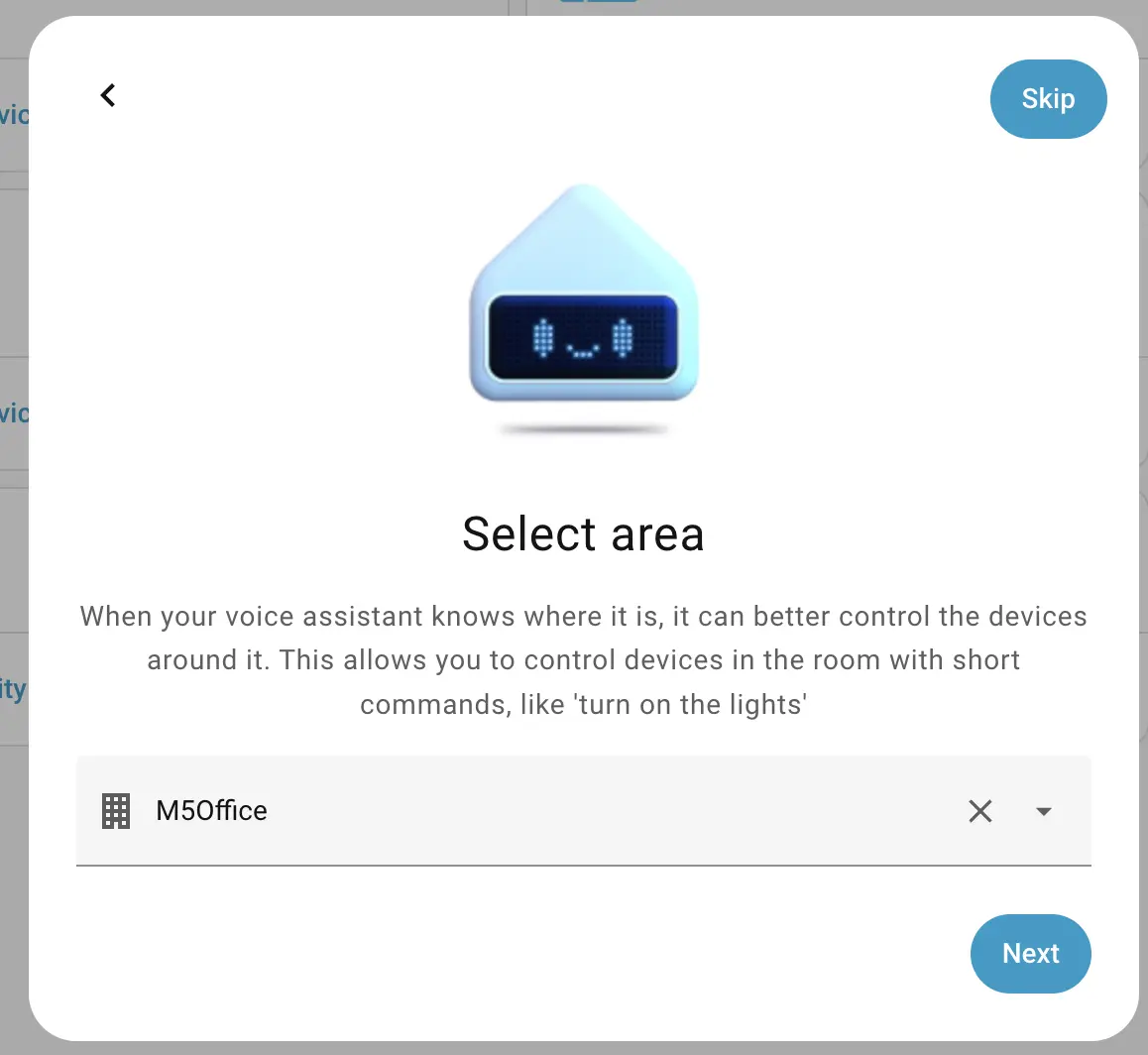
Select the Pipeline.
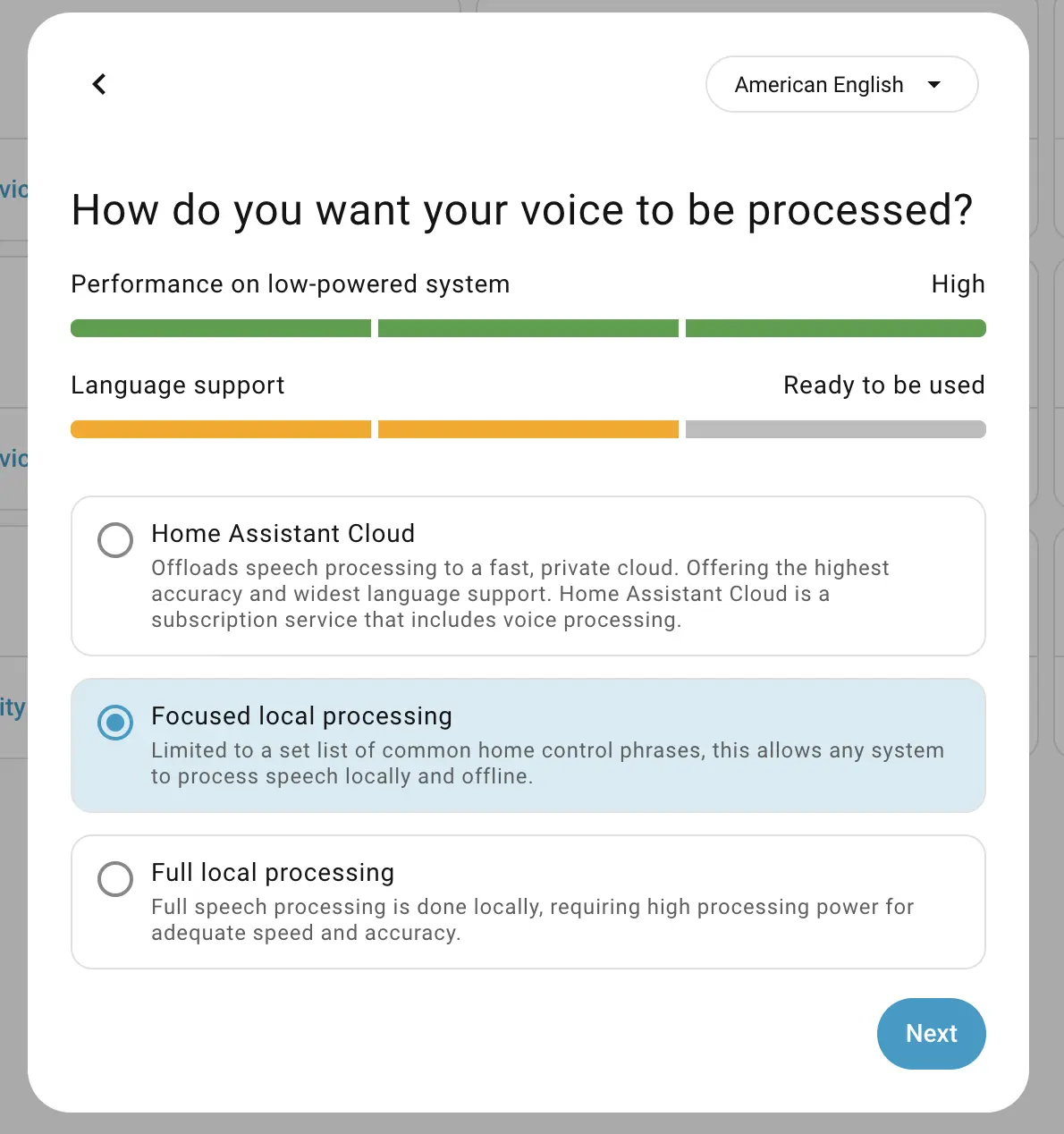
Complete the setup.
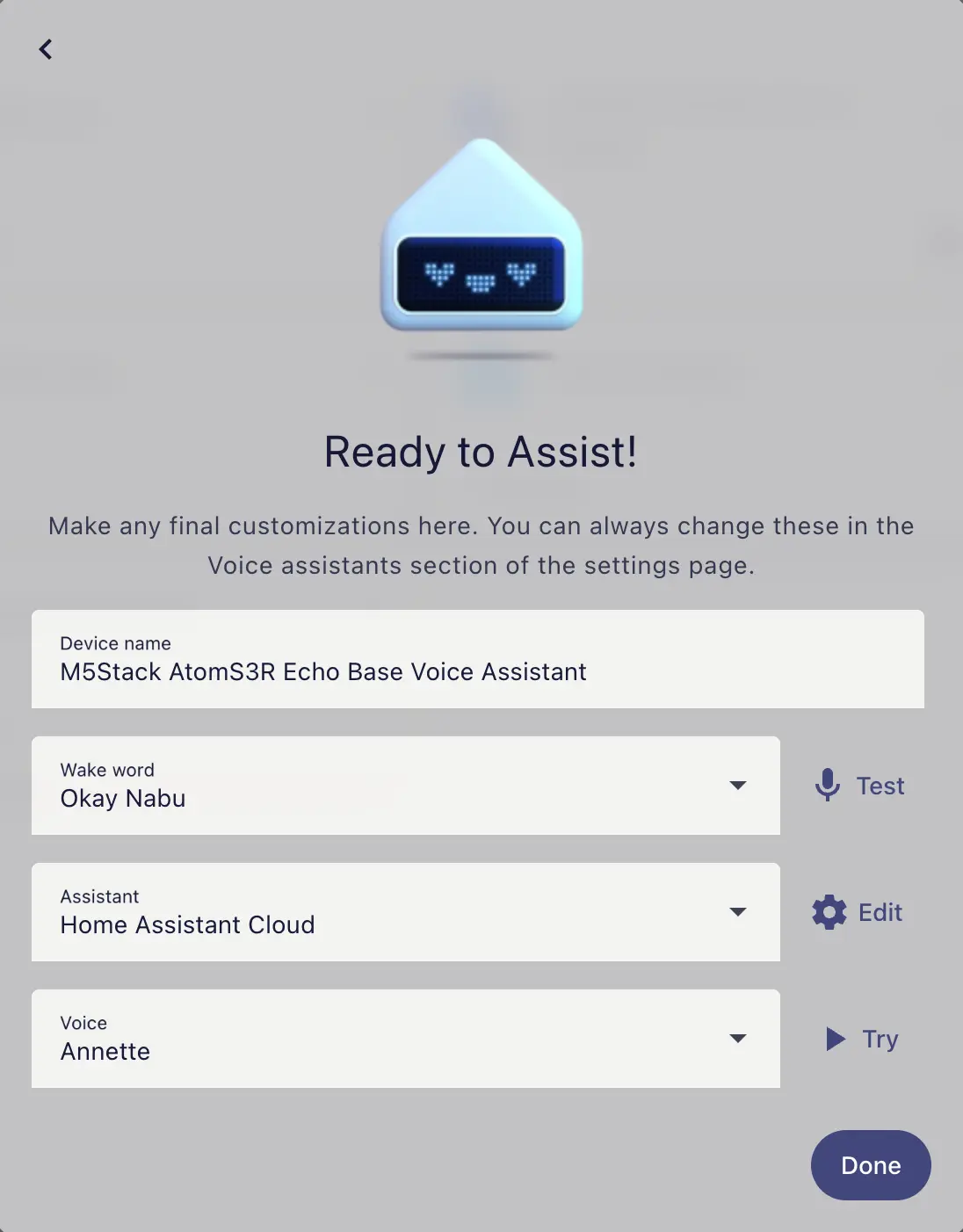
Once the device is added and the Home Assistant Cloud and Assist pipeline add-ons are configured in the preparation steps, you can use the wake word "Okay Nabu" to wake up the voice assistant.
Demo video: