Home Assistant
Media Player
Expansion
Sensor
AtomS3R-M12 Home Assistant Integration
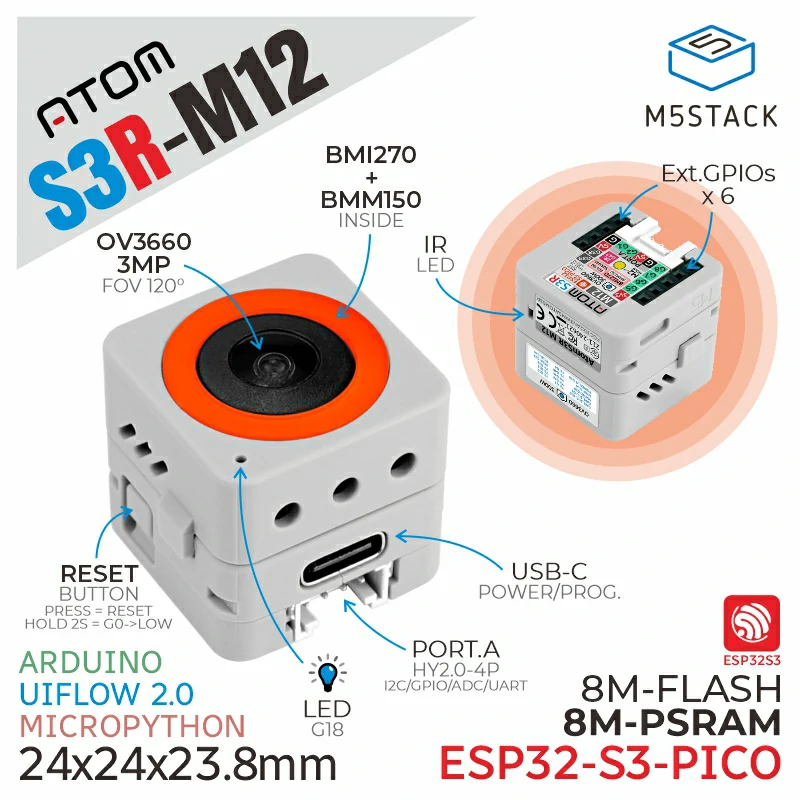
This tutorial describes how to integrate AtomS3R-M12 into Home Assistant.
1. Preparation
Environment Setup
- Install Home Assistant by following the official Home Assistant documentation.
- Install the ESPHome Device Builder add-on by following the official ESPHome documentation. (Note: This tutorial is based on
ESPHome 2025.12.5. If you encounter compilation errors, switch to this version for verification.)
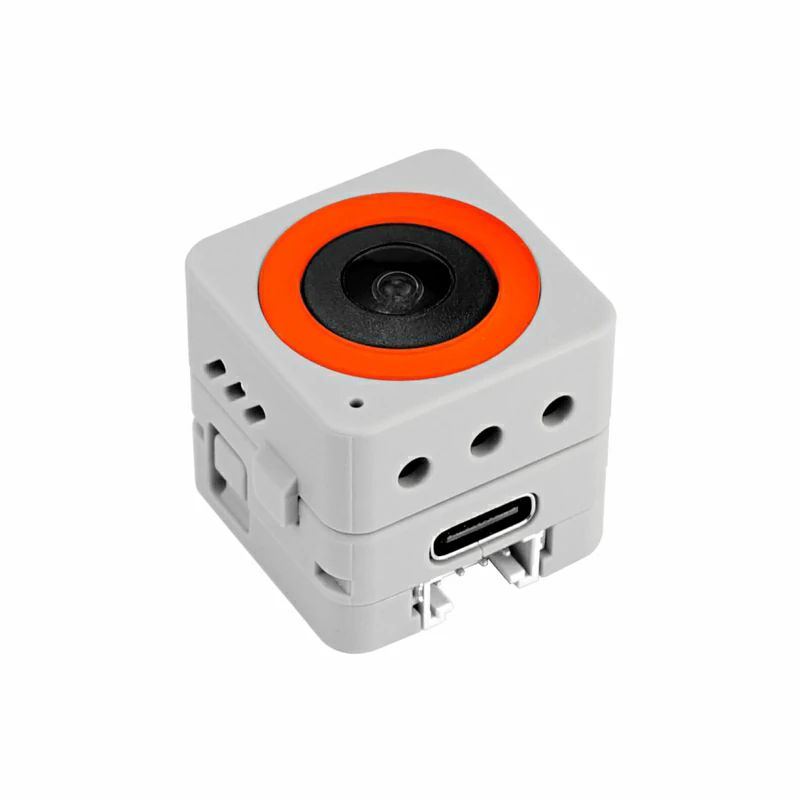
Hardware
References
2. Online Flashing
Click the Online Flashing button below and follow the prompts to flash the firmware and configure Wi-Fi. You can then quickly experience AtomS3R-M12 integration with Home Assistant.
For detailed flashing and configuration steps, refer to the Online ESPHome Firmware Flashing and Configuration Guide.
After completing online flashing, you do not need to perform the "Firmware Compilation & Flashing" steps. Proceed directly to 4. Getting Started.
3. Firmware Compilation & Flashing
This section explains how to recompile the project from the yaml configuration file for secondary development, feature modifications, or adding new features.
Create Device
- Click the green button in the lower-right corner to create the device.
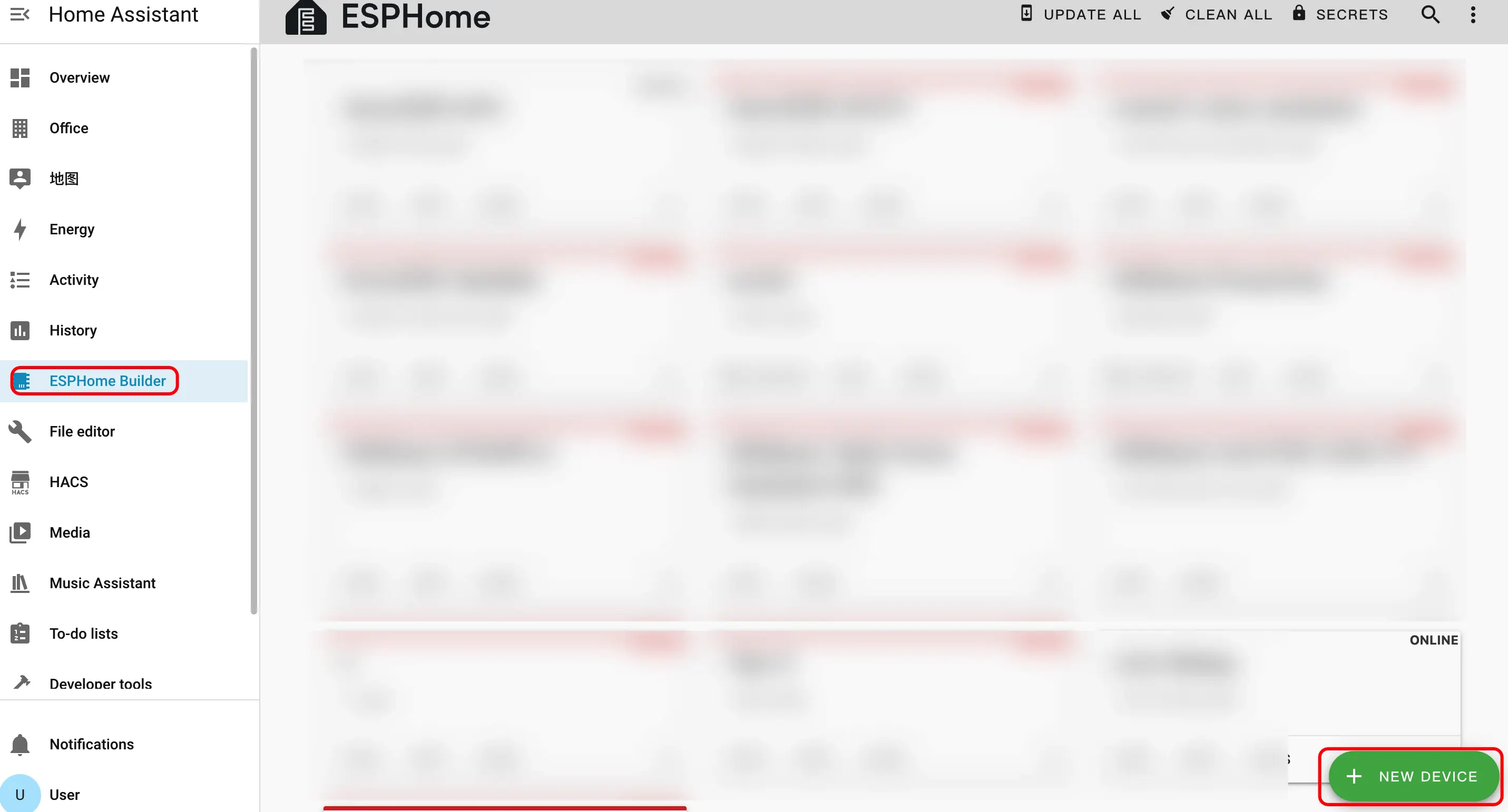
- Click
CONTINUE.
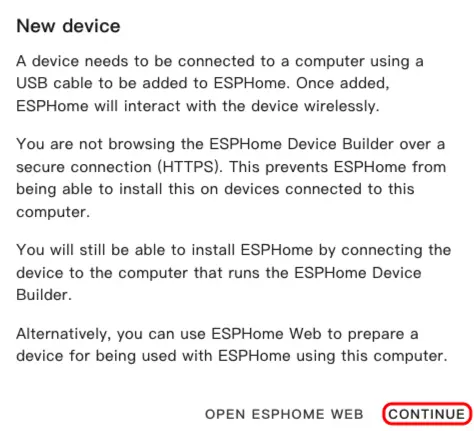
- Click
New Device Setup.
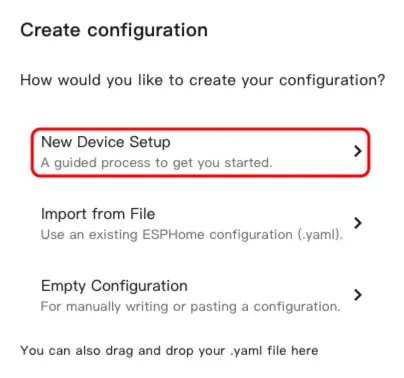
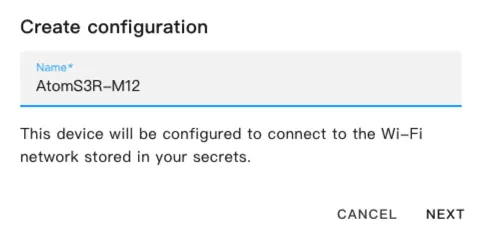
- Enter the device name, then click
NEXT.
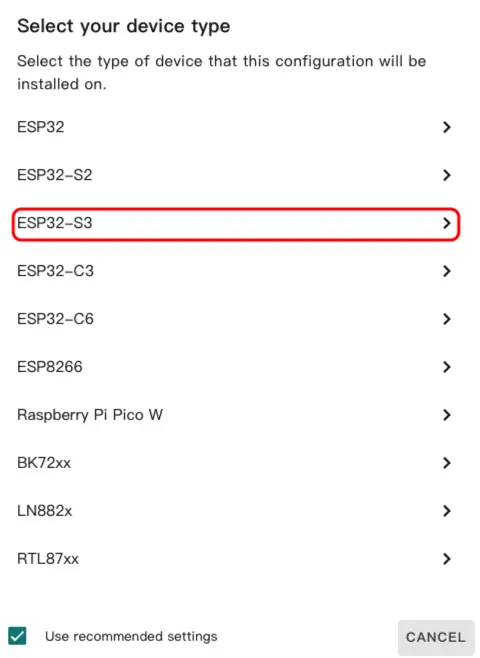
- Click
ESP32-S3.
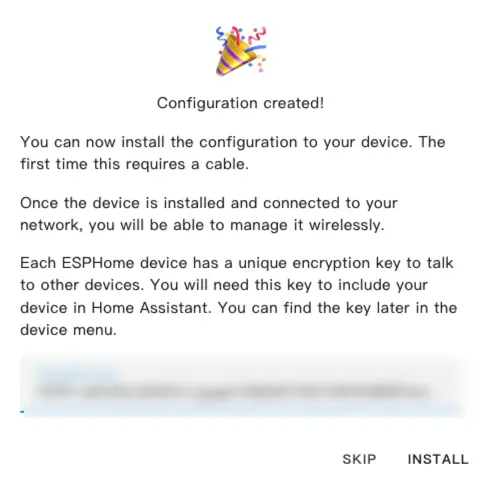
- Click
SKIP.
Modify Configuration
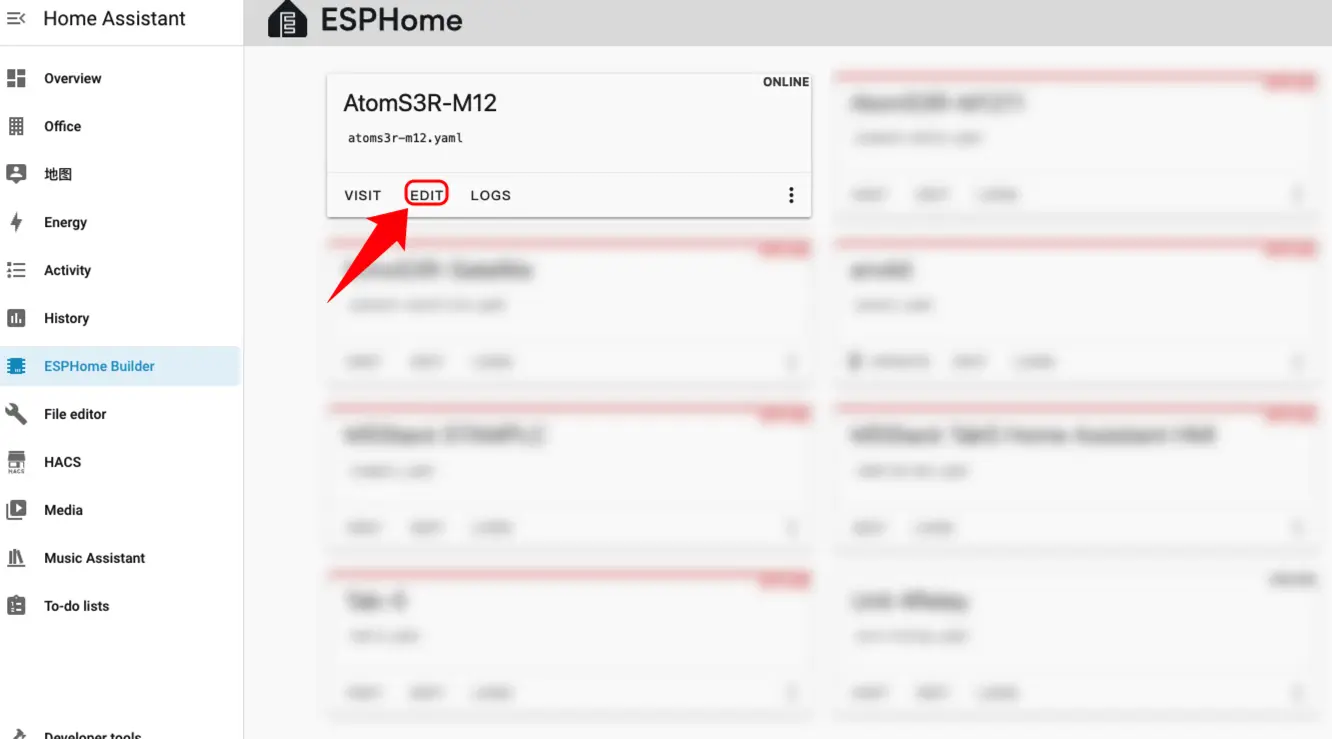
- Click
EDITto customize device functions through the YAML file.
The following is the core part of the code. Related references and instructions are provided below.
Basic Information and Boot Operation
Add on_boot component:
esphome:
  name: atoms3r-m12
  friendly_name: AtomS3R-M12
  on_boot:
    priority: 800
    then:
      - lambda: |-
          gpio_set_direction(GPIO_NUM_18, GPIO_MODE_OUTPUT);
          gpio_set_level(GPIO_NUM_18, 0);
vTaskDelay(pdMS_TO_TICKS(1500));PSRAM Configuration
Add PSRAM component:
psram:
  mode: octal
speed: 80MHzExternal Components
Add External Components component:
external_components:
  - source: github://DennisGaida/m5stack-atoms3r-components/components@main
components: [bmi270_bmm150]I2C Bus Configuration
Add I2C component:
i2c:
  - id: BMI270_150
    sda: GPIO45
    scl: GPIO0
  - id: camera_i2c
    sda: GPIO12
    scl: GPIO9
    frequency: 100kHz
timeout: 10msSensor Configuration
Add Sensor component:
sensor:
  - platform: bmi270_bmm150
    i2c_id: BMI270_150
    address: 0x68
    update_interval: 3s
    acceleration_x:
      name: "BMI270 Accel X"
    acceleration_y:
      name: "BMI270 Accel Y"
    acceleration_z:
      name: "BMI270 Accel Z"
    gyroscope_x:
      name: "BMI270 Gyro X"
    gyroscope_y:
      name: "BMI270 Gyro Y"
    gyroscope_z:
      name: "BMI270 Gyro Z"
    temperature:
name: "BMI270 Temperature"Camera Configuration
Add ESP32 Camera component:
esp32_camera:
  name: "OV3660 Camera"
  external_clock:
    pin: GPIO21
    frequency: 20MHz
  i2c_id: camera_i2c
  data_pins: [GPIO3, GPIO42, GPIO46, GPIO48, GPIO4, GPIO17, GPIO11, GPIO13]
  vsync_pin: GPIO10
  href_pin: GPIO14
  pixel_clock_pin: GPIO40
  resolution: 640X480
jpeg_quality: 10Compile Firmware
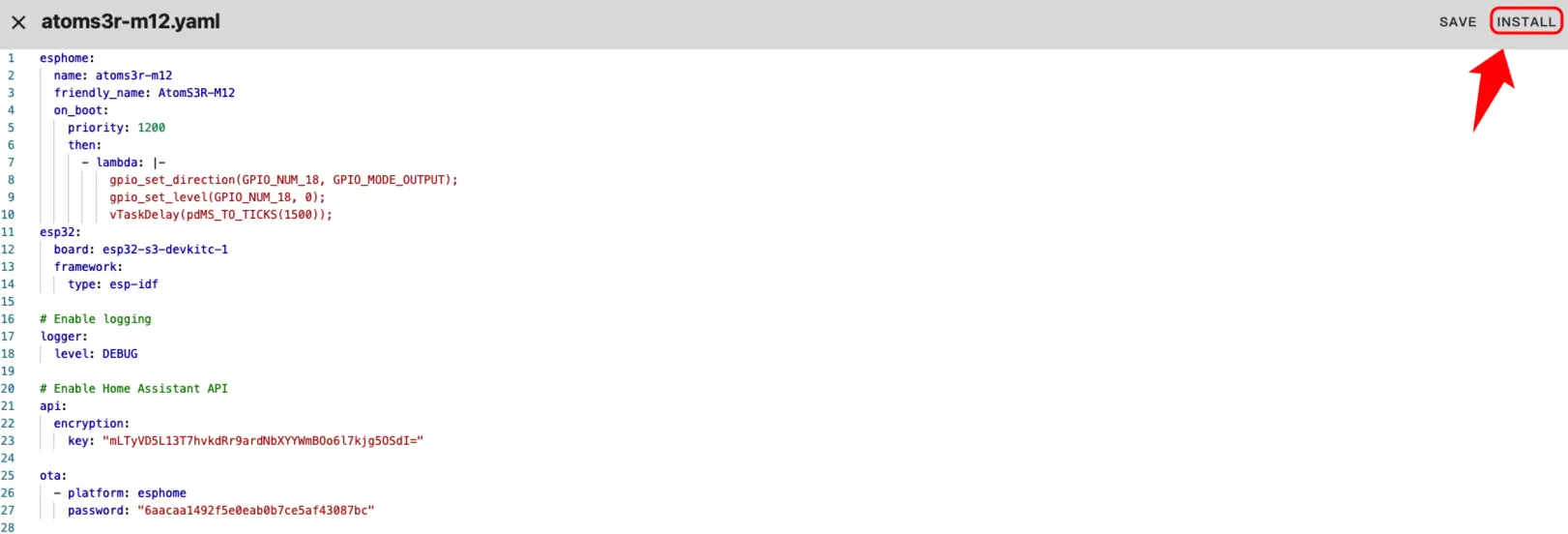
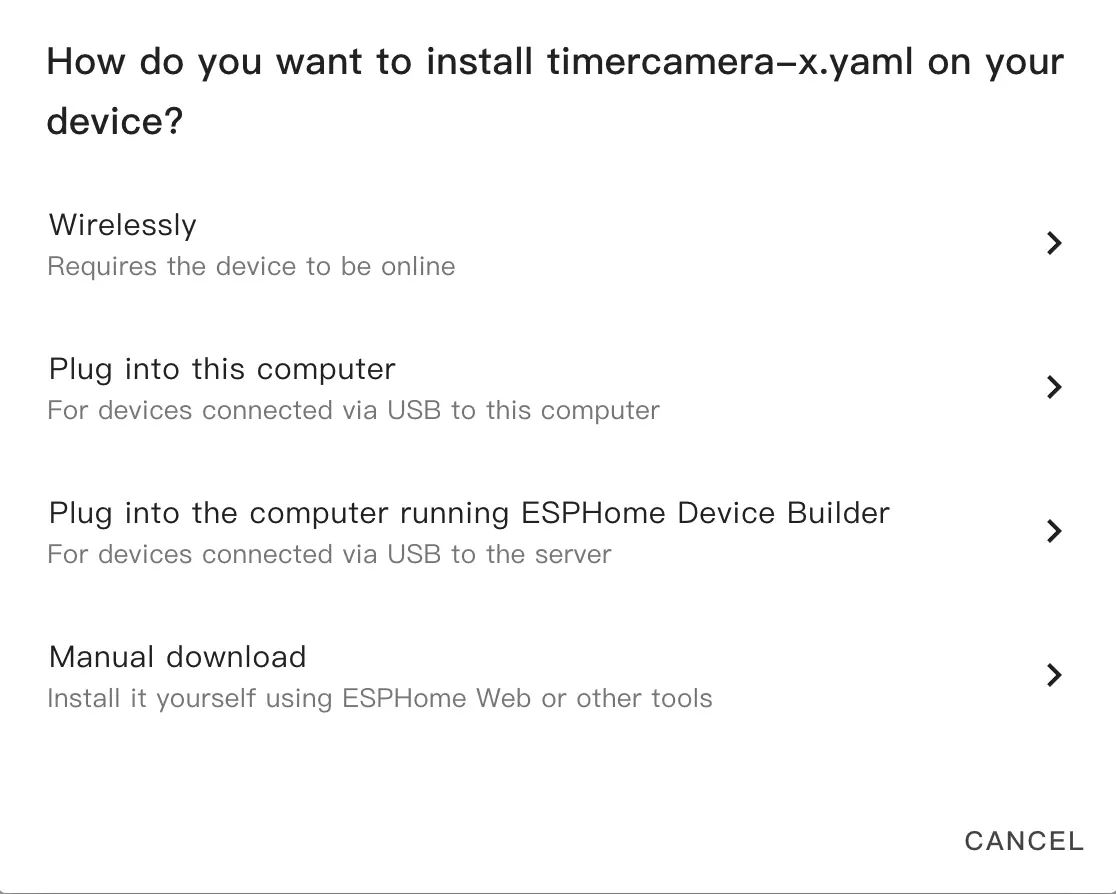
- After modification, click
SAVEandINSTALLin the upper-right corner, then selectManual Downloadin the pop-up window.
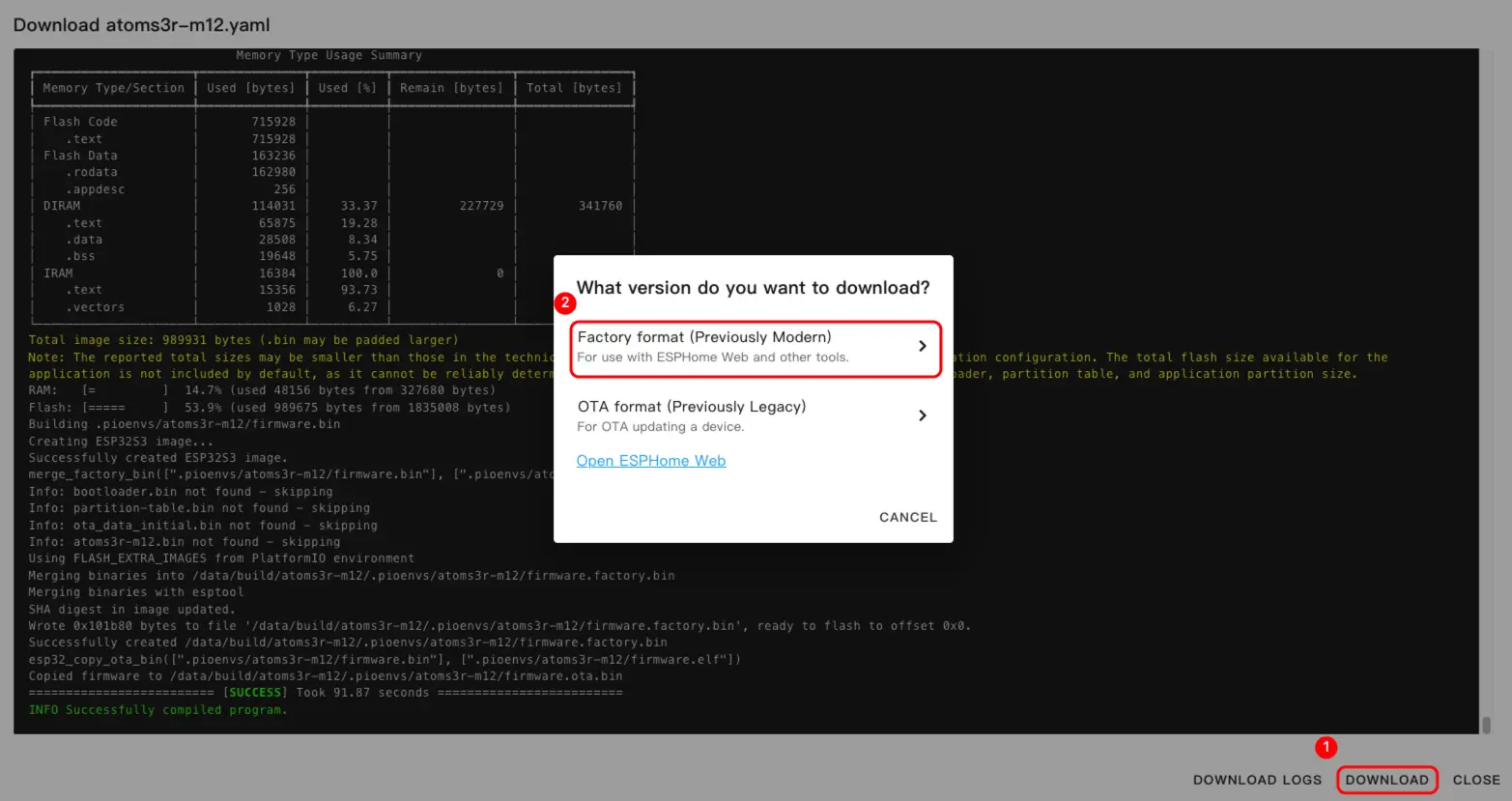
- Select
Factory format(Previously Modern).
Flash Firmware
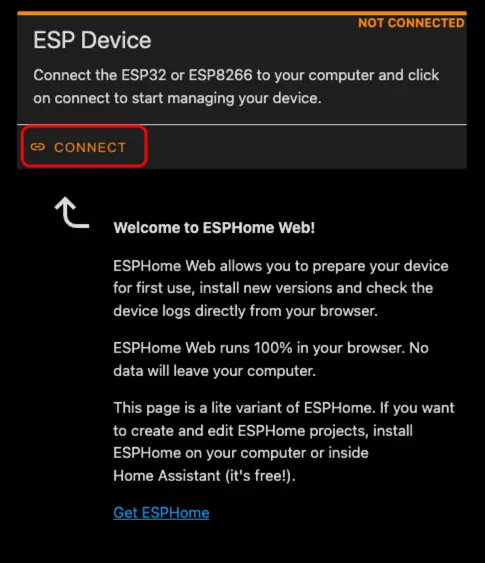
- Connect the device to the host via a USB Type-C data cable. Open ESPHome Web and click
CONNECTto connect to the device.
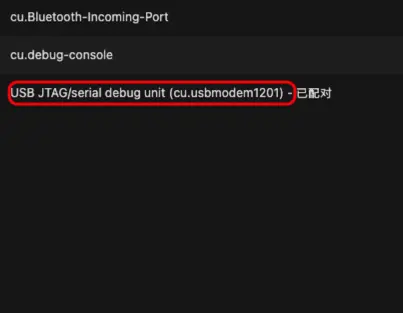
- Locate the corresponding serial port number.
- Click
INSTALL.
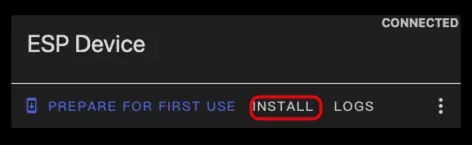
- Select the compiled firmware to upload.
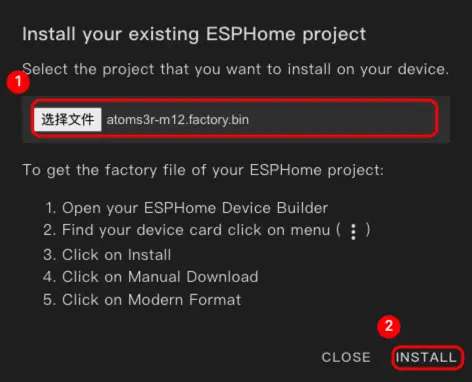
- After flashing is complete, restart the device.
4. Getting Started
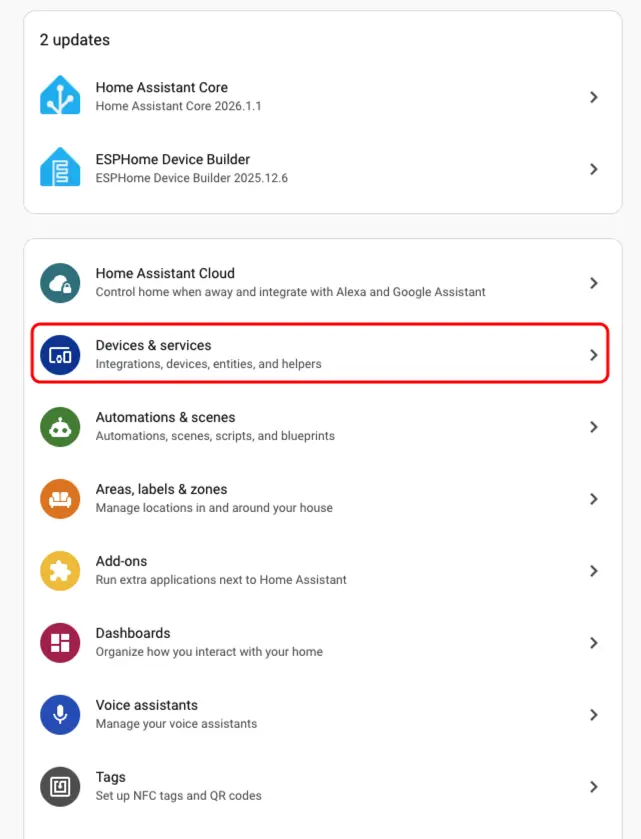
- Click
Settings>Devices & Servicesto check the device.
- We can find the corresponding device in the
Discoveredsection.
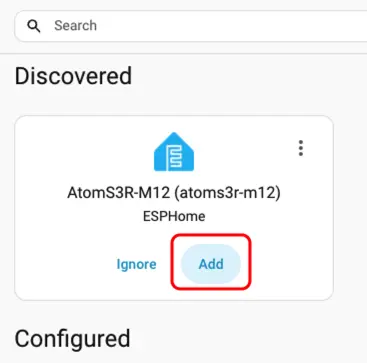
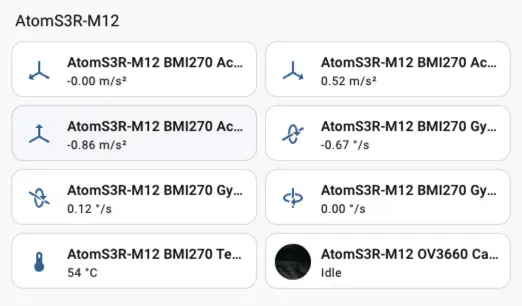
- After adding the device, the data will be displayed correctly.
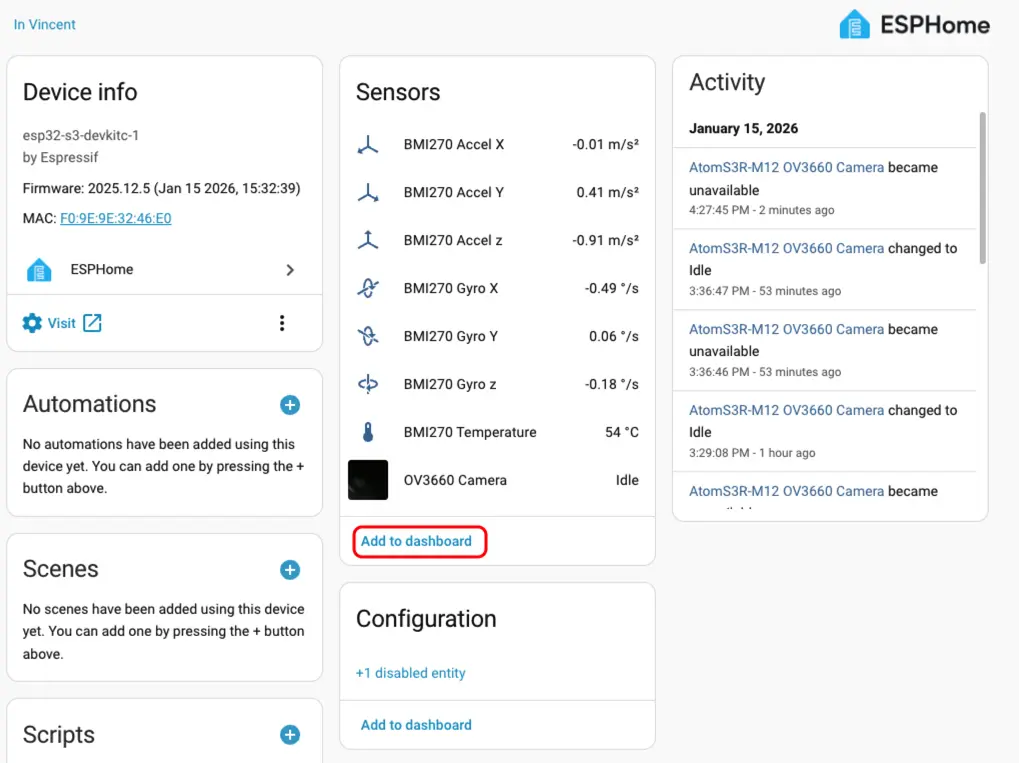
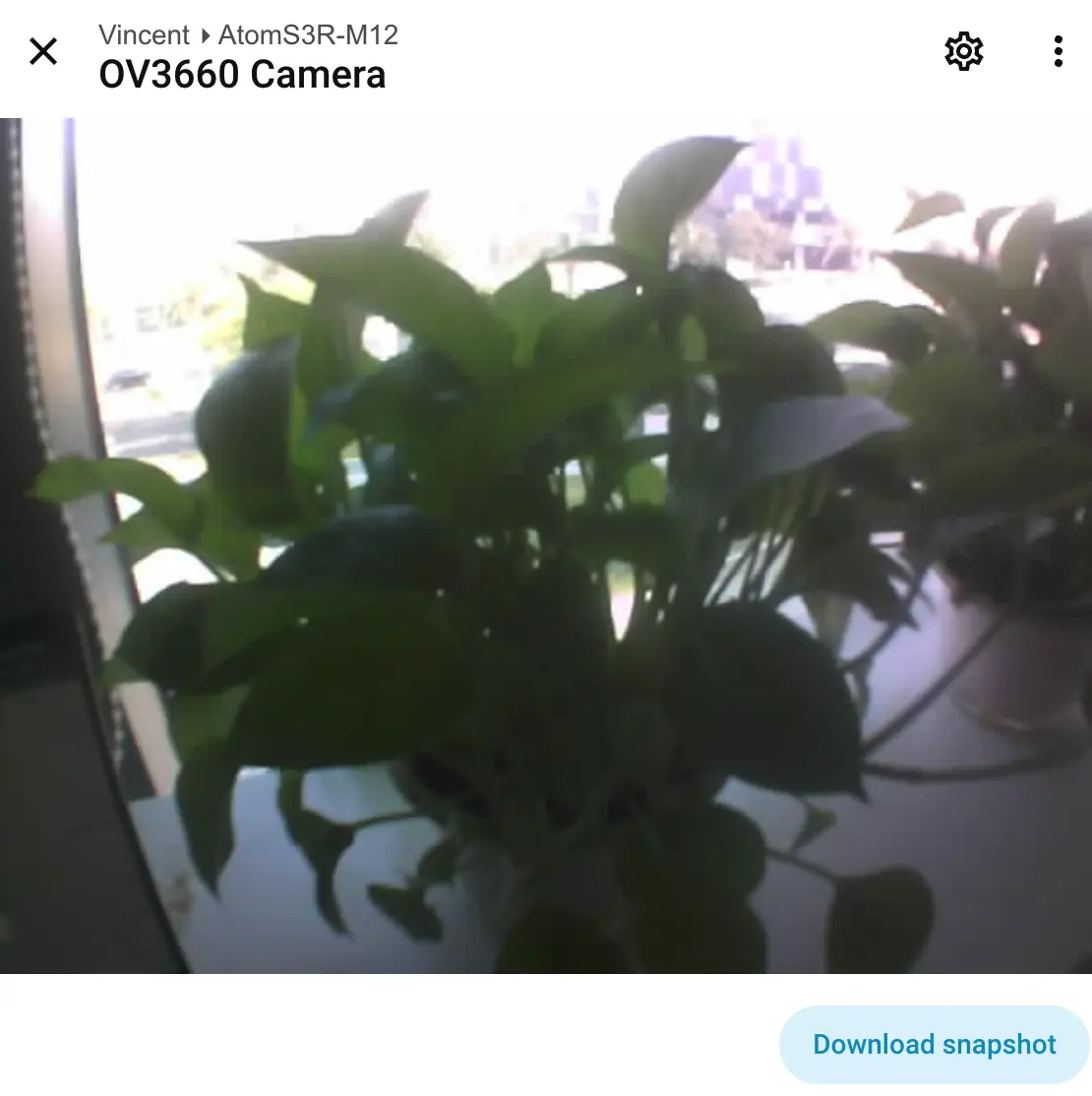
- Finally, we add these entities to the Dashboard; the following are the display results.