

Home Assistant
Home Assistant
Controller & Devices
Cameras
Components
Lighting
Interfaces and Expansion
Applications
Media Playback
Dashboard
Unit VMeter ESPHome Component
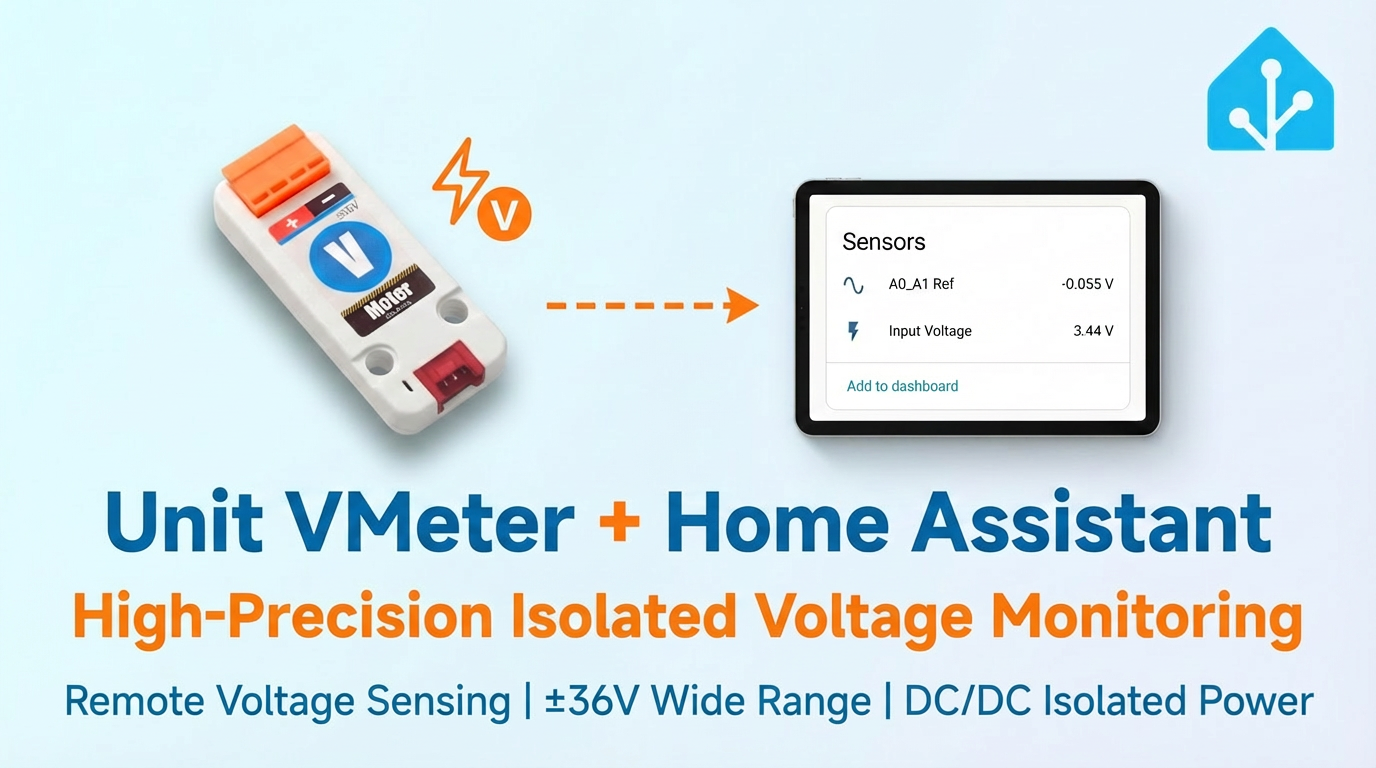
The Unit VMeter component reads voltage measurement data over I2C.
1. Component Overview
| Item | Information |
|---|---|
| Product Name | Unit VMeter |
| SKU | U087 |
| Main Function | DC voltage measurement |
| Communication Interface | I2C |
| Default I2C Address | ADS1115: 0x49; EEPROM: 0x53 |
| ESPHome Components | ads1115, template |
| ESPHome Version Requirement | / |
2. Component Description
Including Official Components
Unit VMeter uses the official ADS1115 sensor to read differential voltage, reads EEPROM calibration parameters through I2C Device, and converts the result to input voltage with the Template sensor.
Unit VMeter configuration example:
- Configure ADS1115:
yaml
1 2 3 4 5 6 7 8 9 10 11
ads1115:
  - address: 0x49

sensor:
  - platform: ads1115
    multiplexer: "A0_A1"
    gain: 1.024
    sample_rate: 128
    name: "Unit VMeter A0_A1 Ref"
    id: diff
update_interval: 10sNotice
Unit VMeter uses only
AIN0 and AIN1, so up to three multiplexer values are available: "A0_A1", "A0_GND", and "A1_GND". Voltage measurement uses only A0_A1.- Configure EEPROM calibration and create a voltage entity with
TemplateSensor. Merge thissensorentry into the preceding ADS1115 list:
yaml
1 2 3 4 5 6 7 8 9 10 11 12 13 14 15 16 17 18 19 20 21 22 23 24 25 26 27 28 29 30 31 32 33
i2c_device:
  id: eeprom
  address: 0x53

sensor:
  - platform: template
    name: "Input Voltage"
    id: input_volt
    unit_of_measurement: "V"
    icon: "mdi:flash"
    accuracy_decimals: 2
    update_interval: 10s
    lambda: |-
      float d = id(diff).state;
      if (isnan(d)) return NAN;
      const float PRESSURE_COEFF = 0.015918958f;
      const uint8_t EEPROM_REG = 0xE8;
      uint8_t calib[8];
      uint16_t hope, actual;
      if (id(eeprom).read_register(EEPROM_REG, calib, 8) != i2c::ERROR_OK) {
        ESP_LOGD("vmeter.sensor", "Failed to read from EEPROM..");
        return NAN;
      }
      uint8_t xor_result = 0x00;
      for (uint8_t i = 0; i < 5; i++) xor_result ^= calib[i];
      if (xor_result != calib[5]) return NAN;
      hope = (calib[1] << 8) | calib[2];
      actual = (calib[3] << 8) | calib[4];
      float calibration_ratio = (float) hope / actual;
      ESP_LOGD("vmeter.sensor", "Factory calibration factor: %f", calibration_ratio);
      float vin = -d / PRESSURE_COEFF;
      vin = vin * calibration_ratio;
return vin;- Set
EEPROM_REGaccording to the ADS1115gain:
c++
1 2 3 4
// In the lambda expression
// Update EEPROM_REG whenever gain is changed
// For example, when gain is 1.024
const uint8_t EEPROM_REG = 0xE8;| ADS1115 Gain | EEPROM Data Register | Max Input Voltage (theory) |
|---|---|---|
| 6.144 | 0xD0 | - |
| 4.096 | 0xD8 | - |
| 2.048 | 0xE0 | - |
| 1.024 | 0xE8 | 64 V |
| 0.512 | 0xF0 | 32 V |
| 0.256 | 0xF8 | 16 V |
Recommended gain values are 0.256, 0.512, and 1.024. Resolution is 1 mV below 16 V and 7.9 mV above 16 V. Choose the gain and matching EEPROM calibration data for the measured voltage. For accurate data, measure only one of AIN0 or AIN1; do not connect voltage inputs to both.
Warning
The recommended measurement range is ±36 V. Do not input voltage outside this range. The EEPROM (0x53) contains factory calibration parameters; do not write to it, or measurements may become inaccurate.
3. Reference Example
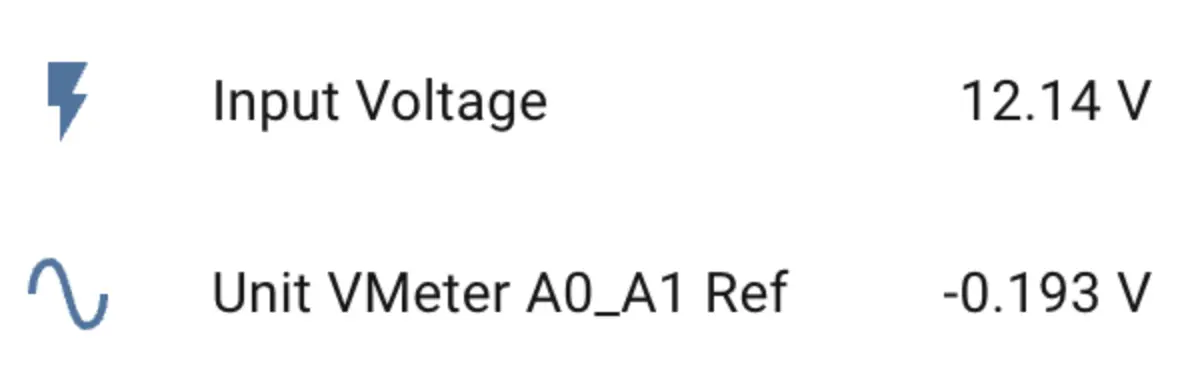
After adding the device to the Dashboard, you can view sensor data in Home Assistant.
4. Related Links
5. Related Video
Page Tools