

Home Assistant
オーディオ再生
拡張ボード
センサー
Dial Home Assistant 統合
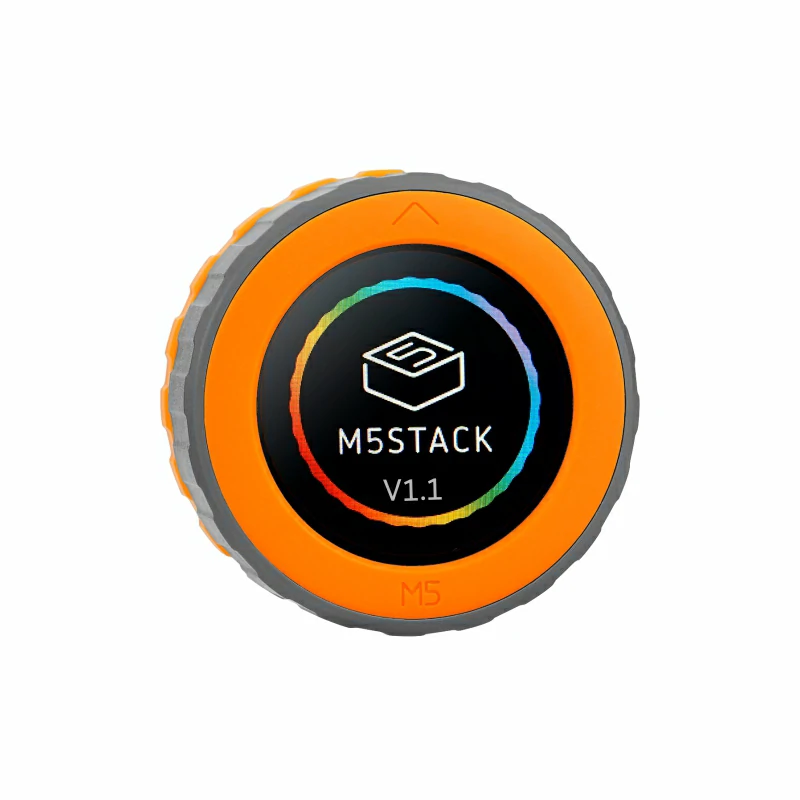
このチュートリアルでは、M5Dial v1.1 開発ボードを Home Assistant に統合し、ロータリーエンコーダー、NFC リーダー、ブザーを使ってスマートホーム制御を実現します。

1. 準備
環境準備
- Home Assistant 公式ドキュメントを参照して Home Assistant をインストールします。
- ESPHome 公式ドキュメントを参照して ESPHome Device Builder アドオンをインストールします。(注:本チュートリアルは
ESPHome 2026.4.0を基準に作成されています。コンパイルエラーが発生した場合は、このバージョンに切り替えて確認してください。) - M5Dial とコンピューターを接続するための USB Type-C ケーブルを用意します。
ハードウェア製品
2. ファームウェアのコンパイルと書き込み
このセクションでは、二次開発、機能変更、機能追加を行うために、yaml 設定ファイルを基にプロジェクトを再コンパイルする方法を説明します。
コンパイル時間
HA でのファームウェアコンパイルは多くのリソースを消費します。初回コンパイル時は、HA サービスを実行するデバイスの性能やネットワーク品質によって、リソースのダウンロードに時間がかかる場合があります。
デバイスの作成
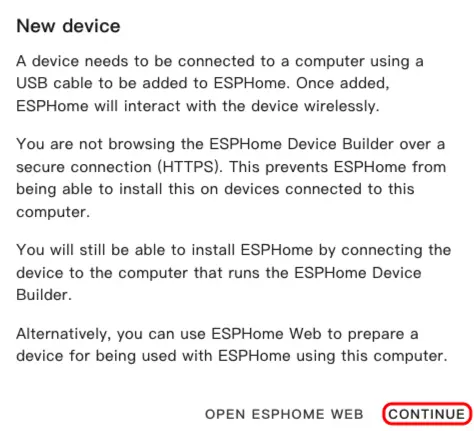
- ESPHome ダッシュボードを開きます。初回ウィザードが表示された場合は
CONTINUEをクリックします。
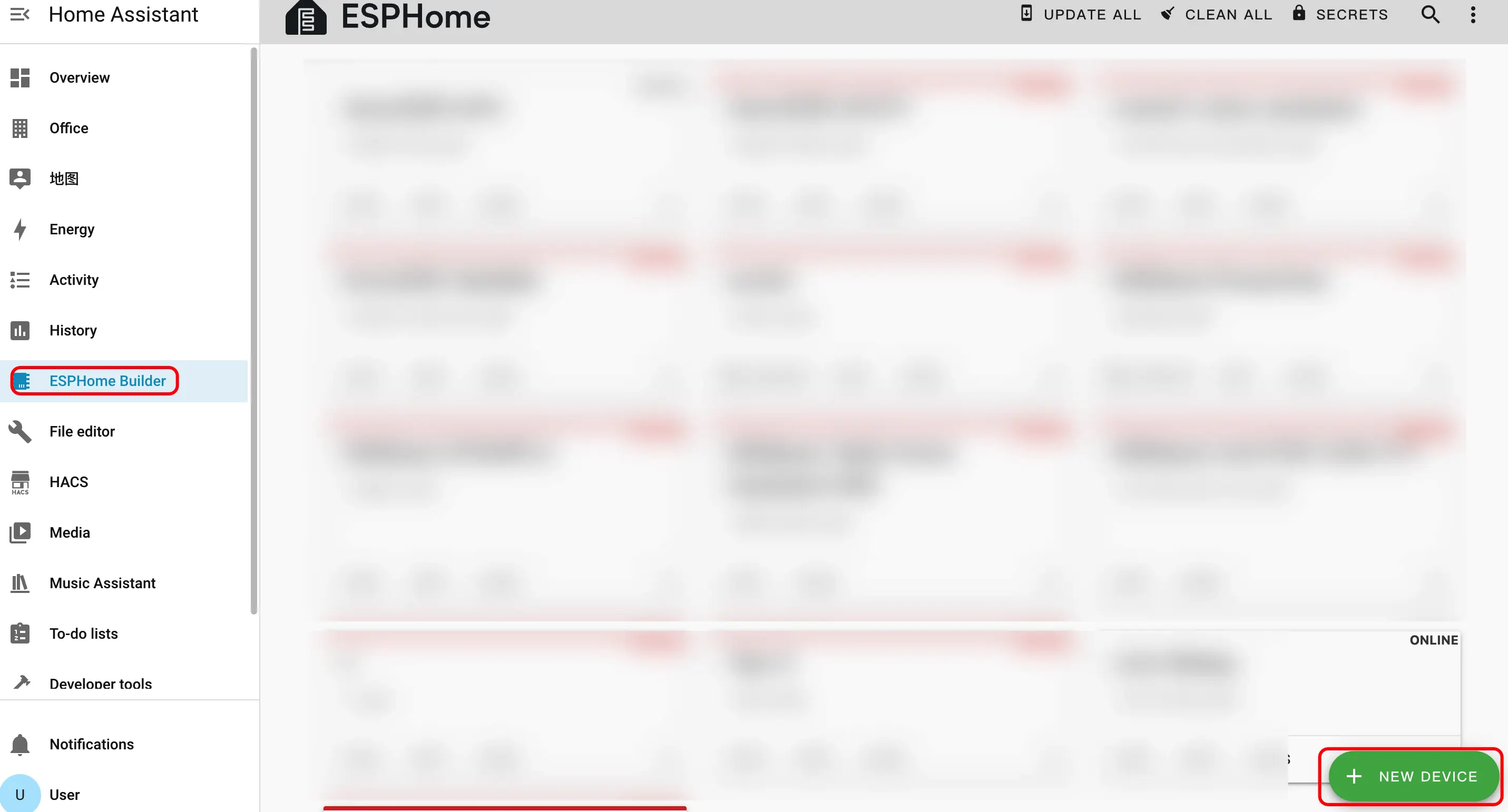
- 右下の緑色の + ボタンをクリックして新しいデバイスを作成します。
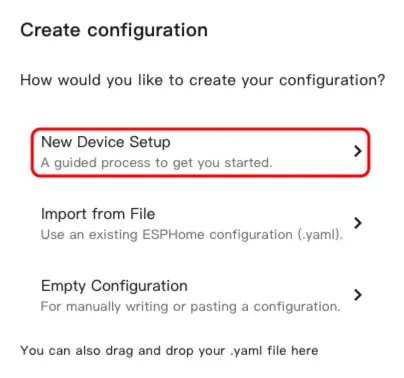
New Device Setupをクリックして、デバイス作成ウィザードに入ります。
- デバイス名を入力し、
NEXTをクリックします。
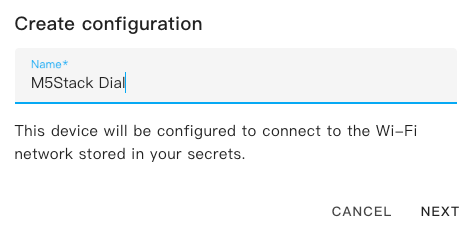
- デバイスタイプを選択し、
ESP32S3をクリックします。
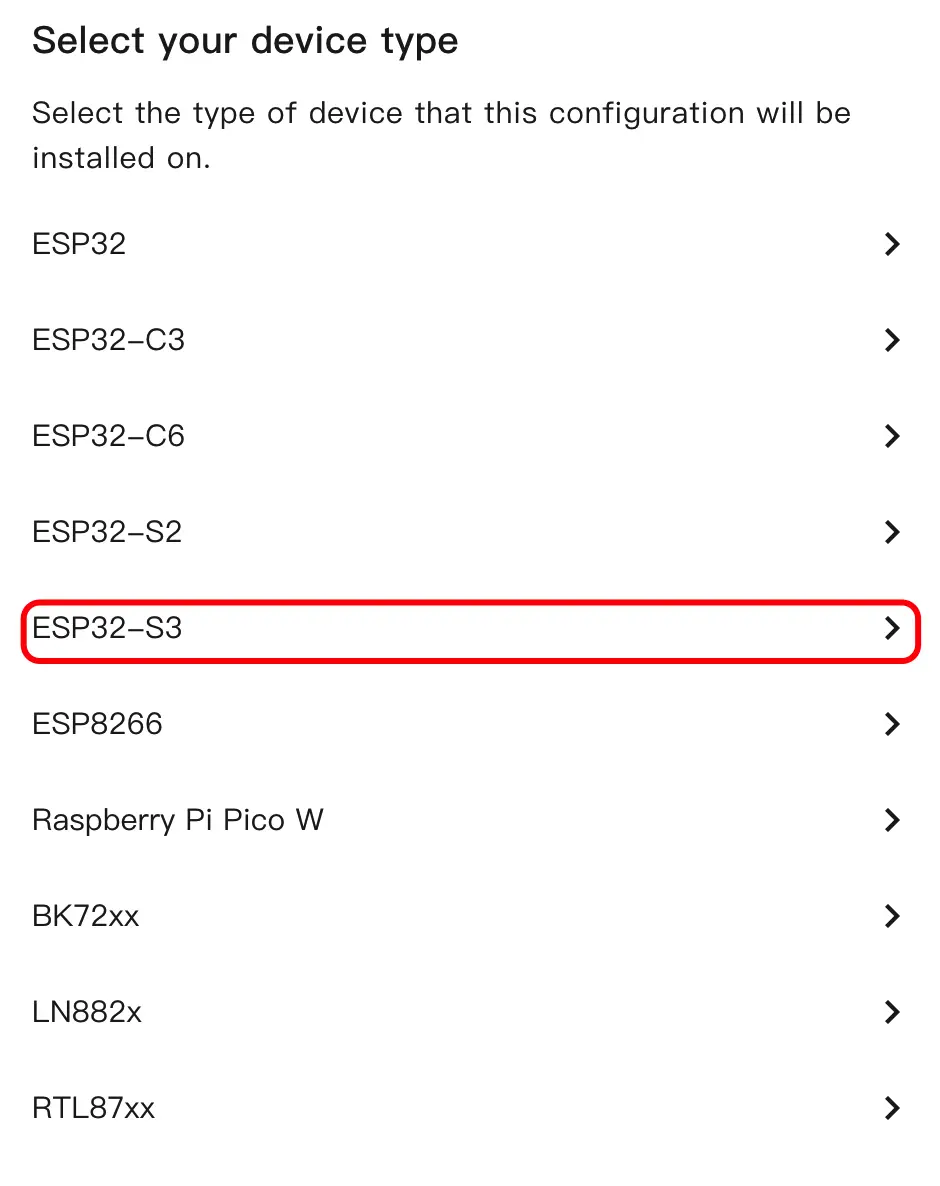
SKIPをクリックして暗号化キーの設定をスキップします。
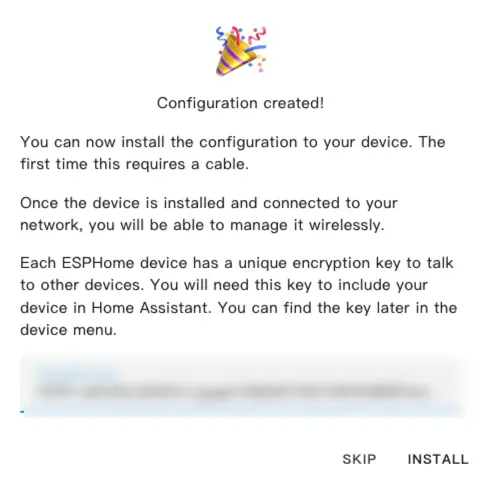
設定の変更
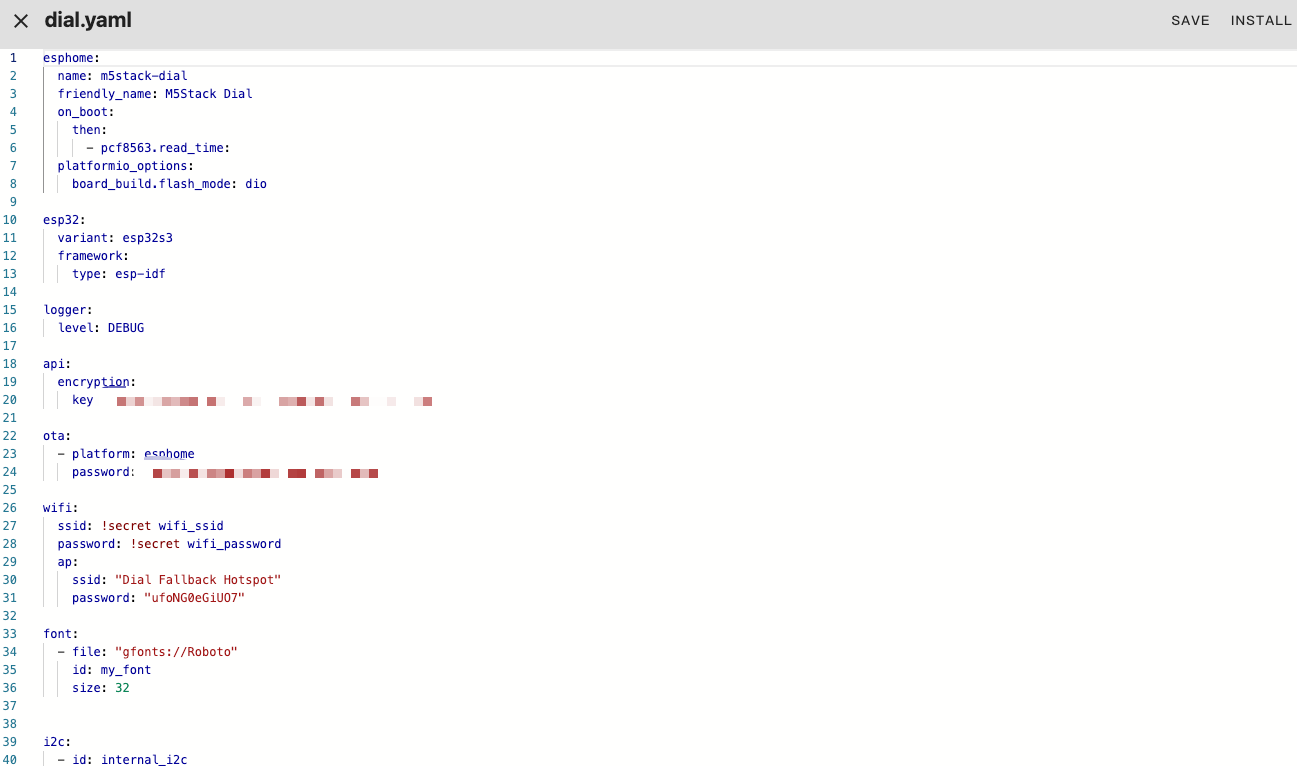
EDITをクリックして YAML エディターを開き、デバイス設定をカスタマイズします。
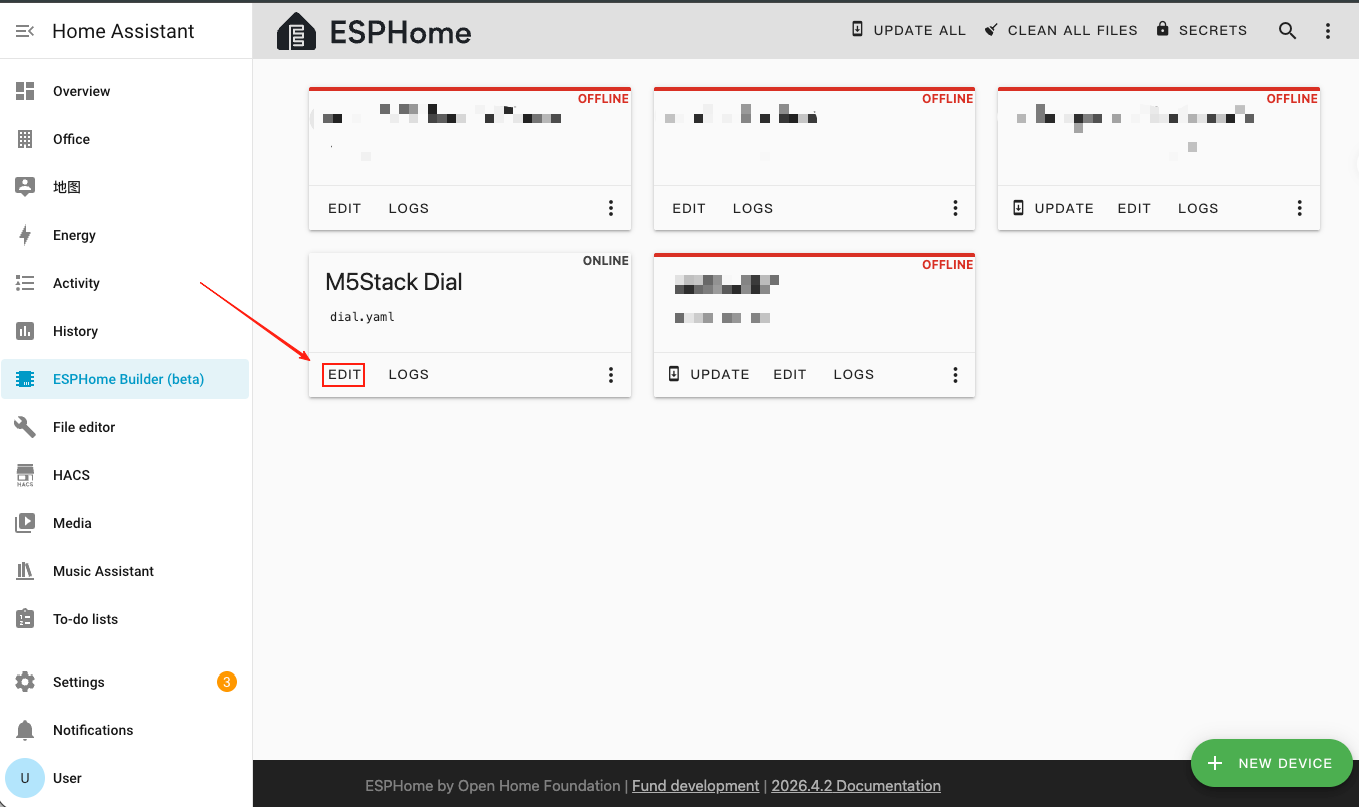
基本設定
esphome:
  name: m5stack-dial
  friendly_name: M5Stack Dial
  on_boot:
    then:
      - pcf8563.read_time:
  platformio_options:
    board_build.flash_mode: dio

esp32:
  variant: esp32s3
  framework:
    type: esp-idf

logger:
  level: DEBUG

api:
  encryption:
    key: "your_encryption_key"

ota:
  - platform: esphome
    password: "your_ota_password"

wifi:
  ssid: !secret wifi_ssid
  password: !secret wifi_password
  ap:
    ssid: "Dial Fallback Hotspot"
    password: "your_fallback_password"

font:
  - file: "gfonts://Roboto"
    id: my_font
size: 32主なパラメータの説明:
| パラメータ | 値 | 説明 |
|---|---|---|
framework.type | esp-idf | パフォーマンスと安定性を向上させるために ESP-IDF フレームワークを使用します。 |
platformio_options | board_build.flash_mode: dio | ESP32-S3 のフラッシュモード設定。 |
on_boot | pcf8563.read_time | 起動時に RTC の時刻を読み取り、システムクロックを初期化します。 |
I2C と SPI バス設定
i2c:
  - id: internal_i2c
    sda: GPIO11
    scl: GPIO12
    frequency: 400kHz
    scan: true

spi:
  id: spi_bus
  mosi_pin: GPIO5
clk_pin: GPIO6Note
I2C バスは PCF8563 RTC(アドレス
0x51)、RC522 NFC モジュール(アドレス 0x28)、FT5x06 タッチコントローラー(アドレス 0x38)で共有されています。SPI バスは GC9A01A 丸型ディスプレイを駆動します。ディスプレイとタッチスクリーンの設定
- MIPI SPI Display を追加して 1.28 インチ丸型 GC9A01A TFT ディスプレイを制御し、**FT5x06 Touchscreen** を追加してタッチ入力に対応します。
display:
  - platform: mipi_spi
    id: round_display
    model: GC9A01A
    cs_pin: GPIO7
    reset_pin: GPIO8
    dc_pin: GPIO4
    invert_colors: true
    data_rate: 40MHz
    update_interval: 1s
    auto_clear_enabled: true
    lambda: |-
      it.print(120, 120, id(my_font), TextAlign::CENTER, "Hello");

touchscreen:
  - platform: ft5x06
    id: touch
    i2c_id: internal_i2c
address: 0x38主なパラメータの説明:
| パラメータ | 値 | 説明 |
|---|---|---|
model | GC9A01A | 丸型画面用の MIPI SPI ディスプレイコントローラー。 |
cs_pin | GPIO7 | SPI チップセレクトピン。 |
reset_pin | GPIO8 | ディスプレイリセットピン。 |
dc_pin | GPIO4 | ディスプレイデータ/コマンドピン。 |
invert_colors | true | GC9A01A の正しい色表示に必要。 |
touchscreen.address | 0x38 | FT5x06 タッチコントローラーの I2C アドレス。 |
バックライト設定
- Monochromatic Light を追加して、GPIO9 経由でディスプレイのバックライトを制御します。
output:
  - platform: ledc
    pin: GPIO9
    id: backlight_output
    frequency: 1000Hz

light:
  - platform: monochromatic
    name: "Backlight"
    output: backlight_output
    id: display_backlight
default_transition_length: 0sロータリーエンコーダーとボタンの設定
- Rotary Encoder Sensor を追加してノブの位置を読み取り、**GPIO Binary Sensor** を追加して画面下のボタンを検出します。
sensor:
  - platform: rotary_encoder
    id: encoder
    name: "Rotary Encoder"
    pin_a:
      number: GPIO40
      mode: INPUT_PULLUP
    pin_b:
      number: GPIO41
      mode: INPUT_PULLUP
    resolution: 4
    min_value: -32768
    max_value: 32767
    publish_initial_value: true

binary_sensor:
  - platform: gpio
    name: Button
    id: front_button
    pin:
      number: GPIO42
      inverted: true
      mode:
        input: true
pullup: true主なパラメータの説明:
| パラメータ | 値 | 説明 |
|---|---|---|
encoder.pin_a | GPIO40 (INPUT_PULLUP) | エンコーダー信号ピン A。 |
encoder.pin_b | GPIO41 (INPUT_PULLUP) | エンコーダー信号ピン B。 |
encoder.resolution | 4 | エンコーダー分解能モード(1 パルスあたり 4 エッジをカウント)。 |
front_button.pin | GPIO42(反転) | 画面下ボタン。オープン時にハイ、押下時にローになります。 |
NFC リーダー (RC522) の設定
- RC522 I2C コンポーネントを追加して、内蔵 WS1850S モジュールで NFC/RFID タグを検出します。
rc522_i2c:
  - id: nfc_reader
    i2c_id: internal_i2c
    address: 0x28
    update_interval: 500ms
    on_tag:
      - lambda: |-
          ESP_LOGD("rfid", "Card detected: %s", x.c_str());
    on_tag_removed:
      - lambda: |-
ESP_LOGD("rfid", "Card removed: %s", x.c_str());主なパラメータの説明:
| パラメータ | 値 | 説明 |
|---|---|---|
address | 0x28 | WS1850S/RC522 NFC モジュールの I2C アドレス。 |
update_interval | 500ms | タグ検出のポーリング間隔。 |
on_tag | — | NFC タグが検出されたときにトリガーされます。 |
on_tag_removed | — | NFC タグが取り除かれたときにトリガーされます。 |
ブザー (RTTTL) の設定
- RTTTL コンポーネントを追加して、GPIO3 のオンボードブザーでメロディを再生します。
output:
  - platform: ledc
    pin: GPIO3
    id: buzzer
    frequency: 4000Hz

rtttl:
  output: buzzer
  id: rtttl_player
  gain: 0.6

button:
  - platform: template
    name: "The buzzer beeps once"
    id: buzzer_button
    icon: mdi:bell-ring
    on_press:
      - rtttl.play:
          id: rtttl_player
rtttl: "beep:d=4,o=5,b=180:16e,16e"RTC 時刻設定
- PCF8563 Time コンポーネントを追加して、オンボード RTC を時刻ソースとして使用します。
time:
  - platform: pcf8563
    id: rtctime
    i2c_id: internal_i2c
    address: 0x51
    update_interval: never

text_sensor:
  - platform: template
    name: "Device Time"
    id: current_time_str
    icon: mdi:clock-outline
    update_interval: 10s
    lambda: |-
      auto t = id(rtctime).now();
      if (!t.is_valid()) return {"--:--:--"};
      char buf[20];
      snprintf(buf, sizeof(buf), "%04d-%02d-%02d %02d:%02d:%02d",
               t.year, t.month, t.day_of_month,
               t.hour, t.minute, t.second);
return {buf};主なパラメータの説明:
| パラメータ | 値 | 説明 |
|---|---|---|
address | 0x51 | PCF8563 / BM8563 RTC チップの I2C アドレス。 |
update_interval | never | 自動 RTC 同期を無効にします(システム時刻は起動時にロードされます)。 |
ファームウェアのビルド
- YAML 設定を編集したら、右上の
SAVEをクリックし、次にINSTALLをクリックします。
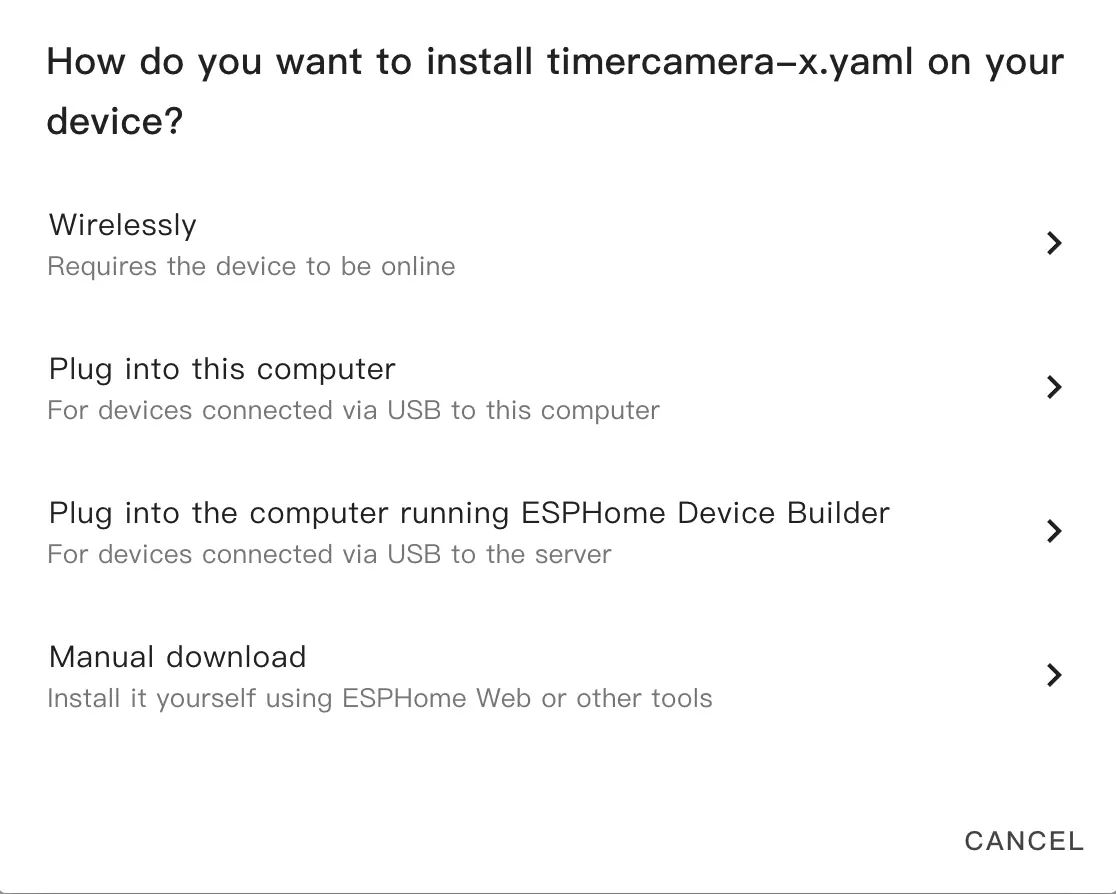
- ポップアップダイアログで
Manual Downloadを選択します。
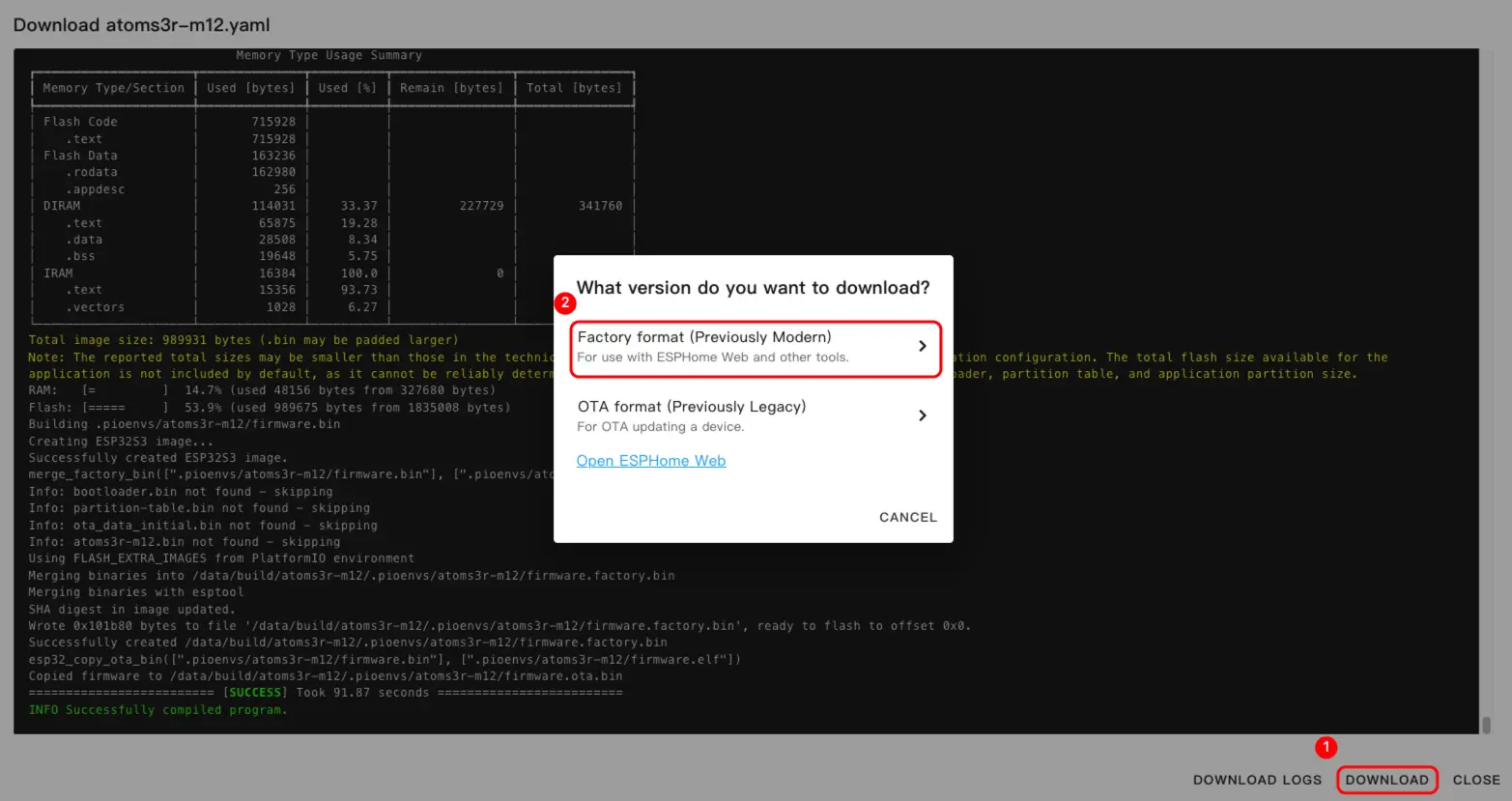
- ファームウェアのコンパイルが完了するのを待ち、
DownloadをクリックしてFactory format (Previously Modern)を選択し、ファームウェアファイルをローカルに保存します。
設定例
完全な設定例については dial-example.yaml を参照してください。
ファームウェアの書き込み
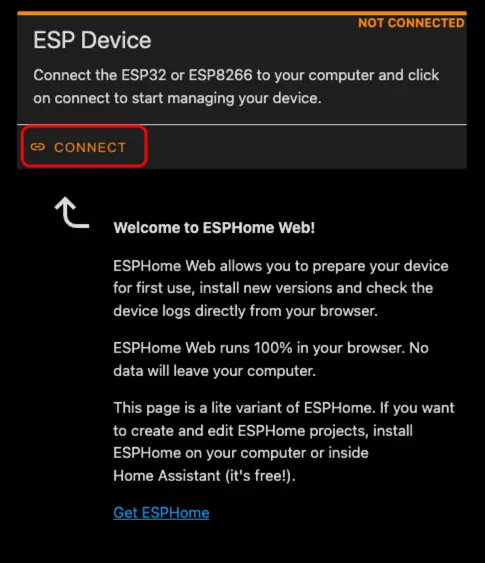
- USB Type-C ケーブルで M5Dial をコンピューターに接続します。ESPHome Web を開き、
CONNECTをクリックします。
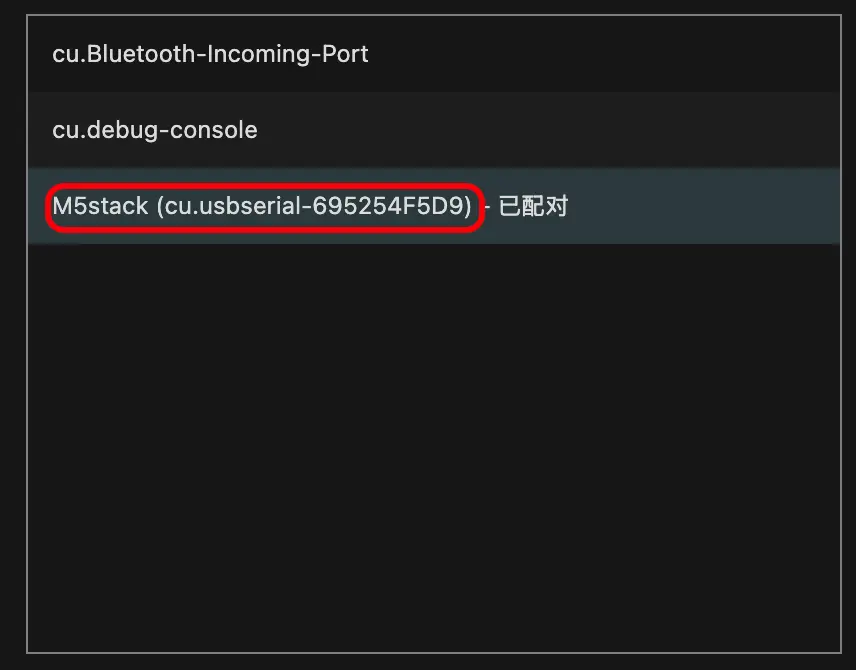
- シリアルポート選択ダイアログで、正しいポートを選択します。
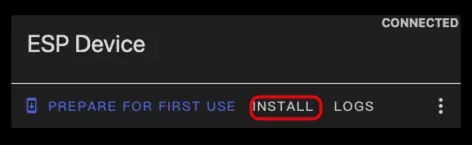
INSTALLをクリックします。
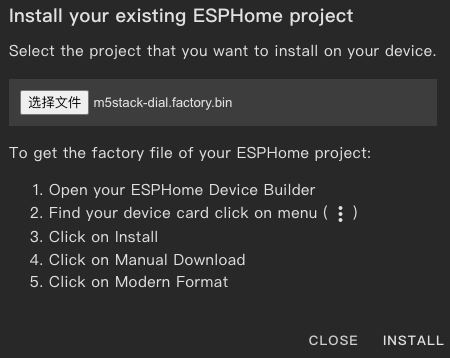
- 「ファームウェアのビルド」手順でダウンロードしたファームウェアファイルを選択して書き込みを開始します。
書き込み時の注意
書き込み完了後、デバイスをリセットする必要があります。リセットしないとファームウェアが正しく起動しない可能性があります。
3. 使い方
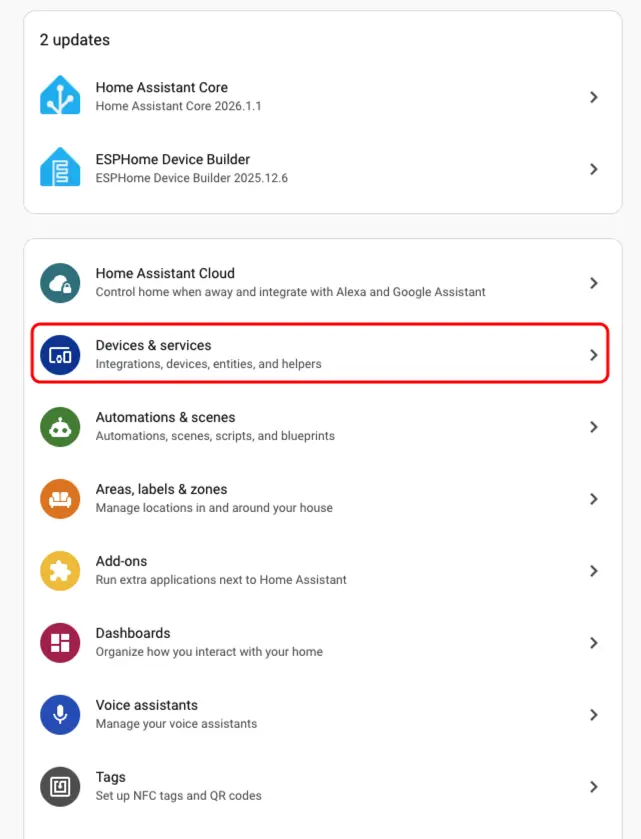
- Home Assistant で
Settings>Devices & Servicesに移動し、統合管理ページを開きます。
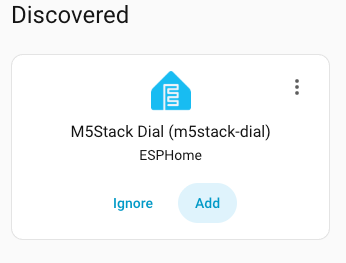
Discoveredエリアでオンラインデバイスを見つけ、CONFIGUREをクリックして、プロンプトに従って追加を完了します。
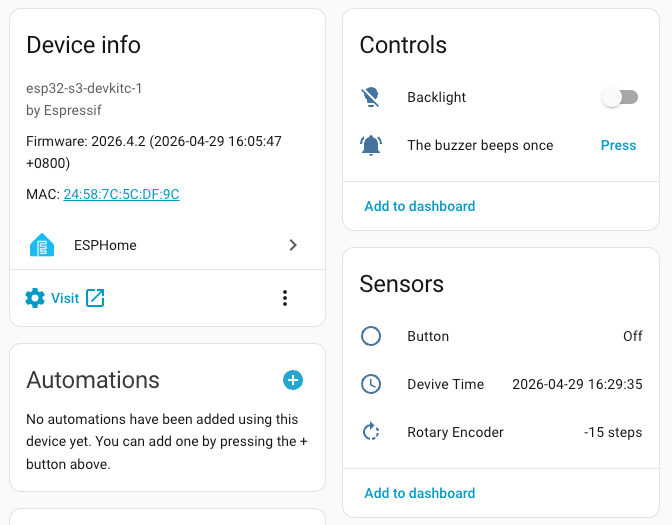
- 追加が成功すると、デバイスページに以下のエンティティが表示されます:
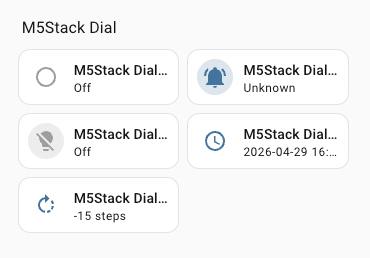
- 最後に、エンティティをダッシュボードに追加して、M5Dial をリアルタイムで制御・監視します。
Page Tools