Home Assistant
Media Player
Expansion
Sensor
Unit TMOS PIR Home Assistant Integration
This tutorial will use the Unit TMOS PIR sensor with the AtomS3R controller and integrate it into Home Assistant to achieve real-time monitoring and display of human presence and activity status.

1. Preparation
Environment Setup
- Install Home Assistant 2026.2.0 or later by following the official Home Assistant documentation.
- Install the ESPHome Device Builder add-on by following the official ESPHome documentation. This tutorial uses ESPHome 2026.2.2 or later.
Hardware Products
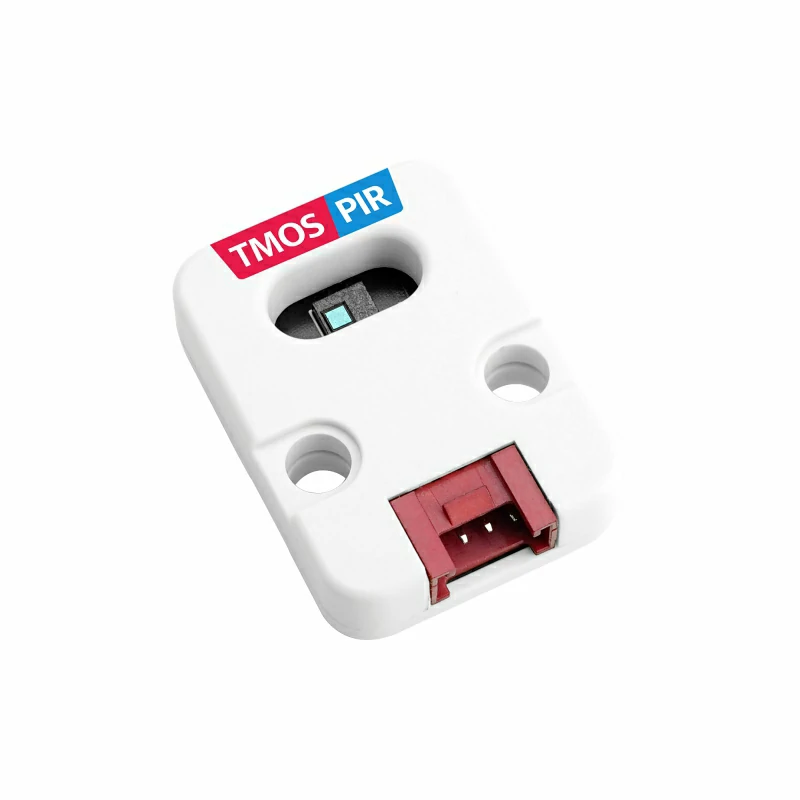
- Unit TMOS PIR
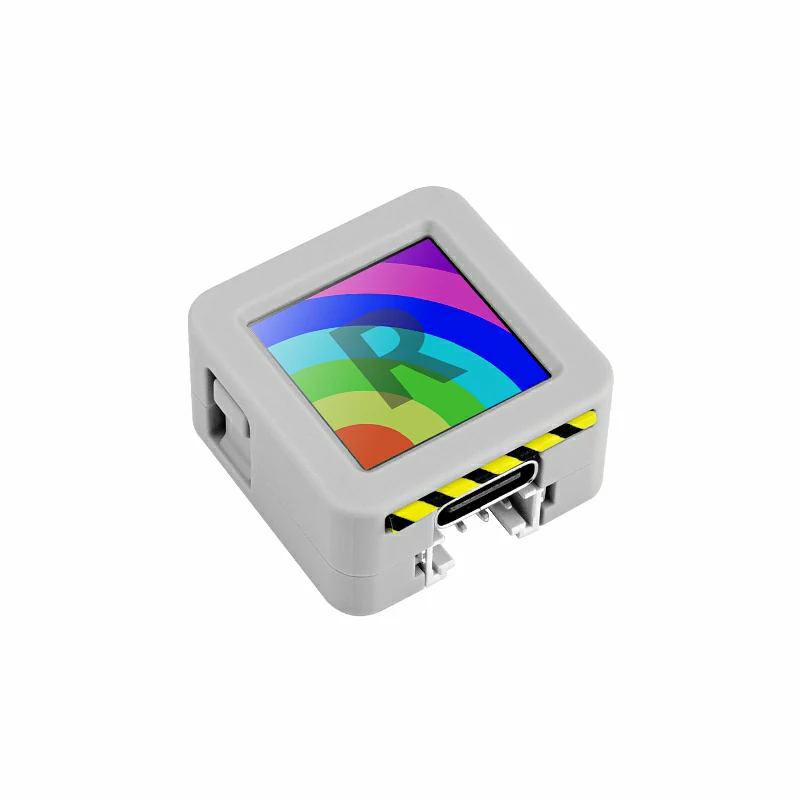
- AtomS3R
- 1 x HY2.0-4P Grove Cable (20cm)
- 1 x Home Assistant host
2. Firmware Build & Flash
Create Device
Open the ESPHome Dashboard. If the initial onboarding interface appears, click
CONTINUE.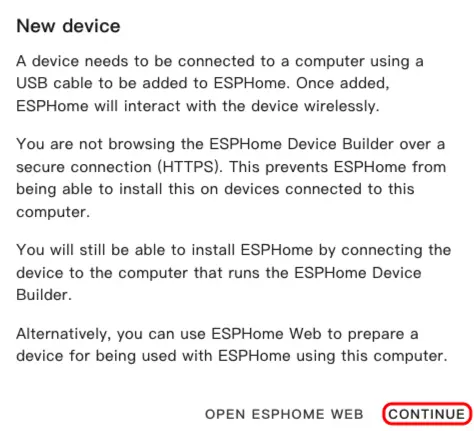
Click the green + button in the bottom right corner to start creating a new device.
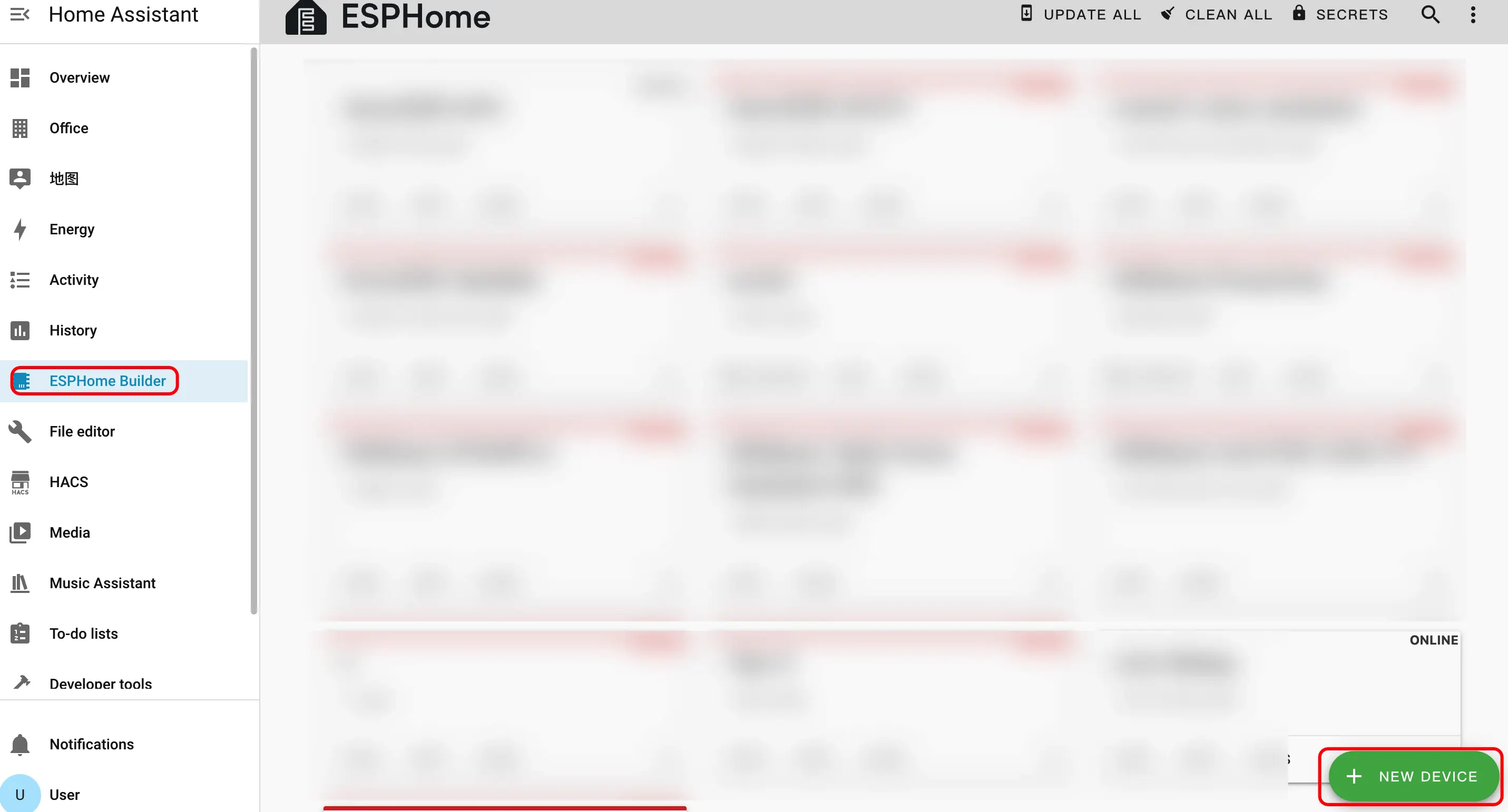
Click
New Device Setupto enter the device creation wizard.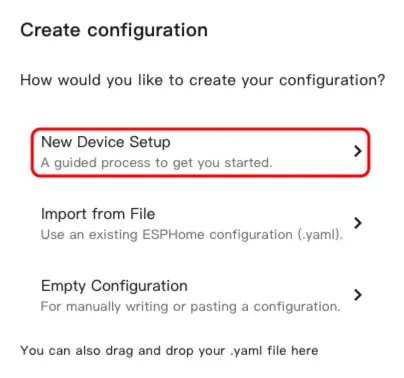
Enter the device name and click
NEXT.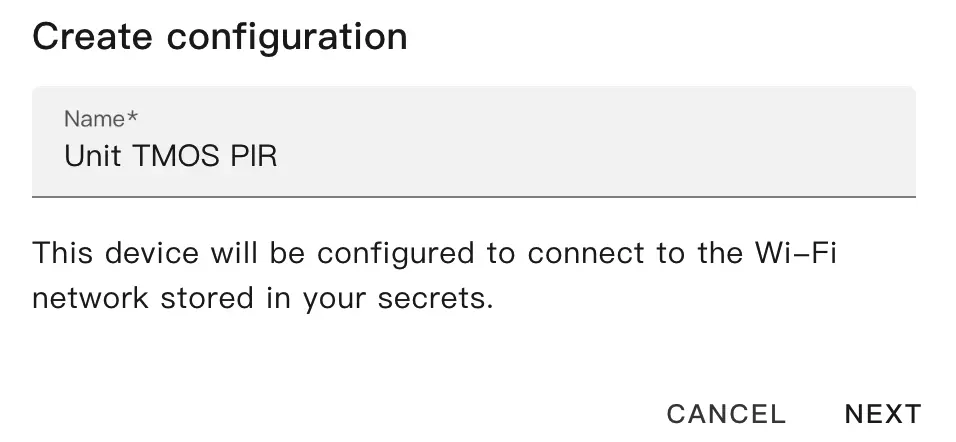
Select the device type, click
ESP32S3.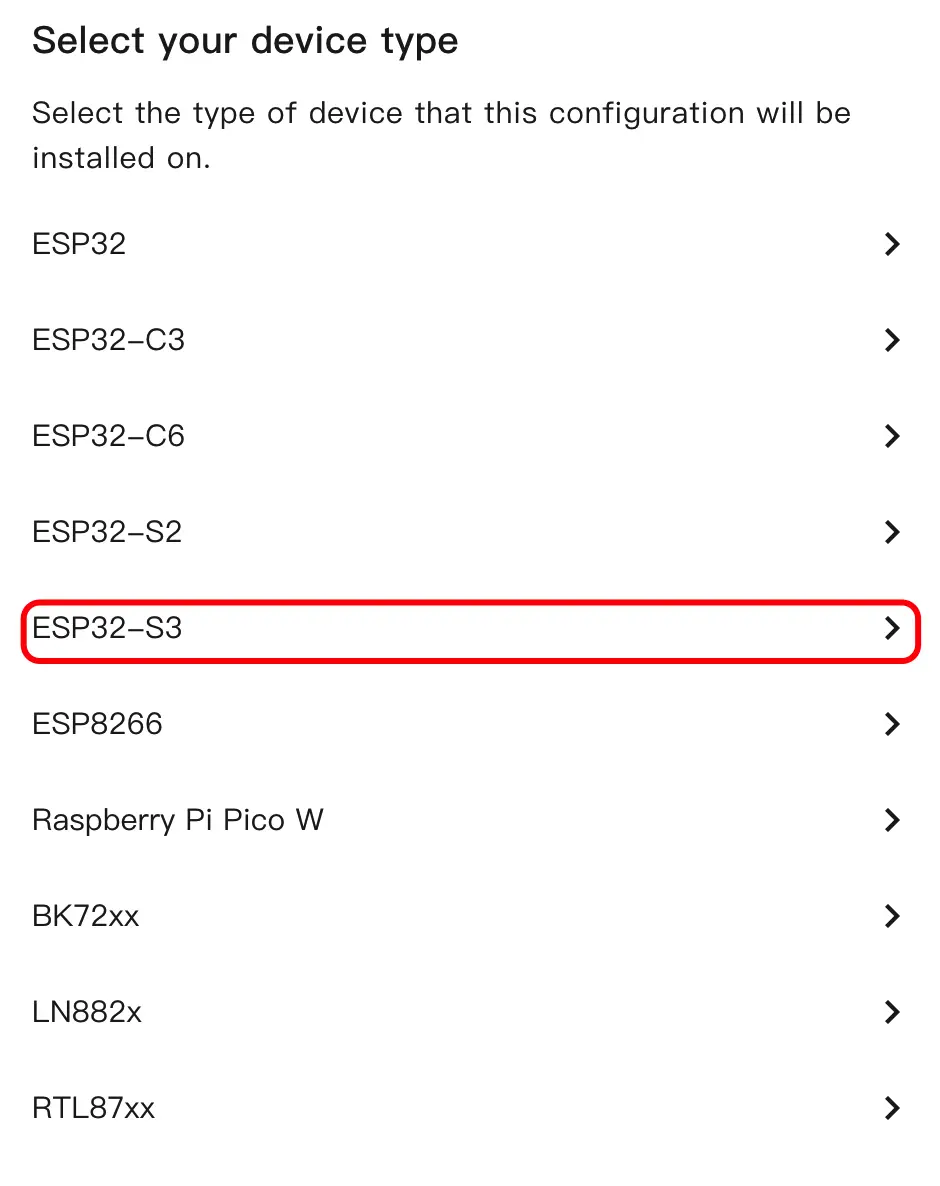
Click
SKIPto skip the encryption key settings.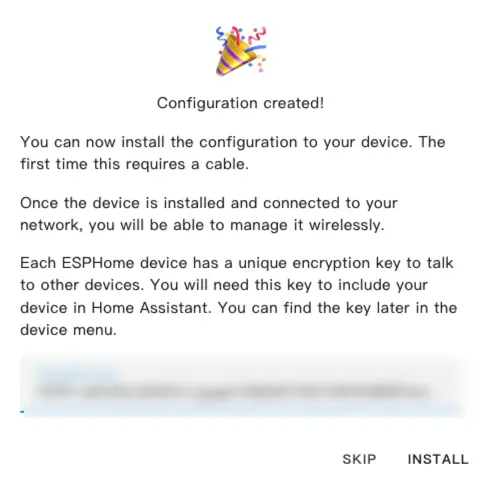
Click
EDITto enter the YAML configuration page to customize device functions.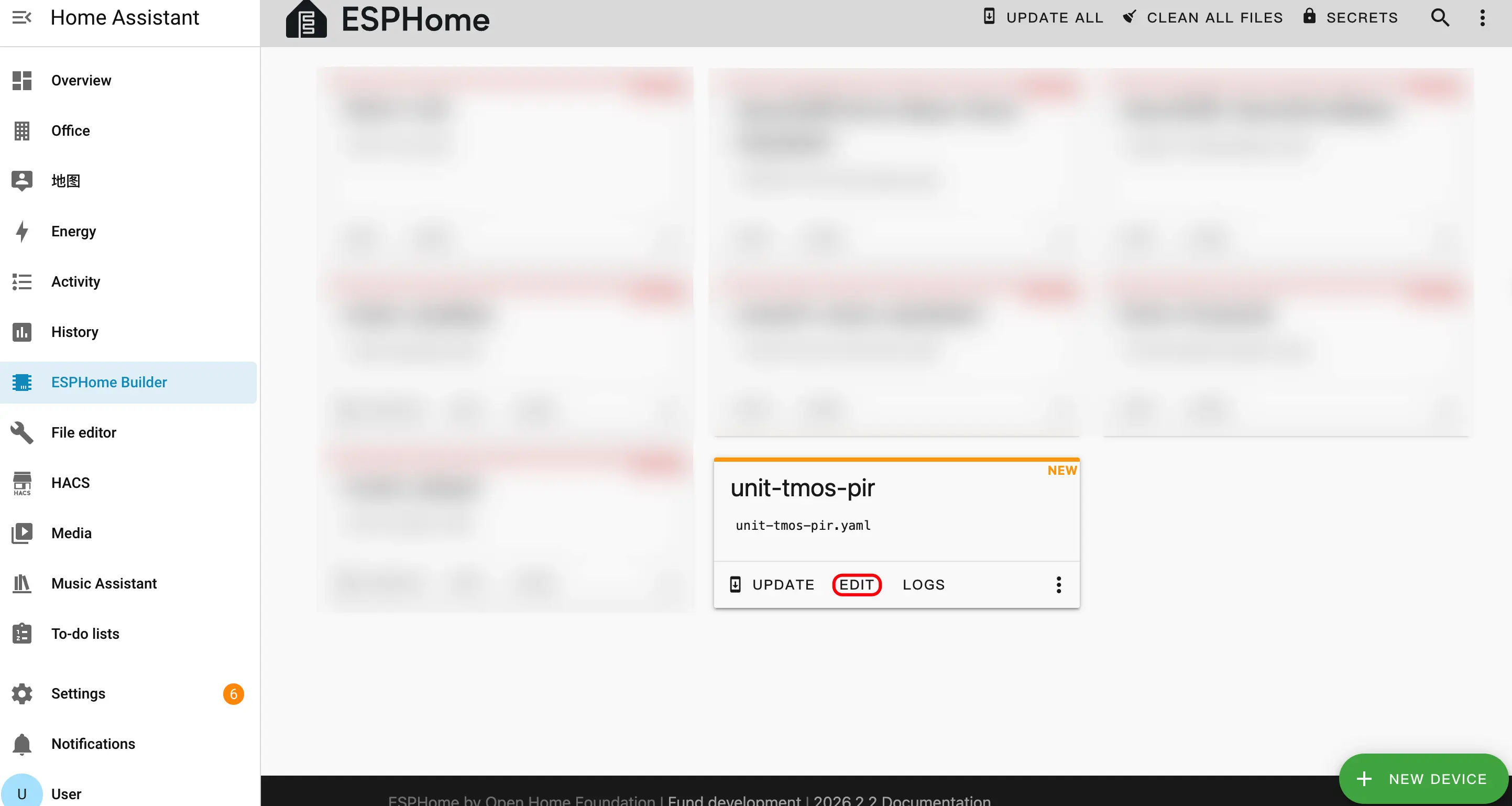
Modify Configuration
External Components Configuration
Add the External Components configuration to the YAML file to load the STHS34PF80 sensor driver.
external_components:
  - source: github://m5stack/esphome-yaml/components
    components: sths34pf80
refresh: 0sI2C Bus Configuration
- Add I2C component to configure the communication pins between Unit TMOS PIR and AtomS3R.
i2c:
  sda: GPIO2
  scl: GPIO1
scan: trueSensor Configuration
- Add Sensor component to configure presence detection and motion detection functions.
sensor:
  - platform: sths34pf80
    pres_flag:
      name: "TMOS Presence Detected"
    mot_flag:
      name: "TMOS Motion Detected"
    presence_threshold: 200
    presence_hysteresis: 50
    motion_hysteresis: 50
    odr: 8
update_interval: 1sMain parameter descriptions:
| Parameter | Value | Description |
|---|---|---|
presence_threshold | 200 | Presence detection threshold; higher values result in lower sensitivity. |
presence_hysteresis | 50 | Presence detection hysteresis value to prevent frequent status switching. |
motion_hysteresis | 50 | Motion detection hysteresis value. |
odr | 8 | Output Data Rate (Hz), supports 0.25 / 0.5 / 1 / 2 / 4 / 8 / 15 / 30. |
update_interval | 1s | Sensor status update interval in Home Assistant. |
Compile Firmware
After completing the YAML modification, click
SAVEin the upper right corner to save the configuration, then clickINSTALL.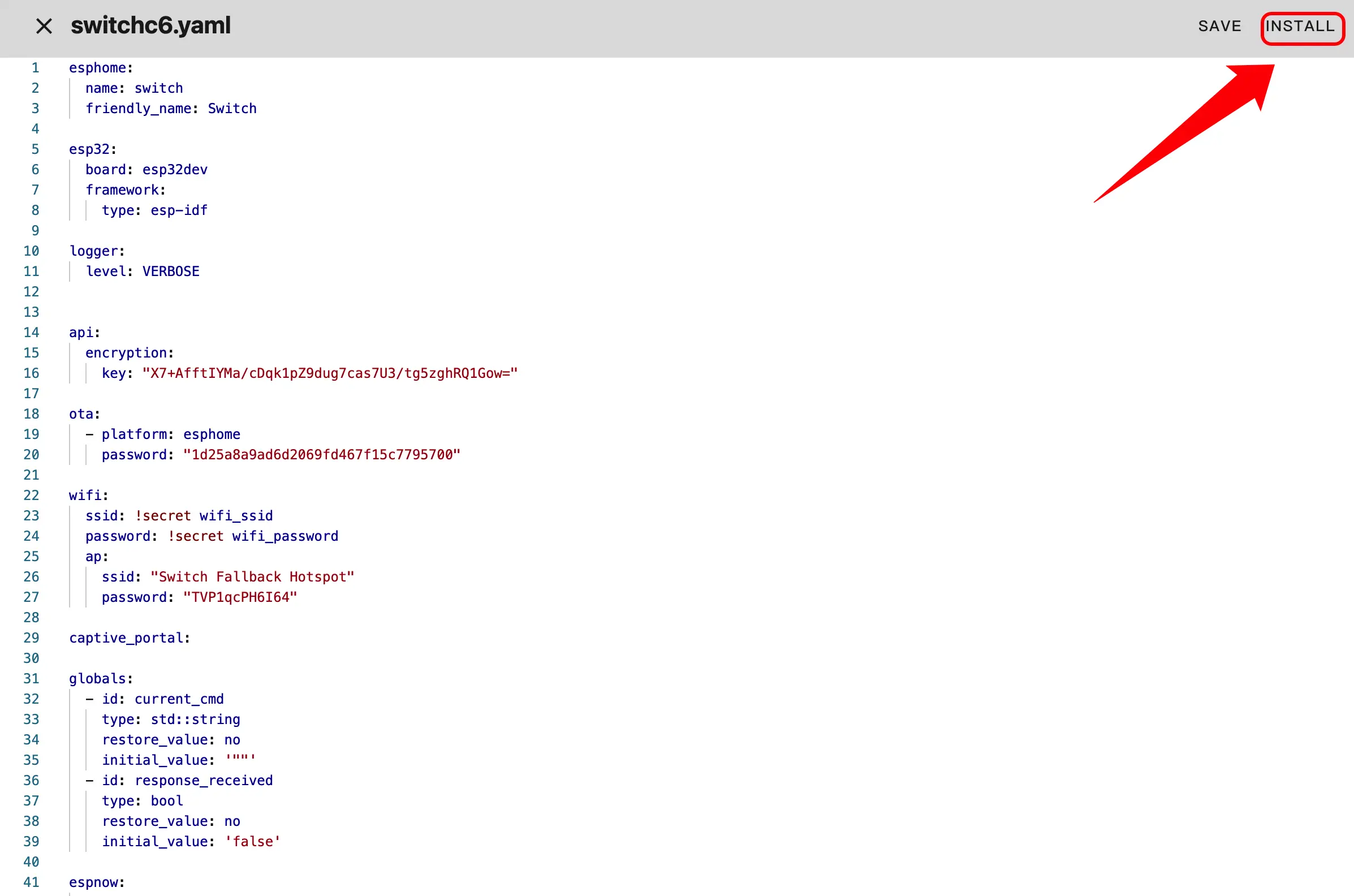
Select
Manual Downloadin the pop-up window.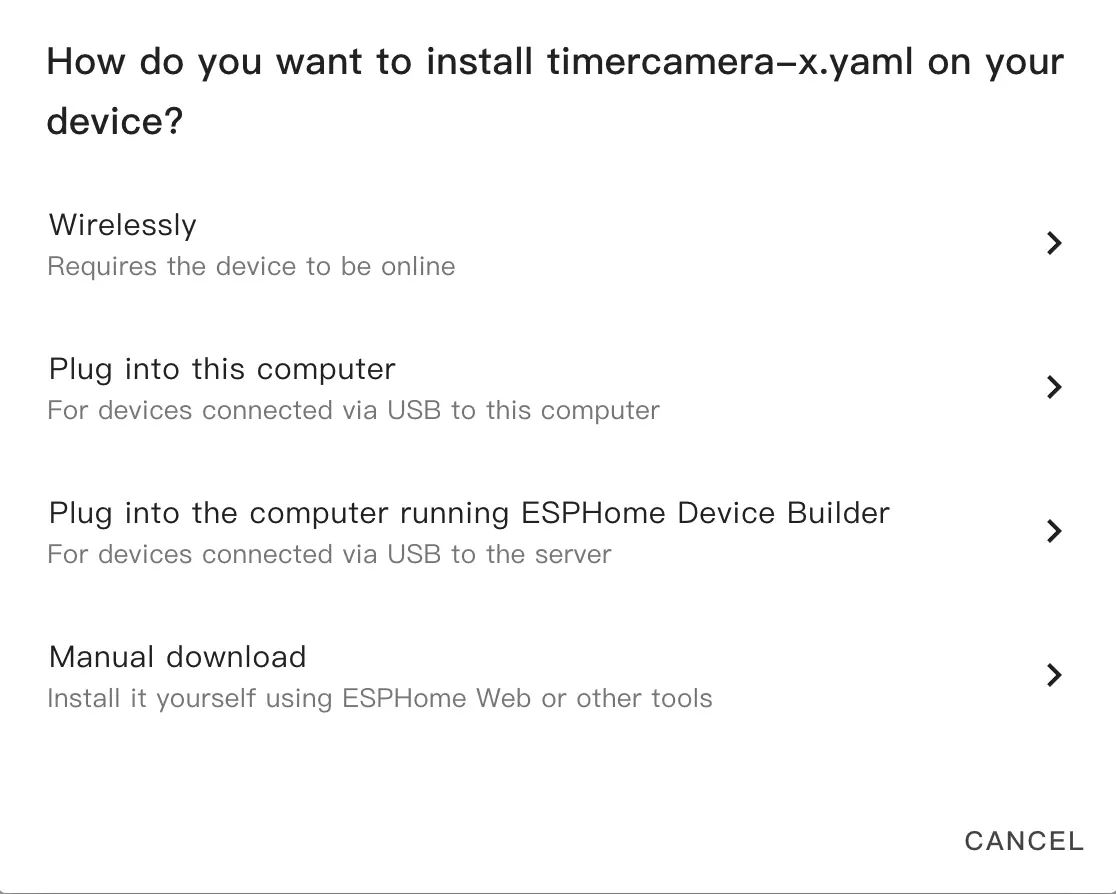
Wait for the firmware compilation to finish, click
Downloadand selectFactory format (Previously Modern)to save the firmware locally.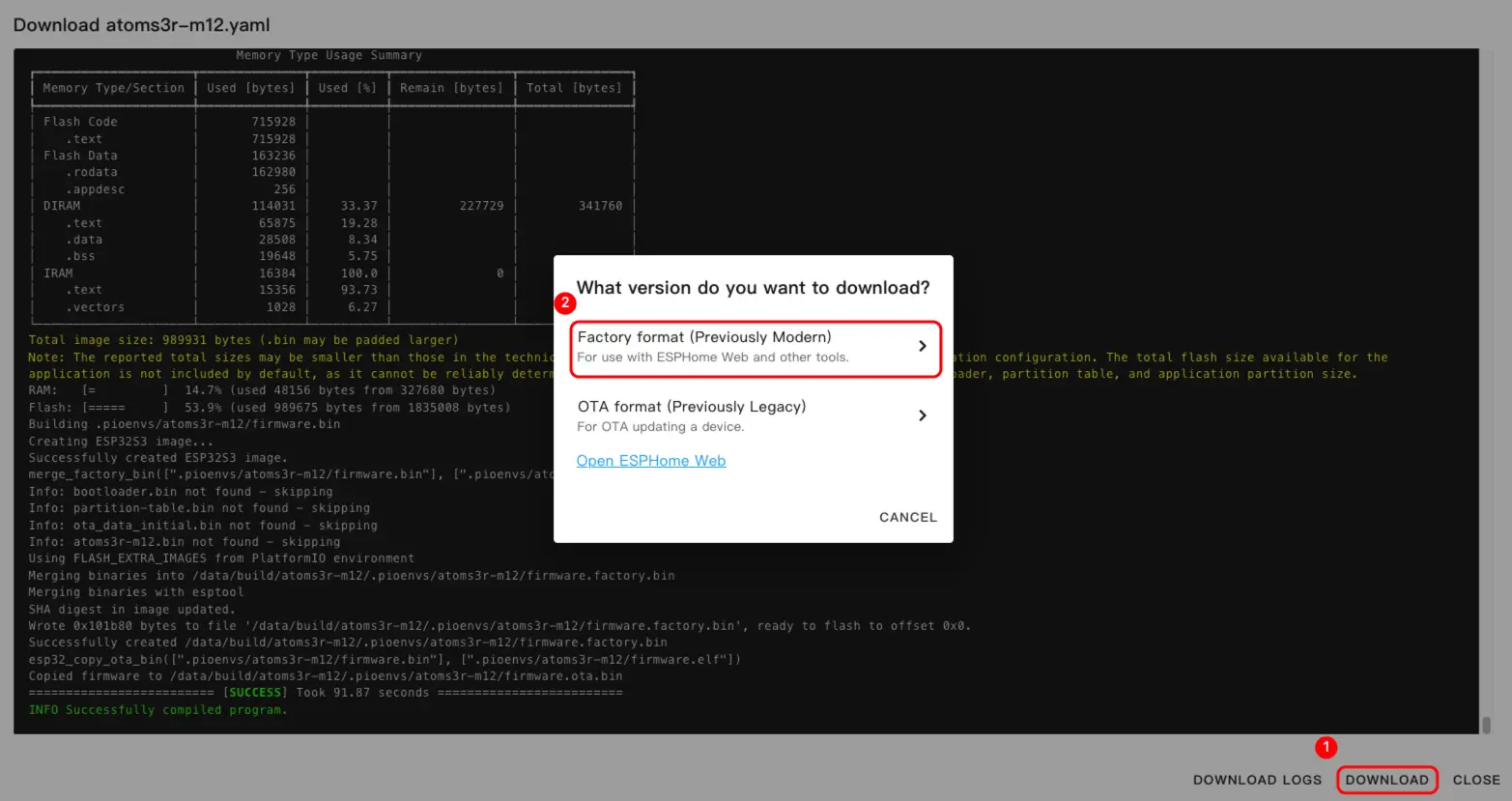 NoteClick Unit TMOS to view the complete example configuration. The first build may take some time depending on the performance of the Home Assistant host and the network quality.
Flash Firmware
Connect AtomS3R to the computer via a USB Type-C cable. Open ESPHome Web and click
CONNECT.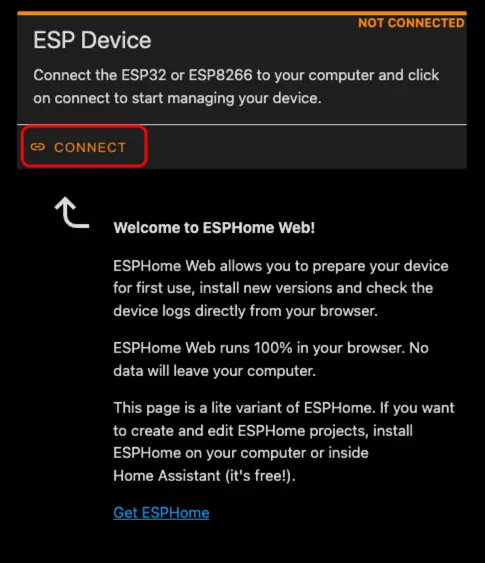
In the pop-up serial port selection window, find and select the corresponding serial port.
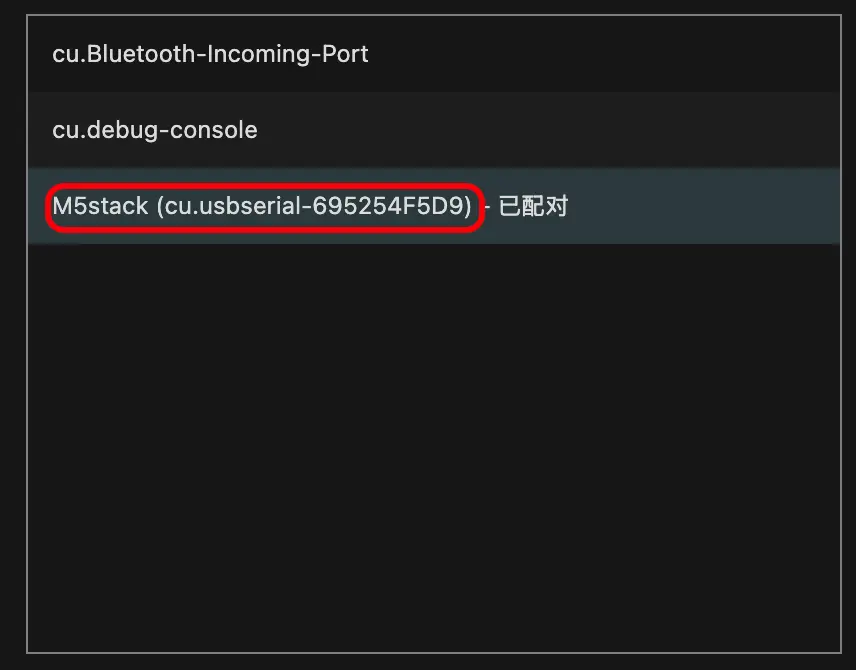
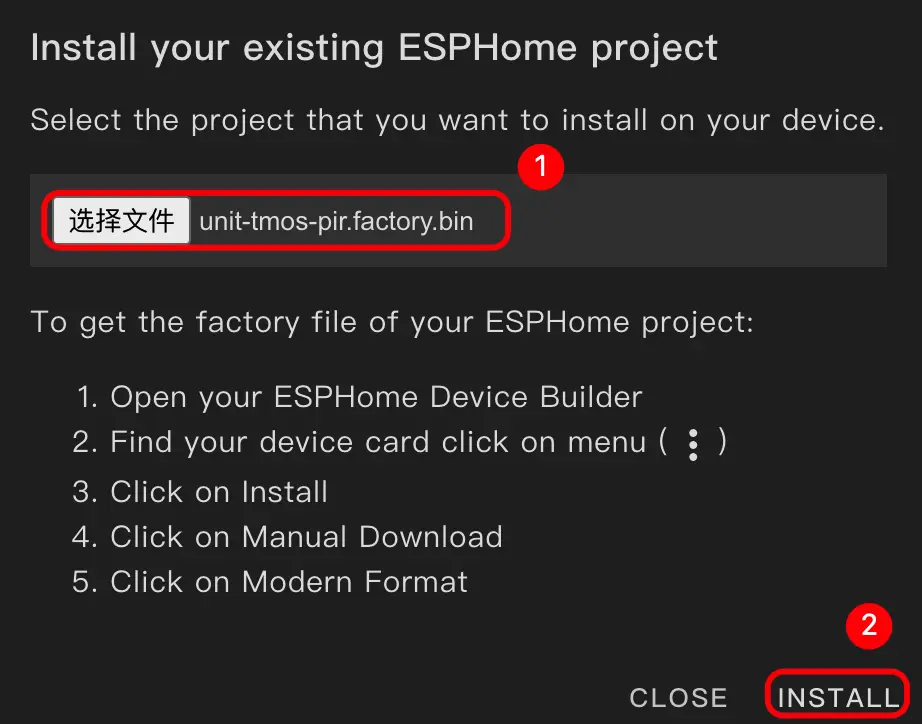
Click
INSTALL.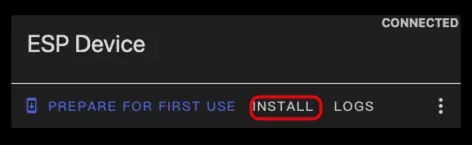
Select the firmware file downloaded in step 3 to upload.
3. Getting Started
In Home Assistant, click
Settings>Devices & Servicesto enter the integration management page.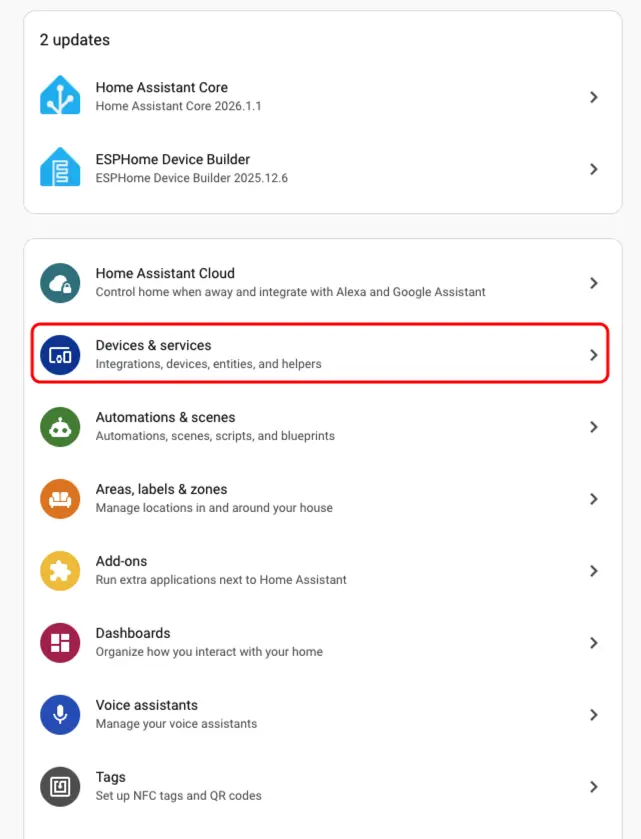
Find the online Unit TMOS PIR device in the
Discoveredarea, clickCONFIGURE, and follow the prompts to complete the addition.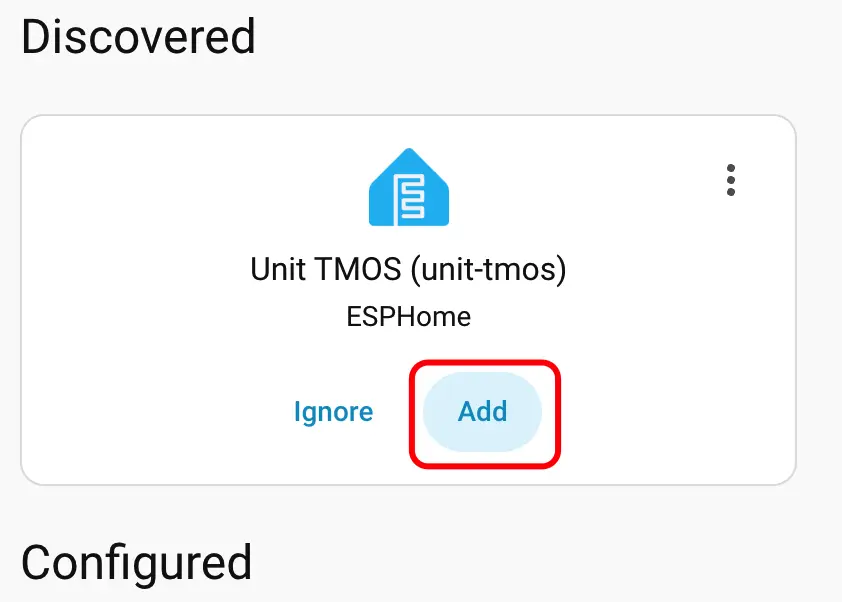
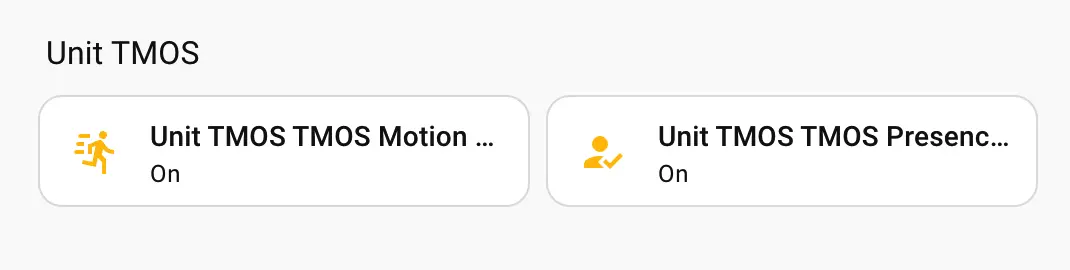
After successful addition, the device page will display two sensor entities,
pres_flag(presence detection) andmot_flag(motion detection), and their real-time status.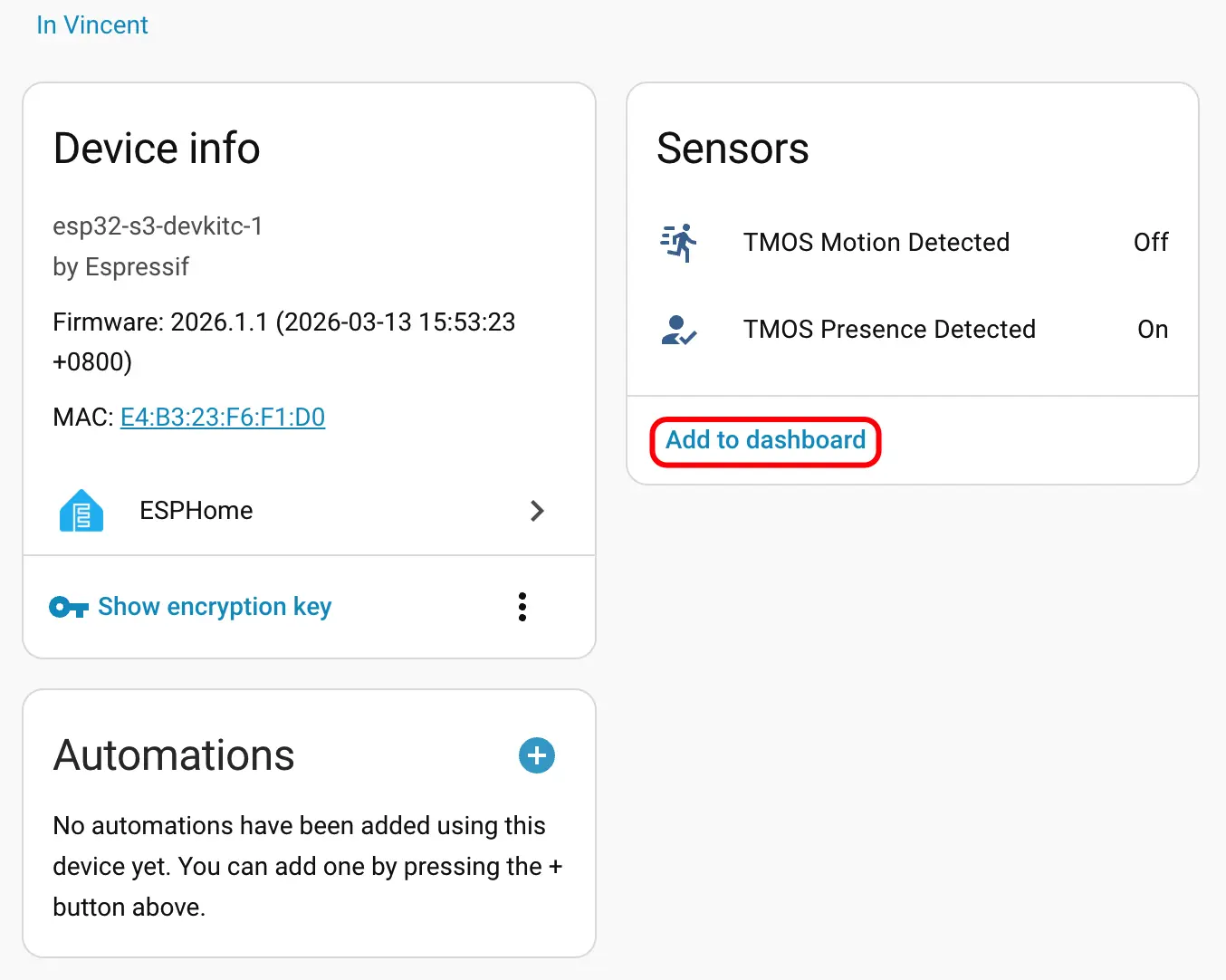
Finally, add the sensor entities to the dashboard to view the human presence and motion status in real time.