

Home Assistant
Media Player
Expansion
Sensor
Unit Key Home Assistant Integration
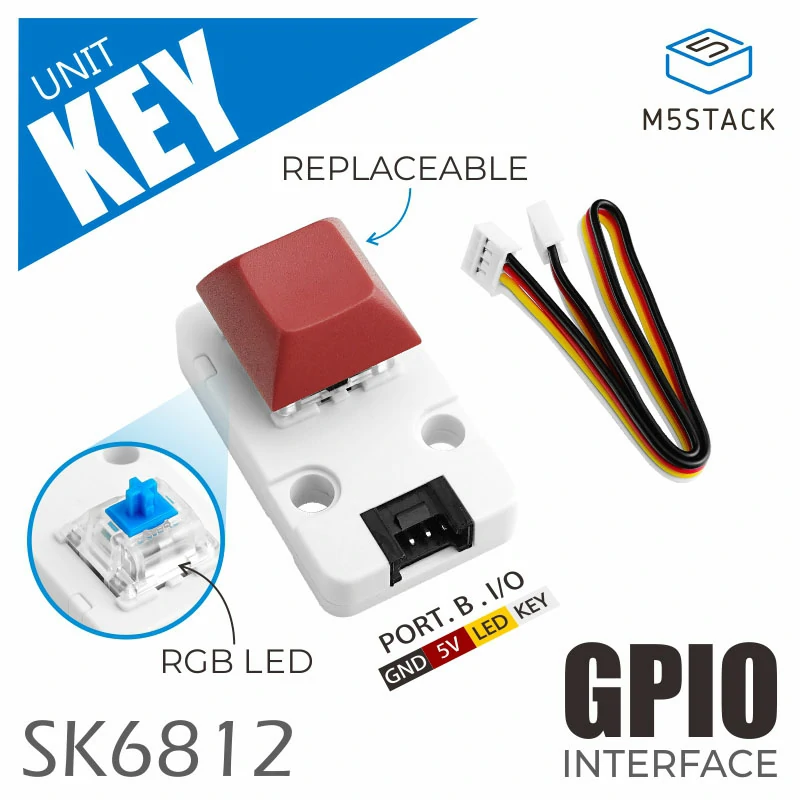
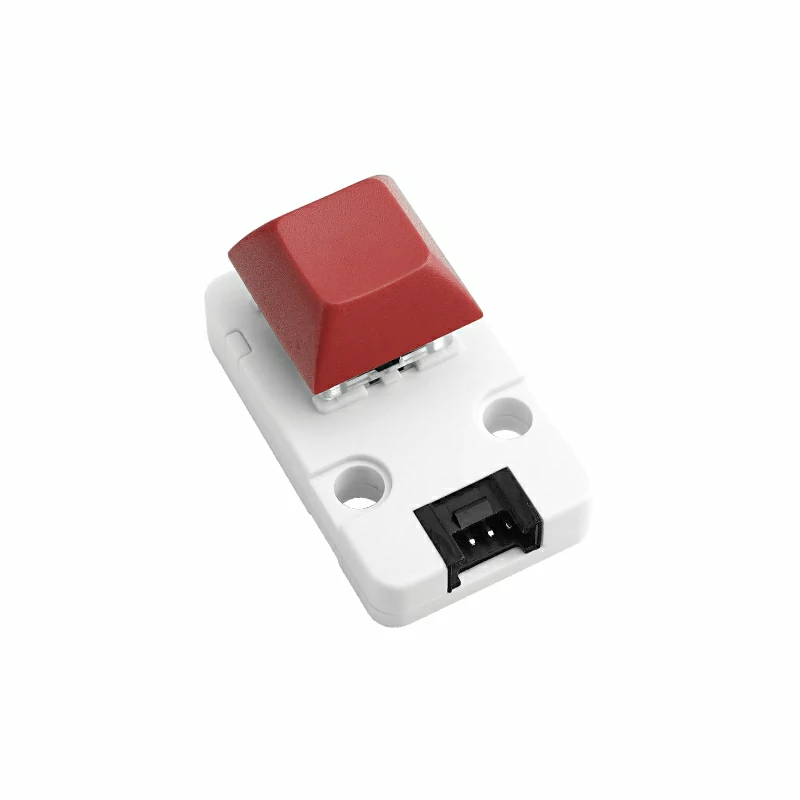
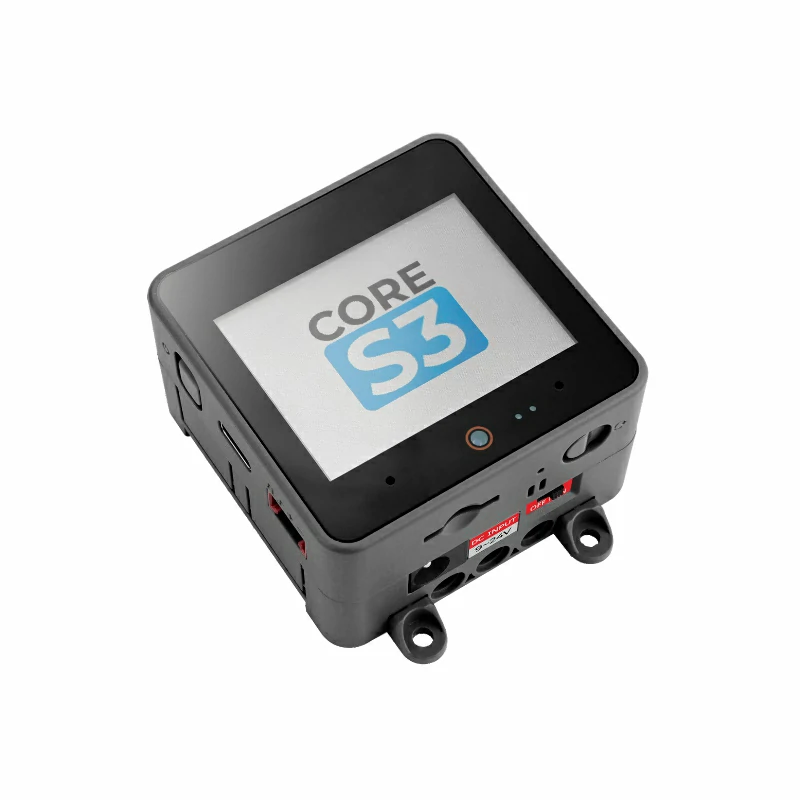
This tutorial will introduce how to use the Unit Key single button input unit with the CoreS3 main controller and integrate it into Home Assistant to achieve button state acquisition and light control.
1. Preparation
Environment Setup
- Follow the official Home Assistant documentation to install Home Assistant. (This tutorial uses
Home Assistant 2026.2.0or later.) - Follow the official ESPHome documentation to install the ESPHome Device Builder add-on. (Note: This tutorial is based on
ESPHome 2026.2.2. If you encounter compilation errors, switch to this version first for verification.)
Hardware
2. Firmware Compilation & Flashing
This section explains how to recompile the project based on the yaml configuration file, making it easier to perform secondary development, modify features, or add new features.
Compilation Time
Compiling firmware through HA is resource-intensive. The first compilation may take a long time to download resources, depending on the device running the HA service and network quality.
Create Device
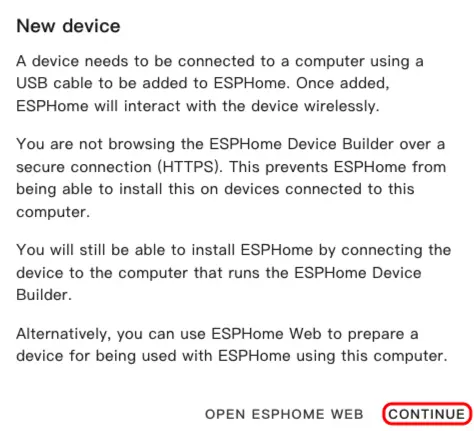
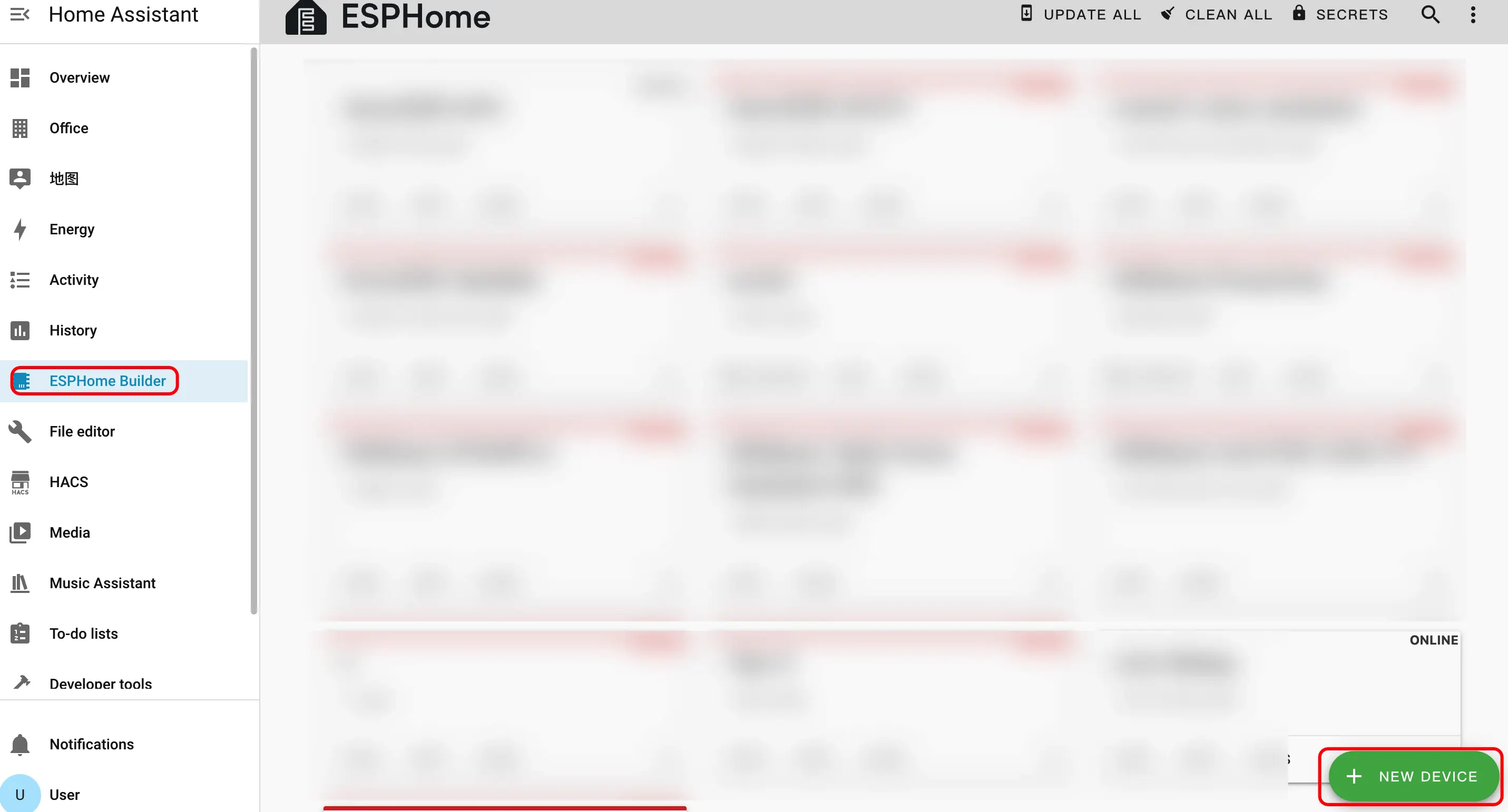
- Open the ESPHome Dashboard. If the initial guidance interface appears, click
CONTINUE.
- Click the green + button in the lower right corner to start creating a new device.
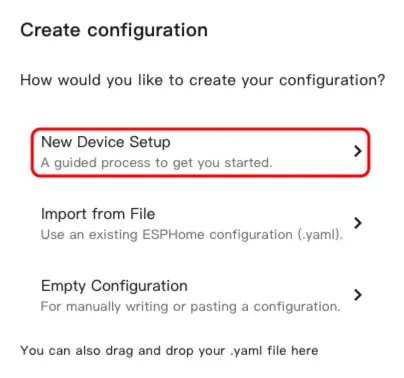
- Click
New Device Setupto enter the device creation wizard.
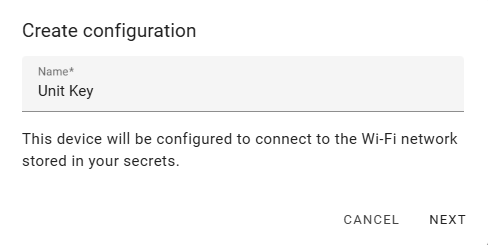
- Enter the device name and click
NEXT.
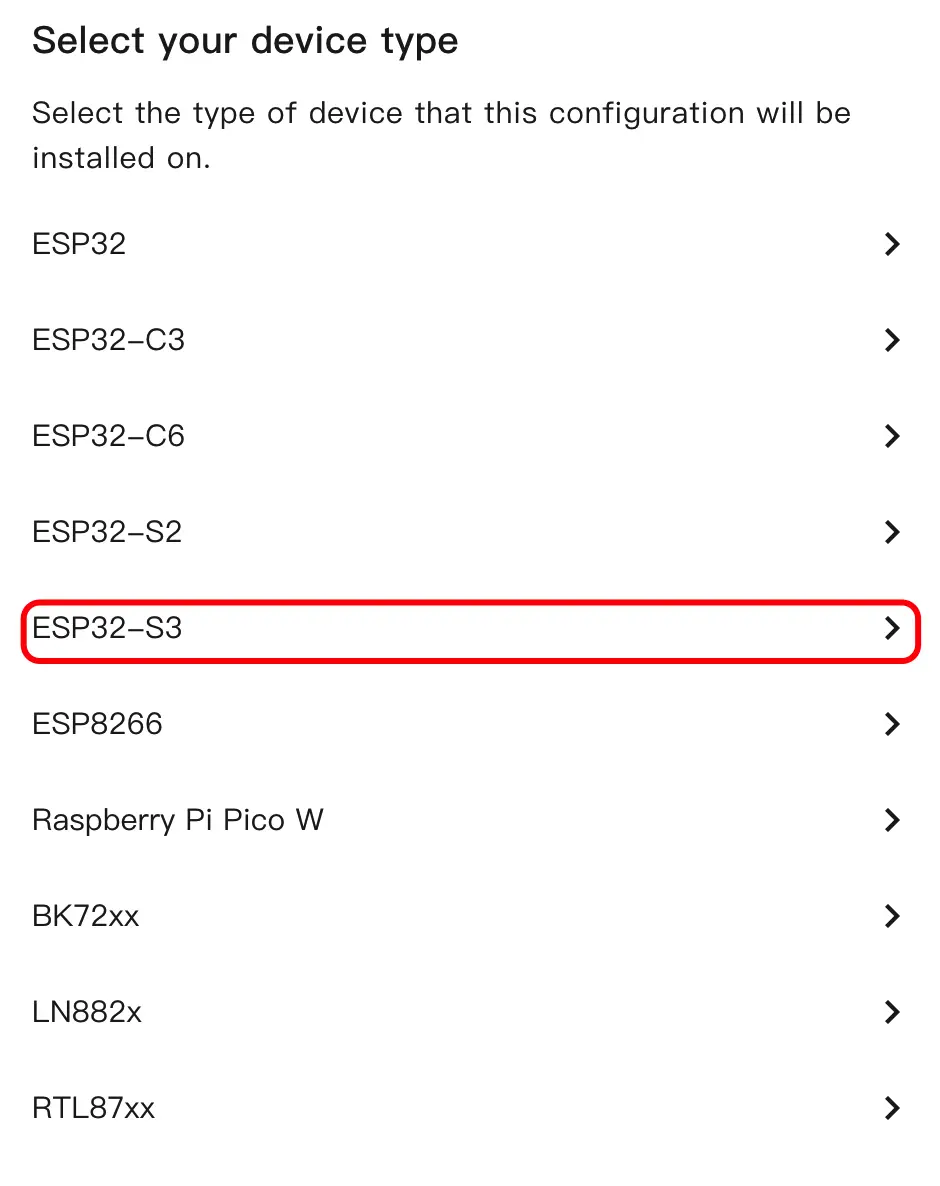
- Select the device type, click
ESP32S3.
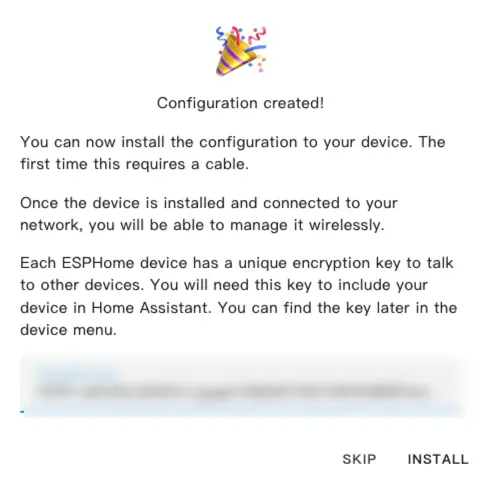
- Click
SKIPto skip the encryption key setup.
Modify Configuration
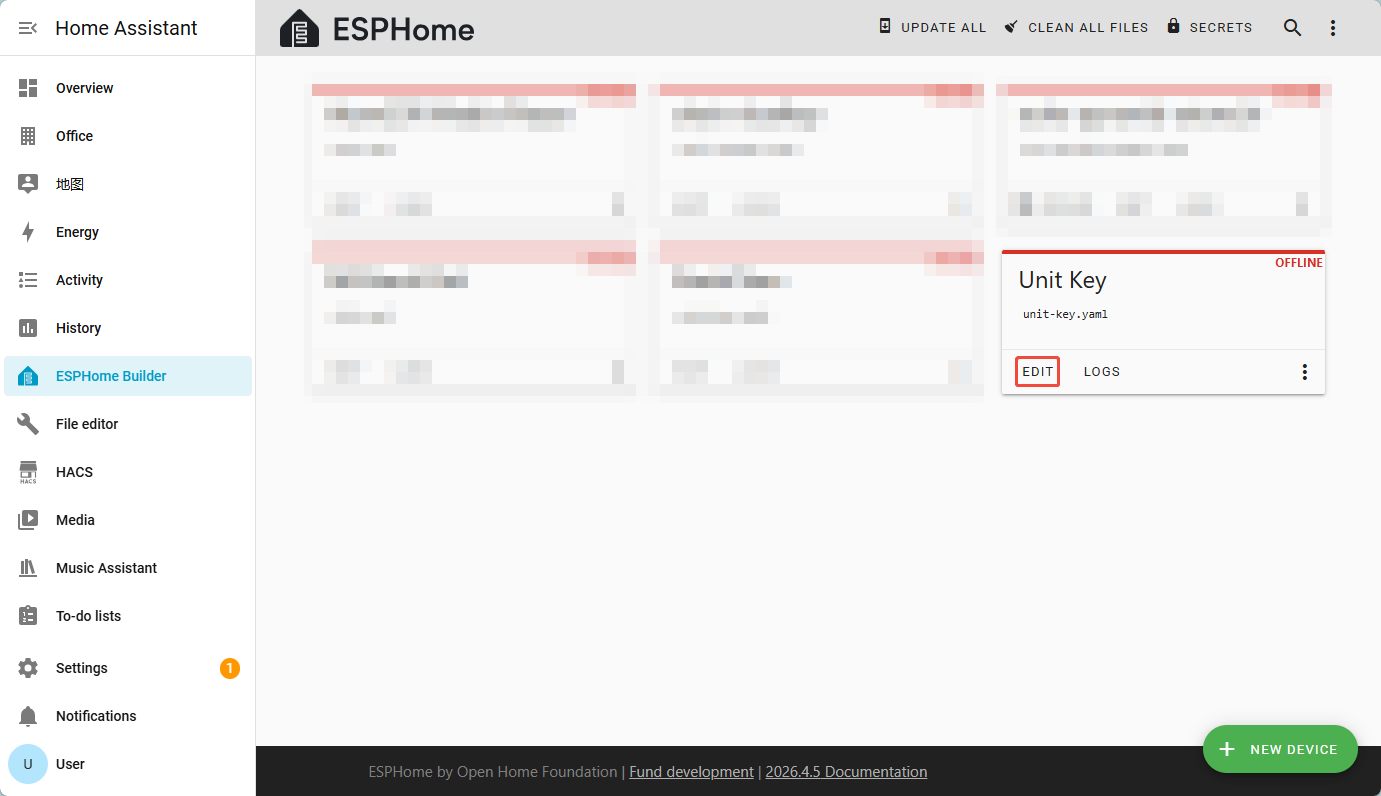
- Click
EDITto enter the YAML configuration page and customize device functionality.
Configuration Notes
1. CoreS3's PORT.B interface corresponds to LED: GPIO9 and BTN: GPIO8. If using other ports, adjust them according to the actual pins.
2. CoreS3's PORT interface power is controlled by the internal power management chip. To use Unit Key properly, make sure that
2. CoreS3's PORT interface power is controlled by the internal power management chip. To use Unit Key properly, make sure that
board is set to m5stack-cores3 and framework is set to arduino.Sensor Configuration
Add the Binary Sensor component to obtain button state.
binary_sensor:
  - platform: gpio
    name: "Button"
    id: unit_key_button
    pin:
      number: GPIO8 # CoreS3 PORT.B, please adjust according to the actual connected GPIO pin
      mode:
        input: true
        pullup: true
      inverted: true
    filters:
      - delayed_on: 10ms
      - delayed_off: 10ms
    on_press:
      then:
        - logger.log: "Pressed"
        - light.toggle: unit_key_led
    on_multi_click:
      - timing:
          - ON for at least 1s
        then:
          - logger.log: "Hold"
- light.turn_off: unit_key_ledLight Configuration
Add the Light component to control the backlight RGB LED.
light:
  - platform: neopixelbus
    name: "LED"
    id: unit_key_led
    type: GRB
    variant: SK6812
    pin: GPIO9 # CoreS3 PORT.B, please adjust according to the actual connected GPIO pin
    num_leds: 1
    method:
      type: esp32_rmt
      channel: 0
    default_transition_length: 200ms
restore_mode: RESTORE_DEFAULT_OFFCompile Firmware
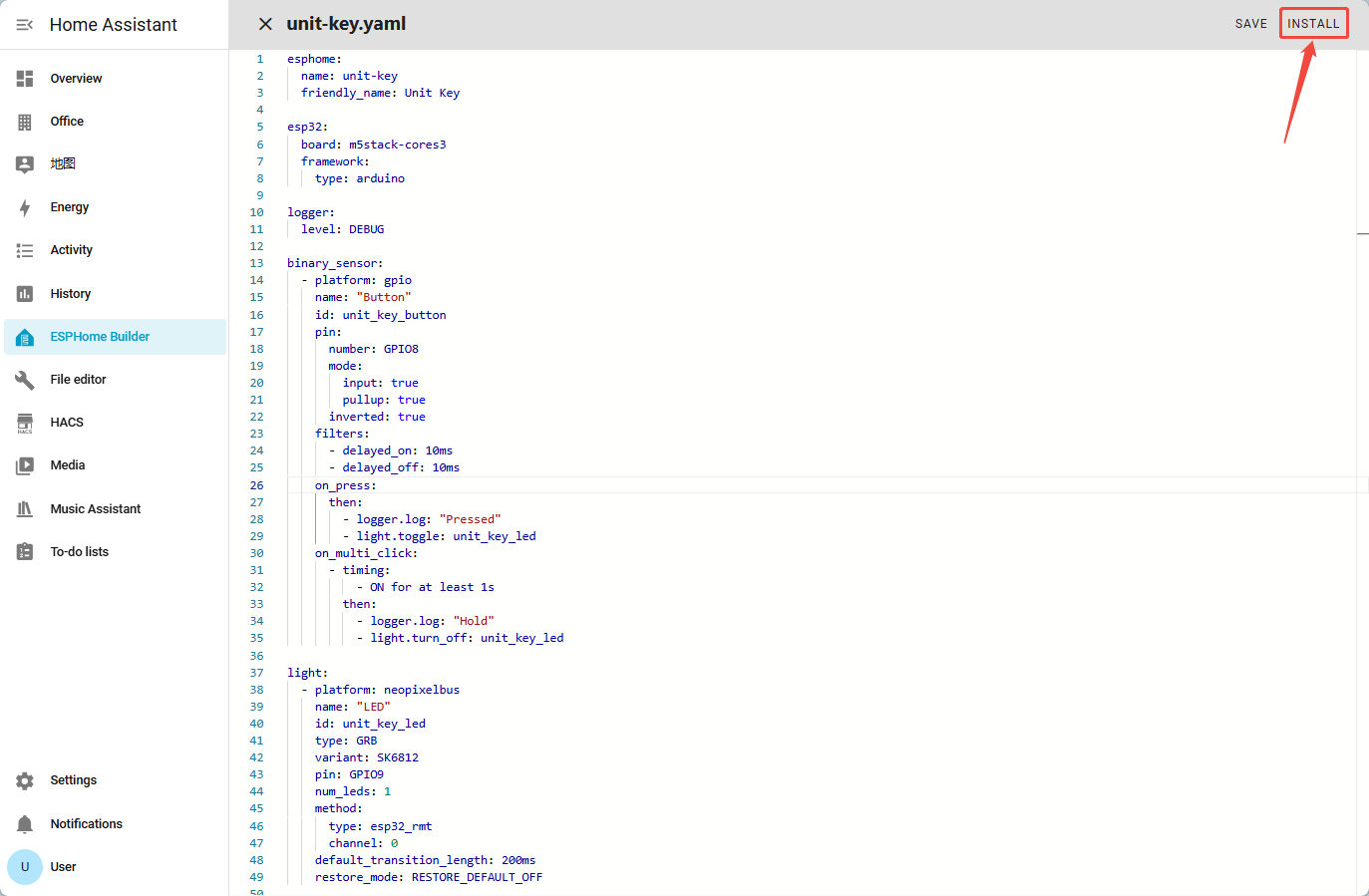
- After completing the YAML modifications, click
SAVEin the upper right corner to save the configuration, then clickINSTALL.
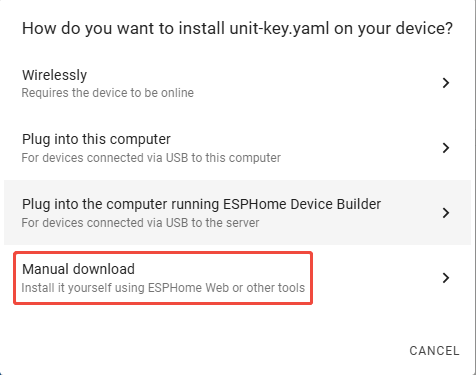
- Select
Manual Downloadin the pop-up window.
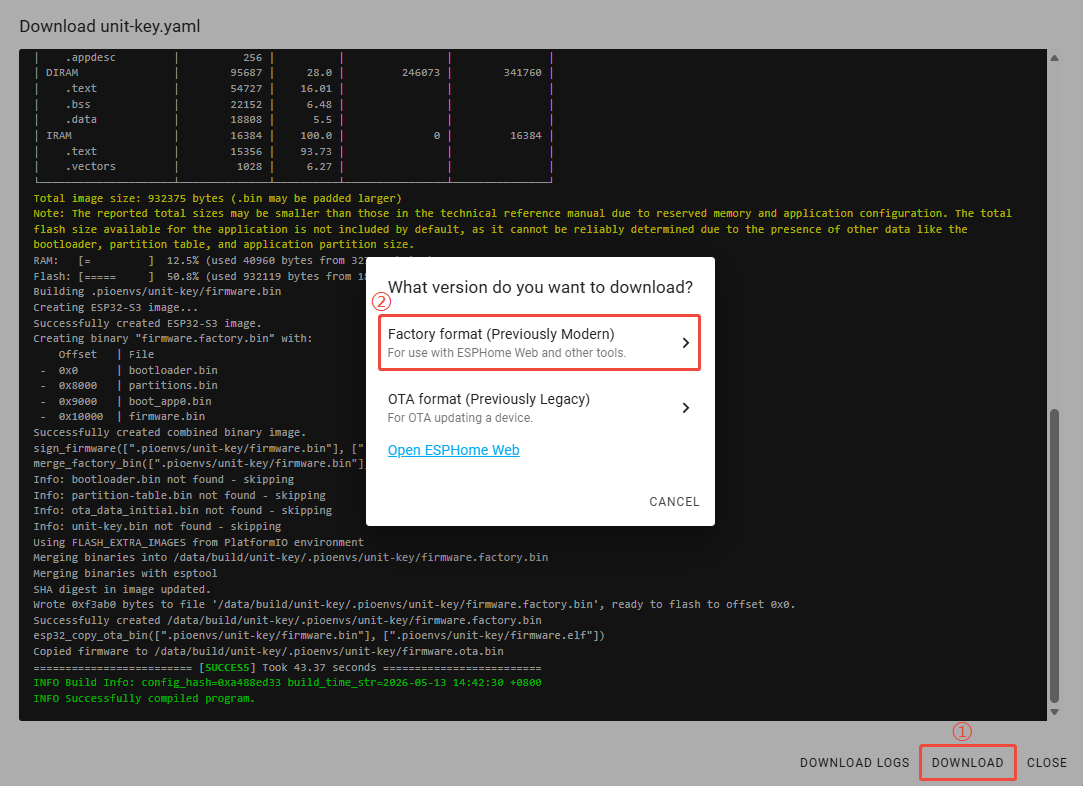
- Wait for the firmware compilation to complete, click
Downloadand selectFactory format (Previously Modern), then save the firmware locally.
Flash Firmware
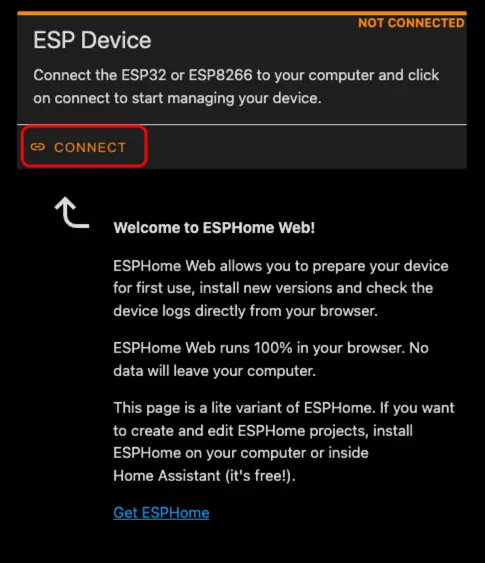
- Connect the CoreS3 to your computer using a USB Type-C cable. Open ESPHome Web and click
CONNECT.
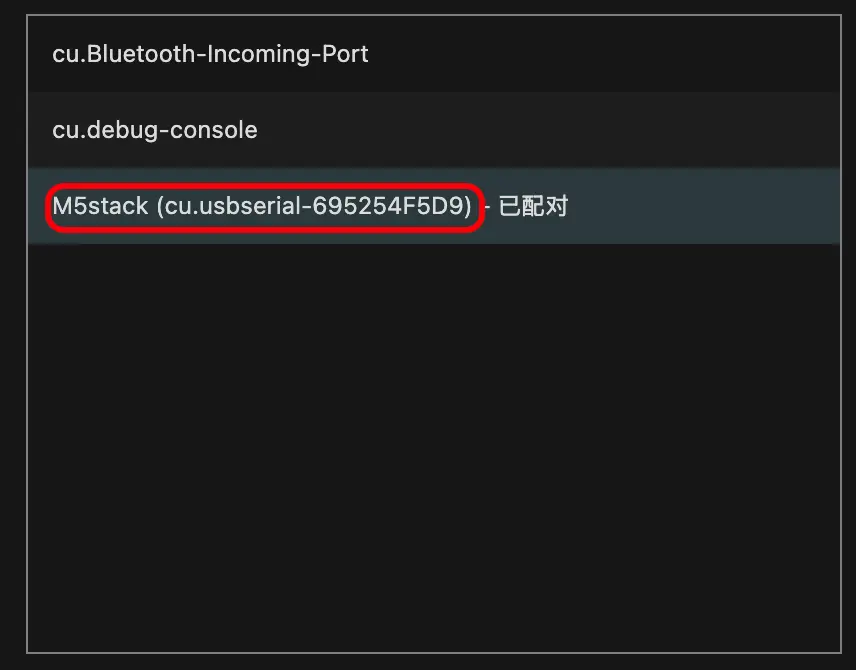
- In the serial port selection window that appears, select the correct serial port.
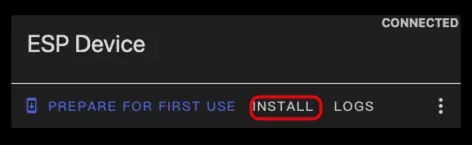
- Click
INSTALL.
- Select the firmware file downloaded in step 3 and start flashing.
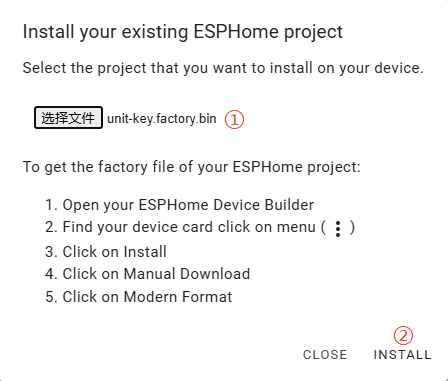
Flashing Tip
After flashing is complete, the device must be reset; otherwise, the firmware may not start properly.
3. Getting Started
- In Home Assistant, click
Settings>Devices & Servicesin sequence to enter the integration management page.
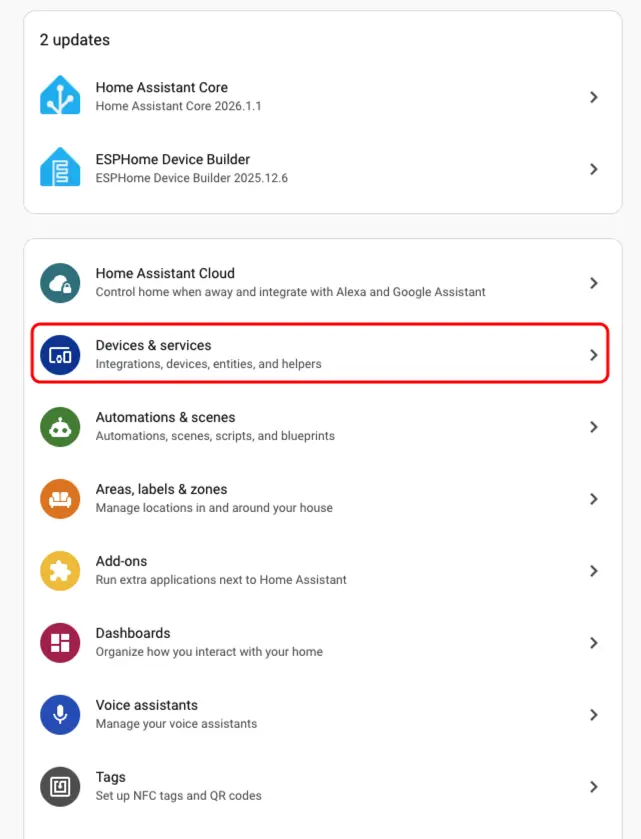
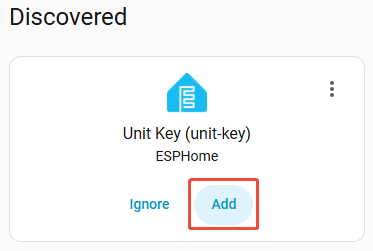
- Find the Unit Key device in the
Discoveredarea, clickCONFIGUREand follow the wizard to complete the configuration.
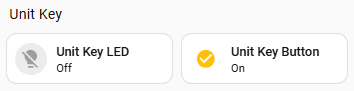
- After the device is added, you can see real-time information of the button state and LED light state on the device details page.
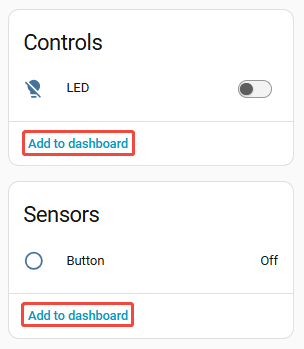
- Finally, add these sensor entities to the dashboard to monitor the button state and light status in real time.
Page Tools