

Home Assistant
オーディオ再生
拡張ボード
センサー
Station-Bat コントローラー Home Assistant 統合
本章では、Station-Bat を Home Assistant に統合する方法を説明します。
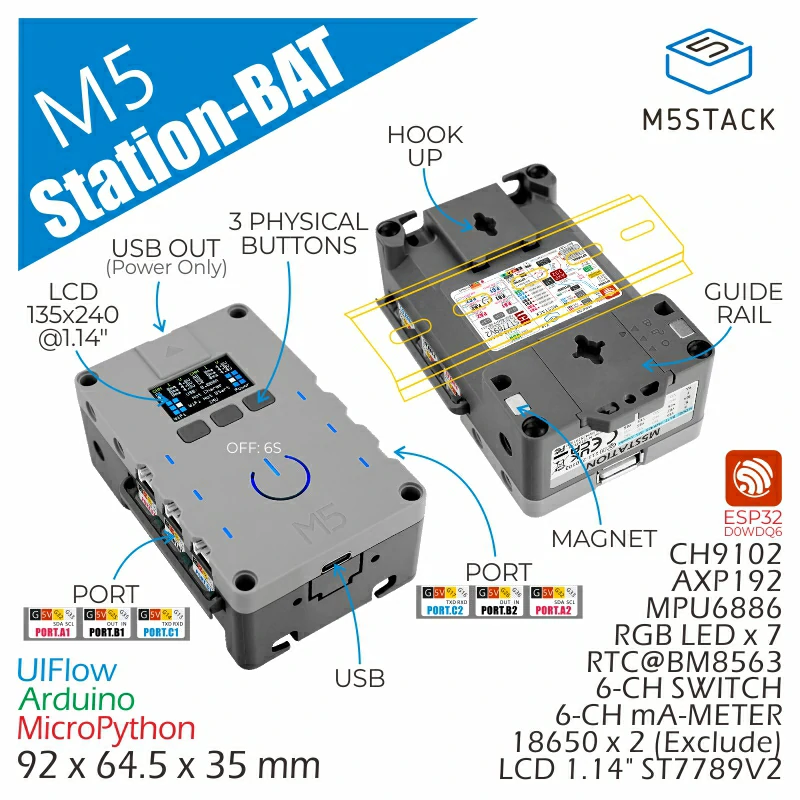
1. 準備
環境準備
- Home Assistant 公式ドキュメントを参照して Home Assistant をインストールします。
- ESPHome 公式ドキュメントを参照して ESPHome Device Builder アドオンをインストールします。(注:本チュートリアルは
ESPHome 2026.2.4を基準に作成されています。コンパイルエラーが発生した場合は、このバージョンに切り替えて確認してください。)
ハードウェア製品
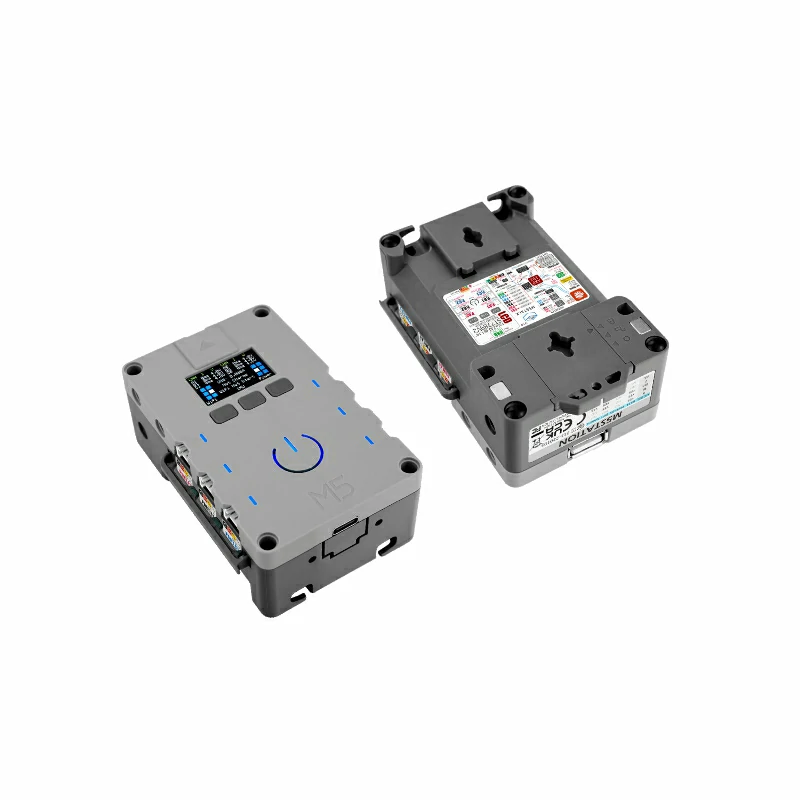
2. オンライン書き込み
下の オンライン書き込み ボタンをクリックし、画面の指示に従ってファームウェアの書き込みと Wi-Fi 設定を完了すると、Station-Bat を Home Assistant にすぐに接続して試すことができます。
書き込みと設定の詳細については、ESPHome ファームウェアのオンライン書き込みと設定を参照してください。
オンライン書き込みを使用した場合、「ファームウェアのコンパイルと書き込み」の手順は不要です。4. 使い方へ進んでください。
3. ファームウェアのコンパイルと書き込み
このセクションでは、二次開発、機能変更、機能追加を行うために、yaml 設定ファイルを基にプロジェクトを再コンパイルする方法を説明します。
コンパイル時間
HA でのファームウェアコンパイルは多くのリソースを消費します。初回コンパイル時は、HA サービスを実行するデバイスの性能やネットワーク品質によって、リソースのダウンロードに時間がかかる場合があります。
デバイスの作成
- 右下の緑色のボタンをクリックしてデバイスを作成します。
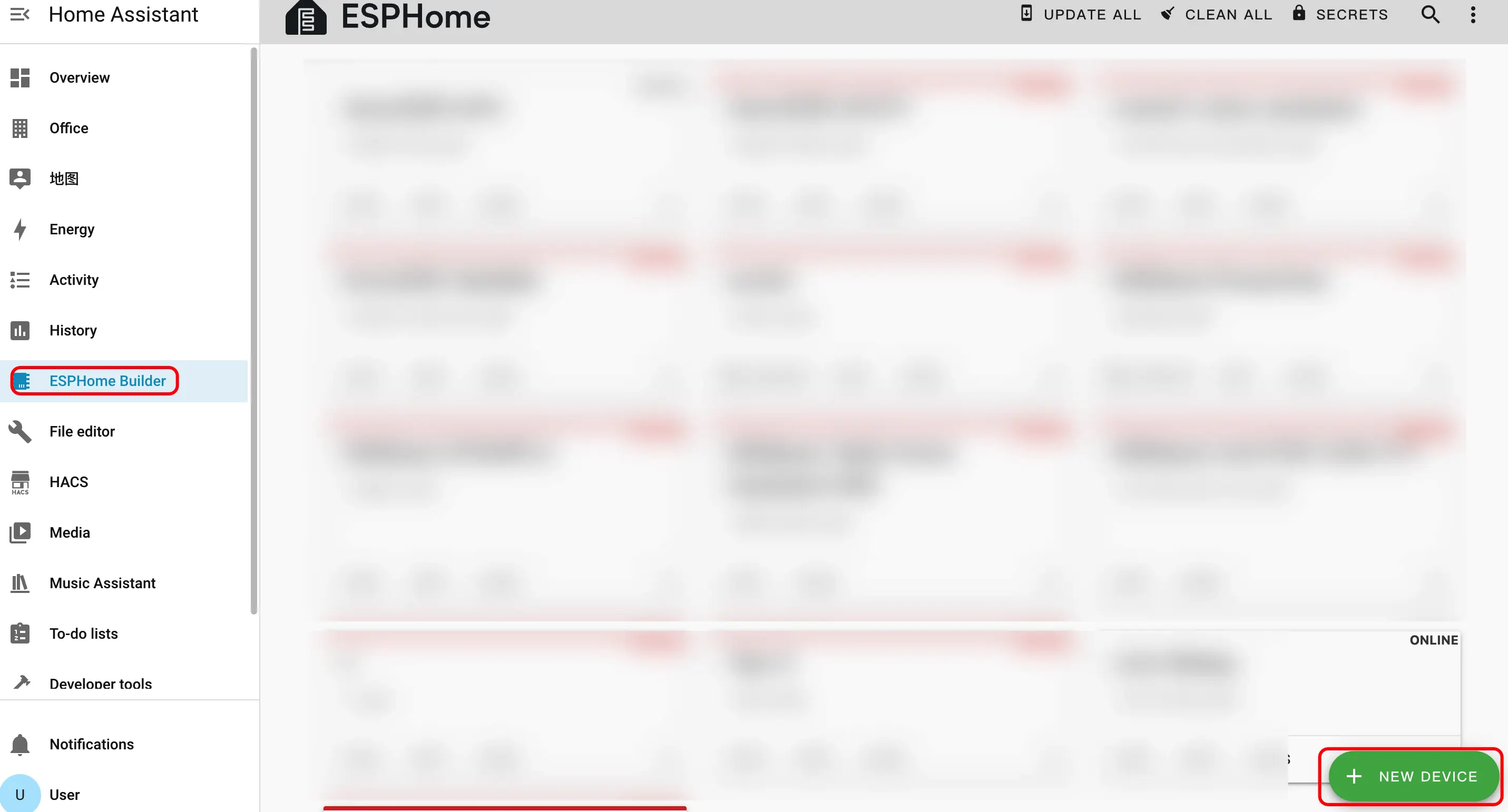
CONTINUEをクリックします。
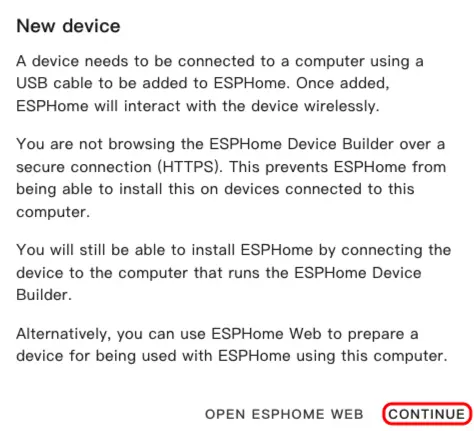
New Device Setupをクリックします。
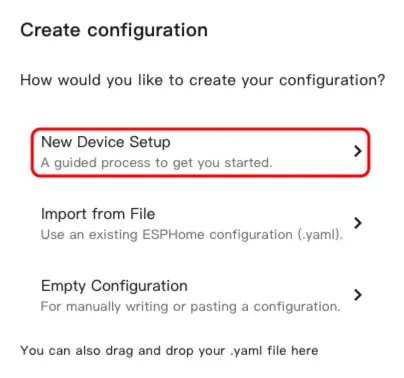
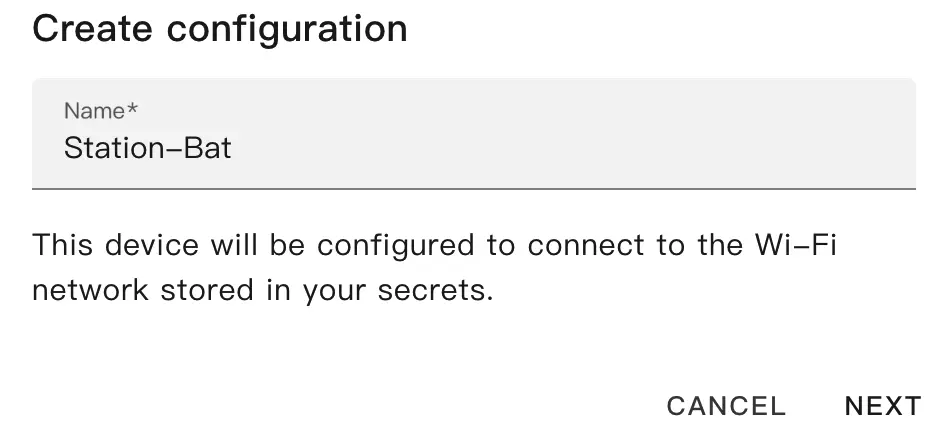
- デバイス名を入力し、
NEXTをクリックします。
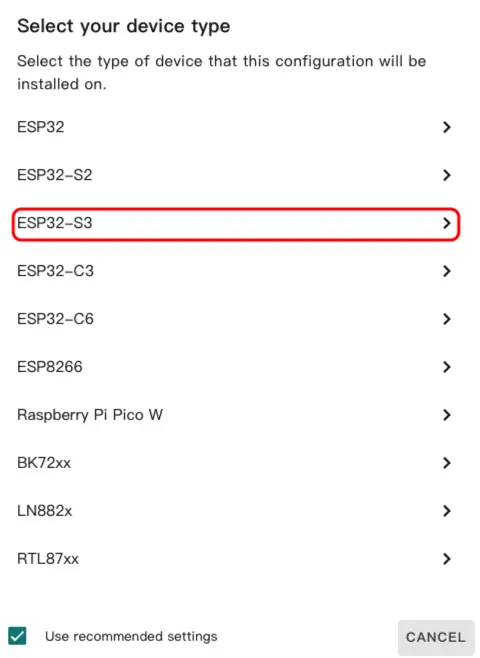
ESP32を選択します。
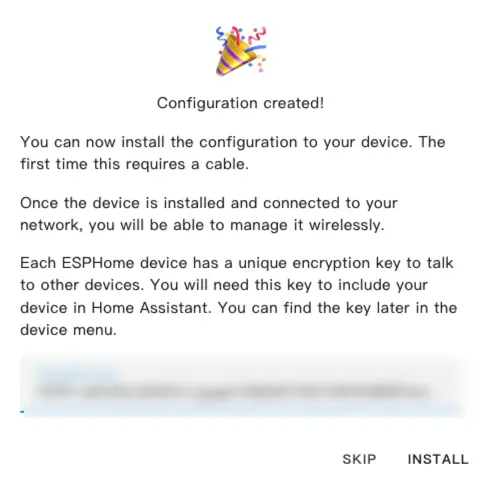
SKIPをクリックしてウィザードをスキップします。
設定の変更
EDITをクリックし、YAML ファイルでデバイスの機能をカスタマイズします。
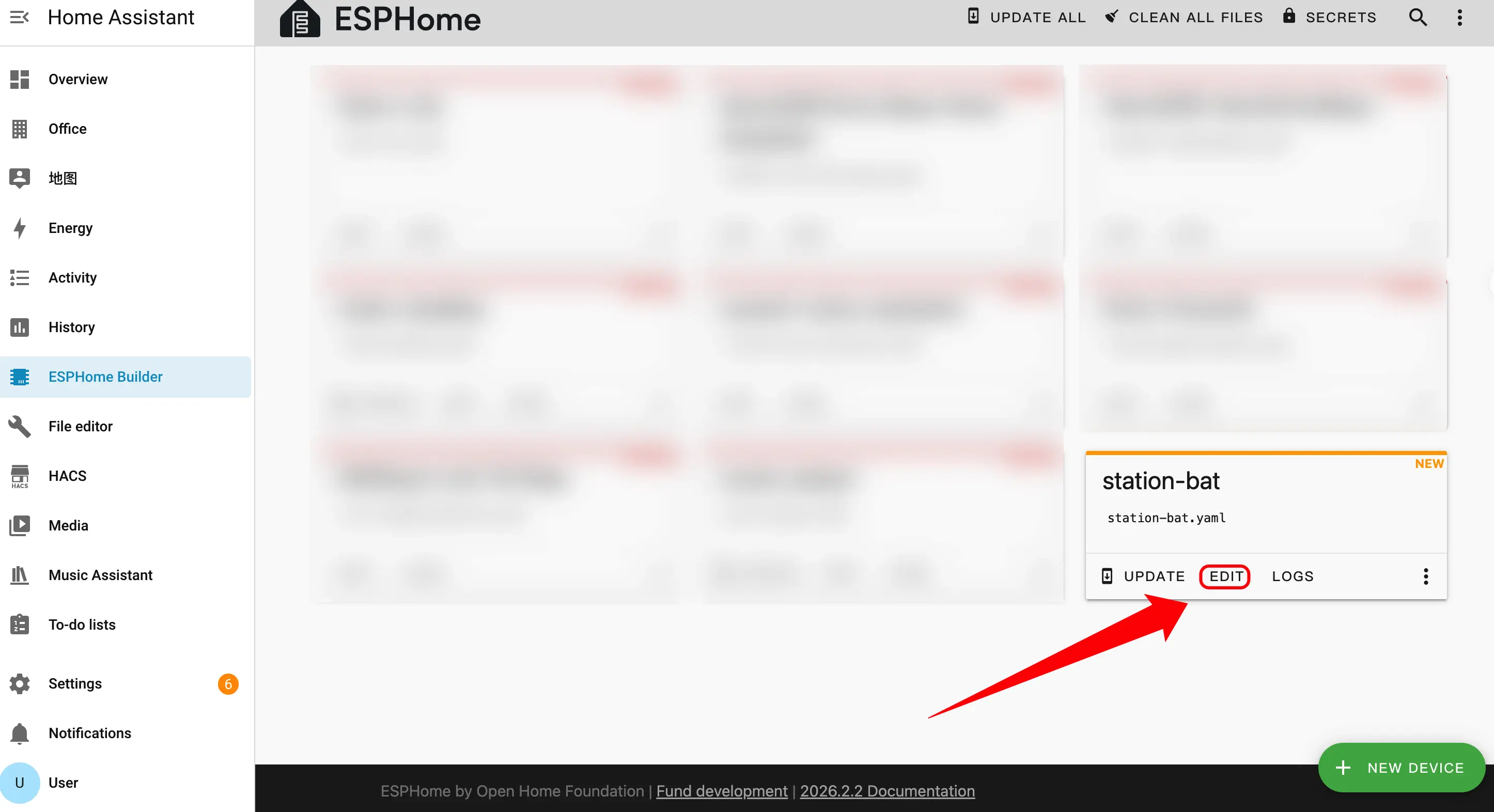
以下は設定の主要部分です。対応する説明と参考リンクを併記しています。
起動設定 (Boot Configuration)
- 起動時の初期化ロジックを追加し、起動時に RTC から時刻を読み取れるようにします。
esphome:
  name: station-bat
  friendly_name: station-bat
  on_boot:
    - priority: 600
      then:
- bm8563.read_time:外部コンポーネント (External Components)
- External Components の設定を追加します。
m5station_axp192コンポーネントは Station-Bat に電源管理とバッテリー残量検出のサポートを提供します。
external_components:
  - source: github://m5stack/esphome-yaml/components
    components: [m5station_axp192]
refresh: 0sI2C バス設定
- I2C コンポーネントを追加します。この I2C バスは IMU、電源管理チップ、および電流 / 電圧モニタリングチップで共有されます。
i2c:
  - id: i2c_bus
    sda: GPIO21
scl: GPIO22SPI バス設定
- SPI コンポーネントを追加します。SPI バスは ST7789V ディスプレイの駆動に使用されます。
spi:
  clk_pin: GPIO18
mosi_pin: GPIO23センサー設定 (Sensor)
- Sensor コンポーネントを追加します。
- MPU6886 IMU センサーを追加し、加速度、ジャイロスコープ、温度データを取得します。
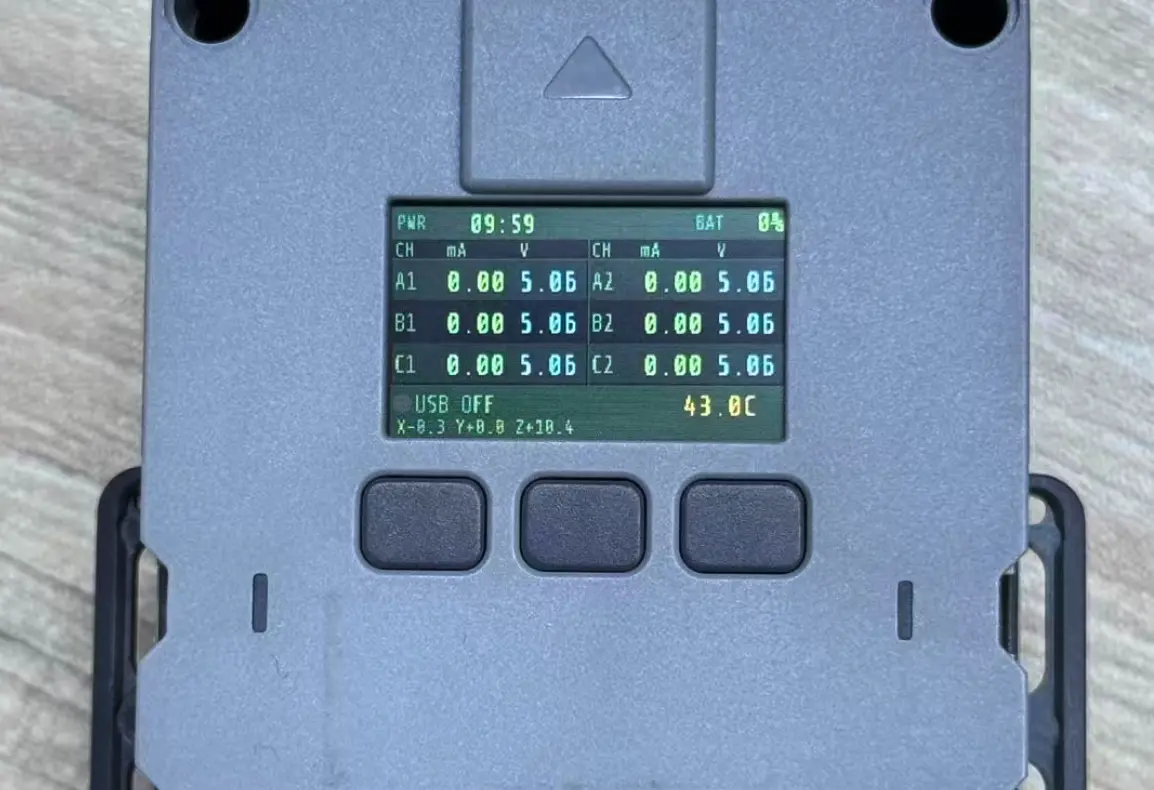
- 2 つの INA3221 電流 / 電圧モニタリングチップを追加し、合計 6 チャンネル(A1/A2、B1/B2、C1/C2)をカバーします。
m5station_axp192センサーは前述の外部コンポーネントが提供するもので、バッテリー残量などの電源関連情報に使用します。
sensor:
  - platform: mpu6886
    i2c_id: i2c_bus
    accel_x:
      name: "MPU6886 Accel X"
      id: imu_ax
    accel_y:
      name: "MPU6886 Accel Y"
      id: imu_ay
    accel_z:
      name: "MPU6886 Accel z"
      id: imu_az
    gyro_x:
      name: "MPU6886 Gyro X"
    gyro_y:
      name: "MPU6886 Gyro Y"
    gyro_z:
      name: "MPU6886 Gyro z"
    temperature:
      name: "MPU6886 Temperature"
      id: imu_temp
    update_interval: 5s

  - platform: m5station_axp192
    id: pmu
    i2c_id: i2c_bus
    battery_level:
      name: "M5Station Battery Level"
      id: bat_level
    update_interval: 60s
    brightness: 0.8

  - platform: ina3221
    id: ina1
    i2c_id: i2c_bus
    address: 0x40
    update_interval: 1s
    channel_1:
      shunt_resistance: 0.01
      bus_voltage:
        name: "P.A1 Bus Voltage"
        id: v_a1
      current:
        name: "P.A1 Current"
        id: i_a1
    channel_2:
      shunt_resistance: 0.01
      bus_voltage:
        name: "P.A2 Bus Voltage"
        id: v_a2
      current:
        name: "P.A2 Current"
        id: i_a2
    channel_3:
      shunt_resistance: 0.01
      bus_voltage:
        name: "P.B1 Bus Voltage"
        id: v_b1
      current:
        name: "P.B1 Current"
        id: i_b1

  - platform: ina3221
    id: ina2
    i2c_id: i2c_bus
    address: 0x41
    update_interval: 1s
    channel_1:
      shunt_resistance: 0.01
      bus_voltage:
        name: "P.B2 Bus Voltage"
        id: v_b2
      current:
        name: "P.B2 Current"
        id: i_b2
    channel_2:
      shunt_resistance: 0.01
      bus_voltage:
        name: "P.C1 Bus Voltage"
        id: v_c1
      current:
        name: "P.C1 Current"
        id: i_c1
    channel_3:
      shunt_resistance: 0.01
      bus_voltage:
        name: "P.C2 Bus Voltage"
        id: v_c2
      current:
        name: "P.C2 Current"
id: i_c2二値センサー設定 (Binary Sensor)
- Binary Sensor コンポーネントを追加します。パネル上の 3 つの物理ボタンはそれぞれ GPIO37、GPIO38、GPIO39 にマッピングされています。
binary_sensor:
  - platform: gpio
    name: "Button1"
    pin:
      number: GPIO37
      inverted: true
  - platform: gpio
    name: "Button2"
    pin:
      number: GPIO38
      inverted: true
  - platform: gpio
    name: "Button3"
    pin:
      number: GPIO39
inverted: trueスイッチ設定 (Switch)
- Switch コンポーネントを追加します。LCD バックライトは AXP192 電源管理チップで制御し、USB 電源出力は GPIO12 で制御します。
switch:
  - platform: template
    name: "LCD Backlight"
    id: lcd_backlight
    lambda: |-
      return true;
    restore_mode: ALWAYS_ON
    turn_on_action:
      - lambda: |-
          id(pmu).set_backlight(true);
    turn_off_action:
      - lambda: |-
          id(pmu).set_backlight(false);

  - platform: gpio
    name: "USB Power"
    id: usb_power
pin: GPIO12時刻設定 (Time)
- Time コンポーネントを追加します。
- BM8563 RTC コンポーネントを追加します。BM8563 はオフライン時の計時を担い、Home Assistant に接続後は時刻を同期し、デバイス再起動時に RTC から時刻を復元します。
time:
  - platform: bm8563
    id: bm8563_time
    update_interval: never

  - platform: homeassistant
    id: ha_time
    on_time_sync:
      then:
- bm8563.write_time:ライト設定 (Light)
- Light コンポーネントを追加します。Station-Bat には 7 つの WS2812 RGB LED が搭載されており、GPIO4 で駆動します。
light:
  - platform: esp32_rmt_led_strip
    rgb_order: GRB
    pin: GPIO4
    num_leds: 7
    chipset: ws2812
name: "My Light"ディスプレイ設定 (Display)
- Display コンポーネントを追加します。
- ST7789V ドライバーを追加し、1.14 インチ IPS スクリーンの表示を制御します。
lambdaコードブロックには具体的な描画内容を定義します。完全なサンプルは下記リンクの設定ファイルをご参照ください。
display:
  - platform: st7789v
    model: CUSTOM
    width: 135
    height: 240
    offset_height: 52
    offset_width: 40
    cs_pin: GPIO5
    dc_pin: GPIO19
    reset_pin: GPIO15
    rotation: 90
    update_interval: 1s
    lambda: |-
      // Define your display content here
// See the complete example for a full implementationファームウェアのビルド
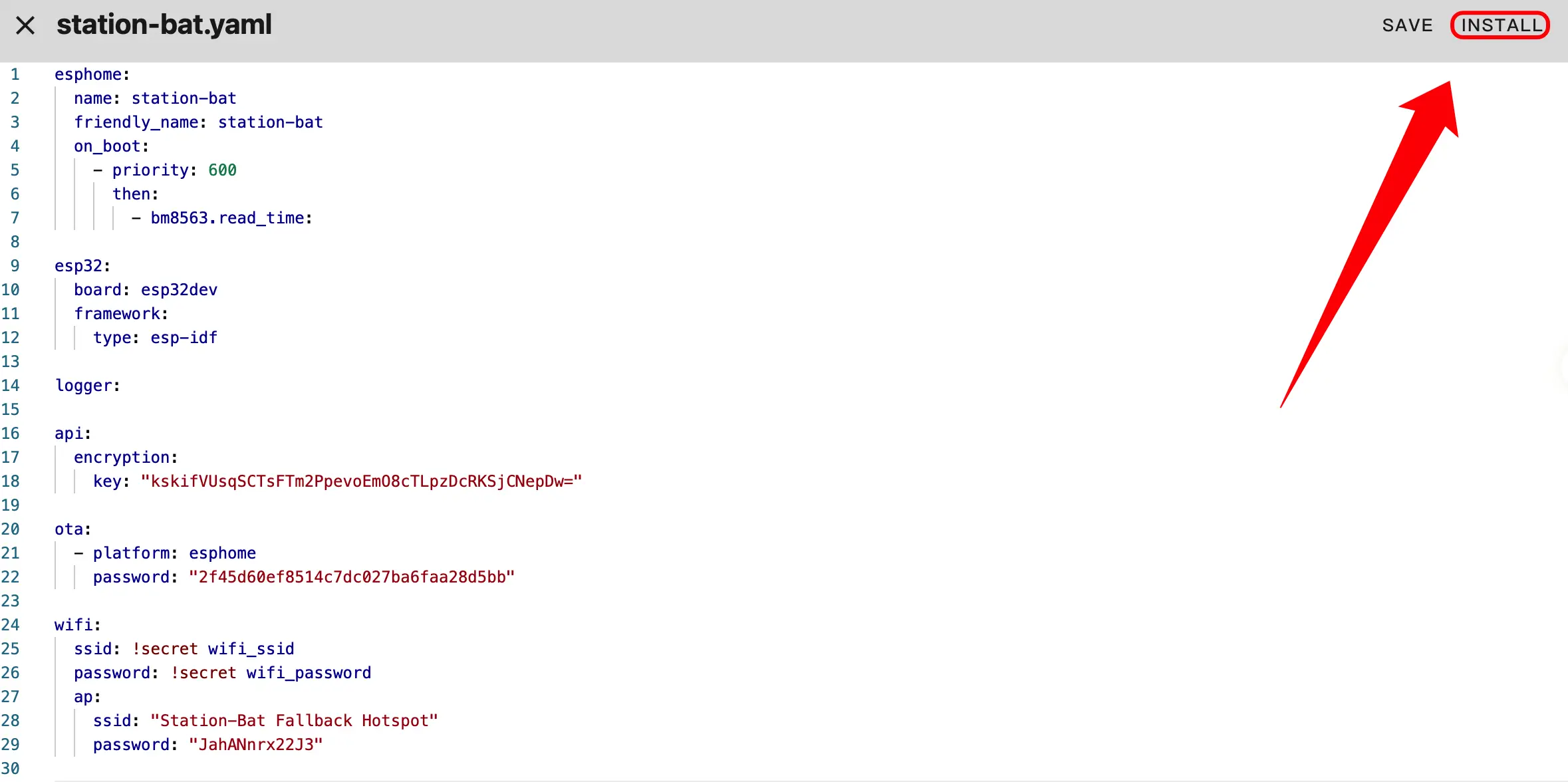
- 編集が完了したら、右上の
SAVEとINSTALLをクリックし、ダイアログでManual Downloadを選択して手動ダウンロードを行います。
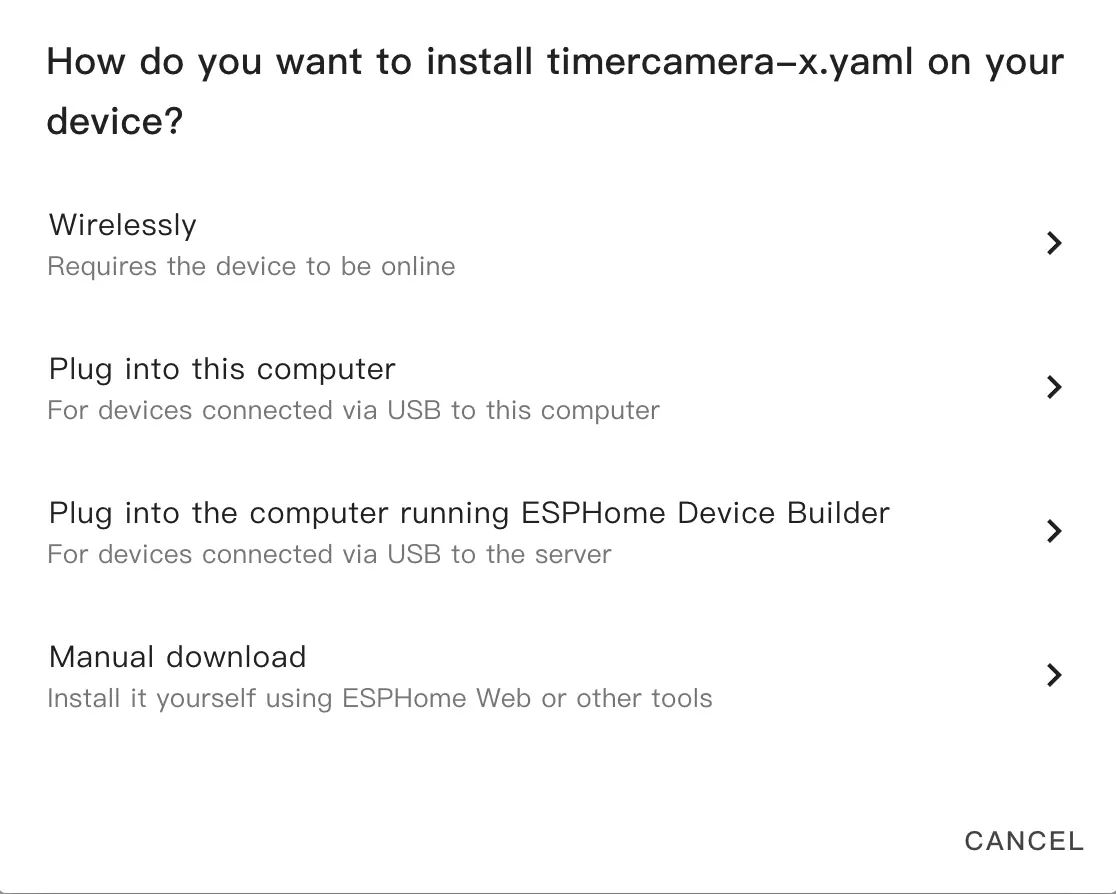
INSTALLをクリックし、ファームウェアのコンパイルが完了するまで待ちます。
- コンパイルが完了したら、Download をクリックし、
Factory format (Previously Modern)形式を選択してダウンロードします。
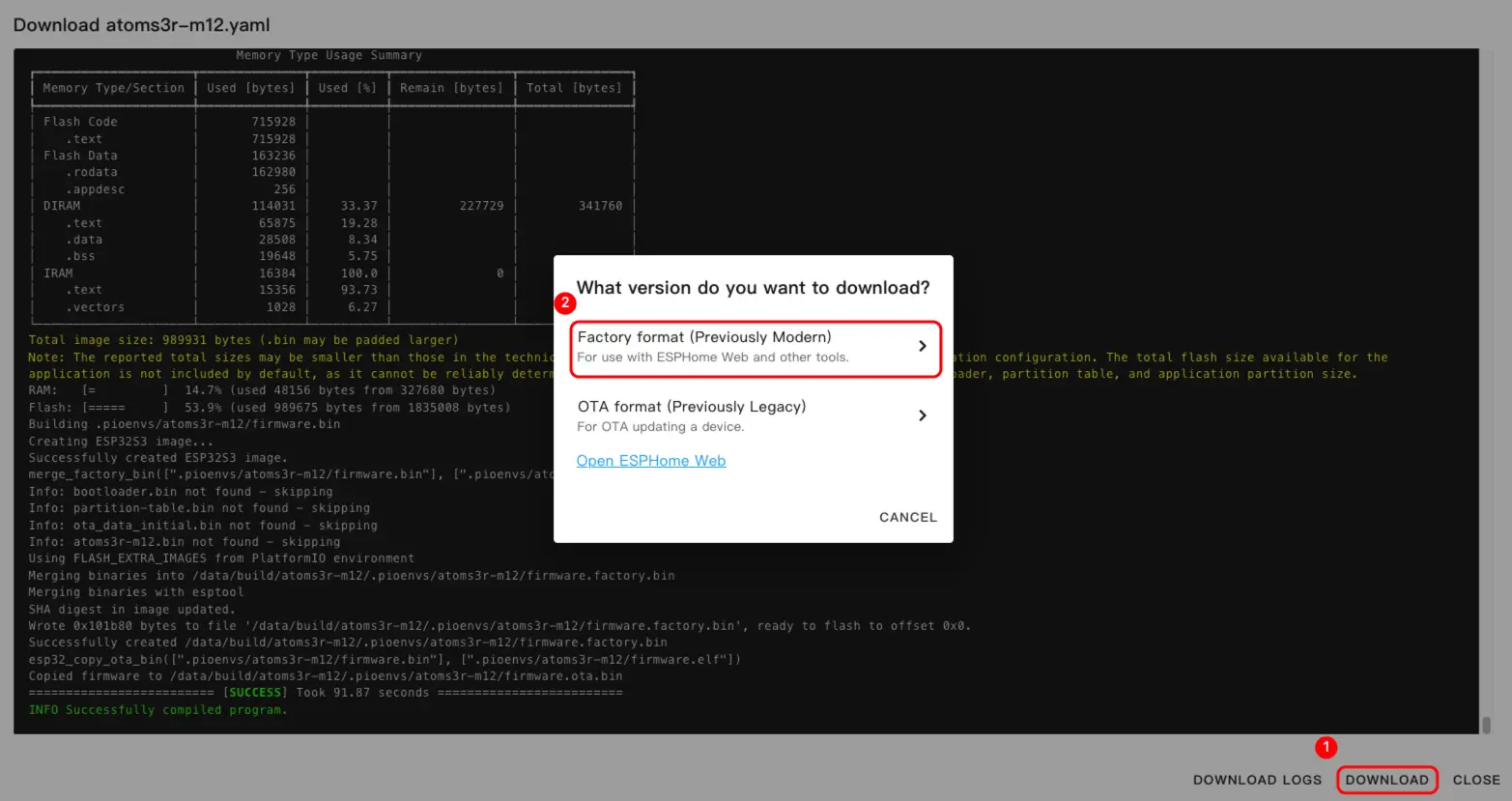
設定例
Station-Bat をクリックすると、完全な設定例を確認できます。
ファームウェアの書き込み
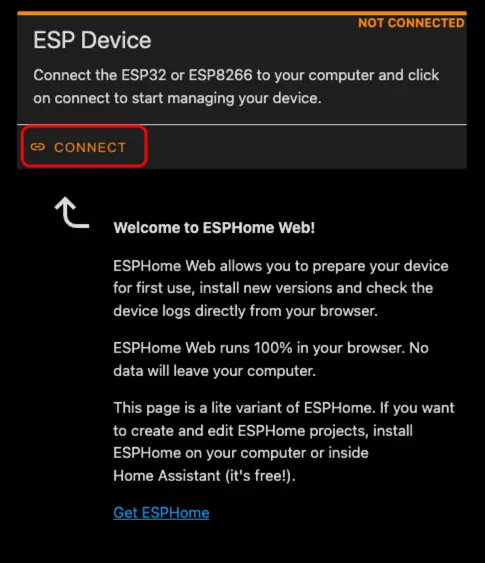
- USB Type-C ケーブルでデバイスをホストに接続し、ESPHome Web を開いて
CONNECTをクリックしてデバイスに接続します。
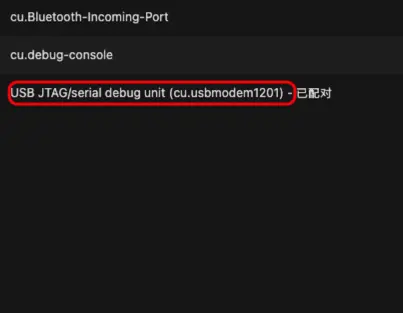
- ポップアップリストから対応するシリアルポートを選択します。
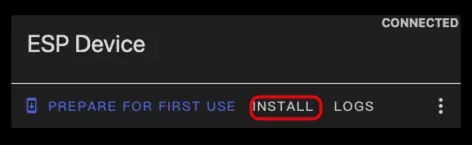
INSTALLをクリックします。
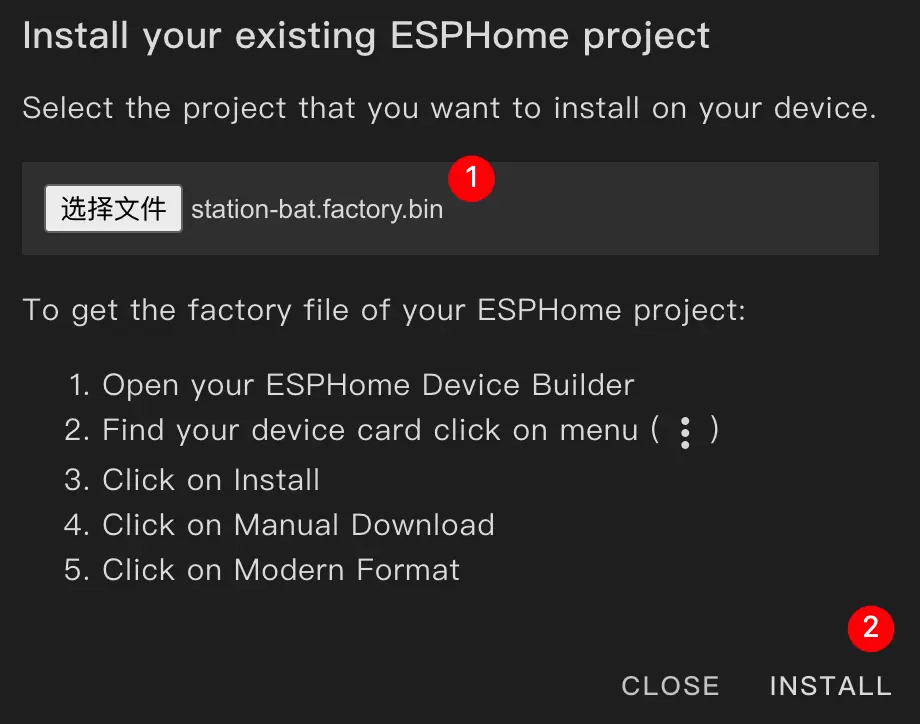
- 先ほどコンパイルしたファームウェアファイルを選択して書き込みます。
書き込み時の注意
書き込みが完了したら、デバイスのリセットボタンを押して新しいファームウェアを有効にしてください。
4. 使い方
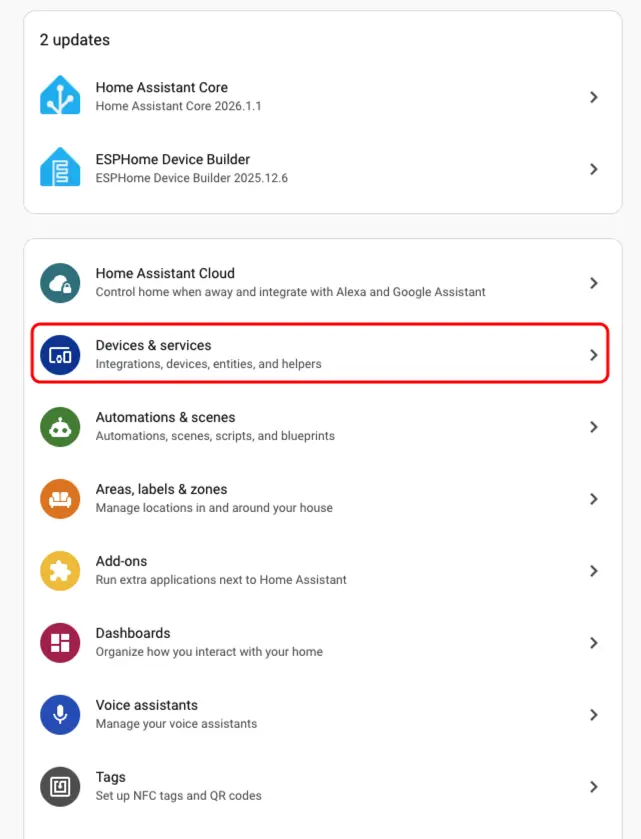
- Home Assistant で
Settings→Devices & Servicesをクリックし、デバイスリストを確認します。
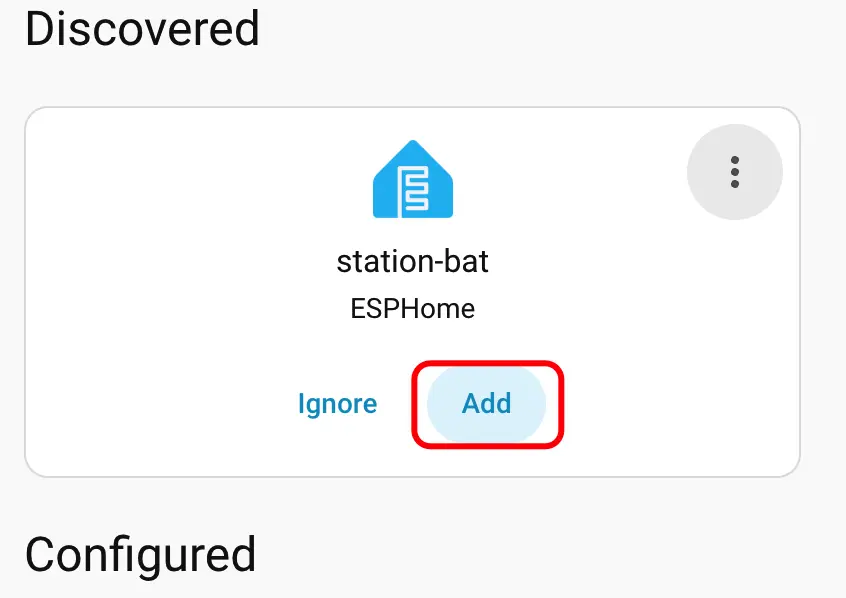
Discovered(検出済み)エリアに対応するデバイスが表示されます。CONFIGUREをクリックして追加を完了します。
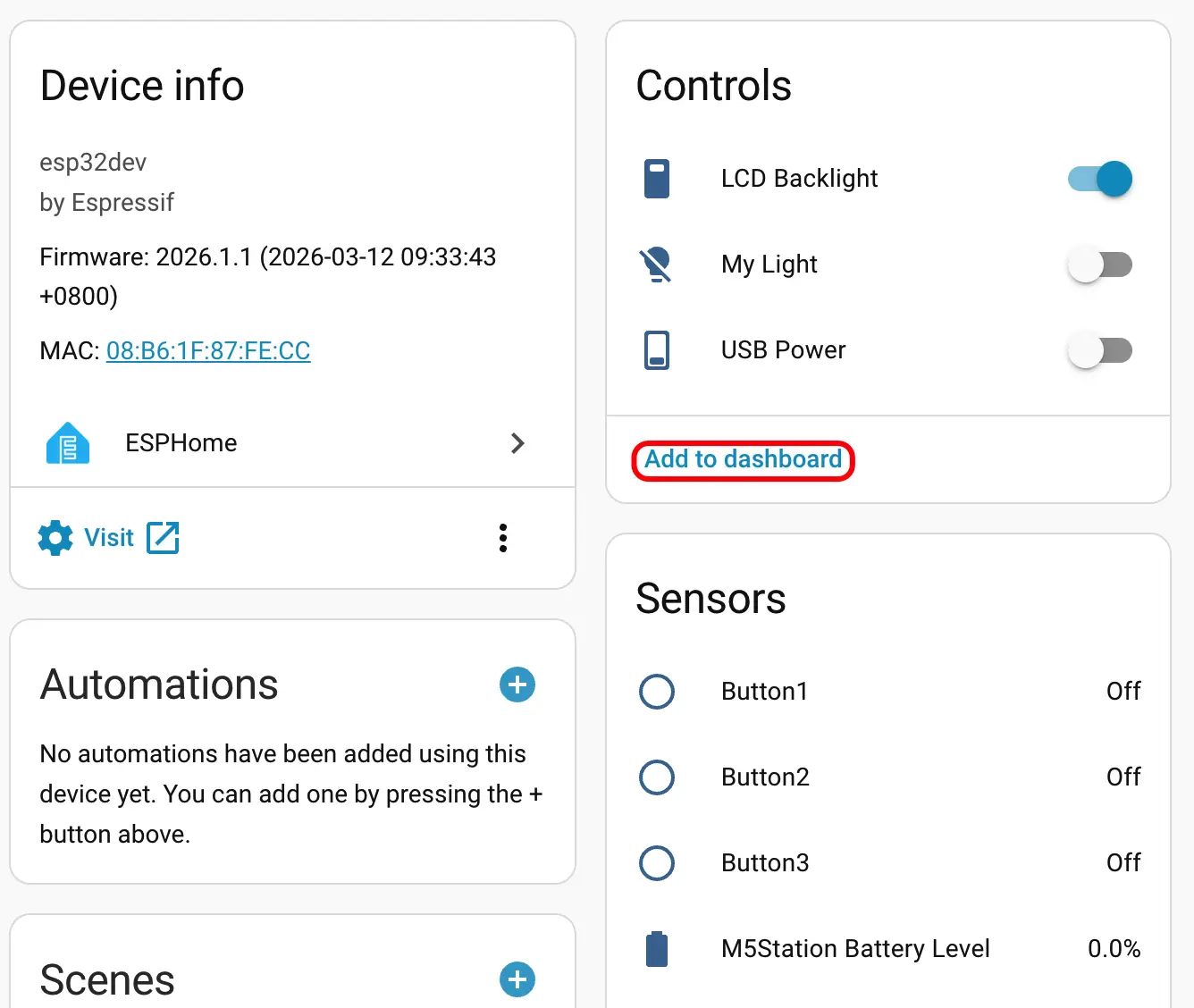
- 追加が完了すると、各種センサーデータが正しく表示されます。
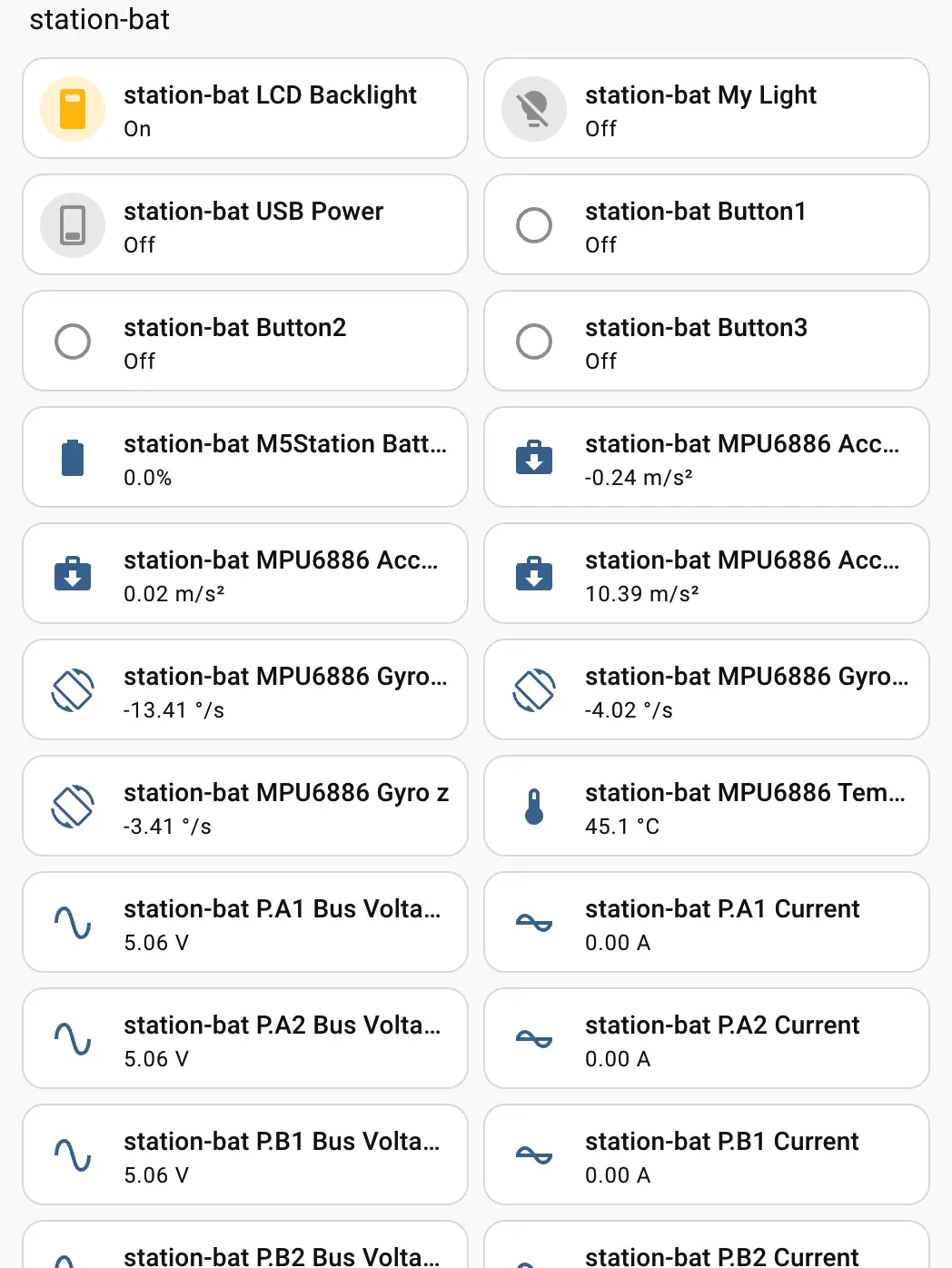
- 最後にこれらのエンティティを Dashboard(ダッシュボード)に追加すると、以下のように表示されます。
Page Tools