

Product Guide
Linux PC
AI Accelerator Card
LLM-8850 Card
Large Language Models
AI & Agent
Real-Time AI Voice Assistant
XiaoZhi Voice Assistant
AtomS3R-M12 Volcengine Kit
Offline Voice Recognition
Industrial Control
IoT Measuring Instruments
Air Quality
PowerHub
Module13.2 PPS
VAMeter
T-Lite
Input & Output Devices
Ethernet Camera
PoECAM
Wi-Fi Camera
Unit CamS3/-5MP
AI Camera
LoRa & LoRaWAN
Motor Control
Restore Factory Firmware
DIP Switch Usage Guide
Module ASR — Custom Firmware Generation and Flashing
Based on the actual command words and multi-language requirements used by the customer, the Module ASR offline speech recognition module can flexibly and efficiently adjust command words and response phrases via the SmartPi online platform, and regenerate matching firmware.
1. Preparation
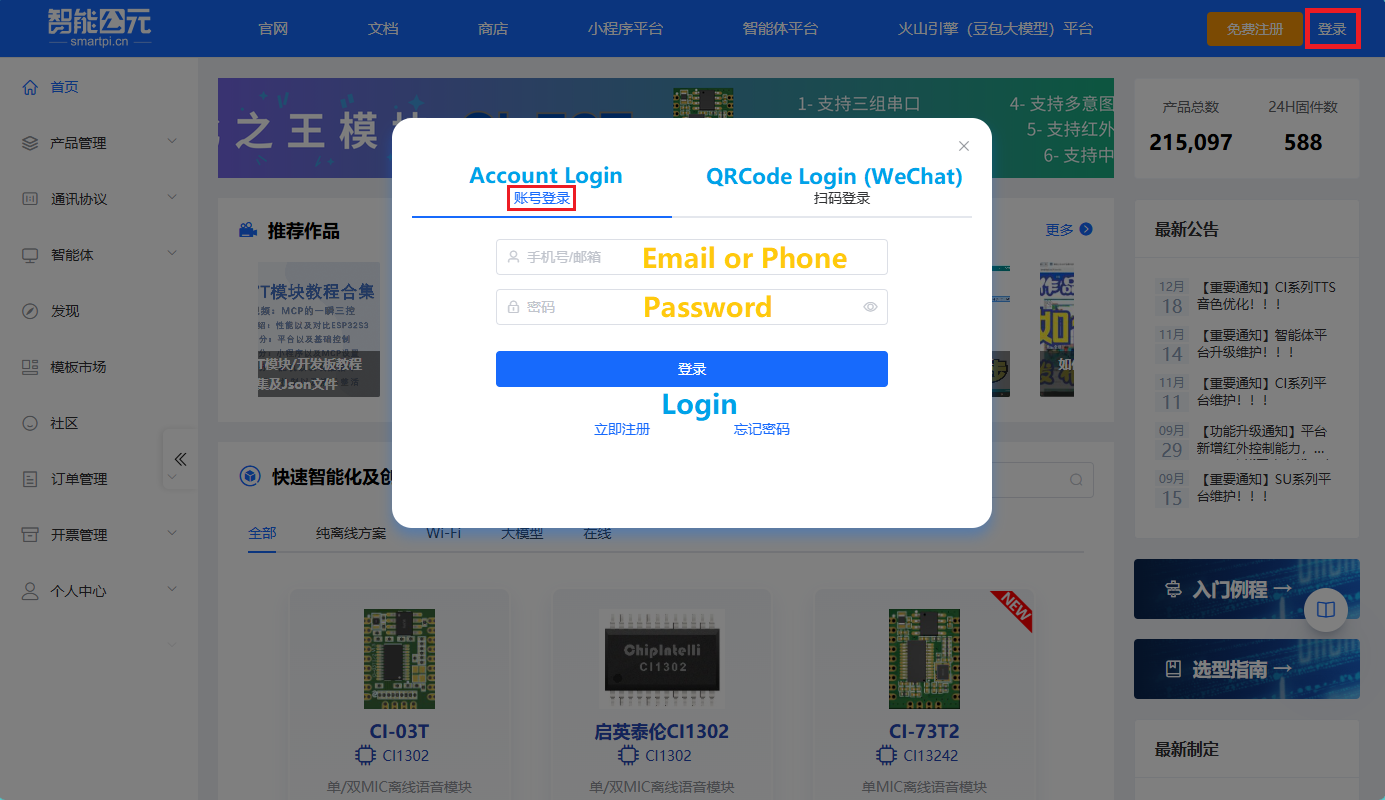
- Account Registration: Visit the SmartPI Platform to complete account registration and log in, then open the
产品管理(Product Management) page and click the所有产品(All Products) item.
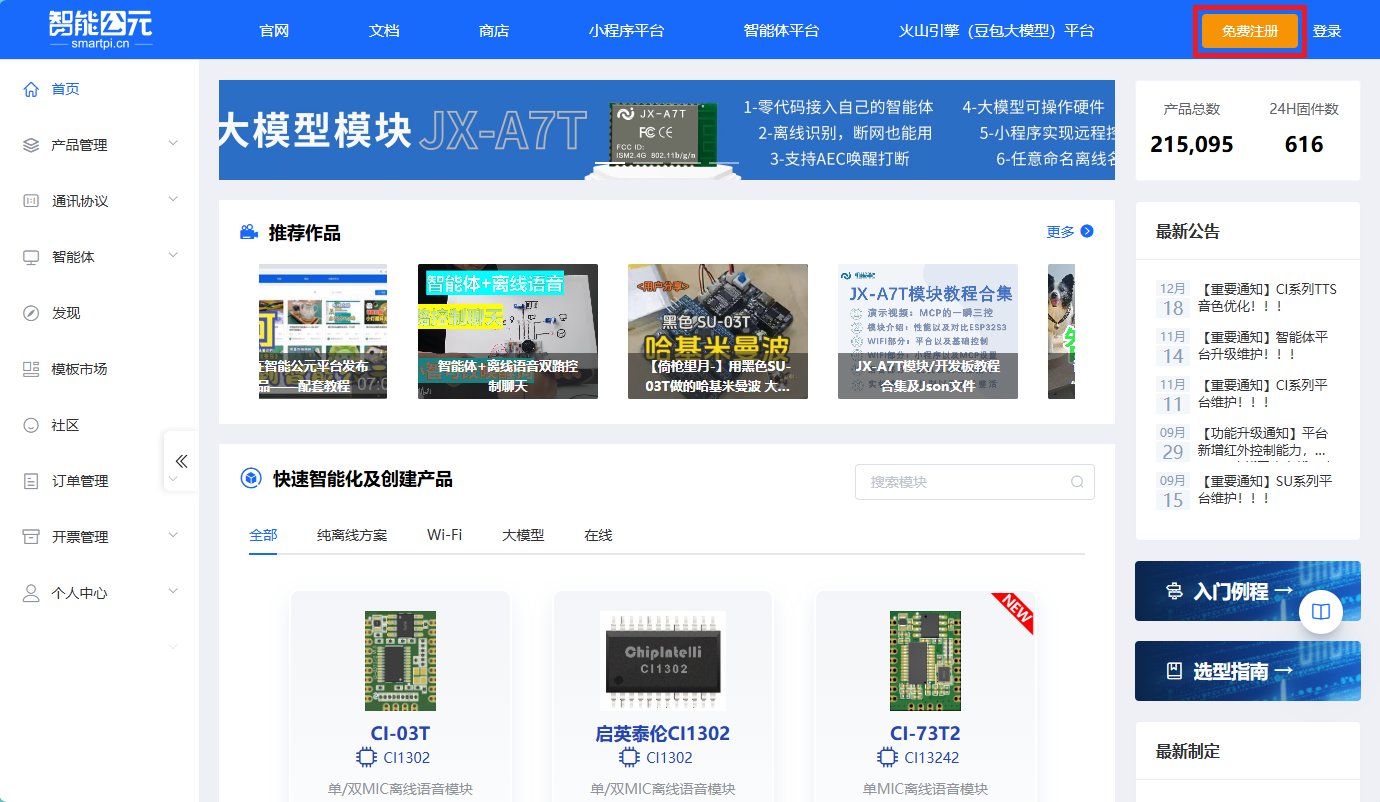
- After entering the platform, click
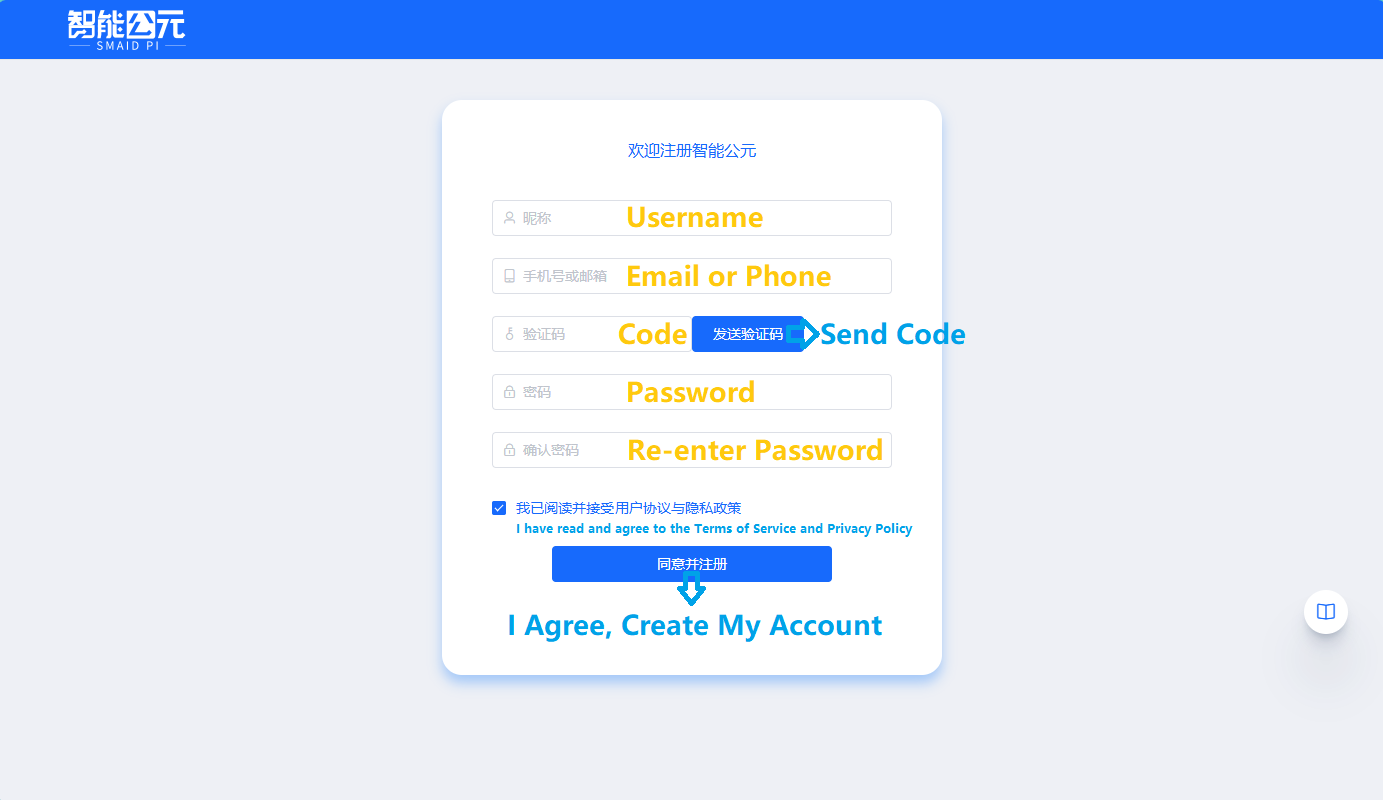
免费注册in the upper-right corner to open the registration page. Enter your phone number/email address, then click发送验证码(Send Code) to receive the verification code. Fill in the remaining required information and click同意并注册to complete the registration.
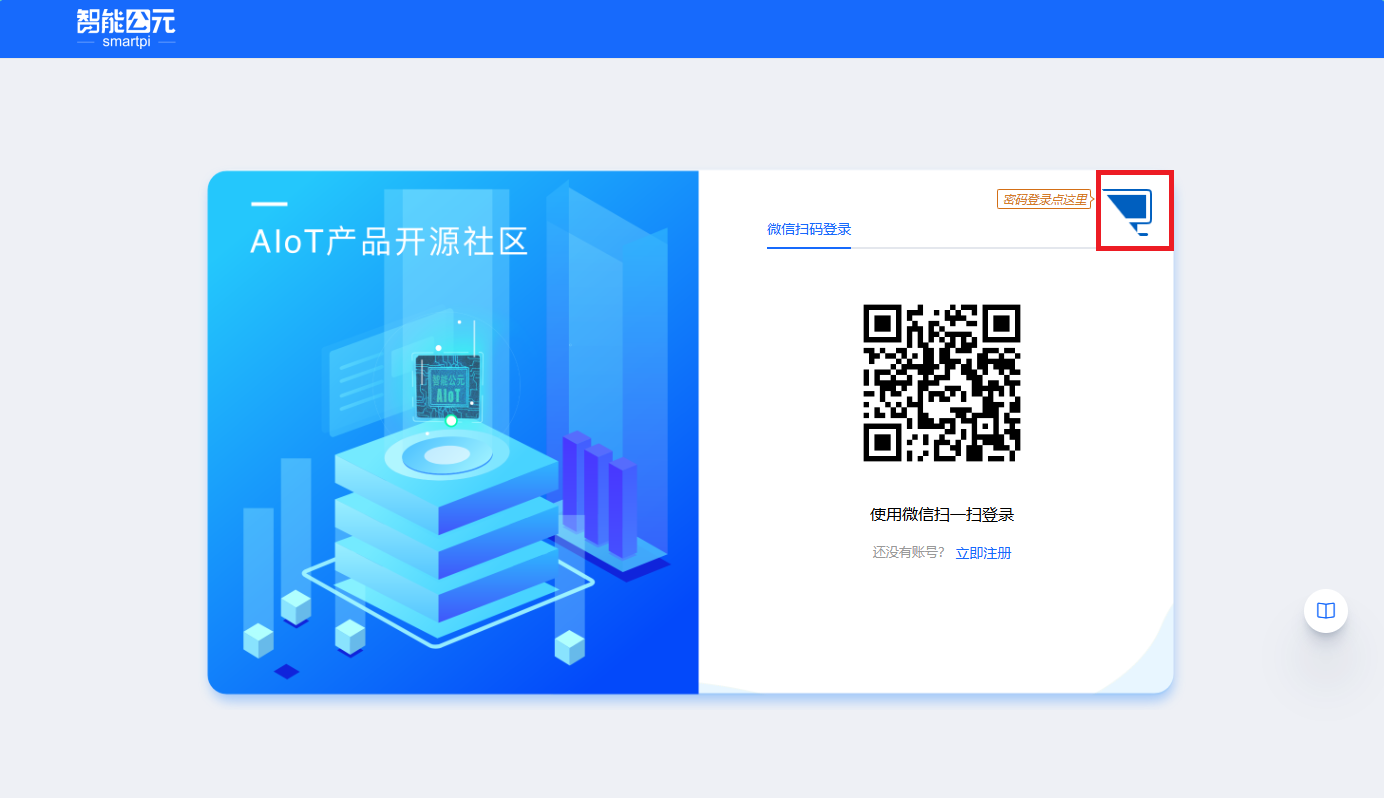
- After registration, you will see the page below. Click the area highlighted by the red box in the upper-right corner to switch to username/password login. Enter the account and password you just registered, then click
登录to access the platform.
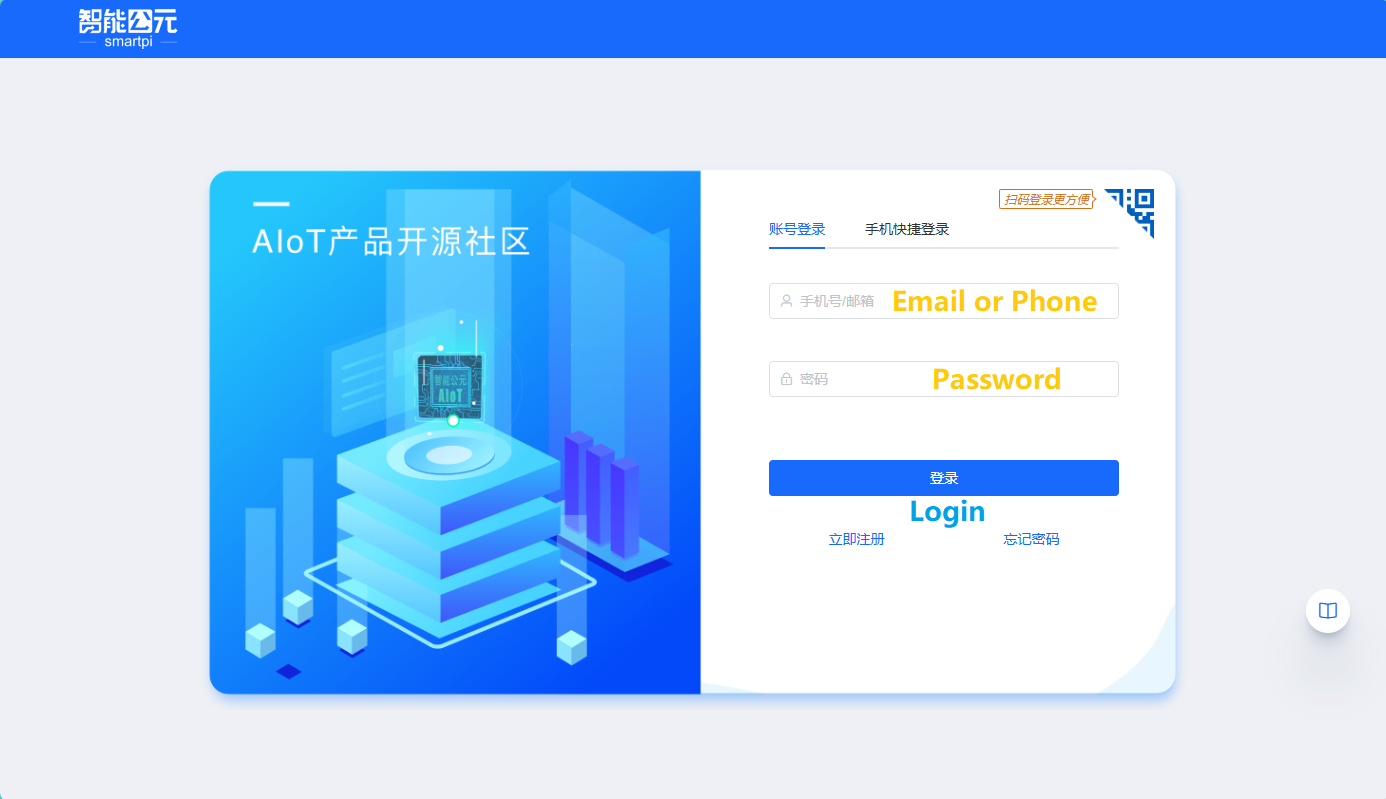
- Alternatively, click
登录in the upper-right corner of the page below, select账号登录, then enter your registered account and password and click登录to enter the platform.
- Download the product configuration template (.json): The links below include both Chinese and English versions of the configuration template. Choose the template that matches the language you will use; you can further customize the firmware based on the template.
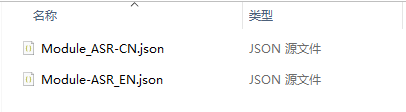
Language support
The current version does not support mixing languages — only one language can be used at a time. If you need different languages, download the corresponding
configuration template for each language or regenerate via the platform.- Hardware:
- Module ASR only needs to be connected to a computer via a USB Type-C data cable for flashing.
- Software tools used:
2. Configuration Template
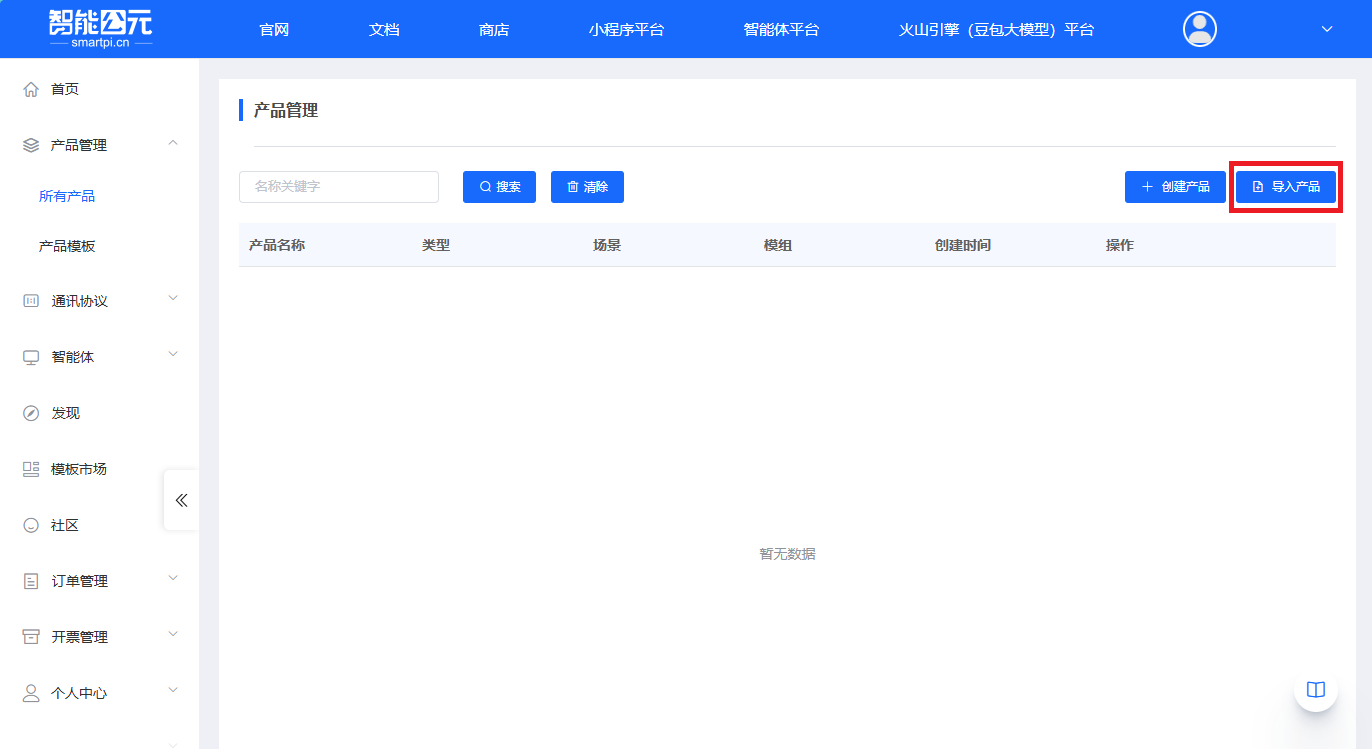
- Click
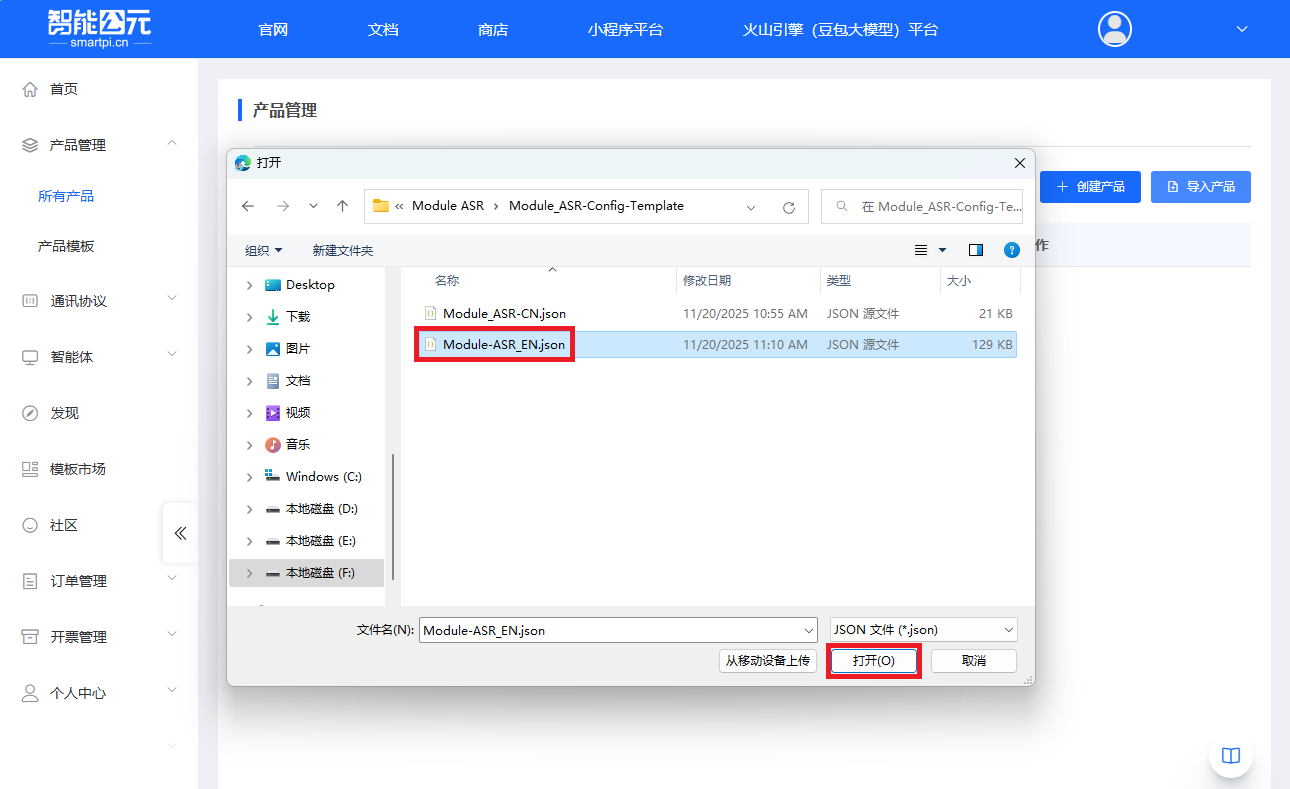
导入产品(Import Product) and import the product configuration template (.json) downloaded in the previous step. This tutorial uses the English template as an example.
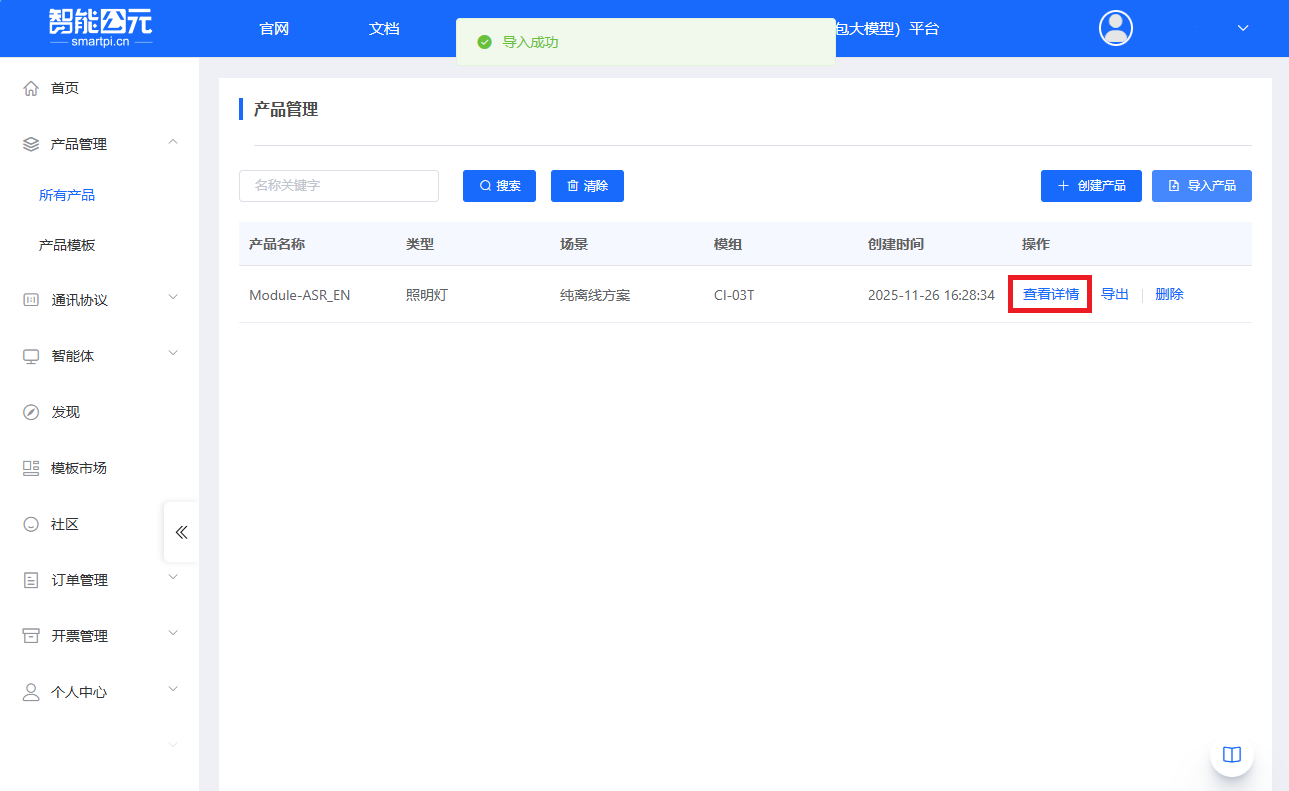
- Click
查看详情(View Details), select the template and click继承(Inherit). This will create a new version based on the factory firmware template for editing.

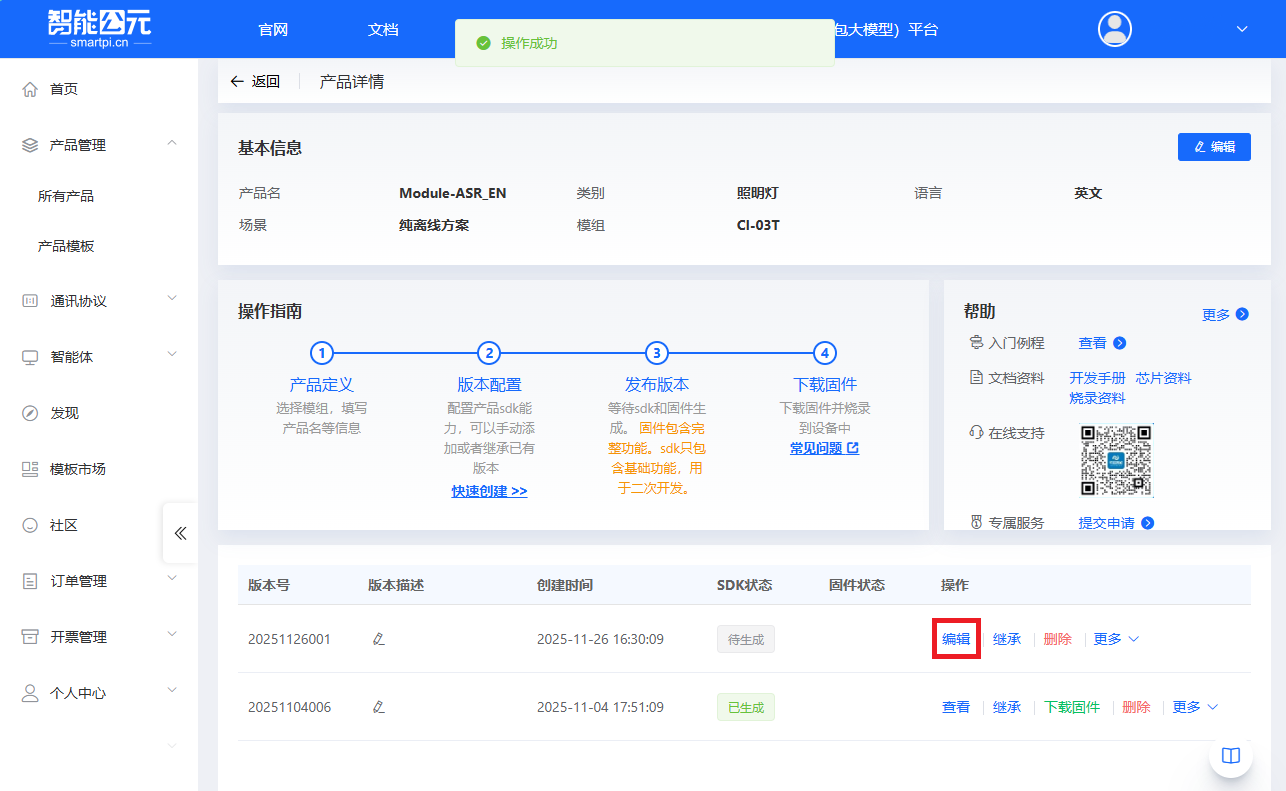
- Click the
编辑(Edit) button to enter the firmware configuration page. Scroll to the命令词自定义(Command Words Customization) option and click+添加一条(Add) to create a new command.

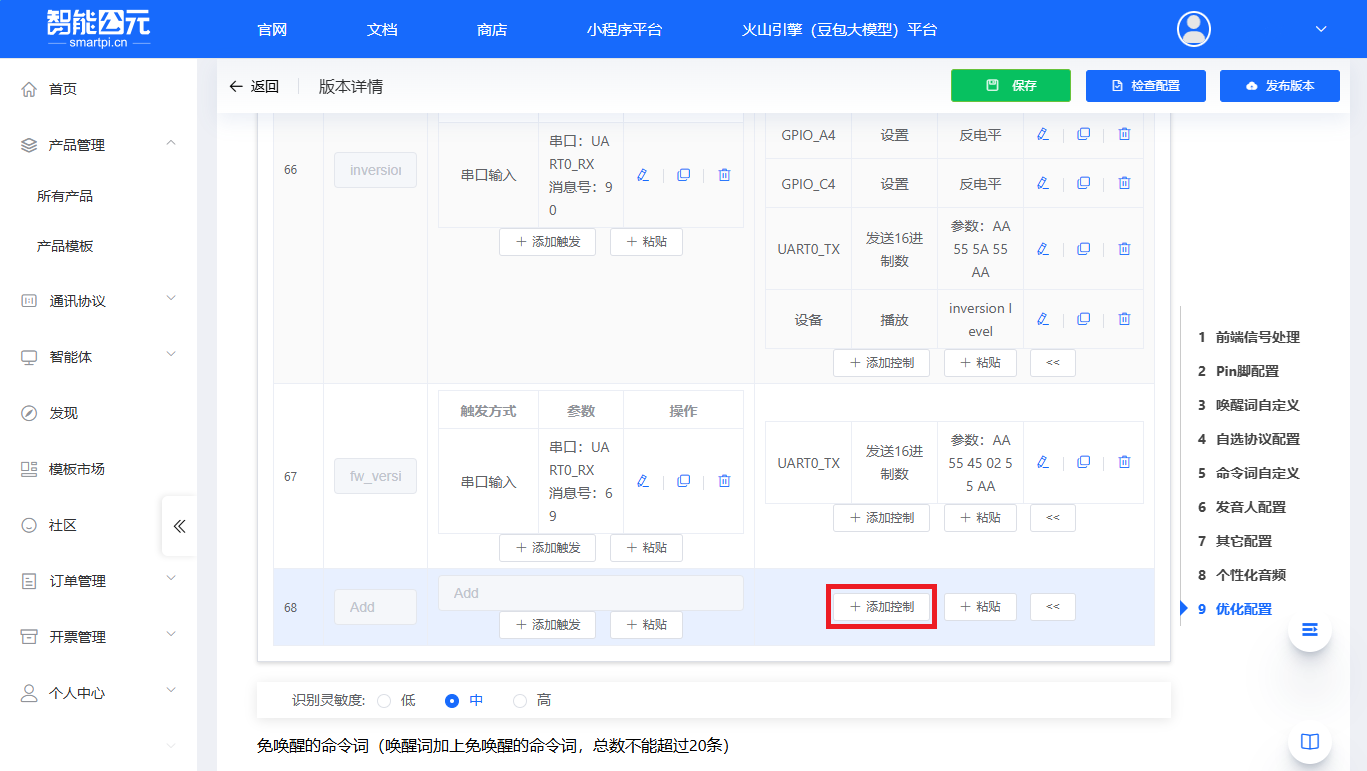
- Fill in the trigger phrase and the reply phrase according to the language you will use. Do not mix languages; configure according to the language you enable. When finished, click the arrow button (
>>) and then click+添加控制(Add Control) to configure detailed parameters for the current command.
Wake-word settings
By default the template uses several phrases from the normal command list as
免唤醒词 (no-wake-word) triggers (e.g. "Hi M Five", "Hi ASR") for wake interactions. This option conflicts with the 自定义唤醒词 (custom wake word) section; if both are enabled, only the 自定义唤醒词 (custom wake word) will be triggered. To avoid conflicts, simply select commands from the command list as 免唤醒词 (no-wake-word) triggers and do not set a separate 自定义唤醒词 (custom wake word).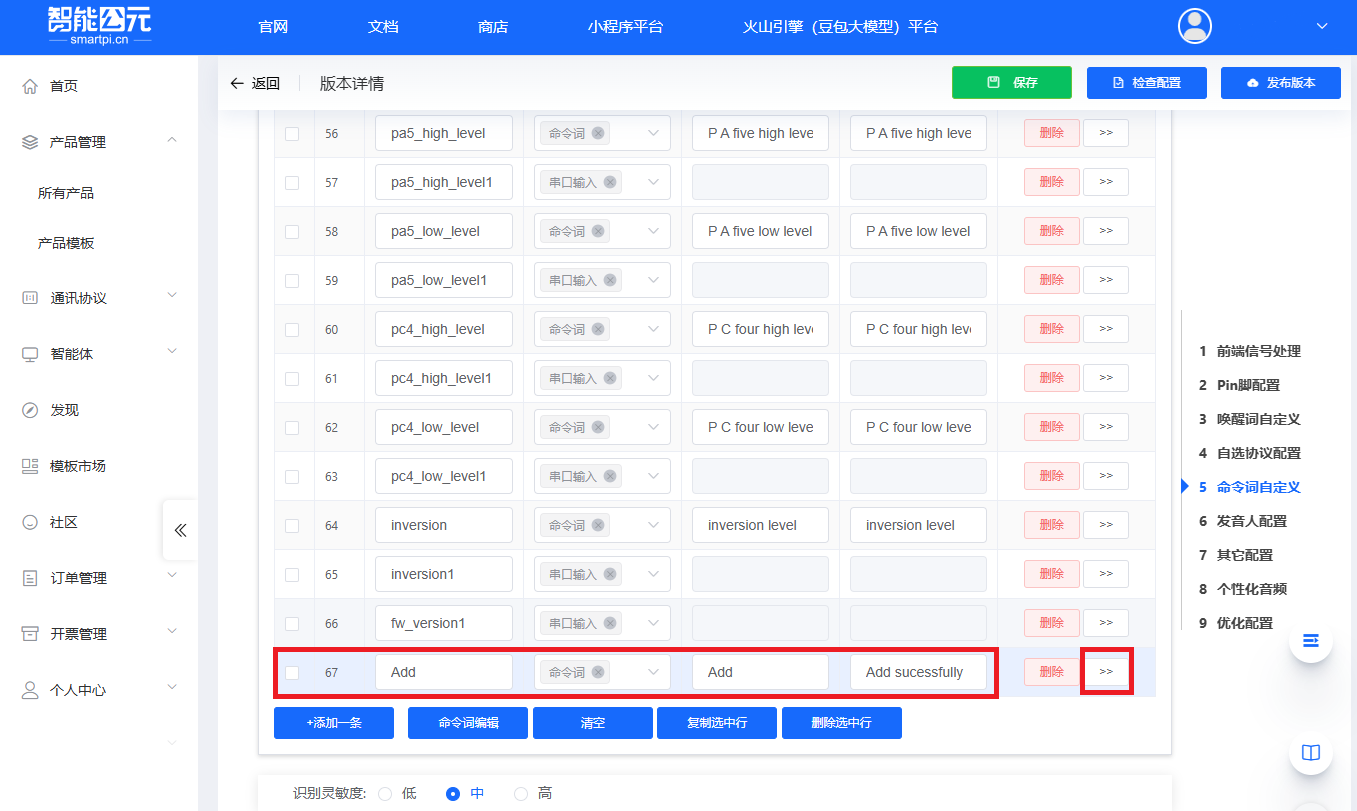
Note
If you want other trigger types (for example, UART input, GPIO input, etc.), change the trigger type in the
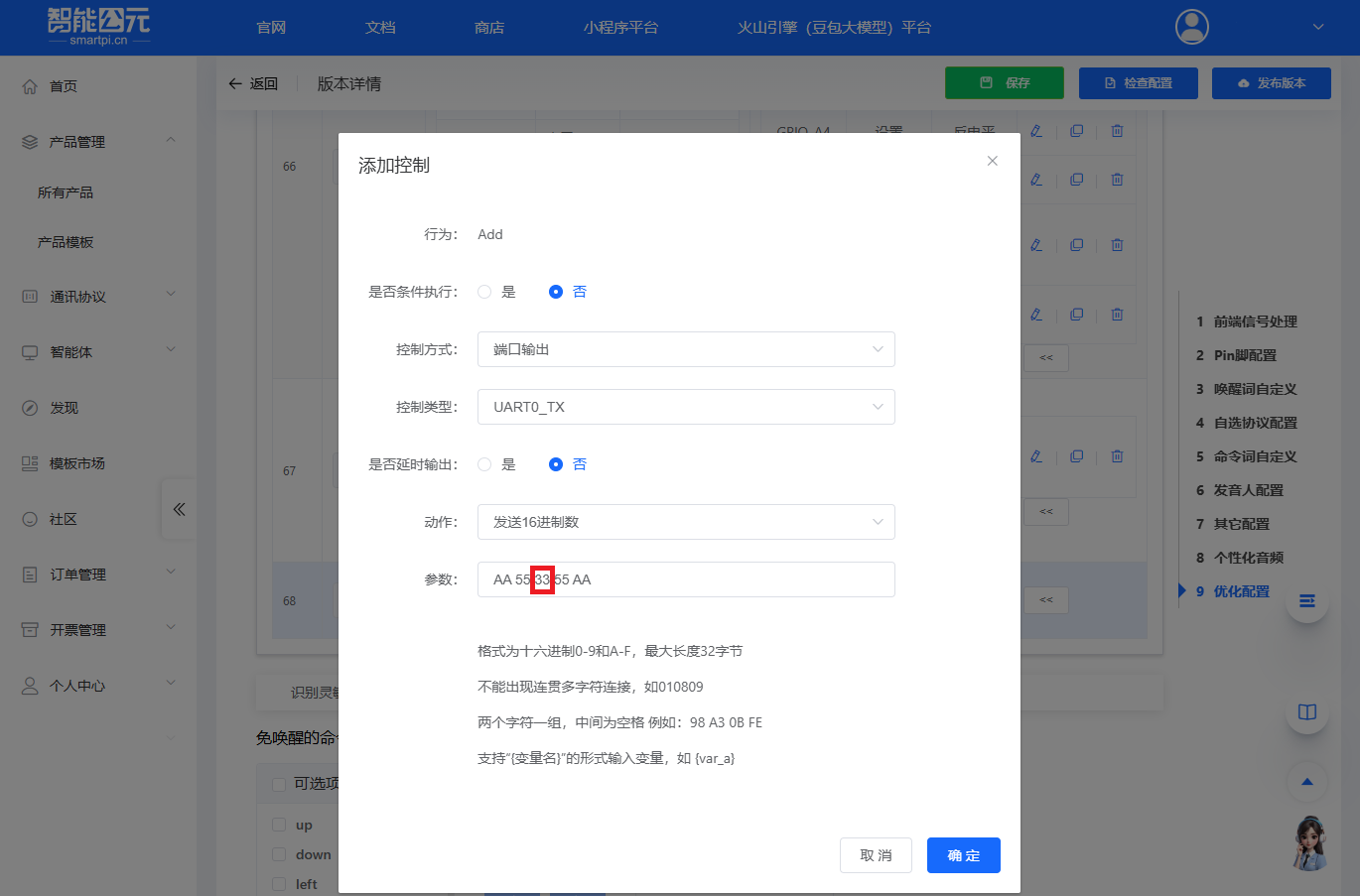
命令词 (Command Words) section shown above.- Configure the UART response payload that the Module ASR will send when a voice command is triggered. To be compatible with the M5Unit-ASR Arduino library, follow the existing format. The format rule is
AA 55 ID 55 AA, where the command ID must be unique and must not conflict with other commands.
- After completing the configuration above you have added the new command
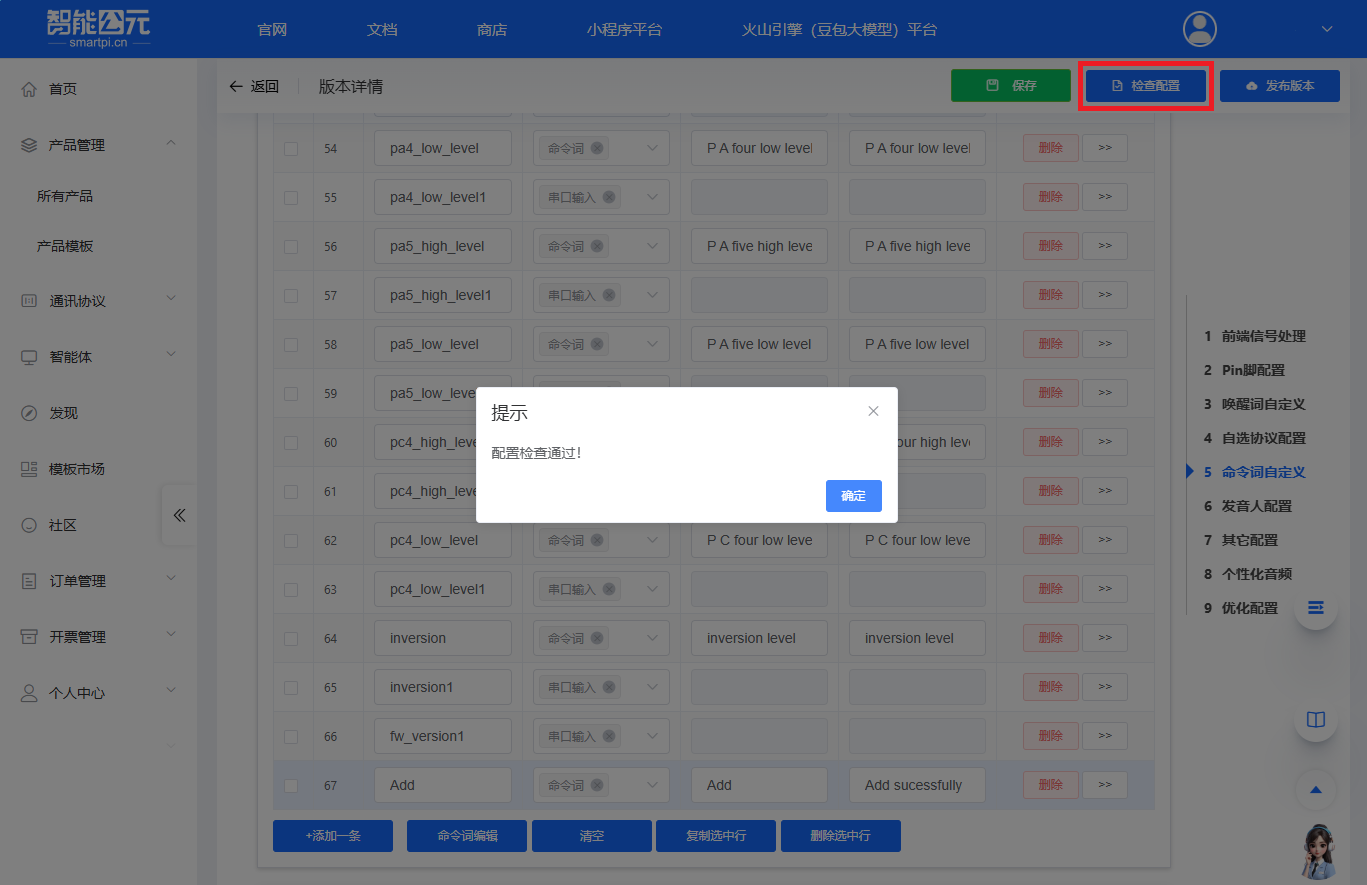
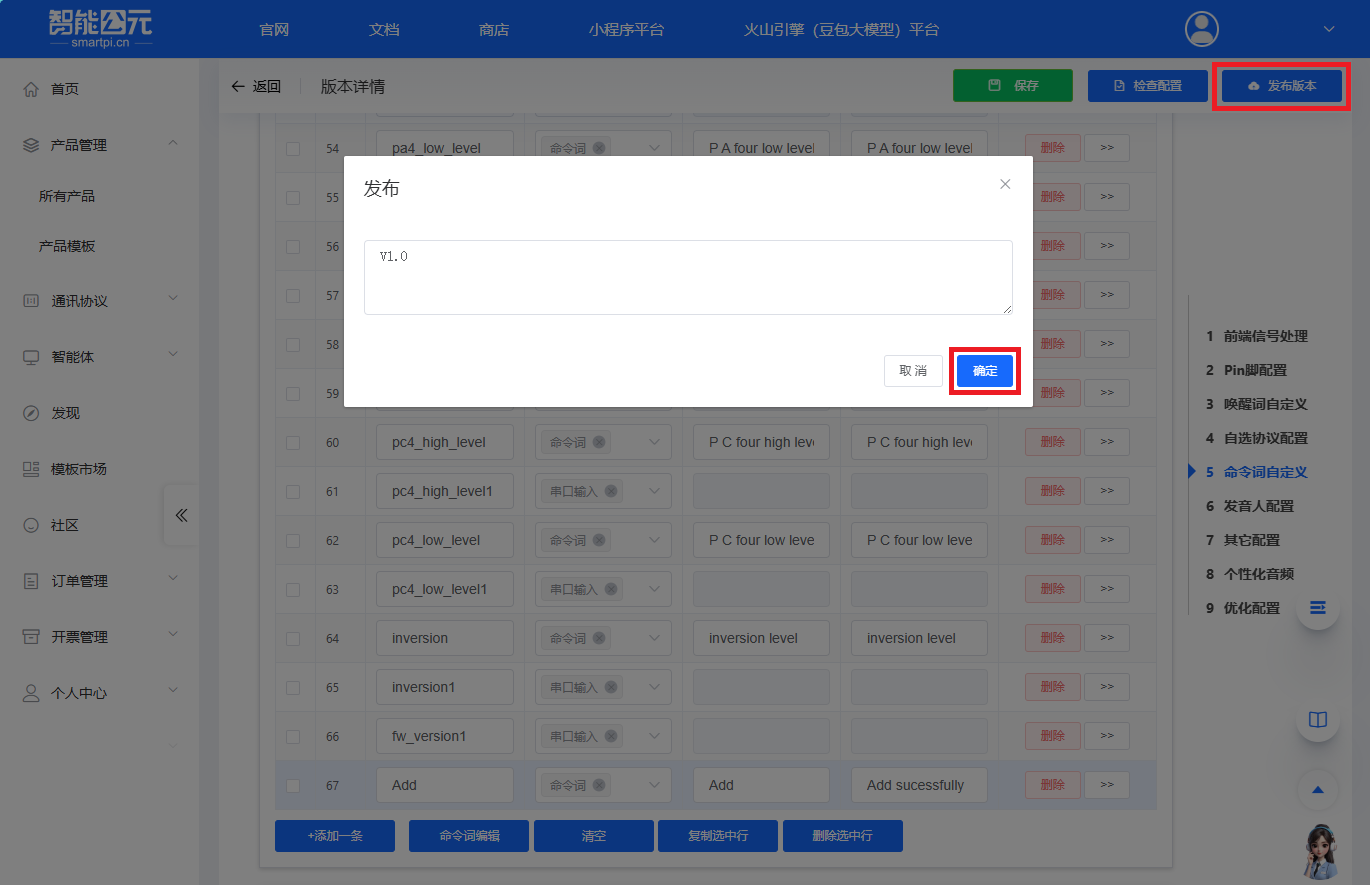
Add. Next, click theConfiguration Checkoption in the menu to validate for errors. If everything is correct, click发布版本(Publish Version) to package the firmware.
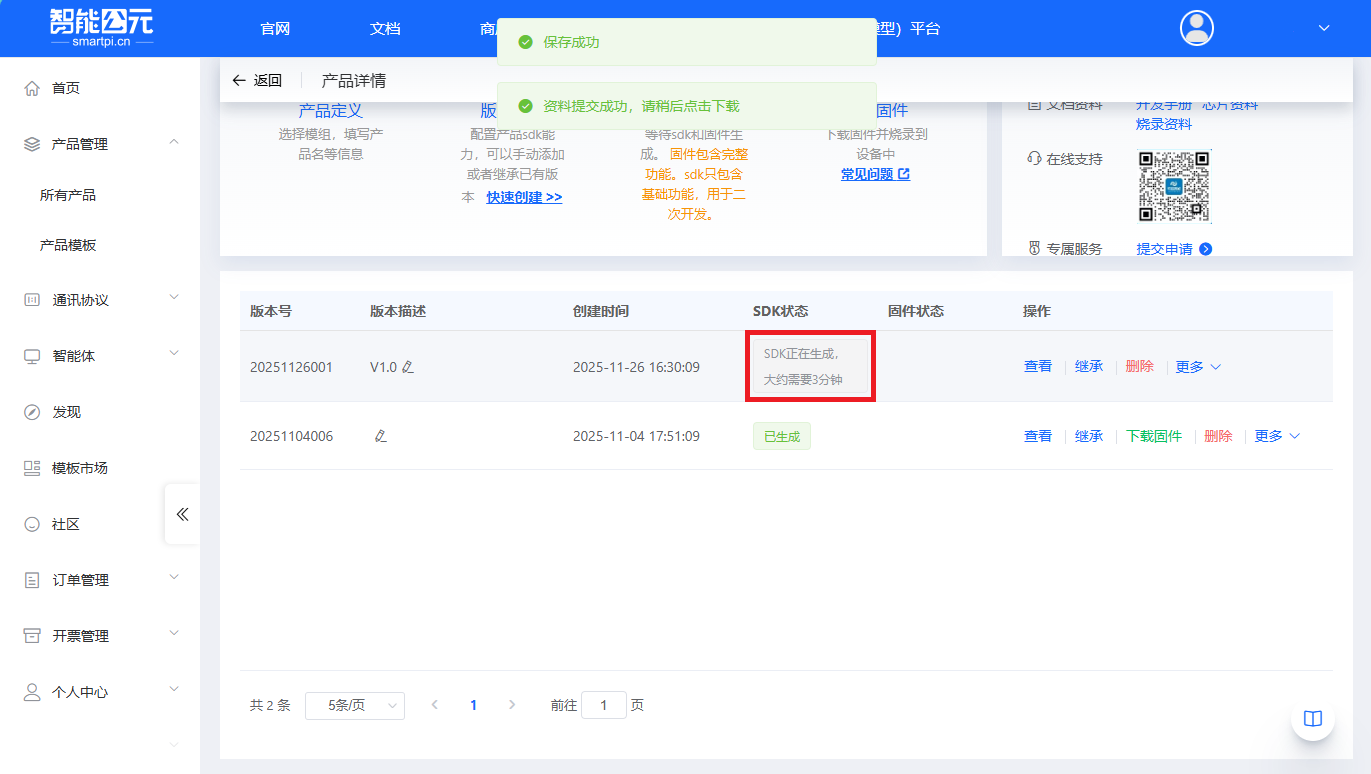
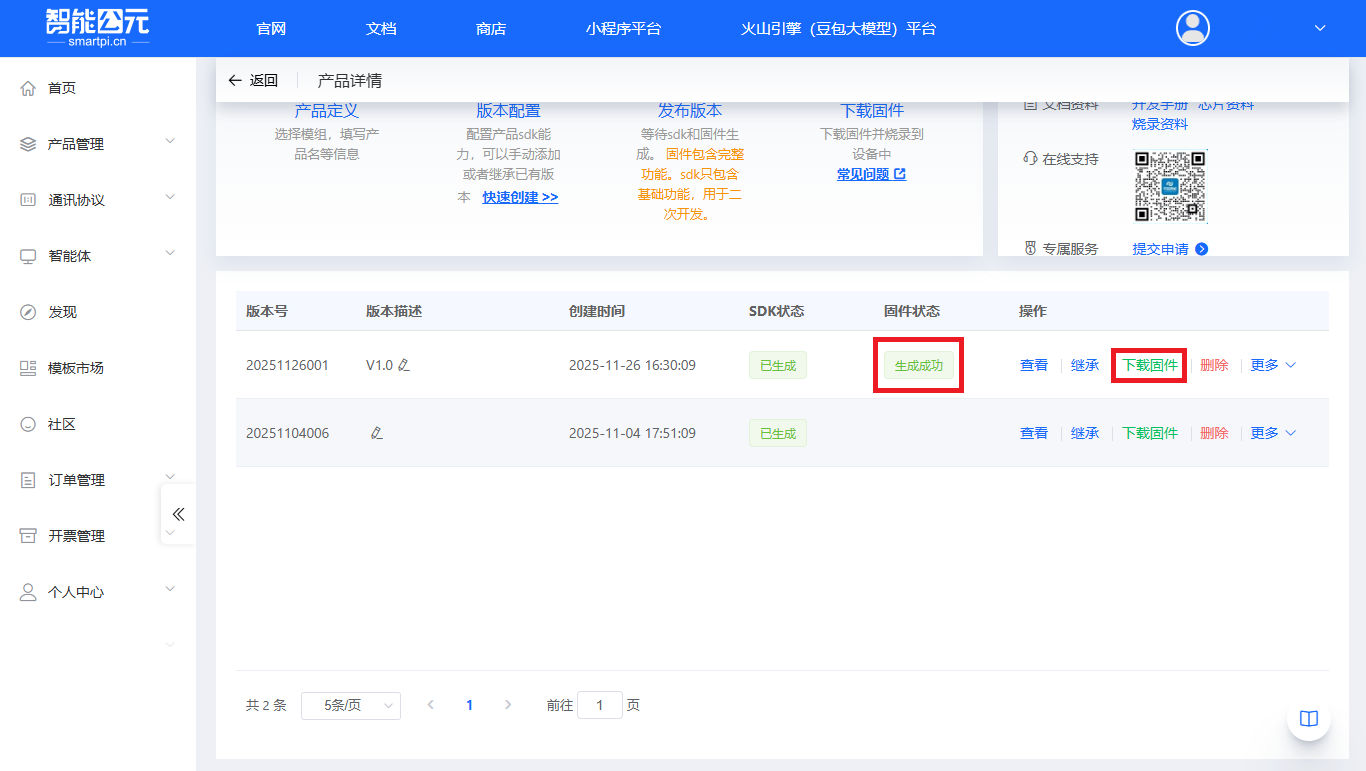
- The version publishing process takes a few minutes. Once the firmware is generated, click
下载固件(Download Firmware). The firmware archive is named jx_firm.tar.gz.
3. Flashing the Firmware
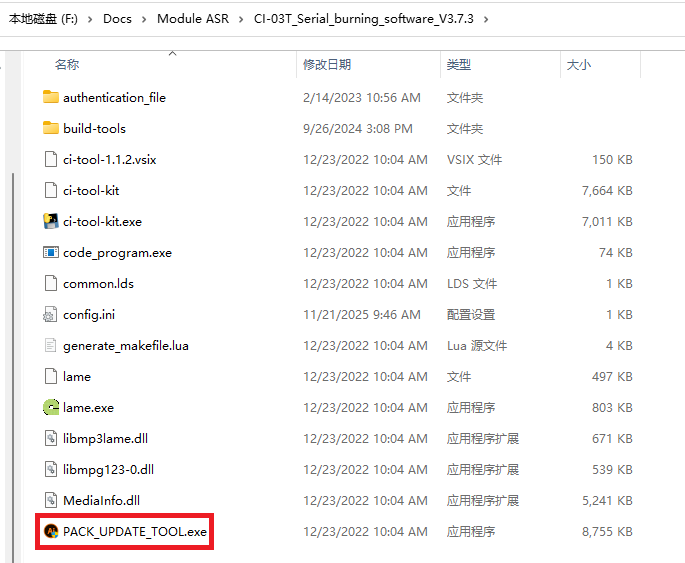
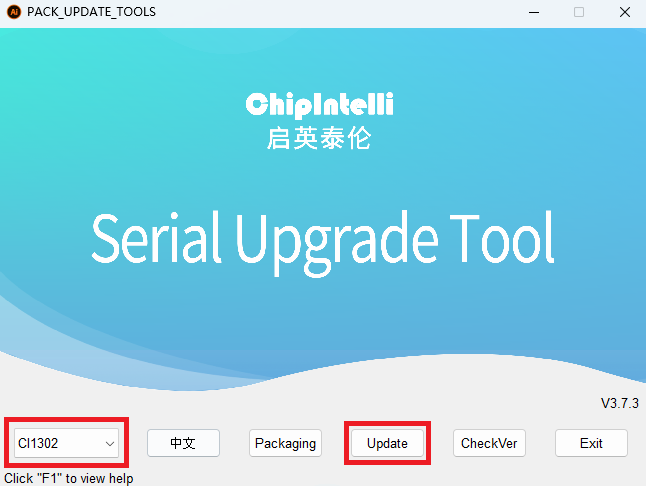
- Open the Module ASR flashing tool (.exe) downloaded in previous steps. Ensure the product model is set to
CI1302, then clickUpdateto start the tool.
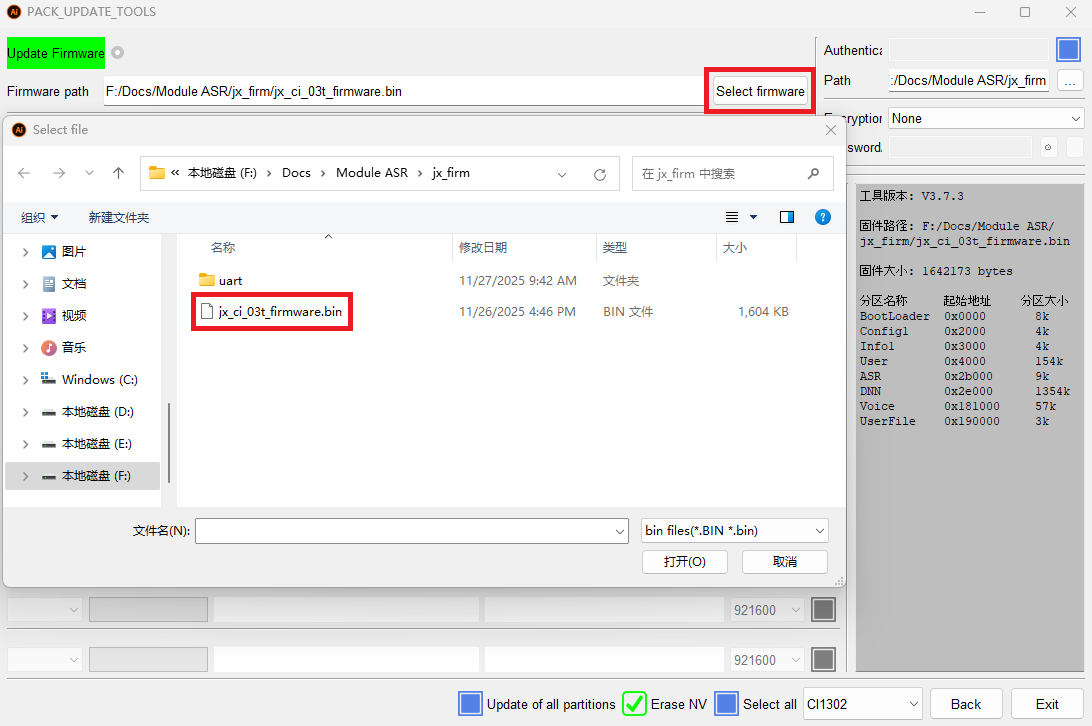
- Import the extracted firmware file (.bin).
- Flashing procedure
The Module ASR flashing port is a USB Type-C connector — connect the module to your computer using this port.
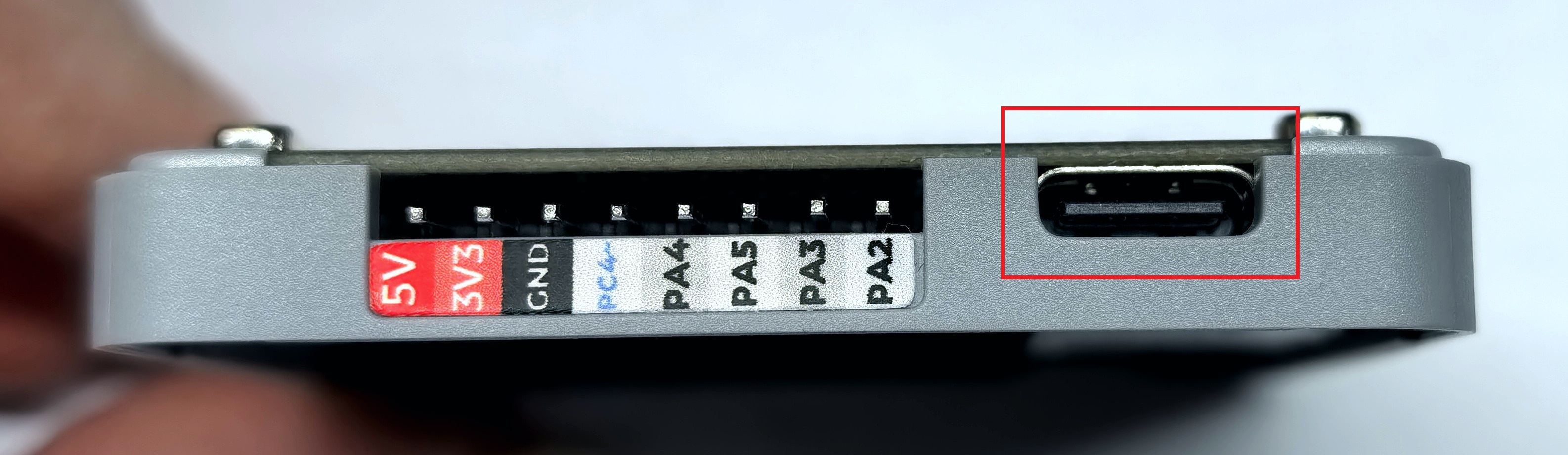
Once the flashing tool detects the correct COM port, check the port to activate download mode, then press the Debug Rst button to start downloading the program.
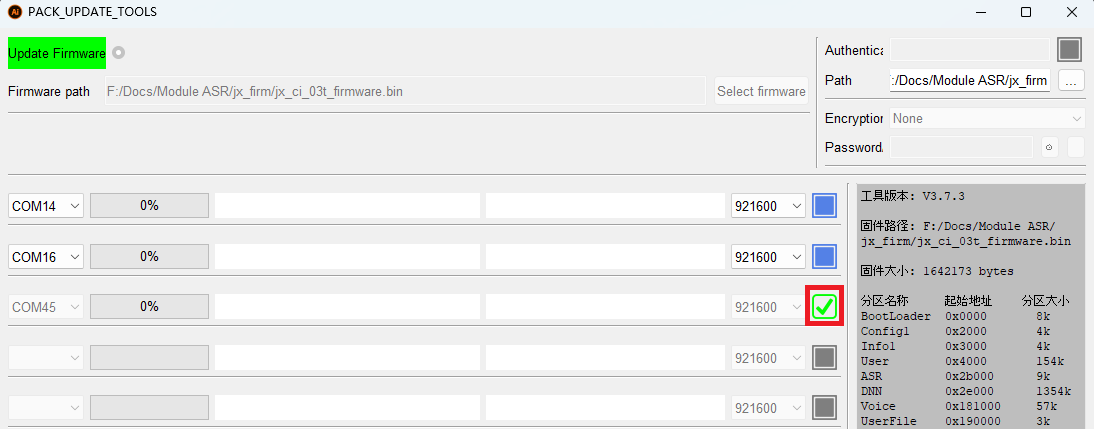
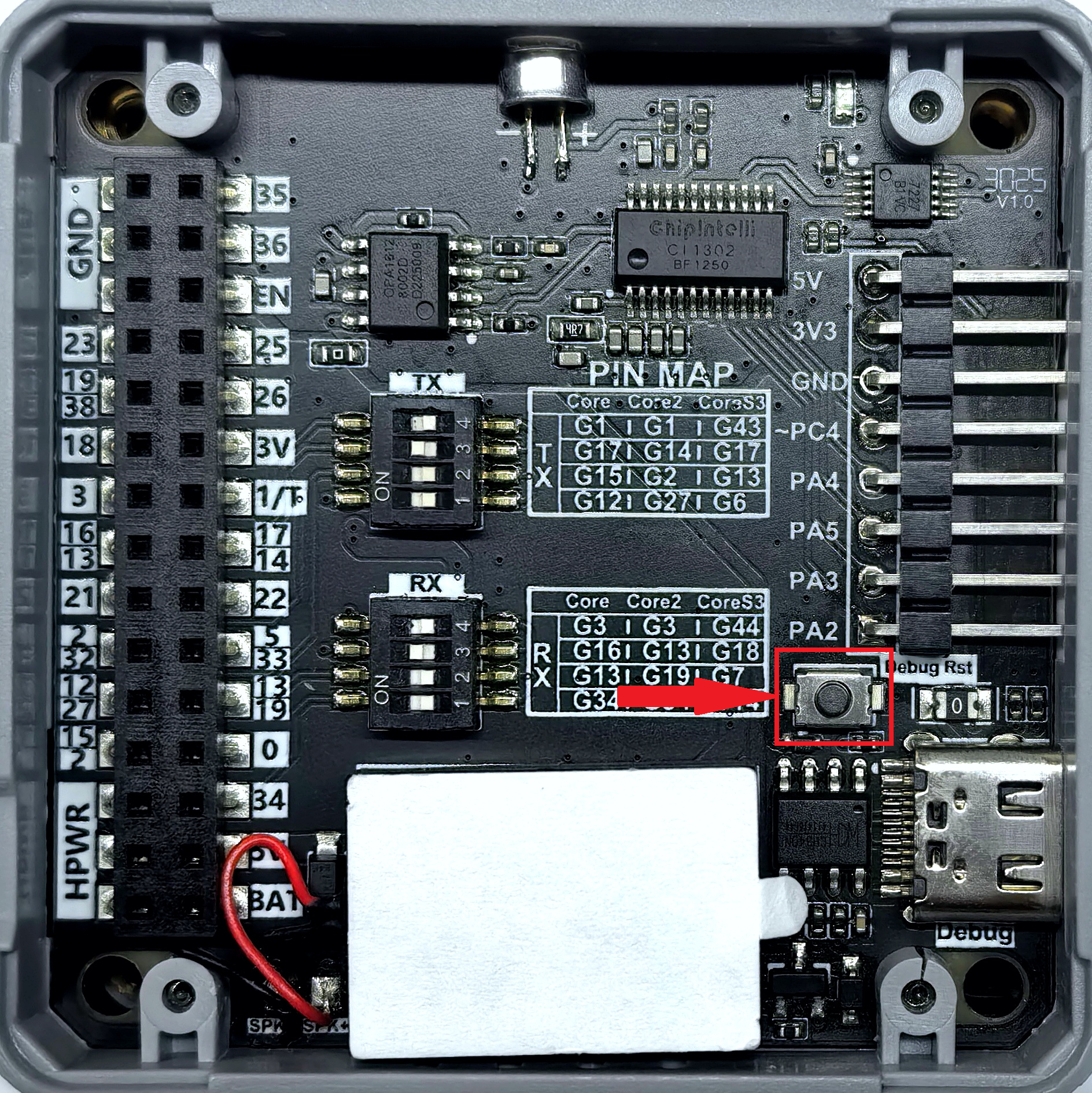
- Program download complete.
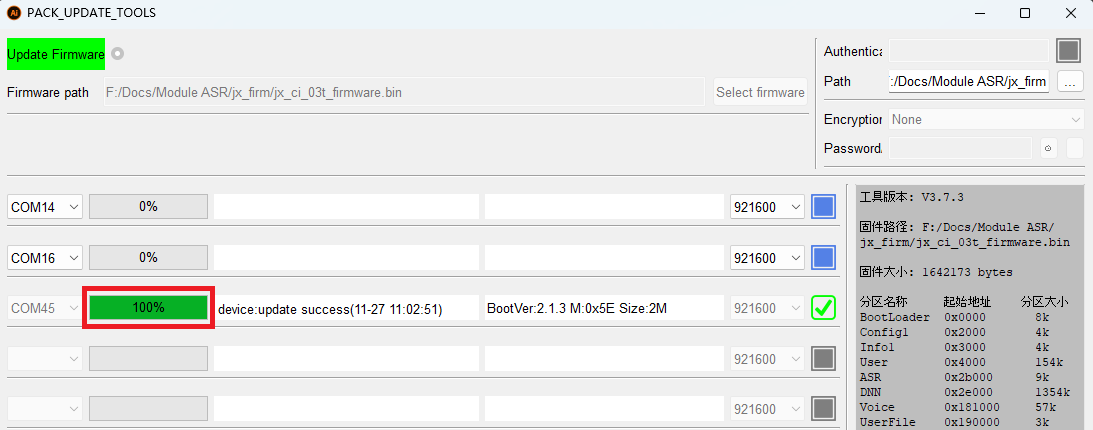
Note
After flashing completes, please uncheck the port option in the flashing tool; otherwise the software will continuously attempt to re-flash the firmware.
4. Command Test
Power the Module ASR module and use the wake phrase Hi M Five. If it responds with I'm here, the firmware flashing was successful.
Page Tools