

Product Guide
Linux PC
AI Accelerator Card
LLM-8850 Card
Large Language Models
AI & Agent
Real-Time AI Voice Assistant
XiaoZhi Voice Assistant
AtomS3R-M12 Volcengine Kit
Offline Voice Recognition
Industrial Control
IoT Measuring Instruments
Air Quality
PowerHub
Module13.2 PPS
VAMeter
T-Lite
Input & Output Devices
Ethernet Camera
PoECAM
Wi-Fi Camera
Unit CamS3/-5MP
AI Camera
LoRa & LoRaWAN
Motor Control
Restore Factory Firmware
DIP Switch Usage Guide
M5StickC Restore Factory Firmware
Factory Firmware
If the device encounters operational issues, you can try re-burning the factory firmware to check for hardware faults. Refer to the following guide. Use the M5Burner firmware burning tool to burn the factory firmware onto the device.
1. Preparation
- Refer to the M5Burner Guide to download the burning tool, and follow the image below to download the corresponding firmware.

2. USB Driver Installation
Baud Rate Limit
When performing the device program download operation, it is recommended to select the following serial port baud rate options. If other speeds are used, it may result in the program being unable to be downloaded properly.
1500000 bps / 750000 bps / 500000 bps / 250000 bps / 115200 bps
1500000 bps / 750000 bps / 500000 bps / 250000 bps / 115200 bps
- Select the driver file that matches your operating system from the list below, download it, and extract it. You can also visit the FTDI Chip official website for additional FTDI driver versions.
| Driver Name | Download Link |
|---|---|
| Windows_Desktop_x64 | Download |
| Windows_Desktop_x86_32 | Download |
| Windows_Desktop_ARM | Download |
| MacOS_Intel | Download |
| MacOS_ARM64 | Download |
- Connect the device to your PC, open Device Manager, and install the FTDI driver (the screenshot below uses Windows 10 as an example). (Note: On some systems, you may need to install the driver twice for it to take effect. The unrecognized device is usually named
M5StackorUSB Serial.)
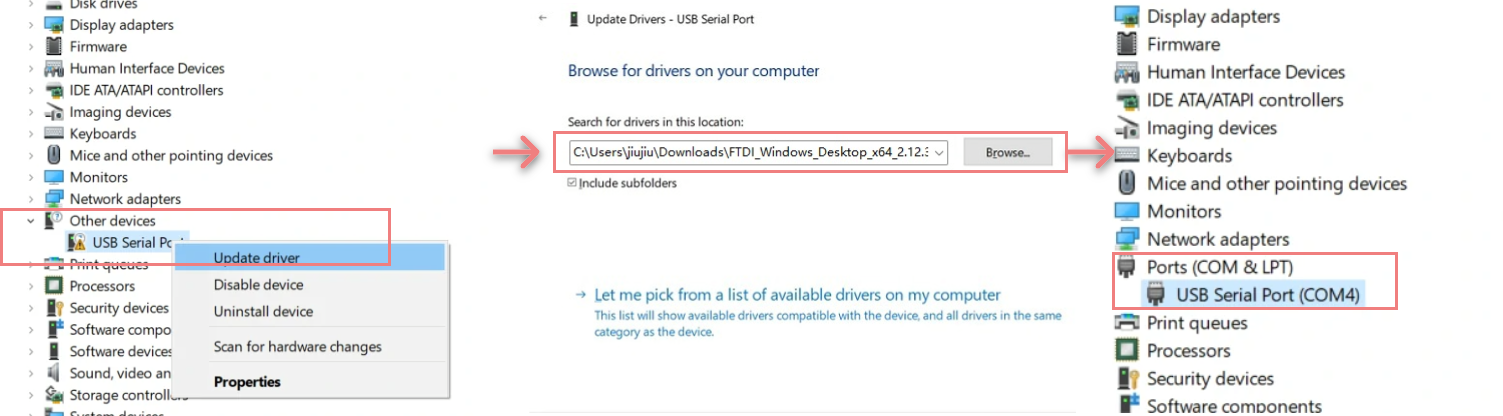
For MacOS users, before installation, check
System Preferences -> Security & Privacy -> General -> Allow apps downloaded from -> App Store and identified developers.3. Port Selection
Connect the device to the computer via USB cable. After completing the driver installation, the corresponding device port can be selected in M5Burner.

4. Firmware Burning
Click "Burn" to start burning.

The result is as shown below:

Page Tools