UiFlow Tutorial
UiFlow1 Quick Start
2. Firmware & Program
UiFlow1 Development Guide
Project Management
Use LTE network
UiFlow1 Blockly
Event
UI
Unit
Module
Hat
UiFlow2 Quick Start
2. Firmware & Program
UiFlow2 Development Guide
UI Editor
UiFlow2 Video Column
Tab5: Flash Firmware & Run Code
1. UiFlow2 Firmware Flashing
Refer to the UiFlow2 Web IDE Tutorial to understand the basic UiFlow2 workflow and complete the installation of the M5Burner firmware flashing tool.
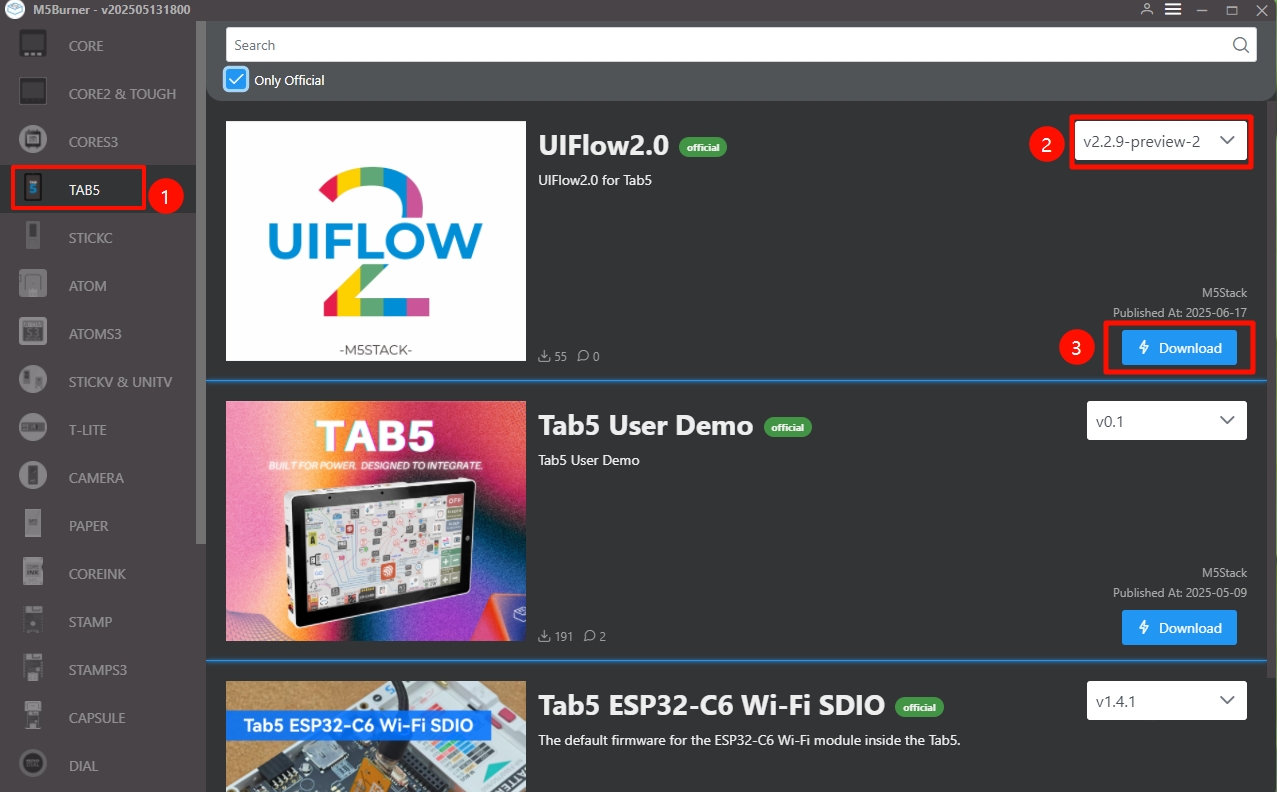
Download the firmware for
Tab5in M5Burner, as shown below.
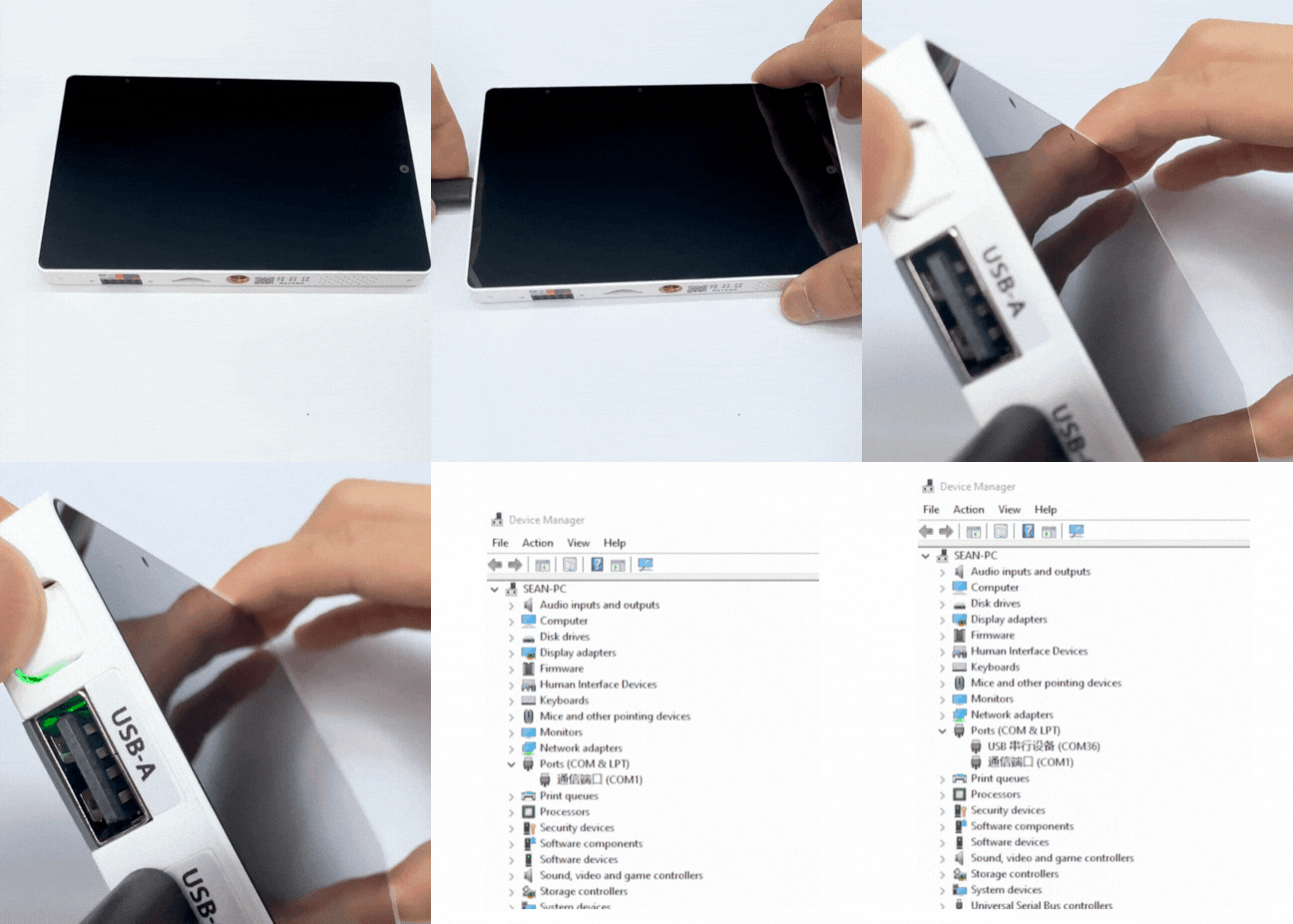
- With the USB cable connected or the device powered by battery, press and hold the reset button (about 2 seconds) until the internal green LED indicator starts flashing quickly. Release the button, and the device will enter download mode and wait for firmware flashing.
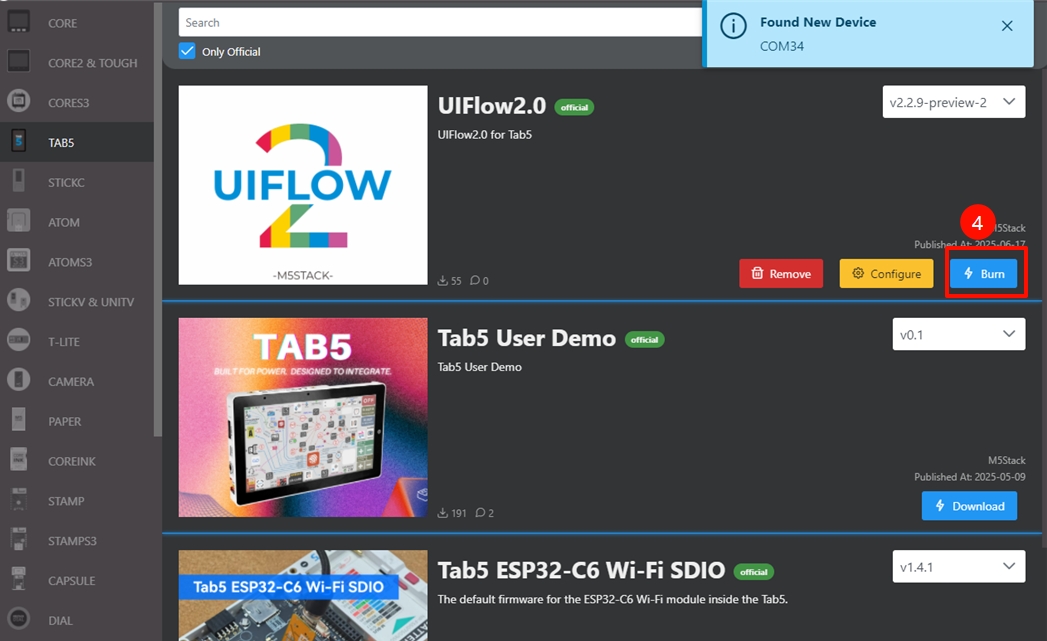
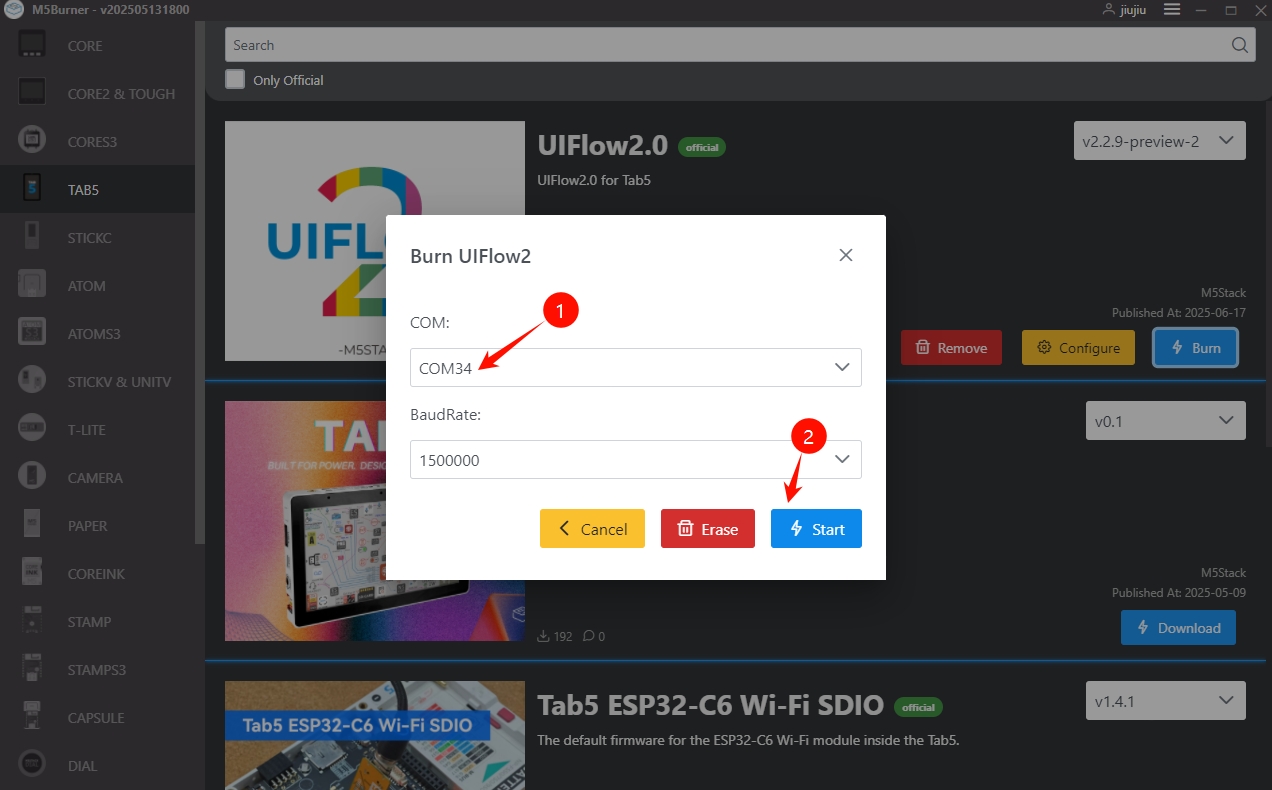
- In M5Burner, click the
Burnbutton for the corresponding firmware, select the device port, and clickStart.
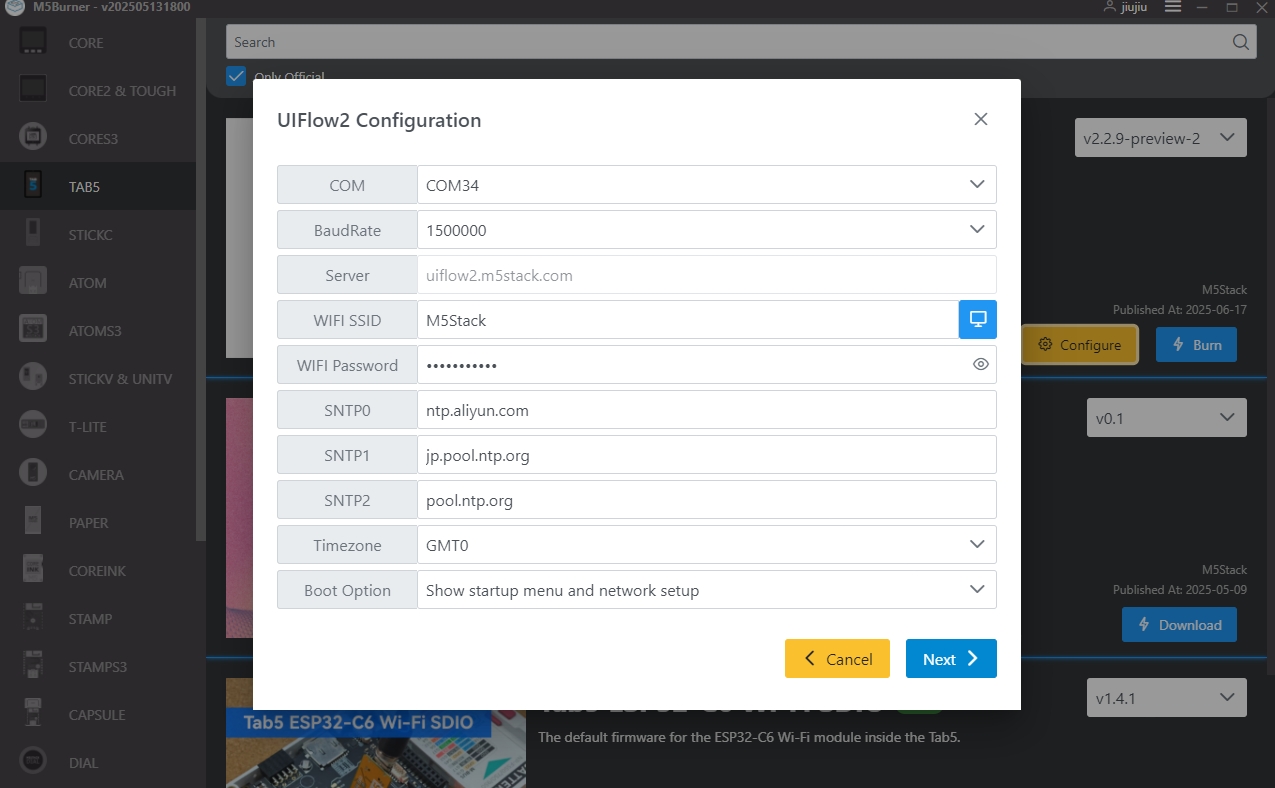
- Fill in the Wi-Fi configuration required by the device, including Wi-Fi SSID and Wi-Fi Password, as well as any other device configurations that need to be added or modified, then click
Nextto start flashing.
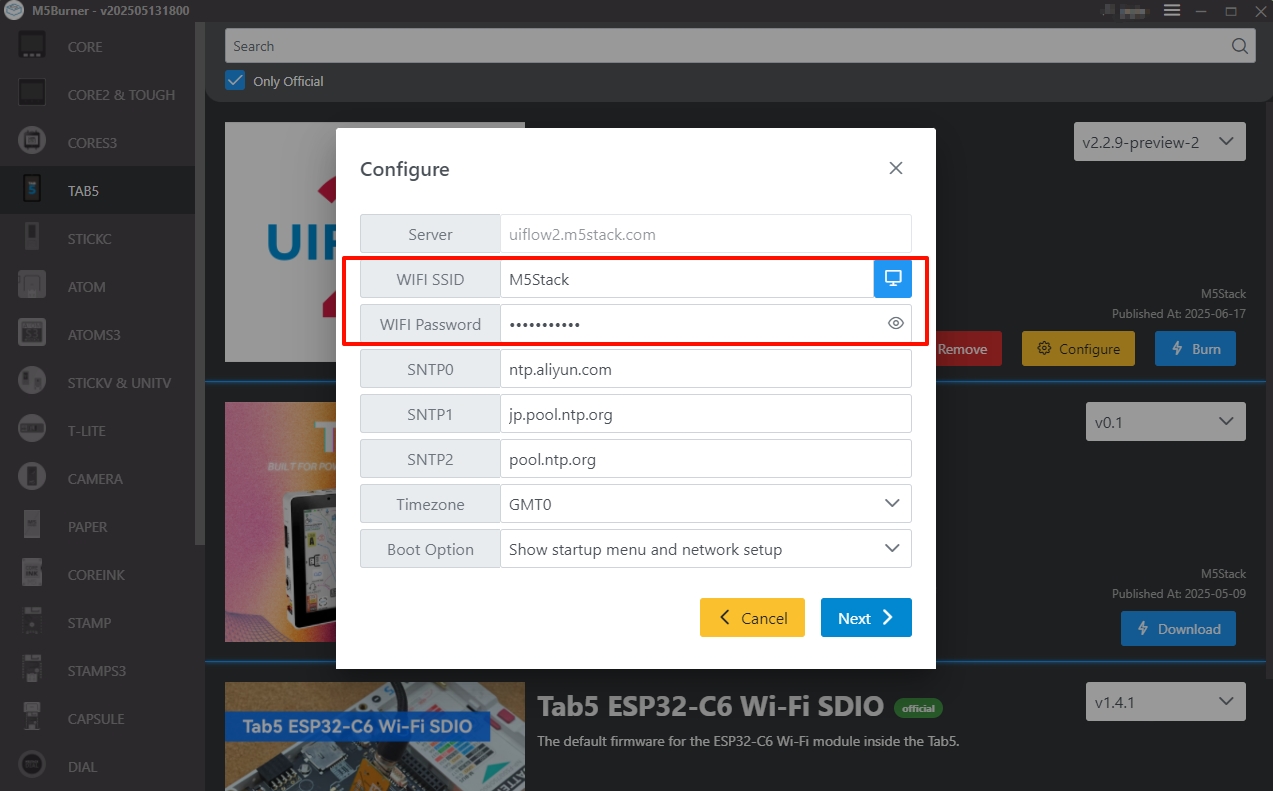
Configuration information description:
- COM: Select the serial port corresponding to the device
- BaudRate: Baud rate for serial communication
- Server: Server address the device connects to
- WIFI SSID/WIFI Password: Wi-Fi name and password for device connection
- SNTP Server:
- SNTP0: Alibaba Cloud NTP server (China)
- SNTP1: Japan NTP server pool
- SNTP2: Global public NTP server pool
- Timezone: Time zone setting
- Boot Option: Sets the device startup mode after firmware flashing is complete
- Run main.py directly: After flashing is complete, directly runs the program in main.py without connecting to the network or displaying the UiFlow2 startup screen
- Show startup menu and network setup: The device connects to the network, and devices with a screen display the UiFlow2 startup screen
- Only network setup: The device only performs network setup and does not display the UiFlow2 startup screen
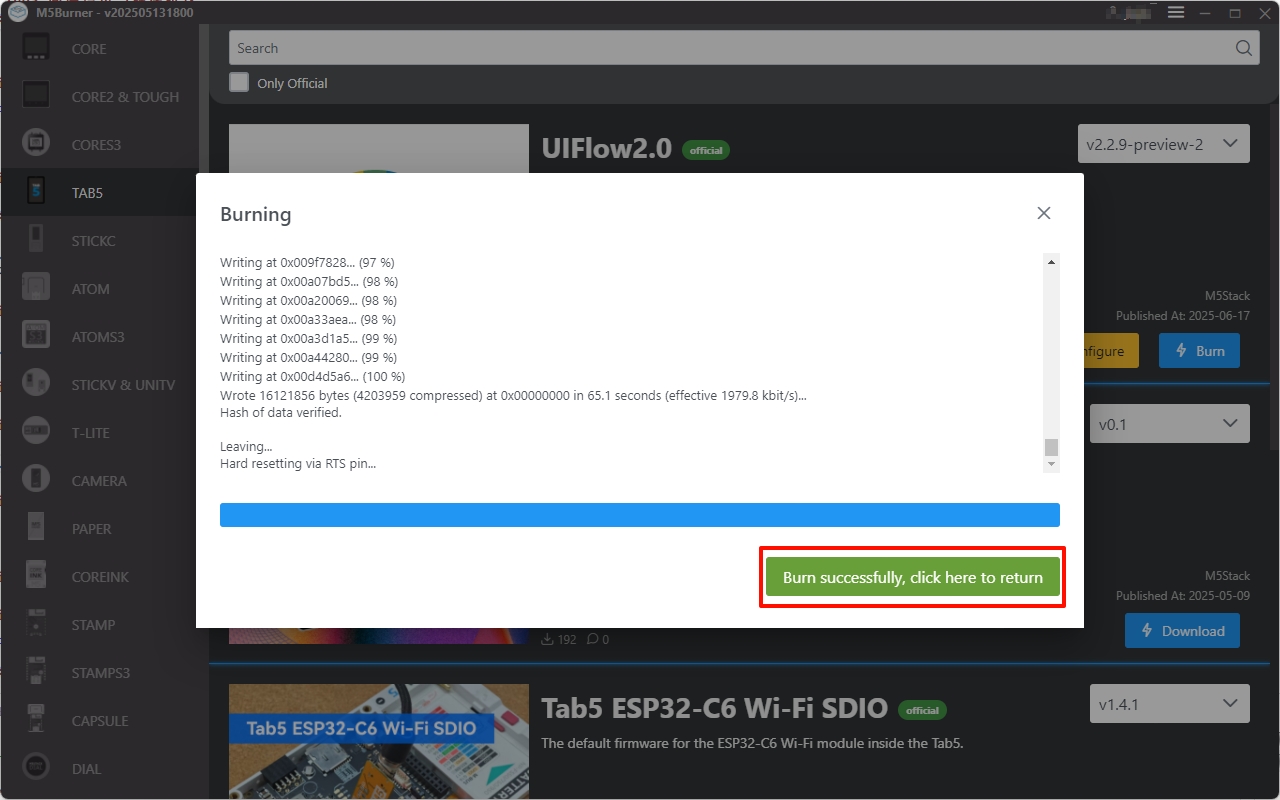
- When
Burn successfully, click here to returnis displayed, flashing is successful. Reset the device at this time.
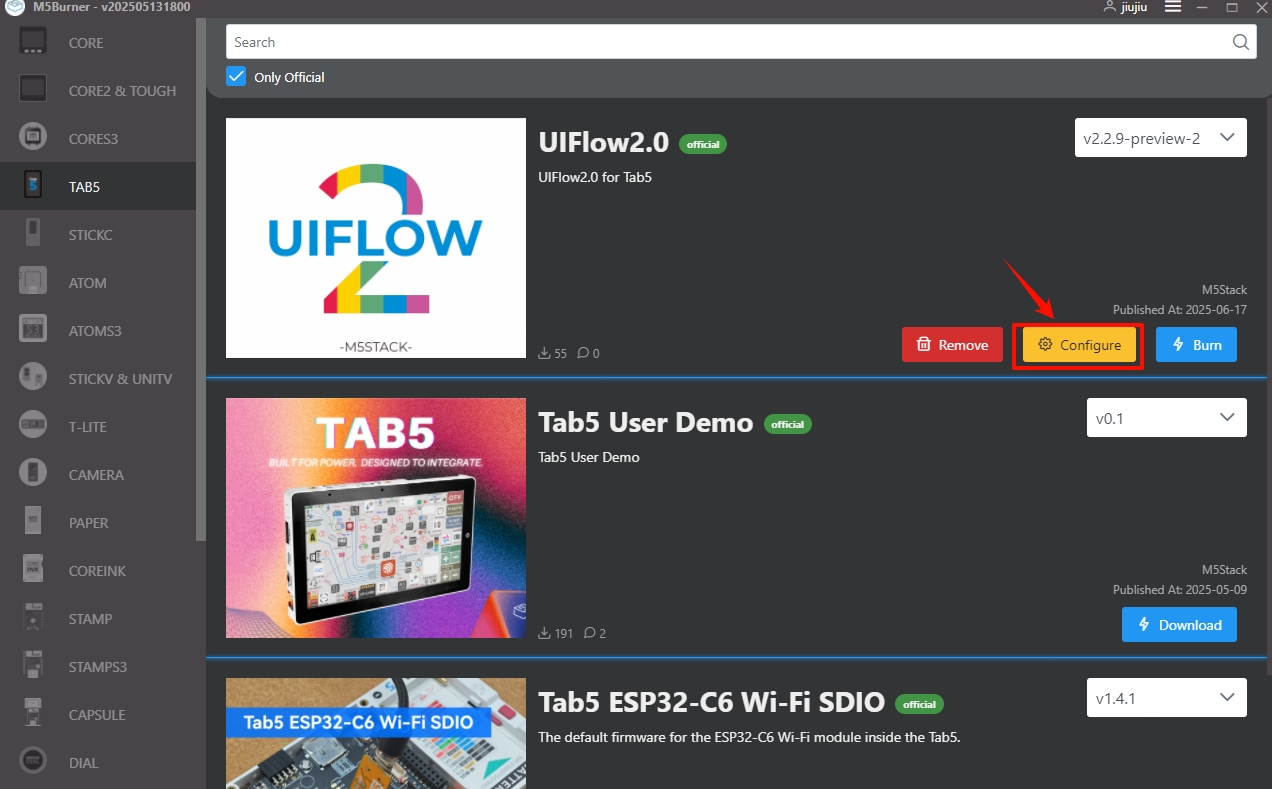
- After firmware flashing is complete, if you need to modify the device configuration, keep the USB connection, restart the device, click the
Configureoption, and modify the configuration according to the on-screen prompts.
2. Device Connection
The device supports connecting to UiFlow2 by Access Code (wireless network) or USB (wired computer connection), enabling program pushing and debugging. Refer to the following tutorials for details:
Access Code Wireless Connection
- Before connecting, make sure the device is connected to the network. If the network is not connected, check whether the Wi-Fi name and password entered during firmware flashing are correct, modify them through the
Configureoption in M5Burner, and flash again.
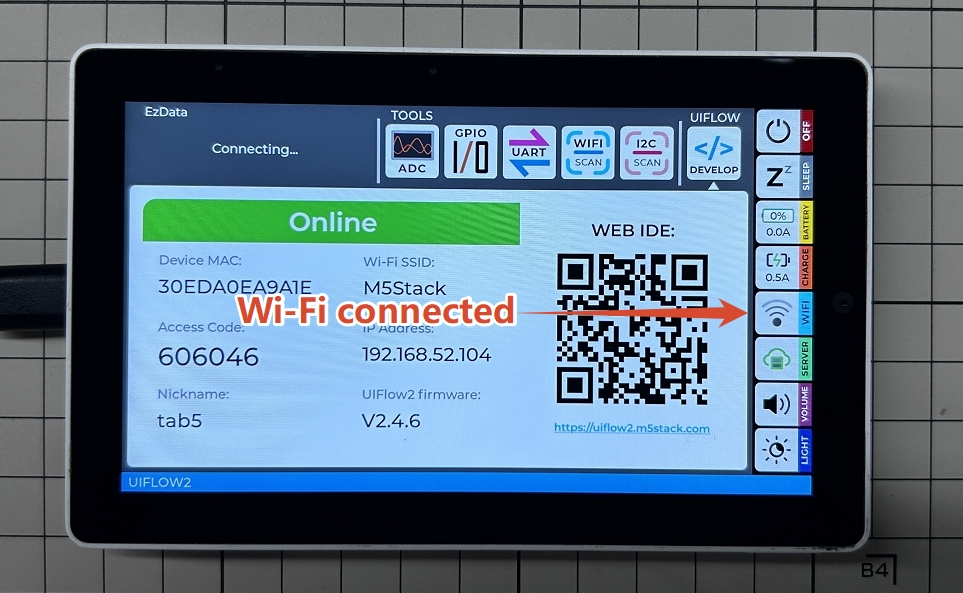
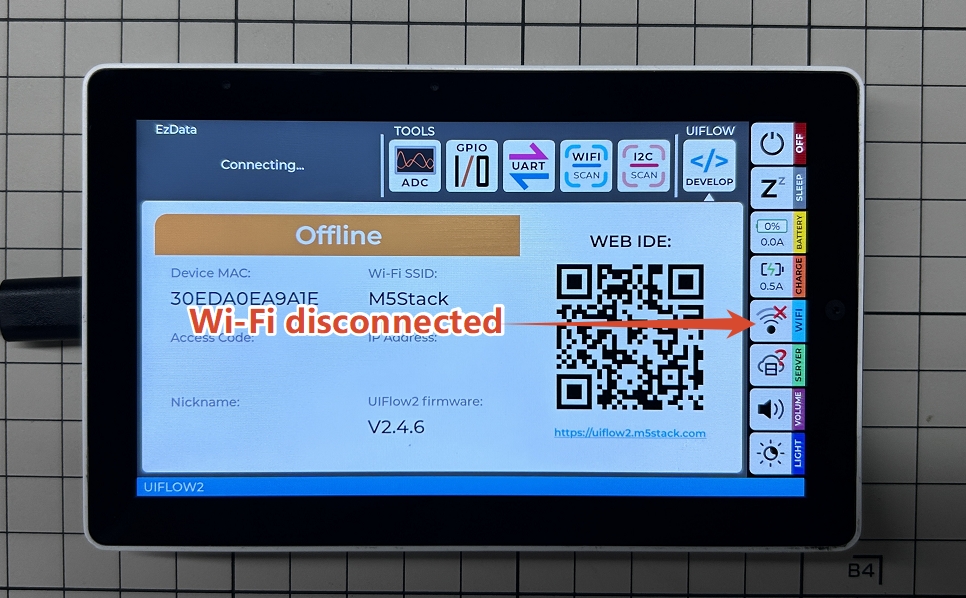
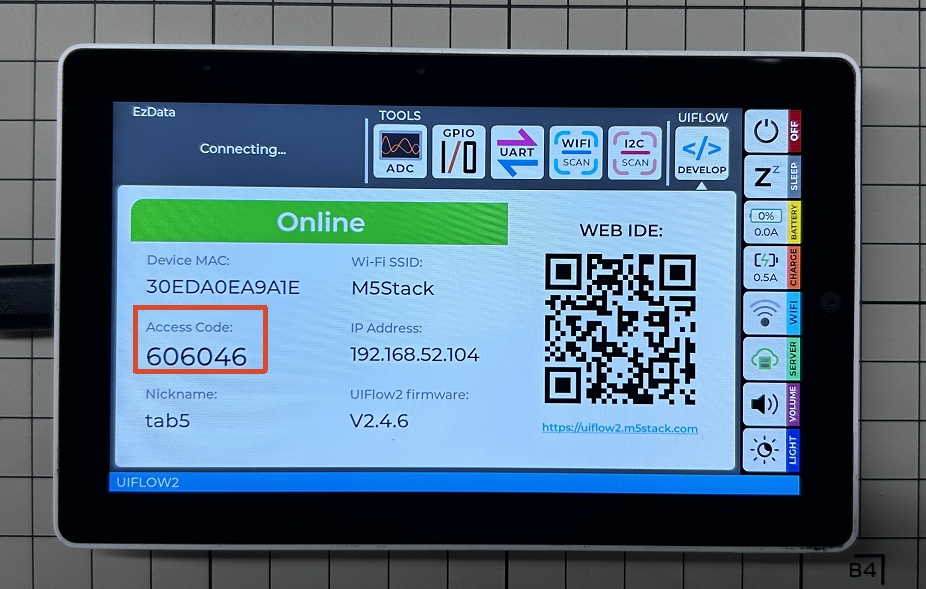
- View the currently generated valid
Access Codeon the device's UiFlow2 startup screen.
Visit uiflow2.m5stack.com to open the UiFlow2 Web IDE.
Click
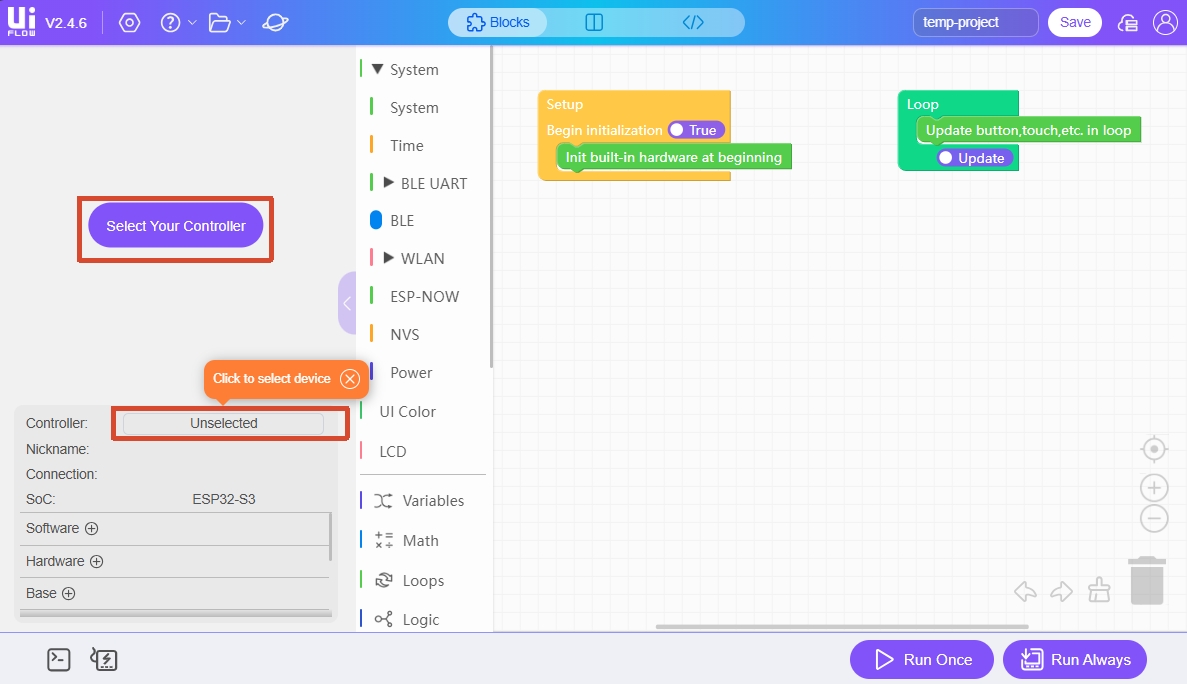
Select Your Controller(displayed on first entry) or theControllerbutton on the page to enter theSelect Devicepage.
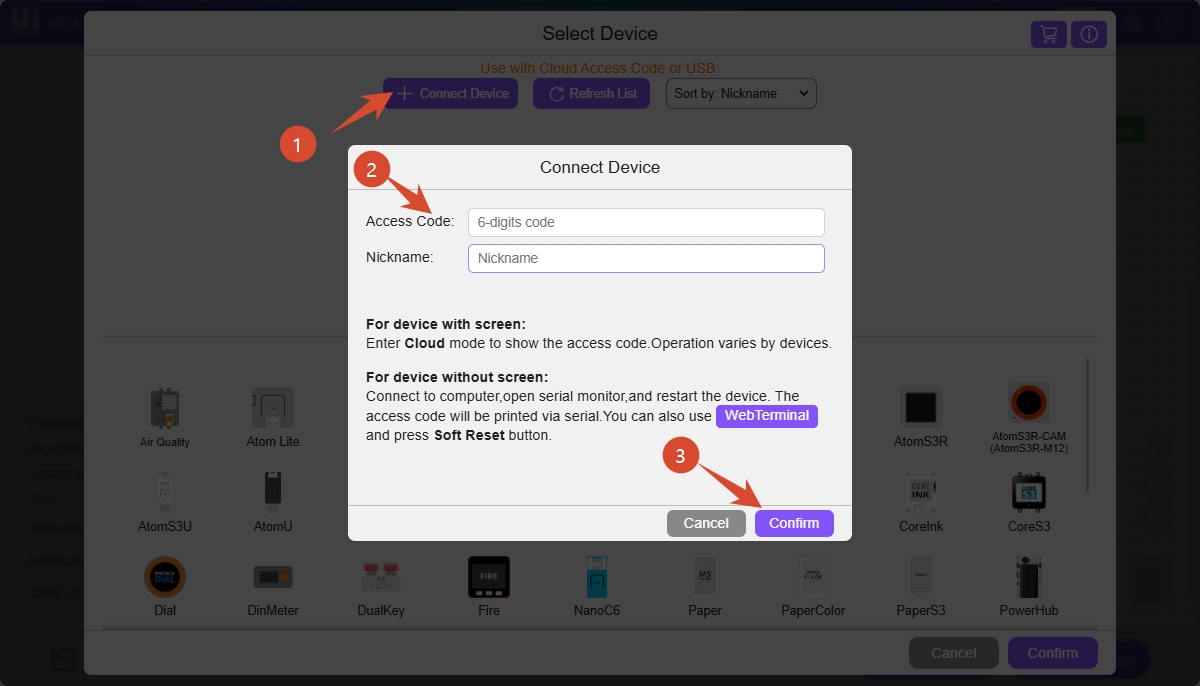
- Click
Connect Device, enter the access code and a custom device name, then clickConfirmto connect Tab5 to UiFlow2.
2. Simply closing the tab, restarting the browser, logging in, or logging out will not affect the existing pairing relationship.
3. Once the device is paired by another browser, the original browser pairing relationship becomes invalid immediately.
- Select the connected
Tab5device on theSelect Devicepage, then clickConfirmto enter the UiFlow2 programming interface.
USB Wired Connection
Visit uiflow2.m5stack.com to open the UiFlow2 Web IDE, and connect Tab5 to the computer with a USB Type-C cable.
Click
Select Your Controller(displayed on first entry) or theControllerbutton on the page to enter theSelect Devicepage.
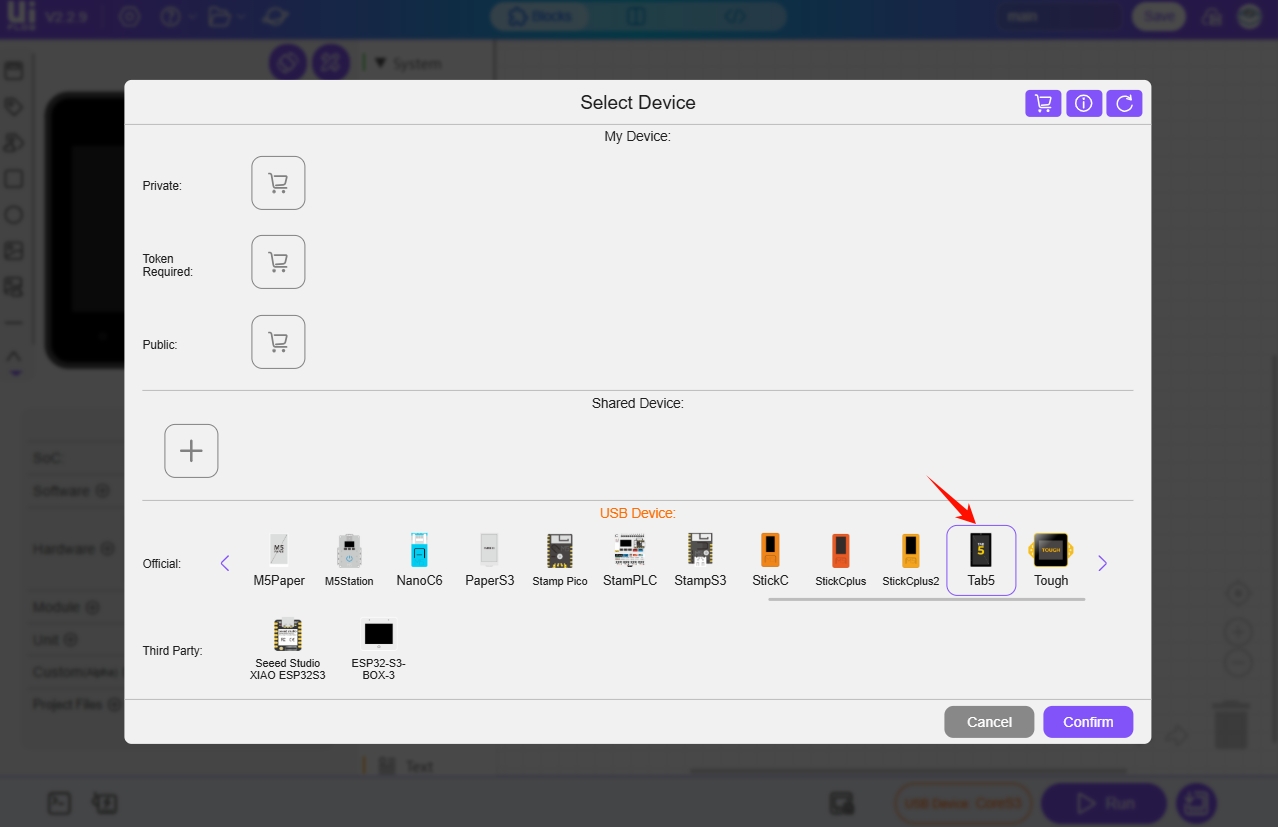
- Select the Tab5 device in the device list and click
Confirm.
- Click the
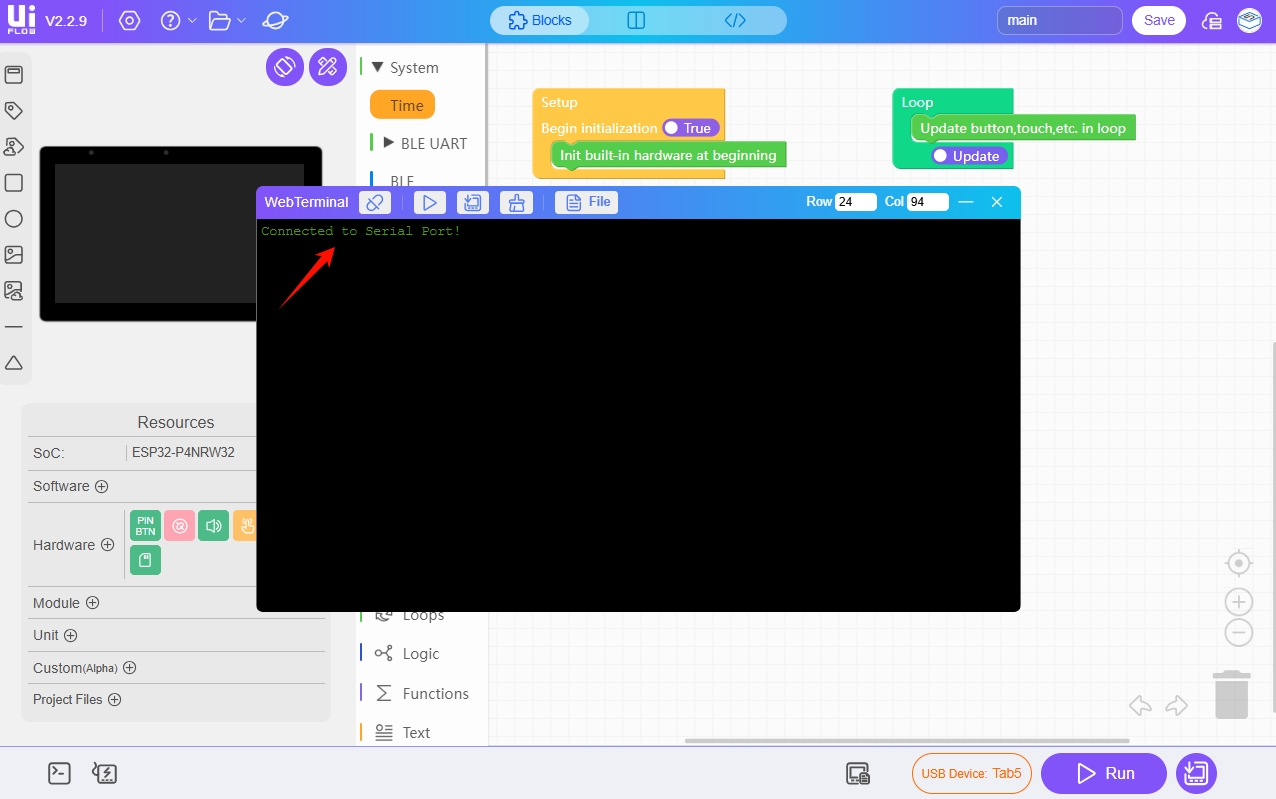
WebTerminalbutton, select the serial port ofTab5in the dialog box, and clickConnect.
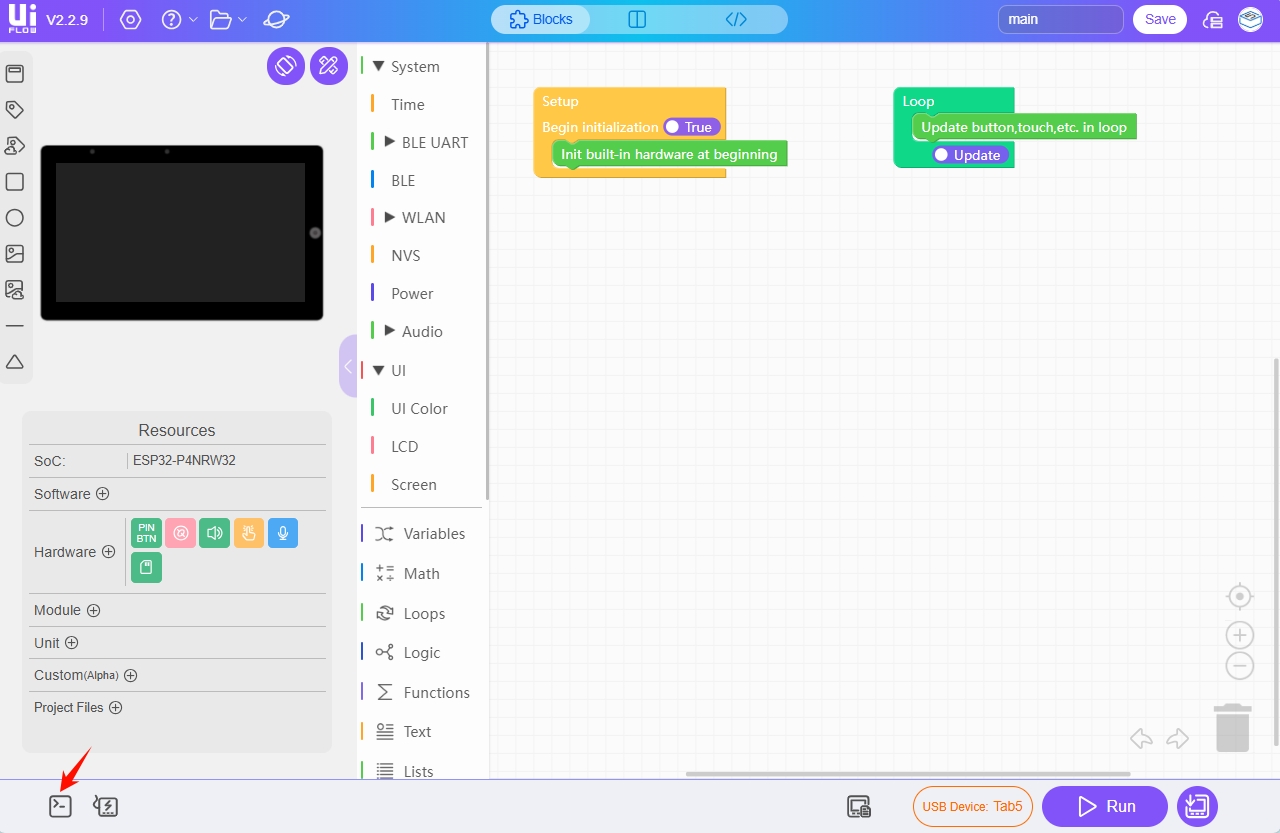
When the WebTerminal screen displays Connected to Serial Port!, the USB connection is successful.
3. Program Run and Download
After the device is connected to UiFlow2, you can drag Blockly blocks to edit programs.
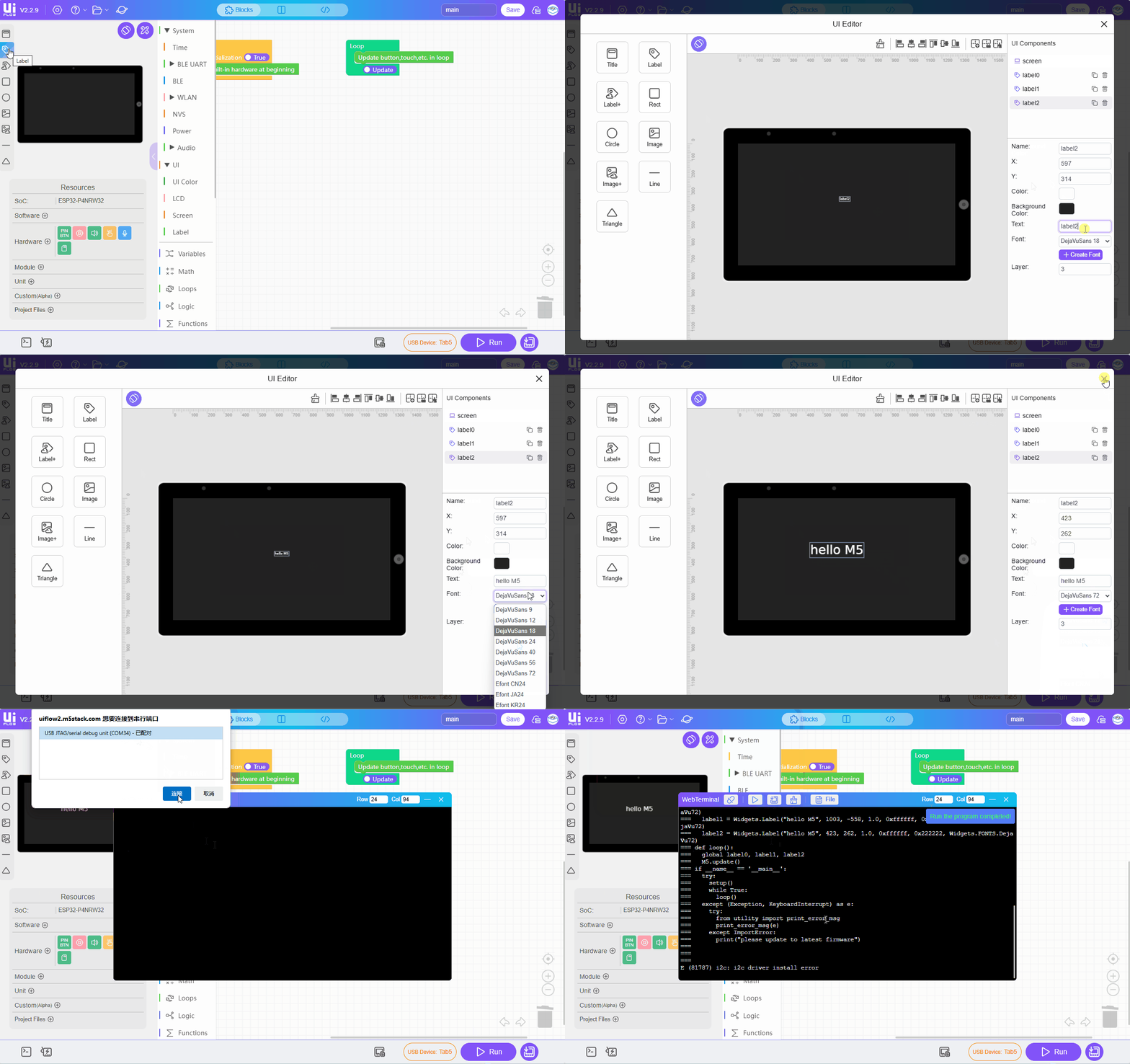
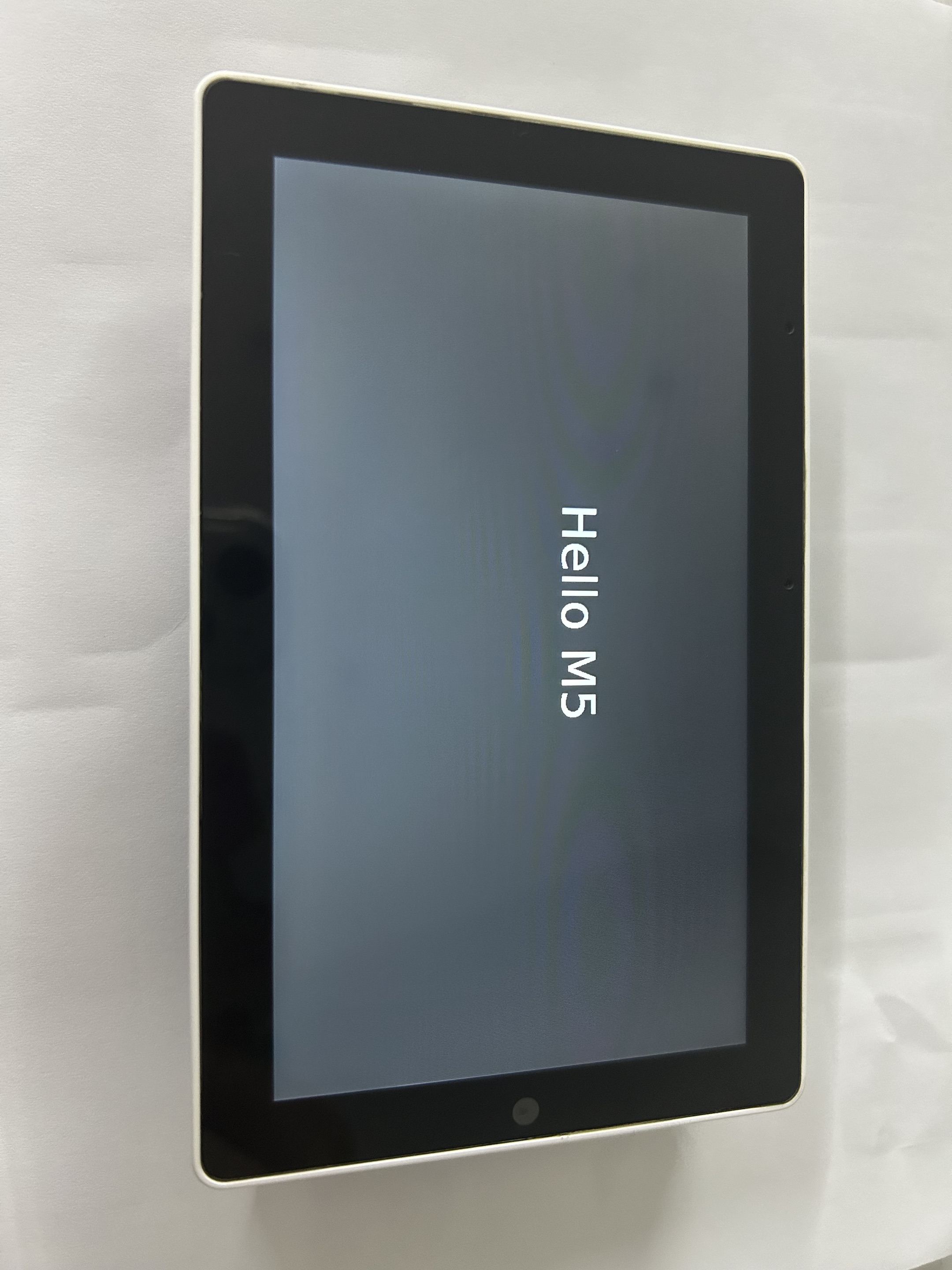
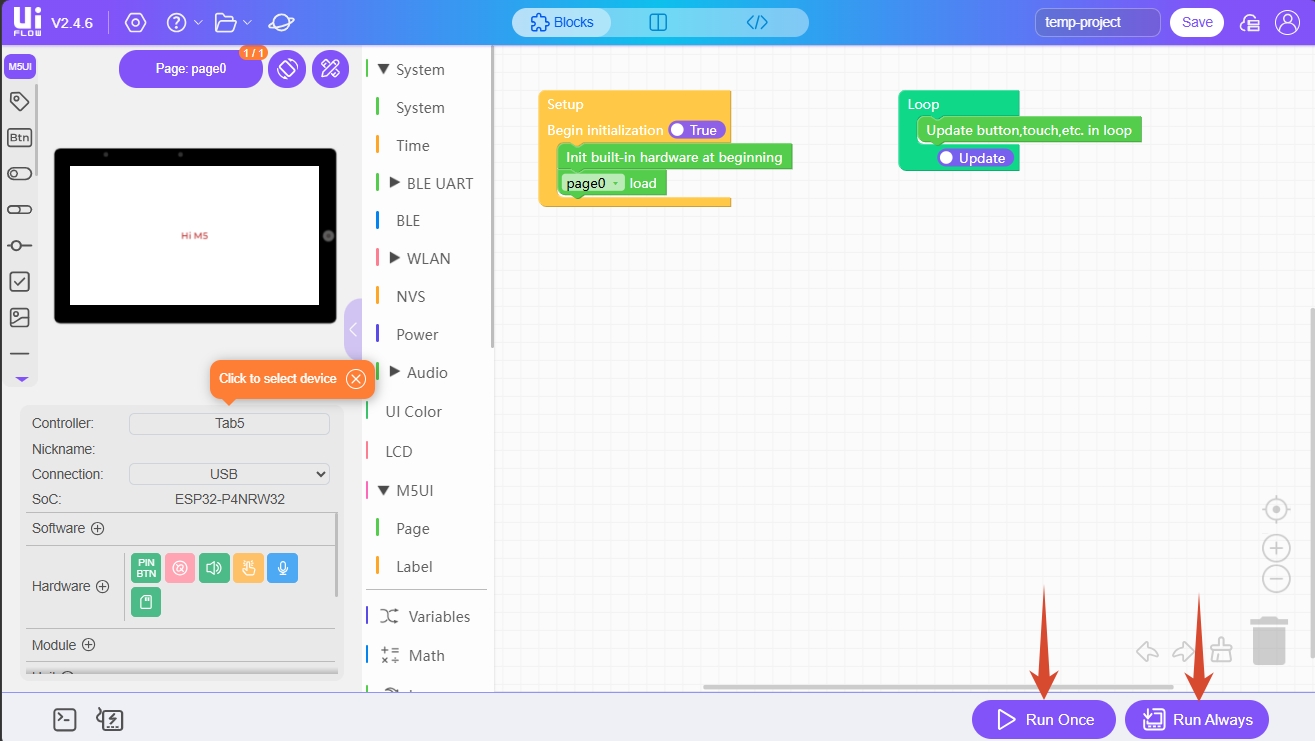
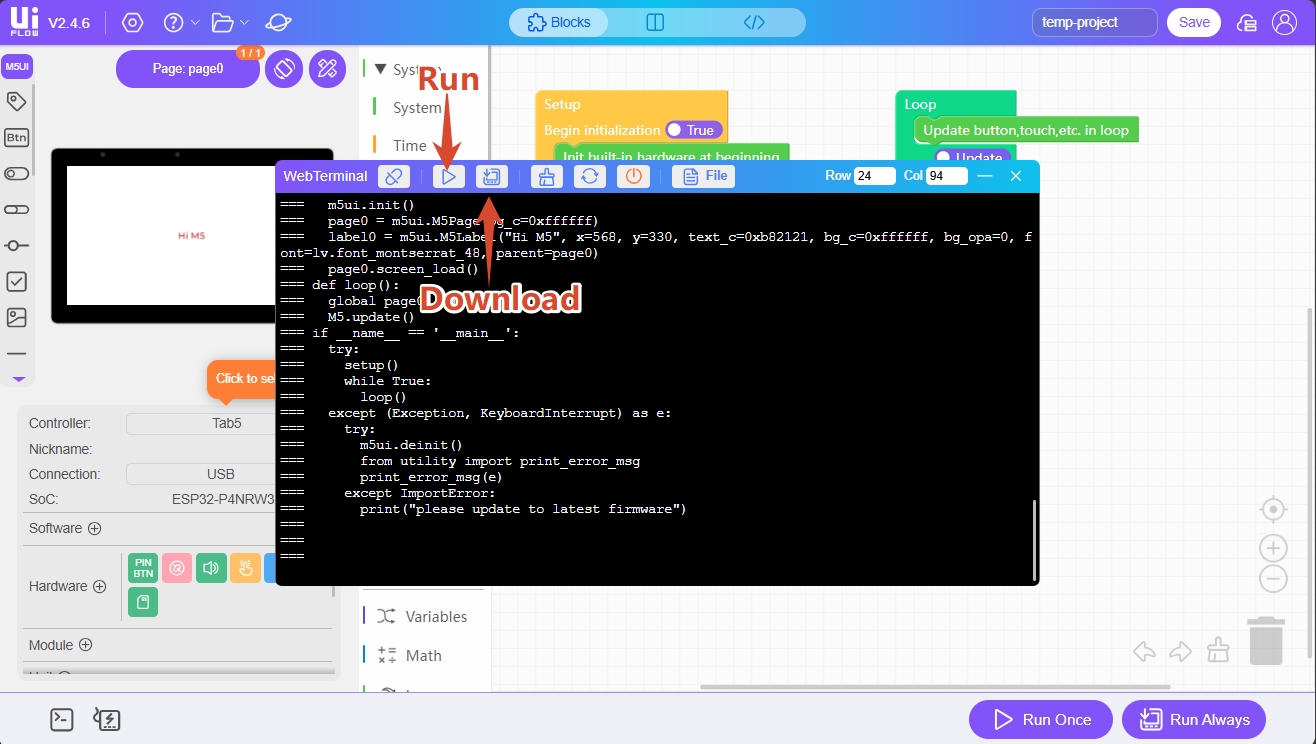
After editing the program, click the Run Once button in the lower-right corner of the interface to run the test program once. Click the Run Always button to download the program to the device.
You can also run once or download the program from the WebTerminal window.
4. Related Links
Built-in Peripheral Development
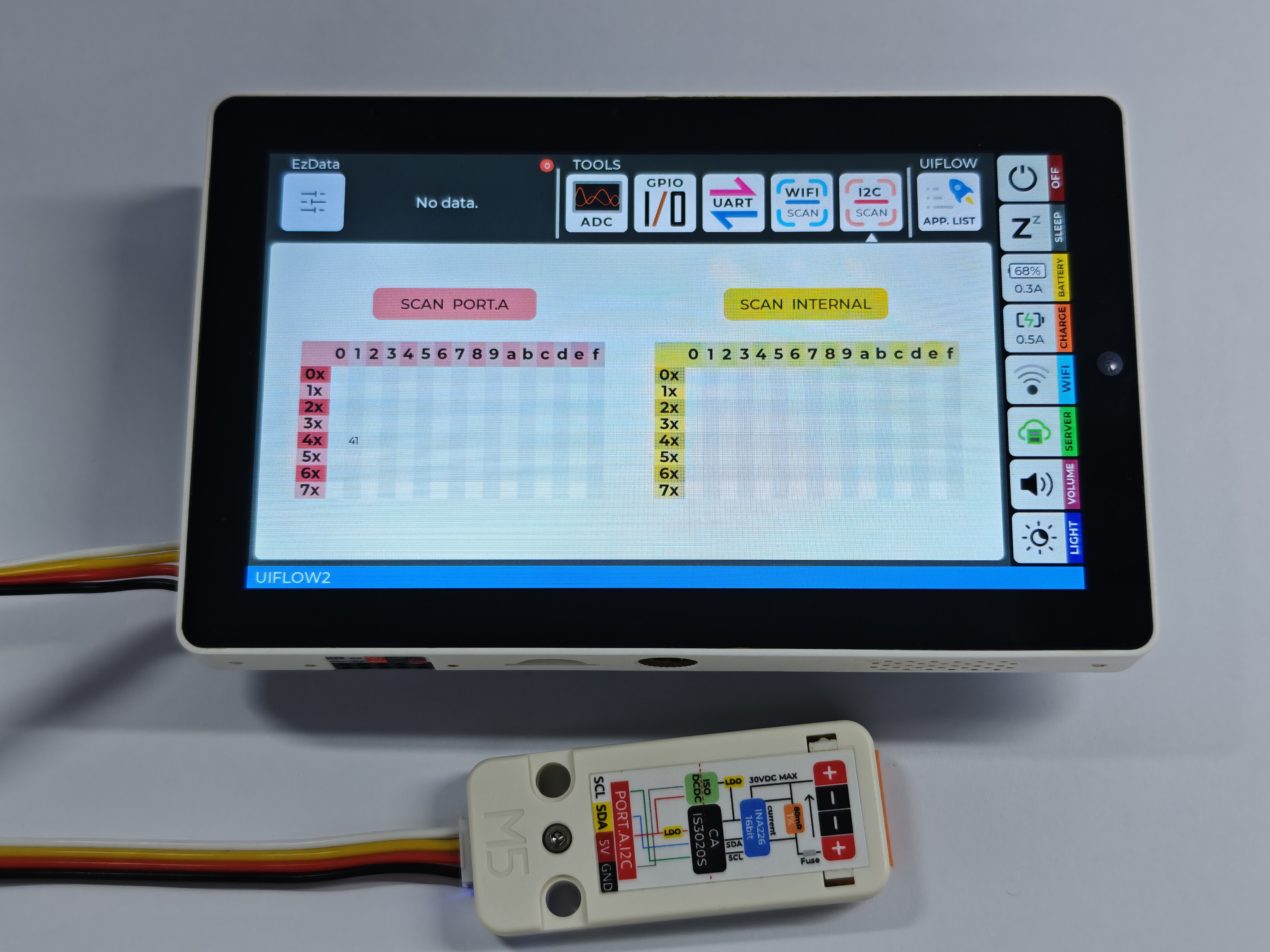
UiFlow2 Firmware Main Interface Function Module Description
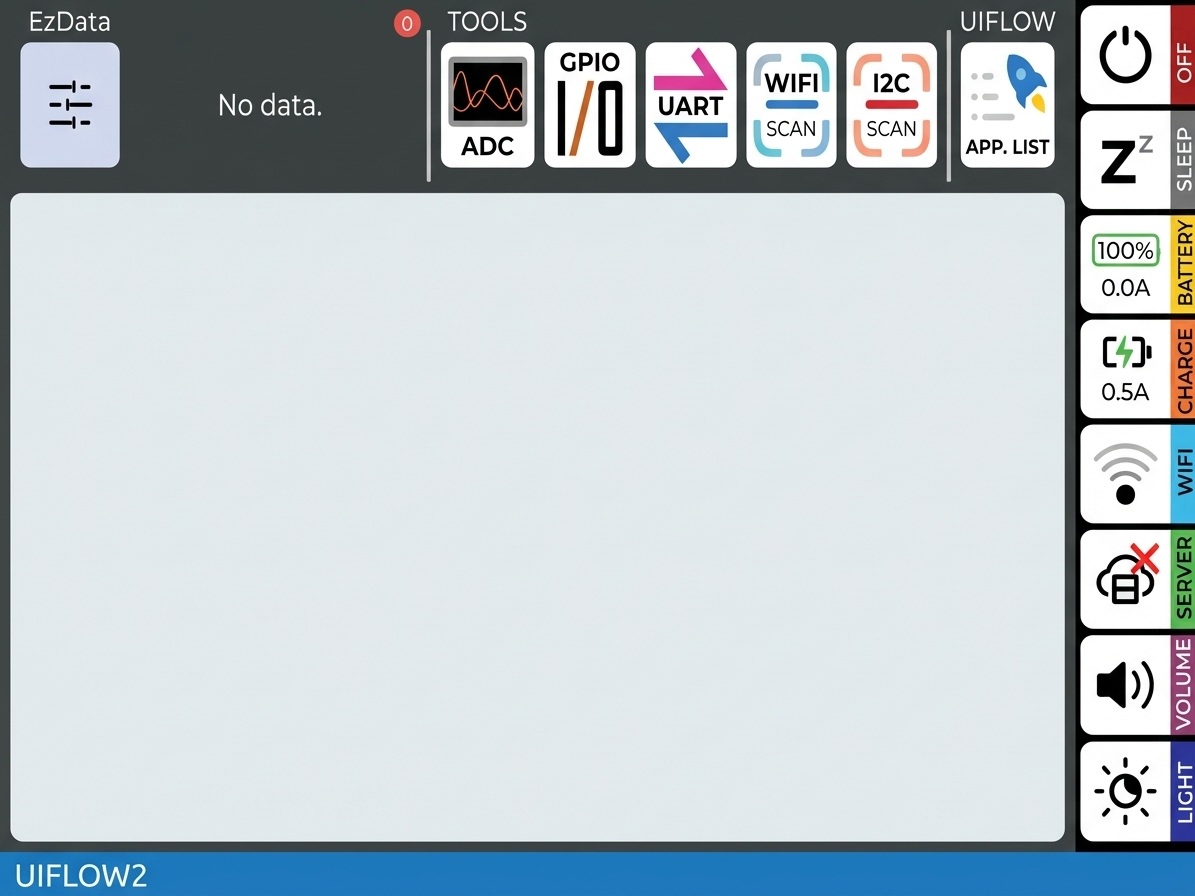
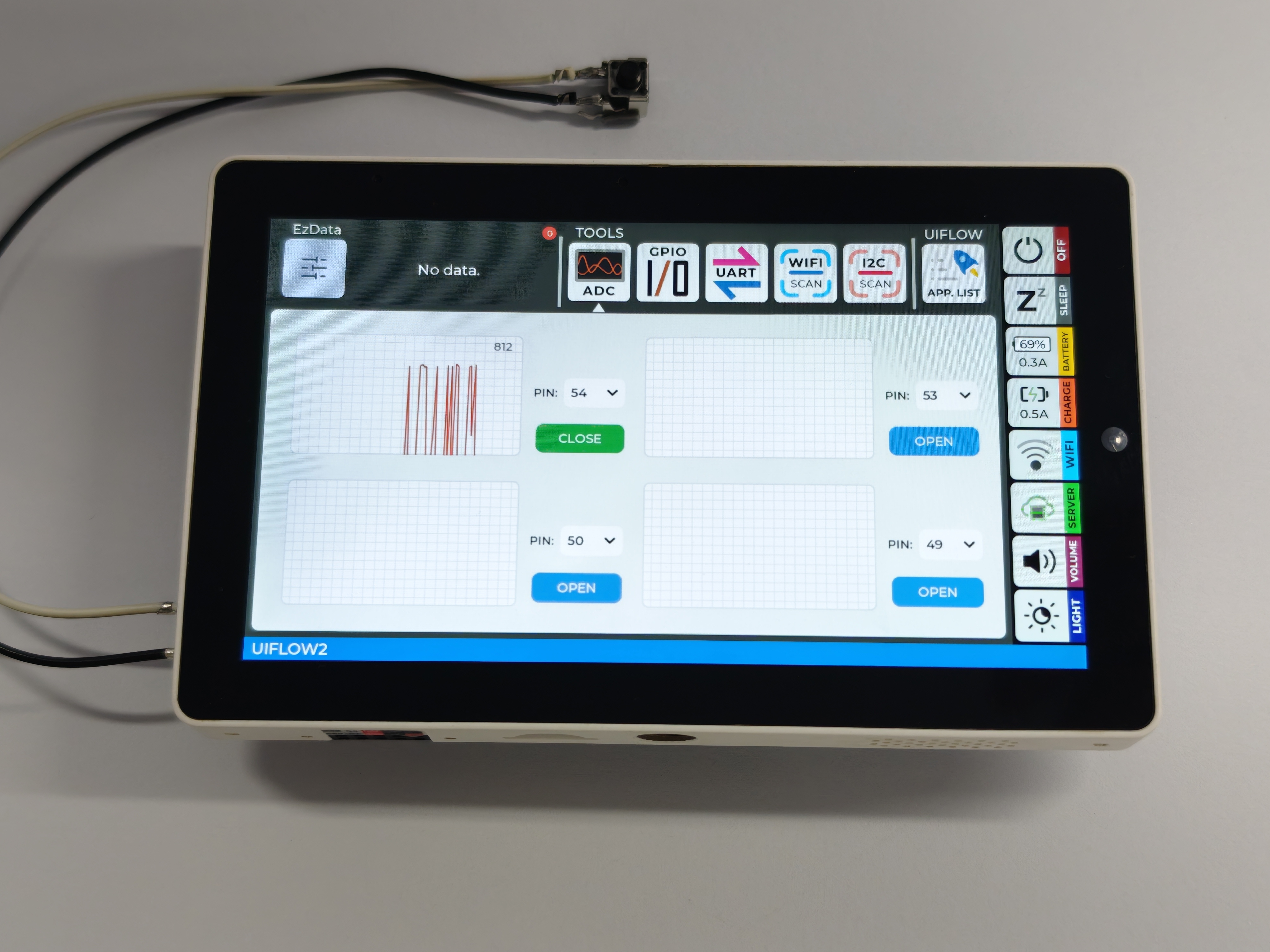
ADC: Analog voltage measurement.
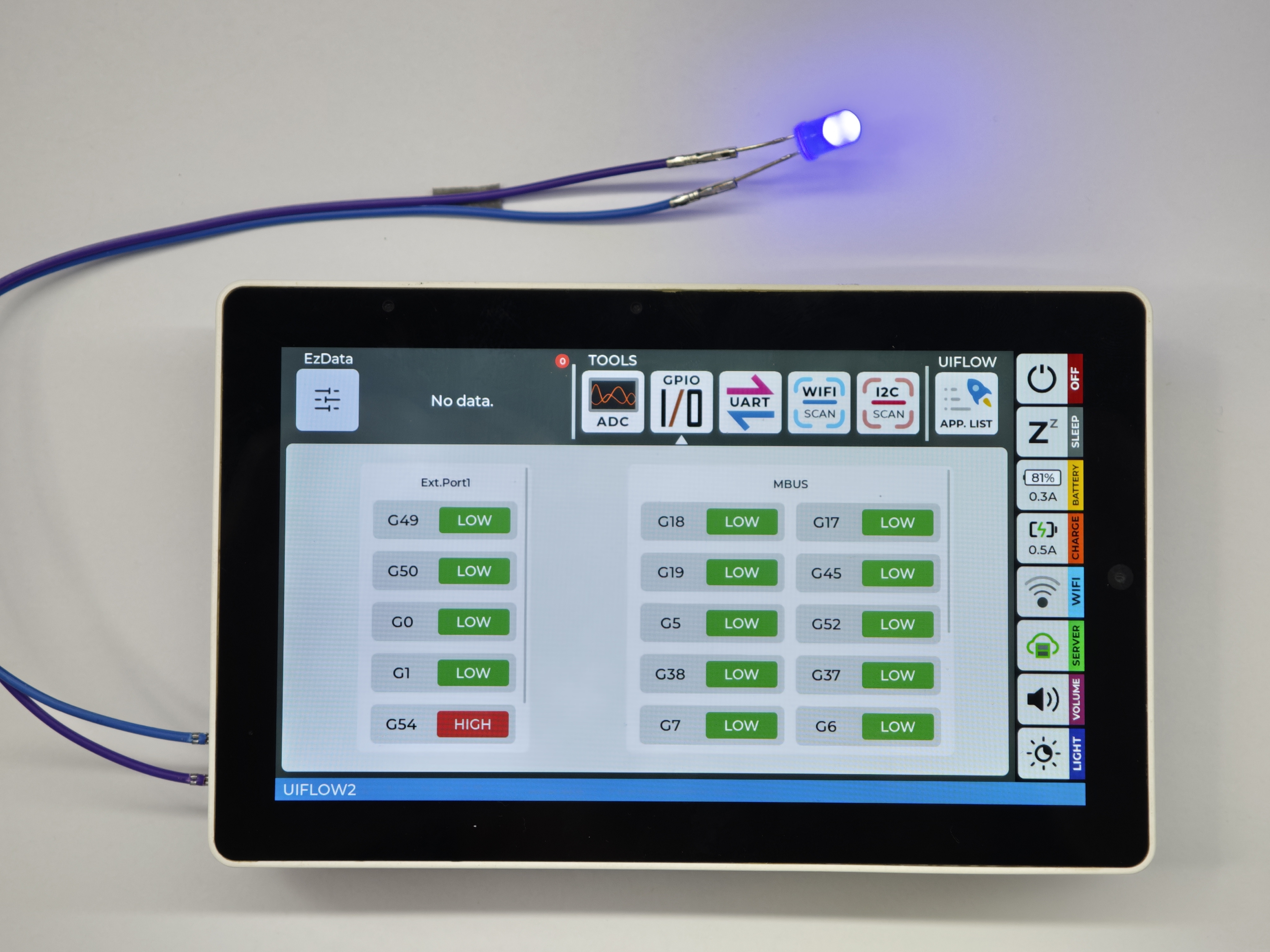
GPIO: Supports pin high / low level output.
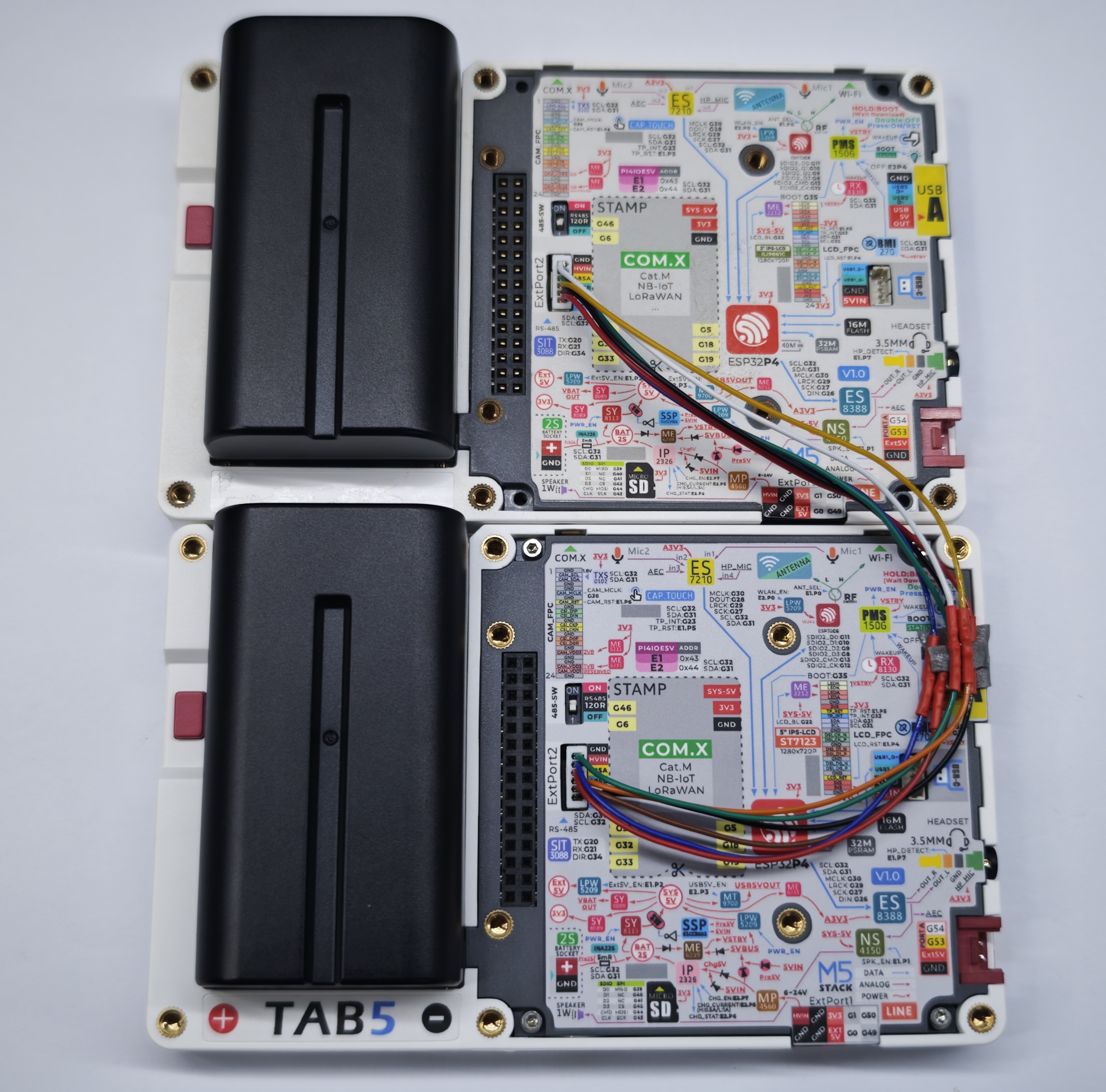
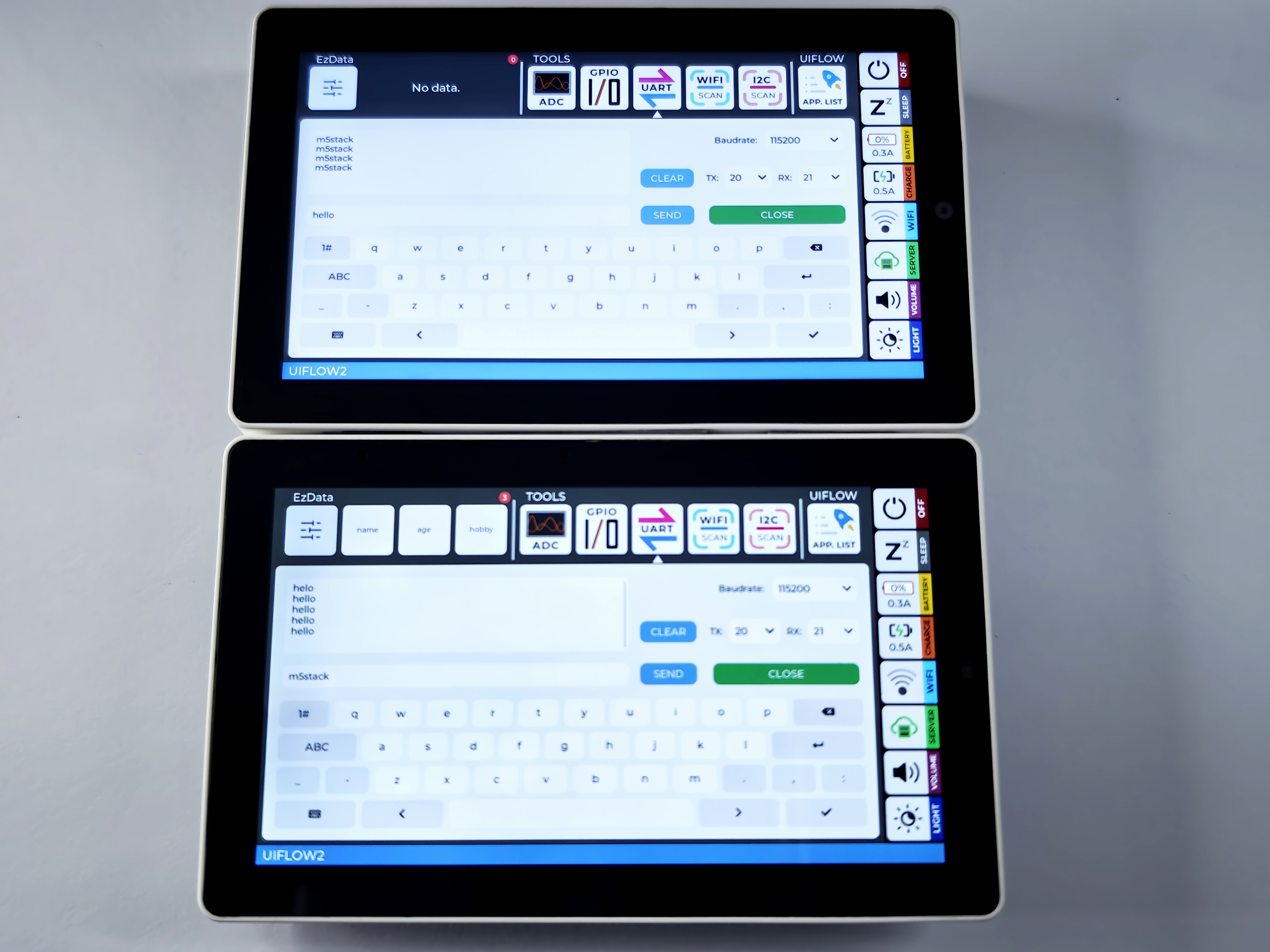
UART: Serial data transmission, reception, and communication.
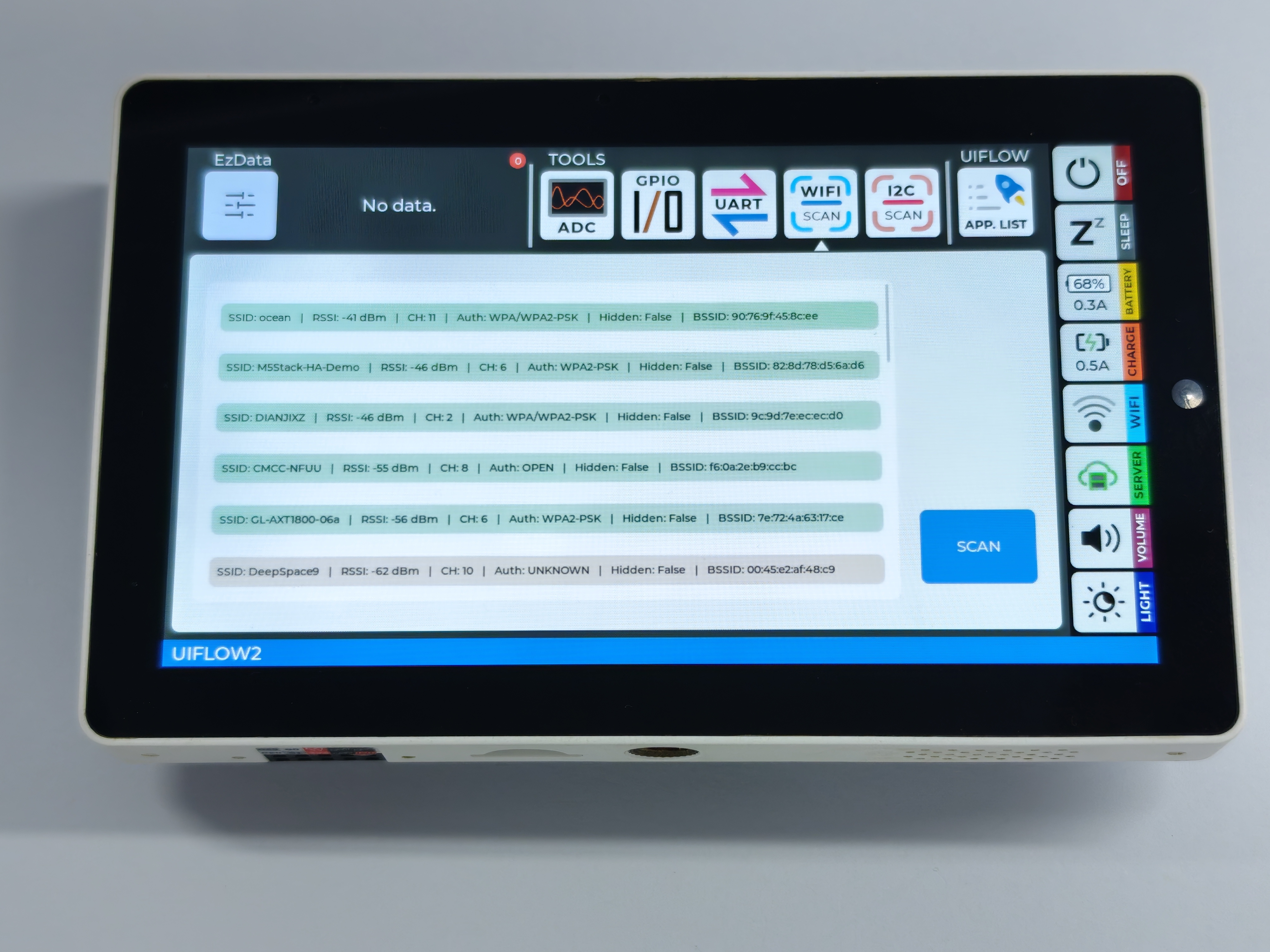
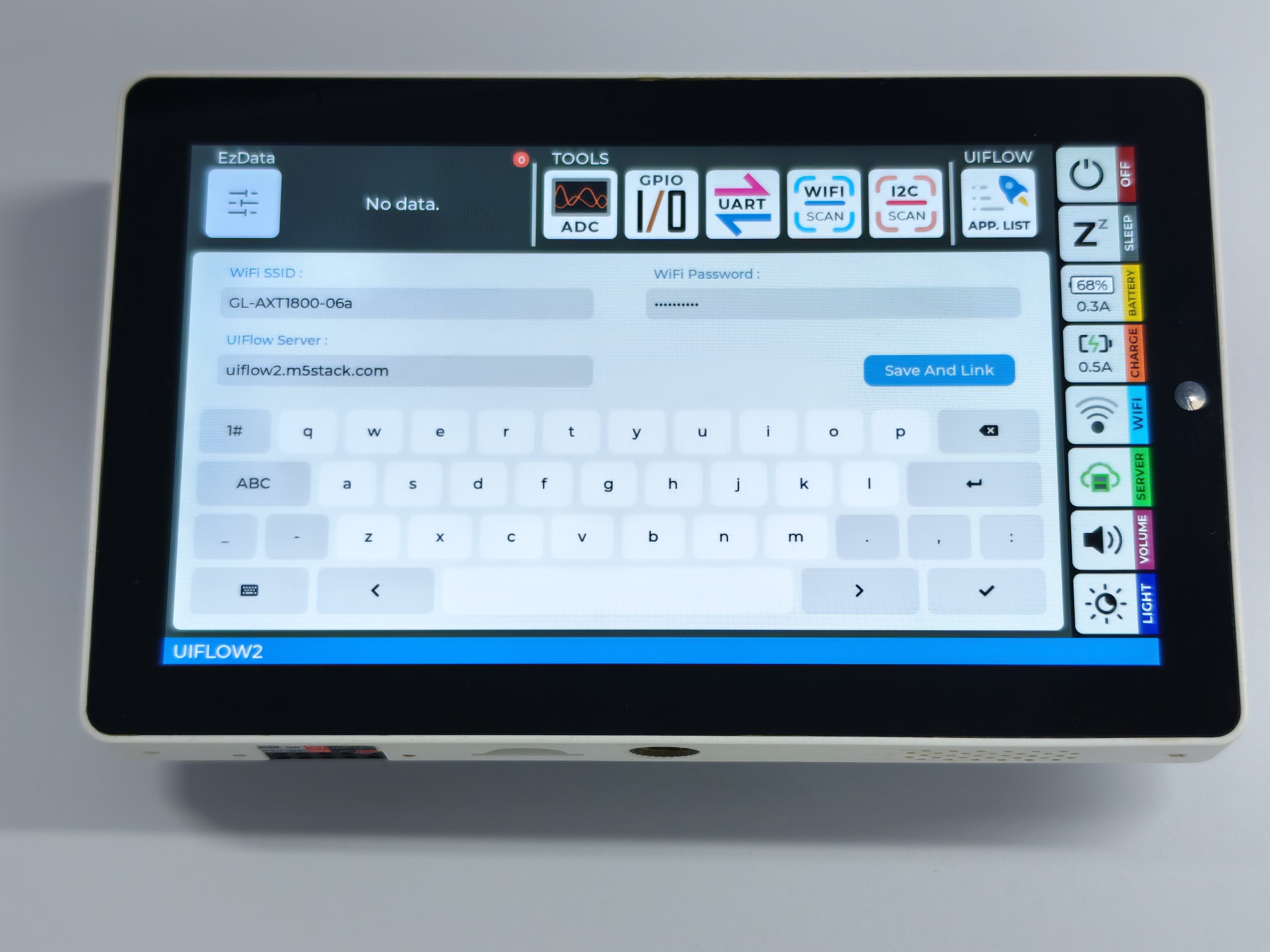
Wi-Fi: Supports Wi-Fi scanning and network connection.
I2C: I2C device scanning and address detection.
APP.LIST: Manages the list of saved user programs.
Sleep: Sleep mode settings.
Output: Adjustable voltage / current.
Sound: Volume adjustment.
Screen: Brightness adjustment.
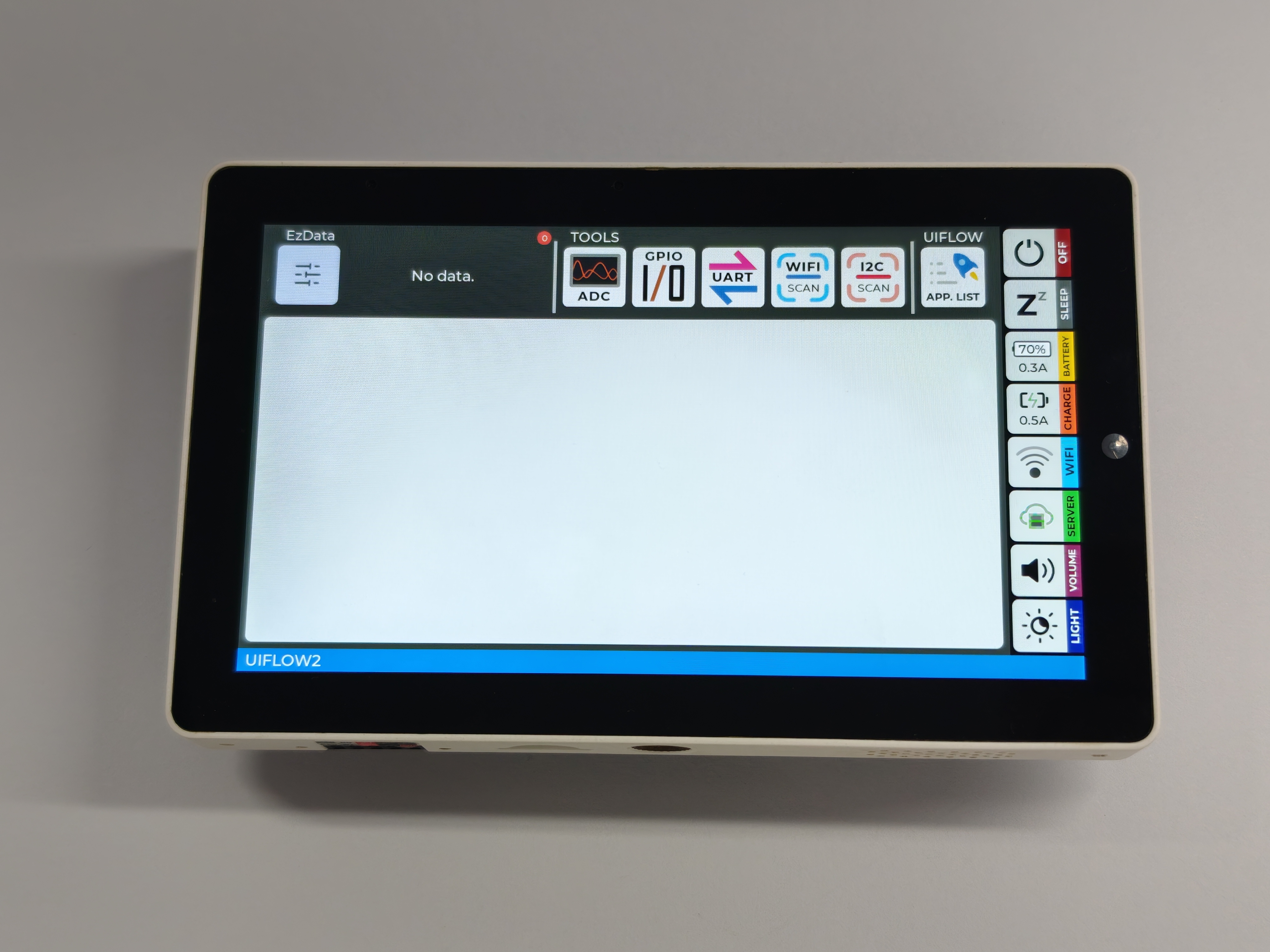
After the device (Tab5) starts, tap the touch screen to operate the interface.
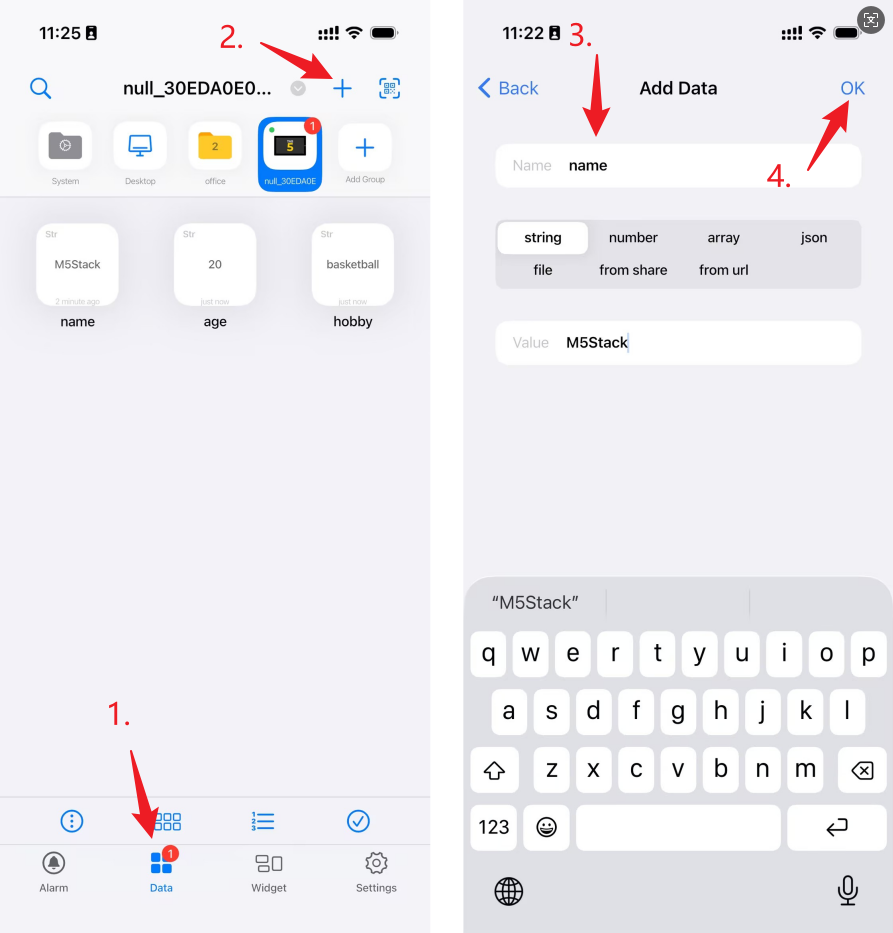
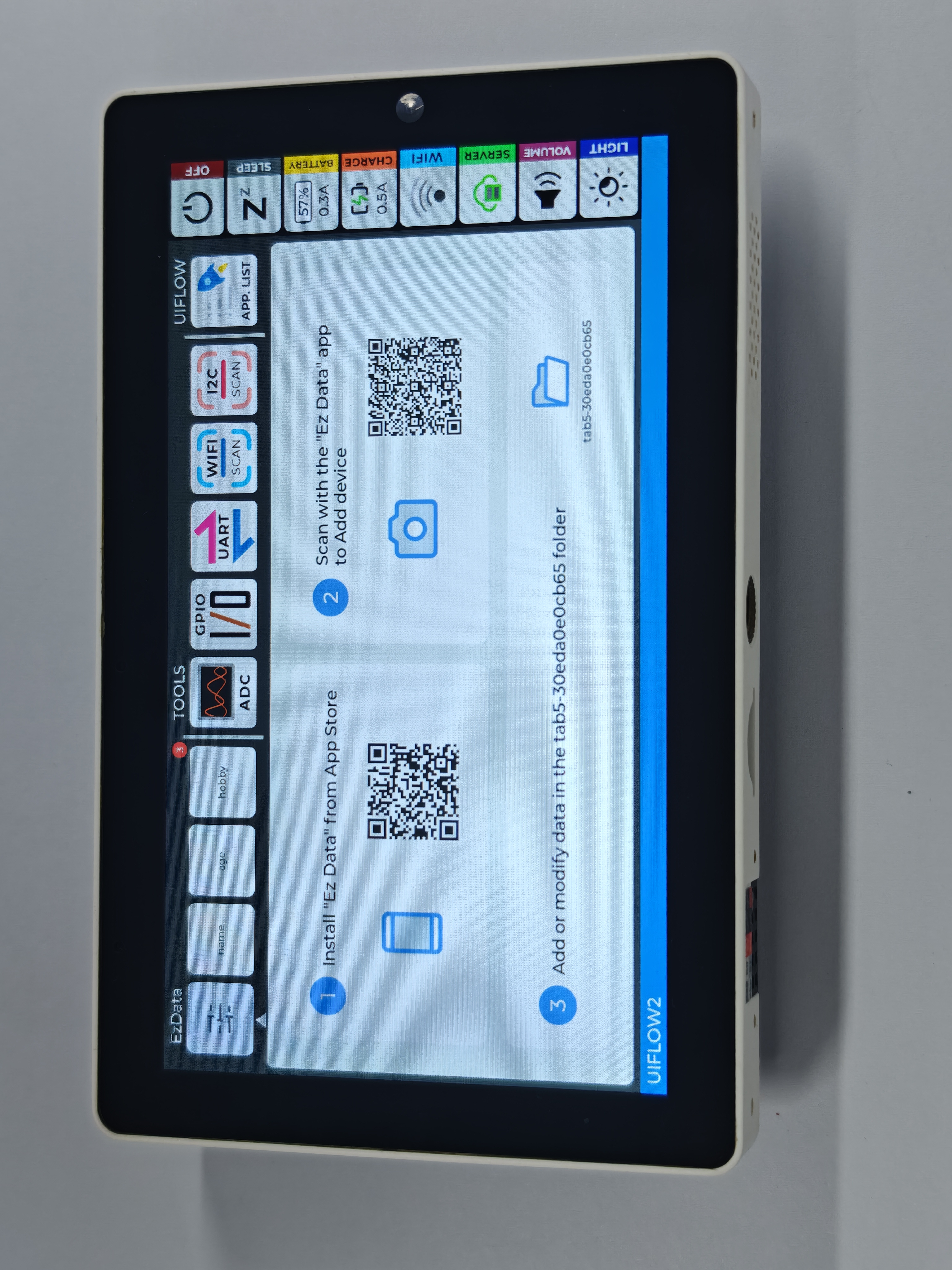
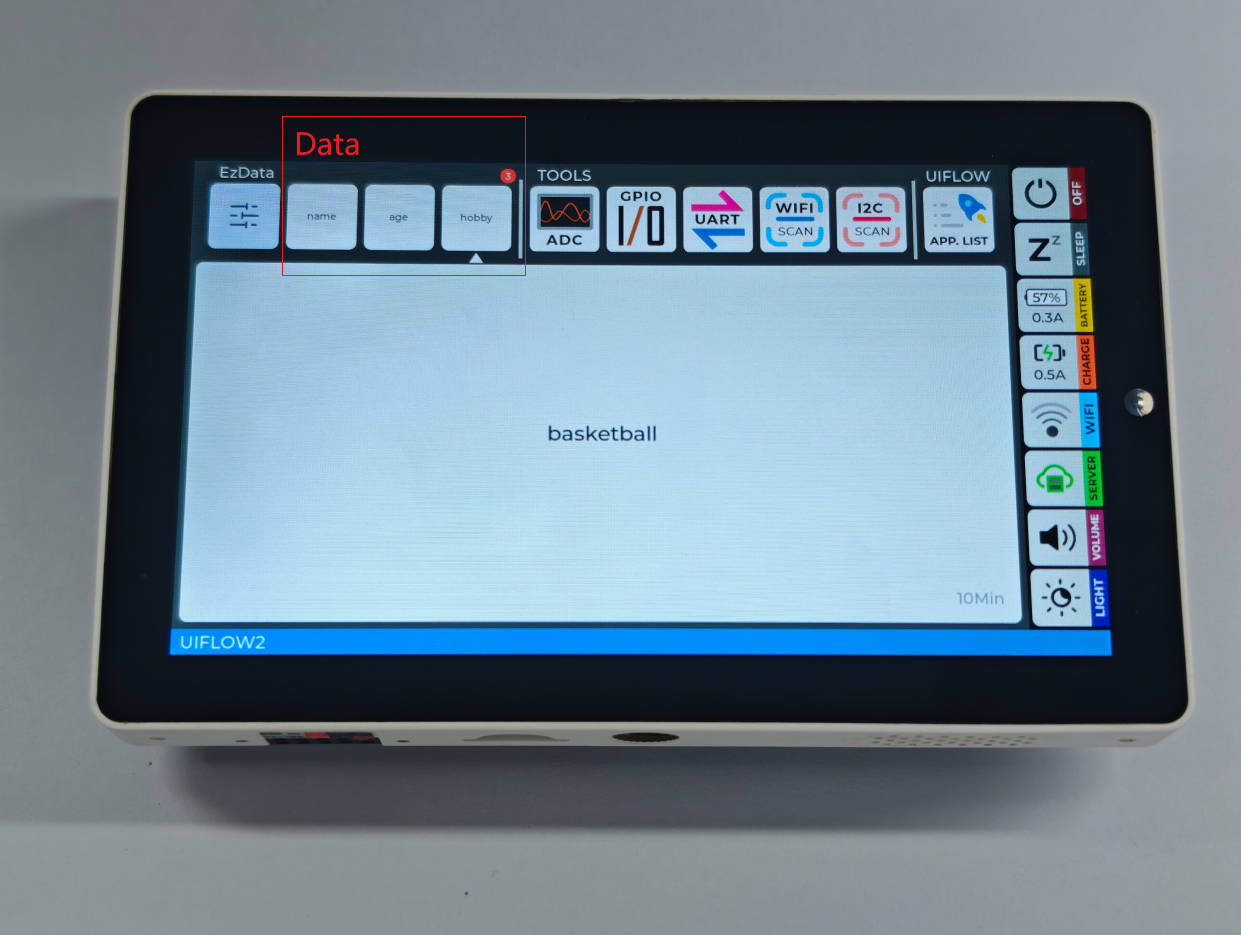
- EZDATA
- Scan the QR code with an iPhone to download the app and add EZData cloud data
- ADC
- Detect the high and low level of the corresponding PIN
- GPIO
- Pin level output control
- UART
- Serial data transmission, reception, and communication
- Wi-Fi
- Wi-Fi scanning
- Wi-Fi settings
- I2C
- I2C address scanning
- I2C input / output detection