
UiFlow Tutorial
UiFlow1 Quick Start
2. Firmware & Program
UiFlow1 Development Guide
Project Management
Use LTE network
UiFlow1 Blockly
Event
UI
Unit
Module
Hat
UiFlow2 Quick Start
2. Firmware & Program
UiFlow2 Development Guide
UI Editor
UiFlow2 Video Column
AtomS3R-CAM/AtomS3R-M12: Flash Firmware & Run Code
1. UiFlow2 Firmware Flashing
Refer to the UiFlow2 Web IDE tutorial to learn the basic UiFlow2 workflow and complete the installation of the M5Burner firmware flashing tool.
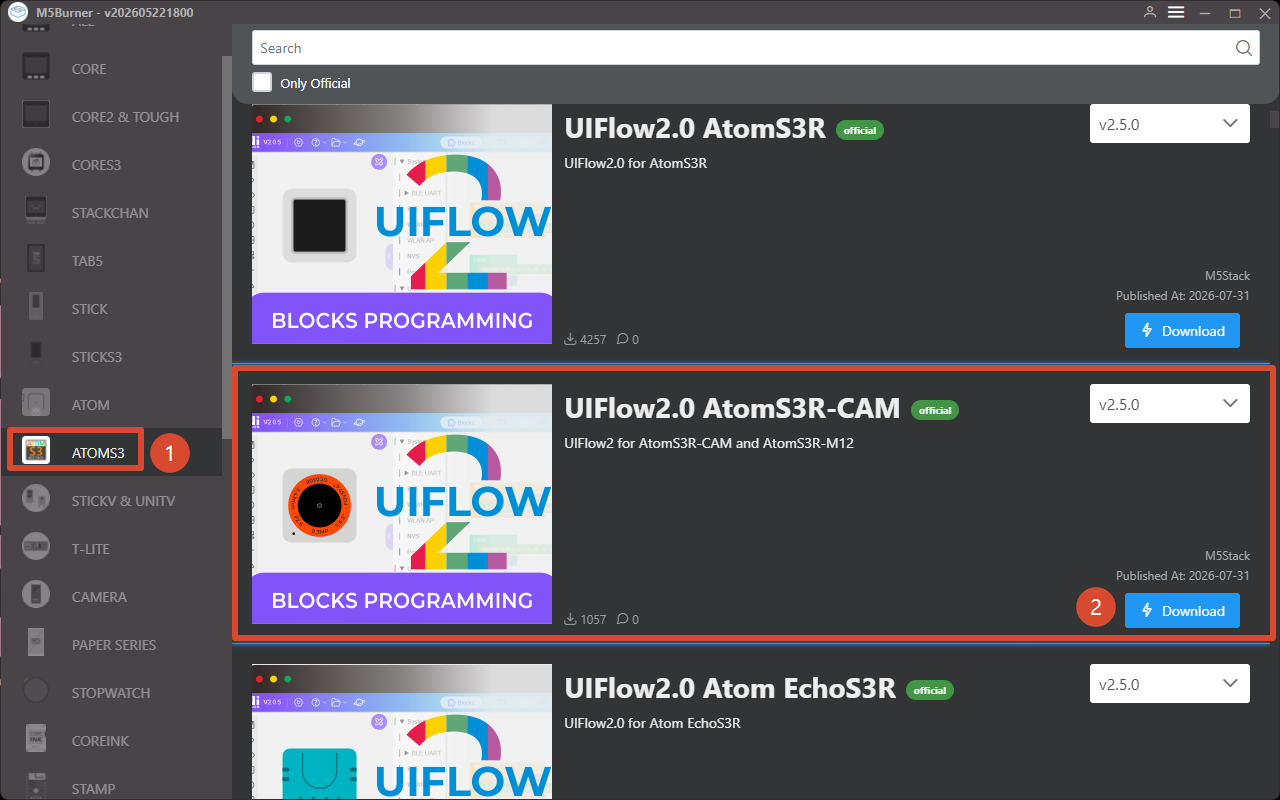
Download the firmware for
AtomS3R-CAM/AtomS3R-M12in M5Burner, as shown below.
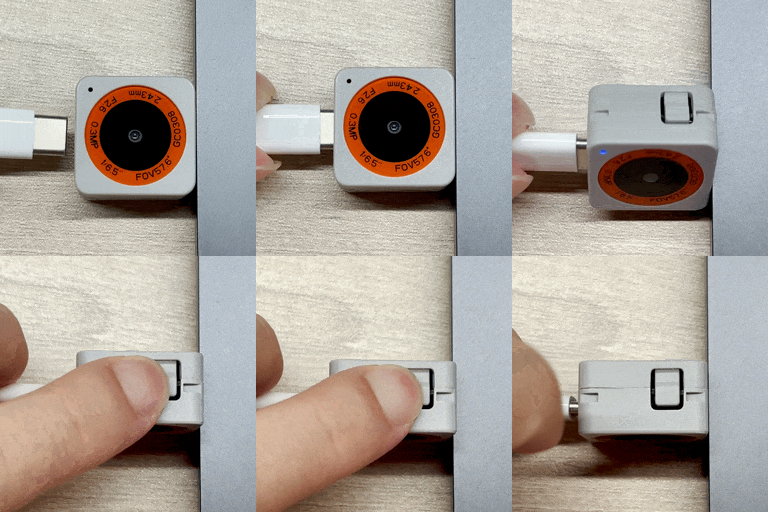
- Press and hold the device's reset button for approximately 2 seconds. Release the button when the internal green LED turns on. The device is now in download mode and ready for flashing. The green LED turns off after the button is released, confirming that the device is in download mode.
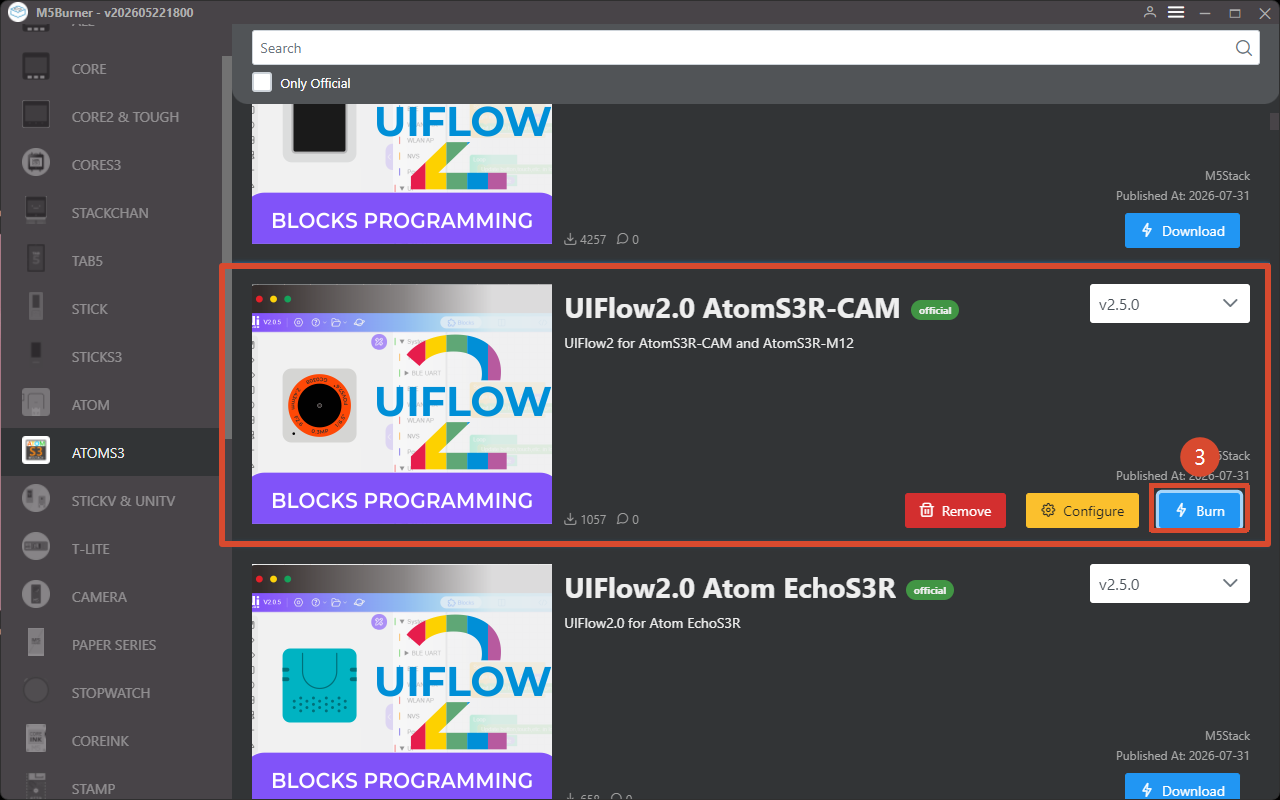
- In M5Burner, click the
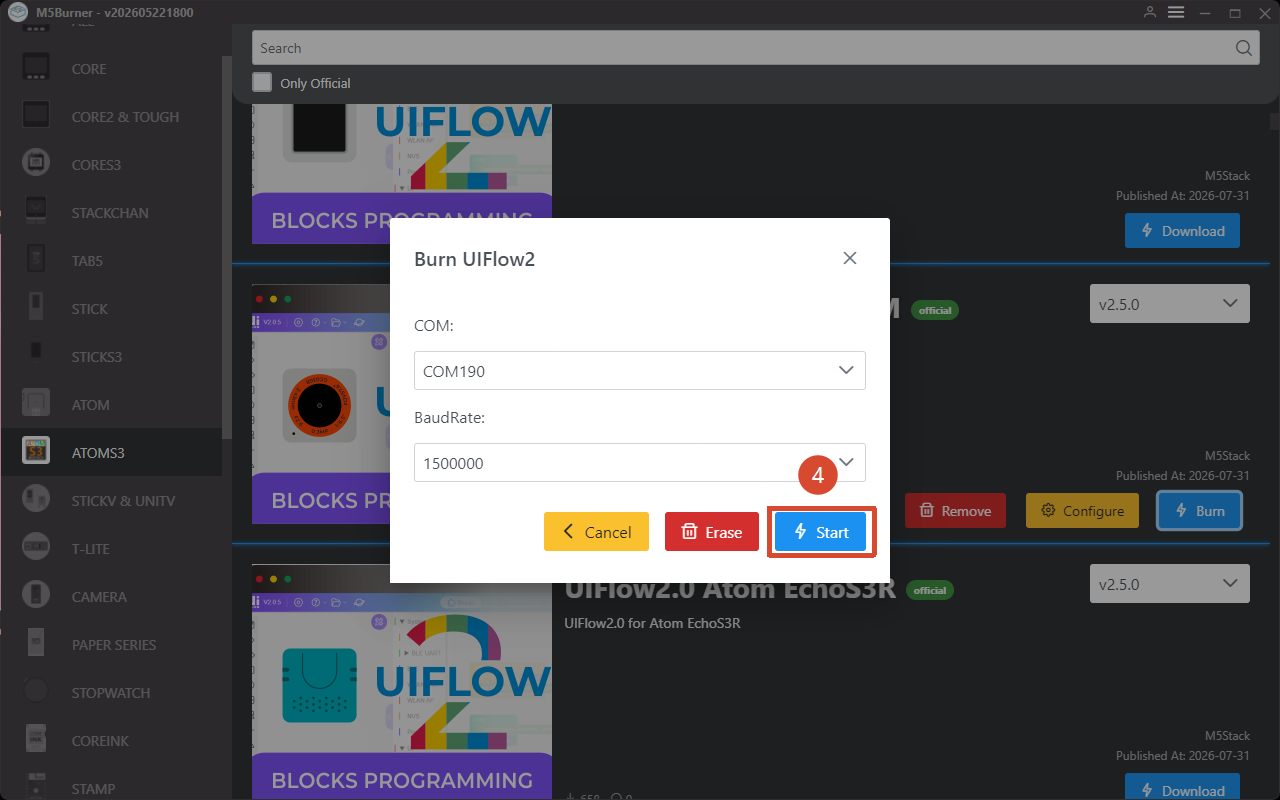
Burnbutton for the corresponding firmware, select the device port, then clickStart.
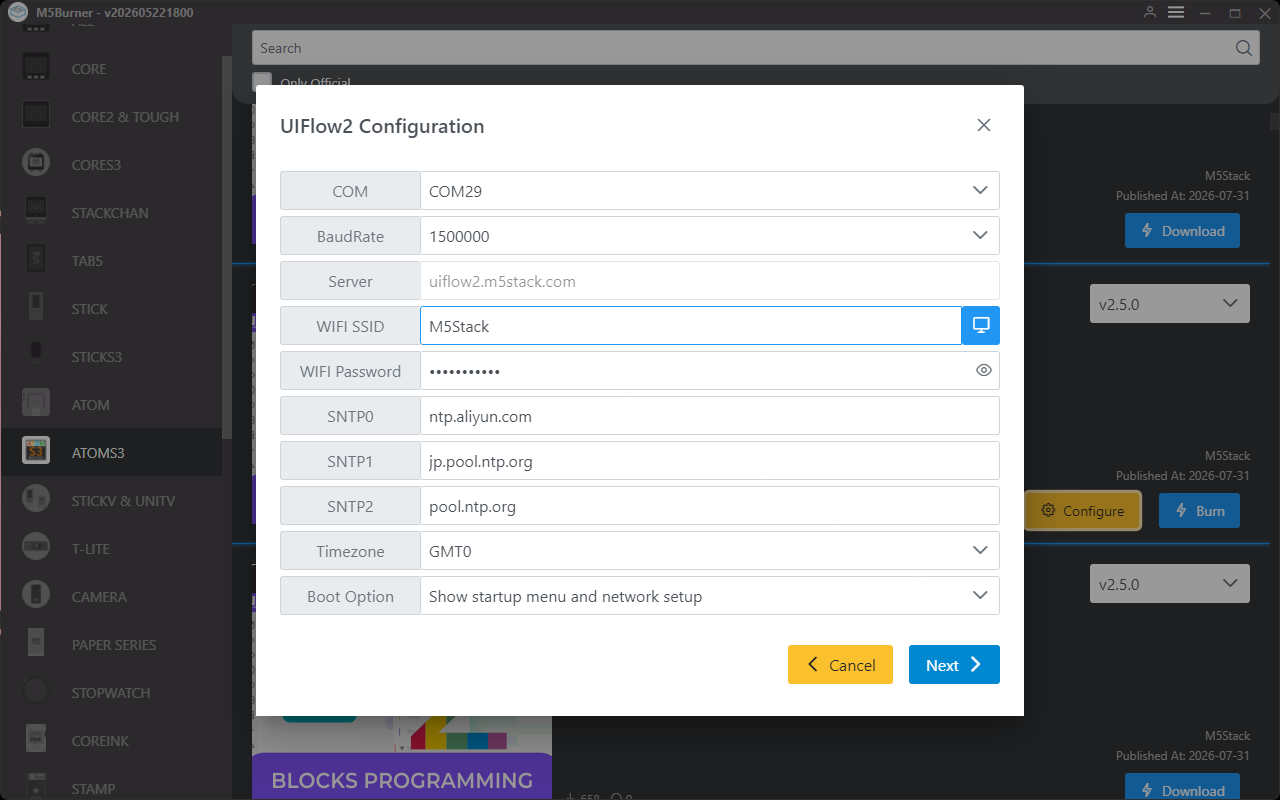
- Fill in the Wi-Fi configuration required by the device, including Wi-Fi SSID, Wi-Fi Password, and any other device configuration items that need to be added or modified. Then click
Nextto start flashing.
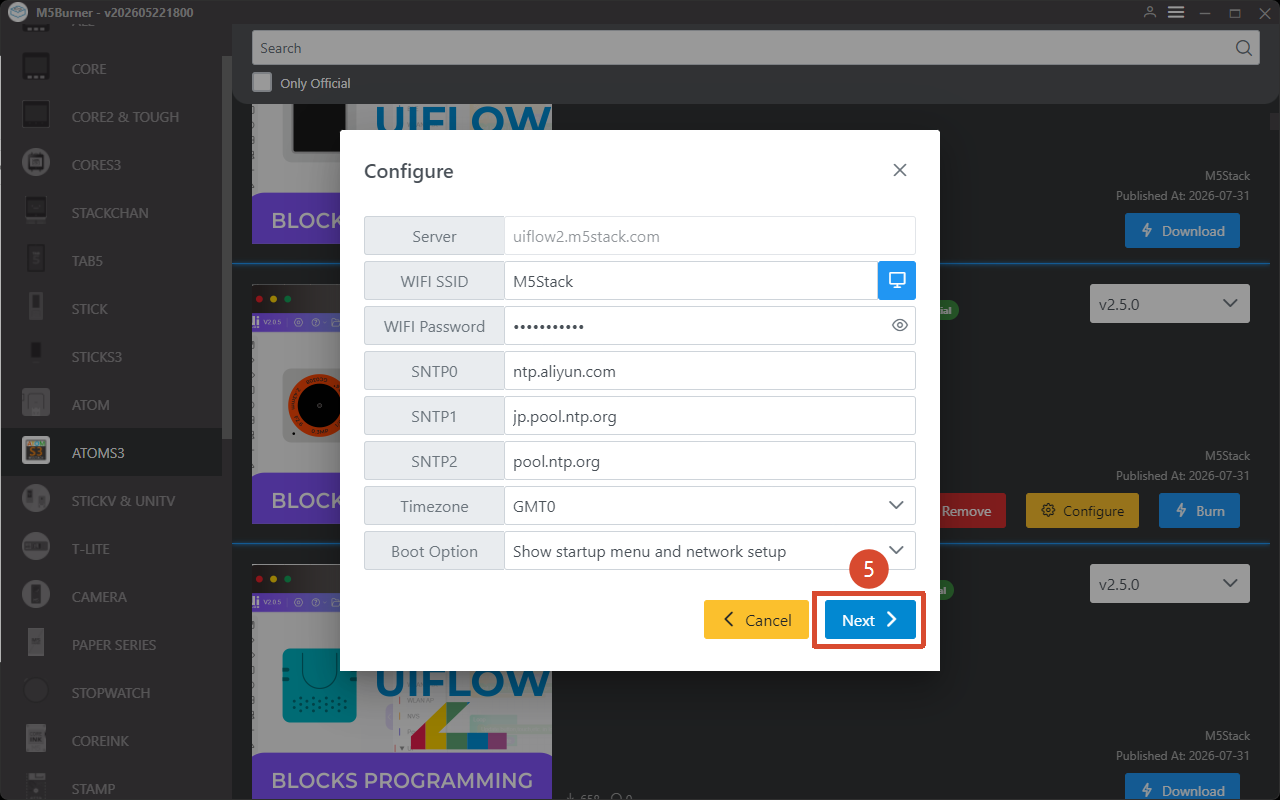
Configuration information:
- COM: Select the serial port corresponding to the device
- BaudRate: Baud rate for serial communication
- Server: Server address the device connects to
- WIFI SSID/WIFI Password: Wi-Fi name and password for the device
- SNTP Server
- SNTP0: Alibaba Cloud NTP server (China)
- SNTP1: Japan NTP server pool
- SNTP2: Global public NTP server pool
- Timezone: Time zone setting
- Boot Option: Set the device startup mode after firmware flashing is complete
- Run main.py directly: After flashing is complete, directly run the program in main.py without networking or showing the UiFlow2 startup screen
- Show startup menu and network setup: The device connects to the network, and devices with screens will show the UiFlow2 startup screen
- Only network setup: The device only performs network setup and does not show the UiFlow2 startup screen
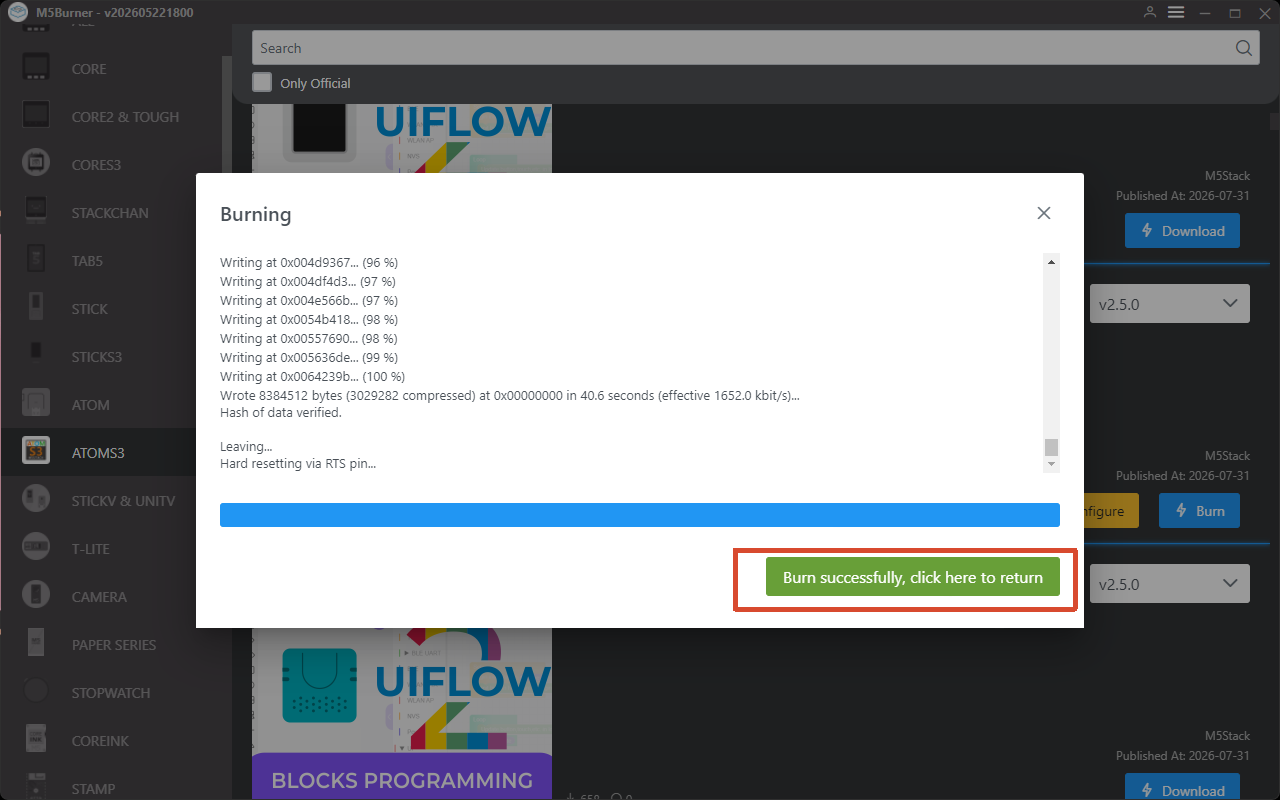
When Burn successfully, click here to return appears, flashing is successful.
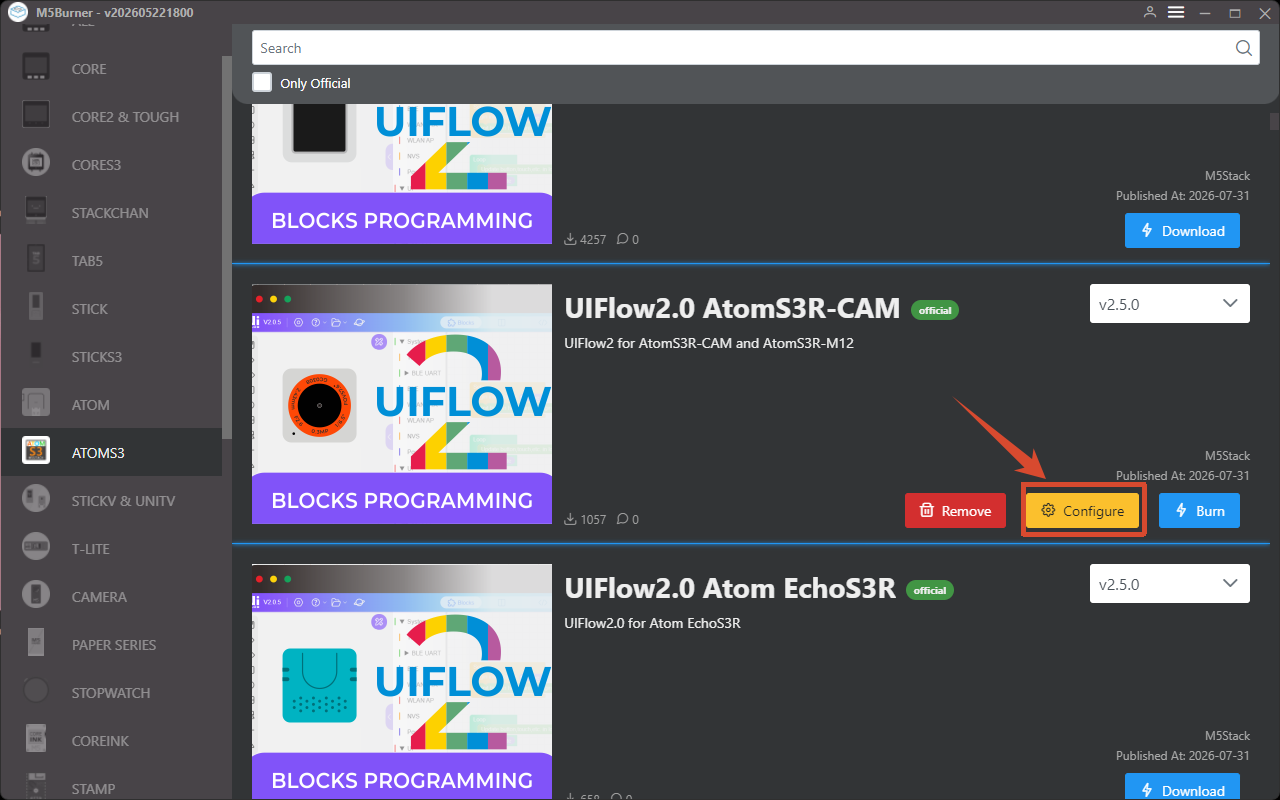
- After firmware flashing is complete, if you need to modify the device configuration, keep the USB connection, restart the device, click the
Configureoption, and follow the on-screen instructions.
2. Device Connection
The device supports Access Code (via wireless network) or USB (wired connection to a computer) for connecting to UiFlow2 for program upload and debugging. See the following steps:
Access Code Wireless Connection
Visit uiflow2.m5stack.com to open the UiFlow2 Web IDE.
Make sure the device is connected to the network and obtain the
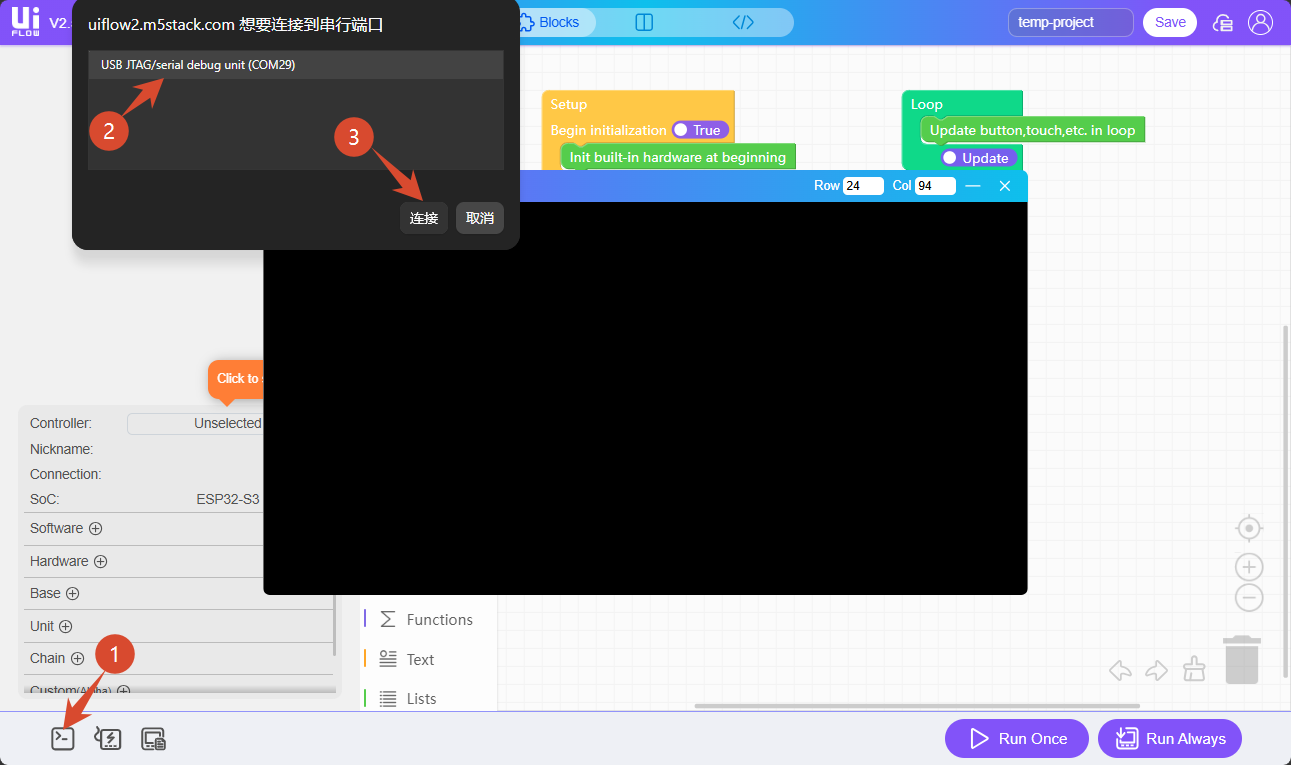
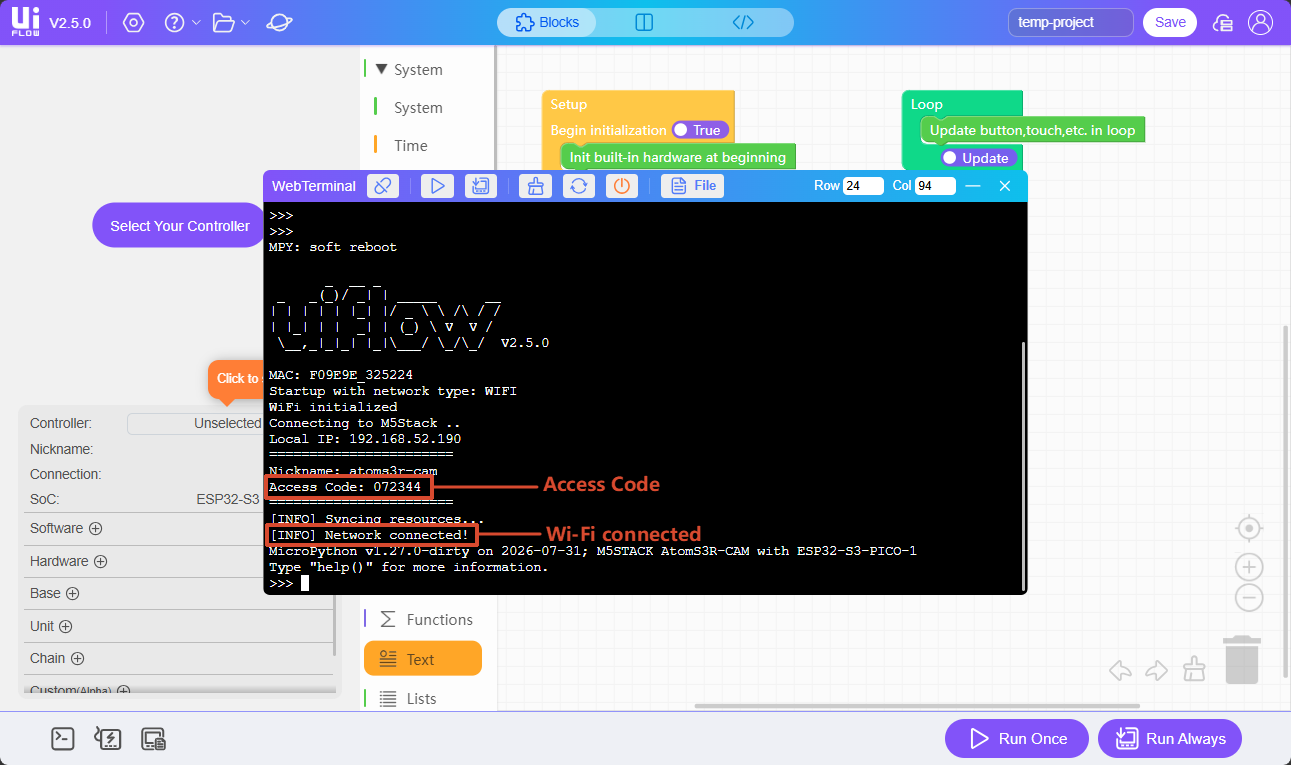
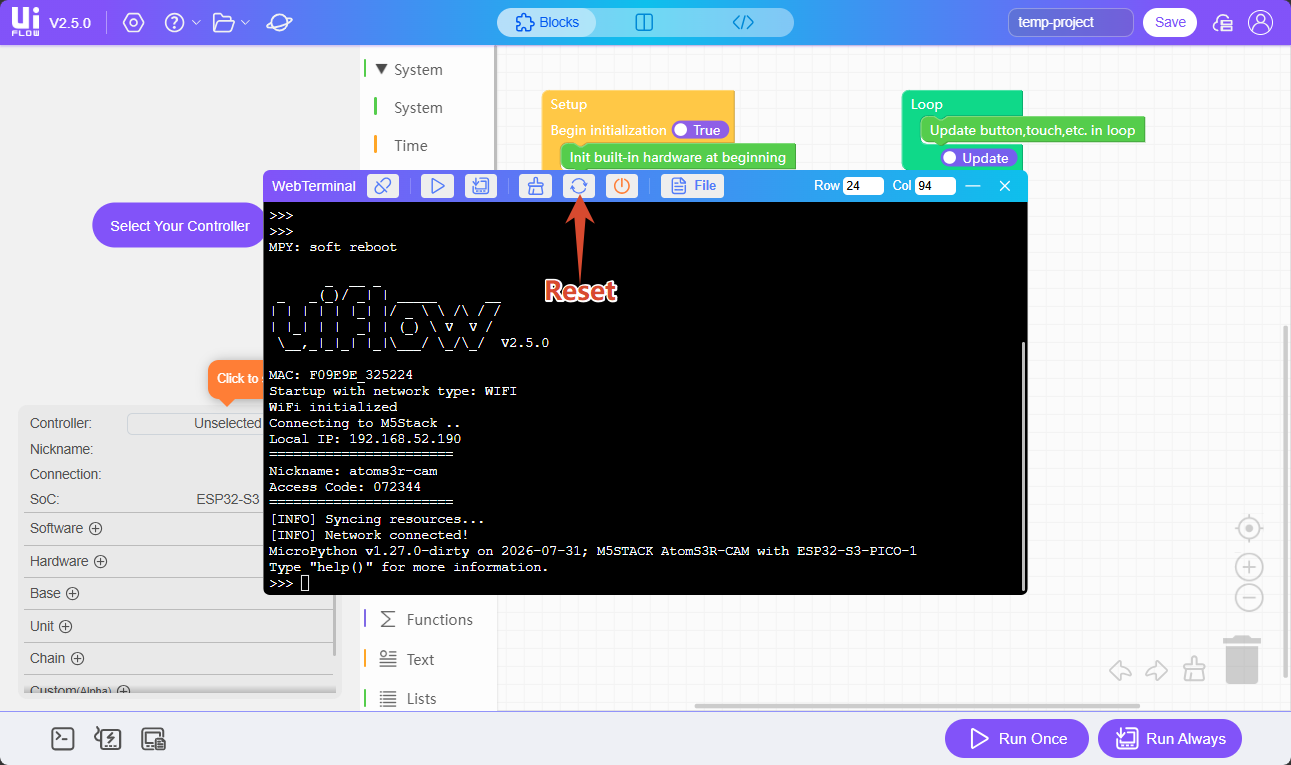
Access Code: clickWebTerminalin the lower-left corner of the interface, select the corresponding serial port in the dialog, then clickConnectto open the serial monitor. You can view the current validAccess Codeand Wi-Fi connection status. (Note: If the corresponding information is not displayed, clickSoft Resetto perform a soft reboot.)
- Click
Select Your Controller(shown on first entry) or theControllerbutton to enter theSelect Devicepage.
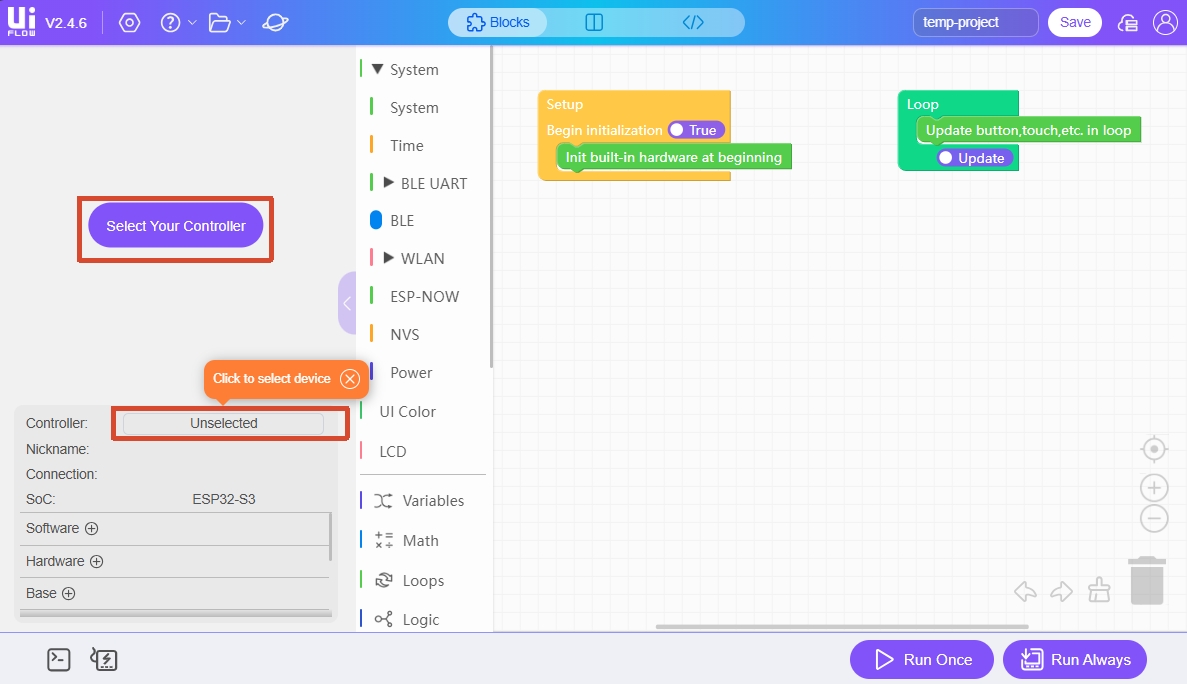
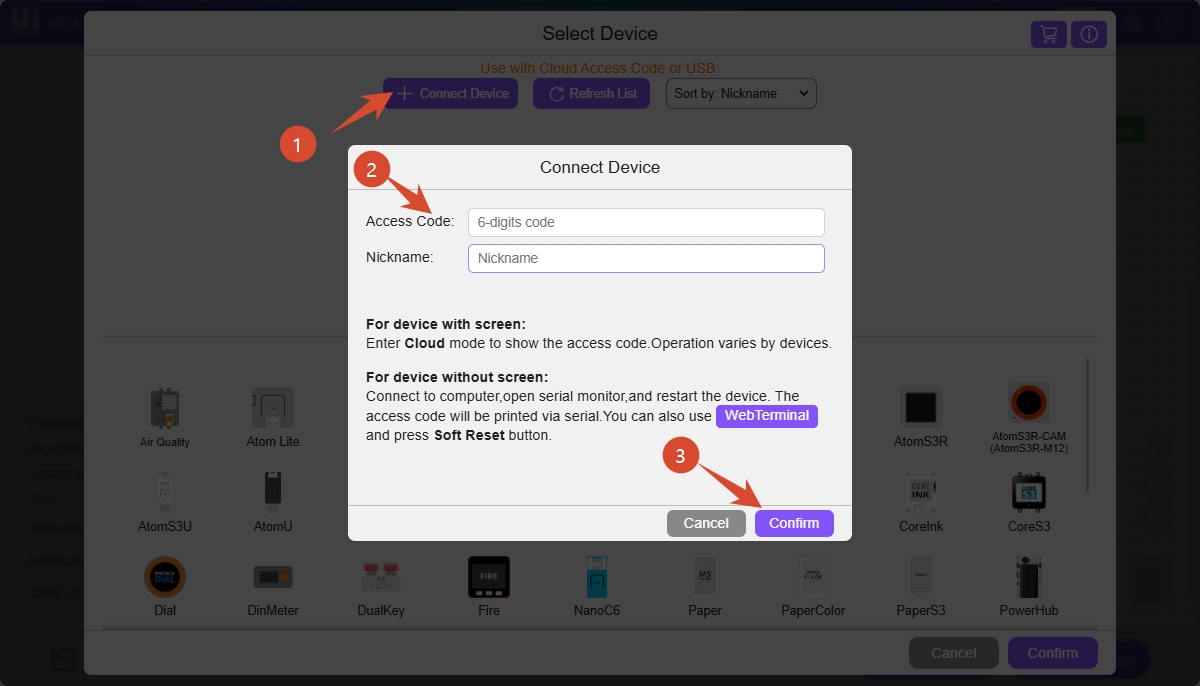
- Click
Connect Device, enter the access code and a custom device name, then clickConfirmto connectAtomS3R-CAMorAtomS3R-M12to UiFlow2.
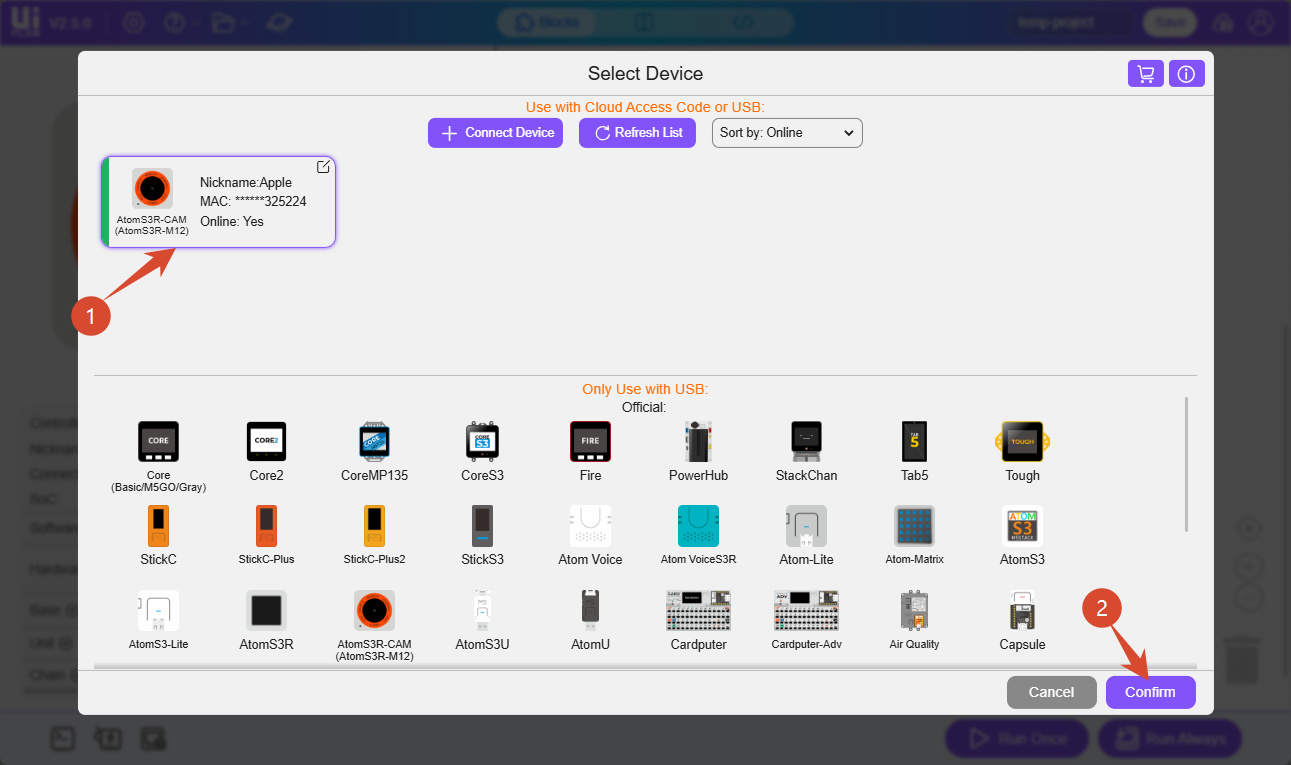
- On the
Select Devicepage, select the connected device and clickConfirmto enter the UiFlow2 programming interface.
USB Wired Connection
Visit uiflow2.m5stack.com to open the UiFlow2 Web IDE, and connect AtomS3R-CAM or AtomS3R-M12 to the computer with a USB cable.
Click
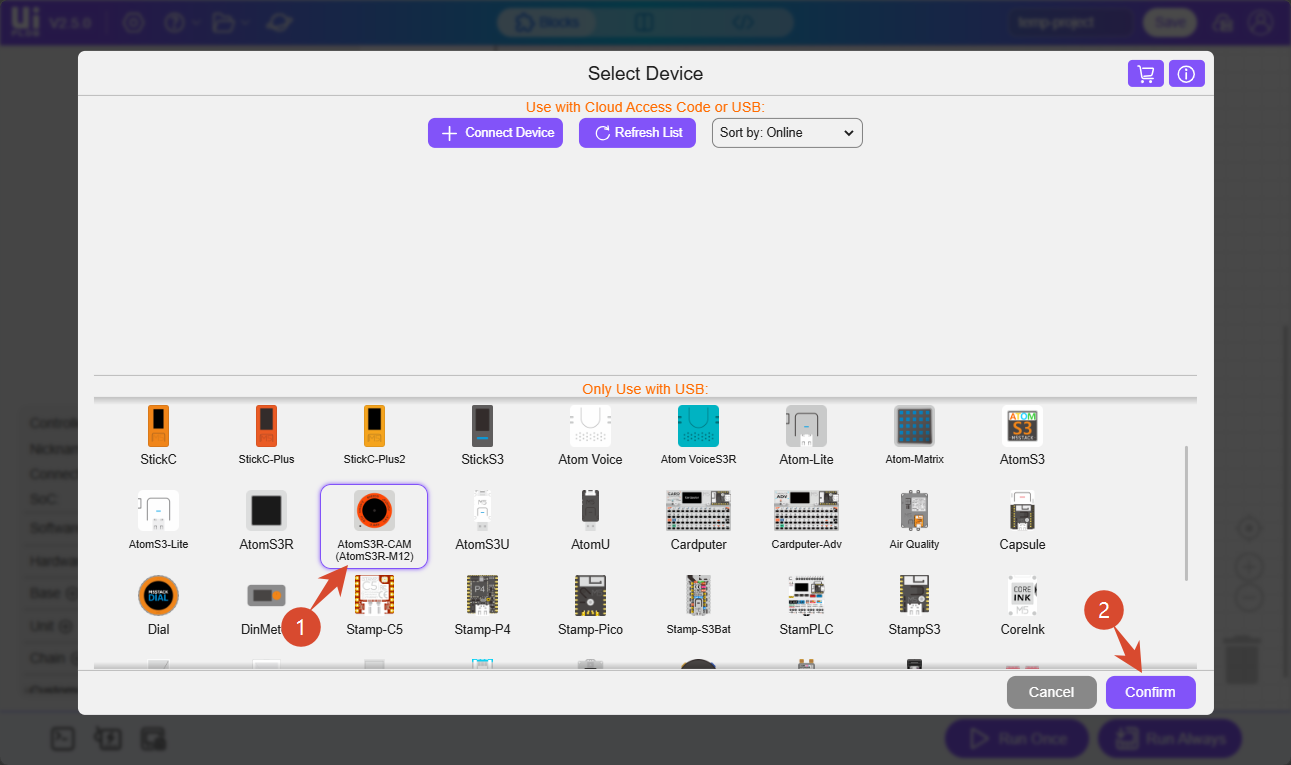
Select Your Controller(shown on first entry) or theControllerbutton to enter theSelect Devicepage.
- Select AtomS3R-CAM (AtomS3R-M12) from the device list, then click
Confirm.
- Click the
WebTerminalbutton, select the corresponding serial port in the dialog, then clickConnect.
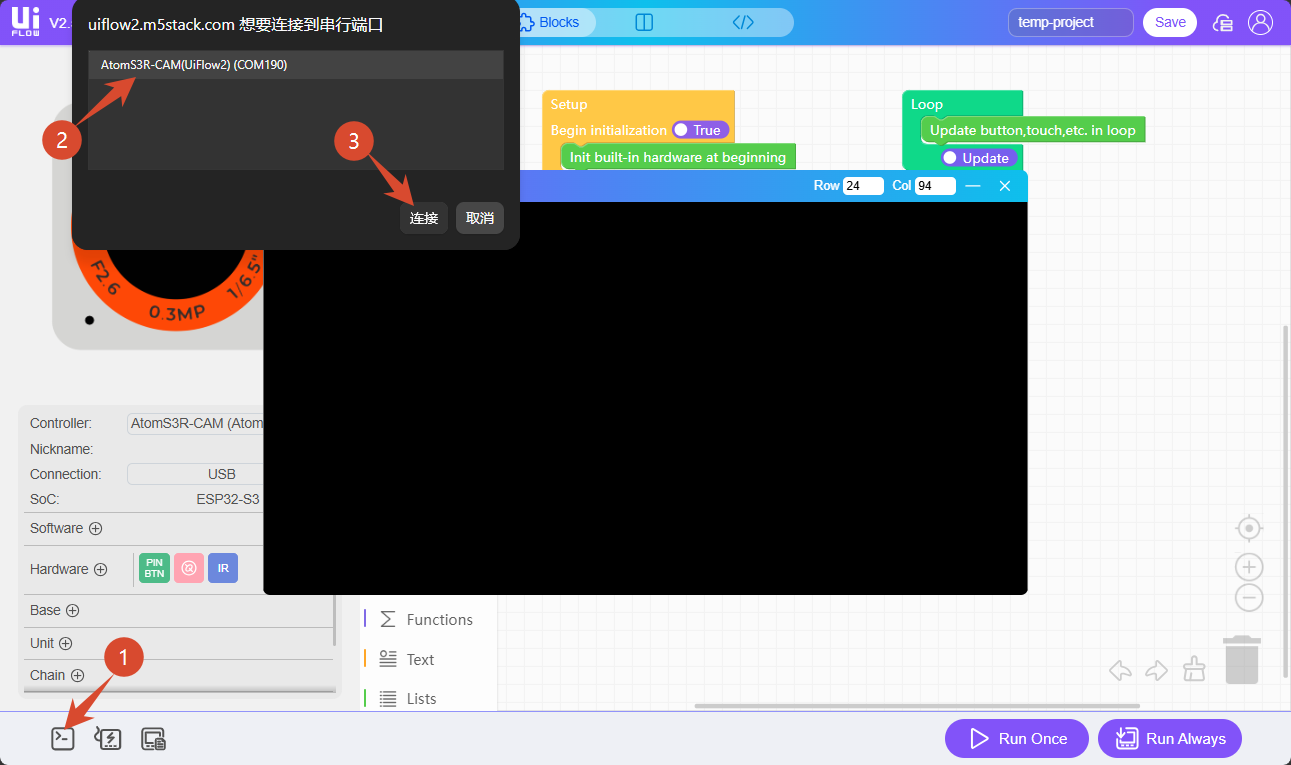
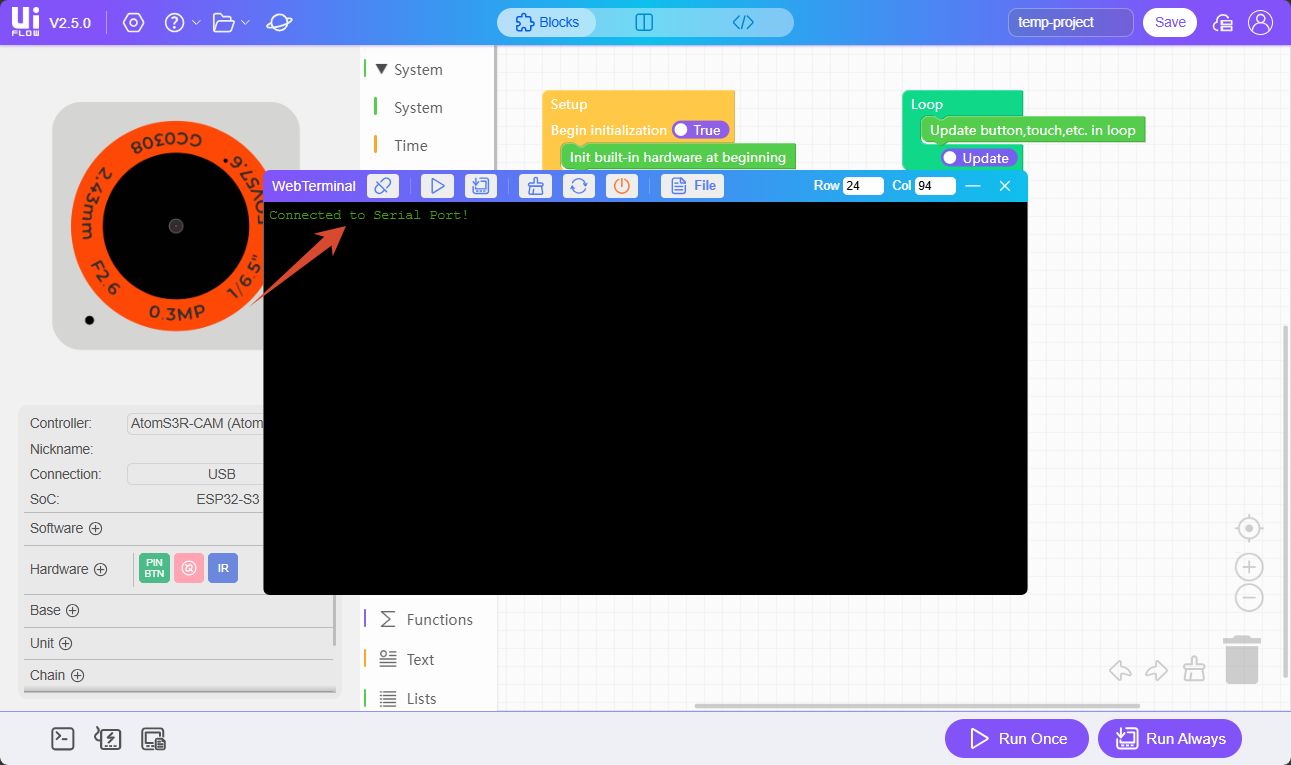
When the WebTerminal screen displays Connected to Serial Port!, the USB connection is successful.
3. Run and Download Programs
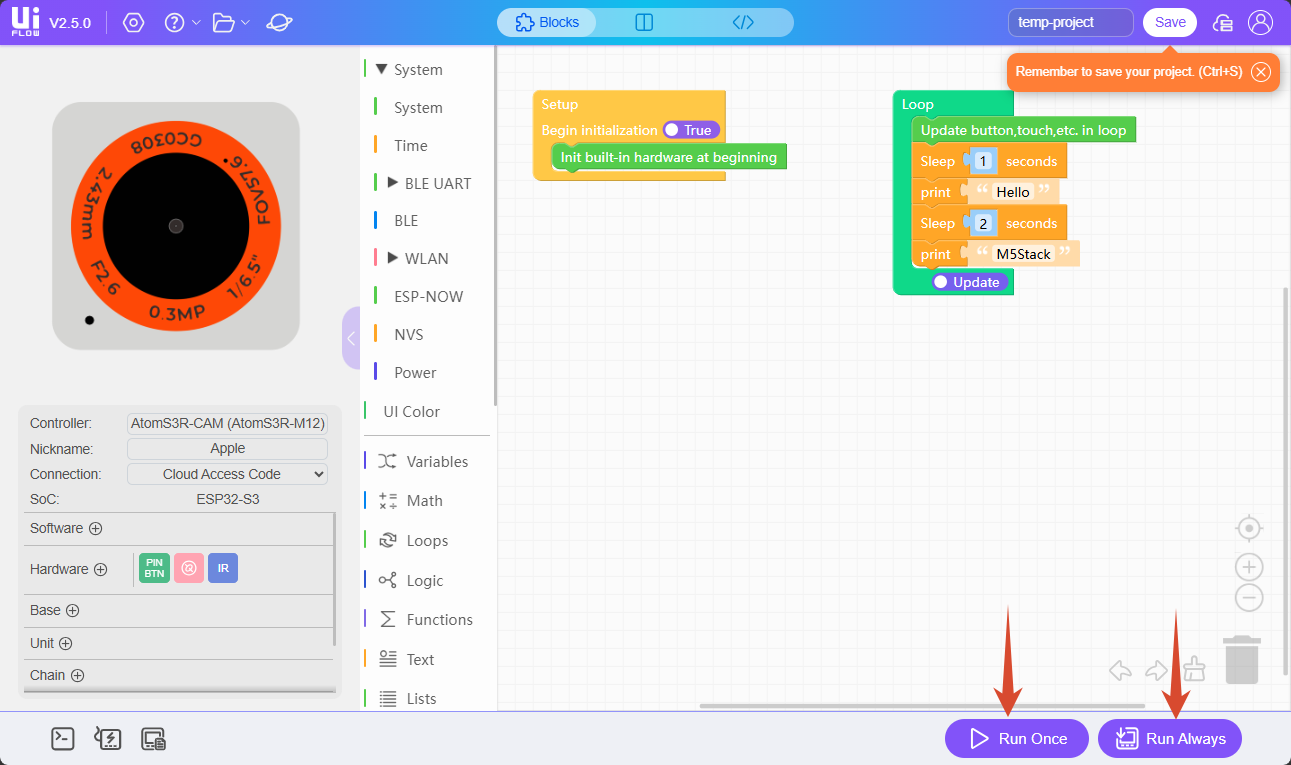
After the device is connected to UiFlow2, you can drag Blockly blocks to edit programs.
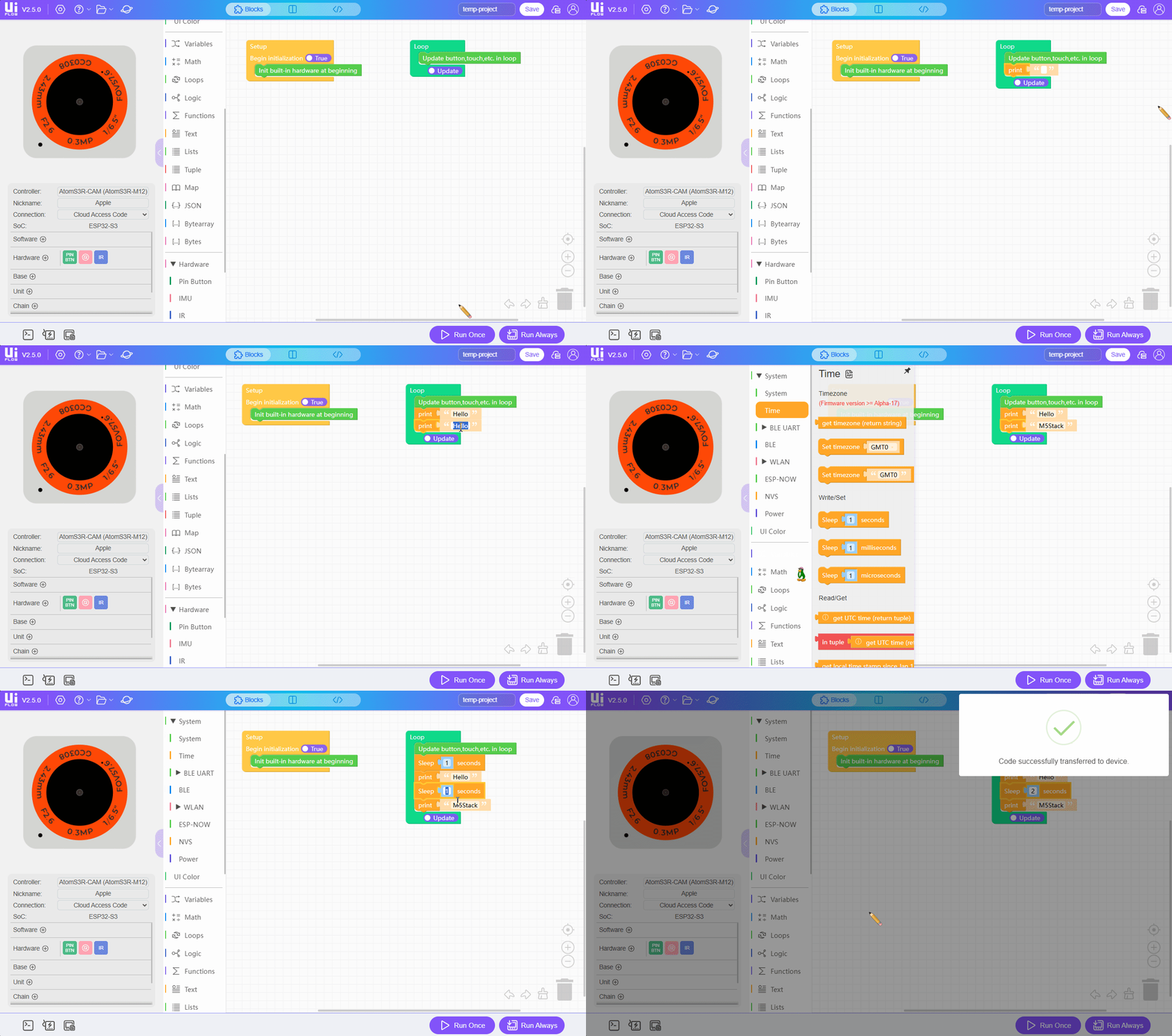
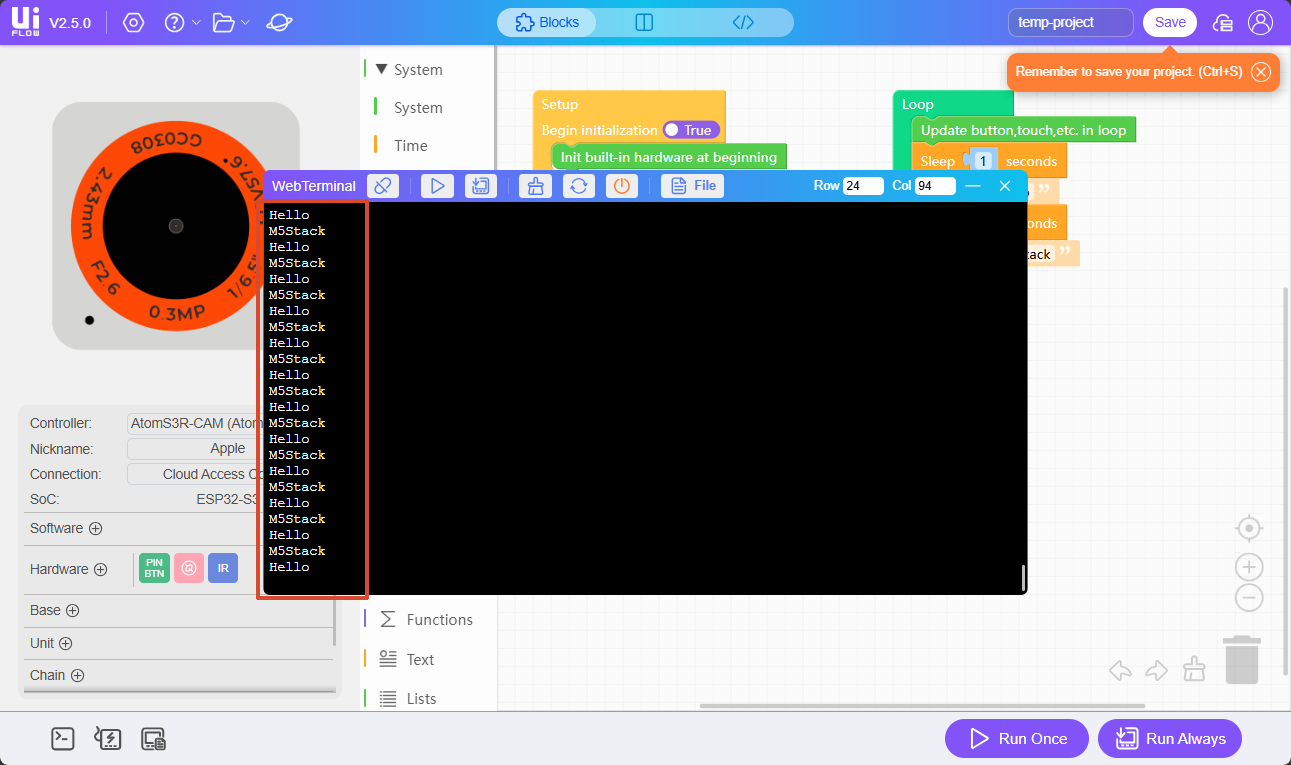
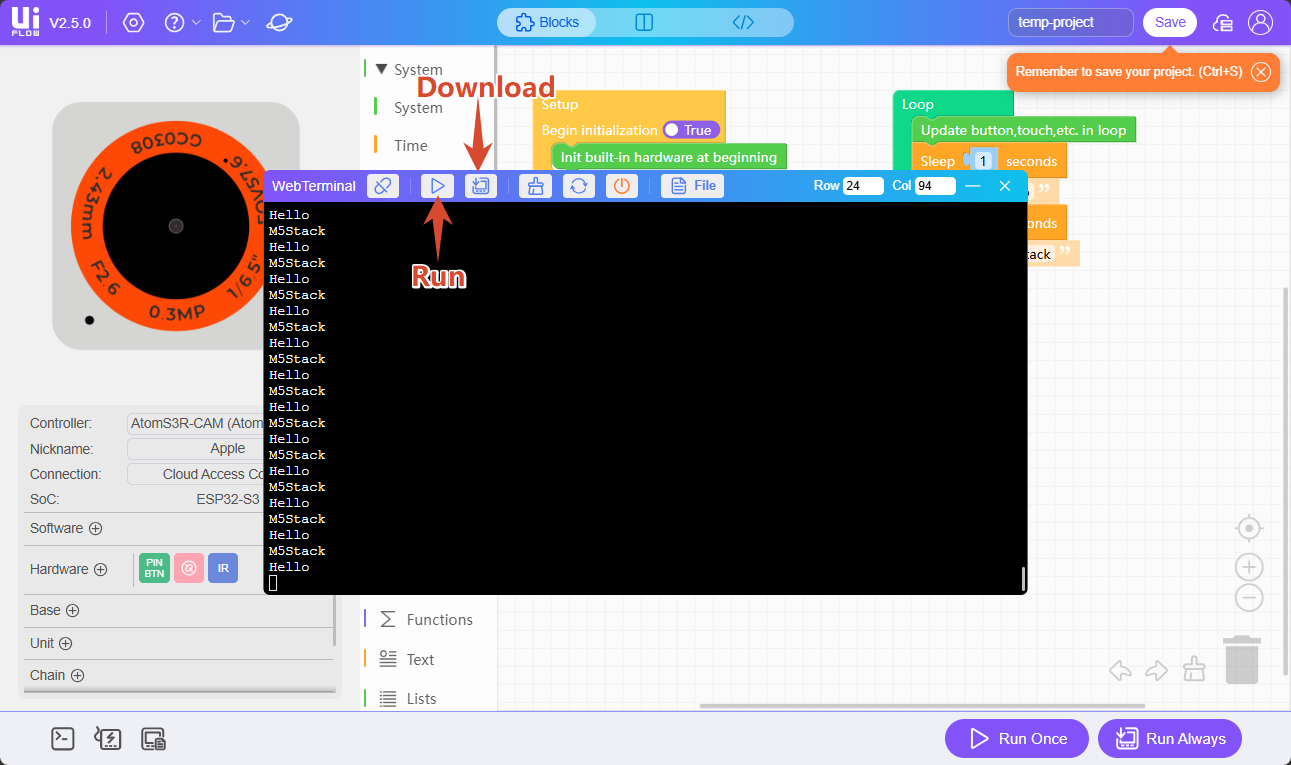
After editing the program, click the Run Once button in the lower-right corner of the interface to run the program once for testing. Click the Run Always button to download the program to the device.
You can also run once or download the program from the WebTerminal window.