

Arduino Quick Start
2. Devices & Examples
3. M5Unified
4. M5GFX
5. Extensions
Unit
Atomic
Tab5
IoT
Accessories
Unit DLight Arduino Tutorial
1. Preparation
- Environment Setup: Follow the Arduino IDE Getting Started Tutorial to install the IDE, then install the board manager package and required driver libraries for the development board you are using.
- Required Driver Libraries:
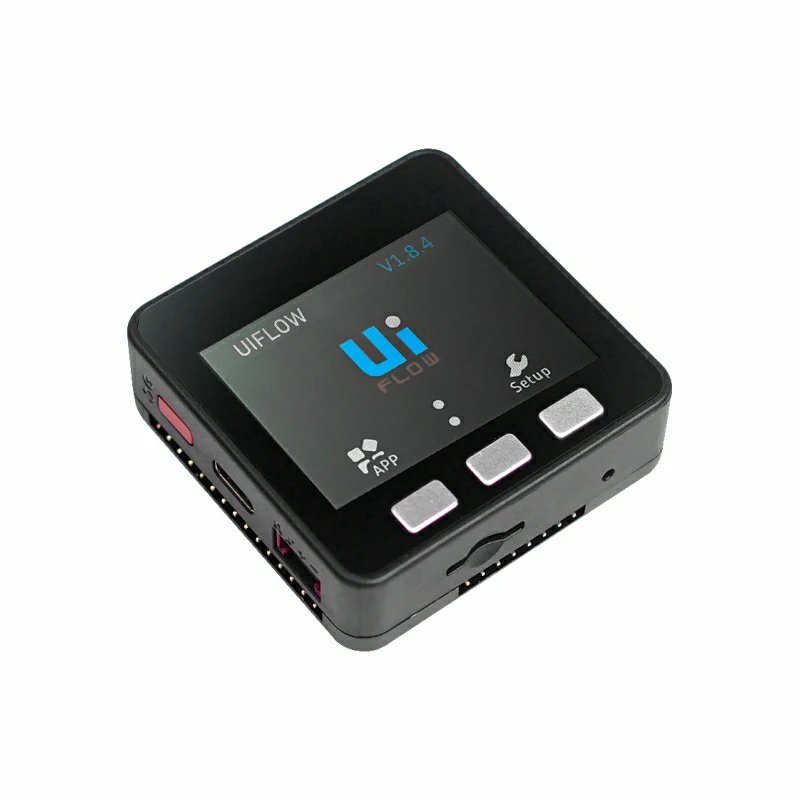
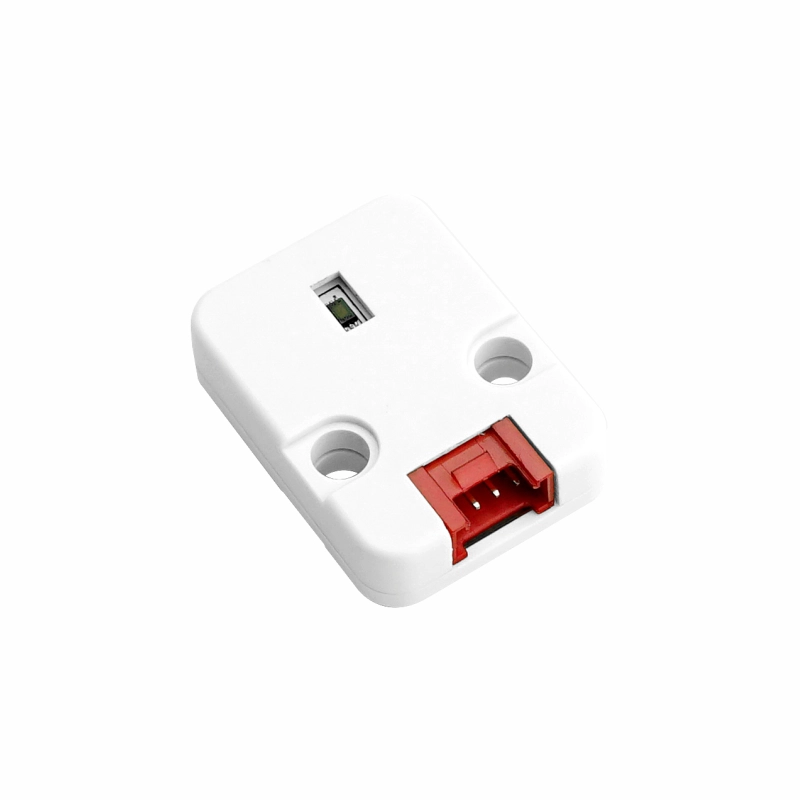
- Required Hardware:
2. Notes
Pin Compatibility
Pin configurations vary between host devices. M5Stack provides an official pin compatibility table for reference. Modify the example program according to the actual pin connections.
3. Example Program
- This tutorial uses Basic V2.7 with Unit DLight. Unit DLight communicates via I2C at the default address
0x23. Once connected, the corresponding pins areG21 (SDA)andG22 (SCL).
Note
Unit DLight integrates a BH1750FVI illuminance sensor and supports illuminance detection from
1 ~ 65535 lx. This example uses continuous high-resolution mode to measure ambient light illuminance.cpp
1 2 3 4 5 6 7 8 9 10 11 12 13 14 15 16 17 18 19 20 21 22 23 24 25 26 27 28 29 30 31 32 33 34 35 36 37 38 39 40
#include <M5Unified.h>
#include <M5_DLight.h>

M5Canvas canvas(&M5.Display);

M5_DLight sensor;
uint16_t lux;

void setup() {
    M5.begin();
    canvas.setTextDatum(MC_DATUM);
    canvas.setColorDepth(1);
    canvas.setFont(&fonts::Orbitron_Light_24);
    canvas.setTextSize(2);
    canvas.createSprite(M5.Display.width(), M5.Display.height());
    canvas.setPaletteColor(1, ORANGE);
    Serial.begin(115200);
    Serial.println("Sensor begin.....");
    sensor.begin(&Wire, SDA, SCL);

    // CONTINUOUSLY_H_RESOLUTION_MODE
    // CONTINUOUSLY_H_RESOLUTION_MODE2
    // CONTINUOUSLY_L_RESOLUTION_MODE
    // ONE_TIME_H_RESOLUTION_MODE
    // ONE_TIME_H_RESOLUTION_MODE2
    // ONE_TIME_L_RESOLUTION_MODE
    sensor.setMode(CONTINUOUSLY_H_RESOLUTION_MODE);
}

char info[40];

void loop() {
    lux = sensor.getLUX();
    sprintf(info, "lux: %d", lux);
    canvas.fillSprite(BLACK);
    canvas.drawString(info, 160, 120);
    canvas.pushSprite(0, 0);
    Serial.println(info);
    delay(100);
}4. Compile and Upload
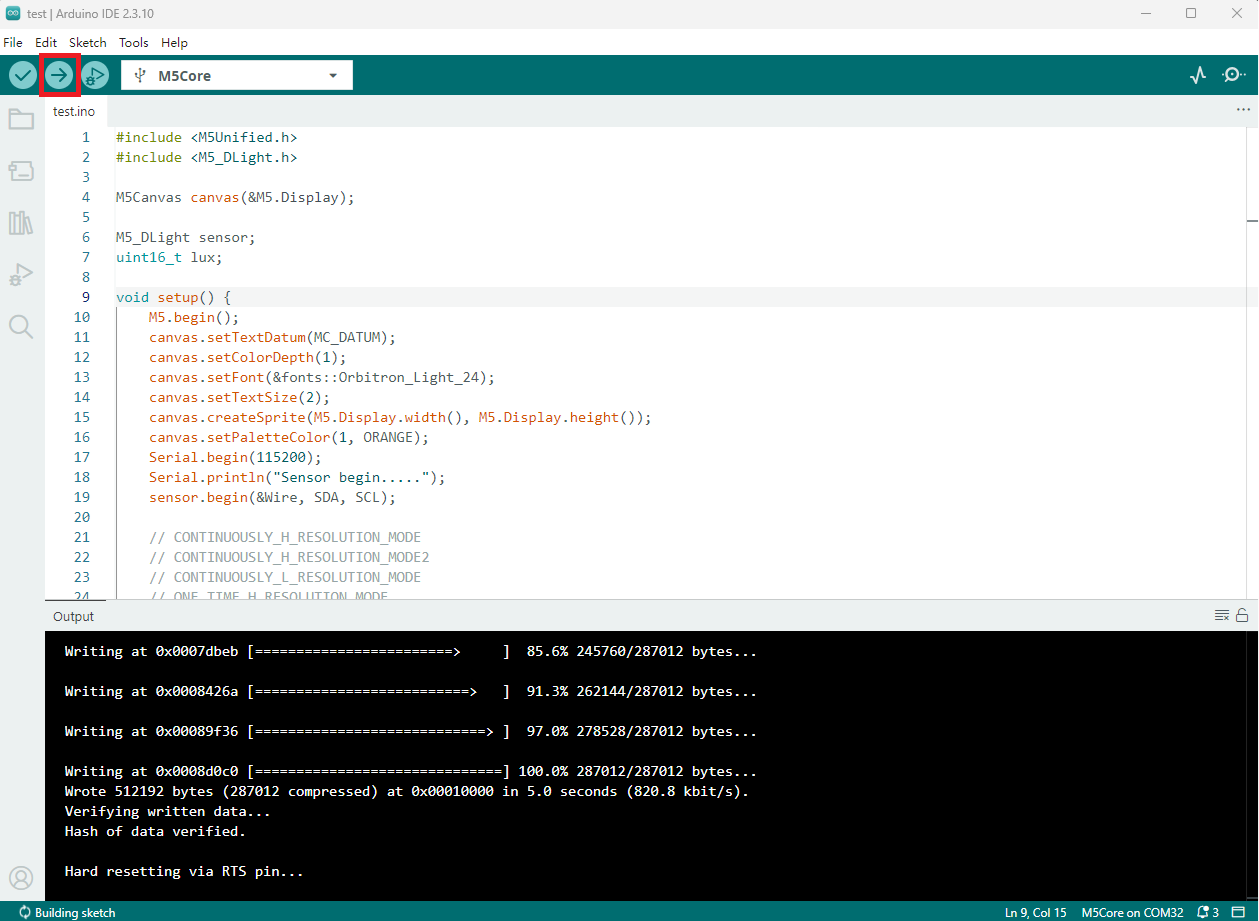
- Copy and paste the example code above into the project code area and select the device port. For details, see Program Compilation and Flashing. Click the compile and upload button in the upper-left corner of Arduino IDE, then wait for the program to compile and upload to the device.
5. Ambient Light Illuminance Detection
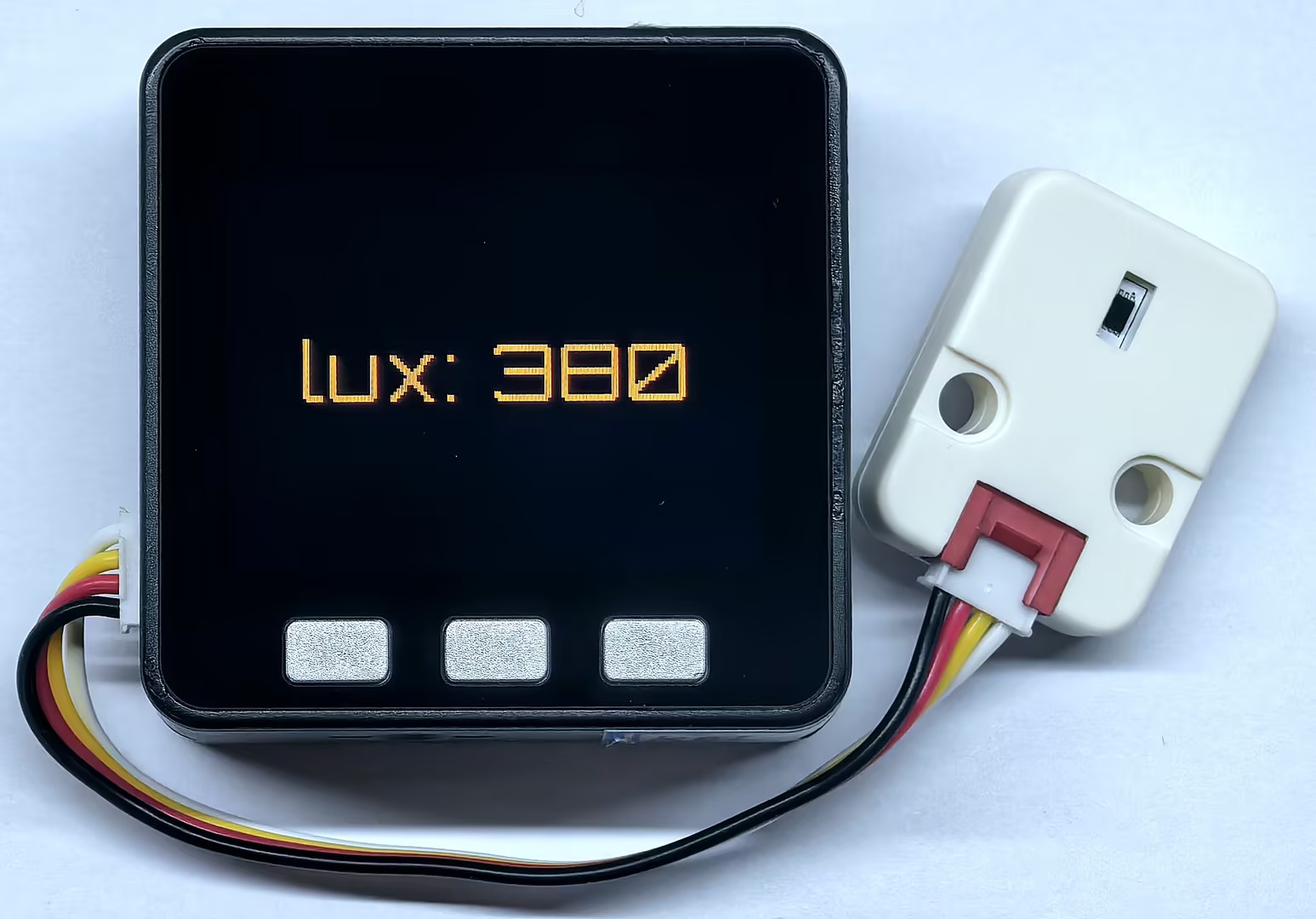
- After the program starts, the screen and Serial Monitor update the ambient light illuminance measured by Unit DLight every
100ms, displayed inlx. Change the light intensity on the sensor surface to observe changes in the illuminance value.
Page Tools