

Arduino Quick Start
2. Devices & Examples
3. M5Unified
4. M5GFX
5. Extensions
Unit
Atomic
Tab5
IoT
Accessories
Unit ENV-Pro Arduino Tutorial
1. Preparation
- Environment Setup: Follow the Arduino IDE Getting Started Tutorial to install the IDE, then install the board manager package and required driver libraries for the development board you are using.
- Required Driver Libraries:
- Required Hardware:
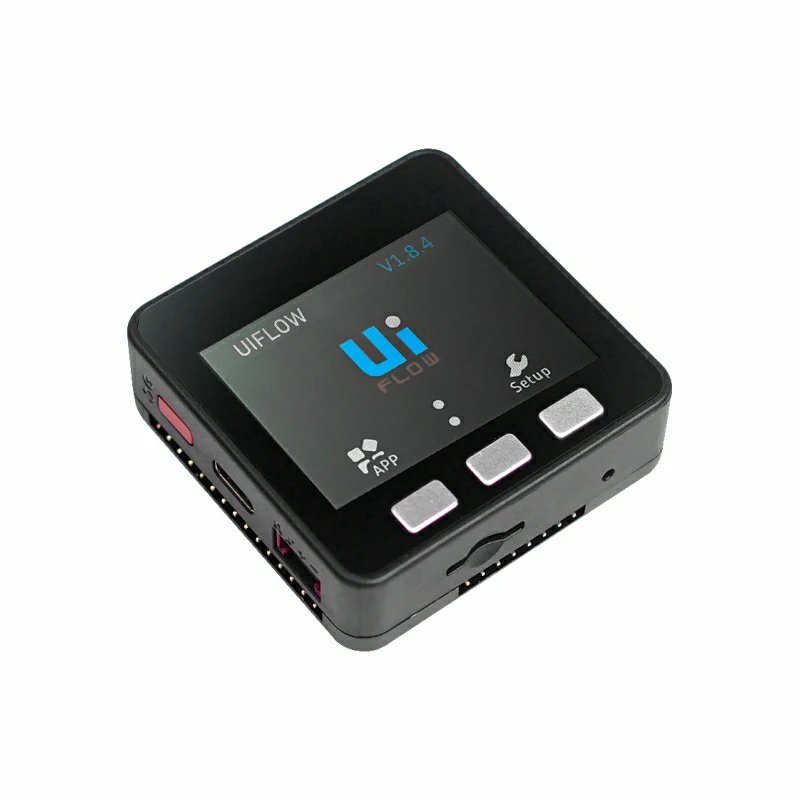
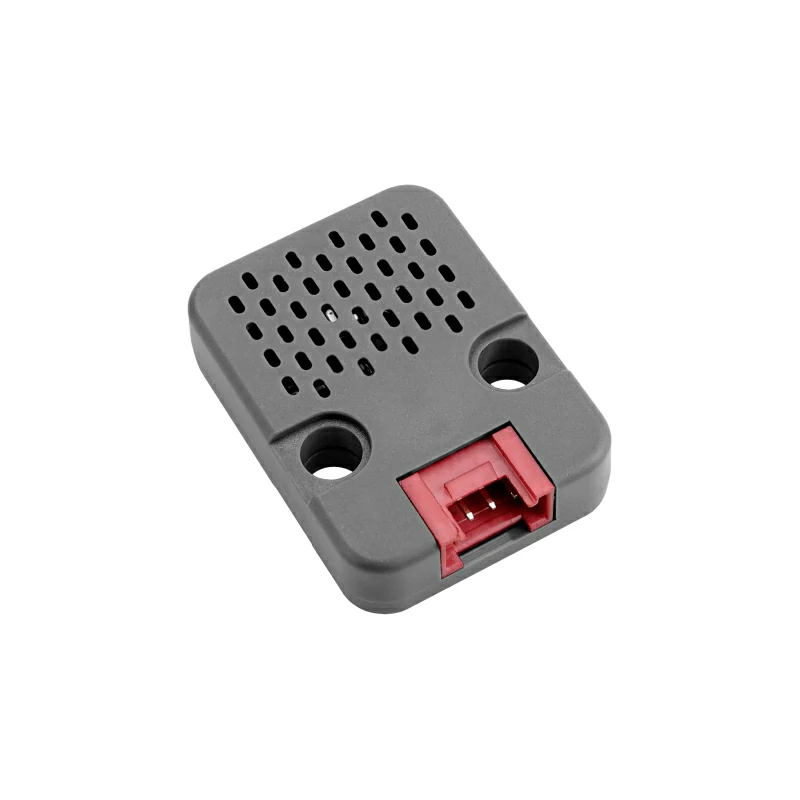
2. Notes
Pin Compatibility
Pin configurations vary between host devices. M5Stack provides an official pin compatibility table for reference. Modify the example program according to the actual pin connections.
3. Example Program
- This tutorial uses Basic V2.7 with Unit ENV-Pro. Unit ENV-Pro communicates via I2C at the default address
0x77. Once connected, the corresponding pins areG21 (SDA)andG22 (SCL).
cpp
1 2 3 4 5 6 7 8 9 10 11 12 13 14 15 16 17 18 19 20 21 22 23 24 25 26 27 28 29 30 31 32 33 34 35 36 37 38 39 40 41 42 43 44 45 46 47 48 49 50 51 52 53 54 55 56 57 58 59 60 61 62 63 64 65 66 67 68 69 70 71 72 73 74 75 76 77 78 79 80 81 82 83 84 85 86 87 88 89 90 91 92 93 94 95 96 97 98 99 100 101 102 103 104 105 106 107 108 109 110 111 112 113 114 115 116 117 118 119 120 121 122 123 124 125 126 127 128 129 130 131 132 133 134 135 136 137 138 139 140 141 142 143 144 145 146 147 148 149 150 151 152 153 154 155 156 157 158 159 160 161 162 163 164 165 166 167 168 169 170 171 172 173 174 175 176 177 178 179 180 181 182 183 184 185 186 187 188 189 190 191 192 193 194 195 196 197 198 199 200 201 202 203 204 205 206 207 208 209 210 211 212 213 214 215 216 217 218 219 220 221 222 223 224 225 226 227 228 229 230 231 232 233 234 235 236 237 238 239 240 241 242 243 244 245 246 247 248 249 250 251 252 253
#include <M5Unified.h>
#include <M5GFX.h>
#include <bsec2.h>

namespace {

// Render into an off-screen buffer to avoid visible redraw flicker.
M5Canvas canvas(&M5.Display);

// BSEC2 owns the BME68x interface and schedules all sensor measurements.
Bsec2 envSensor;

// Prevent run() from being called until initialization and subscription finish.
bool sensorReady = false;

// Cache the latest values so missing outputs do not shift dashboard rows.
struct SensorValues {
    int64_t timestampMs = 0;
    String iaq          = "--";
    String accuracy     = "--";
    String temperature  = "--";
    String pressure     = "--";
    String humidity     = "--";
    String gas          = "--";
    String stabilized   = "--";
    String runIn        = "--";
};

SensorValues values;

// Shared colors and row geometry for the 320 x 240 dashboard.
constexpr uint16_t kBackground = TFT_BLACK;
constexpr uint16_t kHeader     = TFT_DARKCYAN;
constexpr uint16_t kLabel      = TFT_LIGHTGREY;
constexpr uint16_t kValue      = TFT_WHITE;
constexpr int32_t kMargin      = 10;
constexpr int32_t kFirstRowY   = 51;
constexpr int32_t kRowHeight   = 21;

// Draw startup, waiting, warning, and error messages as a full page.
void showStatusPage(const char* heading, const String& message,
                    uint16_t accent = kHeader) {
    canvas.fillSprite(kBackground);
    canvas.fillRect(0, 0, canvas.width(), 34, accent);

    canvas.setFont(&fonts::FreeMonoBold9pt7b);
    canvas.setTextDatum(textdatum_t::middle_left);
    canvas.setTextColor(TFT_WHITE, accent);
    canvas.drawString(heading, kMargin, 17);

    canvas.setTextDatum(textdatum_t::top_left);
    canvas.setTextColor(kValue, kBackground);
    canvas.setCursor(kMargin, 52);
    canvas.setTextWrap(true);
    canvas.println(message);
    canvas.pushSprite(0, 0);
}

// Draw one fixed label/value row with the value aligned to the right edge.
void drawRow(int32_t row, const char* label, const String& value,
             uint16_t valueColor = kValue) {
    const int32_t y = kFirstRowY + row * kRowHeight;

    canvas.setTextDatum(textdatum_t::top_left);
    canvas.setTextColor(kLabel, kBackground);
    canvas.drawString(label, kMargin, y);

    canvas.setTextDatum(textdatum_t::top_right);
    canvas.setTextColor(valueColor, kBackground);
    canvas.drawString(value, canvas.width() - kMargin, y);
}

// Compose a complete frame from the most recent cached sensor values.
void drawDashboard() {
    canvas.fillSprite(kBackground);
    canvas.setTextWrap(false);

    canvas.fillRect(0, 0, canvas.width(), 31, kHeader);
    canvas.setFont(&fonts::FreeMonoBold9pt7b);
    canvas.setTextDatum(textdatum_t::middle_left);
    canvas.setTextColor(TFT_WHITE, kHeader);
    canvas.drawString("Unit ENV-Pro", kMargin, 15);

    // BSEC timestamps are delivered in nanoseconds and shown here in milliseconds.
    canvas.setTextDatum(textdatum_t::top_left);
    canvas.setTextColor(TFT_SILVER, kBackground);
    canvas.setCursor(kMargin, 35);
    canvas.printf("Timestamp: %lld ms",
                  static_cast<long long>(values.timestampMs));

    canvas.setFont(&fonts::FreeMonoBold9pt7b);
    drawRow(0, "IAQ", values.iaq);
    drawRow(1, "IAQ accuracy", values.accuracy);
    drawRow(2, "Temperature", values.temperature);
    drawRow(3, "Pressure", values.pressure);
    drawRow(4, "Humidity", values.humidity);
    drawRow(5, "Gas resistance", values.gas);
    drawRow(6, "Stabilization", values.stabilized,
            values.stabilized == "Ready" ? TFT_GREEN : TFT_YELLOW);
    drawRow(7, "Run-in", values.runIn,
            values.runIn == "Complete" ? TFT_GREEN : TFT_YELLOW);

    // Push the finished frame once to keep updates flicker-free.
    canvas.pushSprite(0, 0);
}

// BSEC uses negative codes for errors and positive codes for warnings.
bool hasFatalStatus(const Bsec2& bsec) {
    return bsec.status < BSEC_OK || bsec.sensor.status < BME68X_OK;
}

// Merge BSEC and BME68x status codes into one readable screen message.
void checkBsecStatus(const Bsec2& bsec) {
    String message;
    uint16_t accent = TFT_ORANGE;

    if (bsec.status < BSEC_OK) {
        message += "BSEC error: " + String(bsec.status) + "\n";
        accent = TFT_RED;
    } else if (bsec.status > BSEC_OK) {
        message += "BSEC warning: " + String(bsec.status) + "\n";
    }

    if (bsec.sensor.status < BME68X_OK) {
        message += "BME68X error: " + String(bsec.sensor.status) + "\n";
        accent = TFT_RED;
    } else if (bsec.sensor.status > BME68X_OK) {
        message += "BME68X warning: " + String(bsec.sensor.status) + "\n";
    }

    if (message.isEmpty()) {
        message = "The sensor operation did not complete.";
        accent = TFT_RED;
    }

    showStatusPage(accent == TFT_RED ? "Sensor error" : "Sensor warning",
                   message, accent);
}

// Convert each BSEC output into display-ready text and refresh the dashboard.
void newDataCallback(const bme68xData data, const bsecOutputs outputs,
                     Bsec2 bsec) {
    (void)data;
    (void)bsec;

    if (outputs.nOutputs == 0) {
        return;
    }

    values.timestampMs = outputs.output[0].time_stamp / INT64_C(1000000);

    // Each callback may contain only a subset of the subscribed outputs.
    for (uint8_t i = 0; i < outputs.nOutputs; ++i) {
        const bsecData& output = outputs.output[i];

        switch (output.sensor_id) {
            case BSEC_OUTPUT_IAQ:
                values.iaq = String(output.signal, 2);
                values.accuracy = String(output.accuracy) + " / 3";
                break;
            case BSEC_OUTPUT_RAW_TEMPERATURE:
                values.temperature = String(output.signal, 2) + " C";
                break;
            case BSEC_OUTPUT_RAW_PRESSURE:
                values.pressure = String(output.signal, 2) + " Pa";
                break;
            case BSEC_OUTPUT_RAW_HUMIDITY:
                values.humidity = String(output.signal, 2) + " %";
                break;
            case BSEC_OUTPUT_RAW_GAS:
                values.gas = String(output.signal, 0) + " Ohm";
                break;
            case BSEC_OUTPUT_STABILIZATION_STATUS:
                values.stabilized = output.signal > 0.0f ? "Ready" : "Warming up";
                break;
            case BSEC_OUTPUT_RUN_IN_STATUS:
                values.runIn = output.signal > 0.0f ? "Complete" : "Running";
                break;
            default:
                break;
        }
    }

    drawDashboard();
}

}  // namespace

void setup() {
    // M5Unified must initialize the display before the canvas is allocated.
    auto config = M5.config();
    M5.begin(config);

    // An 8-bit sprite keeps full-screen double buffering within ESP32 RAM.
    canvas.setColorDepth(8);
    if (canvas.createSprite(M5.Display.width(), M5.Display.height()) == nullptr) {
        // Use the physical display only when the off-screen buffer cannot be created.
        M5.Display.fillScreen(TFT_BLACK);
        M5.Display.setTextColor(TFT_RED, TFT_BLACK);
        M5.Display.setCursor(10, 10);
        M5.Display.println("M5Canvas allocation failed");
        return;
    }

    // Start the external I2C bus and connect to the BME68x at address 0x77.
    showStatusPage("Unit ENV-Pro", "Initializing sensor...");
    Wire.begin(21, 22);

    if (!envSensor.begin(BME68X_I2C_ADDR_HIGH, Wire)) {
        checkBsecStatus(envSensor);
        if (hasFatalStatus(envSensor)) {
            return;
        }
    }

    // Request the values needed by the on-screen dashboard.
    bsecSensor sensorList[] = {
        BSEC_OUTPUT_IAQ,
        BSEC_OUTPUT_RAW_TEMPERATURE,
        BSEC_OUTPUT_RAW_PRESSURE,
        BSEC_OUTPUT_RAW_HUMIDITY,
        BSEC_OUTPUT_RAW_GAS,
        BSEC_OUTPUT_STABILIZATION_STATUS,
        BSEC_OUTPUT_RUN_IN_STATUS,
    };

    // The wrapper returns false for warnings too; only negative status is fatal.
    if (!envSensor.updateSubscription(sensorList, ARRAY_LEN(sensorList),
                                      BSEC_SAMPLE_RATE_LP)) {
        checkBsecStatus(envSensor);
        if (hasFatalStatus(envSensor)) {
            return;
        }
    }

    // BSEC invokes the callback whenever a processed output set is ready.
    envSensor.attachCallback(newDataCallback);
    sensorReady = true;
    showStatusPage("Unit ENV-Pro", "Waiting for sensor data...");
}

void loop() {
    // Keep M5Unified services responsive even though buttons are not used here.
    M5.update();

    // Frequent non-blocking calls let BSEC keep its requested sample timing.
    if (sensorReady && !envSensor.run()) {
        checkBsecStatus(envSensor);
        if (hasFatalStatus(envSensor)) {
            sensorReady = false;
        }
    }
}4. Compile and Upload
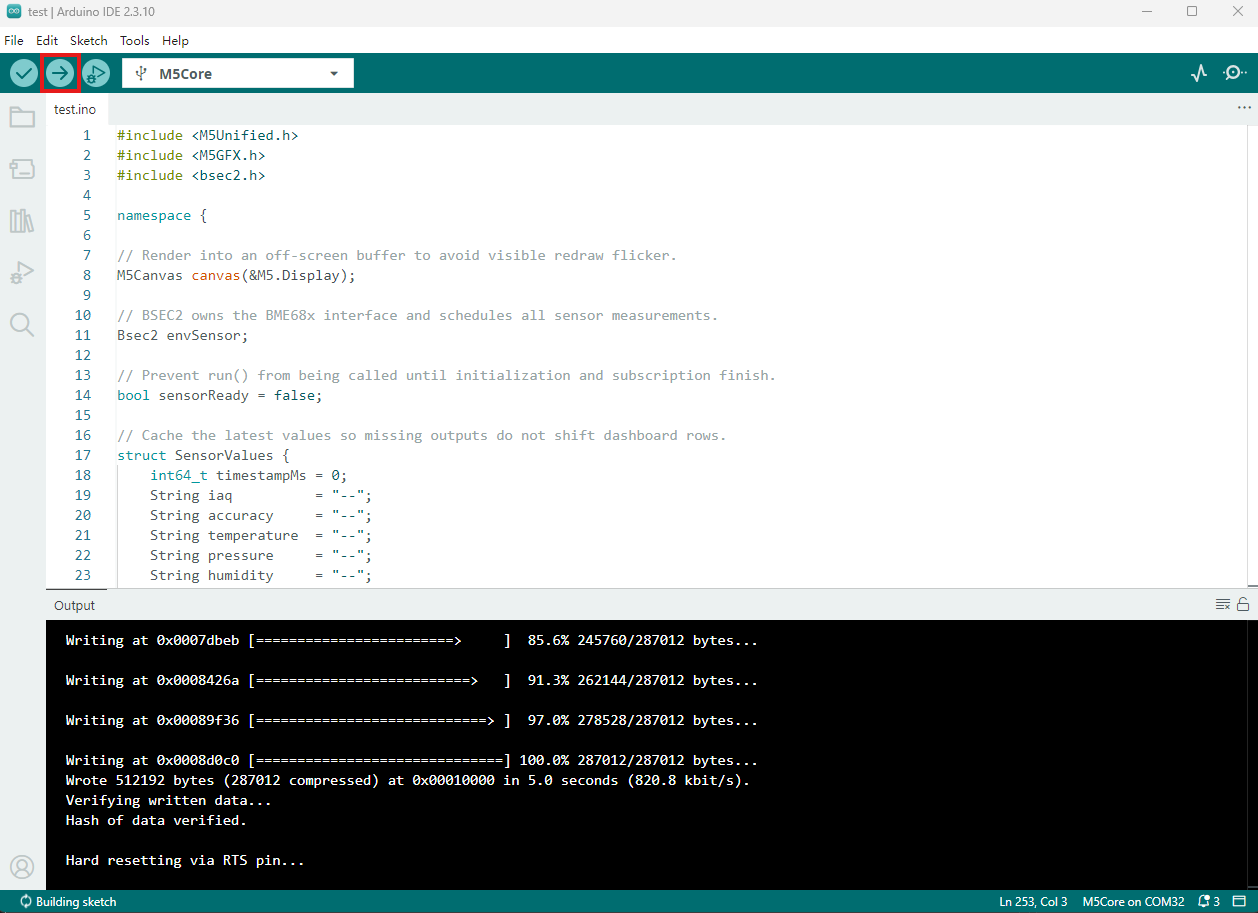
- Copy and paste the example code above into the project code area and select the device port. For details, see Program Compilation and Flashing. Click the compile and upload button in the upper-left corner of Arduino IDE, then wait for the program to compile and upload to the device.
5. Environmental Data Monitoring
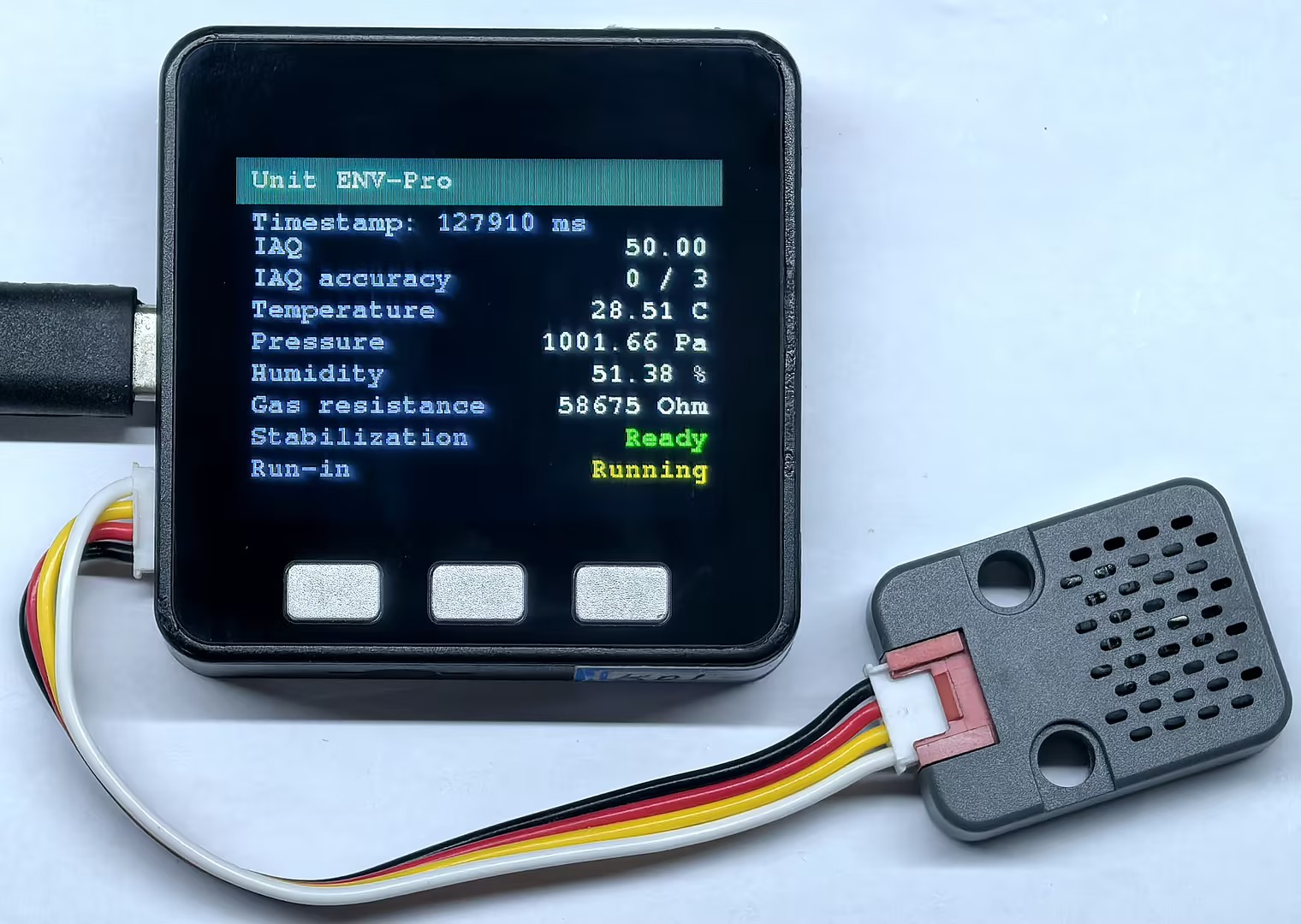
- After the program starts, the screen displays IAQ, IAQ accuracy, temperature, pressure, humidity, gas resistance, sensor stabilization, and run-in status. Once the sensor is initialized, the page continuously updates with data output by BSEC2.
Page Tools