
Arduino Quick Start
2. Devices & Examples
3. M5Unified
4. M5GFX
5. Extensions
Unit
Module
Atomic
Tab5
IoT
Accessories
Unit DigiClock Arduino Tutorial
1. Preparation
- Environment setup: Refer to the Arduino IDE Getting Started Guide to complete the IDE installation, then install the board package and driver libraries required for the development board you are using.
- Libraries used:
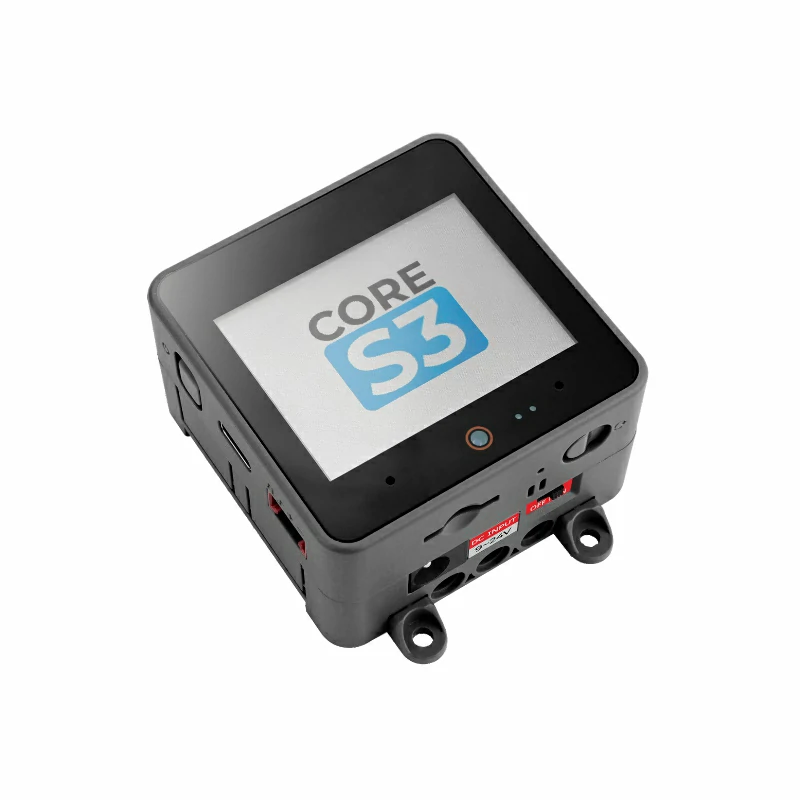
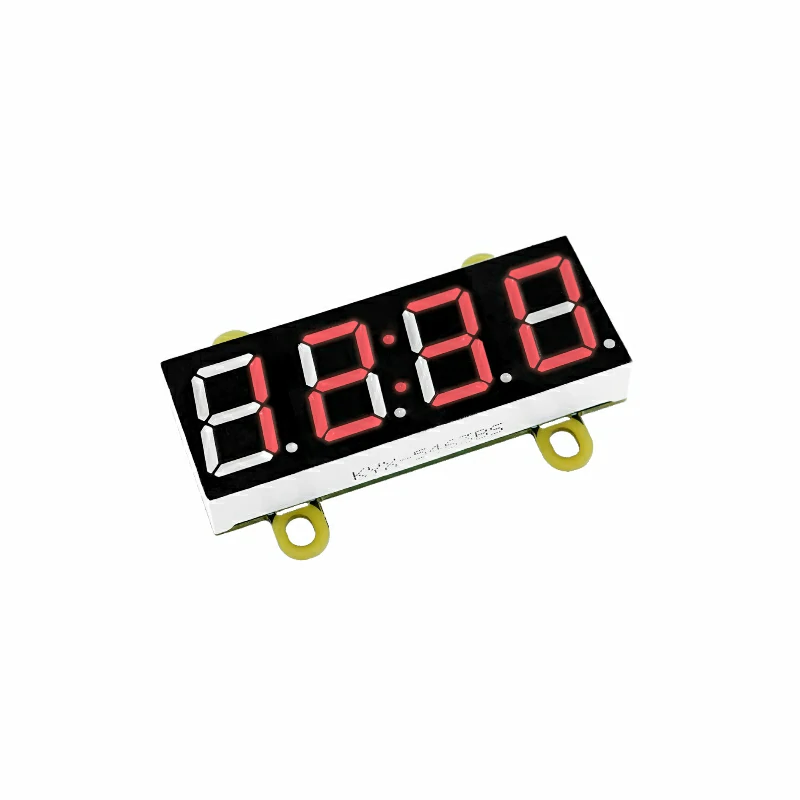
- Hardware products used:
2. Notes
Pin Compatibility
Since the pin configuration differs between host devices, M5Stack provides a pin compatibility table for reference. Check the actual pin connections and modify the example program as needed.
3. Example Program
- This tutorial uses CoreS3 as the host device with Unit DigiClock. Unit DigiClock communicates over I2C with a default address of
0x30. When connected to CoreS3's Port A, the corresponding pins areG2 (SDA)andG1 (SCL).
cpp
1 2 3 4 5 6 7 8 9 10 11 12 13 14 15 16 17 18 19 20 21 22 23 24 25 26 27 28 29 30 31 32 33 34 35 36 37 38 39 40 41 42 43 44 45 46 47 48 49 50 51 52 53 54 55 56 57 58 59 60 61 62 63 64 65 66 67 68 69 70 71 72 73 74 75 76 77 78 79 80 81 82 83 84 85 86 87 88 89 90 91 92 93 94 95 96 97 98 99 100 101
#include <M5Unified.h>
#include <M5UNIT_DIGI_CLOCK.h>

constexpr uint8_t DIGI_ADDRESS = M5UNIT_DIGI_CLOCK_DEFAULT_ADDR;
constexpr uint8_t BRIGHTNESS   = 8;
constexpr uint16_t UI_BG       = 0x1082;
constexpr uint16_t UI_PANEL    = 0x2104;
constexpr uint16_t UI_HEADER   = 0x0349;
constexpr uint16_t UI_MUTED    = 0xBDF7;

M5UNIT_DIGI_CLOCK digiClock;
M5Canvas canvas(&M5.Display);
uint32_t last_update = 0;
uint16_t minute_value = 0;

void drawCard(int16_t x, const char* label, const char* value, uint16_t value_color)
{
    canvas.fillRoundRect(x, 148, 142, 50, 5, UI_PANEL);
    canvas.drawRoundRect(x, 148, 142, 50, 5, UI_MUTED);
    canvas.setTextDatum(textdatum_t::middle_left);
    canvas.setFont(&fonts::Font2);
    canvas.setTextSize(1);
    canvas.setTextColor(UI_MUTED, UI_PANEL);
    canvas.drawString(label, x + 10, 162);
    canvas.setTextColor(value_color, UI_PANEL);
    canvas.drawString(value, x + 10, 183);
}

void drawStatus(const char* value)
{
    char brightness[8] = {};
    snprintf(brightness, sizeof(brightness), "%u / 8",
             static_cast<unsigned>(BRIGHTNESS));

    canvas.fillScreen(UI_BG);
    canvas.fillRect(0, 0, 320, 42, UI_HEADER);
    canvas.setTextDatum(textdatum_t::middle_center);
    canvas.setFont(&fonts::Font4);
    canvas.setTextSize(1);
    canvas.setTextColor(TFT_WHITE, UI_HEADER);
    canvas.drawString("UNIT DIGICLOCK", 160, 16);
    canvas.setFont(&fonts::Font2);
    canvas.setTextColor(UI_MUTED, UI_HEADER);
    canvas.drawString("DIGITAL TIME  /  STATUS", 160, 33);

    canvas.fillRoundRect(12, 54, 296, 78, 6, UI_PANEL);
    canvas.drawRoundRect(12, 54, 296, 78, 6, TFT_CYAN);
    canvas.setTextColor(UI_MUTED, UI_PANEL);
    canvas.drawString("DISPLAY VALUE", 160, 70);
    canvas.setFont(&fonts::Font4);
    canvas.setTextColor(TFT_CYAN, UI_PANEL);
    canvas.drawString(value, 160, 101);

    drawCard(12, "MODE", "CLOCK", TFT_WHITE);
    drawCard(166, "BRIGHTNESS", brightness, TFT_ORANGE);

    canvas.fillRect(0, 214, 320, 26, UI_HEADER);
    canvas.setFont(&fonts::Font2);
    canvas.setTextColor(TFT_WHITE, UI_HEADER);
    canvas.drawString("RUNNING  |  UPDATE EVERY 1 s", 160, 227);
    canvas.pushSprite(0, 0);
}

void setup()
{
    auto cfg = M5.config();
    M5.begin(cfg);
    Serial.begin(115200);
    canvas.setColorDepth(16);
    canvas.createSprite(320, 240);

    const int sda = M5.getPin(m5::pin_name_t::port_a_sda);
    const int scl = M5.getPin(m5::pin_name_t::port_a_scl);
    if (!digiClock.begin(&Wire, sda, scl, DIGI_ADDRESS)) {
        drawStatus("----");
        while (true) {
            delay(1000);
        }
    }
    digiClock.setBrightness(BRIGHTNESS);
    char blank[] = "----";
    digiClock.setString(blank);
    drawStatus("----");
}

void loop()
{
    if (millis() - last_update < 1000) {
        return;
    }
    last_update = millis();

    char value[6] = {};
    snprintf(value, sizeof(value), "%02u:%02u",
             static_cast<unsigned>(minute_value / 60),
             static_cast<unsigned>(minute_value % 60));
    digiClock.setString(value);
    Serial.printf("DigiClock: %s\n", value);
    drawStatus(value);
    minute_value = (minute_value + 1) % (24 * 60);
}4. Program Compile & Upload
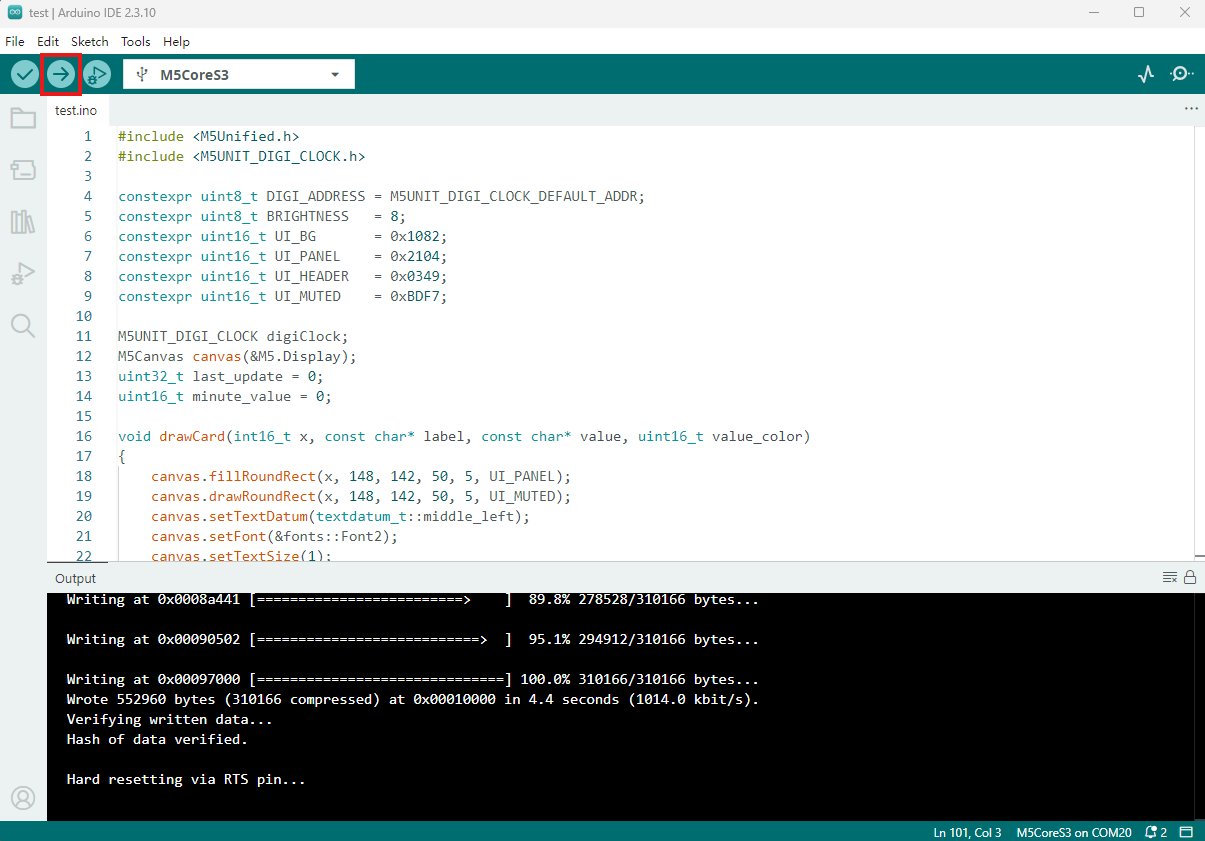
- Copy and paste the example program above into the project code editor, select the device port (see Program Compile & Upload for details), then click the Compile and Upload button in the upper-left corner of Arduino IDE and wait for the program to compile and upload to the device.
5. Digital Display
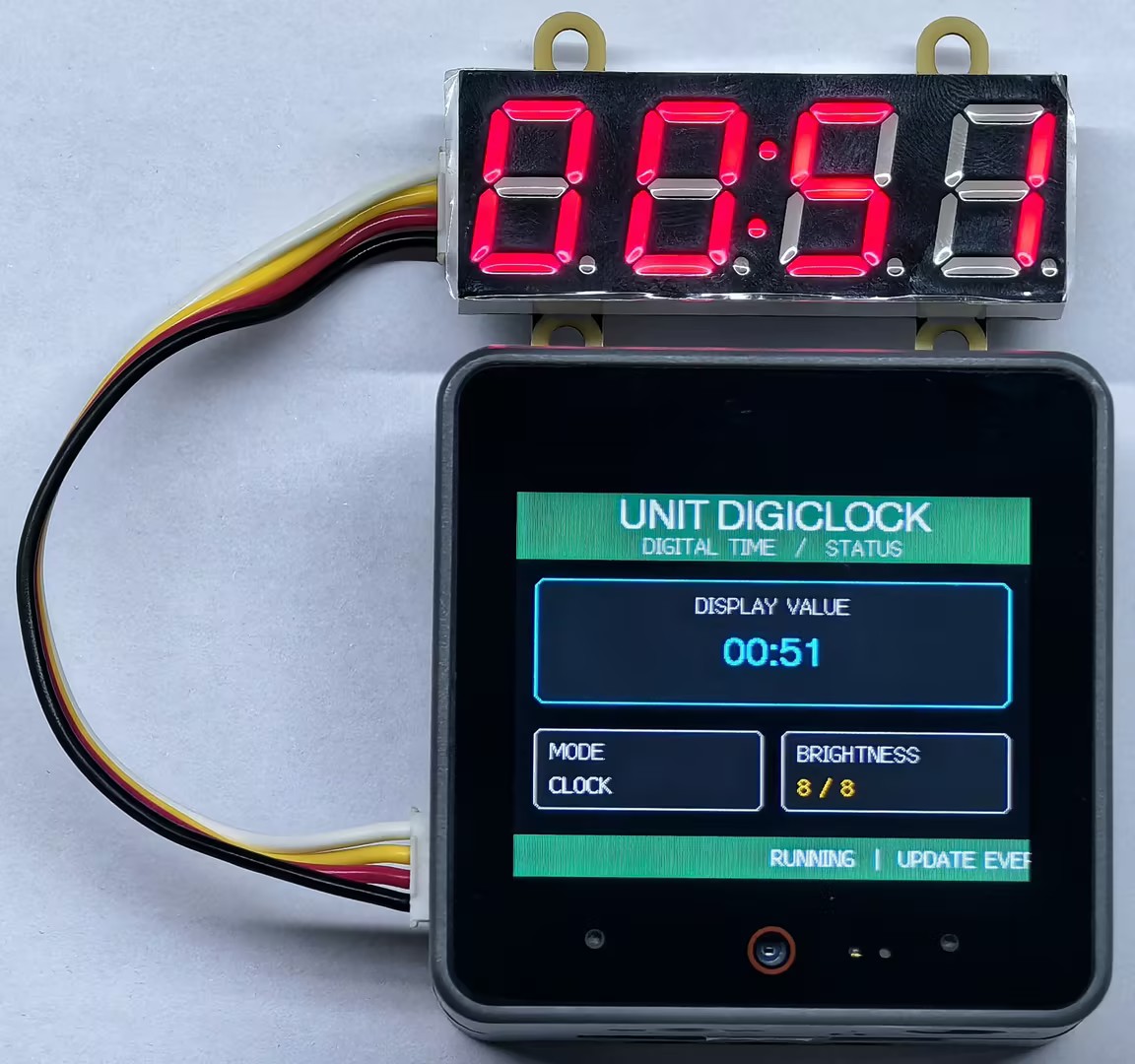
- After the program starts, the digital display on Unit DigiClock updates once per second. The host display and serial monitor show the data sent to the Unit synchronously.
Page Tools