
Arduino Quick Start
2. Devices & Examples
3. M5Unified
4. M5GFX
5. Extensions
Unit
Module
Atomic
Tab5
IoT
Accessories
Unit Neco Arduino Tutorial
1. Preparation
- Environment setup: Refer to the Arduino IDE Getting Started Guide to complete the IDE installation, then install the board package and driver libraries required for the development board you are using.
- Libraries used:
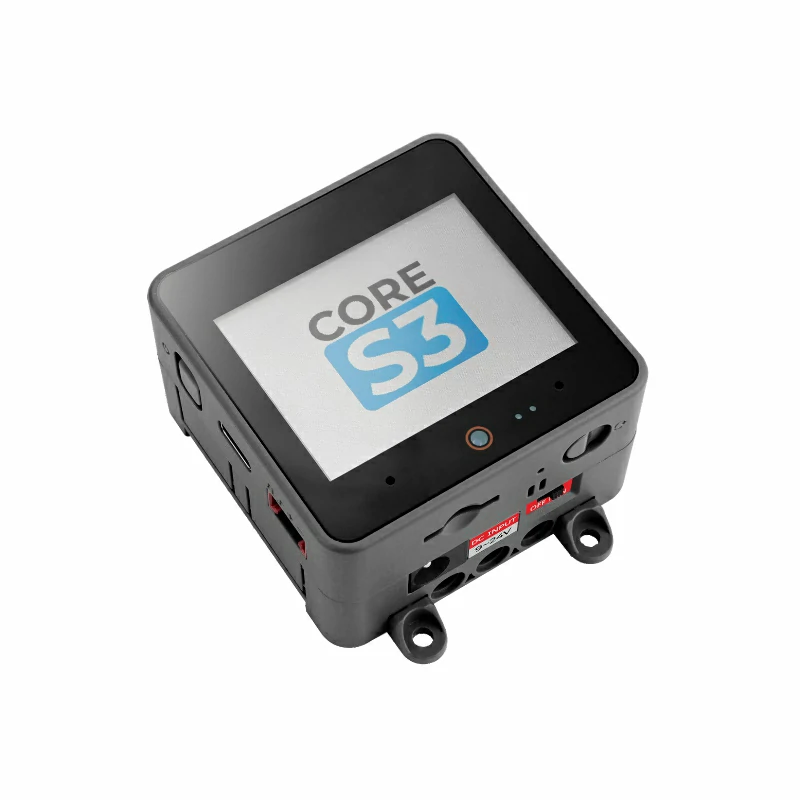
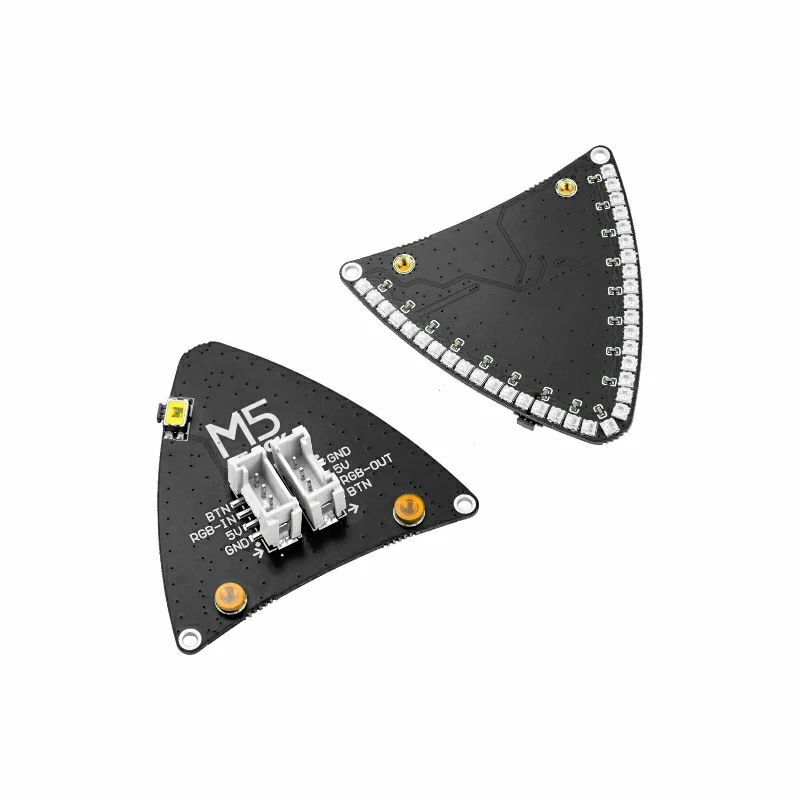
- Hardware products used:
2. Notes
Pin Compatibility
Since the pin configuration differs between host devices, M5Stack provides a pin compatibility table for reference. Check the actual pin connections and modify the example program as needed.
3. Example Program
- This tutorial uses CoreS3 as the host device with Unit Neco. Unit Neco is connected to CoreS3 Port B, with DATA on
G9and the BTN button onG8. The program reads the button withINPUT_PULLUP, so the pin is LOW when pressed.
cpp
1 2 3 4 5 6 7 8 9 10 11 12 13 14 15 16 17 18 19 20 21 22 23 24 25 26 27 28 29 30 31 32 33 34 35 36 37 38 39 40 41 42 43 44 45 46 47 48 49 50 51 52 53 54 55 56 57 58 59 60 61 62 63 64 65 66 67 68 69 70 71 72 73 74 75 76 77 78 79 80 81 82 83 84 85 86 87 88 89 90 91 92 93 94 95 96 97 98 99 100 101 102 103 104 105 106 107 108 109 110 111 112 113 114 115 116 117 118 119 120 121 122
#include <M5Unified.h>
#include <FastLED.h>

constexpr uint8_t LED_COUNT = 35;
constexpr uint8_t BRIGHTNESS = 20;
constexpr uint8_t DATA_PIN = 9;
constexpr uint16_t UI_BG = 0x1082;
constexpr uint16_t UI_PANEL = 0x2104;
constexpr uint16_t UI_HEADER = 0x0349;
constexpr uint16_t UI_MUTED = 0xBDF7;

CRGB pixels[LED_COUNT];
M5Canvas canvas(&M5.Display);
int button_pin = -1;
uint8_t color_index = 0;
bool last_button = false;

CRGB paletteColor(uint8_t index)
{
    const uint8_t r = (index == 0) ? 244 : (index == 1 ? 30 : 36);
    const uint8_t g = (index == 1) ? 180 : (index == 2 ? 210 : 36);
    const uint8_t b = (index == 2) ? 208 : (index == 0 ? 80 : 90);
    return CRGB(r, g, b);
}

CRGB paletteColor()
{
    return paletteColor(color_index);
}

uint16_t color565(const CRGB& color)
{
    return (static_cast<uint16_t>(color.r & 0xF8) << 8) |
           (static_cast<uint16_t>(color.g & 0xFC) << 3) | (color.b >> 3);
}

void showPixels()
{
    fill_solid(pixels, LED_COUNT, paletteColor());
    FastLED.show();
}

void drawColorSwatch(int16_t x, uint8_t index, const char* label)
{
    const bool selected = index == color_index;
    const uint16_t border = selected ? color565(paletteColor(index)) : UI_MUTED;
    canvas.fillRoundRect(x, 152, 92, 48, 5, UI_PANEL);
    canvas.drawRoundRect(x, 152, 92, 48, 5, border);
    canvas.fillCircle(x + 18, 176, 9, color565(paletteColor(index)));
    canvas.setFont(&fonts::Font2);
    canvas.setTextDatum(textdatum_t::middle_left);
    canvas.setTextColor(selected ? TFT_WHITE : UI_MUTED, UI_PANEL);
    canvas.drawString(label, x + 34, 176);
}

void drawStatus(bool pressed)
{
    char detail[24] = {};
    snprintf(detail, sizeof(detail), "COLOR %u  /  %u PIXELS",
             static_cast<unsigned>(color_index + 1), LED_COUNT);

    canvas.fillScreen(UI_BG);
    canvas.fillRect(0, 0, 320, 42, UI_HEADER);
    canvas.setFont(&fonts::Font4);
    canvas.setTextDatum(textdatum_t::middle_center);
    canvas.setTextColor(TFT_WHITE, UI_HEADER);
    canvas.drawString("UNIT NECO", 160, 16);
    canvas.setFont(&fonts::Font2);
    canvas.setTextColor(UI_MUTED, UI_HEADER);
    canvas.drawString("COLOR CONTROL  /  STATUS", 160, 33);

    canvas.fillRoundRect(12, 54, 296, 84, 6, UI_PANEL);
    canvas.drawRoundRect(12, 54, 296, 84, 6, color565(paletteColor()));
    canvas.fillCircle(52, 96, 25, color565(paletteColor()));
    canvas.setTextDatum(textdatum_t::middle_left);
    canvas.setTextColor(TFT_WHITE, UI_PANEL);
    canvas.drawString("CURRENT COLOR", 94, 78);
    canvas.setTextColor(UI_MUTED, UI_PANEL);
    canvas.drawString(detail, 94, 101);
    canvas.setTextColor(pressed ? TFT_ORANGE : TFT_GREEN, UI_PANEL);
    canvas.drawString(pressed ? "BUTTON DOWN" : "BUTTON READY", 94, 122);

    drawColorSwatch(12, 0, "PINK");
    drawColorSwatch(114, 1, "GREEN");
    drawColorSwatch(216, 2, "BLUE");

    canvas.fillRect(0, 214, 320, 26, UI_HEADER);
    canvas.setTextDatum(textdatum_t::middle_center);
    canvas.setTextColor(TFT_WHITE, UI_HEADER);
    canvas.drawString("PRESS BUTTON  |  COLOR CHANGE", 160, 227);
    canvas.pushSprite(0, 0);
}

void setup()
{
    M5.begin();
    Serial.begin(115200);
    canvas.setColorDepth(16);
    canvas.createSprite(320, 240);
    button_pin = M5.getPin(m5::pin_name_t::port_b_pin1);
    pinMode(button_pin, INPUT_PULLUP);
    FastLED.addLeds<WS2812B, DATA_PIN, GRB>(pixels, LED_COUNT)
        .setCorrection(TypicalLEDStrip);
    FastLED.setBrightness(BRIGHTNESS);
    showPixels();
    drawStatus(false);
}

void loop()
{
    const bool button = digitalRead(button_pin) == LOW;
    if (button && !last_button) {
        color_index = (color_index + 1) % 3;
        showPixels();
        Serial.printf("Color: %u\n", color_index + 1);
    }
    if (button != last_button) {
        drawStatus(button);
    }
    last_button = button;
    delay(10);
}4. Program Compile & Upload
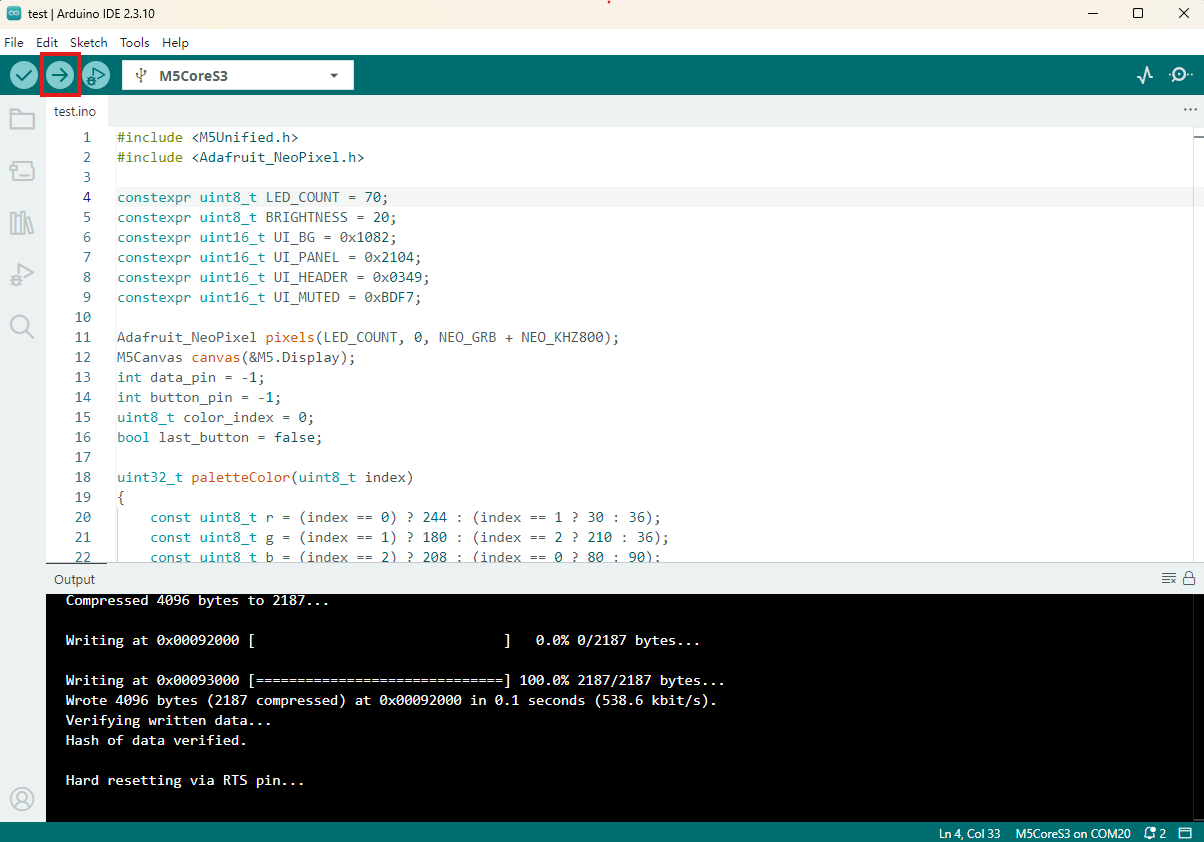
- Copy and paste the example program above into the project code area, then select the device port (see Program Compile & Upload for details). Click the Compile and Upload button in the upper-left corner of Arduino IDE and wait for compilation and upload to complete.
5. RGB Lighting Effect
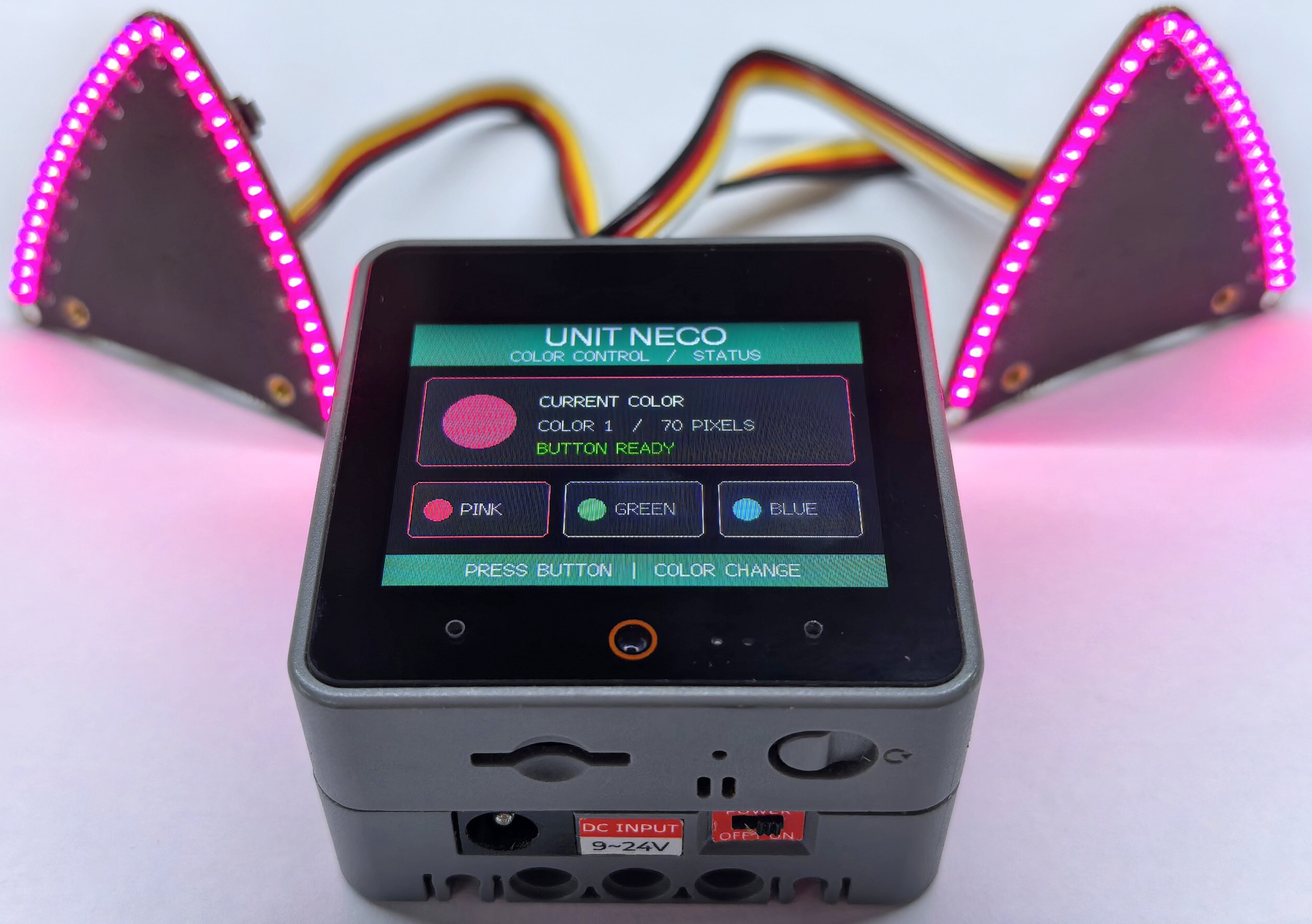
- This example connects a single Unit Neco. When the program runs, it lights 35 LEDs at low brightness. Each press of the Neco button changes the color, and the host display shows the button status and color number. When cascading two Unit Neco units, set
LED_COUNTto 70; do not keep the LEDs fully lit for long periods to avoid overheating.
Page Tools