

Arduino Quick Start
2. Devices & Examples
3. M5Unified
4. M5GFX
5. Extensions
Unit
Module
Atomic
Tab5
IoT
Accessories
Unit FlashLight Arduino Tutorial
1. Preparation
- Environment setup: Refer to the Arduino IDE Getting Started Guide to complete the IDE installation, then install the board package and driver libraries required for the development board you are using.
- Libraries used:
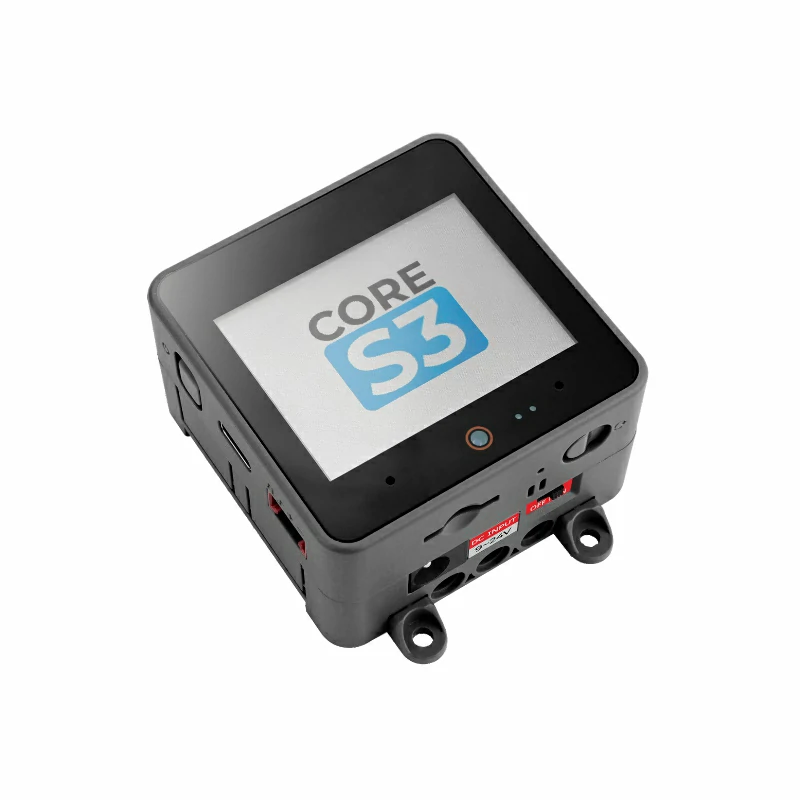
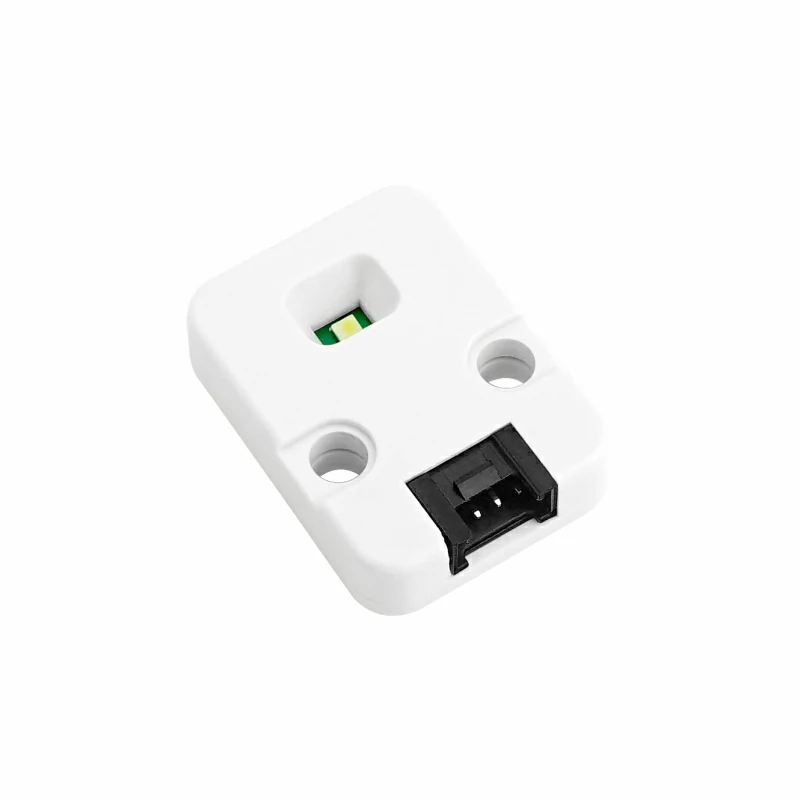
- Hardware products used:
2. Notes
Pin Compatibility
Since the pin configuration differs between host devices, M5Stack provides a pin compatibility table for reference. Check the actual pin connections and modify the example program as needed.
3. Example Program
- This tutorial uses CoreS3 as the host device with Unit FlashLight. Unit FlashLight is connected to CoreS3's Port B, and the light control signal uses
G9.
cpp
1 2 3 4 5 6 7 8 9 10 11 12 13 14 15 16 17 18 19 20 21 22 23 24 25 26 27 28 29 30 31 32 33 34 35 36 37 38 39 40 41 42 43 44 45 46 47 48 49 50 51 52 53 54 55 56 57 58 59 60 61 62 63 64 65 66 67 68 69 70 71 72 73 74 75 76 77 78 79 80 81 82 83 84 85 86 87 88 89 90 91 92 93 94 95 96 97 98 99 100 101 102 103 104 105 106 107 108 109 110 111 112 113 114 115 116 117 118 119
#include <M5Unified.h>
#include <M5UnitUnified.h>
#include <M5UnitUnifiedFLASHLIGHT.h>

using namespace m5::unit::aw3641e;

constexpr uint16_t UI_BG     = 0x1082;
constexpr uint16_t UI_PANEL  = 0x2104;
constexpr uint16_t UI_HEADER = 0x0349;
constexpr uint16_t UI_MUTED  = 0xBDF7;
constexpr uint8_t TORCH_BRIGHTNESS = 10;
constexpr uint32_t PWM_FREQUENCY = 1000;
constexpr uint8_t PWM_RESOLUTION = 8;
constexpr uint8_t PWM_DUTY = (256u * TORCH_BRIGHTNESS + 50u) / 100u;
constexpr uint8_t PWM_CHANNEL = 7;

m5::unit::UnitUnified units;
m5::unit::UnitFlashLight unit;
M5Canvas canvas(&M5.Display);
int torch_pin = -1;

bool configureTorchPwm()
{
#if defined(ESP_ARDUINO_VERSION_MAJOR) && ESP_ARDUINO_VERSION_MAJOR >= 3
    if (!ledcAttach(torch_pin, PWM_FREQUENCY, PWM_RESOLUTION)) {
        return false;
    }
    ledcWrite(torch_pin, PWM_DUTY);
#else
    if (ledcSetup(PWM_CHANNEL, PWM_FREQUENCY, PWM_RESOLUTION) == 0) {
        return false;
    }
    ledcAttachPin(torch_pin, PWM_CHANNEL);
    ledcWrite(PWM_CHANNEL, PWM_DUTY);
#endif
    return true;
}

void drawStatus(const char* state)
{
    const unsigned percent = TORCH_BRIGHTNESS;
    char brightness[8] = {};
    snprintf(brightness, sizeof(brightness), "%u%%", percent);

    canvas.fillScreen(UI_BG);
    canvas.fillRect(0, 0, 320, 42, UI_HEADER);
    canvas.setTextDatum(textdatum_t::middle_center);
    canvas.setFont(&fonts::Font4);
    canvas.setTextSize(1);
    canvas.setTextColor(TFT_WHITE, UI_HEADER);
    canvas.drawString("UNIT FLASHLIGHT", 160, 16);
    canvas.setFont(&fonts::Font2);
    canvas.setTextColor(UI_MUTED, UI_HEADER);
    canvas.drawString("FLASHLIGHT  /  STATUS", 160, 33);

    canvas.fillRoundRect(12, 54, 296, 42, 6, UI_PANEL);
    canvas.drawRoundRect(12, 54, 296, 42, 6, TFT_ORANGE);
    canvas.setTextDatum(textdatum_t::middle_left);
    canvas.setTextColor(UI_MUTED, UI_PANEL);
    canvas.drawString("MODE", 24, 75);
    canvas.setTextColor(TFT_ORANGE, UI_PANEL);
    canvas.drawString("TORCH", 88, 75);
    canvas.setTextColor(TFT_WHITE, UI_PANEL);
    canvas.drawString("ON", 205, 75);

    canvas.fillRoundRect(12, 108, 296, 88, 6, UI_PANEL);
    canvas.drawRoundRect(12, 108, 296, 88, 6, UI_MUTED);
    canvas.setFont(&fonts::Font2);
    canvas.setTextDatum(textdatum_t::middle_left);
    canvas.setTextColor(UI_MUTED, UI_PANEL);
    canvas.drawString("BRIGHTNESS", 24, 124);
    canvas.setFont(&fonts::Font4);
    canvas.setTextDatum(textdatum_t::middle_center);
    canvas.setTextColor(TFT_YELLOW, UI_PANEL);
    canvas.drawString(brightness, 160, 140);
    canvas.fillRoundRect(54, 160, 212, 14, 4, UI_BG);
    canvas.fillRoundRect(54, 160, 212 * percent / 100, 14, 4, TFT_YELLOW);
    canvas.setFont(&fonts::Font2);
    canvas.setTextDatum(textdatum_t::middle_center);
    canvas.setTextColor(UI_MUTED, UI_PANEL);
    canvas.drawString("1000 Hz PWM", 160, 185);

    canvas.fillRect(0, 204, 320, 36, UI_HEADER);
    canvas.setTextDatum(textdatum_t::middle_left);
    canvas.setTextColor(TFT_WHITE, UI_HEADER);
    canvas.drawString("STATE", 16, 222);
    canvas.setTextColor(TFT_CYAN, UI_HEADER);
    canvas.drawString(state, 82, 222);
    canvas.setTextColor(UI_MUTED, UI_HEADER);
    canvas.drawString("CONTINUOUS", 206, 222);
    canvas.pushSprite(0, 0);
}

void setup()
{
    M5.begin();
    Serial.begin(115200);
    canvas.setColorDepth(16);
    canvas.createSprite(320, 240);
    auto cfg = unit.config();
    cfg.switch_position = SwitchPosition::Torch;
    unit.config(cfg);

    torch_pin = M5.getPin(m5::pin_name_t::port_b_pin2);
    if (!units.add(unit, -1, torch_pin) || !units.begin() ||
        !configureTorchPwm()) {
        drawStatus("ERROR");
        while (true) {
            delay(1000);
        }
    }
    drawStatus("Torch 10%");
}

void loop()
{
    M5.update();
    units.update();
}4. Compile and Upload
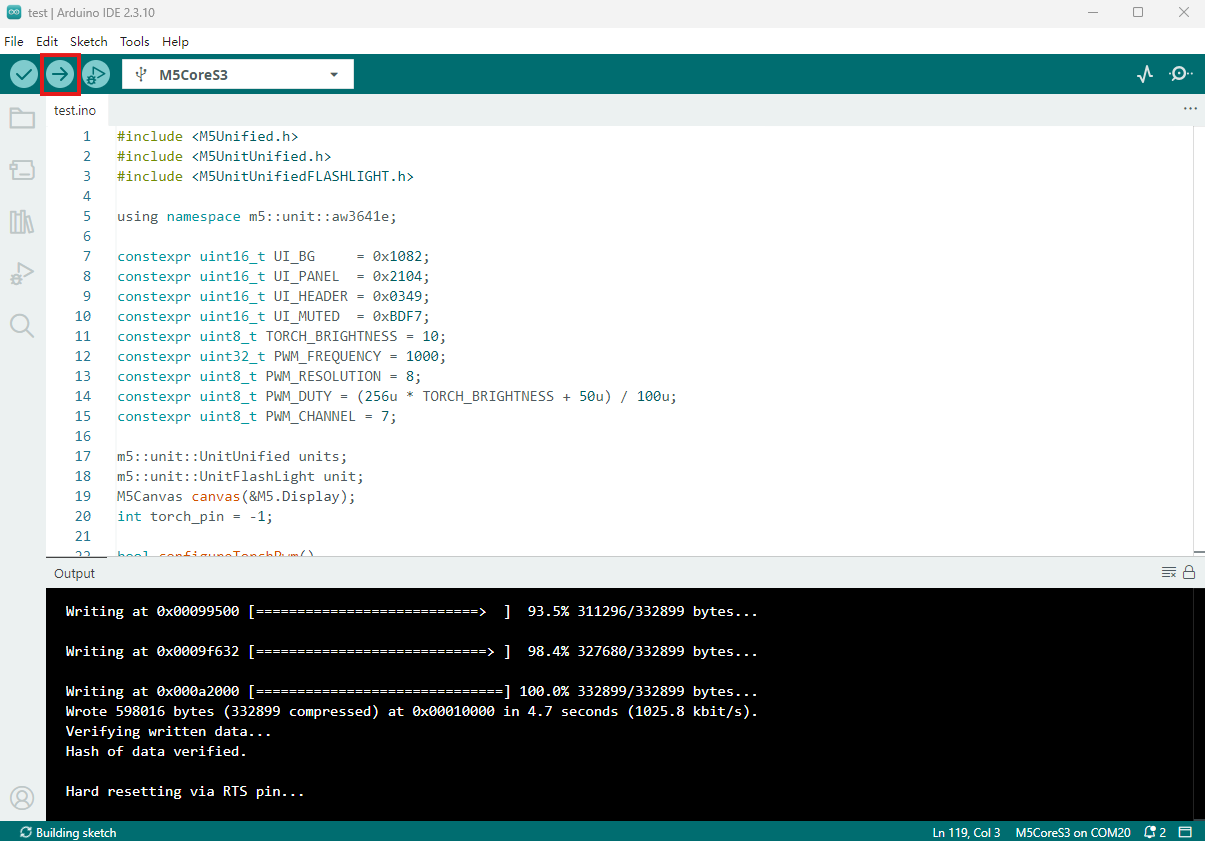
- Copy and paste the example program above into the project code editor, select the device port (see Program Compile & Upload for details), then click the Compile and Upload button in the upper-left corner of Arduino IDE and wait for the program to compile and upload to the device.
5. Torch Mode
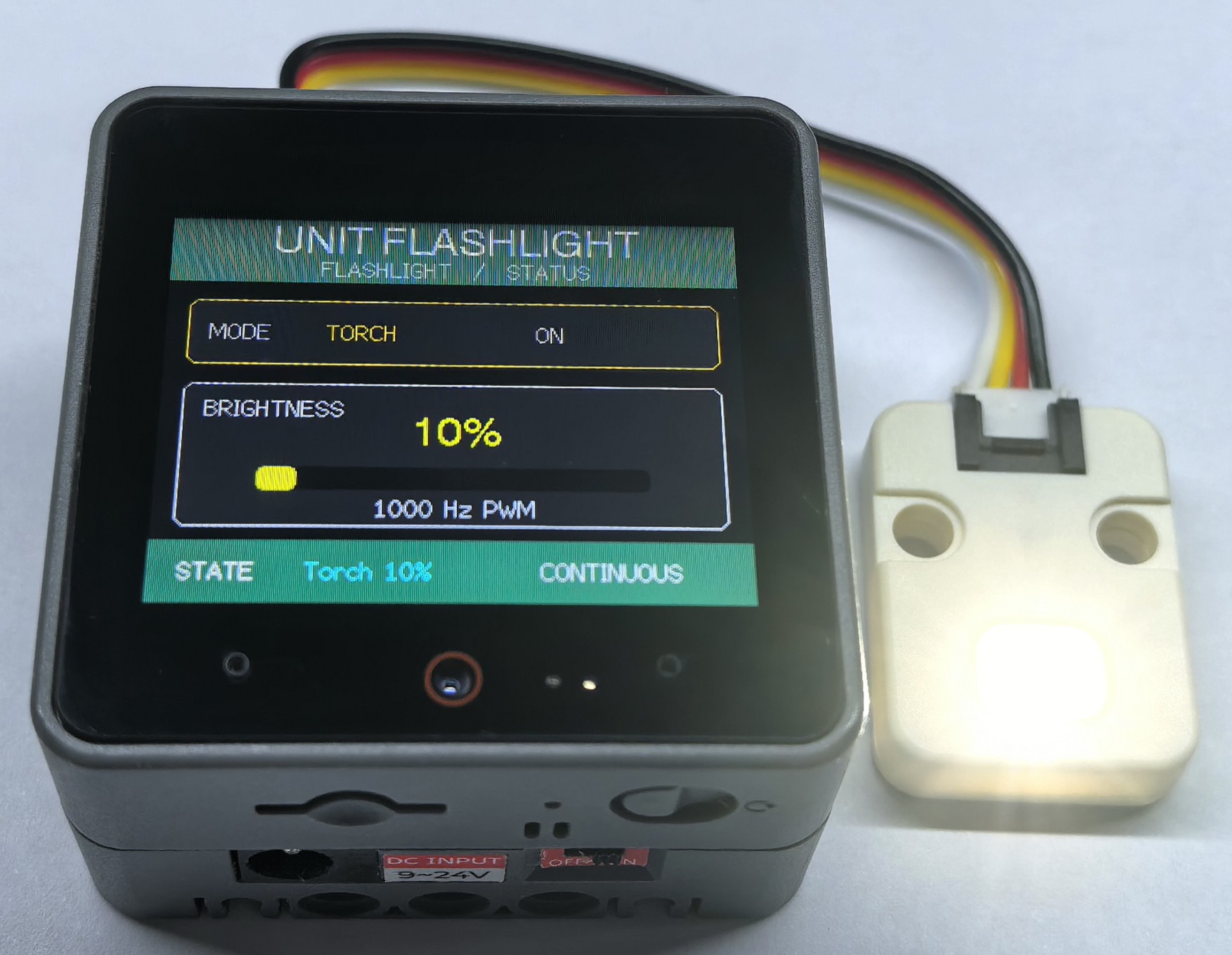
- After the program starts, Unit FlashLight remains continuously lit in Torch mode. The control signal uses 1 kHz PWM with a 10% duty cycle, and the host display shows the current status. The actual constant LED current in Torch mode is fixed by the driver chip; 10% refers to the average duty cycle of the control signal. Avoid looking directly at the light and ensure that the Unit has a stable 5 V power supply.
Page Tools