

Arduino Quick Start
2. Devices & Examples
3. M5Unified
4. M5GFX
5. Extensions
Unit
Module
Atomic
Tab5
IoT
Accessories
Unit HEX / NeoHEX Arduino Tutorial
1. Preparation
- Environment setup: Refer to the Arduino IDE Getting Started Guide to complete the IDE installation, then install the board package and driver libraries required for the development board you are using.
- Libraries used:
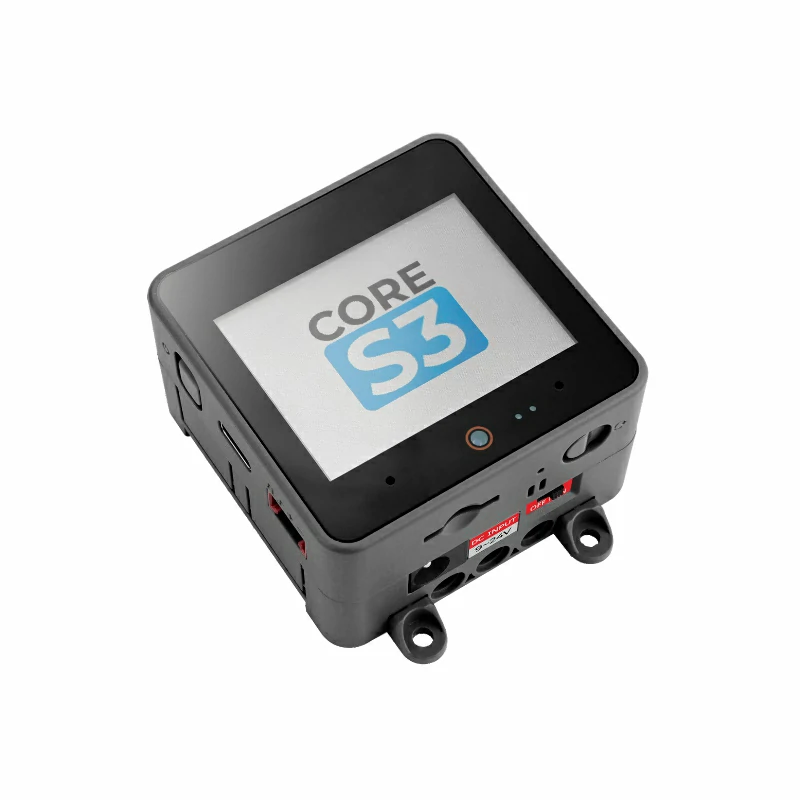
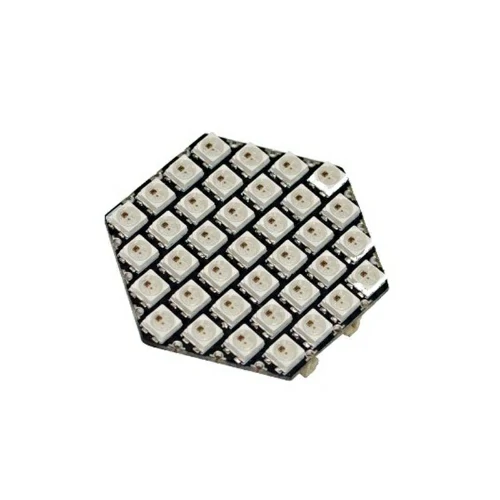
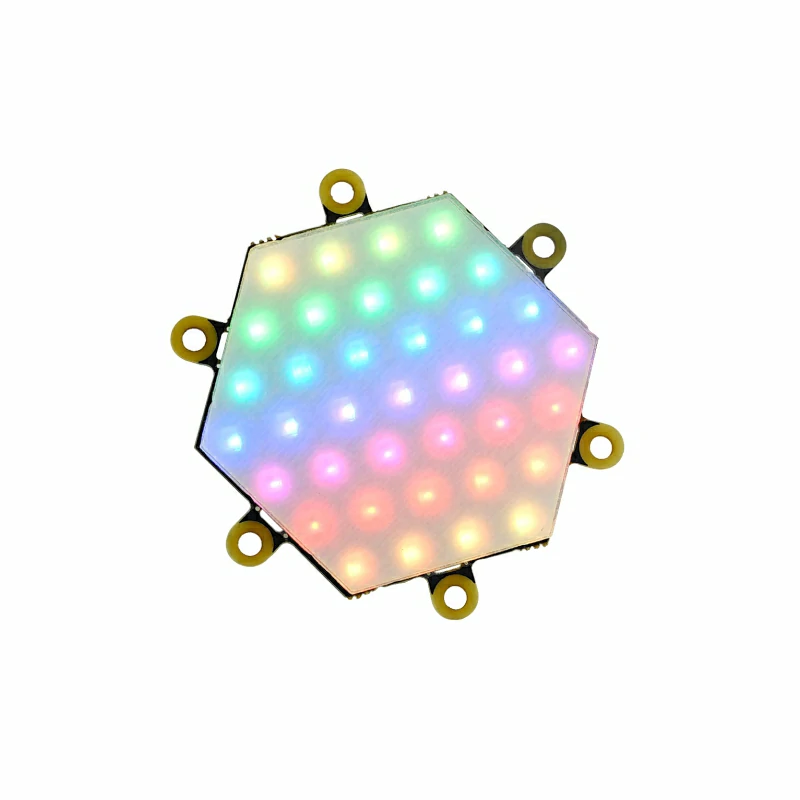
- Hardware products used:
2. Notes
Pin Compatibility
Since the pin configuration differs between host devices, M5Stack provides a pin compatibility table for reference. Check the actual pin connections and modify the example program as needed.
3. Example Program
- This tutorial uses CoreS3 as the host device with Unit HEX or Unit NeoHEX. Both LED boards connect to CoreS3's Port B, use
G9as the LED Signal, and drive 37 RGB LEDs.
cpp
1 2 3 4 5 6 7 8 9 10 11 12 13 14 15 16 17 18 19 20 21 22 23 24 25 26 27 28 29 30 31 32 33 34 35 36 37 38 39 40 41 42 43 44 45 46 47 48 49 50 51 52 53 54 55 56 57 58 59 60 61 62 63 64 65 66 67 68 69 70 71 72 73 74 75 76 77 78 79 80 81 82 83 84 85 86 87 88 89 90 91 92 93 94 95
#include <M5Unified.h>
#include <FastLED.h>

constexpr uint8_t LED_COUNT  = 37;
constexpr uint8_t LED_BRIGHT = 10;
constexpr uint8_t DATA_PIN   = 9; // CoreS3 Port B LED Signal (G9)
constexpr uint16_t UI_BG     = 0x1082;
constexpr uint16_t UI_PANEL  = 0x2104;
constexpr uint16_t UI_HEADER = 0x0349;
constexpr uint16_t UI_MUTED  = 0xBDF7;
CRGB leds[LED_COUNT];
M5Canvas canvas(&M5.Display);
uint8_t hue = 0;
uint32_t last_frame = 0;
uint32_t last_ui = 0;

uint16_t color565(const CRGB& color)
{
    return (static_cast<uint16_t>(color.r & 0xF8) << 8) |
           (static_cast<uint16_t>(color.g & 0xFC) << 3) | (color.b >> 3);
}

void drawStatus(const CRGB& sample)
{
    char led_count[8] = {};
    char brightness[8] = {};
    snprintf(led_count, sizeof(led_count), "%u", LED_COUNT);
    snprintf(brightness, sizeof(brightness), "%u", LED_BRIGHT);

    canvas.fillScreen(UI_BG);
    canvas.fillRect(0, 0, 320, 42, UI_HEADER);
    canvas.setTextDatum(textdatum_t::middle_center);
    canvas.setFont(&fonts::Font4);
    canvas.setTextSize(1);
    canvas.setTextColor(TFT_WHITE, UI_HEADER);
    canvas.drawString("UNIT HEX / NEOHEX", 160, 16);
    canvas.setFont(&fonts::Font2);
    canvas.setTextColor(UI_MUTED, UI_HEADER);
    canvas.drawString("RGB LIGHTING  /  STATUS", 160, 33);

    canvas.fillRoundRect(12, 54, 296, 82, 6, UI_PANEL);
    canvas.drawRoundRect(12, 54, 296, 82, 6, TFT_MAGENTA);
    canvas.fillCircle(52, 95, 25, color565(sample));
    canvas.setTextDatum(textdatum_t::middle_left);
    canvas.setTextColor(TFT_WHITE, UI_PANEL);
    canvas.drawString("RAINBOW RGB EFFECT", 94, 82);
    canvas.setTextColor(UI_MUTED, UI_PANEL);
    canvas.drawString("37 RGB PIXELS", 94, 105);
    canvas.drawString("RAINBOW COLOR FLOW", 94, 123);

    canvas.fillRoundRect(12, 148, 92, 48, 5, UI_PANEL);
    canvas.fillRoundRect(114, 148, 92, 48, 5, UI_PANEL);
    canvas.fillRoundRect(216, 148, 92, 48, 5, UI_PANEL);
    canvas.setTextDatum(textdatum_t::middle_center);
    canvas.setTextColor(UI_MUTED, UI_PANEL);
    canvas.drawString("LEDS", 58, 161);
    canvas.drawString("BRIGHT", 160, 161);
    canvas.drawString("MODE", 262, 161);
    canvas.setTextColor(TFT_WHITE, UI_PANEL);
    canvas.drawString(led_count, 58, 181);
    canvas.drawString(brightness, 160, 181);
    canvas.drawString("AUTO", 262, 181);

    canvas.fillRect(0, 214, 320, 26, UI_HEADER);
    canvas.setTextColor(TFT_WHITE, UI_HEADER);
    canvas.drawString("HEX + NEOHEX  |  CASCADE READY", 160, 227);
    canvas.pushSprite(0, 0);
}

void setup()
{
    M5.begin();
    Serial.begin(115200);
    canvas.setColorDepth(16);
    canvas.createSprite(320, 240);
    FastLED.addLeds<WS2812B, DATA_PIN, GRB>(leds, LED_COUNT)
        .setCorrection(TypicalLEDStrip);
    FastLED.setBrightness(LED_BRIGHT);
    drawStatus(leds[LED_COUNT / 2]);
}

void loop()
{
    if (millis() - last_frame < 20) {
        return;
    }
    last_frame = millis();
    fill_rainbow(leds, LED_COUNT, hue, 7);
    FastLED.show();
    hue++;
    if (millis() - last_ui >= 250) {
        last_ui = millis();
        drawStatus(leds[LED_COUNT / 2]);
    }
}4. Program Compile & Upload
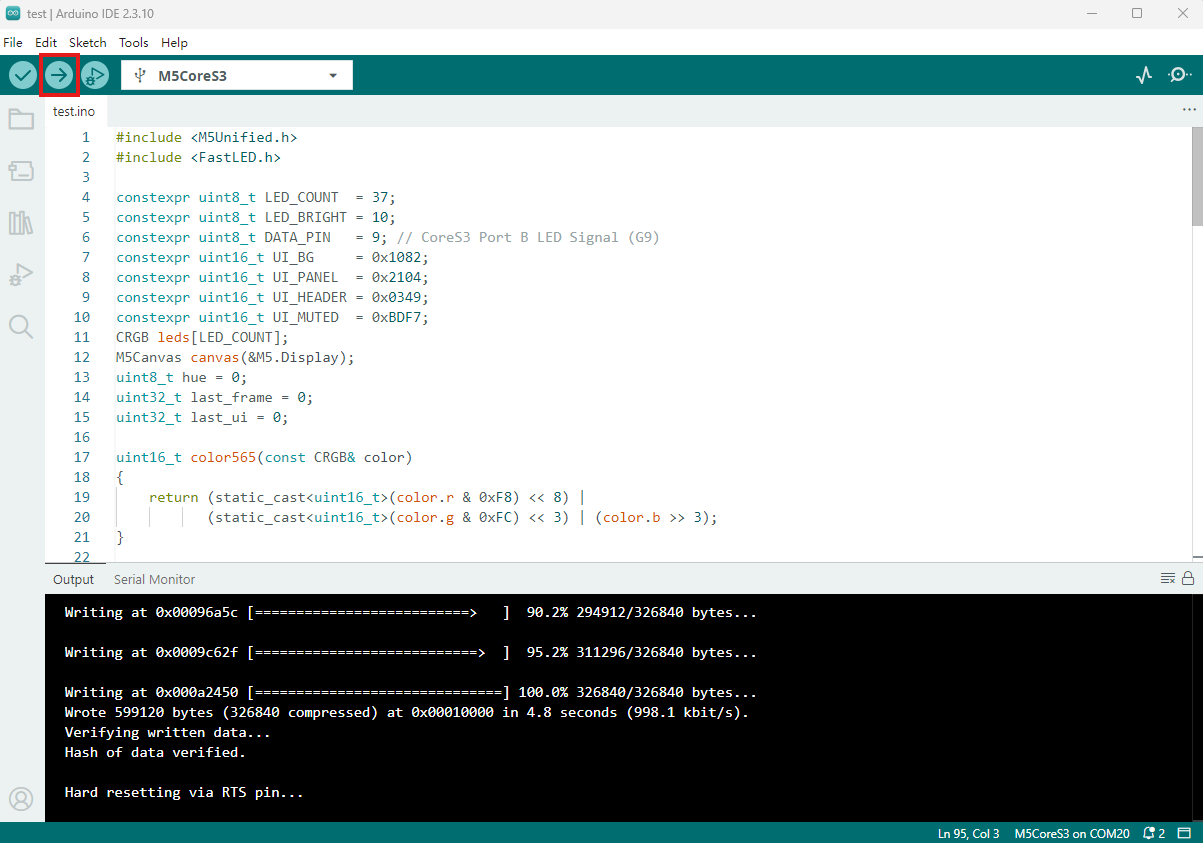
- Copy and paste the example program above into the project code editor, select the device port (see Program Compile & Upload for details), then click the Compile and Upload button in the upper-left corner of Arduino IDE and wait for the program to compile and upload to the device.
5. Rainbow Lighting Effect
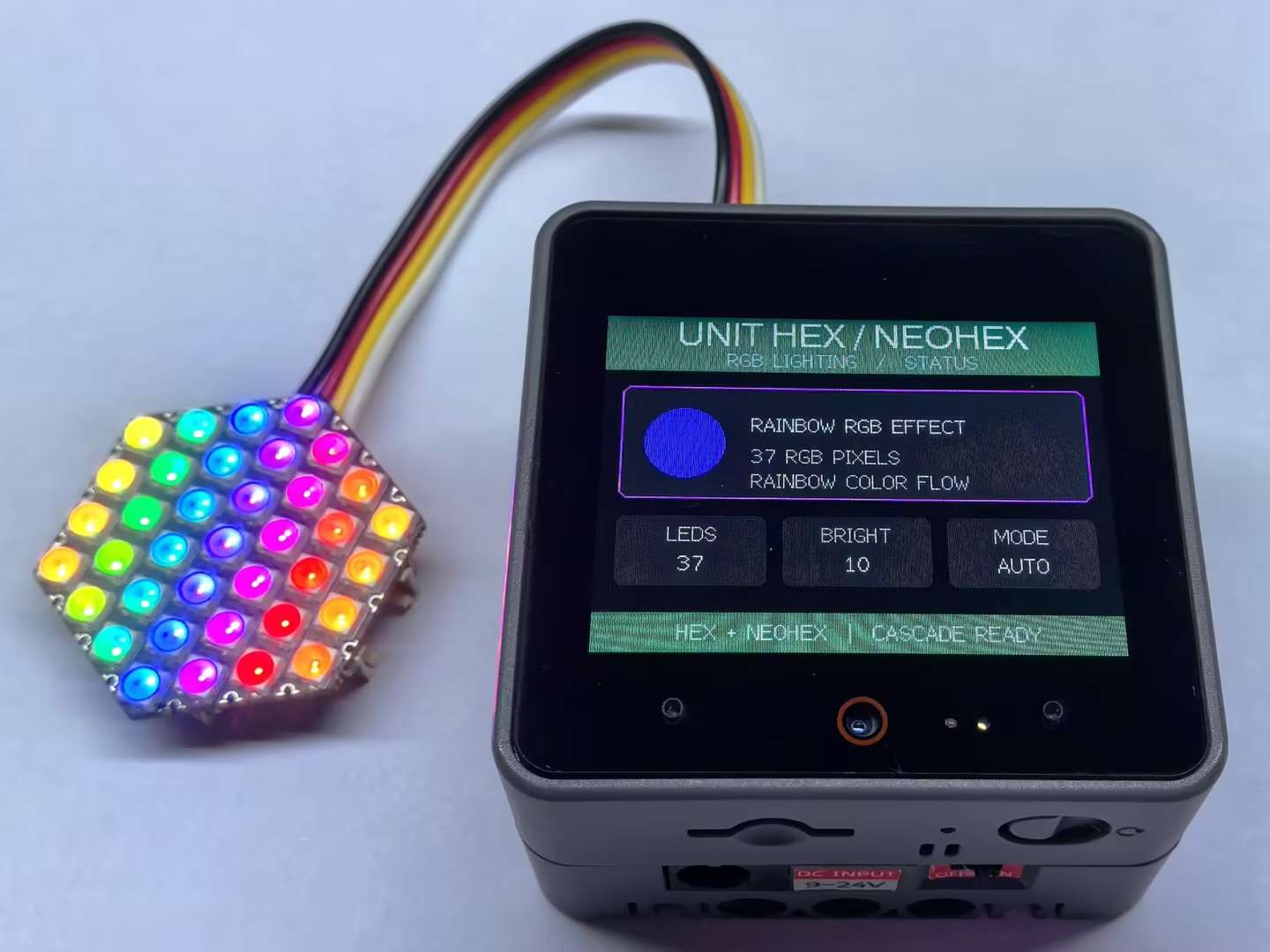
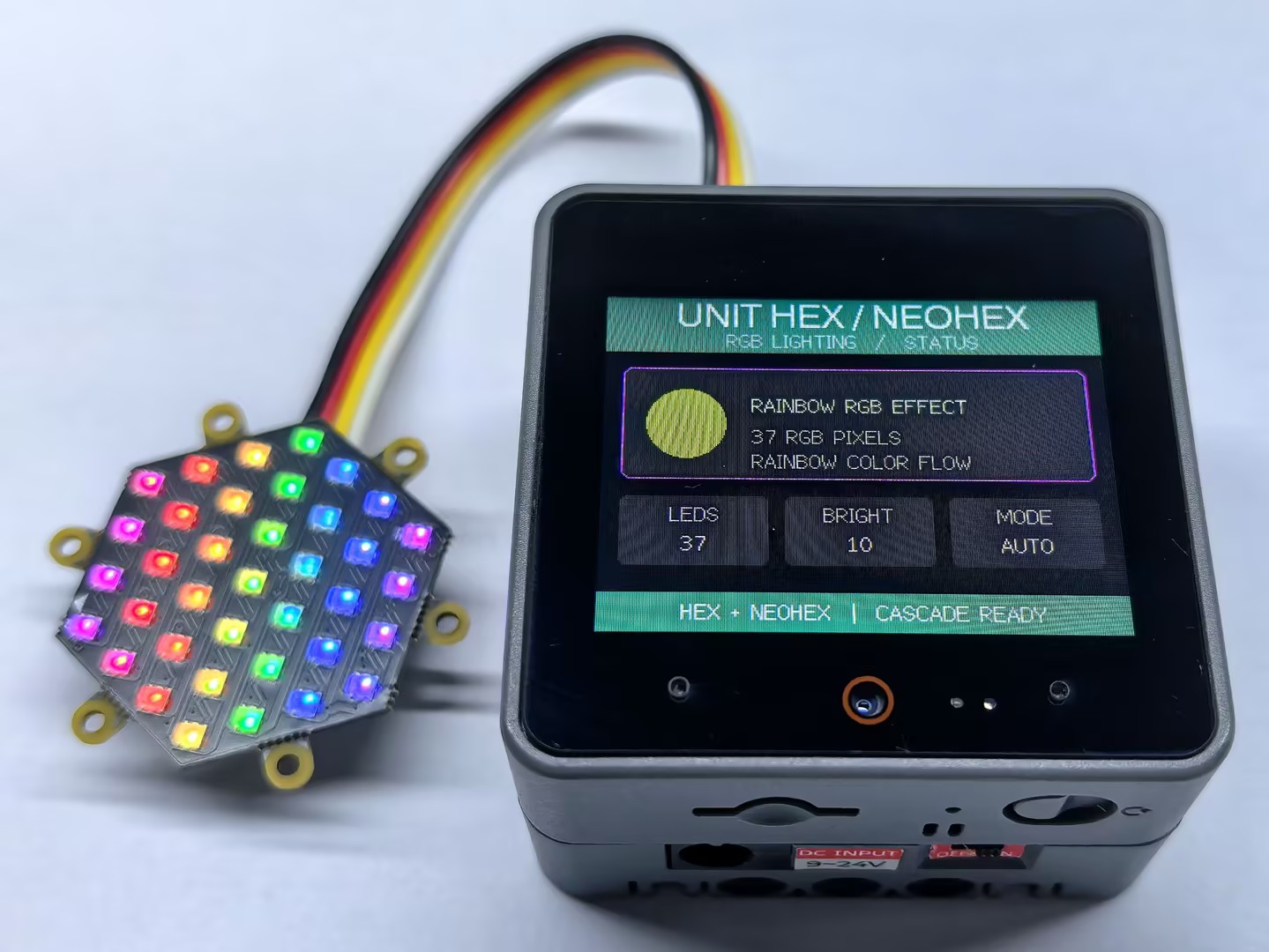
- After the program starts, both Unit HEX and Unit NeoHEX display a continuously changing rainbow effect, while the host display shows the LED count, brightness, and lighting effect status. When cascading multiple LED boards, provide sufficient 5V power for each board and increase
LED_COUNTaccordingly.
Page Tools