

Arduino Quick Start
2. Devices & Examples
3. M5Unified
4. M5GFX
5. Extensions
Unit
Module
Atomic
Tab5
IoT
Accessories
Unit LCD Arduino Tutorial
1. Preparation
- Environment setup: Refer to the Arduino IDE Getting Started Guide to complete the IDE installation, then install the board package and driver libraries required for the development board you are using.
- Libraries used:
M5UnitLCDis included in M5GFX and does not need to be installed separately.- Hardware products used:
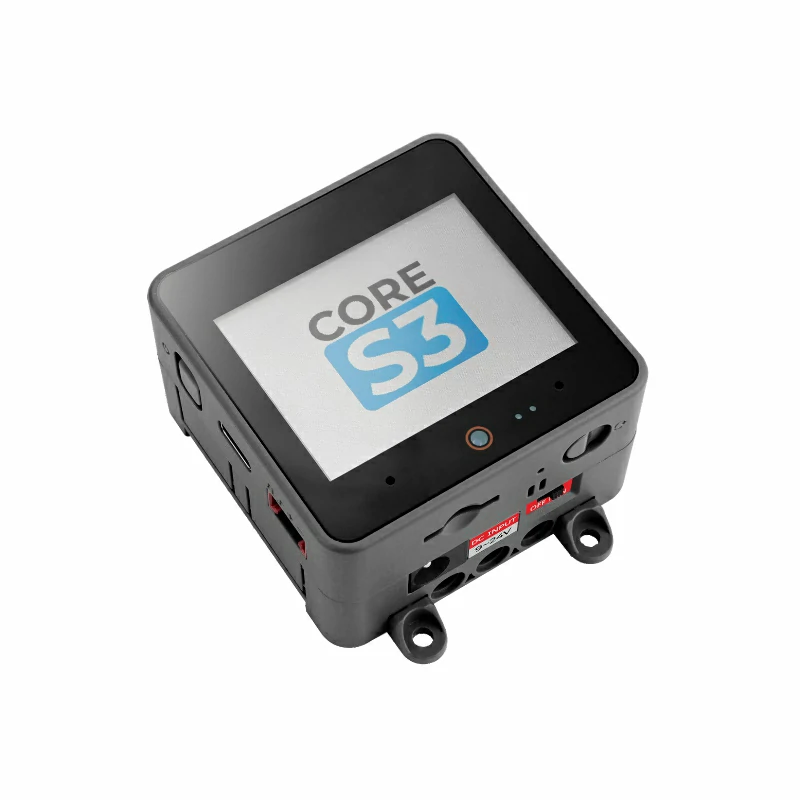
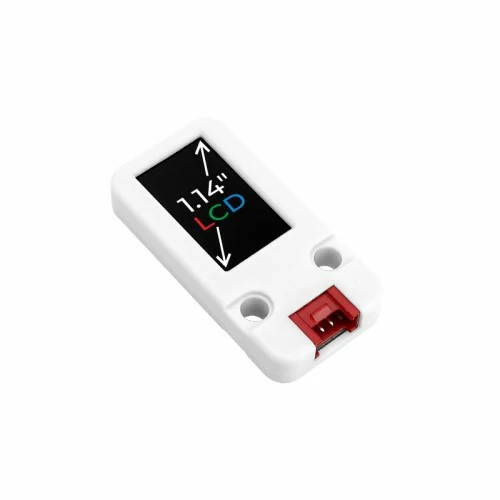
2. Notes
Pin Compatibility
Since the pin configuration differs between host devices, M5Stack provides a pin compatibility table for reference. Check the actual pin connections and modify the example program as needed.
3. Example Program
- This tutorial uses CoreS3 as the host device with Unit LCD. The example follows the general graphics drawing method used by M5Unified and uses
draw_function(LovyanGFX* gfx)to draw random circles and squares on Unit LCD. Unit LCD communicates over I2C with a default address of0x3Eand a communication frequency of 400 kHz. When connected to CoreS3's Port A, the corresponding pins areG2 (SDA)andG1 (SCL).
cpp
1 2 3 4 5 6 7 8 9 10 11 12 13 14 15 16 17 18 19 20 21 22 23 24 25 26 27 28 29 30 31 32 33 34 35 36 37 38 39 40 41 42 43 44 45 46 47 48 49 50 51 52 53 54
#include <M5Unified.h>
#include <M5UnitLCD.h>

M5UnitLCD unit_lcd;
M5Canvas lcd_canvas(&unit_lcd);

void draw_function(LovyanGFX* gfx)
{
    int x      = rand() % gfx->width();
    int y      = rand() % gfx->height();
    int r      = (gfx->width() >> 4) + 2;
    uint16_t c = rand();
    gfx->fillRect(x - r, y - r, r * 2, r * 2, c);
}

void setup()
{
    auto cfg = M5.config();
    M5.begin(cfg);
    const int sda = M5.getPin(m5::pin_name_t::port_a_sda);
    const int scl = M5.getPin(m5::pin_name_t::port_a_scl);
    if (!unit_lcd.init(sda, scl, 400000)) {
        M5.Display.fillScreen(TFT_RED);
        M5.Display.setTextSize(2);
        M5.Display.setCursor(12, 32);
        M5.Display.println("Unit LCD init failed");
        while (true) {
            delay(1000);
        }
    }

    unit_lcd.setRotation(3);
    lcd_canvas.setColorDepth(16);
    lcd_canvas.createSprite(unit_lcd.width(), unit_lcd.height());
    lcd_canvas.fillScreen(TFT_BLACK);
    int textsize = lcd_canvas.height() / 60;
    if (textsize == 0) {
        textsize = 1;
    }
    lcd_canvas.setTextSize(textsize);
}

void loop()
{
    int x      = rand() % lcd_canvas.width();
    int y      = rand() % lcd_canvas.height();
    int r      = (lcd_canvas.width() >> 4) + 2;
    uint16_t c = rand();
    lcd_canvas.fillCircle(x, y, r, c);
    draw_function(&lcd_canvas);
    lcd_canvas.pushSprite(0, 0);
    unit_lcd.waitDisplay();
    delay(50);
}4. Compile and Upload
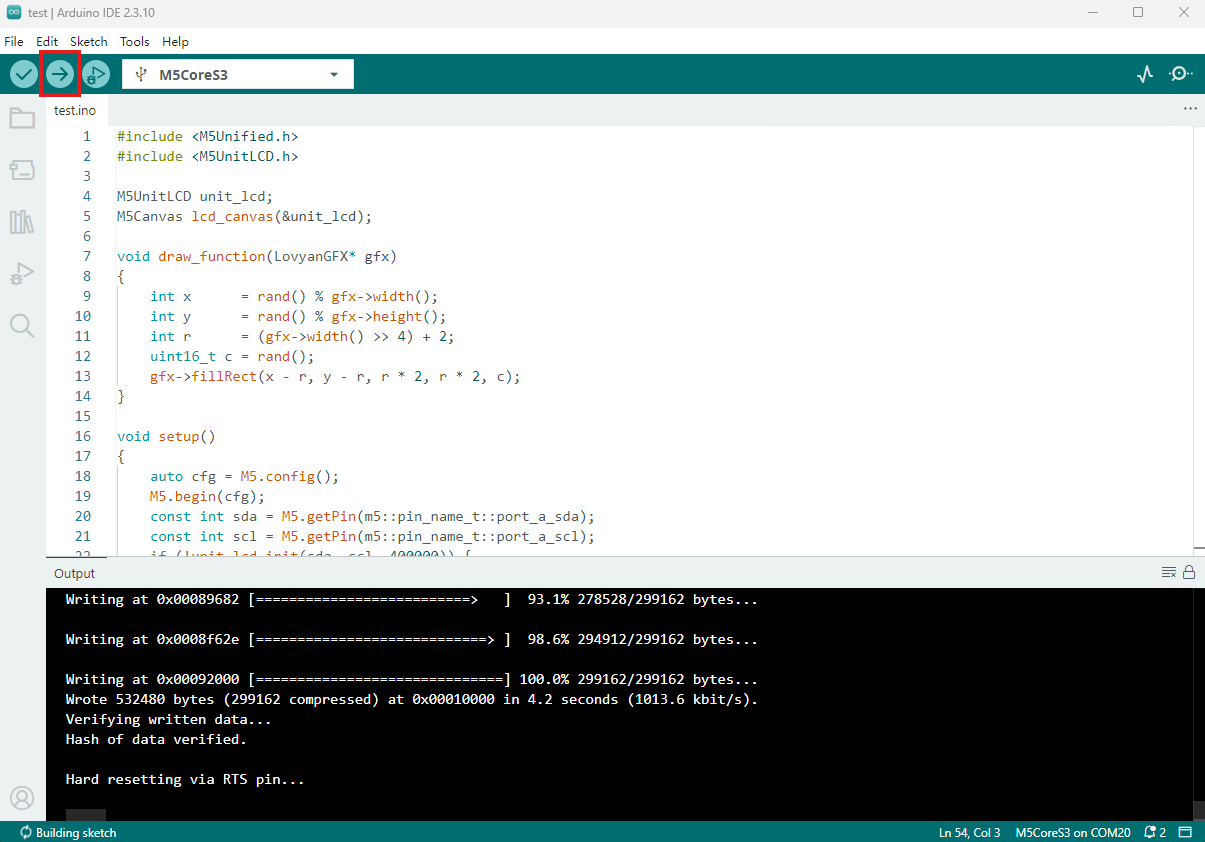
- Copy and paste the example program above into the project code editor, select the device port (see Program Compile & Upload for details), then click the Compile and Upload button in the upper-left corner of Arduino IDE and wait for the program to compile and upload to the device.
5. Random Graphics Display
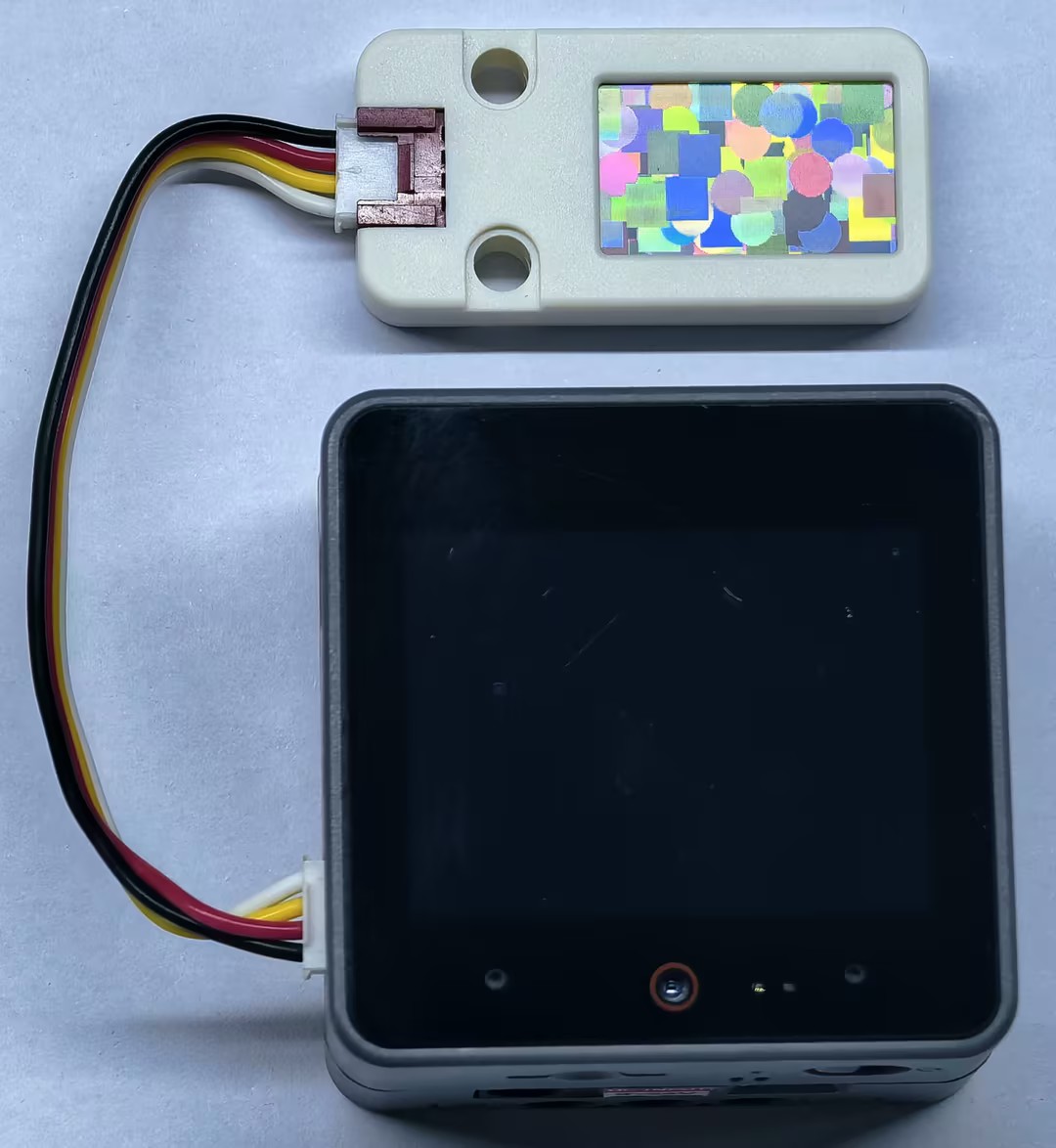
- After the program starts, CoreS3 continuously overlays random circles and squares on the Unit LCD canvas.
Page Tools