

Arduino 上手教程
2. 设备开发 & 案例程序
3. M5Unified
4. M5GFX
5. 扩展模块
Unit
Module
Atomic
Tab5
IoT
CoreS3 Touch 触摸屏
CoreS3 屏幕触摸相关 API 与案例程序。
案例程序
编译要求
- M5Stack 板管理版本 >= 3.2.2
- 开发板选项 = M5CoreS3
- M5Unified 库版本 >= 0.2.11
cpp
1 2 3 4 5 6 7 8 9 10 11 12 13 14 15 16 17 18 19 20 21 22 23 24 25 26 27 28 29 30 31 32 33 34 35 36 37 38 39 40 41 42 43 44 45 46 47 48
#include "M5Unified.h"

void setup(void) {
    auto cfg = M5.config();
    M5.begin(cfg);

    M5.Display.setTextColor(GREEN);
    M5.Display.setTextDatum(middle_center);
    M5.Display.setFont(&fonts::Orbitron_Light_24);
    M5.Display.setTextSize(1);

    M5.Display.drawString("Touch Test", M5.Display.width() / 2,
                              M5.Display.height() / 2);
}

int prev_x = -1;
int prev_y = -1;

static m5::touch_state_t prev_state;

void loop(void) {
    M5.update();

    auto t = M5.Touch.getDetail();
    if (prev_state != t.state) {
        prev_state                                  = t.state;
        static constexpr const char* state_name[16] = {
            "none", "touch", "touch_end", "touch_begin",
            "___",  "hold",  "hold_end",  "hold_begin",
            "___",  "flick", "flick_end", "flick_begin",
            "___",  "drag",  "drag_end",  "drag_begin"};
        M5_LOGI("%s", state_name[t.state]);
        M5.Display.fillRect(0, 0, M5.Display.width(), 140, BLACK);

        M5.Display.drawString(state_name[t.state],
                                  M5.Display.width() / 2,
                                  M5.Display.height() / 2 - 30);
    }
    if (prev_x != t.x || prev_y != t.y) {
        M5.Display.fillRect(0, 140, M5.Display.width(), 100, BLACK);
        M5.Display.drawString(
            "X:" + String(t.x) + " / " + "Y:" + String(t.y),
            M5.Display.width() / 2, 200);
        prev_x = t.x;
        prev_y = t.y;
        M5.Display.fillCircle(prev_x, prev_y, 4, GREEN);
    }
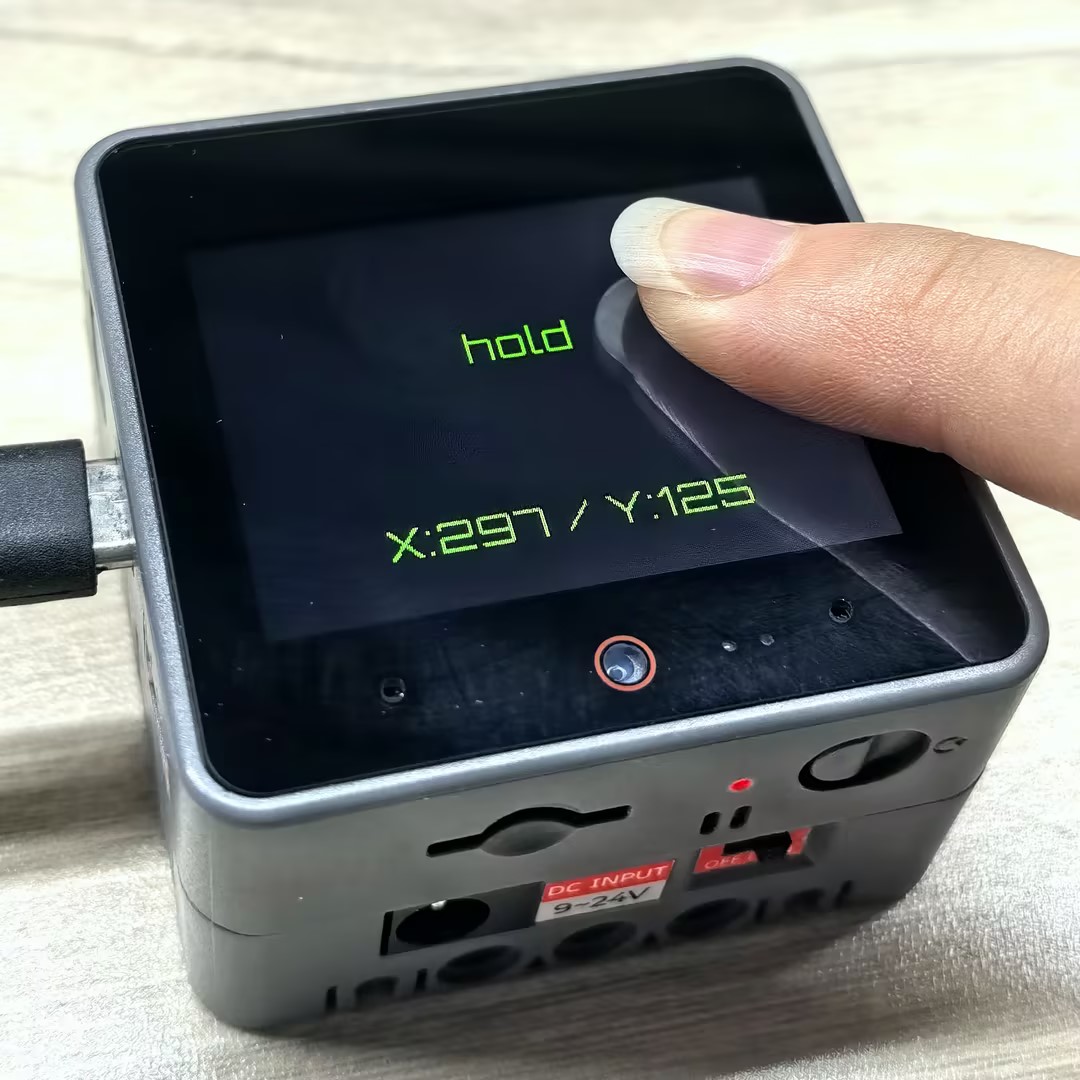
}烧录成功后,您可以通过触摸 CoreS3 的屏幕来触发事件。当触摸状态发生变化时,设备将检测到这个事件,并在屏幕上显示当前的触摸状态以及触摸点的坐标信息。
API
CoreS3 屏幕触摸部分使用了 M5Unified 库中的 Touch_Class, 更多相关的 API 可以参考下方文档:
Page Tools