

Arduino Quick Start
2. Devices & Examples
3. M5Unified
4. M5GFX
5. Extensions
Unit
Module
Atomic
Tab5
IoT
Accessories
Hat Mini EncoderC Arduino Tutorial
1. Preparation
Environment Setup: Refer to the Arduino IDE Quick Start Tutorial to complete the IDE installation, and install the corresponding board manager and required driver libraries according to the development board you are using.
Required Libraries:
Hardware Used:
2. Precautions
Pin Compatibility
Due to different pin configurations of each host device, please refer to the pin compatibility table in the product documentation before use, and modify the example program according to the actual pin connections.
3. Example
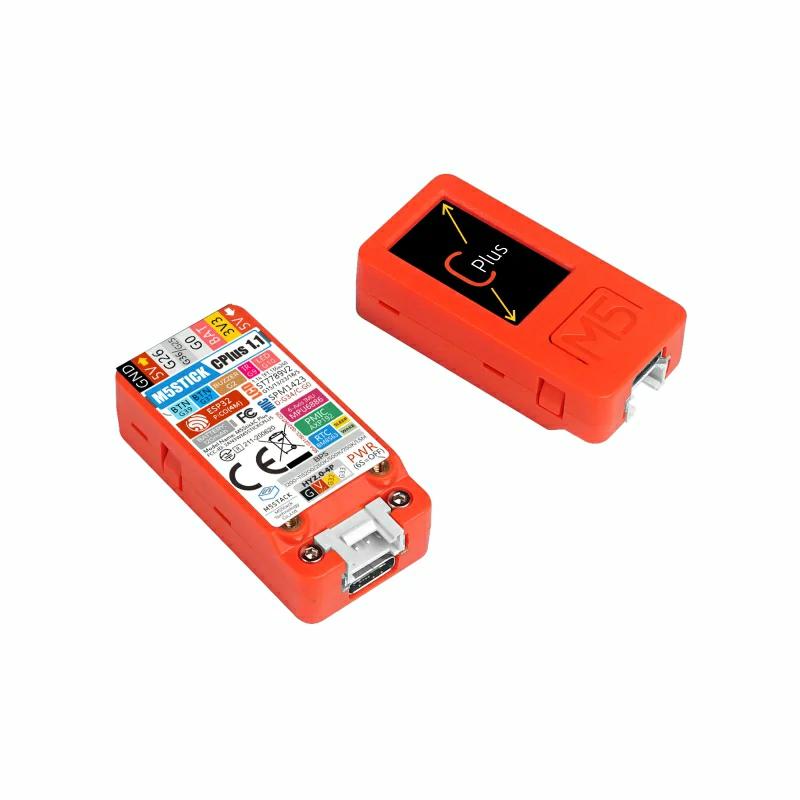
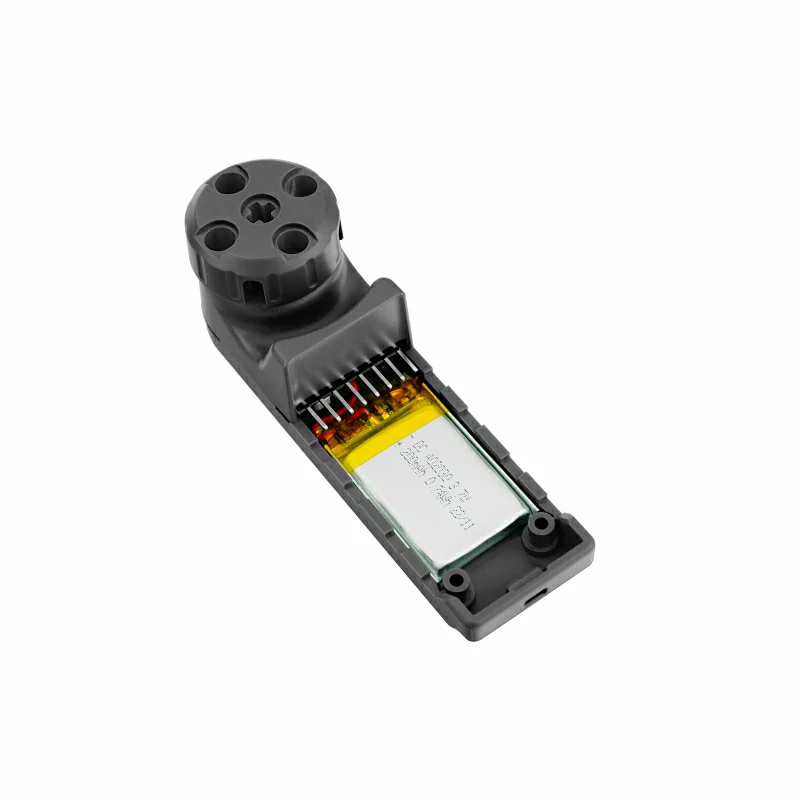
- In this tutorial, the main control device used is StickC Plus, paired with the Hat Mini EncoderC module. This rotary encoder module communicates via I2C. Modify the pin definitions in the program according to the actual circuit connections. After stacking the devices, the corresponding I2C IO pins are
G26 (SCL)andG0 (SDA).
cpp
1 2 3 4 5 6 7 8 9 10 11 12 13 14 15 16 17 18 19 20 21 22 23 24 25 26 27 28 29 30 31 32 33 34 35 36 37 38 39 40 41 42 43 44 45 46 47 48 49 50 51 52 53 54 55 56 57 58 59 60 61 62 63 64 65 66 67 68 69 70 71 72 73 74 75 76 77 78 79 80 81 82 83 84 85 86 87 88 89 90 91 92 93 94 95 96 97 98 99 100 101 102
#include "M5Unified.h"
#include "M5HatMiniEncoderC.h"

// MiniEncoderC I2C pins
#define MiniEncoderC_SDA 0
#define MiniEncoderC_SCL 26

M5HatMiniEncoderC encoder;

// Used to detect encoder value changes
int32_t lastEncoderValue = 0;
int32_t encoderIncValue = 0;

// Used to detect button state changes
bool lastEncoderBtnValue = 0;

// Wait until MiniEncoderC is ready
static void waitMiniEncoderCReady() {
    while (!encoder.begin(&Wire, MiniEncoderC_ADDR, MiniEncoderC_SDA, MiniEncoderC_SCL, 100000UL)) {
      delay(100);
    }
}

void setup() {
    M5.begin();
    M5.Display.setRotation(0);
    M5.Display.setFont(&fonts::FreeMonoBold9pt7b);
    M5.Display.fillScreen(BLACK);

    // Initialize MiniEncoderC
    waitMiniEncoderCReady();

    // Reset encoder value to 0
    encoder.setEncoderValue(0);
    delay(100);

    // Initial display
    M5.Display.setCursor(0, 20);
    M5.Display.printf("Val:%d", 0);

    M5.Display.setCursor(0, 50);
    M5.Display.printf("IncVal:%d", 0);

    M5.Display.drawLine(0, 80, 135, 80, ORANGE);

    M5.Display.setCursor(0, 90);
    M5.Display.printf("BtnVal:1");

    M5.Display.setCursor(0, 180);
    M5.Display.printf("BtnA:\n Reset Cntr");
}

void loop() {
    M5.update();

    // Read encoder value
    int32_t encoderValue = encoder.getEncoderValue();

    // Read encoder button state
    bool EncoderBtnValue = encoder.getButtonStatus();

    // Only read increment value when encoder value changes
    if (encoderValue != lastEncoderValue) {
      encoderIncValue = encoder.getIncrementValue();

      // Update encoder value display
      M5.Display.fillRect(0, 20, 135, 50, BLACK);
      M5.Display.setTextColor(WHITE, BLACK);

      M5.Display.setCursor(0, 20);
      M5.Display.printf("Val: %d", encoderValue);

      M5.Display.setCursor(0, 50);
      M5.Display.printf("IncVal: %d", encoderIncValue);

      M5.Display.drawLine(0, 80, 135, 80, ORANGE);

      // Set LED color based on encoder value
      uint8_t r = abs(encoderValue * 5) % 256;
      uint8_t g = abs(encoderValue * 3) % 256;
      uint8_t b = abs(encoderValue * 7) % 256;
      uint32_t rgb888 = (r << 16) | (g << 8) | b;
      encoder.setLEDColor(rgb888);

      lastEncoderValue = encoderValue;
    }

    // Update display only when button state changes
    if (EncoderBtnValue != lastEncoderBtnValue) {
      M5.Display.fillRect(0, 90, 135, 80, BLACK);
      M5.Display.setCursor(0, 90);
      M5.Display.printf("BtnVal: %d", EncoderBtnValue);
      lastEncoderBtnValue = EncoderBtnValue;
    }

    if (M5.BtnA.wasPressed()) {
      // Reset encoder value to 0 when BtnA is pressed
      encoder.resetCounter();
    }

    delay(30);
}4. Control Effect
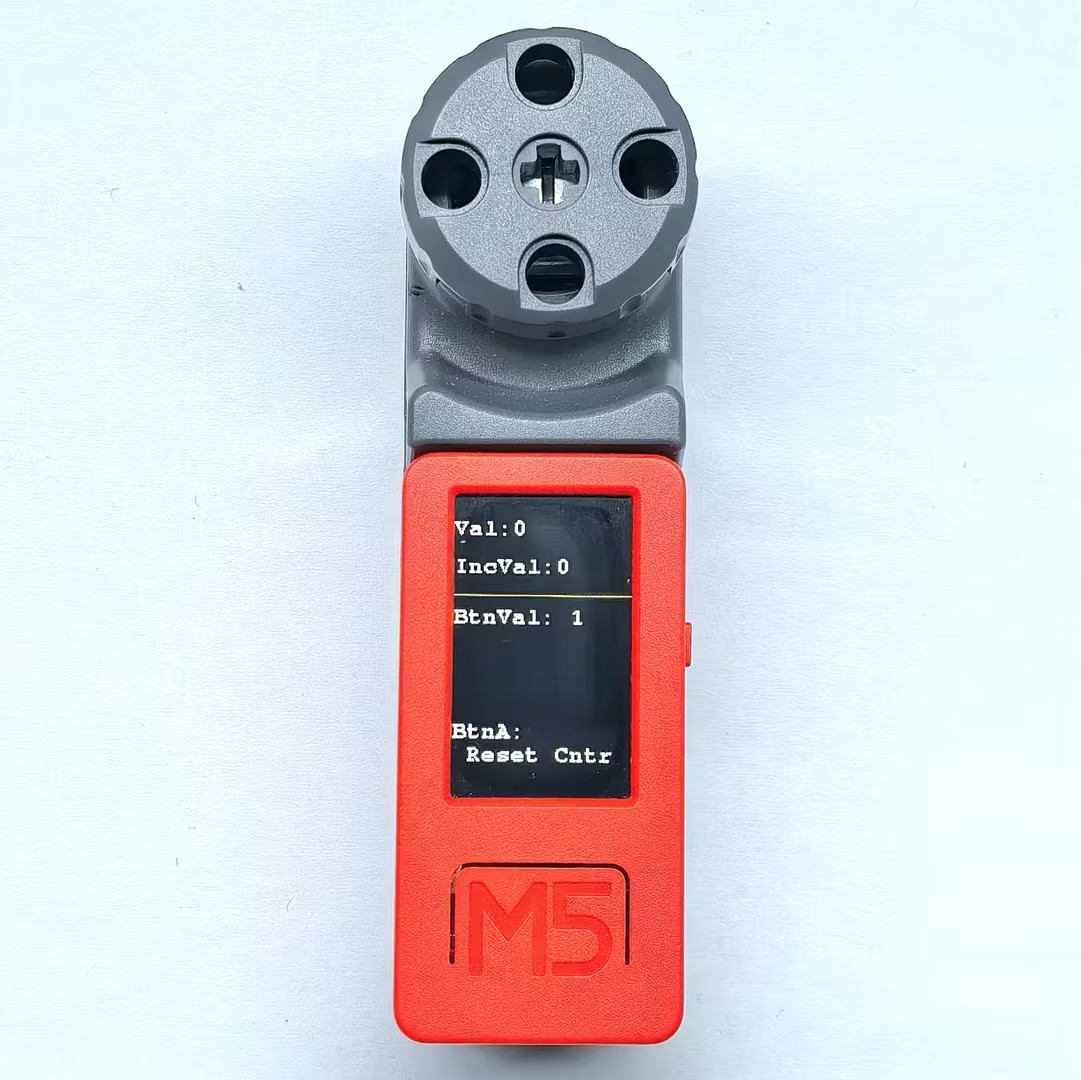
- After the device is powered on, rotating the knob changes the numerical value displayed on the screen, and the RGB LED on the back will change color according to the value. Pressing the encoder button toggles the button state display. Pressing Button A on the StickC Plus resets the encoder value to 0.
Page Tools