Arduino 上手教程
2. 设备开发 & 案例程序
3. M5Unified
4. M5GFX
5. 拓展模块
Unit
Base
IoT
Hat DLight Arduino 使用教程
1. 准备工作
环境配置: 参考Arduino IDE上手教程完成 IDE 安装,并根据实际使用的开发板安装对应的板管理,与需要的驱动库。
使用到的驱动库:
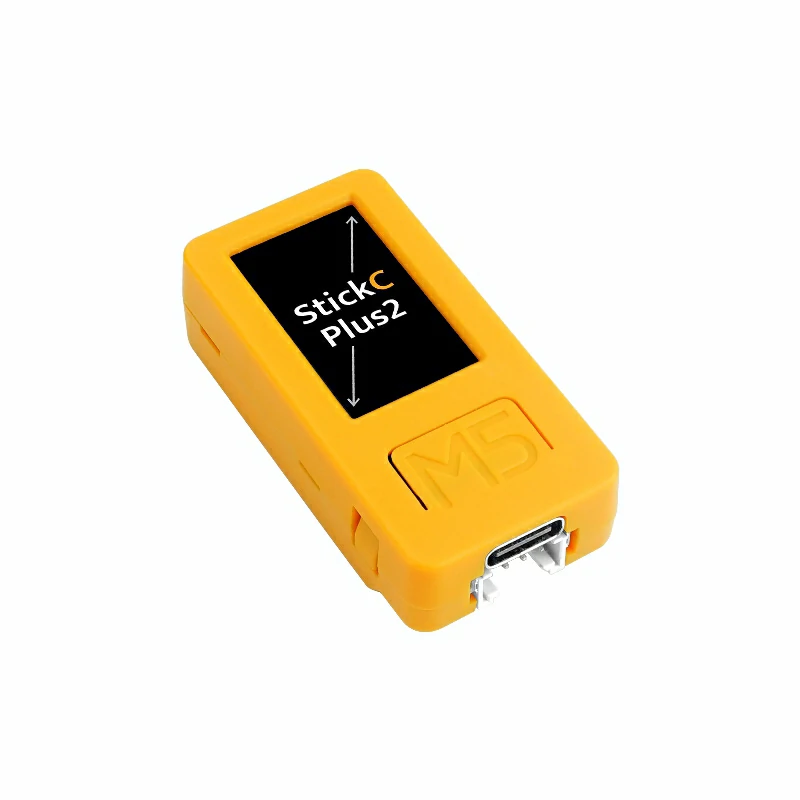
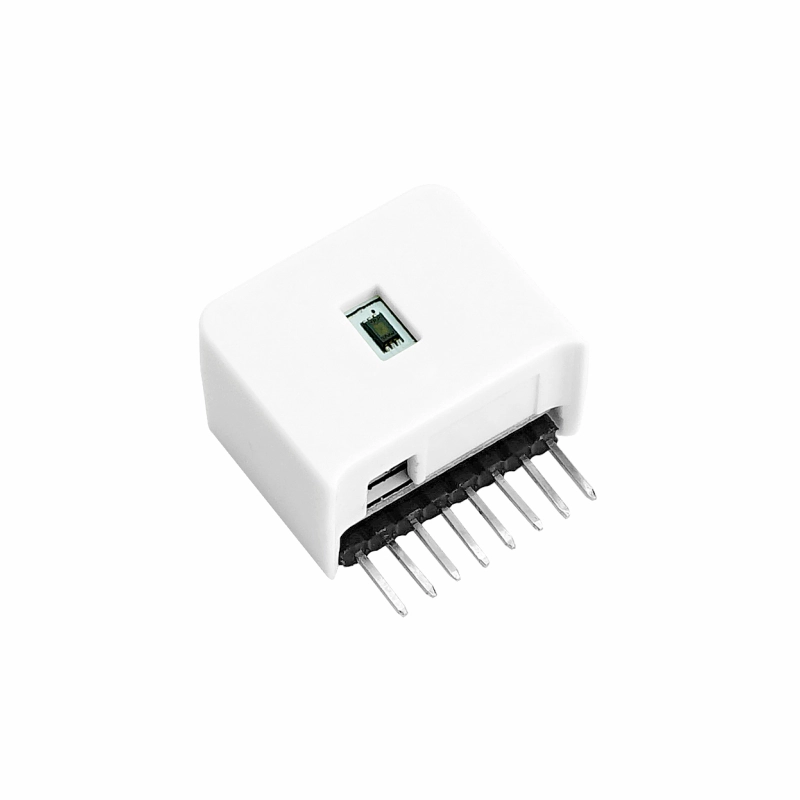
使用到的硬件产品:
2. 案例程序
案例说明
Hat DLight 是一款适配 StickC 系列的数字环境光检测传感器,硬件采用 BH1750FVI 照度传感器 IC(I2C 接口),内置 16bit AD 转换,支持 1 ~ 65535 lx 照度值检测。本案例将使用 StickC-Plus2 通过 I2C 接口来驱动控制 Hat DLight,并在 StickC-Plus2 的屏幕和电脑的串口监视器打印数据。
完整程序
cpp
1 2 3 4 5 6 7 8 9 10 11 12 13 14 15 16 17 18 19 20 21 22 23 24 25 26 27 28 29 30 31 32 33 34 35 36 37 38 39 40 41 42
#include <M5Unified.h>
#include <M5_DLight.h>

M5_DLight sensor;
uint16_t lux;       // store sensor reading

void setup() {
  // initializatize M5StickC-Plus2
  auto cfg = M5.config();
  M5.begin(cfg);
  Serial.begin(115200);
  Serial.println("Initializing DLight sensor...");
  delay(2000);

  // initialize sensor
  sensor.begin(&Wire, 0, 26);   // Hat DLight (SDA:G0, SCL:G26)
  sensor.setMode(CONTINUOUSLY_H_RESOLUTION_MODE);

  // setup display
  M5.Display.setRotation(1);  // depends on the direction of the StickC_Plus2 being held
  M5.Display.setTextColor(GREEN);
  M5.Display.setTextSize(2);

  Serial.println("StickC-Plus2 with DLight is ready!");
}

void loop() {
  M5.update();

  lux = sensor.getLUX();  // get sensor reading

  // display on StickC-Plus2's screen
  M5.Display.startWrite();
  M5.Display.setCursor(64,55);
  M5.Display.fillScreen(BLACK); // clear screen
  M5.Display.printf("Lux: %d\n", lux);

  // display on serial terminal
  Serial.printf("Light Intensity: %d lux\n", lux);

  delay(1000);
}3. 编译上传
进入下载模式:不同的 Stick 设备进行程序烧录前需要安装对应的驱动程序,不同的主控设备使用的驱动与安装步骤可能有所不同。详情可参考Arduino IDE上手教程页面底部的设备程序下载教程列表,查看具体设备对应的操作方式。
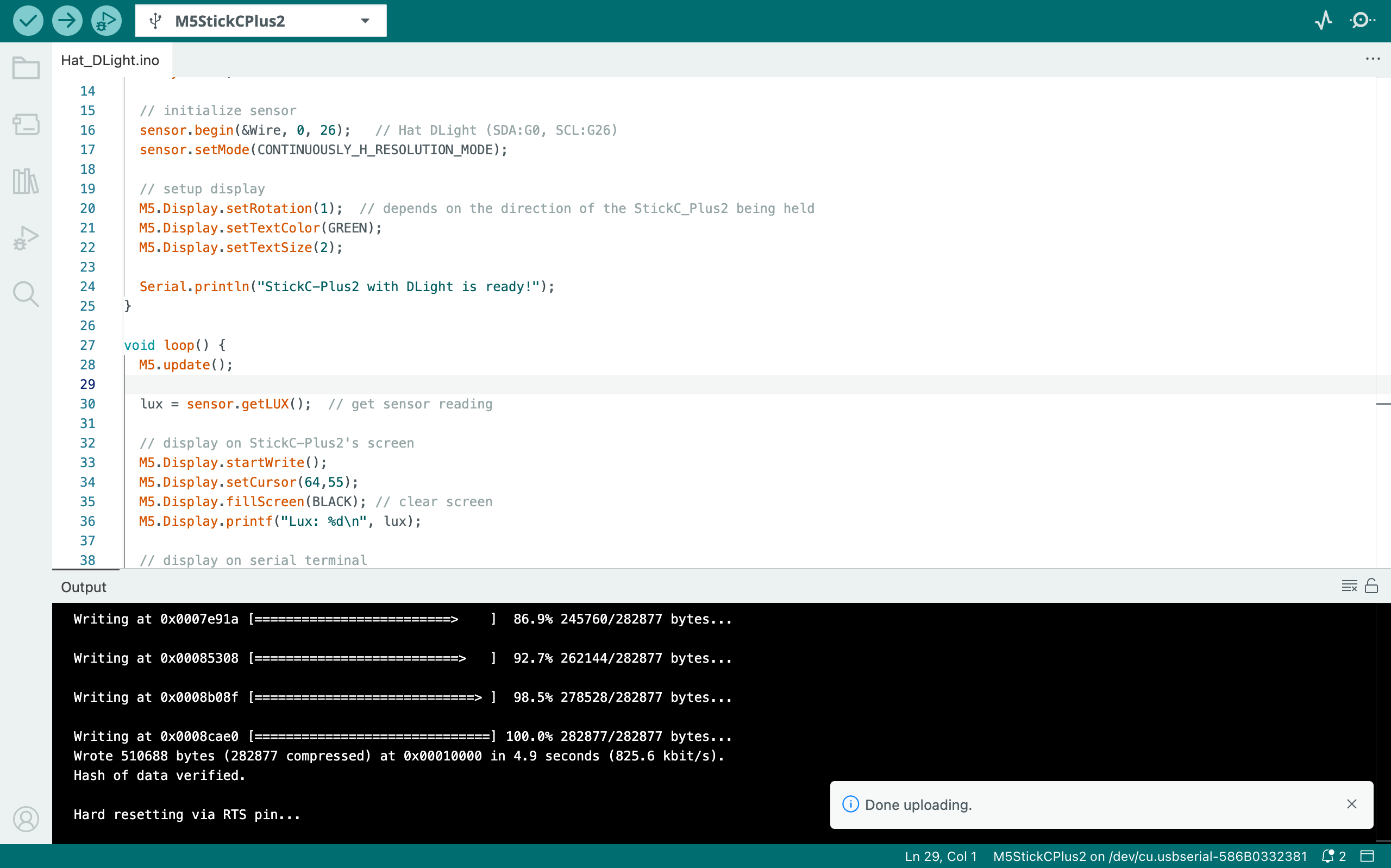
选中设备端口,点击 Arduino IDE 左上角编译上传按钮,等待程序完成编译并上传至设备。
4. 环境光检测传感器数据显示
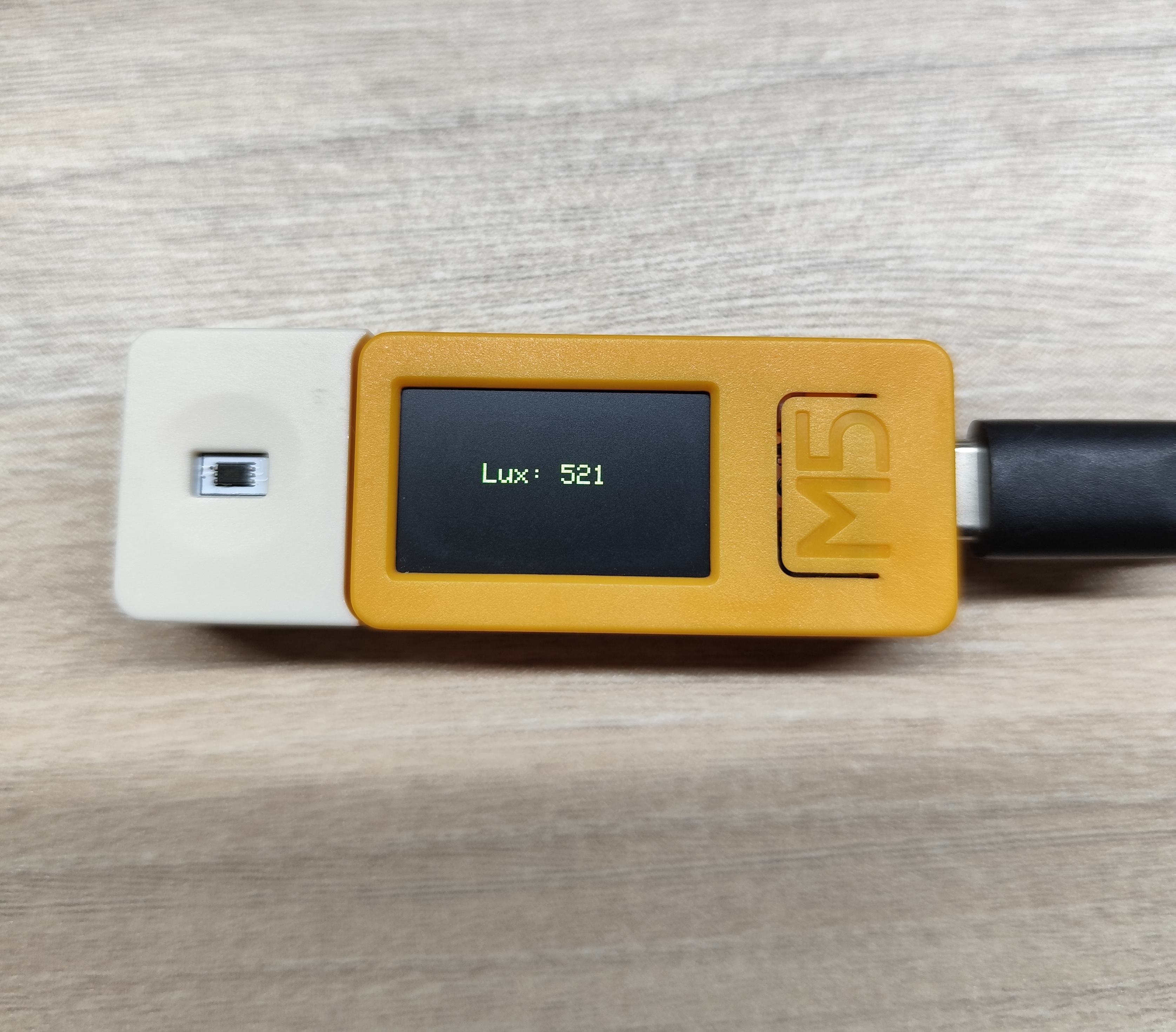
该程序将检测 Hat DLight 的光检测传感器的数据,并在 StickC-Plus2 的屏幕和电脑的串口监视器打印数据: