

Arduino Quick Start
2. Devices & Examples
3. M5Unified
4. M5GFX
5. Extensions
Unit
Module
Atomic
Tab5
IoT
Accessories
AtomS3U Arduino Program Compilation & Upload
1. Preparation
- 1.Arduino IDE Installation: Refer to Arduino IDE Installation Guide to complete the IDE installation.
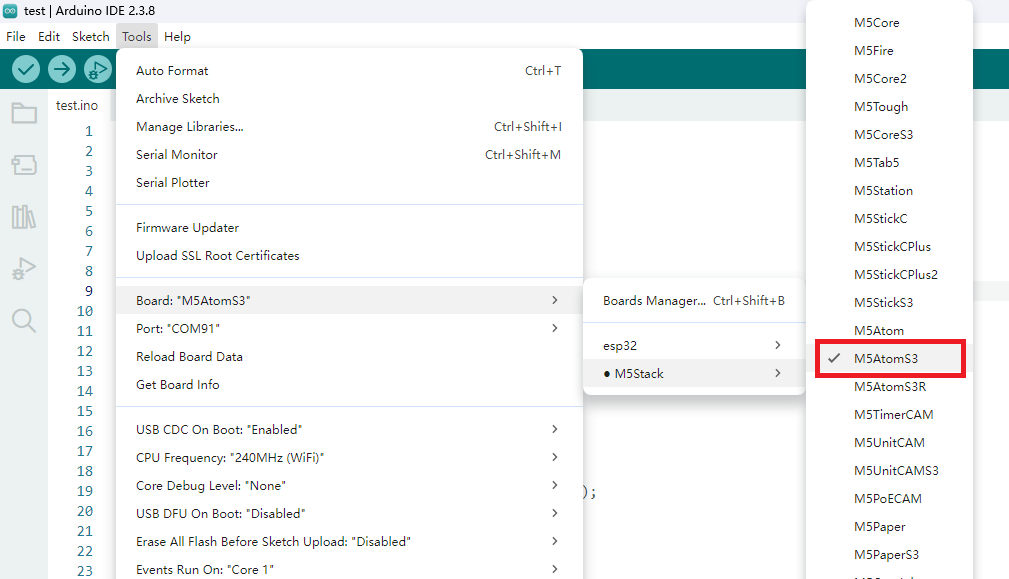
- 2.Board Manager Installation: Refer to Board Manager Installation Guide to complete the M5Stack board manager installation and select the development board
M5AtomS3.
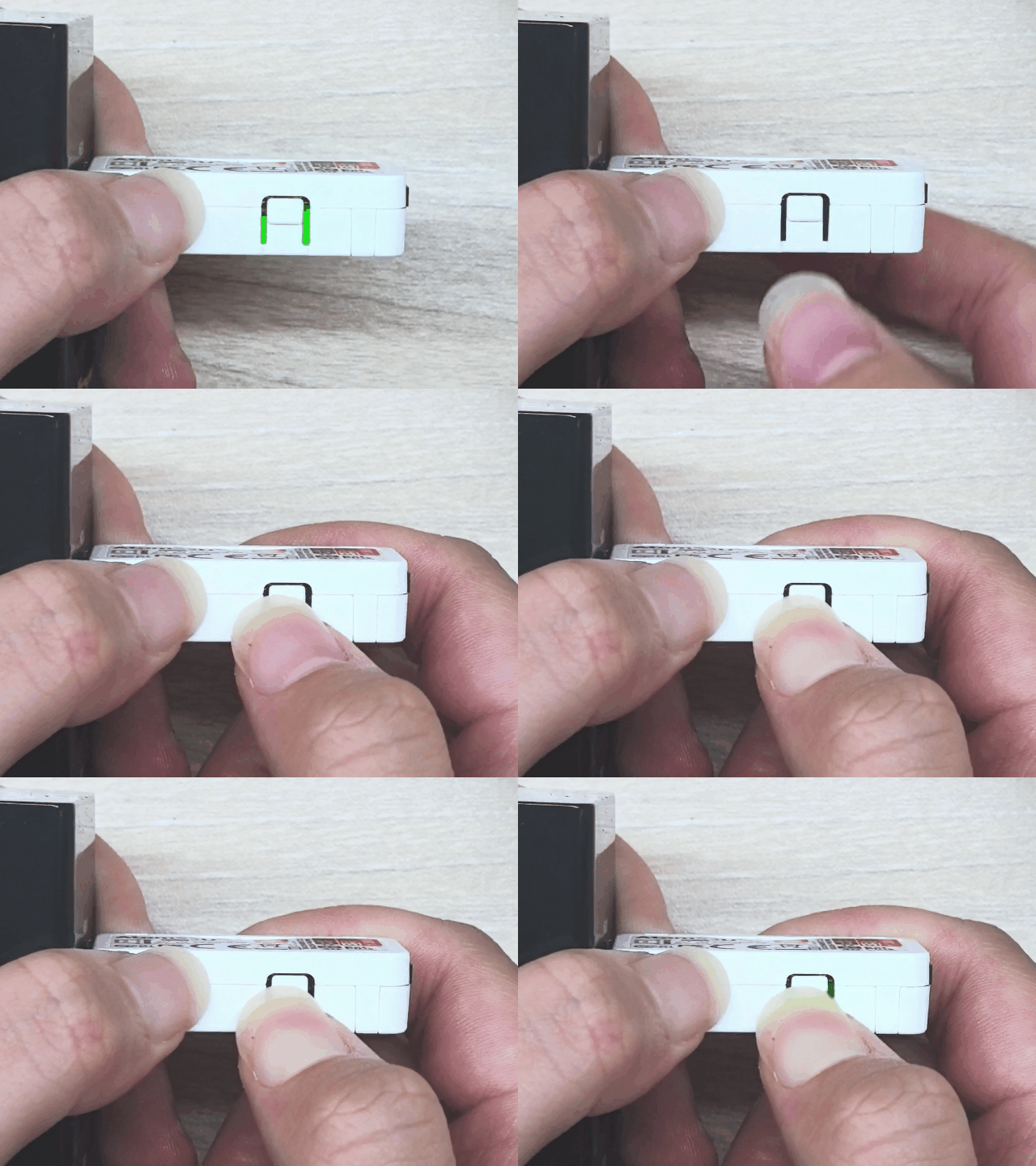
2. Download Mode
Press and hold the reset button for about 2 seconds until the internal green LED lights up, then release — the device will enter download mode and be ready for flashing.
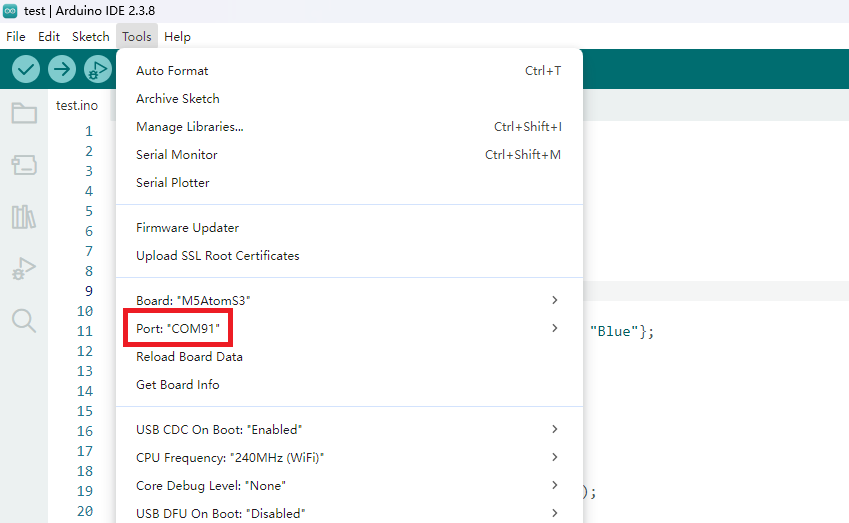
3. Port Selection
Connect the device to your computer via USB. After the device enters download mode, select the corresponding port in the Arduino IDE.
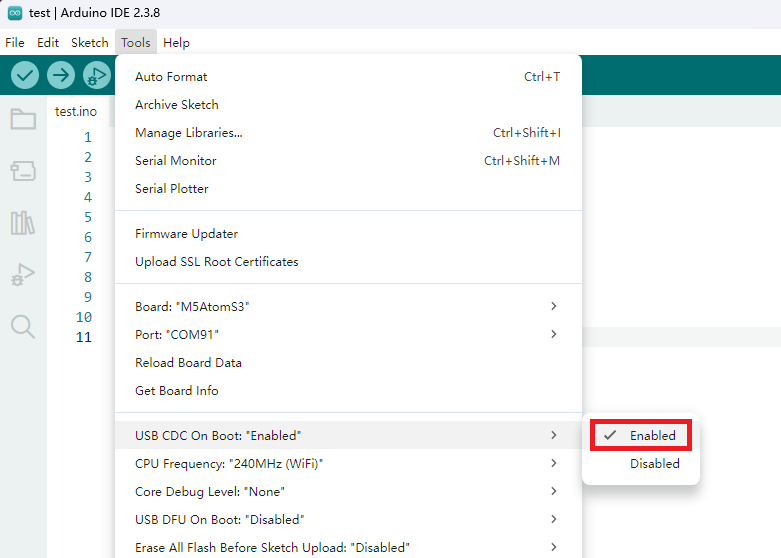
4. Program Compilation & Upload
Note: Please set Tools -> USB-CDC On Boot to Enabled in Arduino IDE; otherwise the serial port will not be available. The option location is shown below.
Open Arduino, paste the code below and click the upload button. The sketch will be compiled and uploaded to the AtomS3U.
cpp
1 2 3 4 5 6 7 8 9 10 11
#include <M5Unified.h>

void setup() {
    M5.begin();
    Serial.begin(115200);
}

void loop() {
    Serial.println("hello world!");
    delay(2000);
}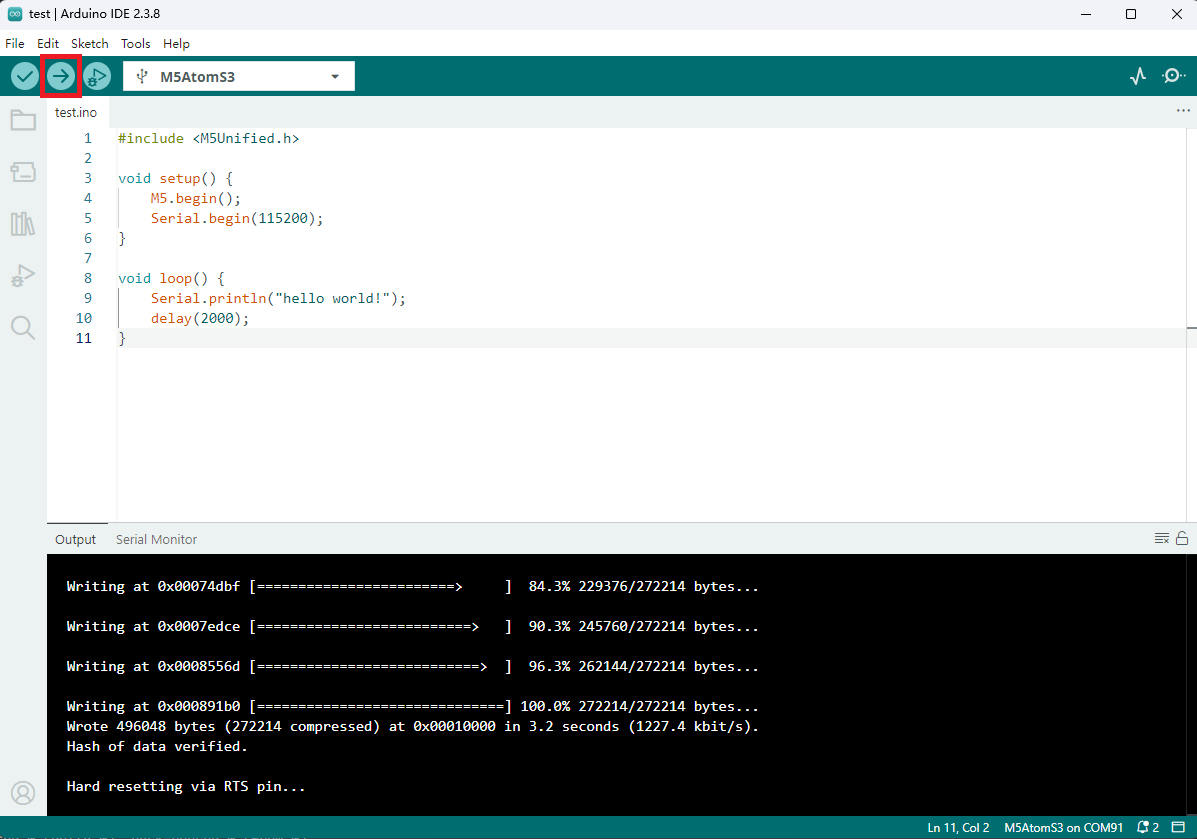
After a successful upload, open the serial monitor and set the baud rate to 115200. You should see "hello world!" printed every two seconds.
5. Related Resources
Page Tools