Arduino 上手教程
2. 设备开发 & 案例程序
3. M5Unified
4. M5GFX
5. 扩展模块
Unit
Module
Atomic
Tab5
IoT
UnitV2 Arduino 使用教程
1. 准备工作
环境配置: 参考 Arduino IDE 上手教程完成 IDE 安装,并根据实际使用的开发板安装对应的板管理,与需要的驱动库。
使用到的驱动库:
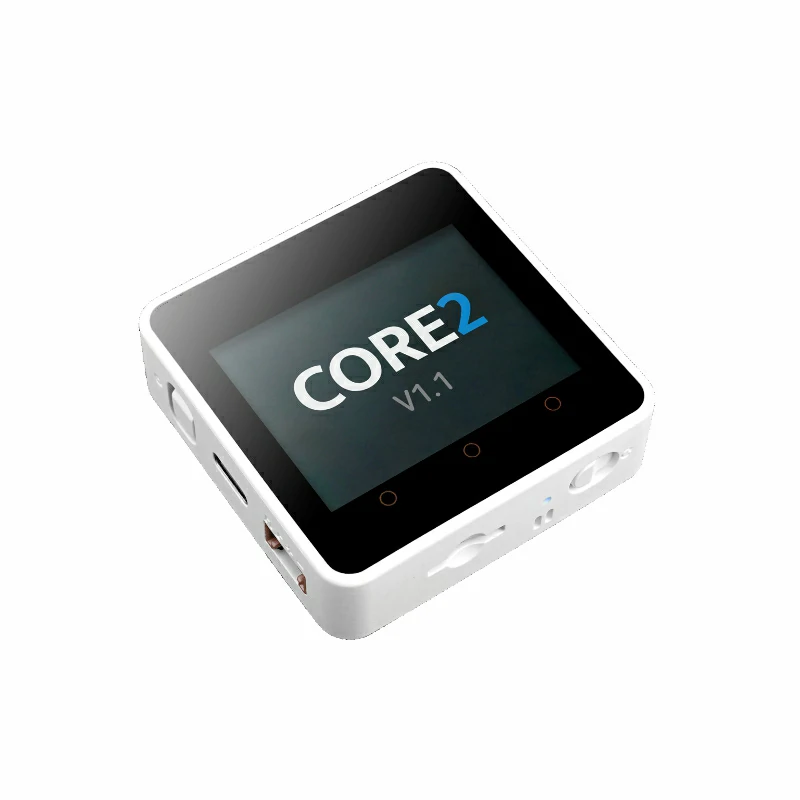
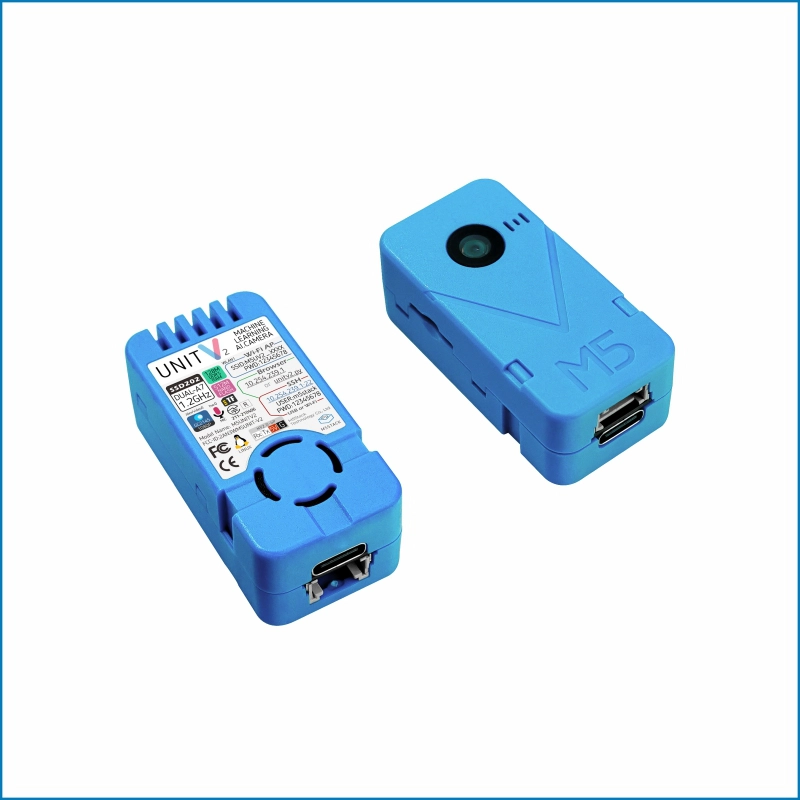
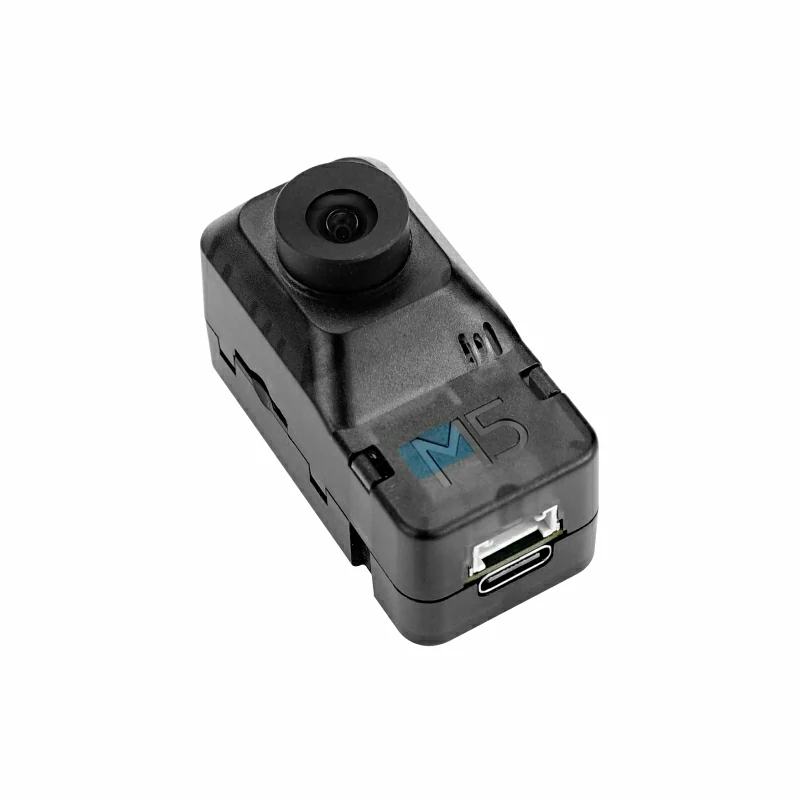
使用到的硬件产品:
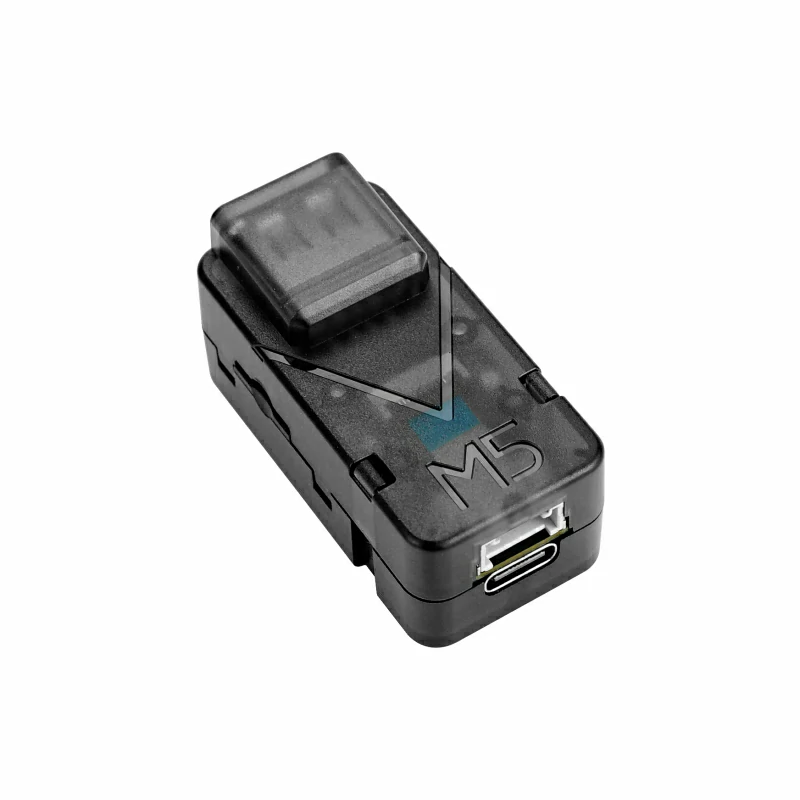
2. 注意事项
3. 编译上传
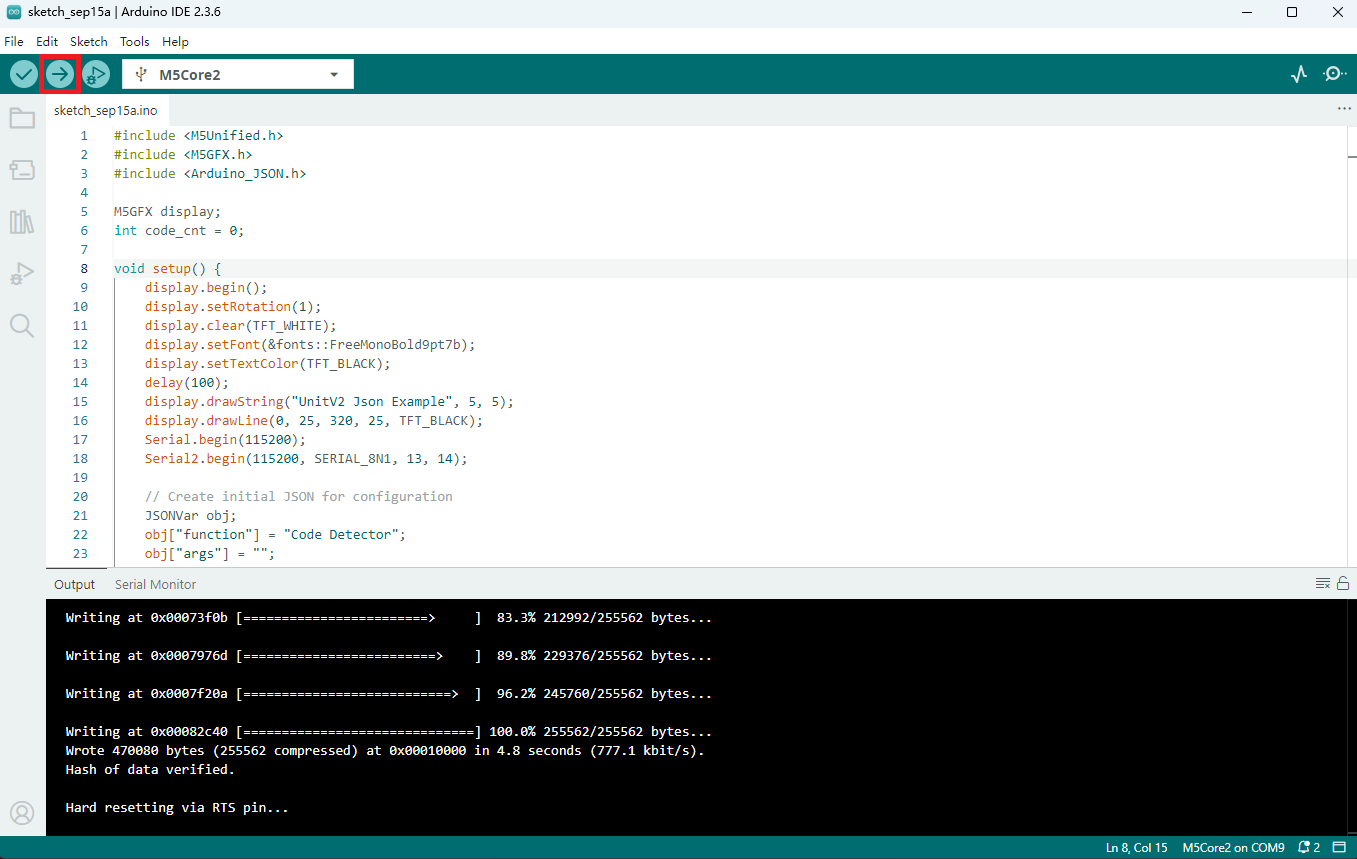
- 请根据需要复制粘贴下方例程代码到项目代码区,然后选中设备端口(详情请参考 程序编译与烧录),点击 Arduino IDE 左上角编译上传按钮,等待程序完成编译并上传至设备。
4. UnitV2 连接方式
4.1 Ethernet 模式连接(USB 连接)
此连接方式事先需要根据使用的操作系统的下载安装相应的SR9900驱动程序,然后将 UnitV2 通过 USB Type-C 接口连接至电脑,UnitV2 内置了一张有线网卡,电脑会自动识别为一个网卡设备,然后自动与 UnitV2 建立起网络连接。
4.2 AP 模式连接(WiFi 连接)
此连接方式不需要安装任何驱动程序,在 UnitV2 上电后,UnitV2 会自动开启一个 WiFi 热点,热点名称为 UnitV2-XXXX(XXXX 根据具体设备变化),密码为 12345678。使用电脑或手机等设备连接该热点后,即可与 UnitV2 建立起网络连接。
5. 案例程序
下方所有例程仅适用于 M5Stack 官方固件,作用为切换功能及解析 UnitV2 返回的 JSON 数据。官方固件请见UnitV2固件更新教程,关于 UnitV2 其他讲解内容请见此处。
2.UnitV2 需要通过 USB Type-C 接口供电才能工作,USB Type-C 接口拔插后本单元会重启。
3.本单元的功能设置掉电会丢失,故本单元断电重启后需要再配置一次功能,但是各功能下保存的数据及参数配置掉电不丢失。
5.1 视频流
本例程可配置 UnitV2 切换到视频流功能,在功能页面可实时查看摄像头画面。在浏览器中访问域名 unitv2.py 或 IP:10.254.239.1 可访问功能页面,页面内容如下所示:
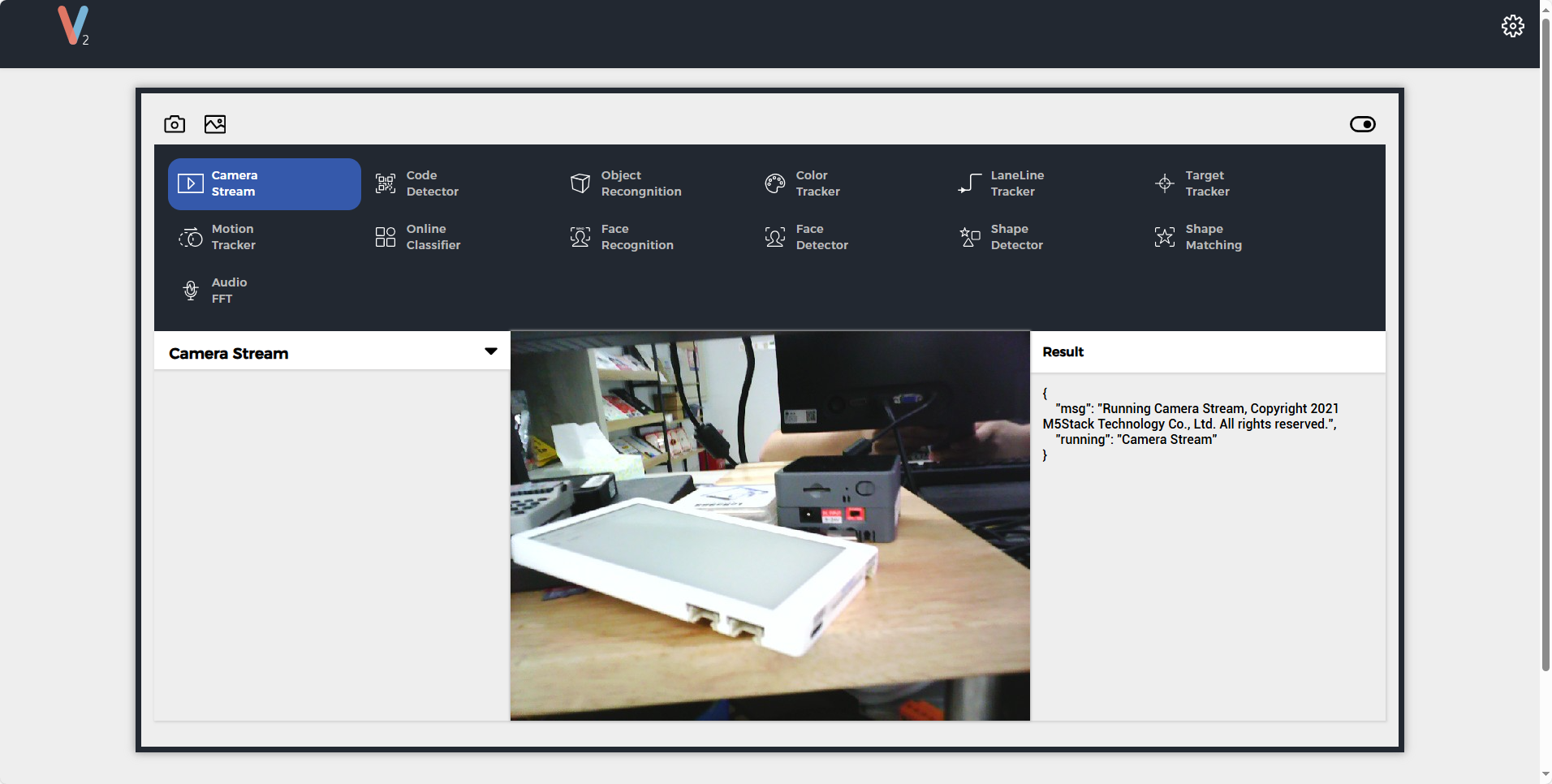
视频流功能 JSON 数据格式详见此处。
#include <M5Unified.h>
#include <M5GFX.h>
#include <Arduino_JSON.h>

M5GFX display;

void setup() {

    display.begin();
    display.setRotation(1);
    display.clear(TFT_WHITE);
    display.setFont(&fonts::FreeMonoBold9pt7b);
    display.setTextColor(TFT_BLACK);
    delay(100);
    display.drawString("UnitV2 Json Example", 5, 5);
    display.drawLine(0, 25, 320, 25, TFT_BLACK);

    Serial.begin(115200);
    Serial2.begin(115200, SERIAL_8N1, 13, 14);//PORT.C

    //Setting JSON
    JSONVar obj;
    obj["function"] = "Camera Stream";
    obj["args"] = "";
    String jsonString = JSON.stringify(obj);
    Serial2.println(jsonString);
    Serial2.flush();
}

void loop() {

    if (Serial2.available() > 0) {
      String line = Serial2.readStringUntil('\r');
      while (line.length() && line[0] != '{') {// clear '\0'
          line.remove(0, 1);
      }
      Serial2.flush();

      JSONVar camera_stream_obj = JSON.parse(line);

      // JSON.typeof(jsonVar) can be used to get the type of the var
      if (!(JSON.typeof(camera_stream_obj) == "undefined")){
        display.fillRect(0, 35, 320, 205, TFT_WHITE);
        Serial.println(">>>>>>>>>>>>>>>>>>>>>>>>>>>>>>>>>>");
        Serial.println("UnitV2 Camera Stream example");
        if (camera_stream_obj.hasOwnProperty("msg")) {
          Serial.print("msg : ");
          Serial.println(String(code_obj["msg"]).c_str());
          display.setCursor(0, 35);
          display.printf(" msg: %s\n", String(code_obj["msg"]).c_str());
        }
        if (camera_stream_obj.hasOwnProperty("running")) {
          Serial.print("running : ");
          Serial.println(String(code_obj["running"]).c_str());
          display.printf(" running: %s\n", String(code_obj["running"]).c_str());
        }
        Serial.println("<<<<<<<<<<<<<<<<<<<<<<<<<<<<<<<<<<");
      } else {
        return;
      }
    }
} 5.2 扫码识别
本例程可配置 UnitV2 切换到扫码识别功能,此功能可识别常见图码,如二维码、条形码、DataMatrix 码等。在浏览器中访问域名 unitv2.py 或 IP:10.254.239.1 可访问功能页面,页面内容如下所示:
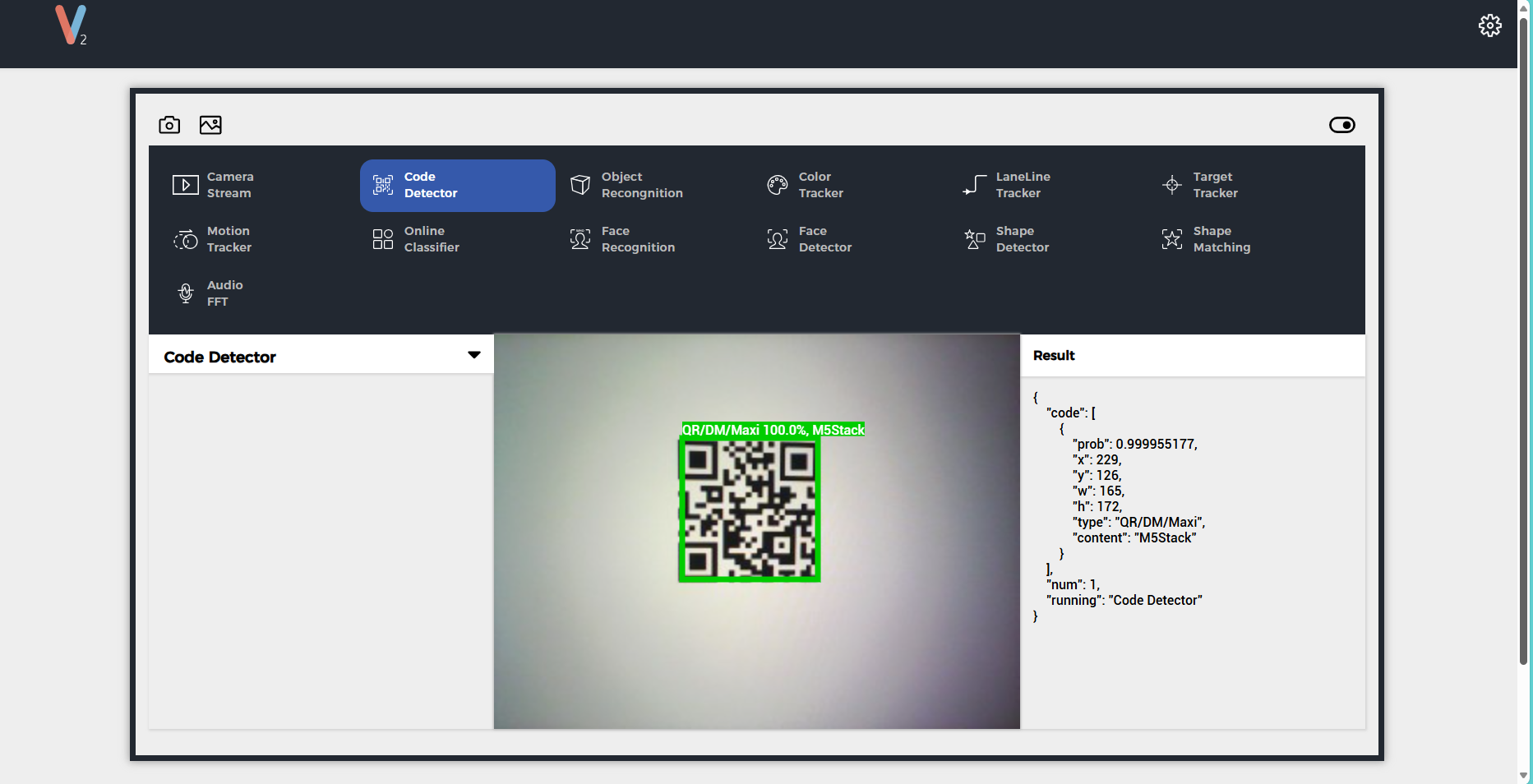
扫码识别功能 JSON 数据格式详见此处。
#include <M5Unified.h>
#include <M5GFX.h>
#include <Arduino_JSON.h>

M5GFX display;
int code_cnt = 0;

void setup() {
    display.begin();
    display.setRotation(1);
    display.clear(TFT_WHITE);
    display.setFont(&fonts::FreeMonoBold9pt7b);
    display.setTextColor(TFT_BLACK);
    delay(100);
    display.drawString("UnitV2 Json Example", 5, 5);
    display.drawLine(0, 25, 320, 25, TFT_BLACK);
    Serial.begin(115200);
    Serial2.begin(115200, SERIAL_8N1, 13, 14);

    // Create initial JSON for configuration
    JSONVar obj;
    obj["function"] = "Code Detector";
    obj["args"] = "";
    String jsonString = JSON.stringify(obj); // Convert JSON to string
    Serial2.println(jsonString);       // Send JSON string to Serial2
    Serial2.flush();                   // Flush Serial2 buffer
}

void loop() {
    if (Serial2.available() > 0) {
        String line = Serial2.readStringUntil('\r');
        while (line.length() && line[0] != '{') { // Remove non-JSON starting characters
            line.remove(0, 1);
        }
        Serial2.flush();

        JSONVar code_obj = JSON.parse(line);

        if (!(JSON.typeof(code_obj) == "undefined")) {
            display.fillRect(0, 35, 320, 205, TFT_WHITE);
            Serial.println(">>>>>>>>>>>>>>>>>>>>>>>>>>>>>>>>>>");
            Serial.println("UnitV2 Code Detector example");

            // Configuration response
            if (code_obj.hasOwnProperty("msg")) {
                Serial.print("msg : ");
                Serial.println(String(code_obj["msg"]).c_str());
                display.setCursor(0, 35);
                display.printf(" msg: %s\n", String(code_obj["msg"]).c_str());
                if (code_obj.hasOwnProperty("running")) {
                  Serial.print("running : ");
                  Serial.println(String(code_obj["running"]).c_str());
                  display.printf(" running: %s\n", String(code_obj["running"]).c_str());
                }
            } else {
              if (code_obj.hasOwnProperty("running")) {
                  Serial.print("running : ");
                  Serial.println(String(code_obj["running"]).c_str());
                  display.setCursor(0, 35);
                  display.printf(" running: %s\n", String(code_obj["running"]).c_str());
              }
            }

            if (code_obj.hasOwnProperty("num")) {
                code_cnt = (int)code_obj["num"];
                Serial.printf("num = %d\n", code_cnt);
                display.printf(" num: %d\n", code_cnt);
            }

            if (code_obj.hasOwnProperty("code")) {
                JSONVar code_arr = code_obj["code"];
                for (int i = 0; i < (int)code_cnt; i++) {
                    display.fillRect(0, 80, 320, 160, TFT_WHITE);
                    display.setCursor(0, 80);
                    if (JSON.typeof(code_arr[i]) != "undefined") {
                        Serial.printf("------[Code %d]------\n", i);
                        Serial.printf("\tprob: %f\n", (double)code_arr[i]["prob"]);
                        Serial.printf("\tx: %d\n", (int)code_arr[i]["x"]);
                        Serial.printf("\ty: %d\n", (int)code_arr[i]["y"]);
                        Serial.printf("\tw: %d\n", (int)code_arr[i]["w"]);
                        Serial.printf("\th: %d\n", (int)code_arr[i]["h"]);
                        Serial.printf("\ttype: %s\n", (const char*)code_arr[i]["type"]);
                        Serial.printf("\tcontent: %s\n", (const char*)code_arr[i]["content"]);
                        display.printf("Code %d:\n", i);
                        display.printf(" prob: %.3f\n", (double)code_arr[i]["prob"]);
                        display.printf(" x: %d, y: %d\n", (int)code_arr[i]["x"], (int)code_arr[i]["y"]);
                        display.printf(" w: %d, h: %d\n", (int)code_arr[i]["w"], (int)code_arr[i]["h"]);
                        display.printf(" type: %s\n", (const char*)code_arr[i]["type"]);
                        display.printf(" content: %s\n\n", (const char*)code_arr[i]["content"]);
                    }
                    delay(200);
                }
            }
            Serial.println("<<<<<<<<<<<<<<<<<<<<<<<<<<<<<<<<<<");
        }
    }
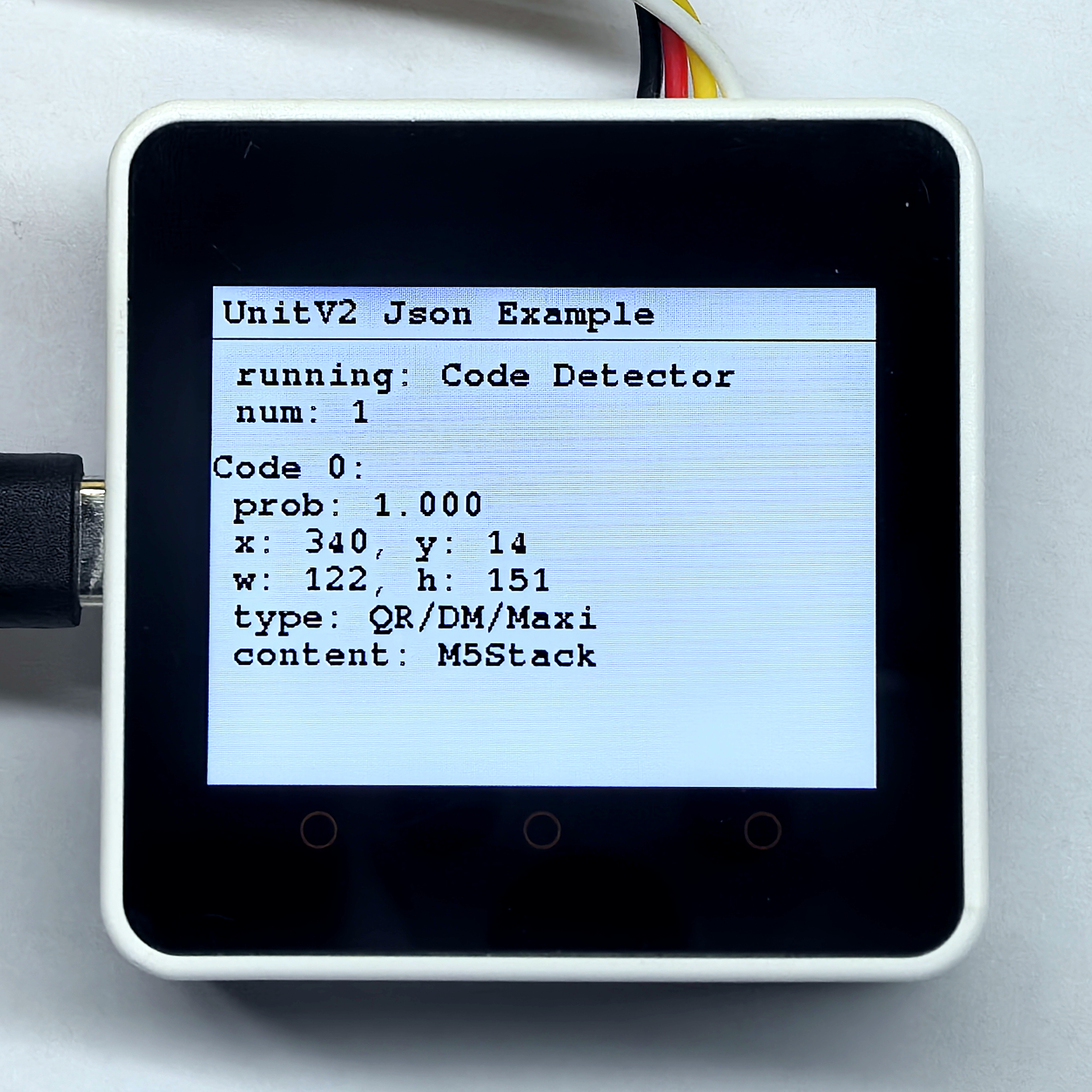
}扫描下方左边二维码,识别结果如下方右图所示。

5.3 物体识别
本例程可配置 UnitV2 切换到物体识别功能,出厂固件默认内置了 nanodet_80class 和 yolo_20classs 模型, 可直接使用。若想训练自定义模型,请查看教程UnitV2 V-Training。在浏览器中访问域名 unitv2.py 或 IP:10.254.239.1 可访问功能页面,页面内容如下所示:
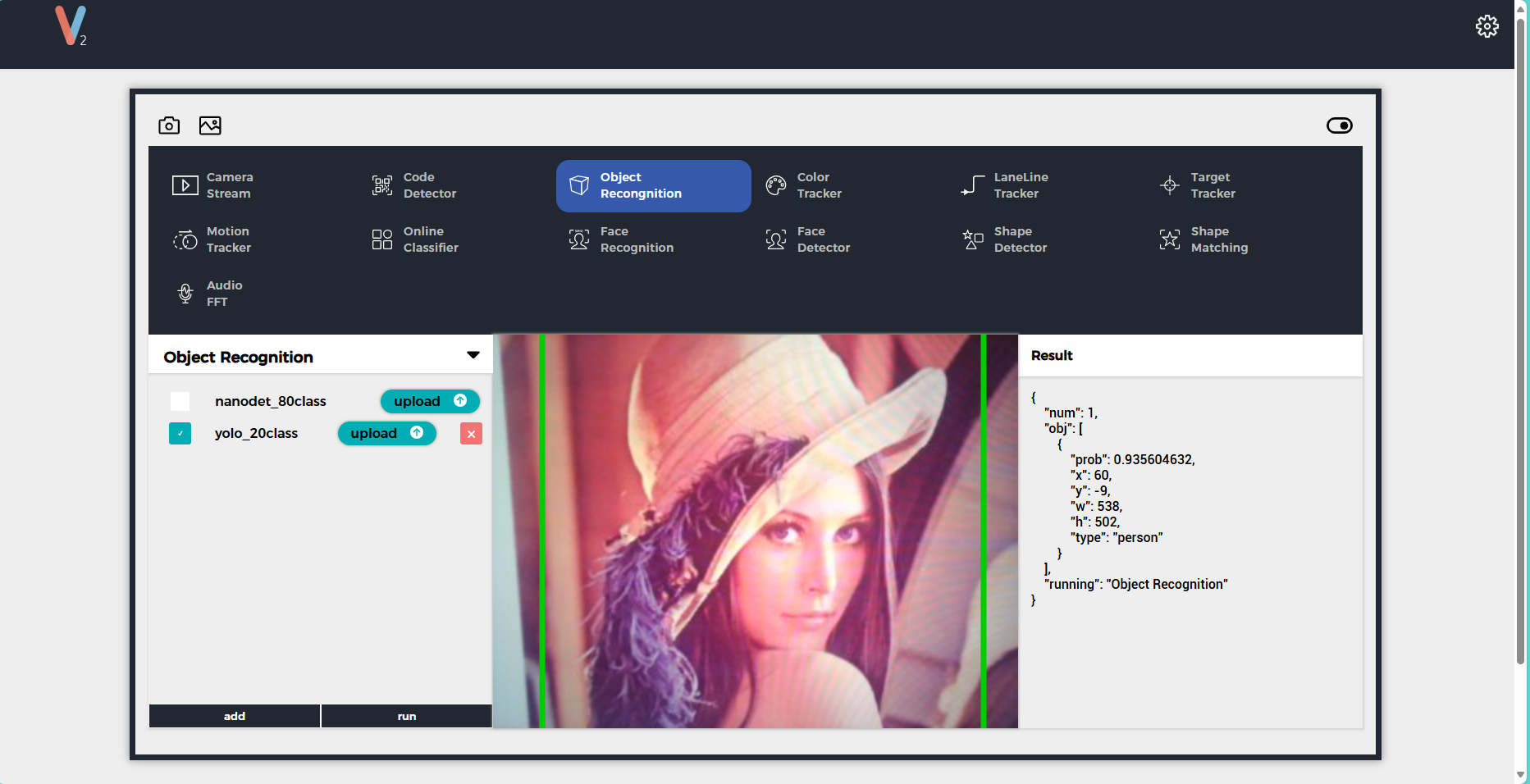
物体识别功能 JSON 数据格式详见此处。
#include <M5Unified.h>
#include <M5GFX.h>
#include <Arduino_JSON.h>

M5GFX display;
int obj_cnt = 0;

void setup() {
    display.begin();
    display.setRotation(1);
    display.clear(TFT_WHITE);
    display.setFont(&fonts::FreeMonoBold9pt7b);
    display.setTextColor(TFT_BLACK);
    delay(100);
    display.drawString("UnitV2 Json Example", 5, 5);
    display.drawLine(0, 25, 320, 25, TFT_BLACK);
    Serial.begin(115200);
    Serial2.begin(115200, SERIAL_8N1, 13, 14);//PORT.C
    //Setting JSON
    JSONVar obj;
    obj["function"] = "Object Recognition";
    obj["args"][0] = "yolo_20class";   // yolo_20class or nanodet_80class
    String jsonString = JSON.stringify(obj);
    Serial2.println(jsonString);
    Serial2.flush();
}

void loop() {
    if (Serial2.available() > 0) {
        String line = Serial2.readStringUntil('\r');
        while (line.length() && line[0] != '{') { // clear '\0'
            line.remove(0, 1);
        }
        Serial2.flush();
        JSONVar rec_obj = JSON.parse(line);

        if (!(JSON.typeof(rec_obj) == "undefined")) {
            display.fillRect(0, 35, 320, 205, TFT_WHITE);
            Serial.println(">>>>>>>>>>>>>>>>>>>>>>>>>>>>>>>>>>");
            Serial.println("UnitV2 Object Recognition example");

            if (rec_obj.hasOwnProperty("msg")) {
                Serial.print("msg = ");
                Serial.println((const char*) rec_obj["msg"]);
                display.setCursor(0, 35);
                display.printf(" msg: %s\n", (const char*) rec_obj["msg"]);
                if (rec_obj.hasOwnProperty("running")) {
                  Serial.print("running = ");
                  Serial.println(String(rec_obj["running"]).c_str());
                  display.printf(" running: %s\n", String(rec_obj["running"]).c_str());
                }
            } else {
              if (rec_obj.hasOwnProperty("running")) {
                  Serial.print("running = ");
                  Serial.println(String(rec_obj["running"]).c_str());
                  display.setCursor(0, 35);
                  display.printf(" running: %s\n", String(rec_obj["running"]).c_str());
              }
            }
            if (rec_obj.hasOwnProperty("num")) {
                obj_cnt = (int)rec_obj["num"];
                Serial.printf("num = %d\n", obj_cnt);
                display.printf(" num: %d\n", obj_cnt);
            }

            if (rec_obj.hasOwnProperty("obj")) {
                JSONVar obj_arr = rec_obj["obj"];
                for (int i = 0; i < (int)obj_cnt; i++) {
                    display.fillRect(0, 80, 320, 160, TFT_WHITE);
                    display.setCursor(0, 80);
                    if (JSON.typeof(obj_arr[i]) != "undefined") {
                        Serial.printf("------[obj %d]------\n", i);
                        Serial.printf("\tprob: %f\n", (double)obj_arr[i]["prob"]);
                        Serial.printf("\tx: %d\n", (int)obj_arr[i]["x"]);
                        Serial.printf("\ty: %d\n", (int)obj_arr[i]["y"]);
                        Serial.printf("\tw: %d\n", (int)obj_arr[i]["w"]);
                        Serial.printf("\th: %d\n", (int)obj_arr[i]["h"]);
                        Serial.printf("\ttype: %s\n", (const char*)obj_arr[i]["type"]);

                        display.printf("obj %d:\n", i);
                        display.printf(" prob: %.3f\n", (double)obj_arr[i]["prob"]);
                        display.printf(" x: %d, y: %d\n", (int)obj_arr[i]["x"], (int)obj_arr[i]["y"]);
                        display.printf(" w: %d, h: %d\n", (int)obj_arr[i]["w"], (int)obj_arr[i]["h"]);
                        display.printf(" type: %s\n\n", (const char*)obj_arr[i]["type"]);
                    }
                    delay(200);
                }
            }
            Serial.println("<<<<<<<<<<<<<<<<<<<<<<<<<<<<<<<<<<");
        }
    }
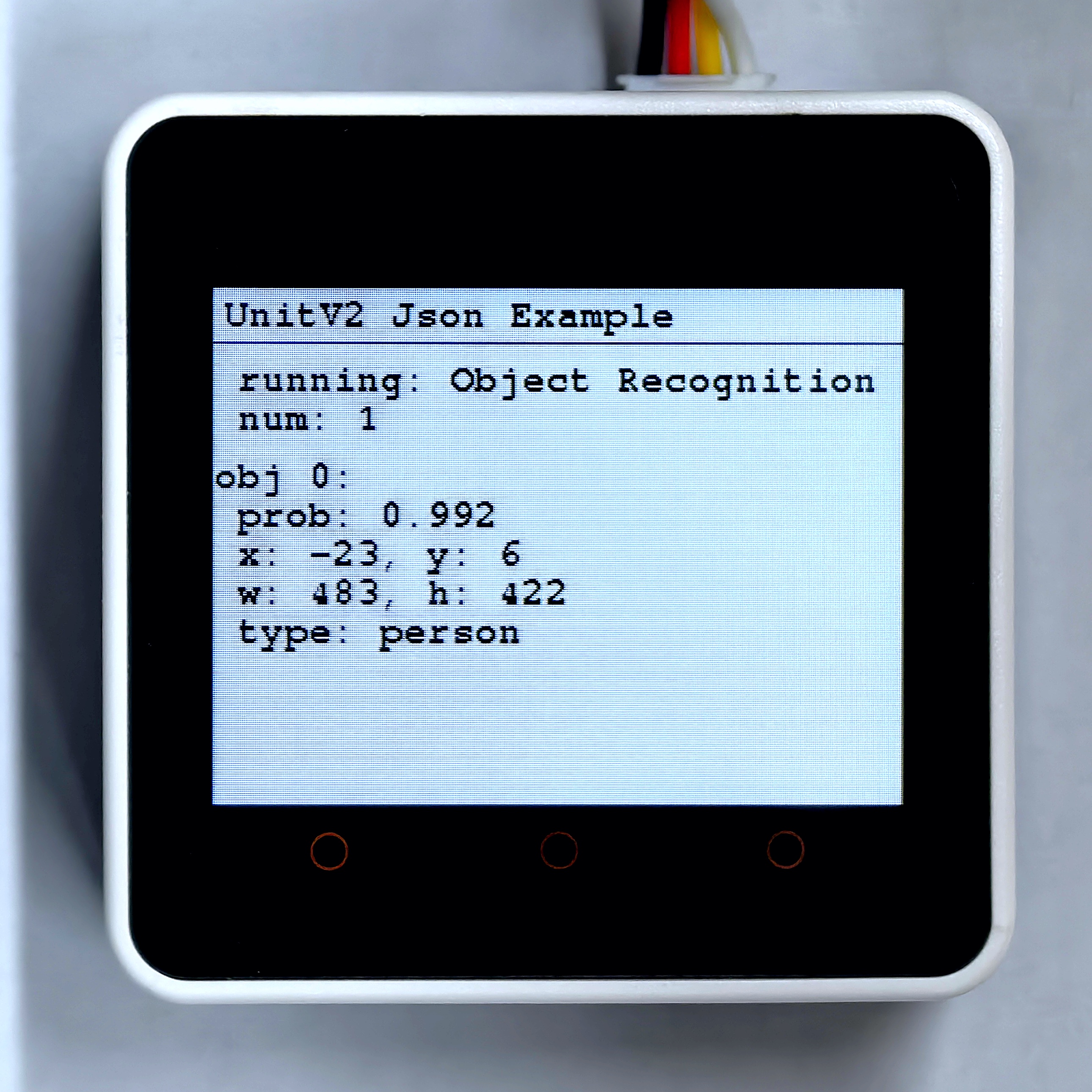
}扫描下方左边图片,识别结果如下方右图所示。

5.4 颜色追踪
本例程可配置 UnitV2 切换到颜色追踪功能,颜色追踪功能需要在 UnitV2 上电后设置所追踪颜色参数才能正常使用,颜色参数设置有两种方式。一种是通过在功能页面点击画面框选要追踪的颜色(操作如下图所示)或填写左侧 L、A、B 的值后点击 update 按钮进行设置。
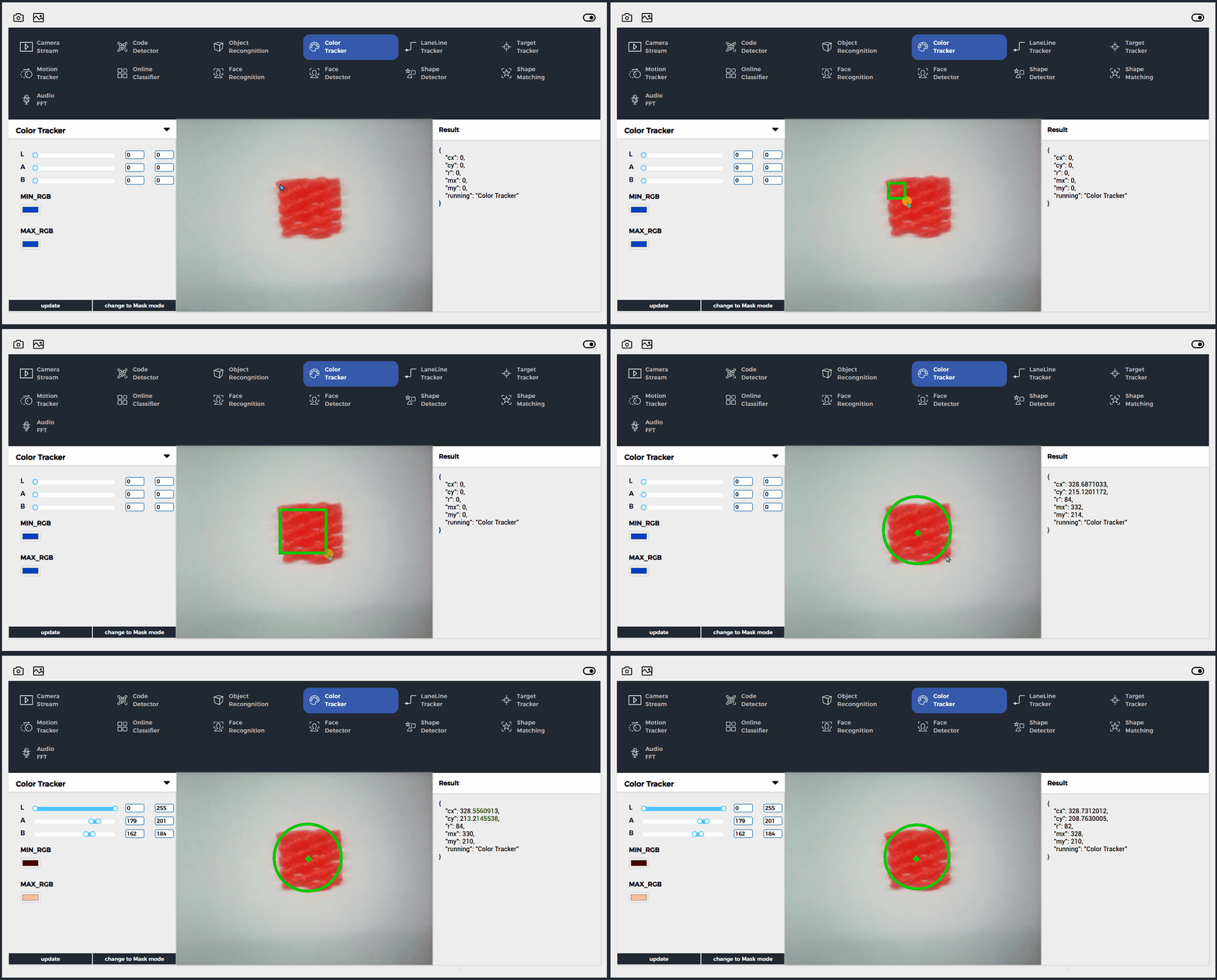
另一种是可以通过下方代码中的 JSON 方式进行设置,可通过设置 ROI 框选区域自动分析 LAB 颜色值进行设置,也可通过 LAB 颜色值进行设置。下方代码默认使用 ROI 方式进行设置,若想使用 LAB 方式进行设置,请取消代码中 #define USING_LAB 的注释,并在下方所示代码处填写 LAB 颜色值。
    LAB["l_min"] = 0;
    LAB["l_max"] = 255;
    LAB["a_min"] = 179;
    LAB["a_max"] = 201;
    LAB["b_min"] = 162;
LAB["b_max"] = 184; 在浏览器中访问域名 unitv2.py 或 IP:10.254.239.1 可访问功能页面,页面内容如下所示:
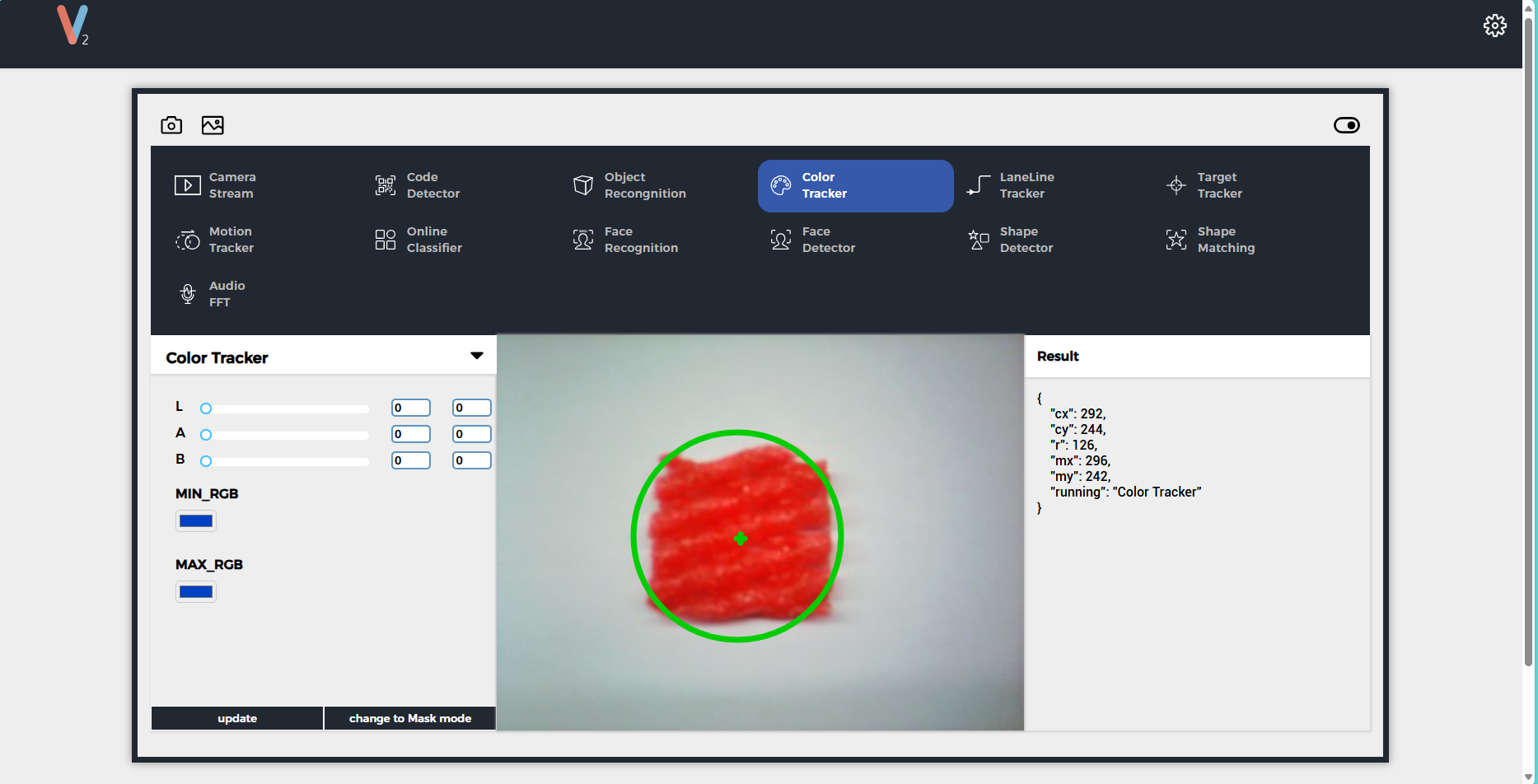
颜色追踪功能 JSON 数据格式详见此处。
#include <M5Unified.h>
#include <M5GFX.h>
#include <Arduino_JSON.h>
// Enabling this macro definition will use LAB; otherwise, the default is to use ROI.
// #define USING_LAB
M5GFX display;
void setup() {
display.begin();
display.setRotation(1);
display.clear(TFT_WHITE);
display.setFont(&fonts::FreeMonoBold9pt7b);
display.setTextColor(TFT_BLACK);
delay(100);
display.drawString("UnitV2 Json Example", 5, 5);
display.drawLine(0, 25, 320, 25, TFT_BLACK);
Serial.begin(115200);
Serial2.begin(115200, SERIAL_8N1, 13, 14);//PORT.C
//Setting JSON
JSONVar obj;
obj["function"] = "Color Tracker";
obj["args"] = "";
String jsonString = JSON.stringify(obj);
Serial2.println(jsonString);
Serial2.flush();
delay(200);
#if defined(USING_LAB)
JSONVar LAB;
LAB["config"] = "Color Tracker";
    LAB["l_min"] = 0;
    LAB["l_max"] = 255;
    LAB["a_min"] = 179;
    LAB["a_max"] = 201;
    LAB["b_min"] = 162;
    LAB["b_max"] = 184;
jsonString = JSON.stringify(LAB);
#else
JSONVar ROI;
ROI["config"] = "Color Tracker";
ROI["x"] = 160;
ROI["y"] = 120;
ROI["w"] = 320;
ROI["h"] = 240;
jsonString = JSON.stringify(ROI);
#endif
Serial2.println(jsonString);
Serial2.flush();
delay(200);
}
void loop() {
if (Serial2.available() > 0) {
String line = Serial2.readStringUntil('\r');
while (line.length() && line[0] != '{') { // clear '\0'
line.remove(0, 1);
}
Serial2.flush();
JSONVar color_obj = JSON.parse(line);
if (!(JSON.typeof(color_obj) == "undefined")) {
display.fillRect(0, 35, 320, 205, TFT_WHITE);
Serial.println(">>>>>>>>>>>>>>>>>>>>>>>>>>>>>>>>>>");
Serial.println("UnitV2 Color Tracker example");
if (color_obj.hasOwnProperty("msg")) {
Serial.print("msg = ");
Serial.println(String(color_obj["msg"]).c_str());
display.setCursor(0, 35);
display.printf(" msg: %s\n", String(color_obj["msg"]).c_str());
if (color_obj.hasOwnProperty("running")) {
Serial.print("running = ");
Serial.println(String(color_obj["running"]).c_str());
display.printf(" running: %s\n", String(color_obj["running"]).c_str());
}
} else {
if (color_obj.hasOwnProperty("running")) {
Serial.print("running = ");
Serial.println(String(color_obj["running"]).c_str());
display.setCursor(0, 35);
display.printf(" running: %s\n", String(color_obj["running"]).c_str());
}
// ROI Setting Response
if (color_obj.hasOwnProperty("a_cal")) {
double a_cal = (double)color_obj["a_cal"];
double b_cal = (double)color_obj["b_cal"];
double va = (double)color_obj["va"];
double vb = (double)color_obj["vb"];
int l_min = (int)color_obj["l_min"];
int l_max = (int)color_obj["l_max"];
int a_min = (int)color_obj["a_min"];
int a_max = (int)color_obj["a_max"];
int b_min = (int)color_obj["b_min"];
int b_max = (int)color_obj["b_max"];
Serial.printf("a_cal = %f\n", a_cal);
Serial.printf("b_cal = %f\n", b_cal);
Serial.printf("va = %f\n", va);
Serial.printf("vb = %f\n", vb);
Serial.printf("l_min = %d\nl_max = %d\n", l_min, l_max);
Serial.printf("a_min = %d\na_max = %d\nb_min = %d\nb_max = %d\n",
a_min, a_max, b_min, b_max);
display.printf(" a_cal: %f\n", a_cal);
display.printf(" b_cal: %f\n", b_cal);
display.printf(" va: %f\n", va);
display.printf(" vb: %f\n", vb);
display.printf(" l_min: %d\n", l_min);
display.printf(" l_max: %d\n", l_max);
display.printf(" a_min: %d\n", a_min);
display.printf(" a_max: %d\n", a_max);
display.printf(" b_min: %d\n", b_min);
display.printf(" b_max: %d\n", b_max);
delay(2000);
}
}
if (color_obj.hasOwnProperty("cx")) {
int cx = (int)color_obj["cx"];
int cy = (int)color_obj["cy"];
int r = (int)color_obj["r"];
int mx = (int)color_obj["mx"];
int my = (int)color_obj["my"];
Serial.printf("cx = %d\n", cx);
Serial.printf("cy = %d\n", cy);
Serial.printf("r = %d\n", r);
Serial.printf("mx = %d\n", mx);
Serial.printf("my = %d\n", my);
display.setCursor(0, 60);
display.printf(" cx = %d\n", cx);
display.printf(" cy = %d\n", cy);
display.printf(" r = %d\n", r);
display.printf(" mx = %d\n", mx);
display.printf(" my = %d\n", my);
}
Serial.println("<<<<<<<<<<<<<<<<<<<<<<<<<<<<<<<<<<");
}
}
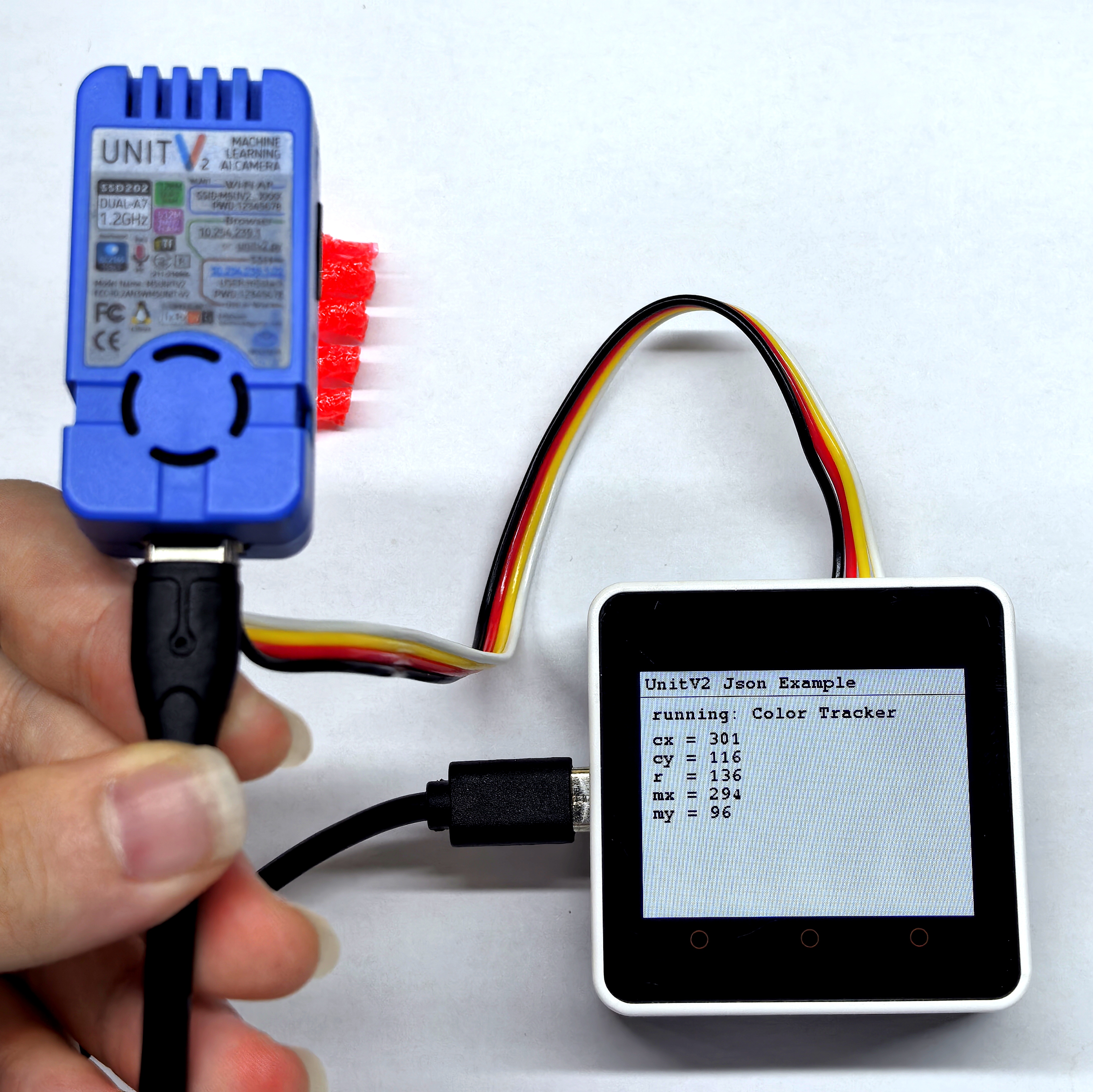
} 例程成功运行时,主机会实时显示打印追踪颜色块圆心点所处位置、大小等数据,检测结果如下图所示。
5.5 道路线追踪
本例程可配置 UnitV2 切换到道路线追踪功能,和颜色追踪功能一样需要在 UnitV2 上电后设置颜色参数才能正常使用,颜色参数设置方式请见上方颜色追踪。在浏览器中访问域名 unitv2.py 或 IP:10.254.239.1 可访问功能页面,页面内容如下所示:
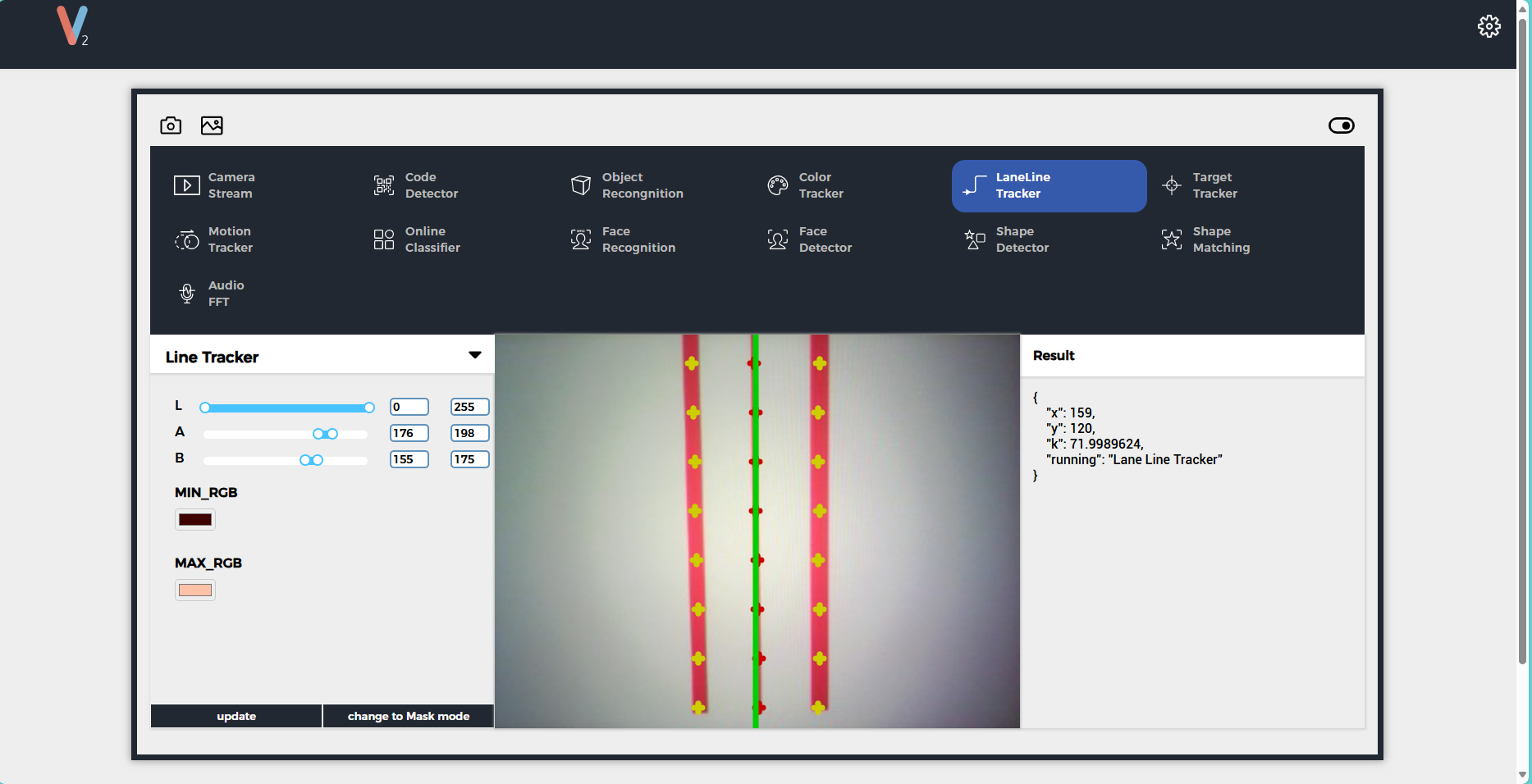
下方代码默认使用 ROI 方式进行设置,若想使用 LAB 方式进行设置,请取消代码中 #define USING_LAB 的注释,并在下方所示代码处填写 LAB 颜色值。
    LAB["l_min"] = 0;
    LAB["l_max"] = 255;
    LAB["a_min"] = 176;
    LAB["a_max"] = 198;
    LAB["b_min"] = 155;
LAB["b_max"] = 175; 道路线追踪功能 JSON 数据格式详见此处。
#include <M5Unified.h>
#include <M5GFX.h>
#include <Arduino_JSON.h>
// Enabling this macro definition will use LAB; otherwise, the default is to use ROI.
// #define USING_LAB
M5GFX display;
void setup() {
display.begin();
display.setRotation(1);
display.clear(TFT_WHITE);
display.setFont(&fonts::FreeMonoBold9pt7b);
display.setTextColor(TFT_BLACK);
delay(100);
display.drawString("UnitV2 Json Example", 5, 5);
display.drawLine(0, 25, 320, 25, TFT_BLACK);
Serial.begin(115200);
Serial2.begin(115200, SERIAL_8N1, 13, 14);//PORT.C
//Setting JSON
JSONVar obj;
obj["function"] = "Lane Line Tracker";
obj["args"] = "";
String jsonString = JSON.stringify(obj);
Serial2.println(jsonString);
Serial2.flush();
delay(200);
#if defined(USING_LAB)
JSONVar LAB;
LAB["config"] = "Lane Line Tracker";
    LAB["l_min"] = 0;
    LAB["l_max"] = 255;
    LAB["a_min"] = 176;
    LAB["a_max"] = 198;
    LAB["b_min"] = 155;
    LAB["b_max"] = 175;
jsonString = JSON.stringify(LAB);
#else
JSONVar ROI;
ROI["config"] = "Lane Line Tracker";
ROI["x"] = 160;
ROI["y"] = 120;
ROI["w"] = 320;
ROI["h"] = 240;
jsonString = JSON.stringify(ROI);
#endif
Serial2.println(jsonString);
Serial2.flush();
delay(200);
}
void loop() {
if (Serial2.available() > 0) {
String line = Serial2.readStringUntil('\r');
while (line.length() && line[0] != '{') { // clear '\0'
line.remove(0, 1);
}
Serial2.flush();
JSONVar line_obj = JSON.parse(line);
if (!(JSON.typeof(line_obj) == "undefined")) {
display.fillRect(0, 35, 320, 205, TFT_WHITE);
Serial.println(">>>>>>>>>>>>>>>>>>>>>>>>>>>>>>>>>>");
Serial.println("UnitV2 Lane Line Tracker example");
if (line_obj.hasOwnProperty("msg")) {
Serial.print("msg = ");
Serial.println(String(line_obj["msg"]).c_str());
display.setCursor(0, 35);
display.printf(" msg: %s\n", String(line_obj["msg"]).c_str());
if (line_obj.hasOwnProperty("running")) {
Serial.print("running = ");
Serial.println(String(line_obj["running"]).c_str());
display.printf(" running: %s\n", String(line_obj["running"]).c_str());
}
} else {
if (line_obj.hasOwnProperty("running")) {
Serial.print("running = ");
Serial.println(String(line_obj["running"]).c_str());
display.setCursor(0, 35);
display.printf(" running: %s\n", String(line_obj["running"]).c_str());
}
// ROI Setting Response
if (line_obj.hasOwnProperty("a_cal")) {
double a_cal = (double)line_obj["a_cal"];
double b_cal = (double)line_obj["b_cal"];
double va = (double)line_obj["va"];
double vb = (double)line_obj["vb"];
int l_min = (int)line_obj["l_min"];
int l_max = (int)line_obj["l_max"];
int a_min = (int)line_obj["a_min"];
int a_max = (int)line_obj["a_max"];
int b_min = (int)line_obj["b_min"];
int b_max = (int)line_obj["b_max"];
Serial.printf("a_cal = %f\n", a_cal);
Serial.printf("b_cal = %f\n", b_cal);
Serial.printf("va = %f\n", va);
Serial.printf("vb = %f\n", vb);
Serial.printf("l_min = %d\nl_max = %d\n", l_min, l_max);
Serial.printf("a_min = %d\na_max = %d\nb_min = %d\nb_max = %d\n",
a_min, a_max, b_min, b_max);
display.printf(" a_cal: %f\n", a_cal);
display.printf(" b_cal: %f\n", b_cal);
display.printf(" va: %f\n", va);
display.printf(" vb: %f\n", vb);
display.printf(" l_min: %d\n", l_min);
display.printf(" l_max: %d\n", l_max);
display.printf(" a_min: %d\n", a_min);
display.printf(" a_max: %d\n", a_max);
display.printf(" b_min: %d\n", b_min);
display.printf(" b_max: %d\n", b_max);
delay(2000);
}
}
if (line_obj.hasOwnProperty("x")) {
int x = (int)line_obj["x"];
int y = (int)line_obj["y"];
double k = (double)line_obj["k"];
Serial.printf("x = %d\n", x);
Serial.printf("y = %d\n", y);
Serial.printf("k = %f\n", k);
display.setCursor(0, 60);
display.printf(" x = %d\n", x);
display.printf(" y = %d\n", y);
display.printf(" k = %f\n", k);
}
Serial.println("<<<<<<<<<<<<<<<<<<<<<<<<<<<<<<<<<<");
}
}
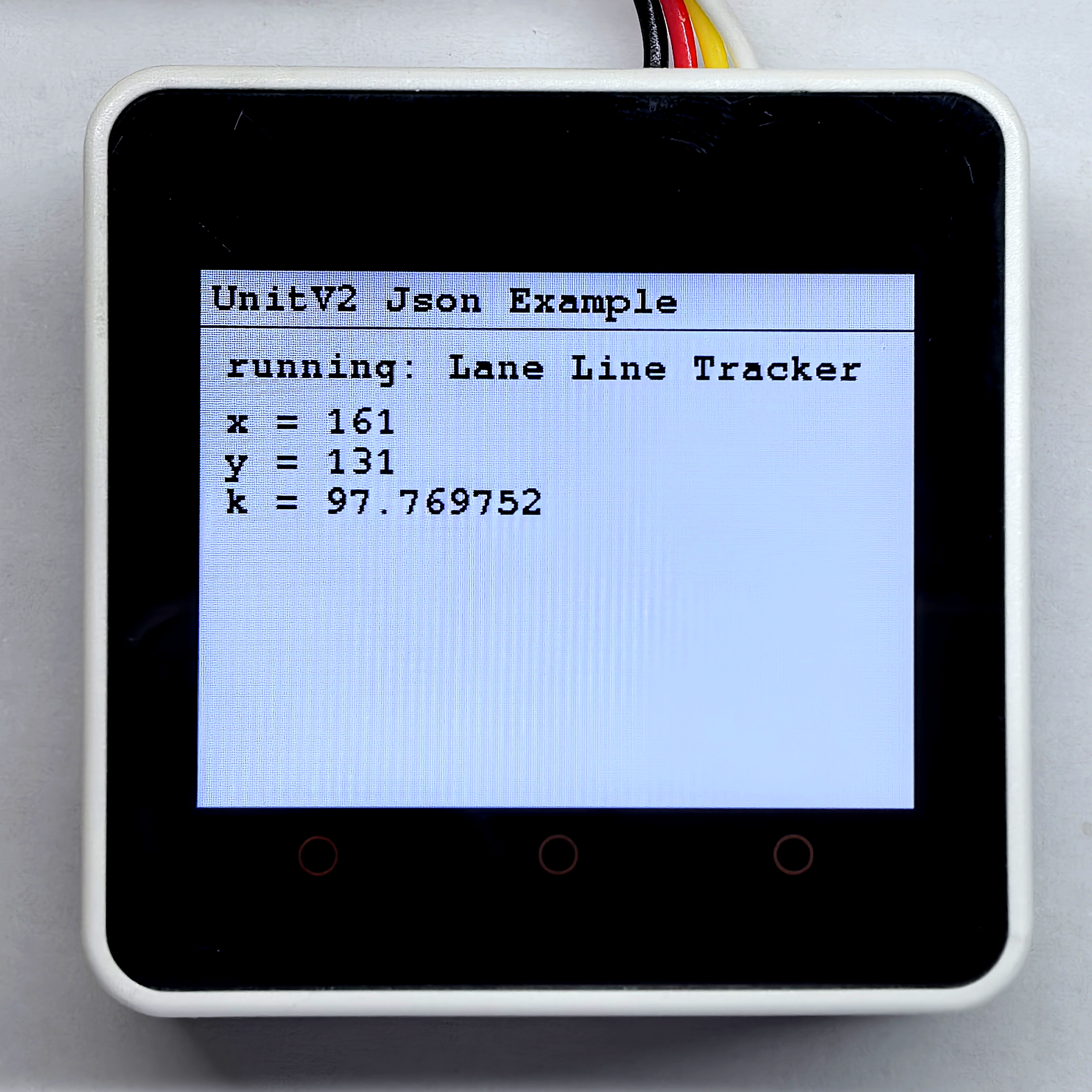
} 扫描下方左边图片,识别结果如下方右图所示。

5.6 目标追踪
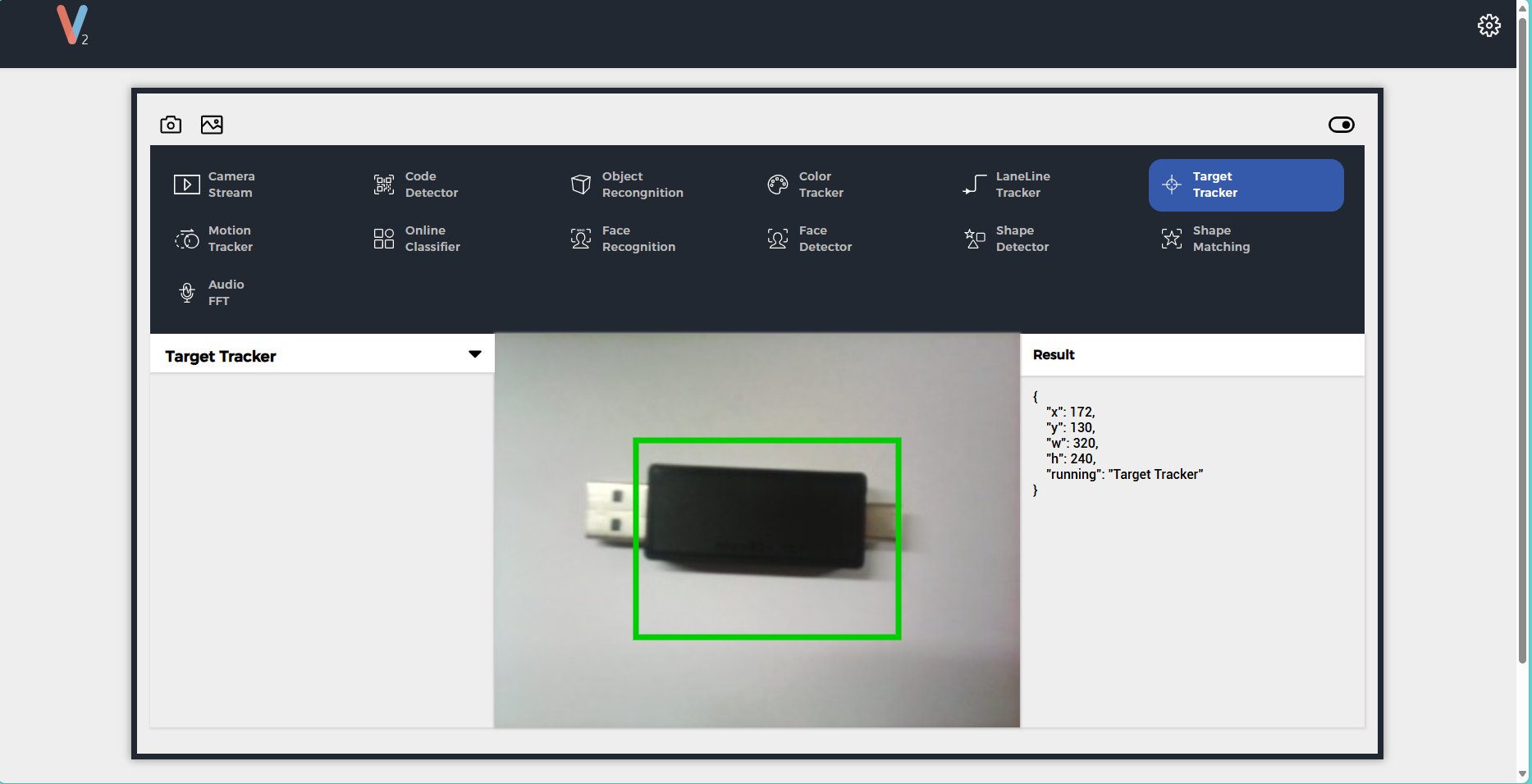
本例程可配置 UnitV2 切换到目标追踪功能,需要在 UnitV2 上电后抓取目前摄像头画面中目标物体的信息后才能正常使用。可以在功能页面进行框选,在浏览器中访问域名 unitv2.py 或 IP:10.254.239.1 可访问功能页面;也可以通过下方代码参数设置,抓取起点及长宽参数设置代码如下所示。
    obj["x"] = 160;  //start point x-coordinate
    obj["y"] = 120;  //start point y-coordinate
    obj["w"] = 320;  //width
obj["h"] = 240; //height目标追踪功能 JSON 数据格式详见此处。
下方例程会在主机上电后发送一次参数设置数据,请确保追踪目标位于抓取框中。示例功能页面如下所示:
#include <M5Unified.h>
#include <M5GFX.h>
#include <Arduino_JSON.h>

M5GFX display;

void setup() {
    display.begin();
    display.setRotation(1);
    display.clear(TFT_WHITE);
    display.setFont(&fonts::FreeMonoBold9pt7b);
    display.setTextColor(TFT_BLACK);
    delay(100);
    display.drawString("UnitV2 Json Example", 5, 5);
    display.drawLine(0, 25, 320, 25, TFT_BLACK);
    Serial.begin(115200);
    Serial2.begin(115200, SERIAL_8N1, 13, 14);//PORT.C
    //Setting JSON
    JSONVar obj;
    obj["function"] = "Target Tracker";
    obj["args"] = "";
    String jsonString = JSON.stringify(obj);
    Serial2.println(jsonString);
    Serial2.flush();
    delay(200);
    JSONVar ROI;
    ROI["config"] = "Target Tracker";
    ROI["x"] = 160;
    ROI["y"] = 120;
    ROI["w"] = 320;
    ROI["h"] = 240;
    jsonString = JSON.stringify(ROI);
    Serial2.println(jsonString);
    Serial2.flush();
    delay(200);
}

void loop() {
    if (Serial2.available() > 0) {
        String line = Serial2.readStringUntil('\r');
        while (line.length() && line[0] != '{') { // clear '\0'
            line.remove(0, 1);
        }
        Serial2.flush();
        JSONVar target_obj = JSON.parse(line);

        if (!(JSON.typeof(target_obj) == "undefined")) {
            display.fillRect(0, 35, 320, 205, TFT_WHITE);
            Serial.println(">>>>>>>>>>>>>>>>>>>>>>>>>>>>>>>>>>");
            Serial.println("UnitV2 Target Tracker example");

            if (target_obj.hasOwnProperty("msg")) {
                Serial.print("msg = ");
                Serial.println(String(target_obj["msg"]).c_str());
                display.setCursor(0, 35);
                display.printf(" msg: %s\n", String(target_obj["msg"]).c_str());
                if (target_obj.hasOwnProperty("running")) {
                  Serial.print("running = ");
                  Serial.println(String(target_obj["running"]).c_str());
                  display.printf(" running: %s\n", String(target_obj["running"]).c_str());
                }
            } else {
              if (target_obj.hasOwnProperty("running")) {
                  Serial.print("running = ");
                  Serial.println(String(target_obj["running"]).c_str());
                  display.setCursor(0, 35);
                  display.printf(" running: %s\n", String(target_obj["running"]).c_str());
              }
            }

            if (target_obj.hasOwnProperty("x")) {
                int x  = (int)target_obj["x"];
                int y  = (int)target_obj["y"];
                int w  = (int)target_obj["w"];
                int h  = (int)target_obj["h"];

                Serial.printf("x = %d\n", x);
                Serial.printf("y = %d\n", y);
                Serial.printf("w = %d\n", w);
                Serial.printf("h = %d\n", h);

                display.setCursor(0, 60);
                display.printf(" x = %d\n", x);
                display.printf(" y = %d\n", y);
                display.printf(" w = %d\n", w);
                display.printf(" h = %d\n", h);
            }

            Serial.println("<<<<<<<<<<<<<<<<<<<<<<<<<<<<<<<<<<");
        }
    }
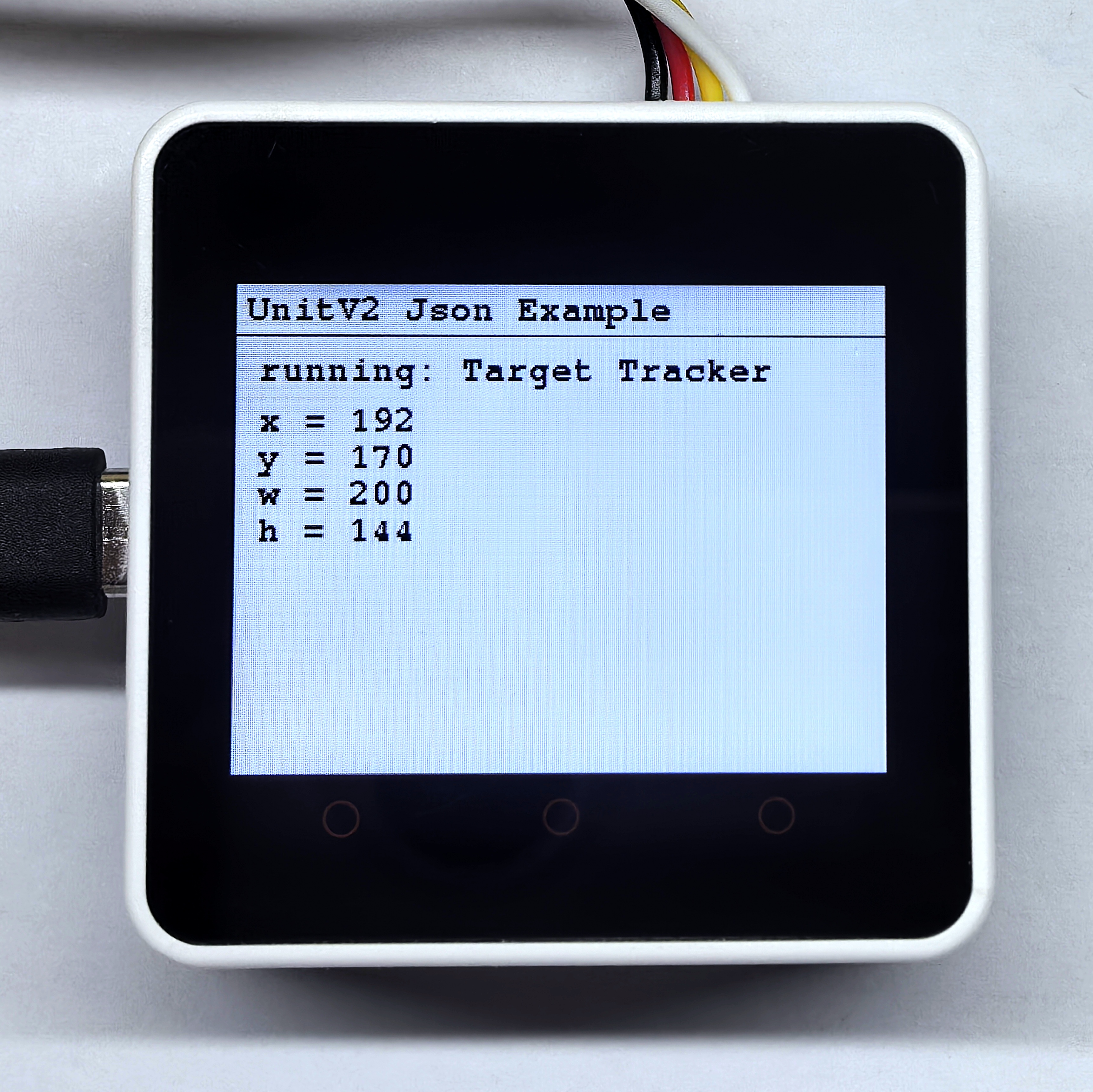
} 成功抓取目标物体数据后,主机会实时显示打印目标物体所处位置等数据,检测结果如下图所示。
5.7 运动目标追踪
本例程可配置 UnitV2 切换到运动目标追踪功能,在使用该功能前先设置了一次背景以便有效运动追踪。在浏览器中访问域名 unitv2.py 或 IP:10.254.239.1 可访问功能页面,页面内容如下所示:
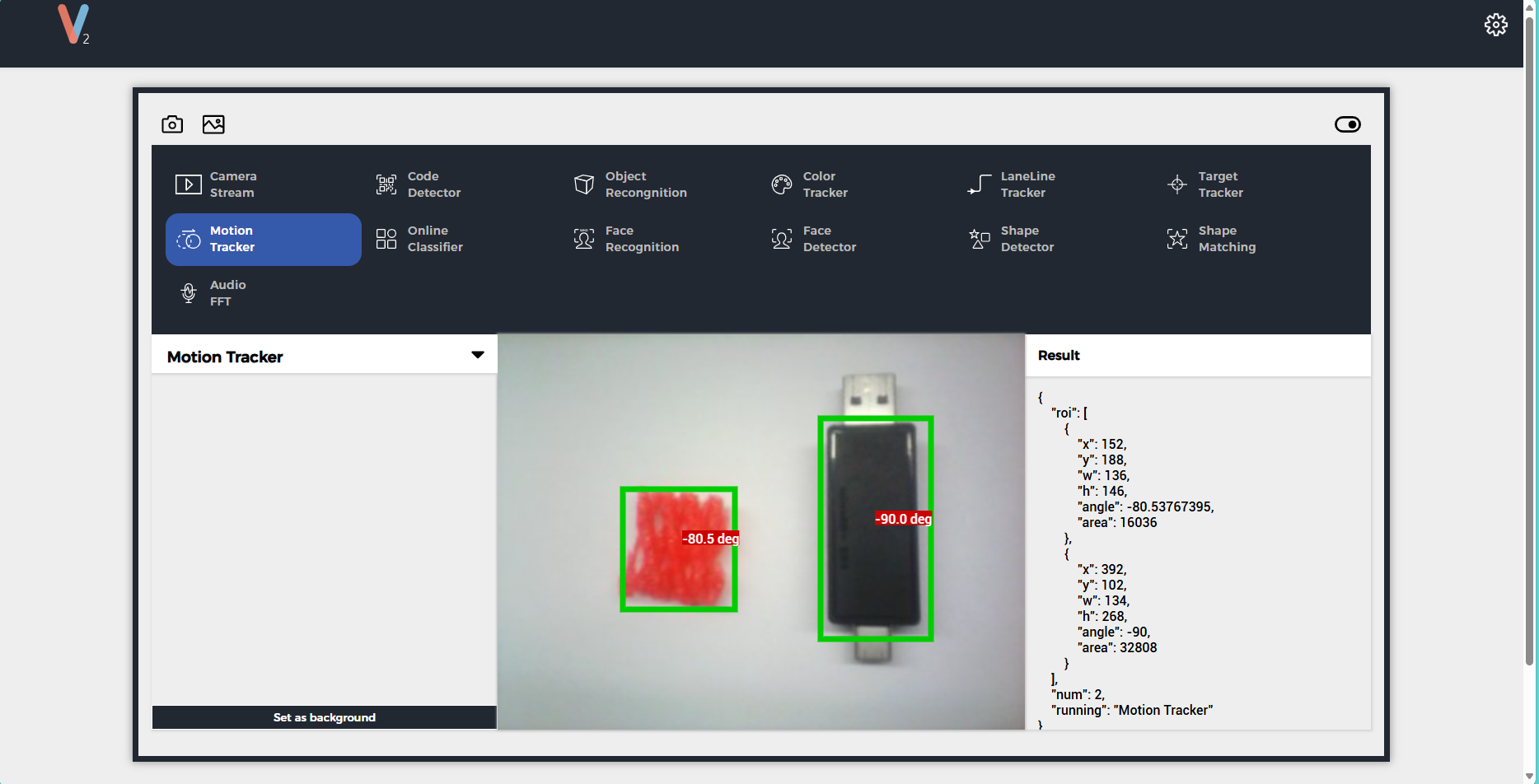
运动目标检测功能 JSON 数据格式详见此处。
#include <M5Unified.h>
#include <M5GFX.h>
#include <Arduino_JSON.h>

M5GFX display;
int motion_cnt = 0;

void setup() {
    display.begin();
    display.setRotation(1);
    display.clear(TFT_WHITE);
    display.setFont(&fonts::FreeMonoBold9pt7b);
    display.setTextColor(TFT_BLACK);
    delay(100);
    display.drawString("UnitV2 Json Example", 5, 5);
    display.drawLine(0, 25, 320, 25, TFT_BLACK);
    Serial.begin(115200);
    Serial2.begin(115200, SERIAL_8N1, 13, 14);//PORT.C
    //Setting JSON
    JSONVar obj;
    obj["function"] = "Motion Tracker";
    obj["args"] = "";
    String jsonString = JSON.stringify(obj);
    Serial2.println(jsonString);
    Serial2.flush();
    delay(200);
    JSONVar BCKG;
    BCKG["config"] = "Motion Tracker";
    BCKG["operation"] = "update";
    jsonString = JSON.stringify(BCKG);
    Serial2.println(jsonString);
    Serial2.flush();
    delay(200);
}

void loop() {
    if (Serial2.available() > 0) {
        String line = Serial2.readStringUntil('\r');
        while (line.length() && line[0] != '{') { // clear '\0'
            line.remove(0, 1);
        }
        Serial2.flush();
        JSONVar motion_obj = JSON.parse(line);

        if (!(JSON.typeof(motion_obj) == "undefined")) {
            display.fillRect(0, 35, 320, 205, TFT_WHITE);
            Serial.println(">>>>>>>>>>>>>>>>>>>>>>>>>>>>>>>>>>");
            Serial.println("UnitV2 Target Tracker example");

            if (motion_obj.hasOwnProperty("msg")) {//此处是为了接收一次配置返回消息
                Serial.print("msg = ");
                Serial.println(String(motion_obj["msg"]).c_str());
                display.setCursor(0, 35);
                display.printf(" msg: %s\n", String(motion_obj["msg"]).c_str());
                if (motion_obj.hasOwnProperty("running")) {
                  Serial.print("running = ");
                  Serial.println(String(motion_obj["running"]).c_str());
                  display.printf(" running: %s\n", String(motion_obj["running"]).c_str());
                }
            } else {
              if (motion_obj.hasOwnProperty("running")) {
                  Serial.print("running = ");
                  Serial.println(String(motion_obj["running"]).c_str());
                  display.setCursor(0, 35);
                  display.printf(" running: %s\n", String(motion_obj["running"]).c_str());
              }
            }

            if (motion_obj.hasOwnProperty("num")) {
                motion_cnt = (int)motion_obj["num"];
                Serial.printf("num = %d\n", motion_cnt);
                display.printf(" num: %d\n", motion_cnt);
            }

            // 遍历 obj 数组
            if (motion_obj.hasOwnProperty("roi")) {
                JSONVar obj_arr = motion_obj["roi"];
                for (int i = 0; i < (int)motion_cnt; i++) {
                    display.fillRect(0, 80, 320, 160, TFT_WHITE);
                    display.setCursor(0, 80);
                    if (JSON.typeof(obj_arr[i]) != "undefined") {
                        Serial.printf("------[roi %d]------\n", i);
                        Serial.printf("\tx: %d\n", (int)obj_arr[i]["x"]);
                        Serial.printf("\ty: %d\n", (int)obj_arr[i]["y"]);
                        Serial.printf("\tw: %d\n", (int)obj_arr[i]["w"]);
                        Serial.printf("\th: %d\n", (int)obj_arr[i]["h"]);
                        Serial.printf("\tangle: %f\n", (double)obj_arr[i]["angle"]);
                        Serial.printf("\tarea: %d\n", (int)obj_arr[i]["area"]);

                        display.printf("roi %d:\n", i);
                        display.printf(" x: %d, y: %d\n", (int)obj_arr[i]["x"], (int)obj_arr[i]["y"]);
                        display.printf(" w: %d, h: %d\n", (int)obj_arr[i]["w"], (int)obj_arr[i]["h"]);
                        display.printf(" angle: %f\n", (double)obj_arr[i]["angle"]);
                        display.printf(" area: %d\n", (int)obj_arr[i]["area"]);
                    }
                    delay(200);
                }
            }

            Serial.println("<<<<<<<<<<<<<<<<<<<<<<<<<<<<<<<<<<");
        }
    }
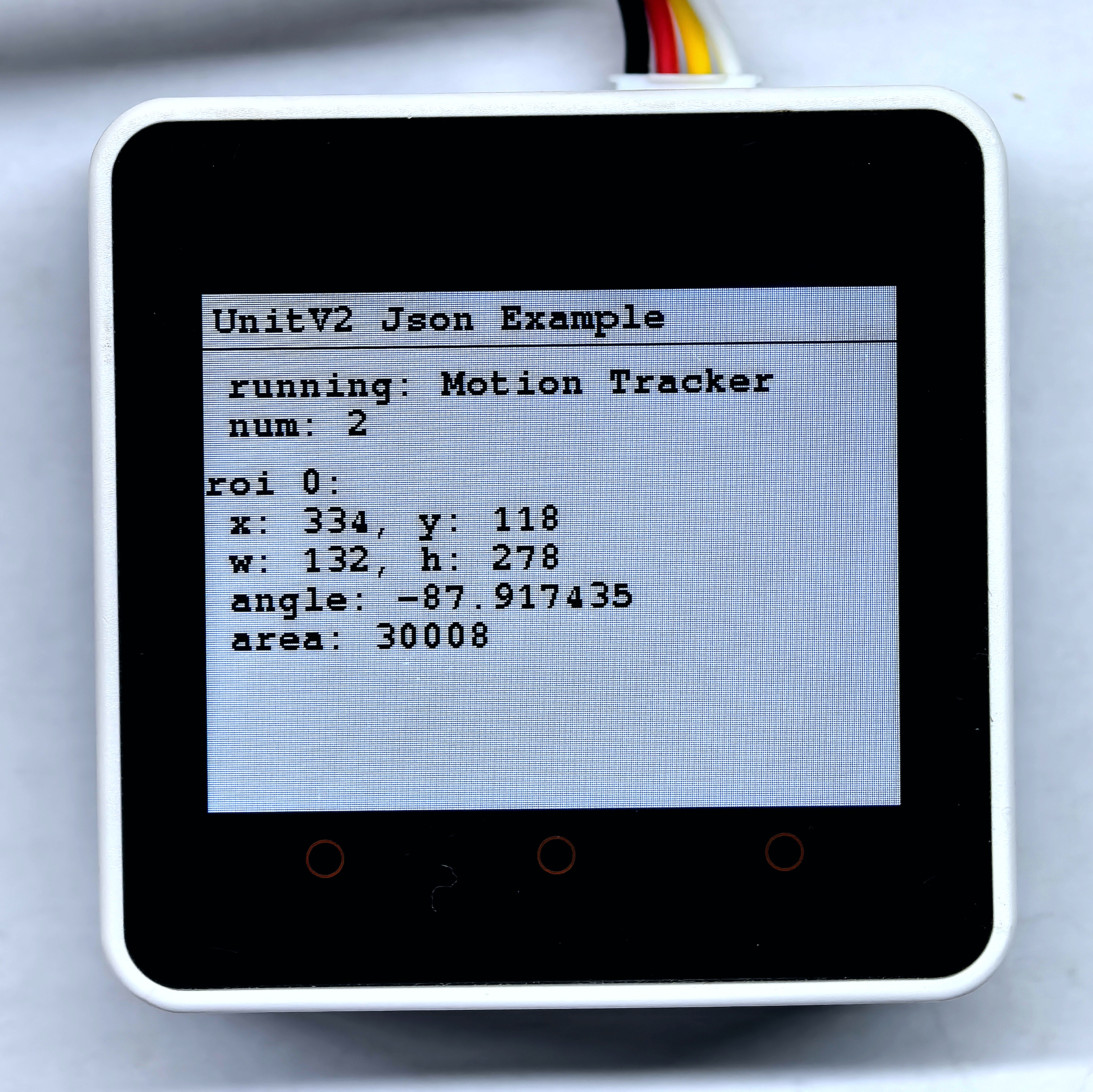
} 当 UnitV2 检测到物体运动时,会实时反馈物体所处位置等数据,反馈结果如下图所示。
5.8 物体识别分类
本例程可配置 UnitV2 切换到物体识别分类功能,出厂固件自带 Core、UnitV、StickC、Atom 四项类目。若想自定义类目,可在功能页面点击add按键增加,然后点击train按键对该类目进行训练,最后点击save&run按钮保存该类目数据并退出训练模式,即可使用物体识别分类功能。在浏览器中访问域名 unitv2.py 或 IP:10.254.239.1 可访问功能页面,页面内容如下所示:
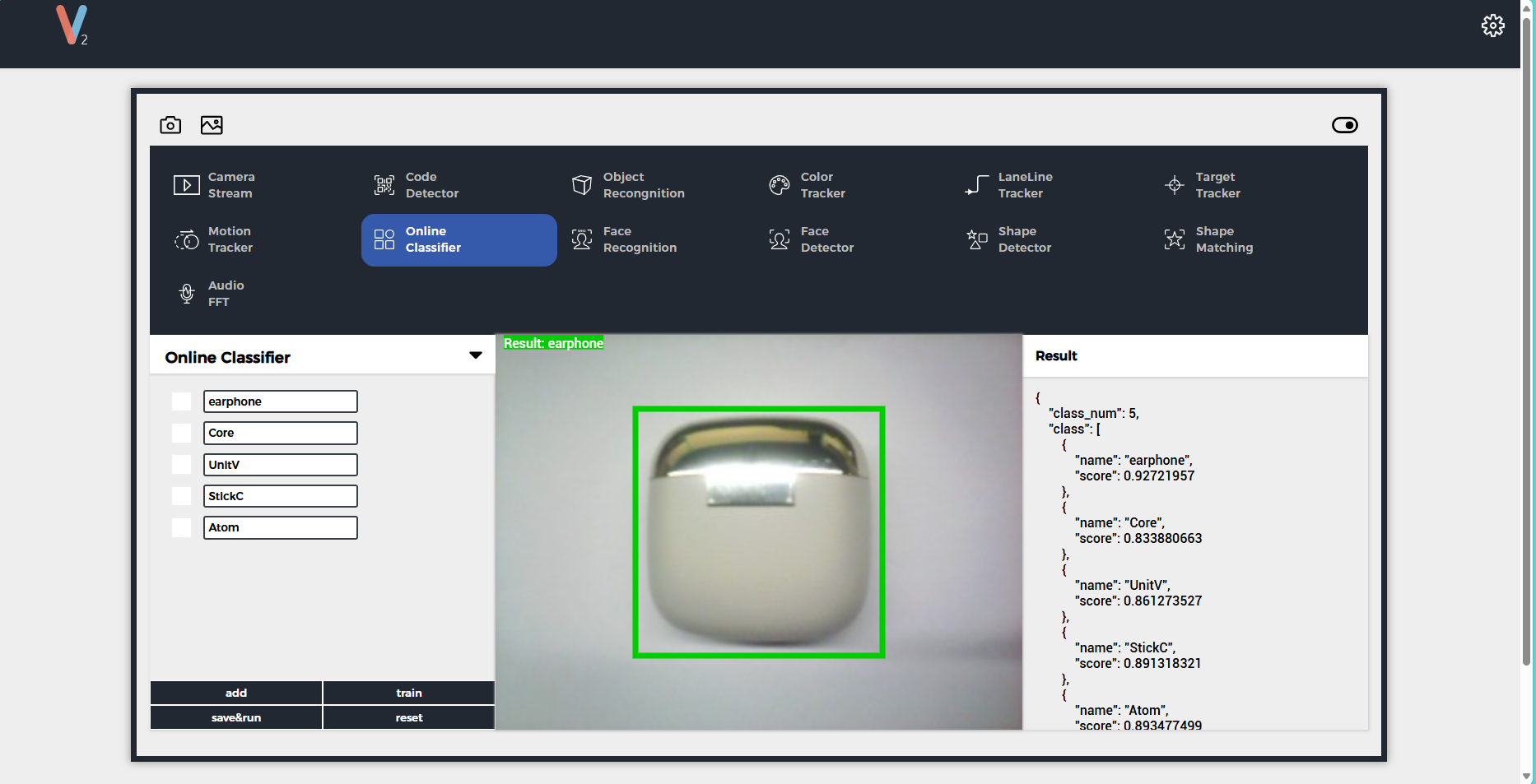
也可通过使用下方例程中enter_training_mode、save_and_start函数进行设置,下方例程中新建了earphone类目并进行了训练,训练次数为 10 次,若想增加其他类目,请在 enter_training_mode 函数中修改类目 ID 及名称。
reset 按键或使用下方代码中的函数 enter_training_mode_with_all_classes_clear)会永久清除所有已训练类目数据,包括出厂固件默认类目,断电后再次上电不会恢复,请谨慎使用!物体识别分类功能 JSON 数据格式详见此处。
#include <M5Unified.h>
#include <M5GFX.h>
#include <Arduino_JSON.h>

M5GFX display;
int cla_cnt = 0;

String enter_training_mode(int id, String name) {
    JSONVar json;
    json["config"] = "Online Classifier";
    json["operation"] = "train";
    json["class_id"] = id; //0~N
    json["class"] = name;  //format: "class_name"
    return JSON.stringify(json);
}

String enter_training_mode_with_all_classes_clear(void) {
    JSONVar json;
    json["config"] = "Online Classifier";
    json["operation"] = "reset";
    return JSON.stringify(json);
}

String save_and_start(void) {
    JSONVar json;
    json["config"] = "Online Classifier";
    json["operation"] = "saverun";
    return JSON.stringify(json);
}

void setup() {
    display.begin();
    display.setRotation(1);
    display.clear(TFT_WHITE);
    display.setFont(&fonts::FreeMonoBold9pt7b);
    display.setTextColor(TFT_BLACK);
    delay(100);
    display.drawString("UnitV2 Json Example", 5, 5);
    display.drawLine(0, 25, 320, 25, TFT_BLACK);
    Serial.begin(115200);
    Serial2.begin(115200, SERIAL_8N1, 13, 14);//PORT.C
    //Setting JSON
    JSONVar obj;
    obj["function"] = "Online Classifier";
    obj["args"] = "";
    String jsonString = JSON.stringify(obj);
    Serial2.println(jsonString);delay(10);

    // This command will erase the default classes preset in the factory firmware. It is not recommended to use.
    // jsonString = enter_training_mode_with_all_classes_clear();
    // Serial2.println(jsonString);delay(10);

    for (int i=0; i < 10; i++){
        jsonString = enter_training_mode(0, "earphone");
        Serial2.println(jsonString);delay(10);
    }
    delay(2000);

    jsonString = save_and_start();
    Serial2.println(jsonString);delay(10);
    Serial2.flush();
}

void loop() {
    if (Serial2.available() > 0) {
        String line = Serial2.readStringUntil('\r');
        while (line.length() && line[0] != '{') { // clear '\0'
            line.remove(0, 1);
        }
        Serial2.flush();
        JSONVar cla_obj = JSON.parse(line);

        if (!(JSON.typeof(cla_obj) == "undefined")) {
            display.fillRect(0, 35, 320, 205, TFT_WHITE);
            Serial.println(">>>>>>>>>>>>>>>>>>>>>>>>>>>>>>>>>>");
            Serial.println("UnitV2 Target Tracker example");

            if (cla_obj.hasOwnProperty("msg")) {
                Serial.print("msg = ");
                Serial.println(String(cla_obj["msg"]).c_str());
                display.setCursor(0, 35);
                display.printf(" msg: %s\n", String(cla_obj["msg"]).c_str());
                if (cla_obj.hasOwnProperty("running")) {
                  Serial.print("running = ");
                  Serial.println(String(cla_obj["running"]).c_str());
                  display.printf(" running: %s\n", String(cla_obj["running"]).c_str());
                }
            } else {
              if (cla_obj.hasOwnProperty("running")) {
                  Serial.print("running = ");
                  Serial.println(String(cla_obj["running"]).c_str());
                  display.setCursor(0, 35);
                  display.printf(" running: %s\n", String(cla_obj["running"]).c_str());
              }
            }

            if (cla_obj.hasOwnProperty("class_num")) {
                cla_cnt = (int)cla_obj["class_num"];
                String best_match = String(cla_obj["best_match"]).c_str();
                double best_score = (double)cla_obj["best_score"];

                Serial.printf("class num = %d\n", cla_cnt);
                Serial.printf("best match = %s\n", best_match);
                Serial.printf("best score = %f\n", best_score);

                display.printf(" class num: %d\n", cla_cnt);
                display.printf(" best match = %s\n", best_match);
                display.printf(" best score = %f\n", best_score);
            }

            if (cla_obj.hasOwnProperty("class")) {
                JSONVar obj_arr = cla_obj["class"];
                for (int i = 0; i < (int)cla_cnt; i++) {
                    display.fillRect(0, 120, 320, 120, TFT_WHITE);
                    display.setCursor(0, 120);
                    if (JSON.typeof(obj_arr[i]) != "undefined") {
                        Serial.printf("------[class %d]------\n", i);
                        Serial.printf("\tname: %s\n", String(obj_arr[i]["name"]).c_str());
                        Serial.printf("\tscore: %f\n", (double)obj_arr[i]["score"]);

                        display.printf("class %d:\n", i);
                        display.printf(" name: %s\n", String(obj_arr[i]["name"]).c_str());
                        display.printf(" score: %f\n", (double)obj_arr[i]["score"]);
                    }
                    delay(200);
                }
            }

            Serial.println("<<<<<<<<<<<<<<<<<<<<<<<<<<<<<<<<<<");
        }
    }
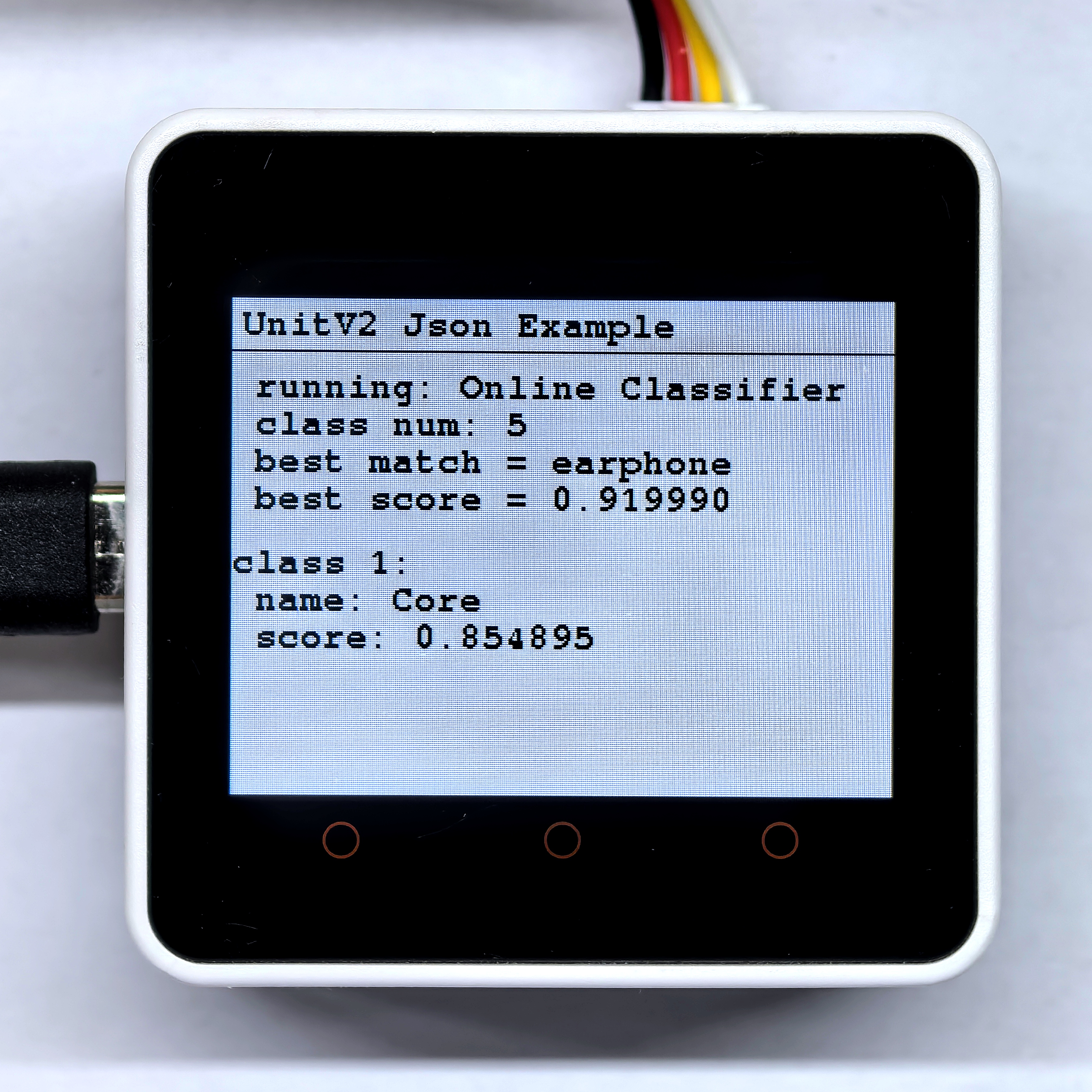
}当 UnitV2 检测到物体时,会实时反馈物体所属类目等数据,反馈结果如下图所示。
5.9 人脸识别
本例程可配置 UnitV2 切换到人脸识别功能,出厂固件不带有任何面容数据,要设置面容数据可在功能页面点击add按键增加,然后点击train按键对该面容数据进行训练,最后点击save按钮保存该面容数据并退出训练模式,即可使用人脸识别功能。在浏览器中访问域名 unitv2.py 或 IP:10.254.239.1 可访问功能页面,页面内容如下所示:
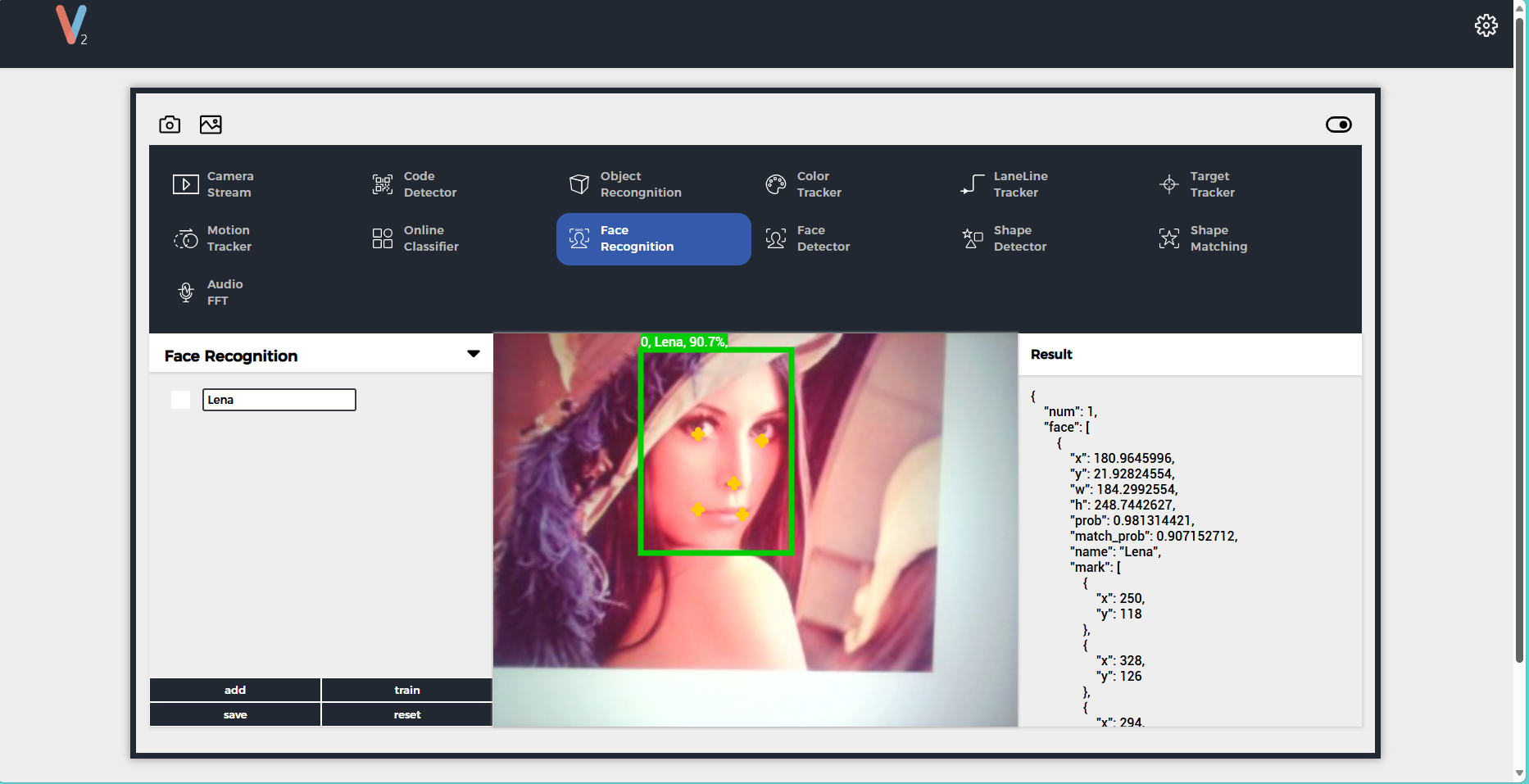
也可通过使用下方例程中create_new_face、save_and_start函数进行设置,下方例程中新建了Lena面容数据并进行了训练,训练次数为 10 次,若想增加其他面容数据,请在 create_new_face 函数中修改类目 ID 及名称。
reset 按键或使用下方代码中的函数 clear_all_faces)会永久清除所有已训练面容数据,断电后再次上电不会恢复,请谨慎使用!人脸识别功能 JSON 数据格式详见此处。
#include <M5Unified.h>
#include <M5GFX.h>
#include <Arduino_JSON.h>

M5GFX display;
int face_cnt = 0;

String create_new_face(int id, String name) {
    JSONVar json;
    json["config"] = "Face Recognition";
    json["operation"] = "train";
    json["face_id"] = id; //0~N
    json["name"] = name;  //format: "face_name"
    return JSON.stringify(json);
}

String clear_all_faces(void) {
    JSONVar json;
    json["config"] = "Face Recognition";
    json["operation"] = "reset";
    return JSON.stringify(json);
}

String save_and_start(void) {
    JSONVar json;
    json["config"] = "Face Recognition";
    json["operation"] = "saverun";
    return JSON.stringify(json);
}

void setup() {
    display.begin();
    display.setRotation(1);
    display.clear(TFT_WHITE);
    display.setFont(&fonts::FreeMonoBold9pt7b);
    display.setTextColor(TFT_BLACK);
    delay(100);
    display.drawString("UnitV2 Json Example", 3, 3);
    display.drawLine(0, 23, 320, 23, TFT_BLACK);
    Serial.begin(115200);
    Serial2.begin(115200, SERIAL_8N1, 13, 14);//PORT.C
    //Setting JSON
    JSONVar obj;
    obj["function"] = "Face Recognition";
    obj["args"] = "";
    String jsonString = JSON.stringify(obj);
    Serial2.println(jsonString);delay(10);

    // jsonString = clear_all_faces();
    // Serial2.println(jsonString);delay(10);

    for (int i=0; i < 10; i++){
        jsonString = create_new_face(0, "Lena");
        Serial2.println(jsonString);delay(10);
    }
    delay(2000);

    jsonString = save_and_start();
    Serial2.println(jsonString);delay(10);
    Serial2.flush();
}

void loop() {
    if (Serial2.available() > 0) {
        String line = Serial2.readStringUntil('\r');
        while (line.length() && line[0] != '{') { // clear '\0'
            line.remove(0, 1);
        }
        Serial2.flush();
        JSONVar face_obj = JSON.parse(line);

        if (!(JSON.typeof(face_obj) == "undefined")) {
            display.fillRect(0, 25, 320, 215, TFT_WHITE);
            Serial.println(">>>>>>>>>>>>>>>>>>>>>>>>>>>>>>>>>>");
            Serial.println("UnitV2 Face Recognition example");

            if (face_obj.hasOwnProperty("msg")) {
                Serial.print("msg = ");
                Serial.println(String(face_obj["msg"]).c_str());
                display.setCursor(0, 25);
                display.printf(" msg: %s\n", String(face_obj["msg"]).c_str());
                if (face_obj.hasOwnProperty("running")) {
                  Serial.print("running : ");
                  Serial.println(String(face_obj["running"]).c_str());
                  display.printf(" running: %s\n", String(face_obj["running"]).c_str());
                }
            } else {
              if (face_obj.hasOwnProperty("running")) {
                  Serial.print("running : ");
                  Serial.println(String(face_obj["running"]).c_str());
                  display.setCursor(0, 25);
                  display.printf(" running: %s\n", String(face_obj["running"]).c_str());
              }
              if (face_obj.hasOwnProperty("status")) {
                  Serial.printf("status : %s\n", String(face_obj["status"]).c_str());
                  Serial.printf("\tx: %d\n", (int)face_obj["x"]);
                  Serial.printf("\ty: %d\n", (int)face_obj["y"]);
                  Serial.printf("\tw: %d\n", (int)face_obj["w"]);
                  Serial.printf("\th: %d\n", (int)face_obj["h"]);
                  Serial.printf("\tprob: %f\n", (double)face_obj["prob"]);
                  Serial.printf("\tname: %s\n", String(face_obj["name"]).c_str());

                  display.printf(" status: %s\n", String(face_obj["status"]).c_str());
                  display.printf(" x: %d\n", (int)face_obj["x"]);
                  display.printf(" y: %d\n", (int)face_obj["y"]);
                  display.printf(" w: %d\n", (int)face_obj["w"]);
                  display.printf(" h: %d\n", (int)face_obj["h"]);
                  display.printf(" prob: %f\n", (double)face_obj["prob"]);
                  display.printf(" name: %s\n", String(face_obj["name"]).c_str());
              }
            }

            if (face_obj.hasOwnProperty("num")) {
                face_cnt = (int)face_obj["num"];
                Serial.printf("num = %d\n", face_cnt);
                display.printf(" num: %d\n", face_cnt);
            }

            if (face_obj.hasOwnProperty("face")) {
                JSONVar obj_arr = face_obj["face"];
                display.fillRect(0, 60, 320, 180, TFT_WHITE);
                display.setCursor(0, 60);
                for (int i = 0; i < (int)face_cnt; i++) {
                    if (JSON.typeof(obj_arr[i]) != "undefined") {
                        int fx = (int)obj_arr[i]["x"];
                        int fy = (int)obj_arr[i]["y"];
                        int fw = (int)obj_arr[i]["w"];
                        int fh = (int)obj_arr[i]["h"];
                        double fprob = (double)obj_arr[i]["prob"];
                        double fmprob = (double)obj_arr[i]["match_prob"];
                        String fname = String(obj_arr[i]["name"]);
                        Serial.printf("------[face %d]------\n", i);
                        Serial.printf("\tx: %d\n", fx);
                        Serial.printf("\ty: %d\n", fy);
                        Serial.printf("\tw: %d\n", fw);
                        Serial.printf("\th: %d\n", fh);
                        Serial.printf("\tprob: %f\n", fprob);
                        Serial.printf("\tmatch prob: %f\n", fmprob);
                        Serial.printf("\tname: %s\n", fname.c_str());
                        display.printf("face %d:\n", i);
                        display.printf(" x:%d, y:%d,", fx, fy);
                        display.printf(" w:%d, h:%d\n", fw, fh);
                        display.printf(" prob: %f\n", fprob);
                        display.printf(" match prob: %f\n", fmprob);
                        display.printf(" name: %s\n", fname.c_str());

                        if (obj_arr[i].hasOwnProperty("mark")) {
                            JSONVar marks = obj_arr[i]["mark"];
                            for (int j = 0; j < 5; j++) {
                                if (JSON.typeof(marks[j]) != "undefined") {
                                    int mx = (int)marks[j]["x"];
                                    int my = (int)marks[j]["y"];
                                    display.printf("\t mark%d: x=%d, y=%d\n", j, mx, my);
                                    Serial.printf("\t\tmark%d: x=%d, y=%d\n", j, mx, my);
                                }
                            }
                        }
                    }
                    delay(200);
                }
            }
            Serial.println("<<<<<<<<<<<<<<<<<<<<<<<<<<<<<<<<<<");
        }
    }
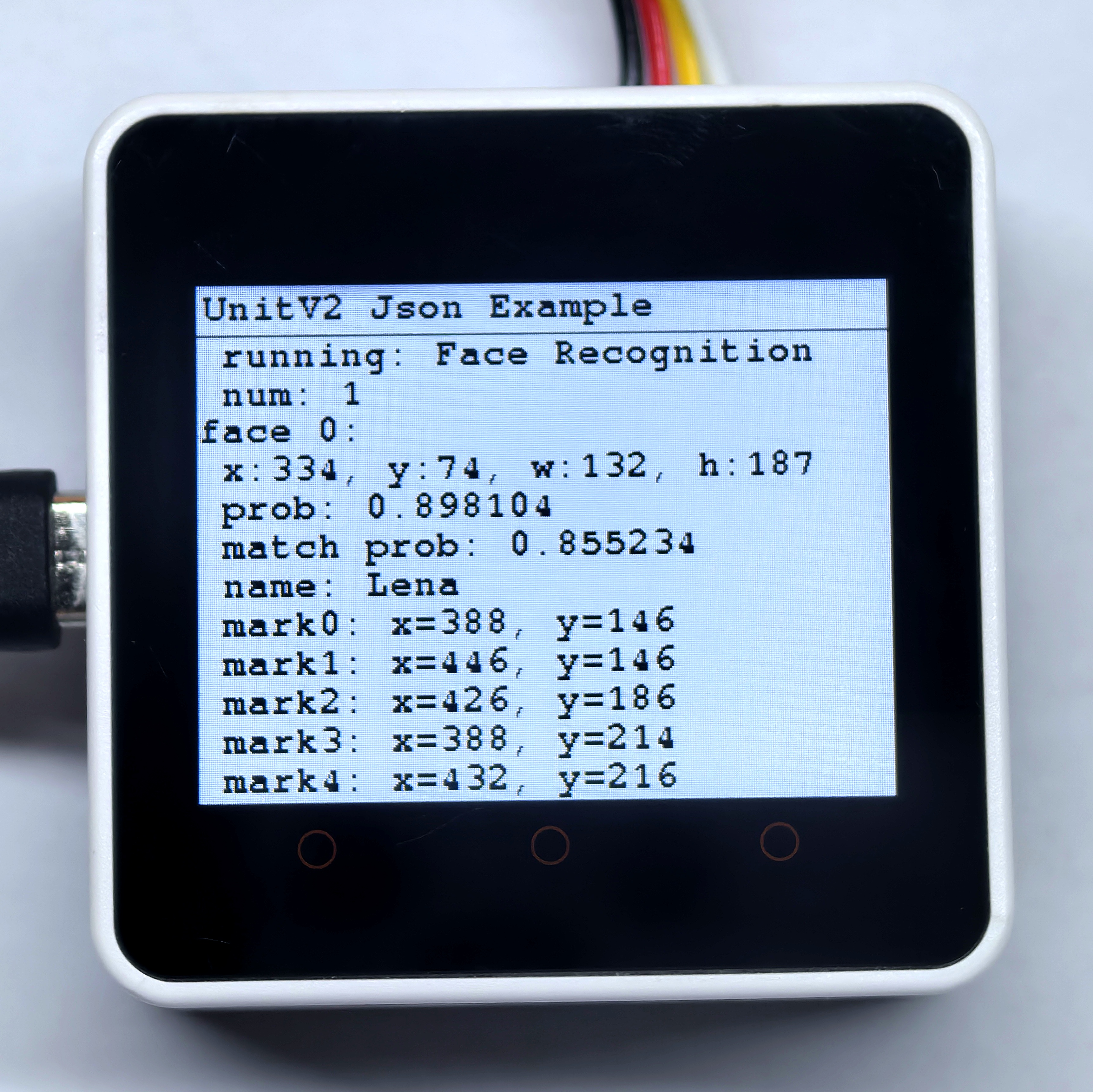
} 扫描下方左边人脸,识别结果如下方右图所示。
5.10 人脸检测
本例程可配置 UnitV2 切换到人脸检测功能,在浏览器中访问域名 unitv2.py 或 IP:10.254.239.1 可访问功能页面,页面内容如下所示:
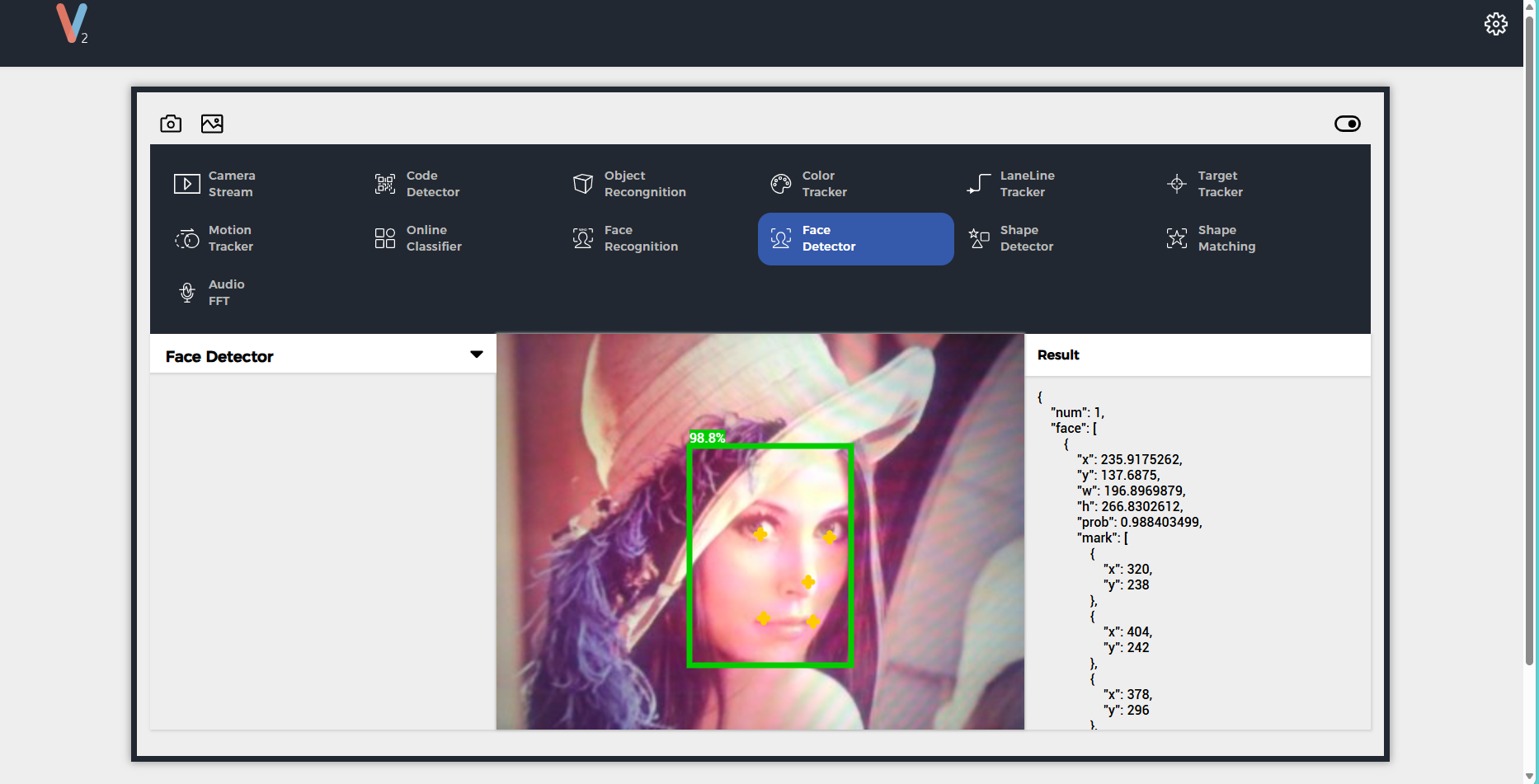
人脸检测功能 JSON 数据格式详见此处。
#include <M5Unified.h>
#include <M5GFX.h>
#include <Arduino_JSON.h>

M5GFX display;
int face_cnt = 0;

void setup() {
    display.begin();
    display.setRotation(1);
    display.clear(TFT_WHITE);
    display.setFont(&fonts::FreeMonoBold9pt7b);
    display.setTextColor(TFT_BLACK);
    delay(100);
    display.drawString("UnitV2 Json Example", 5, 5);
    display.drawLine(0, 25, 320, 25, TFT_BLACK);
    Serial.begin(115200);
    Serial2.begin(115200, SERIAL_8N1, 13, 14);//PORT.C
    //Setting JSON
    JSONVar obj;
    obj["function"] = "Face Detector";
    obj["args"] = "";
    String jsonString = JSON.stringify(obj);
    Serial2.println(jsonString);
    Serial2.flush();
}

void loop() {
    if (Serial2.available() > 0) {
        String line = Serial2.readStringUntil('\r');
        while (line.length() && line[0] != '{') { // clear '\0'
            line.remove(0, 1);
        }
        Serial2.flush();
        JSONVar face_obj = JSON.parse(line);

        if (!(JSON.typeof(face_obj) == "undefined")) {
            display.fillRect(0, 35, 320, 205, TFT_WHITE);
            Serial.println(">>>>>>>>>>>>>>>>>>>>>>>>>>>>>>>>>>");
            Serial.println("UnitV2 Face Detector example");

            if (face_obj.hasOwnProperty("msg")) {
                Serial.print("msg = ");
                Serial.println(String(face_obj["msg"]).c_str());
                display.setCursor(0, 35);
                display.printf(" msg: %s\n", String(face_obj["msg"]).c_str());
                if (face_obj.hasOwnProperty("running")) {
                  Serial.print("running : ");
                  Serial.println(String(face_obj["running"]).c_str());
                  display.printf(" running: %s\n", String(face_obj["running"]).c_str());
                }
            } else {
              if (face_obj.hasOwnProperty("running")) {
                  Serial.print("running : ");
                  Serial.println(String(face_obj["running"]).c_str());
                  display.setCursor(0, 35);
                  display.printf(" running: %s\n", String(face_obj["running"]).c_str());
              }
            }

            if (face_obj.hasOwnProperty("num")) {
                face_cnt = (int)face_obj["num"];
                Serial.printf("num = %d\n", face_cnt);
                display.printf(" num: %d\n", face_cnt);
            }

            if (face_obj.hasOwnProperty("face")) {
                JSONVar obj_arr = face_obj["face"];
                display.fillRect(0, 70, 320, 170, TFT_WHITE);
                display.setCursor(0, 70);
                for (int i = 0; i < (int)face_cnt; i++) {
                    if (JSON.typeof(obj_arr[i]) != "undefined") {
                        int fx = (int)obj_arr[i]["x"];
                        int fy = (int)obj_arr[i]["y"];
                        int fw = (int)obj_arr[i]["w"];
                        int fh = (int)obj_arr[i]["h"];
                        double fprob = (double)obj_arr[i]["prob"];
                        Serial.printf("------[face %d]------\n", i);
                        Serial.printf("\tx: %d\n", fx);
                        Serial.printf("\ty: %d\n", fy);
                        Serial.printf("\tw: %d\n", fw);
                        Serial.printf("\th: %d\n", fh);
                        Serial.printf("\tprob: %f\n", fprob);
                        display.printf("face %d:\n", i);
                        display.printf(" x:%d, y:%d\n", fx, fy);
                        display.printf(" w:%d, h:%d\n", fw, fh);
                        display.printf(" prob: %f\n", fprob);

                        if (obj_arr[i].hasOwnProperty("mark")) {
                            JSONVar marks = obj_arr[i]["mark"];
                            for (int j = 0; j < 5; j++) {
                                if (JSON.typeof(marks[j]) != "undefined") {
                                    int mx = (int)marks[j]["x"];
                                    int my = (int)marks[j]["y"];
                                    display.printf("\t mark%d: x=%d, y=%d\n", j, mx, my);
                                    Serial.printf("\t\tmark%d: x=%d, y=%d\n", j, mx, my);
                                }
                            }
                        }
                    }
                    delay(200);
                }
            }
            Serial.println("<<<<<<<<<<<<<<<<<<<<<<<<<<<<<<<<<<");
        }
    }
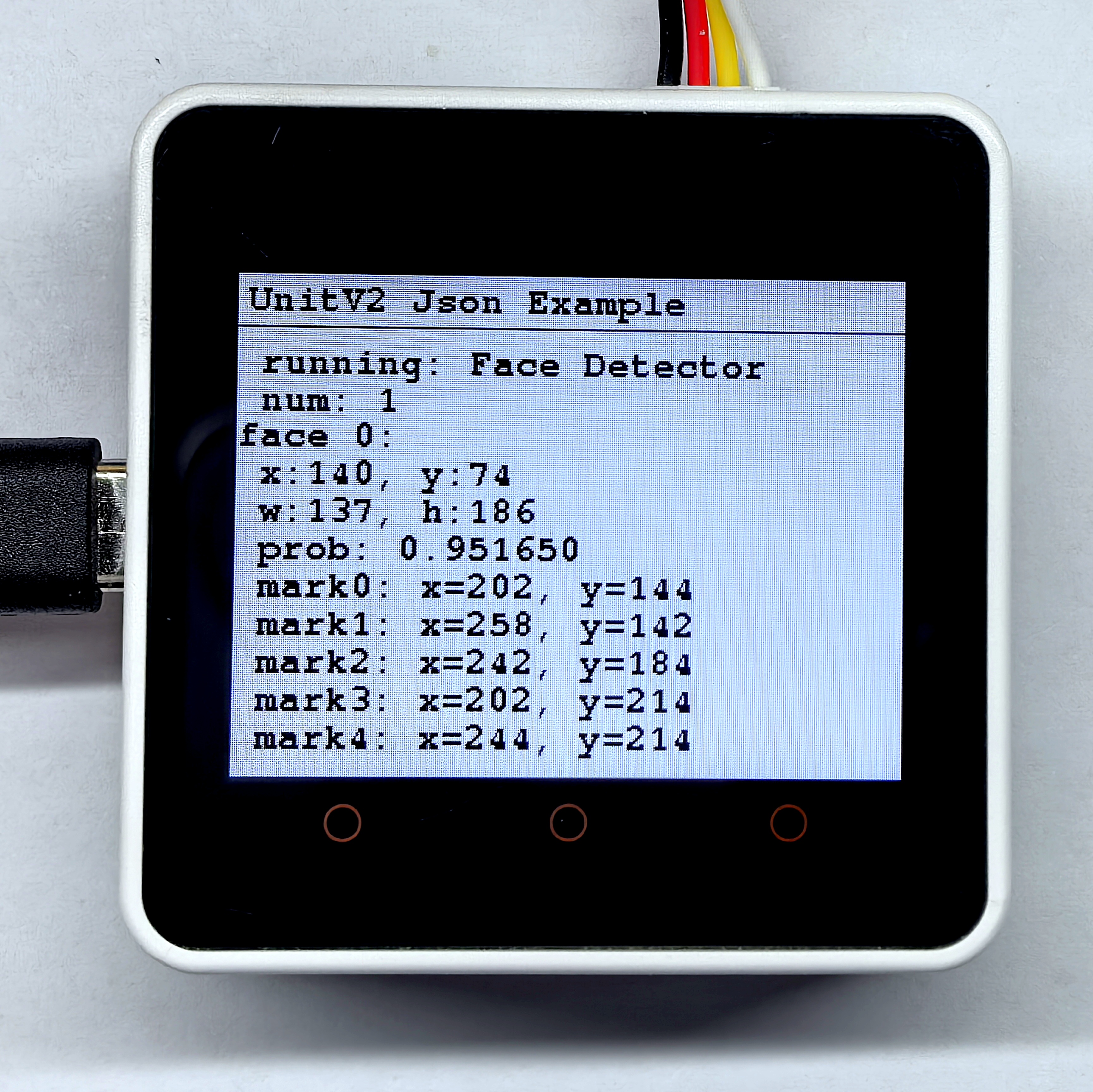
}扫描下方左边人脸,检测结果如下方右图所示。
5.11 形状检测
本例程可配置 UnitV2 切换到形状检测功能,在使用该功能前先设置了一次背景以便检测。在浏览器中访问域名 unitv2.py 或 IP:10.254.239.1 可访问功能页面,页面内容如下所示:
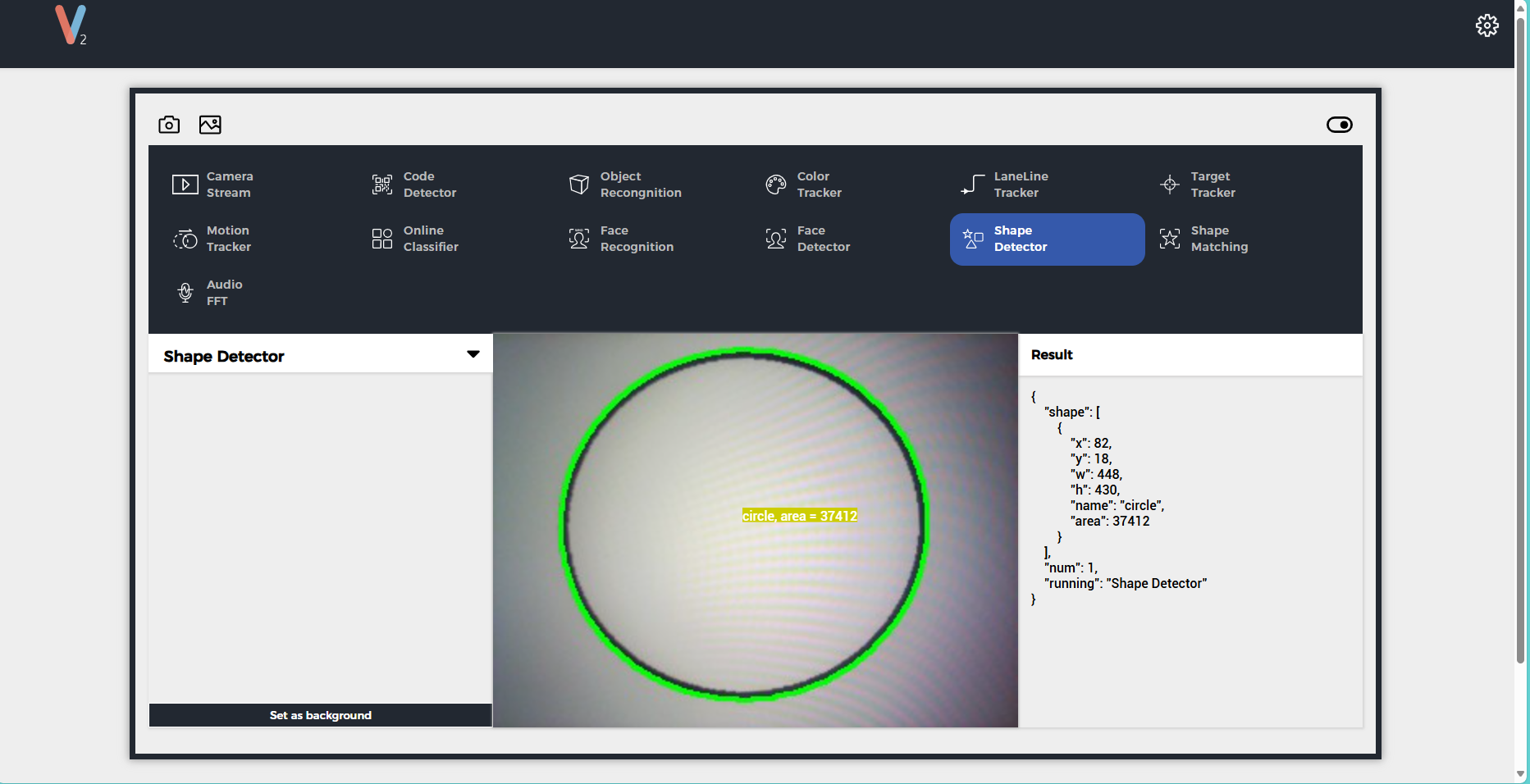
形状检测功能 JSON 数据格式详见此处。
#include <M5Unified.h>
#include <M5GFX.h>
#include <Arduino_JSON.h>

M5GFX display;
int shape_cnt = 0;

void setup() {
    display.begin();
    display.setRotation(1);
    display.clear(TFT_WHITE);
    display.setFont(&fonts::FreeMonoBold9pt7b);
    display.setTextColor(TFT_BLACK);
    delay(100);
    display.drawString("UnitV2 Json Example", 5, 5);
    display.drawLine(0, 25, 320, 25, TFT_BLACK);
    Serial.begin(115200);
    Serial2.begin(115200, SERIAL_8N1, 13, 14);//PORT.C
    //Setting JSON
    JSONVar obj;
    obj["function"] = "Shape Detector";
    obj["args"] = "";
    String jsonString = JSON.stringify(obj);
    Serial2.println(jsonString);delay(10);
    JSONVar BCKG;
    BCKG["config"] = "Shape Detector";
    BCKG["operation"] = "update";
    jsonString = JSON.stringify(BCKG);
    Serial2.println(jsonString);
    Serial2.flush();
    delay(200);
}

void loop() {
    if (Serial2.available() > 0) {
        String line = Serial2.readStringUntil('\r');
        while (line.length() && line[0] != '{') { // clear '\0'
            line.remove(0, 1);
        }
        Serial2.flush();
        JSONVar shape_obj = JSON.parse(line);

        if (!(JSON.typeof(shape_obj) == "undefined")) {
            display.fillRect(0, 35, 320, 205, TFT_WHITE);
            Serial.println(">>>>>>>>>>>>>>>>>>>>>>>>>>>>>>>>>>");
            Serial.println("UnitV2 Shape Detector example");

            if (shape_obj.hasOwnProperty("msg")) {
                Serial.print("msg = ");
                Serial.println(String(shape_obj["msg"]).c_str());
                display.setCursor(0, 35);
                display.printf(" msg: %s\n", String(shape_obj["msg"]).c_str());
                if (shape_obj.hasOwnProperty("running")) {
                  Serial.print("running : ");
                  Serial.println(String(shape_obj["running"]).c_str());
                  display.printf(" running: %s\n", String(shape_obj["running"]).c_str());
                }
            } else {
              if (shape_obj.hasOwnProperty("running")) {
                  Serial.print("running : ");
                  Serial.println(String(shape_obj["running"]).c_str());
                  display.setCursor(0, 35);
                  display.printf(" running: %s\n", String(shape_obj["running"]).c_str());
              }
            }

            if (shape_obj.hasOwnProperty("num")) {
                shape_cnt = (int)shape_obj["num"];
                Serial.printf("num = %d\n", shape_cnt);
                display.printf(" num: %d\n", shape_cnt);
            }

            if (shape_obj.hasOwnProperty("shape")) {
                JSONVar obj_arr = shape_obj["shape"];
                for (int i = 0; i < (int)shape_cnt; i++) {
                    display.fillRect(0, 80, 320, 160, TFT_WHITE);
                    display.setCursor(0, 80);
                    if (JSON.typeof(obj_arr[i]) != "undefined") {
                        String name = String(obj_arr[i]["name"]);
                        int x = (int)obj_arr[i]["x"];
                        int y = (int)obj_arr[i]["y"];
                        int w = (int)obj_arr[i]["w"];
                        int h = (int)obj_arr[i]["h"];
                        double angle = (double)obj_arr[i]["angle"];
                        int area = (int)obj_arr[i]["area"];

                        Serial.printf("------[shape %d]------\n", i);
                        Serial.printf("\tname: %s\n", name.c_str());
                        Serial.printf("\tx: %d\n", x);
                        Serial.printf("\ty: %d\n", y);
                        Serial.printf("\tw: %d\n", w);
                        Serial.printf("\th: %d\n", h);
                        Serial.printf("\tangle: %f\n", angle);
                        Serial.printf("\tarea: %d\n", area);

                        display.printf("shape %d:\n", i);
                        display.printf(" name: %s\n", name.c_str());
                        display.printf(" x:%d, y:%d\n", x, y);
                        display.printf(" w:%d, h:%d\n", w, h);
                        display.printf(" angle: %f\n", angle);
                        display.printf(" area: %d\n", area);
                    }
                    delay(200);
                }
            }
            Serial.println("<<<<<<<<<<<<<<<<<<<<<<<<<<<<<<<<<<");
        }
    }
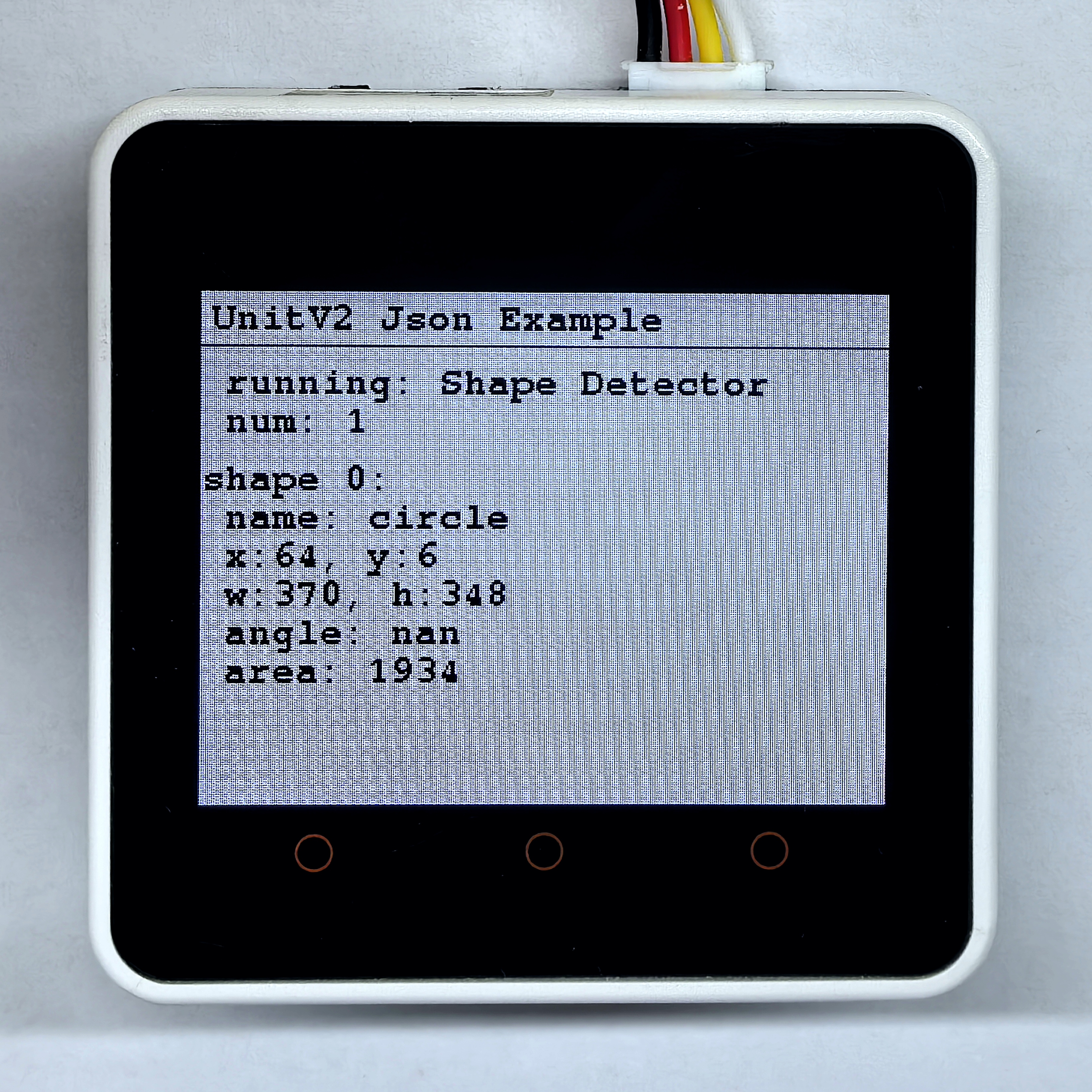
}扫描下方左边图片,检测结果如下方右图所示。

5.12 自定义形状匹配
本例程可配置 UnitV2 切换到自定义形状匹配功能,在使用该功能前先设置了一次背景以便检测匹配。出厂固件不带有任何形状数据,要设置形状数据请在功能页面点击add按键增加,然后点击upload按键上传白底黑形的png文件,创建的形状名称根据文件名称命名,本例中上传的文件名称为arrow.png,形状名称即为arrow。图片上传成功后即可使用形状匹配功能,在浏览器中访问域名 unitv2.py 或 IP:10.254.239.1 可访问功能页面,页面内容如下所示:
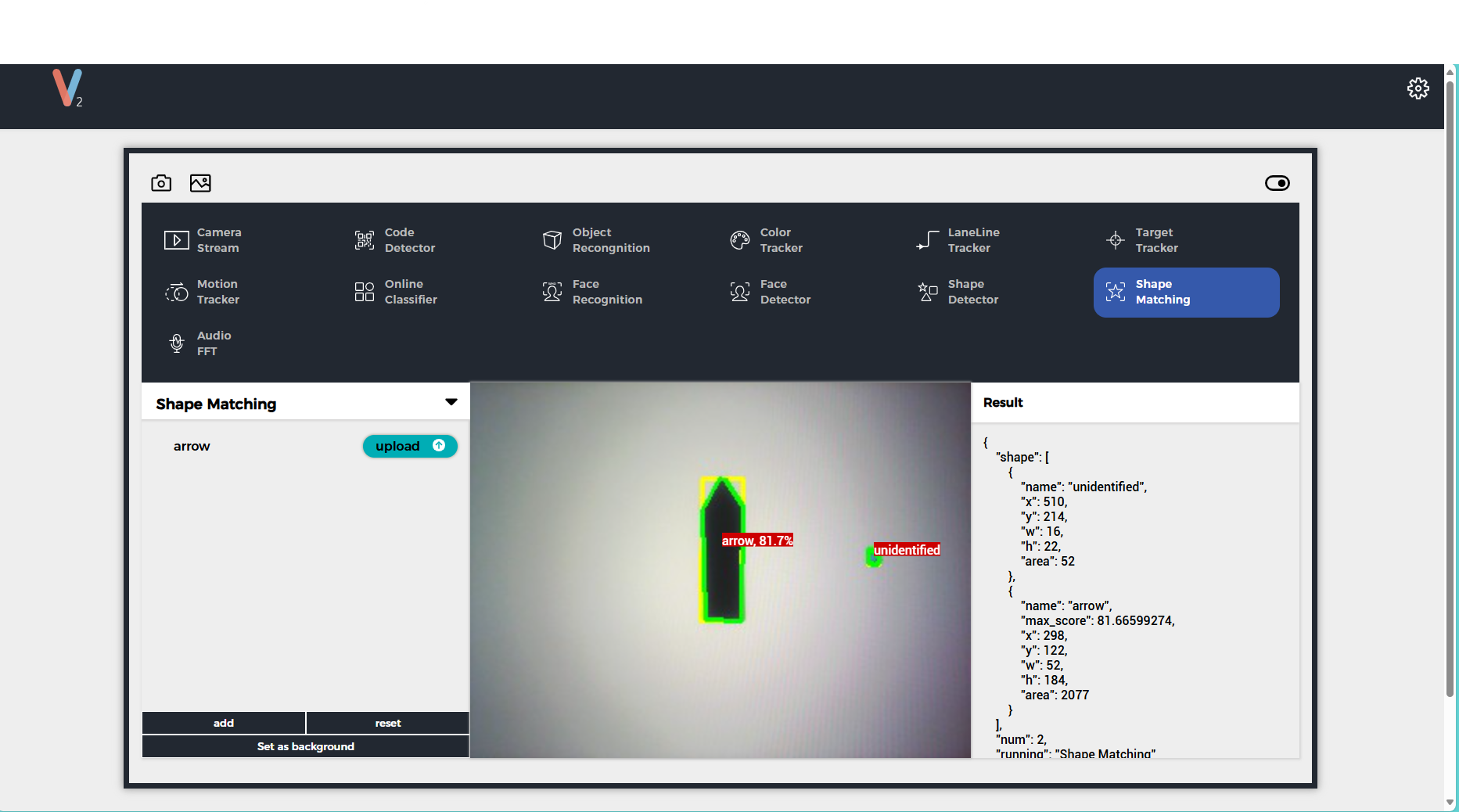
形状检测功能 JSON 数据格式详见此处。
#include <M5Unified.h>
#include <M5GFX.h>
#include <Arduino_JSON.h>

M5GFX display;
int shape_cnt = 0;

void setup() {
    display.begin();
    display.setRotation(1);
    display.clear(TFT_WHITE);
    display.setFont(&fonts::FreeMonoBold9pt7b);
    display.setTextColor(TFT_BLACK);
    delay(100);
    display.drawString("UnitV2 Json Example", 5, 5);
    display.drawLine(0, 25, 320, 25, TFT_BLACK);
    Serial.begin(115200);
    Serial2.begin(115200, SERIAL_8N1, 13, 14);//PORT.C
    //Setting JSON
    JSONVar obj;
    obj["function"] = "Shape Matching";
    obj["args"] = "";
    String jsonString = JSON.stringify(obj);
    Serial2.println(jsonString);delay(10);
    JSONVar BCKG;
    BCKG["config"] = "Shape Matching";
    BCKG["operation"] = "update";
    jsonString = JSON.stringify(BCKG);
    Serial2.println(jsonString);
    Serial2.flush();
    delay(200);
}

void loop() {
    if (Serial2.available() > 0) {
        String line = Serial2.readStringUntil('\r');
        while (line.length() && line[0] != '{') { // clear '\0'
            line.remove(0, 1);
        }
        Serial2.flush();
        JSONVar shape_obj = JSON.parse(line);

        if (!(JSON.typeof(shape_obj) == "undefined")) {
            display.fillRect(0, 35, 320, 205, TFT_WHITE);
            Serial.println(">>>>>>>>>>>>>>>>>>>>>>>>>>>>>>>>>>");
            Serial.println("UnitV2 Shape Matching example");

            if (shape_obj.hasOwnProperty("msg")) {
                Serial.print("msg = ");
                Serial.println(String(shape_obj["msg"]).c_str());
                display.setCursor(0, 35);
                display.printf(" msg: %s\n", String(shape_obj["msg"]).c_str());
                if (shape_obj.hasOwnProperty("running")) {
                  Serial.print("running : ");
                  Serial.println(String(shape_obj["running"]).c_str());
                  display.printf(" running: %s\n", String(shape_obj["running"]).c_str());
                }
            } else {
              if (shape_obj.hasOwnProperty("running")) {
                  Serial.print("running : ");
                  Serial.println(String(shape_obj["running"]).c_str());
                  display.setCursor(0, 35);
                  display.printf(" running: %s\n", String(shape_obj["running"]).c_str());
              }
            }

            if (shape_obj.hasOwnProperty("num")) {
                shape_cnt = (int)shape_obj["num"];
                Serial.printf("num = %d\n", shape_cnt);
                display.printf(" num: %d\n", shape_cnt);
            }

            if (shape_obj.hasOwnProperty("shape")) {
                JSONVar obj_arr = shape_obj["shape"];
                for (int i = 0; i < (int)shape_cnt; i++) {
                    display.fillRect(0, 80, 320, 160, TFT_WHITE);
                    display.setCursor(0, 80);
                    if (JSON.typeof(obj_arr[i]) != "undefined") {
                        String name = String(obj_arr[i]["name"]);
                        int x = (int)obj_arr[i]["x"];
                        int y = (int)obj_arr[i]["y"];
                        int w = (int)obj_arr[i]["w"];
                        int h = (int)obj_arr[i]["h"];
                        int area = (int)obj_arr[i]["area"];

                        Serial.printf("------[shape %d]------\n", i);
                        Serial.printf("\tname: %s\n", name.c_str());
                        Serial.printf("\tx: %d\n", x);
                        Serial.printf("\ty: %d\n", y);
                        Serial.printf("\tw: %d\n", w);
                        Serial.printf("\th: %d\n", h);
                        Serial.printf("\tarea: %d\n", area);

                        display.printf("shape %d:\n", i);
                        display.printf(" name: %s\n", name.c_str());
                        display.printf(" x:%d, y:%d\n", x, y);
                        display.printf(" w:%d, h:%d\n", w, h);
                        display.printf(" area: %d\n", area);
                    }
                    delay(200);
                }
            }
            Serial.println("<<<<<<<<<<<<<<<<<<<<<<<<<<<<<<<<<<");
        }
    }
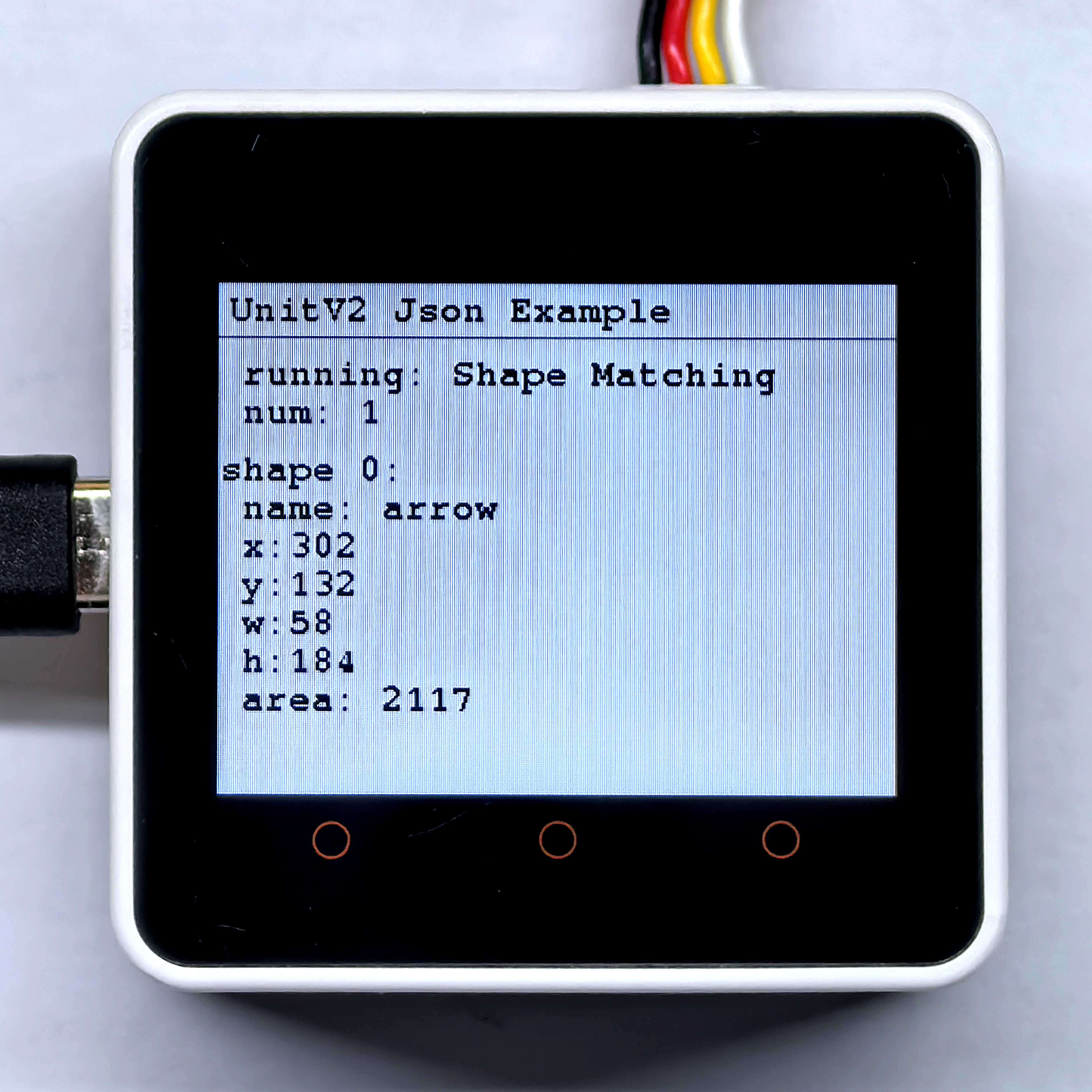
} 扫描下方左边图片,检测结果如下方右图所示。