

Arduino Quick Start
2. Devices & Examples
3. M5Unified
4. M5GFX
5. Extensions
Unit
Module
Atomic
Tab5
IoT
Accessories
StackChan Wakeup
API and example programs for StackChan sleep and wakeup functionality.
Sample Program
Build Requirements
- M5Stack board manager version >= 3.2.2
- Board option = M5CoreS3
- M5Unified library version >= 0.2.11
cpp
1 2 3 4 5 6 7 8 9 10 11 12 13 14 15 16 17 18 19 20 21 22 23 24 25 26 27
#include <M5Unified.h>
void setup(void) {
    auto cfg = M5.config();
    M5.begin(cfg);
    M5.Display.setTextColor(GREEN);
    M5.Display.setTextDatum(middle_center);
    M5.Display.setFont(&fonts::FreeSerifItalic18pt7b);
    M5.Display.setTextSize(1);
    M5.Display.drawString("Touch", M5.Display.width() / 2,
                              M5.Display.height() / 2 - 60);
    M5.Display.drawString("to sleep", M5.Display.width() / 2,
                              M5.Display.height() / 2 - 20);
    M5.Display.drawString("After 5s", M5.Display.width() / 2,
                              M5.Display.height() / 2 + 20);
    M5.Display.drawString("Wakeup", M5.Display.width() / 2,
                              M5.Display.height() / 2 + 60);
}
void loop(void) {
    M5.update();
    if (M5.Touch.getCount() && M5.Touch.getDetail(0).wasClicked()) {
        M5.Power.timerSleep(5);
        // M5.Power.timerSleep(const rtc_time_t& time);
        // M5.Power.timerSleep(const rtc_date_t& date, const rtc_time_t&
        // time);
        // M5.Power.powerOff(); shutdown
    }
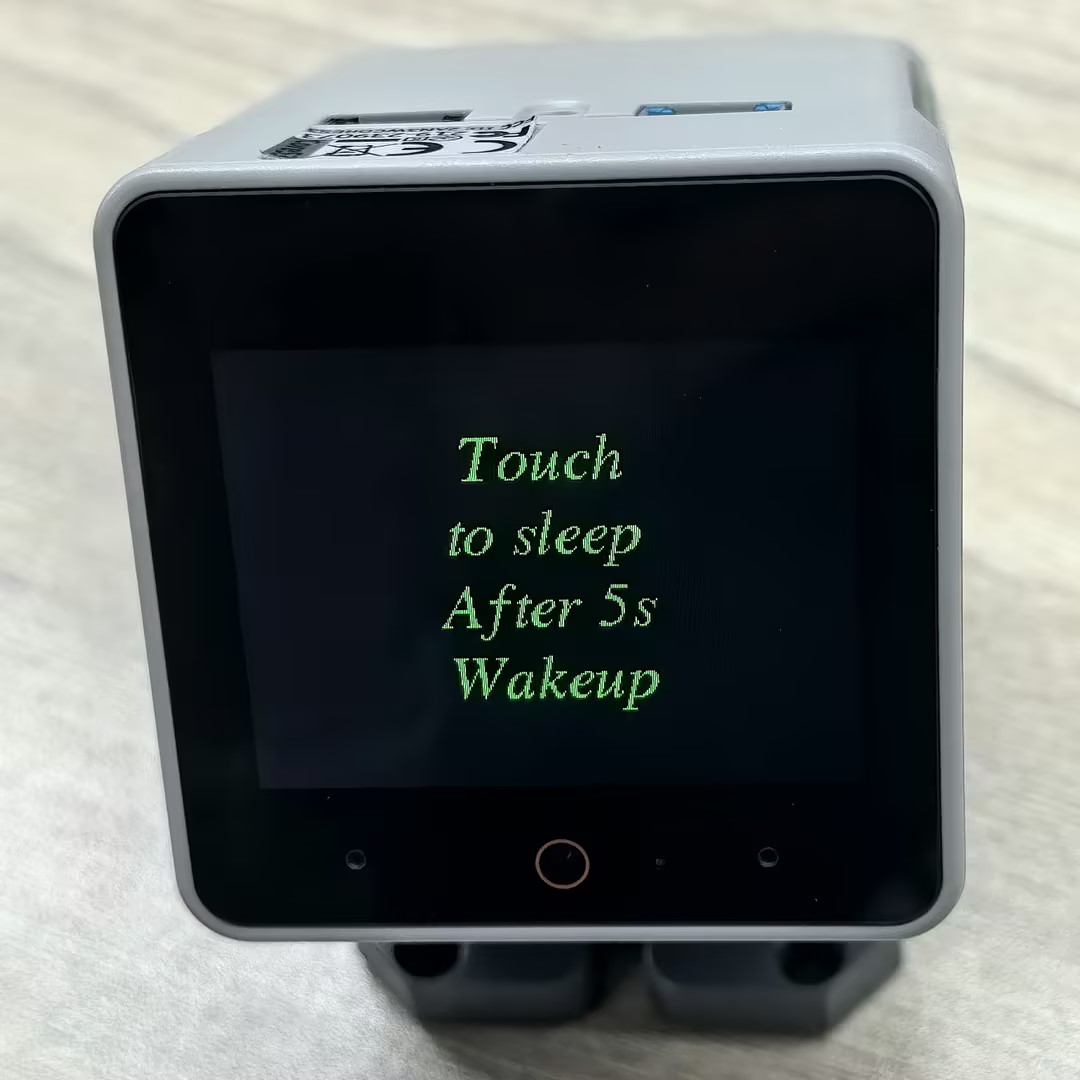
}After flashing successfully, you can trigger sleep mode by touching the StackChan screen. When you tap the screen, the device will enter sleep mode and automatically wake up after 5 seconds.
API
The StackChan power management section utilizes the Power_Class from the M5Unified library. For more related APIs, refer to the documentation below:
Page Tools