

Arduino入門
2. デバイス&サンプル
3. M5Unified
4. M5GFX
5. 拡張モジュール&サンプル
Unit
Module
Atomic
Tab5
IoT
アクセサリー
PaperColor Display ディスプレイ
PaperColor ディスプレイに関する API とサンプルプログラムです。
サンプルプログラム
コンパイル要件
- M5Stack ボードマネージャバージョン >= 3.2.7
- 開発ボードオプション = M5PaperColor
- M5Unified ライブラリバージョン >= 0.2.15
- M5GFX ライブラリバージョン >= 0.2.21
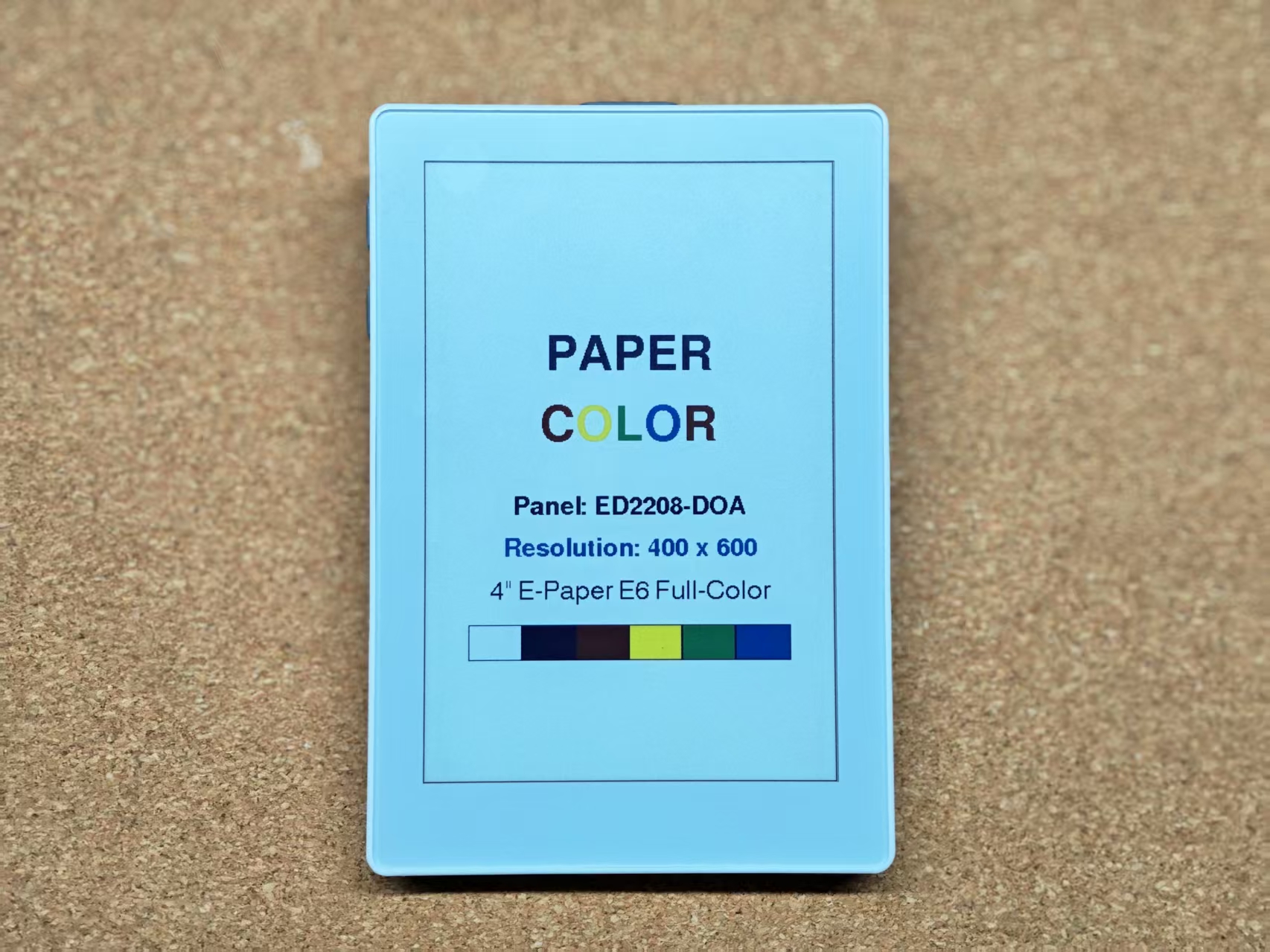
基本表示
cpp
1 2 3 4 5 6 7 8 9 10 11 12 13 14 15 16 17 18 19 20 21 22 23 24 25 26 27 28 29 30 31 32 33 34 35 36 37 38 39 40 41 42 43 44 45 46 47 48 49 50 51 52 53 54 55 56 57 58 59 60 61 62 63 64 65 66 67 68 69 70 71 72 73 74 75 76 77 78 79 80 81 82 83 84 85 86 87 88 89 90 91 92 93 94 95 96 97 98 99 100 101 102
#include <Arduino.h>
#include <M5Unified.h>

M5Canvas canvas(&M5.Display);

static void drawRedBorder()
{
    const int screenW = M5.Display.width();
    const int screenH = M5.Display.height();

    canvas.drawRect(0, 0, screenW, screenH, RED);
    canvas.drawRect(2, 2, screenW - 4, screenH - 4, RED);
    canvas.drawRect(4, 4, screenW - 8, screenH - 8, RED);
}

static int drawColoredWordCentered(const char* word, int y, const uint16_t* colors, int colorCount)
{
    const int screenW = M5.Display.width();
    const int len     = strlen(word);
    int totalW        = 0;

    for (int i = 0; i < len; ++i) {
        totalW += canvas.textWidth(String(word[i]));
    }

    int x = (screenW - totalW) / 2;
    for (int i = 0; i < len; ++i) {
        canvas.setTextColor(colors[i % colorCount]);
        String ch(word[i]);
        canvas.drawString(ch, x, y);
        x += canvas.textWidth(ch);
    }
    return x;
}

static void drawMainDemo()
{
    const int screenW = M5.Display.width();
    const int screenH = M5.Display.height();

    static const uint16_t paperColors[1] = {BLACK};
    static const uint16_t colorColors[5] = {RED, YELLOW, GREEN, BLUE, RED};
    static const uint16_t e6Colors[6]    = {WHITE, BLACK, RED, YELLOW, GREEN, BLUE};

    canvas.fillSprite(WHITE);
    drawRedBorder();

    canvas.setTextDatum(top_left);
    canvas.setTextSize(1);
    canvas.setFont(&fonts::FreeSansBold24pt7b);

    drawColoredWordCentered("PAPER", 168, paperColors, 1);
    drawColoredWordCentered("COLOR", 236, colorColors, 5);

    canvas.setFont(&fonts::FreeSansBold12pt7b);
    canvas.setTextColor(BLACK);
    canvas.setTextDatum(middle_center);
    canvas.drawString("Panel: ED2208-DOA", screenW / 2, 336);

    char resolutionBuf[32];
    snprintf(resolutionBuf, sizeof(resolutionBuf), "Resolution: %d x %d", screenW, screenH);
    canvas.setTextColor(BLUE);
    canvas.drawString(resolutionBuf, screenW / 2, 376);

    canvas.setFont(&fonts::Font4);
    canvas.setTextColor(BLACK);
    canvas.drawString("4\" E-Paper E6 Full-Color", screenW / 2, 418);

    const int barX  = 46;
    const int barY  = 448;
    const int barW  = screenW - 92;
    const int barH  = 34;
    const int cellW = barW / 6;
    for (int i = 0; i < 6; ++i) {
        const int x = barX + i * cellW;
        const int w = (i == 5) ? (barX + barW - x) : cellW;
        canvas.fillRect(x, barY, w, barH, e6Colors[i]);
        canvas.drawRect(x, barY, w, barH, BLACK);
    }

    canvas.pushSprite(0, 0);
}

void setup()
{
    auto cfg          = M5.config();
    cfg.clear_display = false;
    M5.begin(cfg);
    Serial.begin(115200);

    M5.Display.setEpdMode(epd_mode_t::epd_fastest);
    M5.Display.setRotation(0);

    canvas.createSprite(M5.Display.width(), M5.Display.height());
    drawMainDemo();
}

void loop()
{
    M5.update();
    delay(100);
}
リフレッシュモード
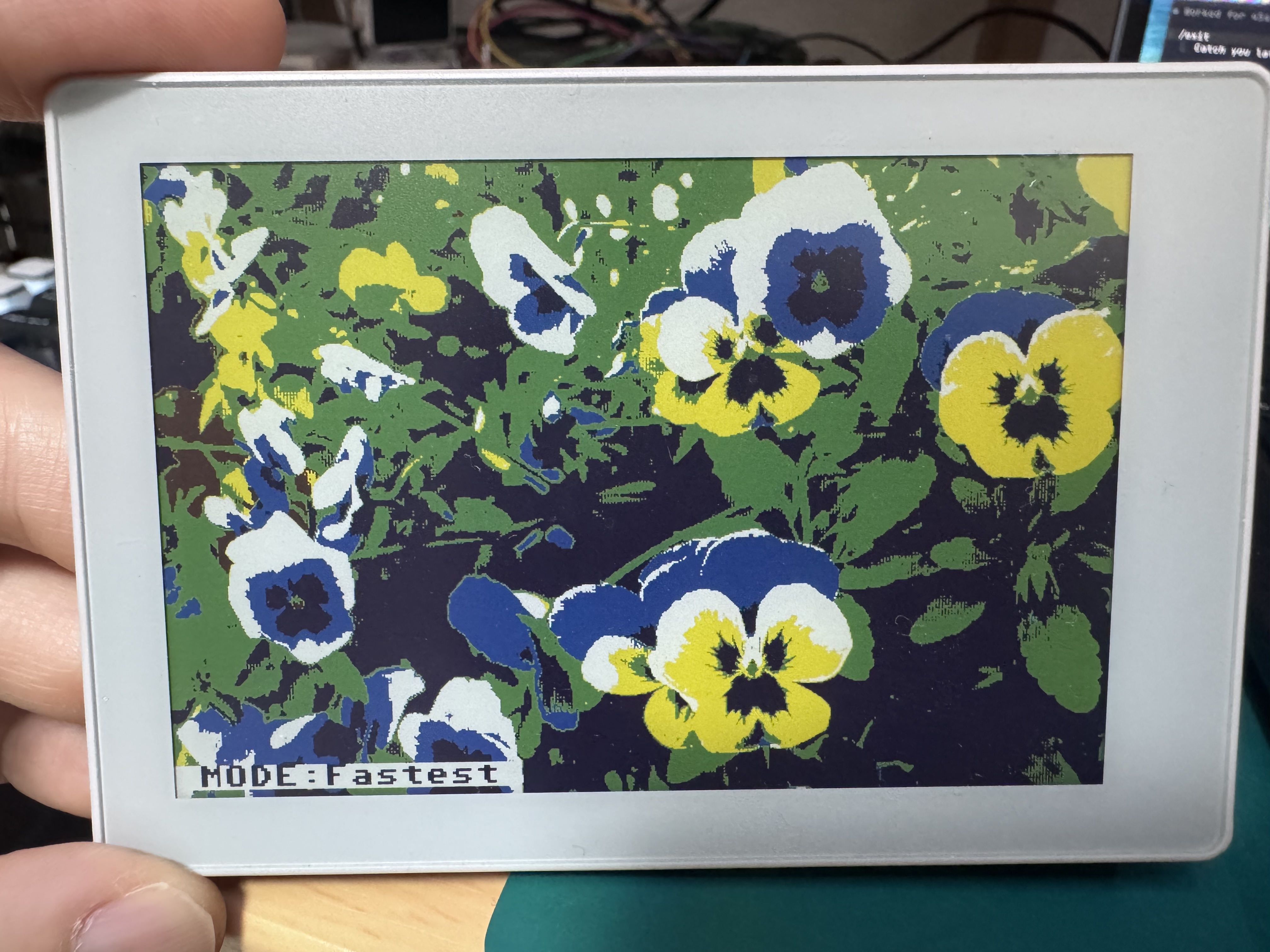
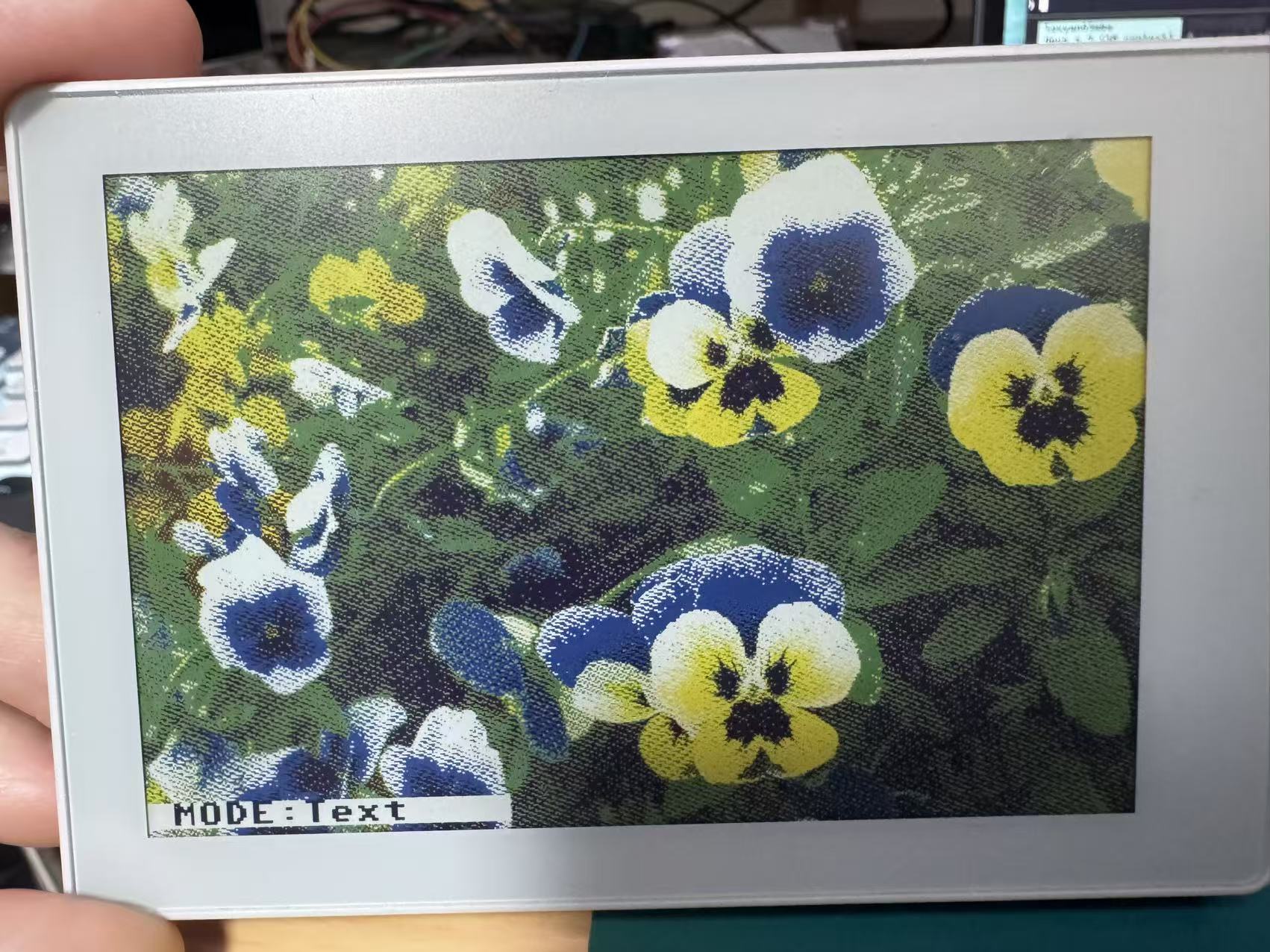
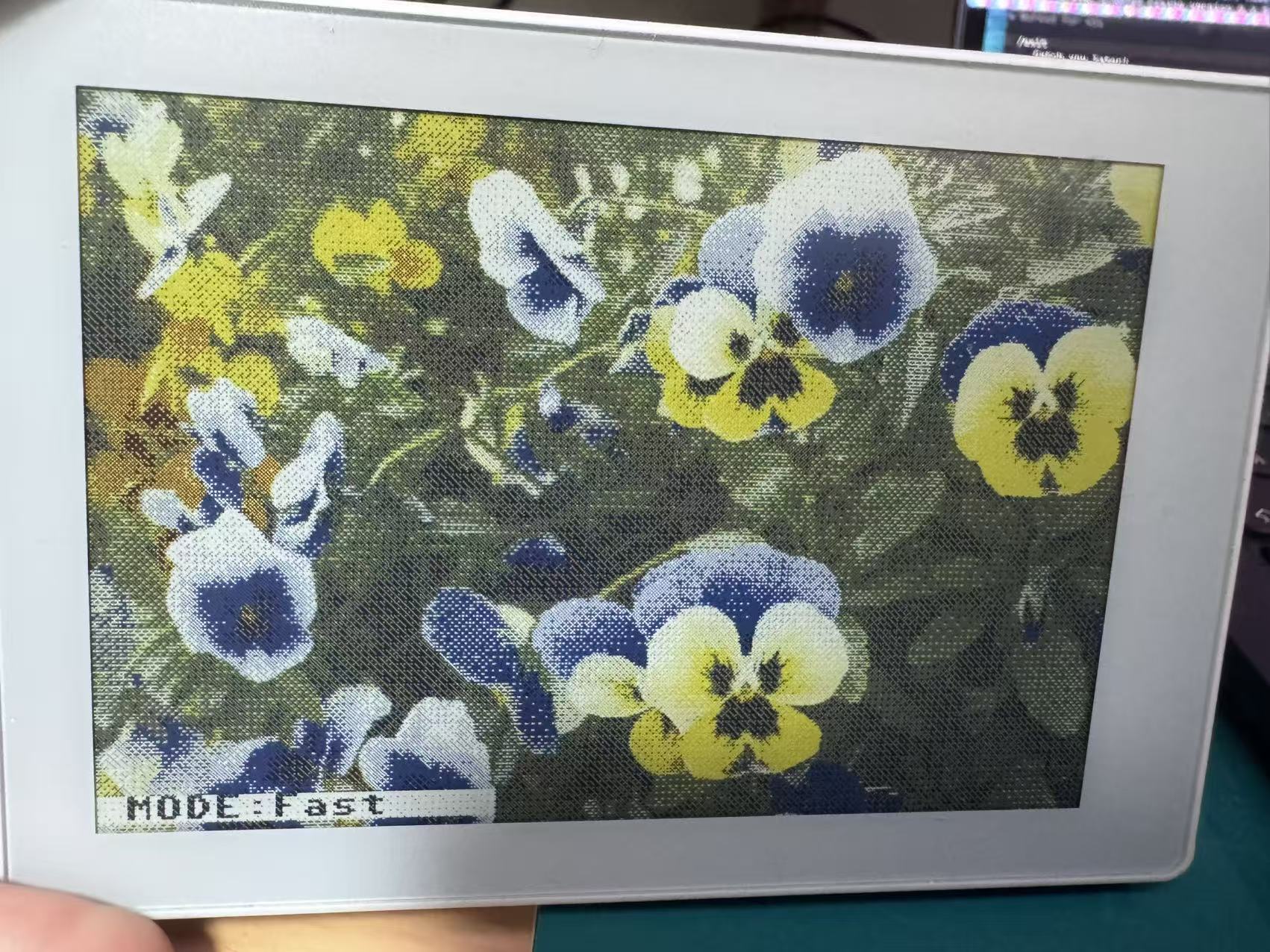
PaperColor は初期化時に画面リフレッシュモードを設定できます。モードによって描画効果が異なります。以下の参考画像をご覧ください。
  namespace epd_mode
  {
    enum epd_mode_t : uint8_t
    {
      epd_quality = 1,
      epd_text    = 2,
      epd_fast    = 3,
      epd_fastest = 4,
    };
}M5.Display.setEpdMode(epd_mode_t::epd_fastest);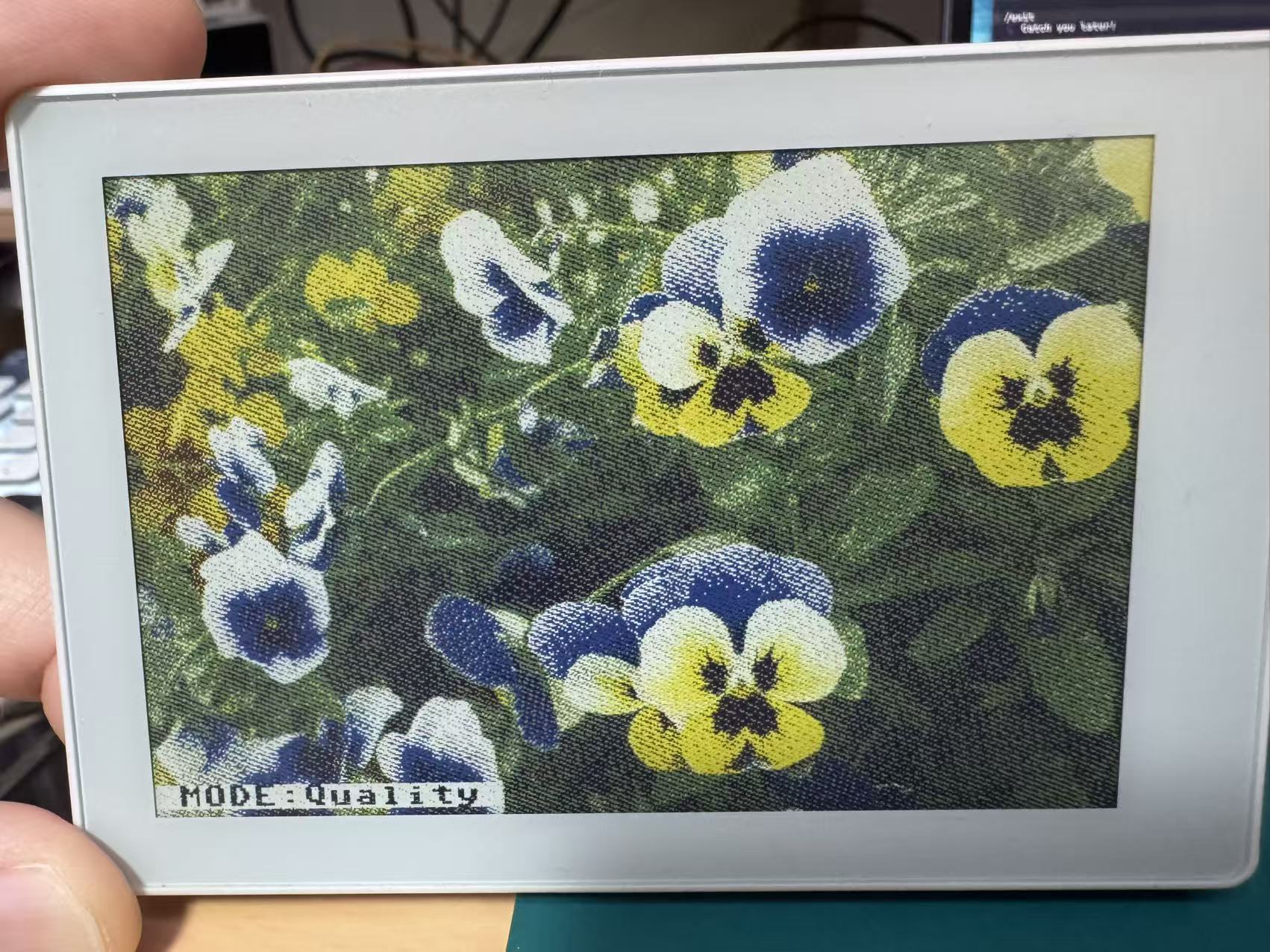
Page Tools