

Arduino Quick Start
2. Devices & Examples
3. M5Unified
4. M5GFX
5. Extensions
Unit
Module
Atomic
Tab5
IoT
Accessories
StopWatch Touch
StopWatch touch-related APIs and sample programs.
Example
Compilation Requirements
- M5Stack Board Manager Version >= 3.3.7
- Board Option = M5StopWatch
- M5Unified Library Version >= 0.2.15
- M5GFX Library Version >= 0.2.21
Basic Touch
cpp
1 2 3 4 5 6 7 8 9 10 11 12 13 14 15 16 17 18 19 20 21 22 23 24 25 26 27 28 29 30 31 32 33 34 35 36 37 38 39 40 41 42 43 44 45 46 47
#include <M5Unified.h>

void setup(void) {
    auto cfg = M5.config();
    M5.begin(cfg);

    M5.Display.setTextDatum(middle_center);
    M5.Display.setFont(&fonts::FreeMonoBold18pt7b);
    M5.Display.setTextSize(1);

    M5.Display.drawString("Touch Test", M5.Display.width() / 2,
                              M5.Display.height() / 2);
}

int prev_x = -1;
int prev_y = -1;

static m5::touch_state_t prev_state;

void loop(void) {
    M5.update();

    auto t = M5.Touch.getDetail();
    if (prev_state != t.state) {
        prev_state                                  = t.state;
        static constexpr const char* state_name[16] = {
            "none", "touch", "touch_end", "touch_begin",
            "___",  "hold",  "hold_end",  "hold_begin",
            "___",  "flick", "flick_end", "flick_begin",
            "___",  "drag",  "drag_end",  "drag_begin"};
        M5_LOGI("%s", state_name[t.state]);
        M5.Display.fillRect(0, 0, M5.Display.width(), M5.Display.height(), BLACK);

        M5.Display.drawString(state_name[t.state],
                                  M5.Display.width() / 2,
                                  M5.Display.height() / 2 + 30);
    }
    if (prev_x != t.x || prev_y != t.y) {
        M5.Display.fillRect(0, 140, M5.Display.width(), 100, BLACK);
        M5.Display.drawString(
            "X:" + String(t.x) + " / " + "Y:" + String(t.y),
            M5.Display.width() / 2, 150);
        prev_x = t.x;
        prev_y = t.y;
        M5.Display.fillCircle(prev_x, prev_y, 4);
    }
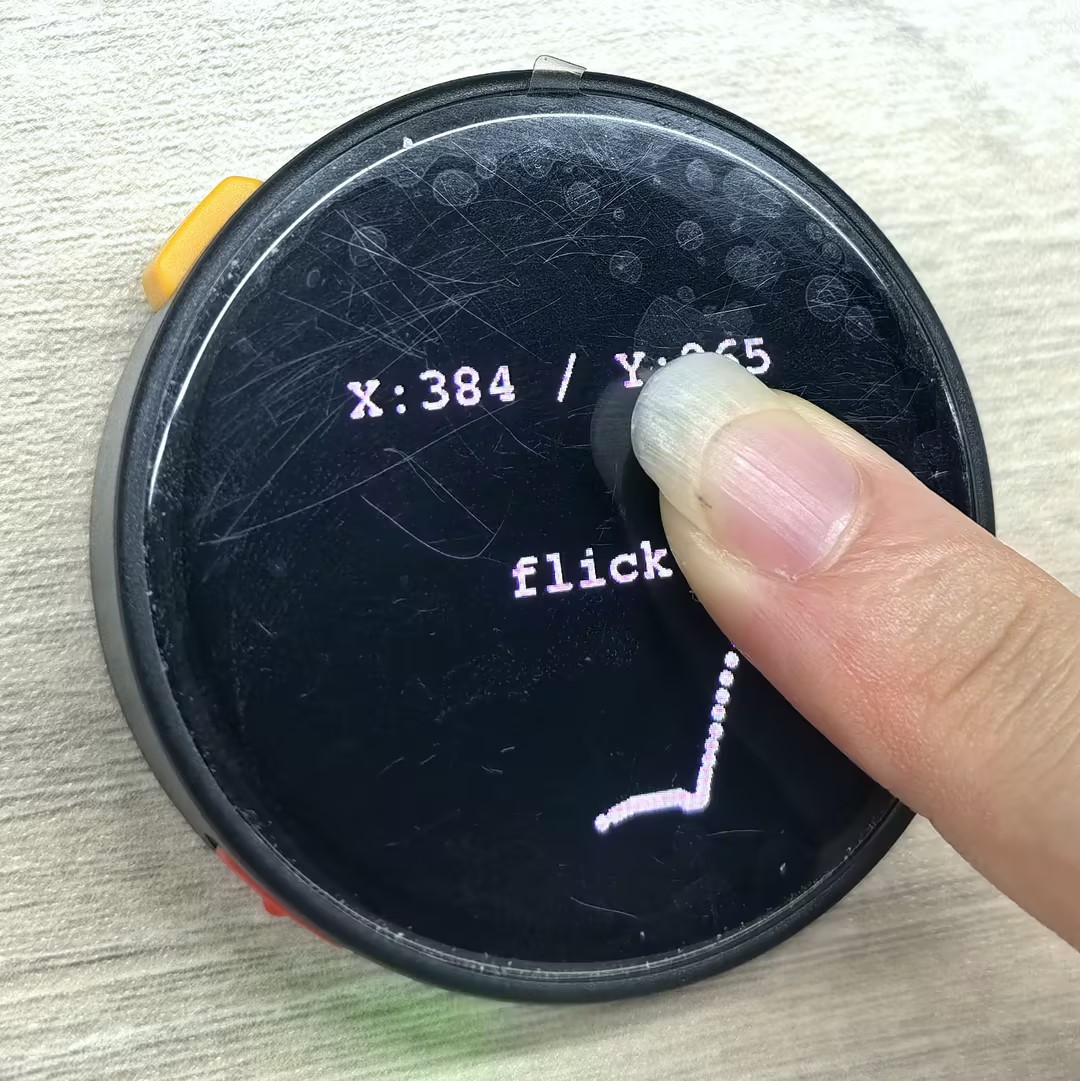
}When you touch the screen with your finger, the current touch state (such as touch, hold, flick, drag, etc.) and the coordinates of the touch point will be displayed on the screen, and a dot will be drawn at the touch point.
LGFX_Button
cpp
1 2 3 4 5 6 7 8 9 10 11 12 13 14 15 16 17 18 19 20 21 22 23 24 25 26 27 28 29 30 31 32 33 34 35 36
#include <M5Unified.h>

m5::touch_detail_t touchDetail;
static int32_t w;
static int32_t h;

LGFX_Button button;

void setup() {
  M5.begin();

  w = M5.Lcd.width();
  h = M5.Lcd.height();

  M5.Lcd.fillScreen(WHITE);
  M5.Display.setRotation(0);
  M5.Display.setTextDatum(top_center);
  M5.Display.drawString("Button Released", w / 2, 70, &fonts::FreeMonoBold12pt7b);

  button.initButton(&M5.Lcd, w / 2, h / 2, 200, 200, TFT_BLUE, TFT_YELLOW, TFT_BLACK, "BTN", 4, 4);
  button.drawButton();
}

void loop() {
  M5.update();
  touchDetail = M5.Touch.getDetail();

  if (touchDetail.isPressed()) {
    if(button.contains(touchDetail.x, touchDetail.y)){
        M5.Display.drawString("Button  Pressed", w / 2, 70, &fonts::FreeMonoBold12pt7b);
    }
  }
  else {
    M5.Display.drawString("Button Released", w / 2, 70, &fonts::FreeMonoBold12pt7b);
  }
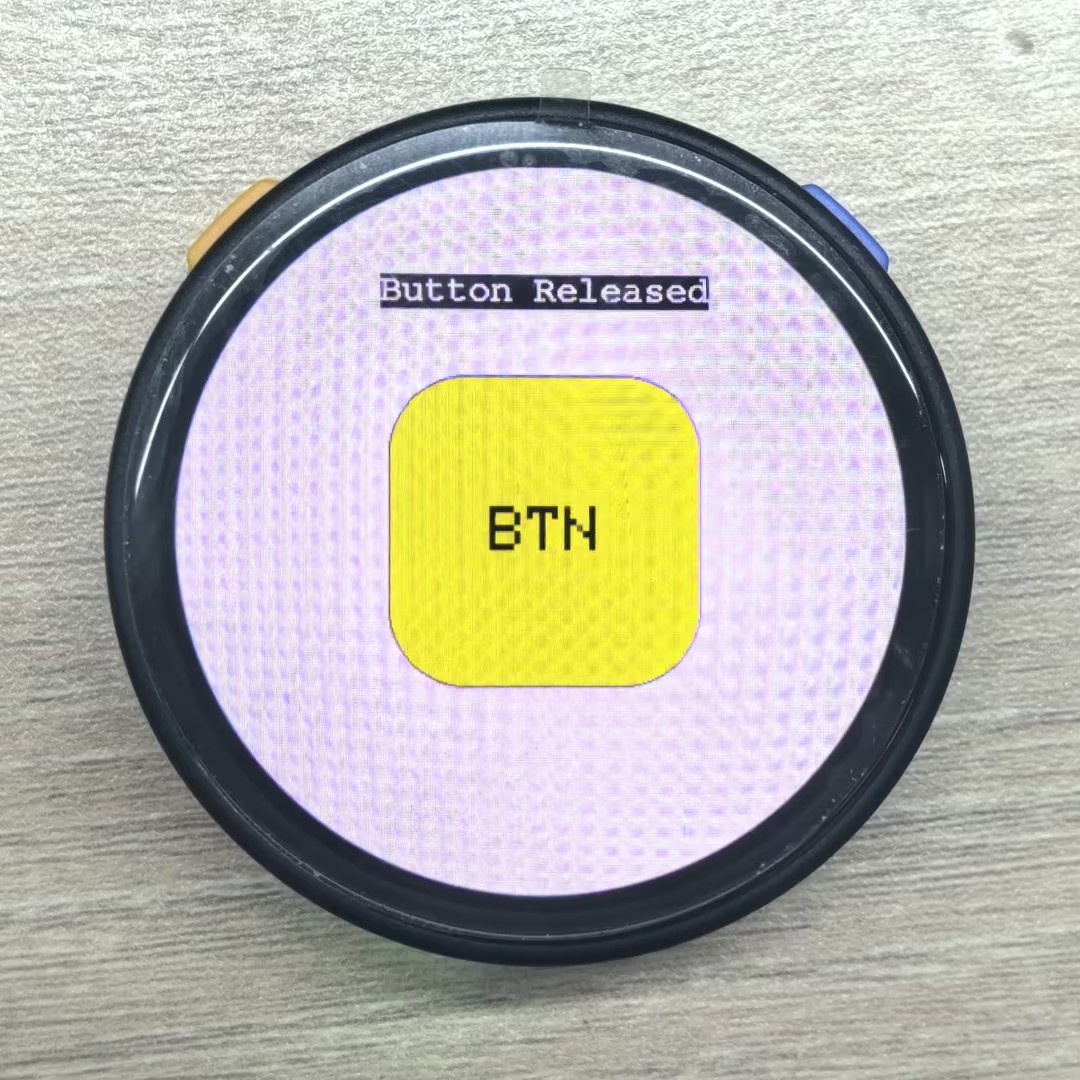
}When you touch the screen, if the touch point is inside the button area, ?Button Pressed? is displayed; otherwise, ?Button Released? is displayed.
API
The StopWatch touch section uses the Touch_Class from the M5Unified library. For more related APIs, refer to the following document:
Page Tools