

Arduino Quick Start
2. Devices & Examples
3. M5Unified
4. M5GFX
5. Extensions
Unit
Module
Atomic
Tab5
IoT
Accessories
Tab5 Wakeup
APIs and example programs related to Tab5 sleep wakeup.
Example Program
Second-Level Timed Wakeup
Description
Second-level wakeup uses the internal RTC timer of the ESP32. The wakeup time precision is at the second level, and the program restarts after wakeup.
cpp
1 2 3 4 5 6 7 8 9 10 11 12 13 14 15 16 17 18 19 20 21 22 23 24 25 26 27 28
#include <M5Unified.h>

void setup(void) {
    auto cfg = M5.config();
    M5.begin(cfg);
    if(M5.Rtc.isEnabled()){
        M5.Display.drawString("OK", M5.Display.width() / 2,
                              M5.Display.height() / 2 - 60);
        delay(2000);
    }

    M5.Display.setTextDatum(middle_center);
    M5.Display.setFont(&fonts::FreeMonoBold18pt7b);
    M5.Display.setRotation(1);

    M5.Display.clear();

    M5.Display.drawString("Touch to sleep", M5.Display.width() / 2, M5.Display.height() / 2 - 20);
    M5.Display.drawString("After 5s wakeup", M5.Display.width() / 2, M5.Display.height() / 2 + 20);
}

void loop(void) {
    M5.update();

    if (M5.Touch.getDetail(0).wasClicked()) {
        M5.Power.deepSleep(5000000ULL, false);
    }
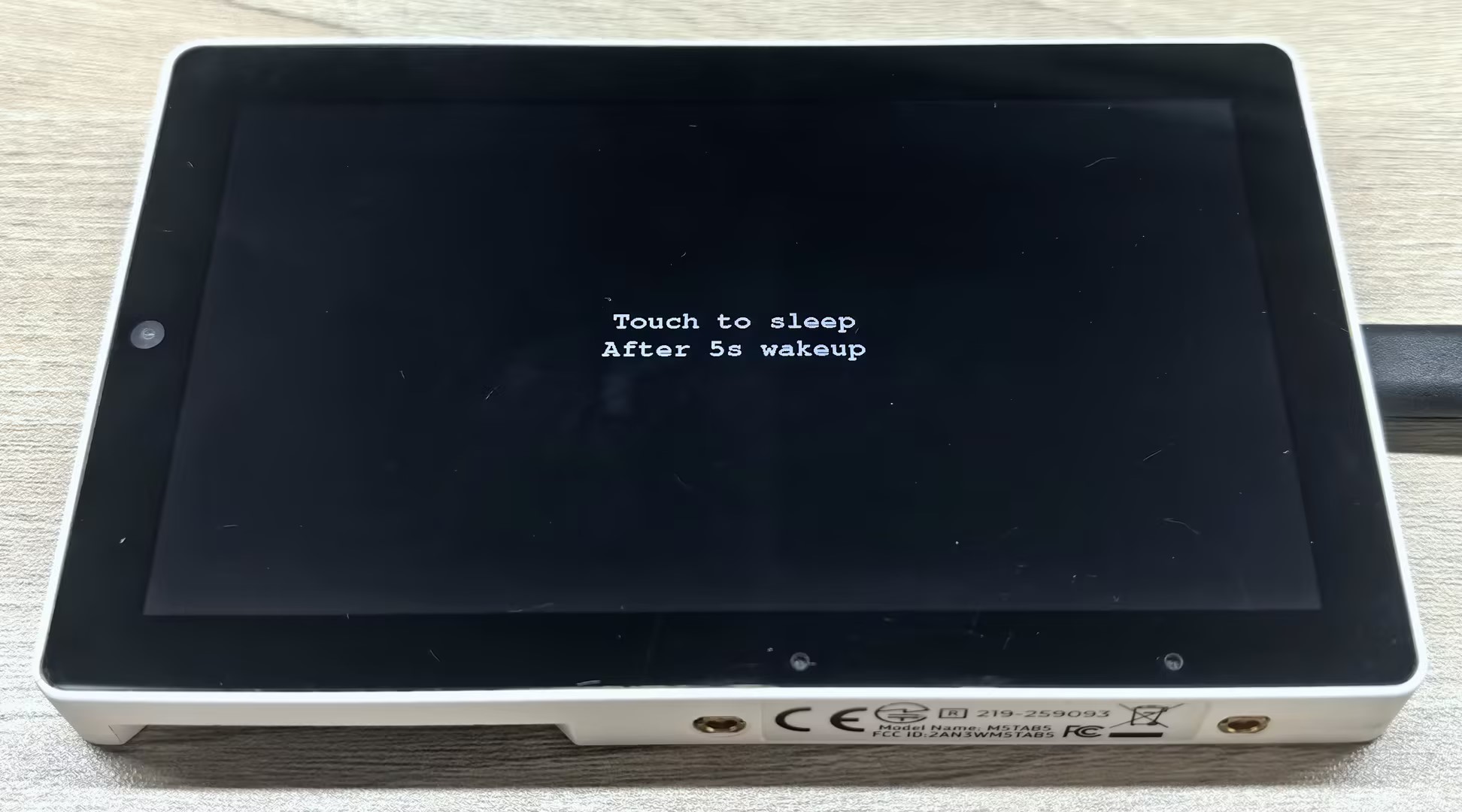
}After the program runs successfully, touch the screen and Tab5 will enter sleep mode, then wake up after about 5 seconds. The screen display is shown below:
Wakeup at a Specified Time
Description
Wakeup at a specified time uses the RX8130 RTC timer. The wakeup time precision is at the minute level, and the program restarts after wakeup.
cpp
1 2 3 4 5 6 7 8 9 10 11 12 13 14 15 16 17 18 19 20 21 22 23 24 25 26 27 28 29 30 31 32 33 34 35 36 37 38 39 40 41 42 43 44 45 46 47 48 49 50 51 52 53 54 55
#include <M5Unified.h>

m5::rtc_time_t wakeTime = {};

void setup(void) {
    auto cfg = M5.config();
    M5.begin(cfg);

    if (M5.Rtc.isEnabled()) {
        // Set an initial RTC time for testing.
        // Format: {{year, month, date, weekDay}, {hour, minute, second}}
        m5::rtc_datetime_t initialDateTime = {{2026, 1, 1, 4}, {12, 0, 0}};
        M5.Rtc.setDateTime(&initialDateTime.date, &initialDateTime.time);
    }

    M5.Display.setTextDatum(middle_center);
    M5.Display.setFont(&fonts::FreeMonoBold18pt7b);
    M5.Display.setRotation(1);

    M5.Display.clear();

    M5.Display.drawString("Touch to sleep", M5.Display.width() / 2, M5.Display.height() / 2 - 20);
    M5.Display.drawString("After about 1min wakeup", M5.Display.width() / 2, M5.Display.height() / 2 + 20);
}

void loop(void) {
    M5.update();

    if (M5.Touch.getDetail(0).wasClicked()) {
        m5::rtc_time_t now;

        if (M5.Rtc.getTime(&now)) {
            int wakeHour = now.hours;
            int wakeMinute = now.minutes + 1;

            if (wakeMinute >= 60) {
                wakeMinute -= 60;
                wakeHour += 1;
                if (wakeHour >= 24) {
                    wakeHour = 0;
                }
            }

            wakeTime.hours = wakeHour;
            wakeTime.minutes = wakeMinute;
            wakeTime.seconds = -1;  // RX8130 alarm ignores seconds in this library.

            M5.Power.timerSleep(wakeTime);
        } else {
            M5.Display.clear();
            M5.Display.drawString("RTC Error", M5.Display.width() / 2, M5.Display.height() / 2);
        }
    }
    delay(10);
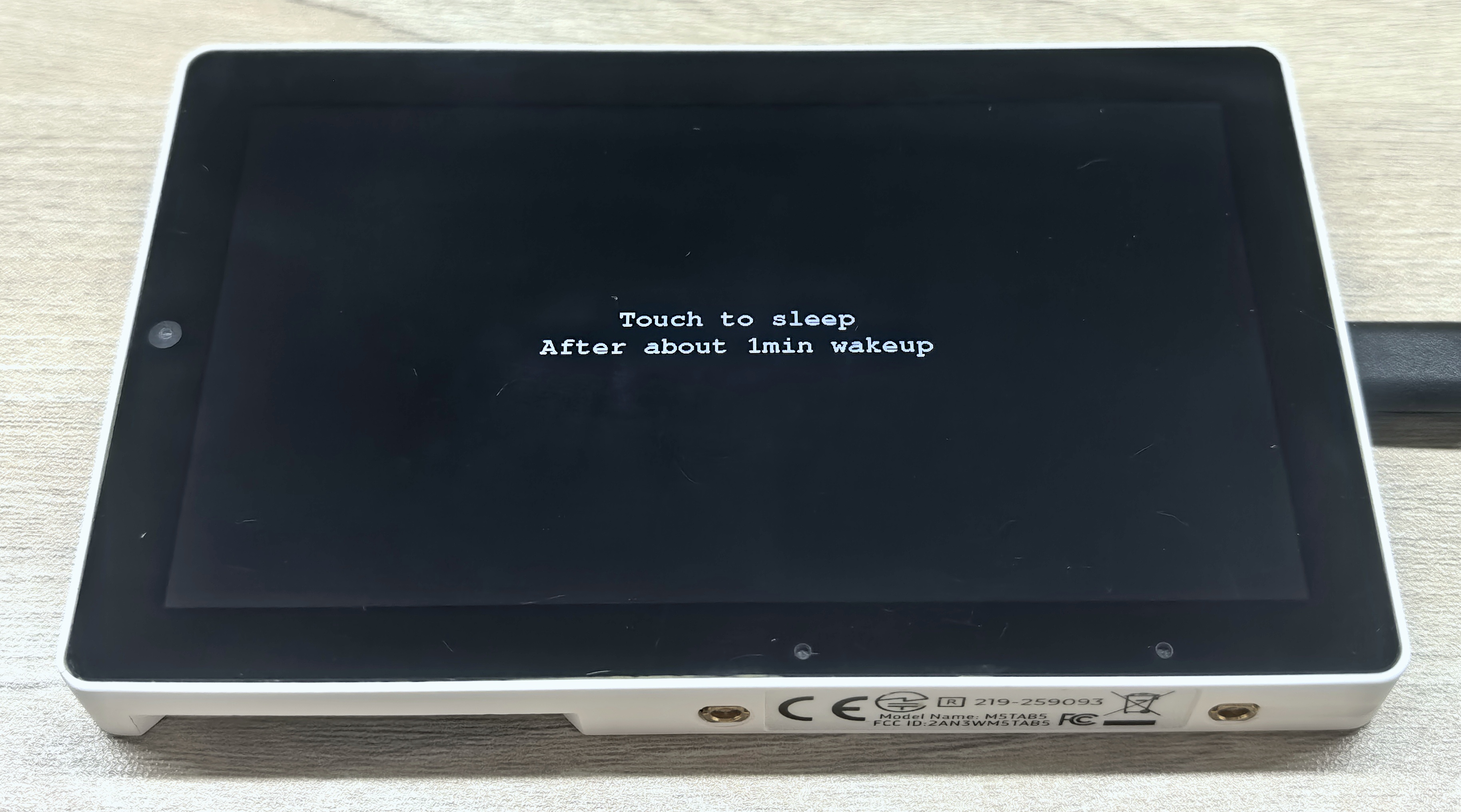
}After the program runs successfully, touch the screen and Tab5 will enter sleep mode, then wake up after about 1 minute. The screen display is shown below:
API
The Tab5 power feature uses Power_Class from the M5Unified library. For more related APIs, refer to the documentation below:
Page Tools