

Arduino 上手教程
2. 设备开发 & 案例程序
3. M5Unified
4. M5GFX
5. 扩展模块
Unit
Module
Atomic
Tab5
IoT
AtomS3U Arduino 示例程序编译与烧录
1. 准备工作
- 1.Arduino IDE安装: 参考Arduino IDE安装教程,完成IDE安装。
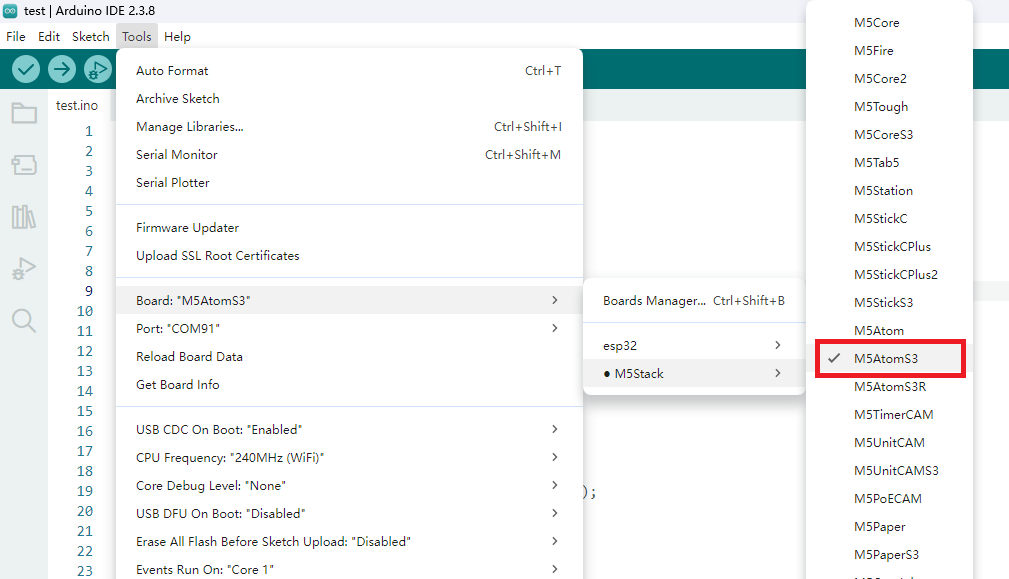
- 2.板管理安装: 参考基本环境搭建教程,完成M5Stack板管理安装并选择开发板
M5AtomS3。
2. 下载模式
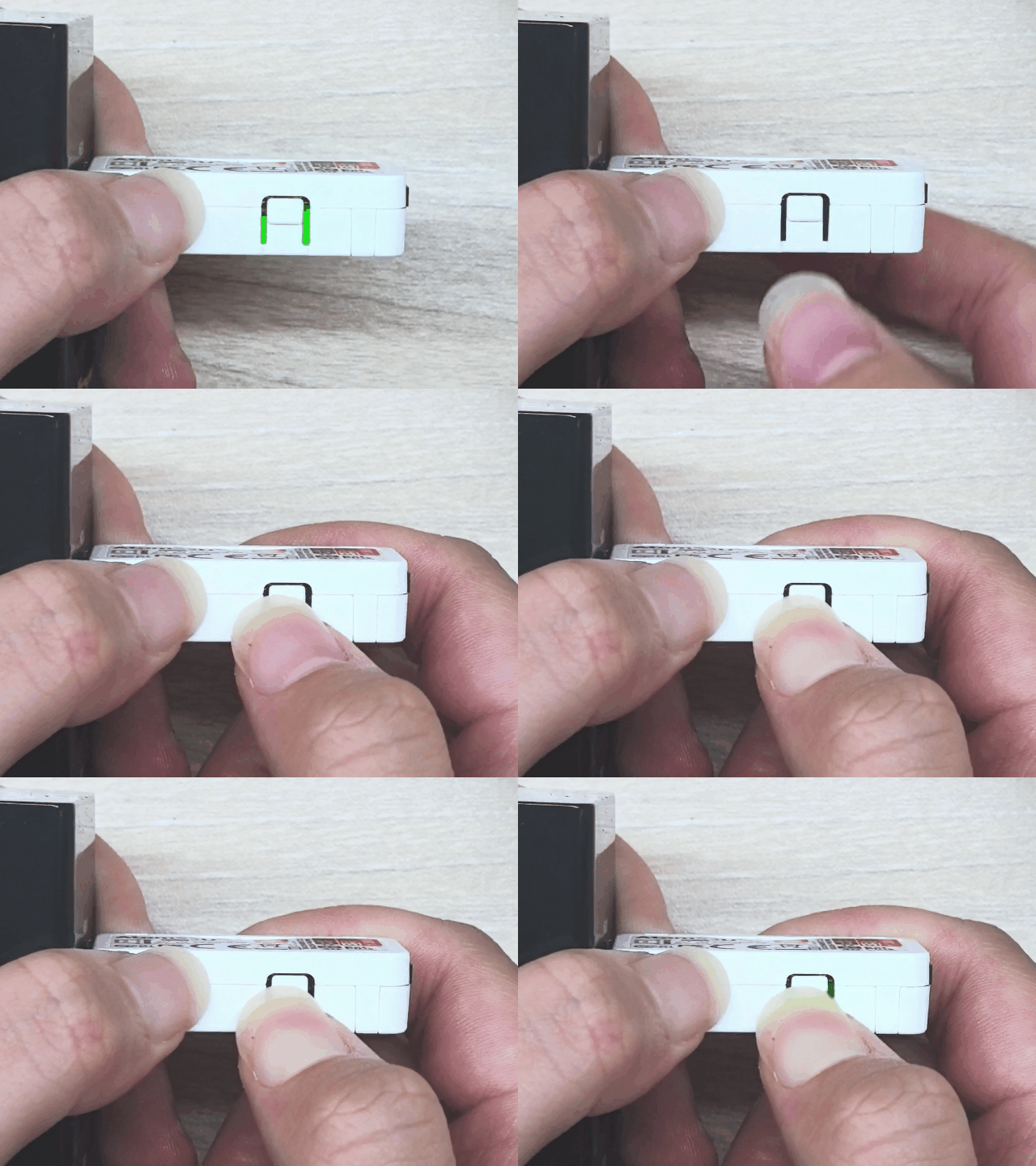
按住复位按键(大约2秒)直到内部绿色 LED 灯亮起, 便可松开,此时设备已进入下载模式,等待烧录。
3. 端口选择
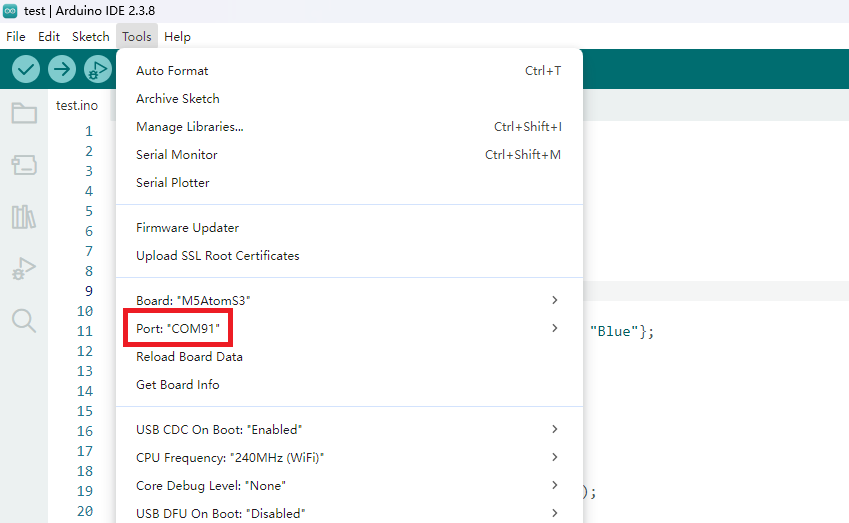
将设备通过 USB 接口连接至电脑,在设备进入下载模式后,Arduino IDE中可选中对应设备的端口。
4. 程序编译 & 烧录
注意:
请设置 Arduino IDE 中
Tools -> USB-CDC On Boot 选项为 Enabled,否则无法使用串口,选项位置如下图。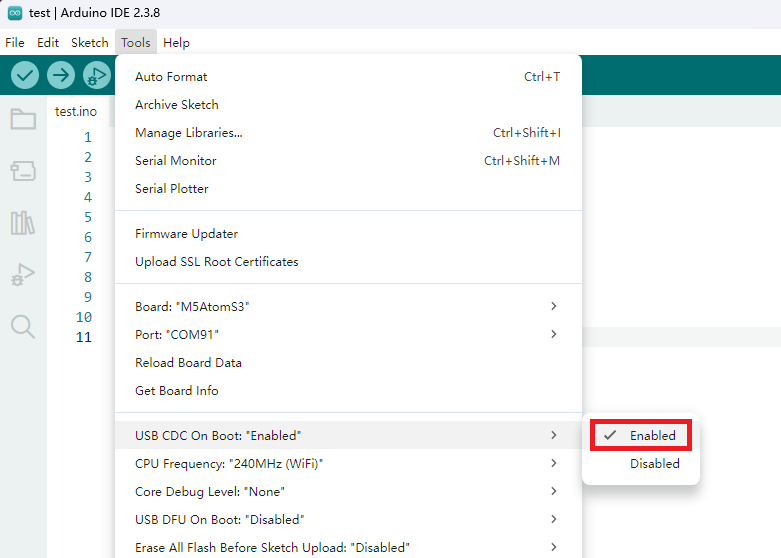
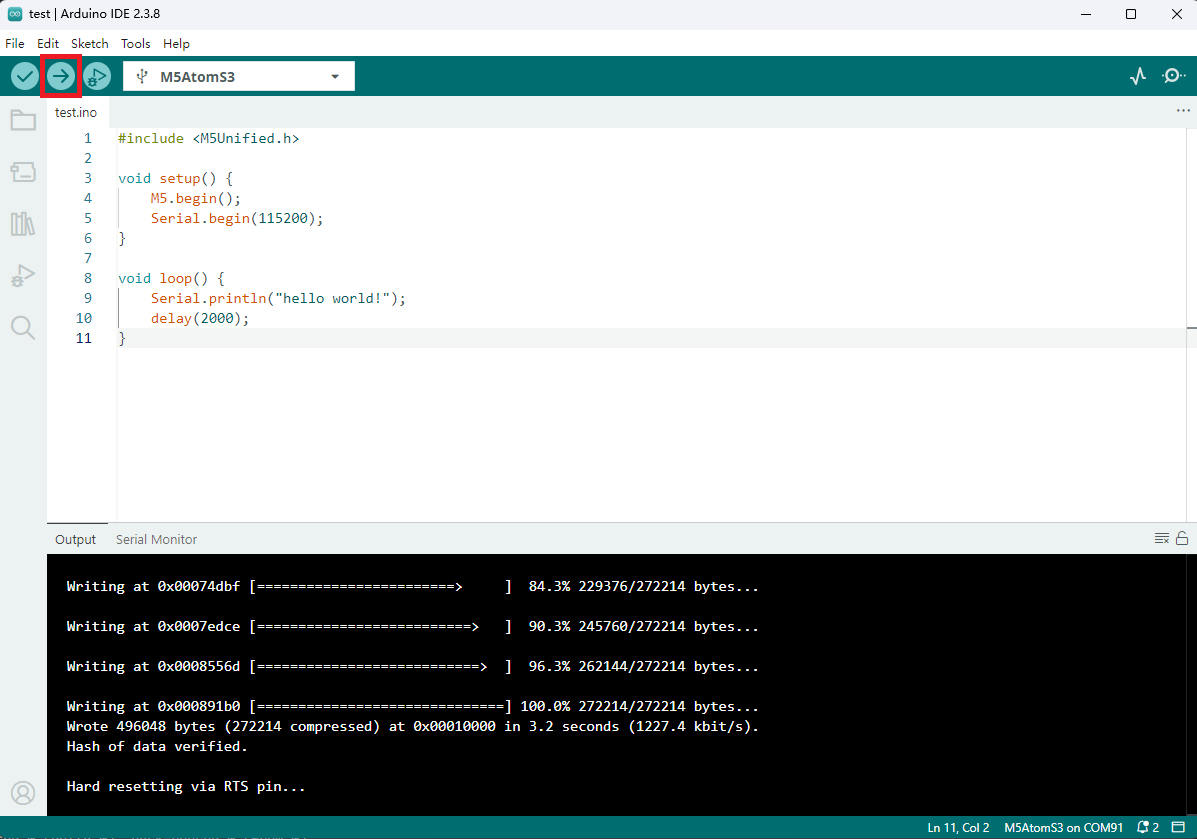
打开 Arduino 粘贴下方所示代码,点击上传按钮,程序将编译并上传至 AtomS3U。
cpp
1 2 3 4 5 6 7 8 9 10 11
#include <M5Unified.h>

void setup() {
    M5.begin();
    Serial.begin(115200);
}

void loop() {
    Serial.println("hello world!");
    delay(2000);
}
烧录成功后,打开串口监视器,将波特率设置为 115200,即可看到每隔 2 秒输出一次的 "hello world!"。
5. 相关资源
Page Tools