

Arduino 上手教程
2. 设备开发 & 案例程序
3. M5Unified
4. M5GFX
5. 扩展模块
Unit
Module
Atomic
Tab5
IoT
StopWatch Touch 触摸屏
StopWatch 触摸屏相关 API 与案例程序。
案例程序
编译要求
- M5Stack 板管理版本 >= 3.3.7
- 开发板选项 = M5StopWatch
- M5Unified 库版本 >= 0.2.15
- M5GFX 库版本 >= 0.2.21
基础触摸
cpp
1 2 3 4 5 6 7 8 9 10 11 12 13 14 15 16 17 18 19 20 21 22 23 24 25 26 27 28 29 30 31 32 33 34 35 36 37 38 39 40 41 42 43 44 45 46 47
#include <M5Unified.h>

void setup(void) {
    auto cfg = M5.config();
    M5.begin(cfg);

    M5.Display.setTextDatum(middle_center);
    M5.Display.setFont(&fonts::FreeMonoBold18pt7b);
    M5.Display.setTextSize(1);

    M5.Display.drawString("Touch Test", M5.Display.width() / 2,
                              M5.Display.height() / 2);
}

int prev_x = -1;
int prev_y = -1;

static m5::touch_state_t prev_state;

void loop(void) {
    M5.update();

    auto t = M5.Touch.getDetail();
    if (prev_state != t.state) {
        prev_state                                  = t.state;
        static constexpr const char* state_name[16] = {
            "none", "touch", "touch_end", "touch_begin",
            "___",  "hold",  "hold_end",  "hold_begin",
            "___",  "flick", "flick_end", "flick_begin",
            "___",  "drag",  "drag_end",  "drag_begin"};
        M5_LOGI("%s", state_name[t.state]);
        M5.Display.fillRect(0, 0, M5.Display.width(), M5.Display.height(), BLACK);

        M5.Display.drawString(state_name[t.state],
                                  M5.Display.width() / 2,
                                  M5.Display.height() / 2 + 30);
    }
    if (prev_x != t.x || prev_y != t.y) {
        M5.Display.fillRect(0, 140, M5.Display.width(), 100, BLACK);
        M5.Display.drawString(
            "X:" + String(t.x) + " / " + "Y:" + String(t.y),
            M5.Display.width() / 2, 150);
        prev_x = t.x;
        prev_y = t.y;
        M5.Display.fillCircle(prev_x, prev_y, 4);
    }
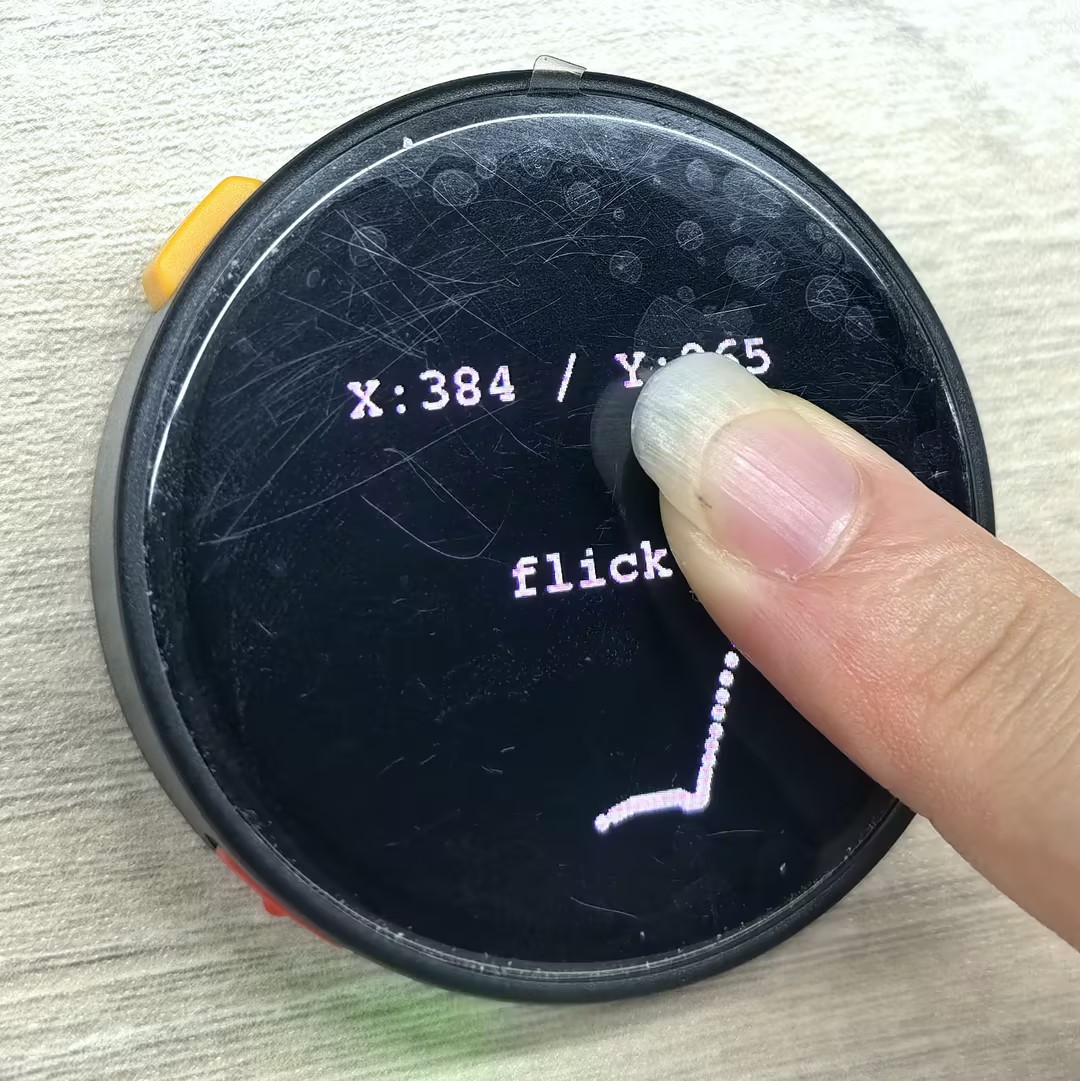
}当手指触摸屏幕时,屏幕上将显示当前的触摸状态(如 touch、hold、flick、drag 等)以及触摸点的坐标位置,并在触摸点绘制一个圆点。
LGFX_Button
cpp
1 2 3 4 5 6 7 8 9 10 11 12 13 14 15 16 17 18 19 20 21 22 23 24 25 26 27 28 29 30 31 32 33 34 35 36
#include <M5Unified.h>

m5::touch_detail_t touchDetail;
static int32_t w;
static int32_t h;

LGFX_Button button;

void setup() {
  M5.begin();

  w = M5.Lcd.width();
  h = M5.Lcd.height();

  M5.Lcd.fillScreen(WHITE);
  M5.Display.setRotation(0);
  M5.Display.setTextDatum(top_center);
  M5.Display.drawString("Button Released", w / 2, 70, &fonts::FreeMonoBold12pt7b);

  button.initButton(&M5.Lcd, w / 2, h / 2, 200, 200, TFT_BLUE, TFT_YELLOW, TFT_BLACK, "BTN", 4, 4);
  button.drawButton();
}

void loop() {
  M5.update();
  touchDetail = M5.Touch.getDetail();

  if (touchDetail.isPressed()) {
    if(button.contains(touchDetail.x, touchDetail.y)){
        M5.Display.drawString("Button  Pressed", w / 2, 70, &fonts::FreeMonoBold12pt7b);
    }
  }
  else {
    M5.Display.drawString("Button Released", w / 2, 70, &fonts::FreeMonoBold12pt7b);
  }
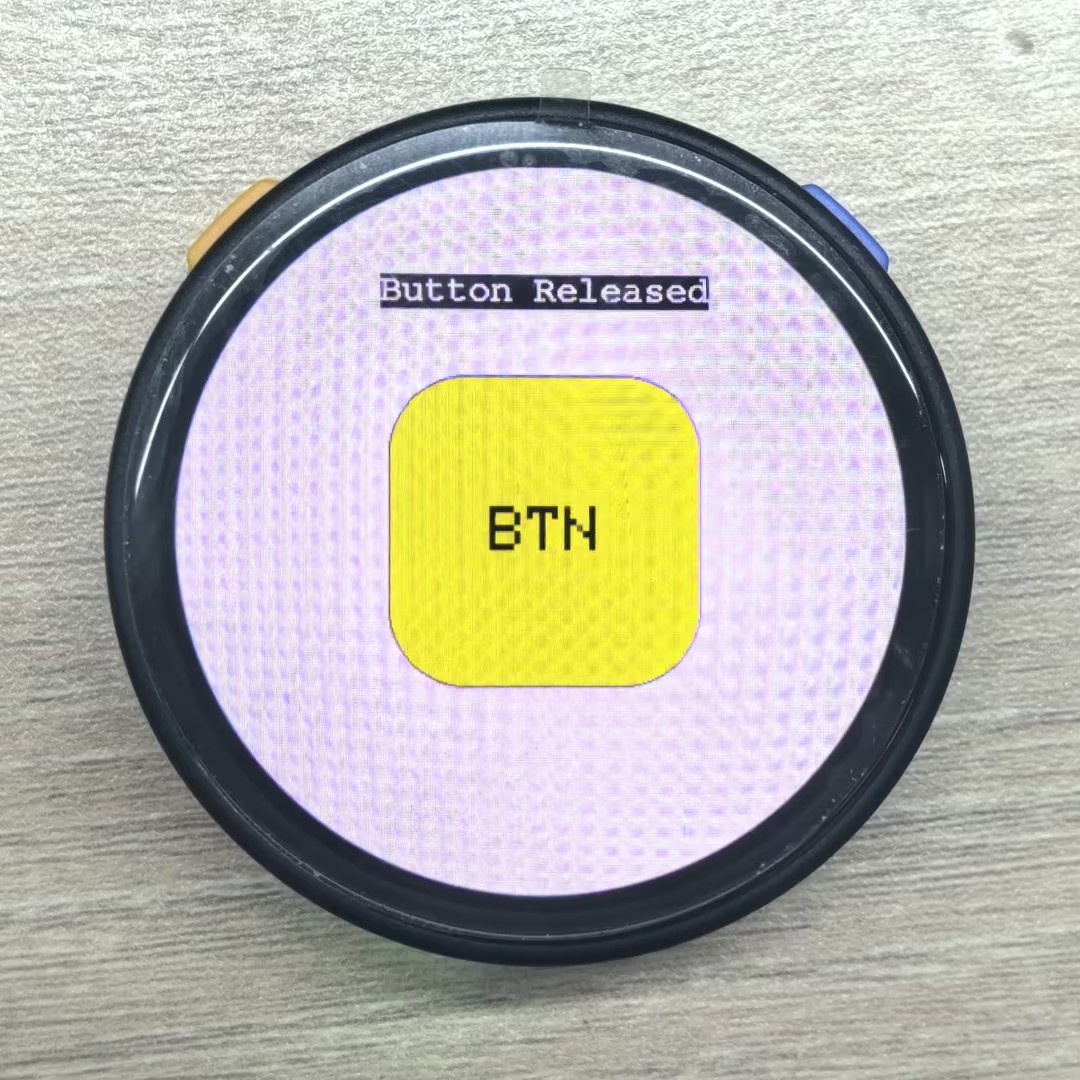
}当手指触摸屏幕时,若触摸点在按钮区域内,则显示“Button Pressed”,否则显示“Button Released”。
API
StopWatch 触摸屏部分使用了 M5Unified 库中的 Touch_Class,更多相关的API可以参考下方文档:
Page Tools